
Blade - Keyboard Ozone - Free user manual and instructions
Find the device manual for free Blade Ozone in PDF.


| Product Type | Membrane Gaming Keyboard |
| Brand | Ozone |
| Model | Blade |
| Dimensions (L x W x H) | 510 x 199.8 x 30 mm |
| Weight | 1.14 kg |
| Cable Length | 160 cm |
| Connection | USB (18K gold plated connector) |
| Polling Rate | 1000 Hz (1 ms response time) |
| Anti-Ghosting | Yes |
| Backlighting | Red and Blue (selectable) |
| Programmable Keys | Macro keys and function keys (6 function keys) |
| Onboard Profile Memory | 5 profile slots |
| Software | Ozone driver for configuration and macro recording |
| System Requirements | Windows 98/XP/2000/Vista/7/8, USB port, CD-ROM drive, 50 MB free disk space |
| Accessories Included | Keyboard, driver disk, user manual, package box |
| Power Source | USB powered |
| Cleaning Instructions | Wipe with a dry, soft cloth. Avoid liquids. |
| Safety Notes | Keep away from liquids and extreme temperatures. |
| Repairability | No user-serviceable parts. Contact Ozone support. |
Frequently Asked Questions - Blade Ozone
User questions about Blade Ozone
0 question about this device. Answer the ones you know or ask your own.
Ask a new question about this device
Download the instructions for your Keyboard in PDF format for free! Find your manual Blade - Ozone and take your electronic device back in hand. On this page are published all the documents necessary for the use of your device. Blade by Ozone.
USER MANUAL Blade Ozone
DRIVER V1.0
USER MANUAL
OZONE BLADE
MEMBRANE PROGAMING KEYBOARD
Software Installation
- Before installation, please be sure to save other open applications and then exit, to avoid data loss after installation.
- Connect the gaming keyboard with PC, open the driver files and then install the driver as the instructions as below.
- When starting installation application, click "NEXT"

- Then it starts to install.

-
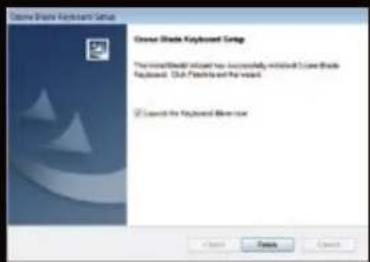
It comes out an option page as below after a while. Click "YES" and "FINISH" to restart the computer. After the computer restart, the installation would be finished.
-
Choose the destination folder, then click "NEXT"

OZONE BLADE
MEMBRANE PROGAMING KEYBOARD
Operating Interface
After the computer restart, you could find an Ozone keyboard icon on the lower right corner of the page. Right click it, chose "CONFIGURATION".

Then you could see the Blade's driver on your screen.

3
BACK LIGHTING
- If you find there's no back light on the keyboard, don't worry. You should click the "Reset" button on the driver. Then click "OK" and the back-lighting starts to turn on.
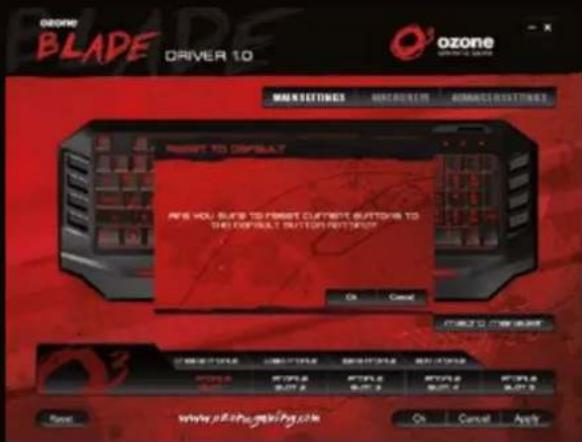
- If you want to switch the color of the back light, you should press the R&B key on the keyboard. There are two colors to be chosen, red and blue.

4
OZONE BLADE
MEMBRANE PROGAMING KEYBOARD
CURRENT PROFILE
- Five groups of profiles can be saved in the Blade's internal memory.
| PROFILESLOT 1 | PROFILESLOT 2 | PROFILESLOT 3 | PROFILESLOT 4 | PROFILESLOT 5 |
- You can press the "Profile" key on the keyboard to shift between different profiles.

THE PROGRAMMABLE KEYS
The macro keys and the function keys on the right side both are programmable. If you don't program them, the function keys still have their original function.


5
MACRO FUNCTION
- If you want to program Macros with the macro recording function first click the Macro key you want to edit in the software window, then click "assign macro" and then "macro manager".

6
OZONE BLADE
MEMBRANE PROGAMING KEYBOARD
- To create a new Macro for macro 1 key, click "NEW" and input a file name. Then press the "ENTER" key on the keyboard.

-
If you click the "RECORD" option, then you could start to record. For example you want to record "WAS D", you could press "WAS D" on your keyboard now. When you finish it, click "STOP". You can also tick "loop time" and fill in the loop times you want to configure or also tick "auto delay".
-
The "loop times" option means how many times the command would repeat. For example, if you want the "W A S D" command repeat 5 times, once you stop recording, choose the "loop time" and modify "1" into "5".


- "Auto Delay" means that while recording the commands the driver will memorize the delay time between each key stroke.
OZONE BLADE
MEMBRANE PROGAMING KEYBOARD
FUNCTION KEYS
- When you don't program them, the six function keys on the keyboard still have the default function as it marked. For example these keys below.

- The function keys are programmable; including the macro recording, multimedia and all the other functions.

- Program the key with your preferred function and then click "APPLY" to finish editing.

-
If you want to restore its default functions just click the "Reset" button on the driver.
-
'Macro' keys and function keys can be programmable. You can record 'Macro' as the above-mentioned instruction or you can program these keys with the functions showed in the software such as 'shortcut', 'Mouse' and so on.
OZONE BLADE
MEMBRANE PROGAMING KEYBOARD
Specifications
18K gold plated USB CONNECTOR
Anti-ghosting capability
8x Faster -1000 Hz Polling Rate (1 millisecond Response time)
Dimensions: 510 x 199.8 x 30 mm (Length*Width*Height)
▶ Approximate Weight: 1.14 kg
▶ Cable lenght: 160 cm
Accessories List
- Keyboard 1 pc
- Driver Disk 1 pc
- User Manual 1 pc
- Package Box 1 pc
System requirements
Windows 98 / XP / 2000 / Windows Vista / Windows 7 / 8
▶ PC with built-in USB (1.1 / 2.0 / 3.0) Port
CD-ROM drive
50 MB of free hard disk space
If you have any questions regarding technical problems please contact us via our website:
www.ozonegaming.com
OZONE reserves the right for any modifications in text and / or images.


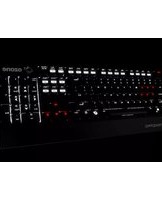
Brand : Ozone
Model : Blade
Category : Keyboard