K55USG - Television EKO - Free user manual and instructions
Find the device manual for free K55USG EKO in PDF.


| Product Type | LED Television |
| Screen Size | 55 inches |
| Resolution | 3840 x 2160 (4K UHD) |
| Refresh Rate | 60 Hz |
| Dimensions (with stand) | 1235 x 775 x 250 mm |
| Dimensions (without stand) | 1235 x 715 x 85 mm |
| Weight (with stand) | 13.2 kg |
| Weight (without stand) | 12.8 kg |
| Power Consumption (typical) | 110 W |
| Standby Power Consumption | < 0.5 W |
| Power Supply | AC 100-240V, 50/60Hz |
| Smart TV Platform | Yes (built-in) |
| Connectivity | 3x HDMI, 2x USB, 1x Ethernet, Wi-Fi, Bluetooth |
| Audio Output | 2 x 8W speakers |
| VESA Mount | 200 x 200 mm |
| Operating System | Linux-based |
| Remote Control | IR remote included |
| Energy Class | A+ |
| Repairability Index | 6.5 / 10 |
| Cleaning Instructions | Wipe with a soft dry cloth; avoid liquids |
| Safety Features | Child lock, tip-over protection |
Frequently Asked Questions - K55USG EKO
User questions about K55USG EKO
0 question about this device. Answer the ones you know or ask your own.
Ask a new question about this device
Download the instructions for your Television in PDF format for free! Find your manual K55USG - EKO and take your electronic device back in hand. On this page are published all the documents necessary for the use of your device. K55USG by EKO.
USER MANUAL K55USG EKO
Please read this manual carefully before using, and keep it for future reference.
CONTENTS
| General Safety | 4 | ||||
| Installation | 8 | ||||
| Wall | Mounting | Instructions | |||
| Controls and Connections | |||||
| Remote Control | 12 | ||||
| Opening Battery Compartment to Replace Batteries 14 | |||||
| Initial Setup | 15 | ||||
| Pairing Remote Control | |||||
| Android TV 10.0 - Home Screen 20 | |||||
| Google Play Store | |||||
| Google Assistant | 22 | ||||
| Inputs | 23 | ||||
| Quick Menu | 24 | ||||
| TV Settings | 25 | ||||
| Picture Menu | 26 | ||||
| Sound Menu | 27 | ||||
| TV - Channel/Tuning Menu | |||||
| Setup Menu | 29 | ||||
| Parental Menu | 30 | ||||
| Settings (main menu) | |||||
| Network | 32 | ||||
| Device Preferences | |||||
| About & Time Settings | |||||
| Input Settings | 34 | ||||
| Home Screen & Screen Saver | 35 | ||||
| Google Assistant Settings | |||||
| FAQs | 37 | ||||
| Specifications | 39 | ||||
| Customer Helpline | Last | ||||
GENERAL SAFETY
Read this manual thoroughly before you start using the TV.
Store this manual, the completed warranty card, your receipt and the product packaging. The safety precautions instructions reduce the risk of fire, electric shock and injury when correctly complied to.
Please follow all instructions and take notice of all warnings.
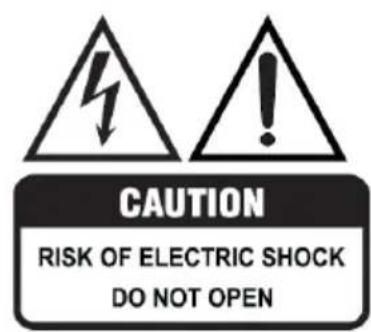
The cover (or back) of the unit should not be removed to prevent risk of electric shock.
This unit must be serviced by a qualified service personnel only.
natural_image
Warning symbol of a lightning bolt inside a triangle (no text or numbers)
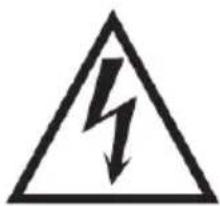
The lightning flash with symbol within the triangle is intended to warn you of a non-insulated dangerous voltage in the product's enclosure that could be of sufficient magnitude to generate a risk of electric shock to persons.
The exclamation point within the triangle is intended to warn you to the presence of important operating and maintenance instructions in the documents included with the product.
IMPORTANT INFORMATION
The lightning flash symbol within the triangle is intended to warn you of non-insulated dangerous voltage the product's enclosure that could be of sufficient magnitude to generate a risk of electric shock to persons.
• Using Cabinets or stands recommended by the manufacturer of the television.
- Only using furniture that can safely support the Products.
- Ensure the Product is not overhanging the edge of the supporting furniture.
- Do not place the product on a high furniture without securing both the furniture and the product to a stable support.
- Do not place the product on cloth or other conductive materials.
- Warn children of the dangers of climbing on furniture to reach the television or its controls and to call for an adult to assist.
GENERAL SAFETY (CONT.)
IMPORTANT INFORMATION
- Do not expose this appliance to rain or moisture as it may result in fire or an electric shock hazard
- Do not tamper or change or modify the product in any way.
- Only use Accessories outlined and recommended by the manufacturer.
- Please do not expose the product to splashing or water contact
- Please do not place any object on top of the product including objects filled with liquids such as vases.
- Danger of explosion if battery is incorrectly placed. Replace with same or equivalent type.
Installation
Please follow instruction when installing this product in accordance with the instruction manual. This product must be positioned in a sufficiently stable location, it can be potentially hazardous due to falling and can cause injury, particularly to children if it positioned incorrectly.
- Before installing this TV set, make sure your outlet voltage corresponds to the voltage stated on the product rating label
- Do not use a damaged power cord, plug or loose outlet. Doing so may cause an electric shock.
- Do not plug several devices into the same outlet. Doing so may cause the outlet to overheat and start a fire. Make sure the outlet is readily accessible during operation of the equipment.
- Do not bend, twist or kink the power cord excessively.
- Do not allow anything to rest on or roll over the power cord and antenna cable. Doing so may cause a fire or an electric shock.
- Do not run the power cord near heat-producing appliances such as radiators, stoves or irons. The excessive heat could melt the insulation and expose live wires, resulting in fire or electric shock.
- Unplug this TV during lightning storms or when unused for long periods of time. Not doing so may result in fire or electric shock.
- Do not cover the ventilation openings of the product with items such as newspapers, tablecloths, curtains etc or insert objects into the slots available on the products. As this could result in the product temperature rising and could cause a fire.
- If you notice any unusual odors or smoke around the unit, immediately disconnect the unit from the outlet and contact the service center. Failure to do so may result in fire or electric shock.
- When not using the unit for long periods of time or when you are moving the unit please ensure to disconnect the power cord from the wall socket.
GENERAL SAFETY (CONT.)
- Please beware that Dust could accumulate over time on the unit and cause it to generate heat and or deteriorate insulation, which in turn may result in an electrical fire.
- The product is not intended for use by persons (including children) with reduced physical, sensory or mental capabilities, or young children of any age, They must be supervised product by a person responsible for their safety.
- Batteries from the remote control must be only removed by an adult, the adult must ensure to keep them out of reach of infants and children. Seek medical attention immediately if a child has swallowed a battery.
- Batteries (battery pack or batteries installed) shall not be exposed to excessive heat such as sunshine, fire or the like.
- To maintain the product do not use any chemical or cleaning agent or wet cloth, please only ensure to utilize a dry cloth to wipe it down from marks or dust and only after unplugging the product from the power socket.
- Please ensure to contact our call center for any repair or service required for the products.
- Make sure to always carry TV from the sides, always be sure to have assistance by another person. Do not carry the TV from the middle.
WARNING!
It is STRONGLY RECOMMENDED that you ANCHOR this product.
Toppling furniture and TV's can cause serious injury or death.
TO HELP AVOID ANY SERIOUS OR FATAL INJURY, WE STRONGLY RECOMMEND THAT THIS PRODUCT BE PERMANENTLY FIXED TO THE WALL OR OTHER SUITABLE SURFACE. FIXING DEVICES ARE NOT INCLUDED SINCE DIFFERENT SURFACE MATERIALS REQUIRE DIFFERENT ATTACHMENTS. PLEASE SEEK PROFESSIONAL ADVICE IF YOU ARE IN DOUBT WHAT FIXING DEVICE TO USE.
If a television is not positioned in a sufficiently stable location, it can be potentially hazardous due to falling. Many injuries, particularly to children, can be avoided by taking simple precautions such as:
- Using cabinets or stands recommended by the manufacturer of the television.
- Only using furniture that can safely support the television.
- Ensuring the television is not overhanging the edge of the supporting furniture.
- Not placing the television on tall furniture (for example, cupboards or bookcases) without anchoring both the furniture and the television to a suitable support.
- Not standing the television on cloth or other materials placed between the television and supporting furniture.
- Educating children about the dangers of climbing on furniture to reach the television or its controls.
GENERAL SAFETY (CONT.)
Please make sure upon positioning this product, the place is:
- Not wet or damp and Well ventilated
- Away from direct sunlight or heaters.
- Away from splashes or food.
- Protected from excessive dust or grease.
- Do not install this equipment in a confined space such as a bookcase or similar unit.
- Do not install the TV set near heat sources such as radiators, stoves or other audio visual equipment that produce heat.
- Do not place containers with liquids, if liquid falls inside the products it may result in short-circuit, fire or electric shock.
- Do not place small metallic objects on top of the unit. Metal object falls inside the product it may result in short-circuit, fire or electric shock.
- Do not use or store flammable or combustible materials near the unit. Doing so may result in fire or explosion. Do not place any naked flame sources, such as lit candles, cigarettes or incense sticks on top of the TV set.
- The antenna must be installed away from high-voltage power line,
- Please contact an antenna professional installer to install the antenna to avoid incorrect installation which could result in fire, electric shock or serious injury.
• Install the unit at a reasonable distance from the wall to ensure sufficient ventilation. - If mains plug or an appliance coupler is used as the disconnect device, the disconnect device shall remain readily operable.

This symbol indicates that the appliance has double insulation between the dangerous mains voltage and the parts accessible to the user. In the event of repairs use only identical spare parts.
HDMI®
HIGH-DEFINITION MULTIMEDIA INTERFACE
"HDMI, the HDMI logo and High-Definition Multimedia Interface are trademarks or registered trademarks of HDMI Licensing LLC."
androidtv
Google, Android TV, Google Play, Chromecast built-in, YouTube and other related marks and logos are trademarks of Google LLC.

Manufactured under license from Dolby Laboratories. Dolby, Dolby Audio, and the double-D symbol are trademarks of Dolby Laboratories Licensing Corporation.

For DTS patents, see http://patents.dts.com. Manufactured under license from DTS Licensing Limited. DTS, the Symbol, DTS and the Symbol together, and TruSurround are registered trademarks or trademarks of DTS, Inc. in the United States and/or other countries. © DTS, Inc. All Rights Reserved.
INSTALLATION
Install the stand as described below, or if you want to mount it to a wall, please contact a professional installer.
Please ensure the TV is not plugged into the wall socket and furthermore we recommend to get another person to assist in the following task.
Attaching the stand
Step 1
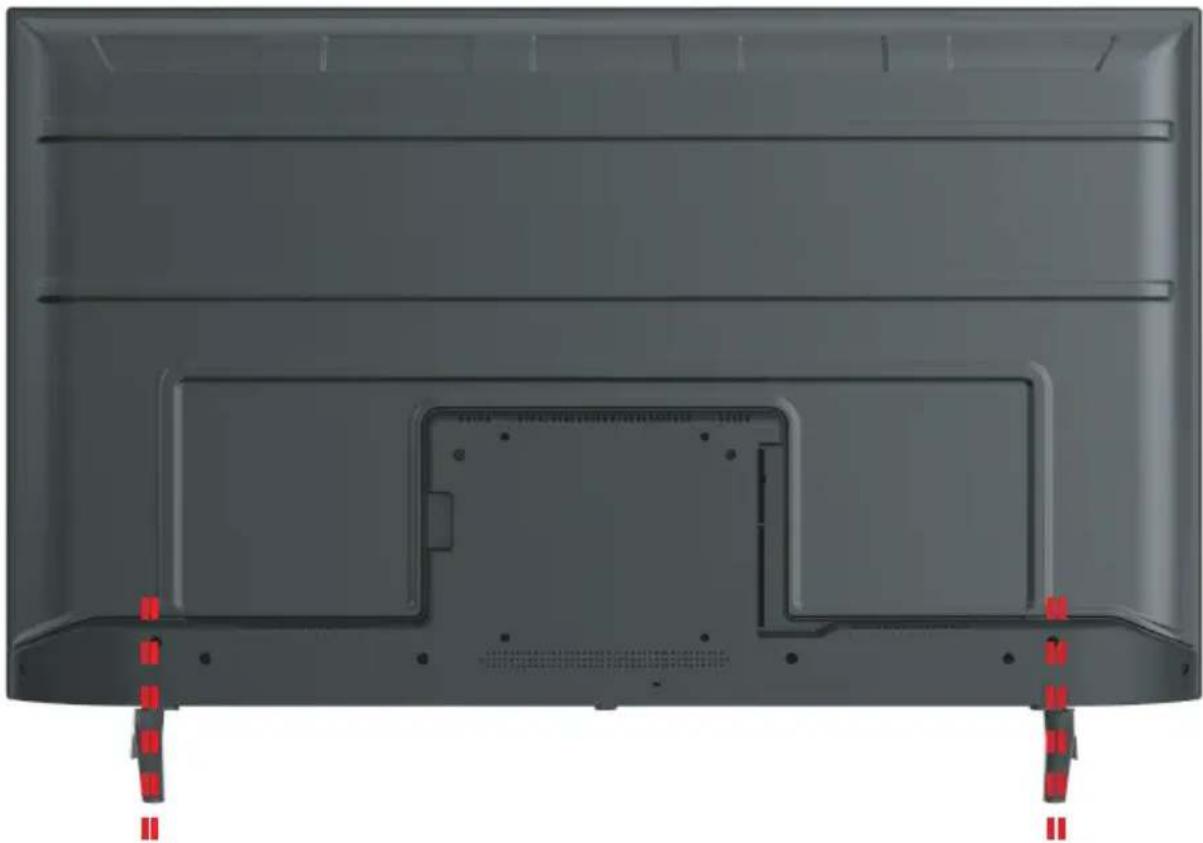
Place a soft cushioned material on top of a flat surface to prevent damaging the screen panel. Then place the TV screen flat on top, with the screen side facing down, as illustrated on the right.
Step 2
Align the stand leg to the installation point, as illustrated below.
Step 3
Tighten the screws (supplied) with a screwdriver to affix the stand to the panel, as illustrated on the right.
natural_image
3D rendering of a dark gray electronic device casing with red mounting feet and internal panel (no text or symbols visible)CAUTION!
Do not apply excessive force as this may damage the screw holes.
INSTALLATION (CONT.)
Wall-Mounting Instructions
Please ensure the TV is not plugged into the wall socket and furthermore we recommend to get another person to assist in the following task.
• We recommend you use a professional installer as we assume no liability for any eventual damage to the product or injury to yourself if you mount the TV on your own.
BACK OF TV
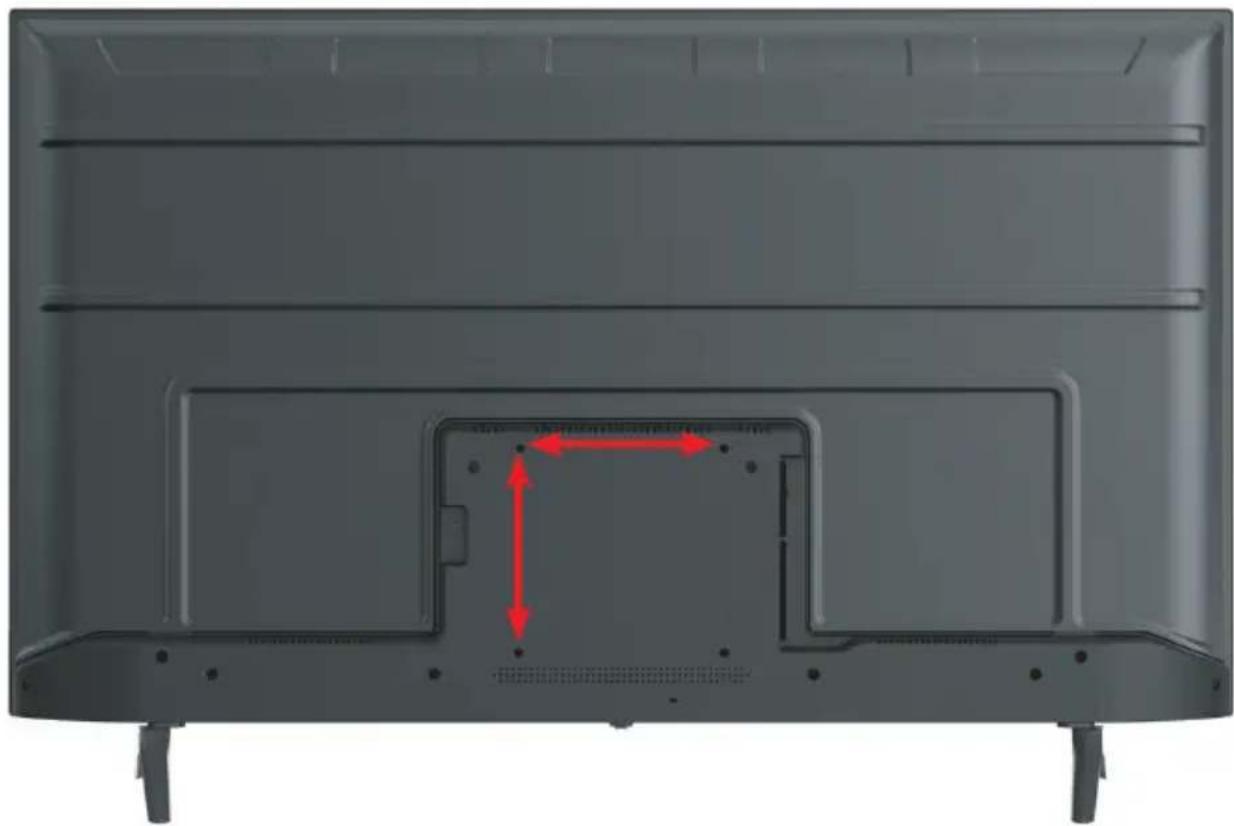
VESA PATTERN: 200(w) x 200(h) mm
natural_image
Back view of a gray rectangular electronic device with visible internal components and red directional arrows indicating movement or force (no text or symbols)NOTE: If you are wall-mounting the TV, this should be done by a qualified installer.
CONTROLS AND CONNECTIONS
Press Middle:
- In standby mode, press it to turn on the TV.
-
In working status,
-
Without the source list, short press it to access the source list.
- With the source list, short press it to enter the selected source.
- Long press it to exit the source list or turn the TV to standby mode.
Push Left/Right: Adjust the TV sound volume.
Push Forward/Backward: Switch channels, or select the input source in source list.
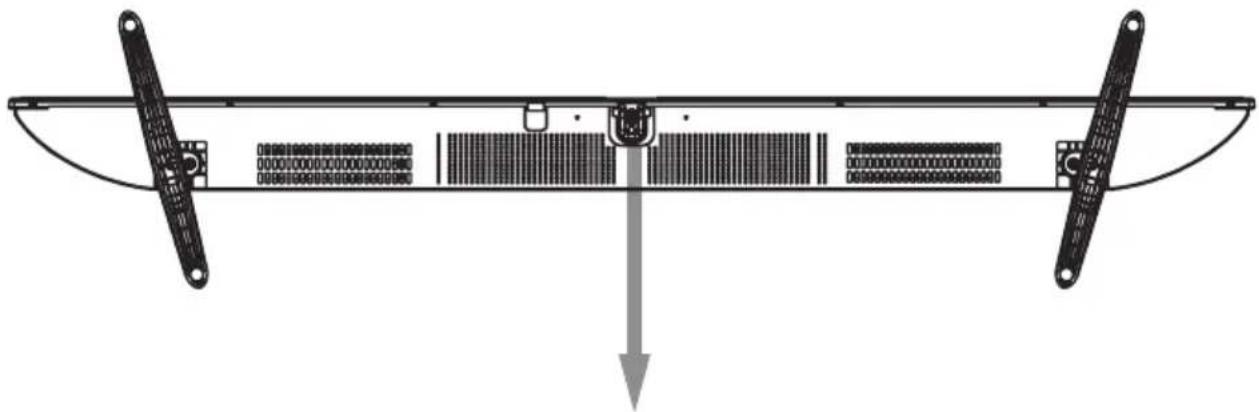
natural_image
Diagram of a mechanical or electronic device with two vertical supports and internal components, showing no text or symbols.Forward
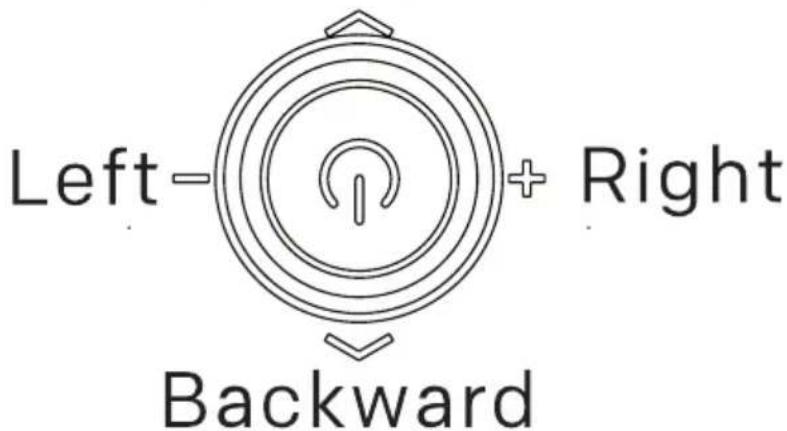
CONTROLS AND CONNECTIONS

- LAN / ETHERNET PORT
- DIGITAL AUDIO OUT/ OPTICAL PORT
- HDMI 3
- HDMI 2
- HDMI 1 (ARC - AUDIO RETURN CHANNEL)
- USB 1 & 2 INPUT
- ANTENNA (RF) IN
- AV IN
USB connection
Insert a USB storage device into the USB port to record, playback of video/music/photo.
REMOTE CONTROL
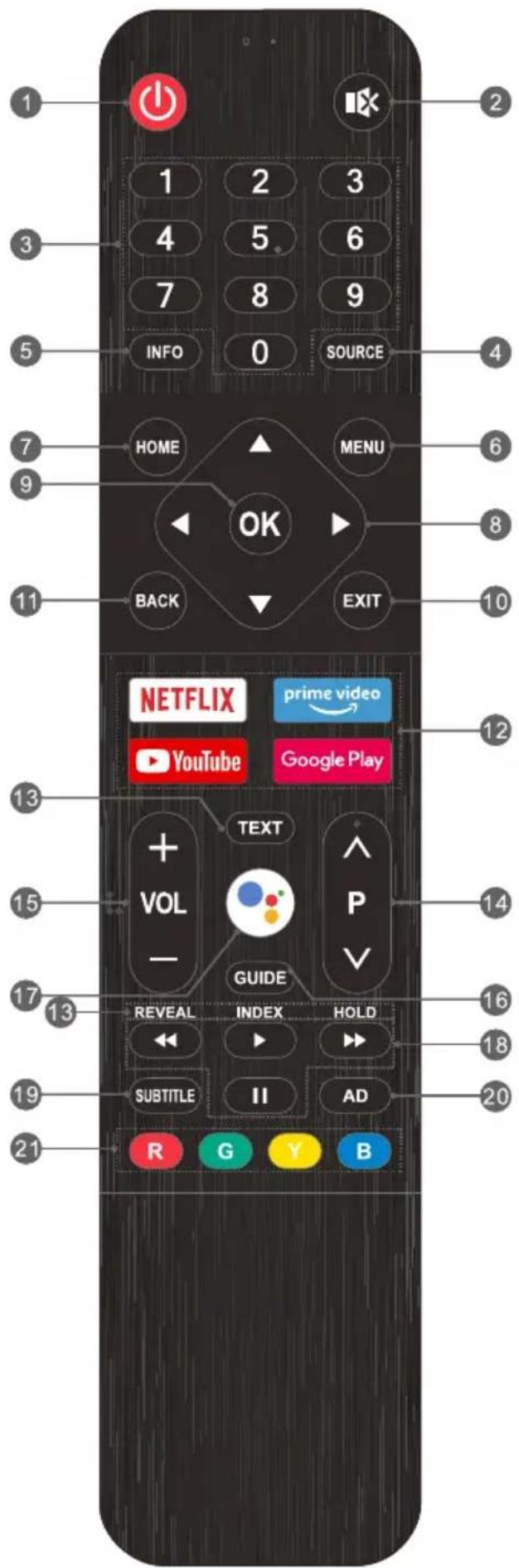
REMOTE CONTROL (CONT.)
-
POWER ( ⏻ ): Turn the TV on or to standby mode.
-
MUTE (IX): Mute or restore the TV sound.
-
Number buttons (0\~9):
Select the channel directly, or input a number.
-
SOURCE: Select the input source.
-
INFO: Access the INFO interface.
-
MENU: Access the menu of quick settings.
-
HOME: Access the home page.
-
Navigation Buttons ( ▲ / ▼ / ◀ / ▶ )
Navigate the menu to select the content you need.
-
OK: Confirm, enter or execute the selected item.
-
EXIT: Exit the current operation.
-
BACK: Return to upper-level content, or exit the current screen.
-
Application Buttons: Access specific applications directly.
-
***Teletext Buttons***
-
TEXT: Access or exit the teletext menu.
- REVEAL: Display or hide the concealed information.
• INDEX: Display index page. -
HOLD: Hold the teletext page on screen without updates or changes.
-
Program Up/Down (P ∧/v): Switch channels.
-
Volume Up/Down (VOL +/-): Adjust the sound volume.
-
GUIDE: Access the EPG interface in DTV mode.
-
MIC ( ): Start talking to Google Assistant of the TV.
-
*** USB Play Control Buttons***
-
Play ( ▶ ): Start the playback.
- Pause ( II ): Pause the playback.
- Fast Backward (◀): Fast backward the playback.
-
Fast Forward (▶): Fast forward the playback.
-
SUBTITLE: Turn on or turn off the subtitle function.
-
AD: Turn on or turn off the function of audio description.
-
Color Buttons (R/G/Y/B):
Execute the prompt function in specific mode.
REMOTE CONTROL (CONT.)
Using the Remote Control
- Do not mix old and new batteries in the remote
- Do not use different types of battery
- If you do not intend to use the unit for a long time, please remove batteries from the remote to avoid accident.
- Keep batteries away from children and pets.
- Never throw batteries into a fire.
- Do not drop, or impact the remote control as it void warranty immediately.
• The remote control operate at a range of 5 to 6M effectively - Do not expose the remote control sensor to a bright light.
OPENING REMOTE BATTERY COMPARTMENT TO REPLACE BATTERIES
- Turn the remote control over to its back.
- Press and slide the battery compartment to open the cover.
- Place 2x AAA batteries (provided) into the battery compartment and be sure to match the polarities (+/-) marked on battery compartment.
- Close and shut the battery compartment.
Make sure it clicks when completely closing it.
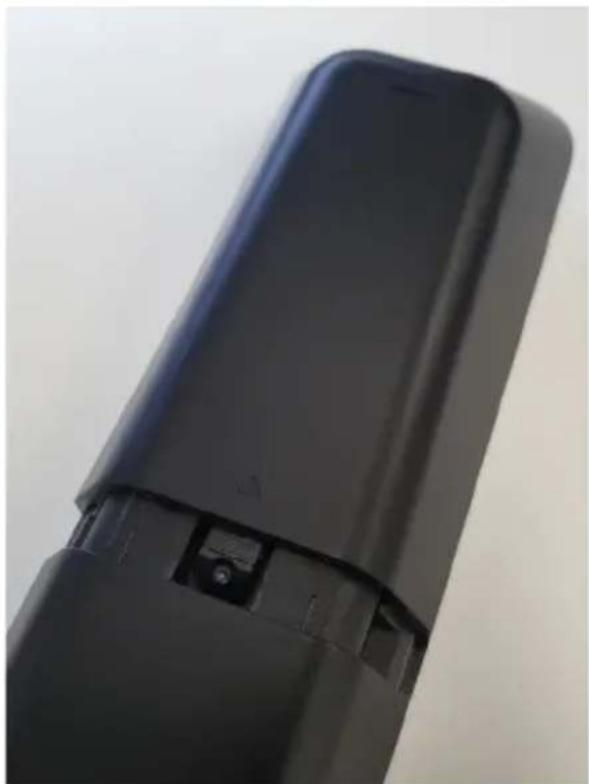
natural_image
Close-up of a black rectangular electronic device with a small black clip and mounting bracket (no visible text or symbols)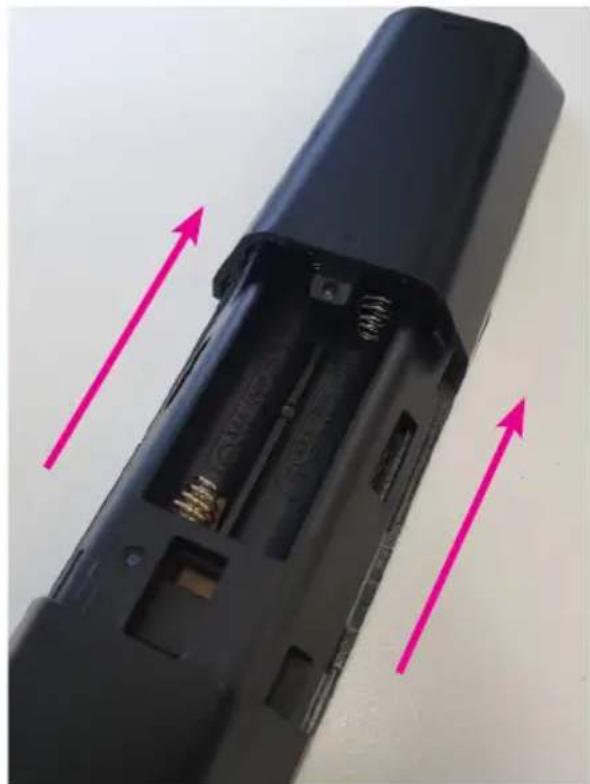
natural_image
Close-up of a black remote control casing with two pink arrows indicating upward motion (no text or symbols)INITIAL SETUP/PAIR REMOTE
For the first initial setup, on screen setup wizard will guide you through setting up your TV. Please follow according to onscreen guide to setup your TV correctly.
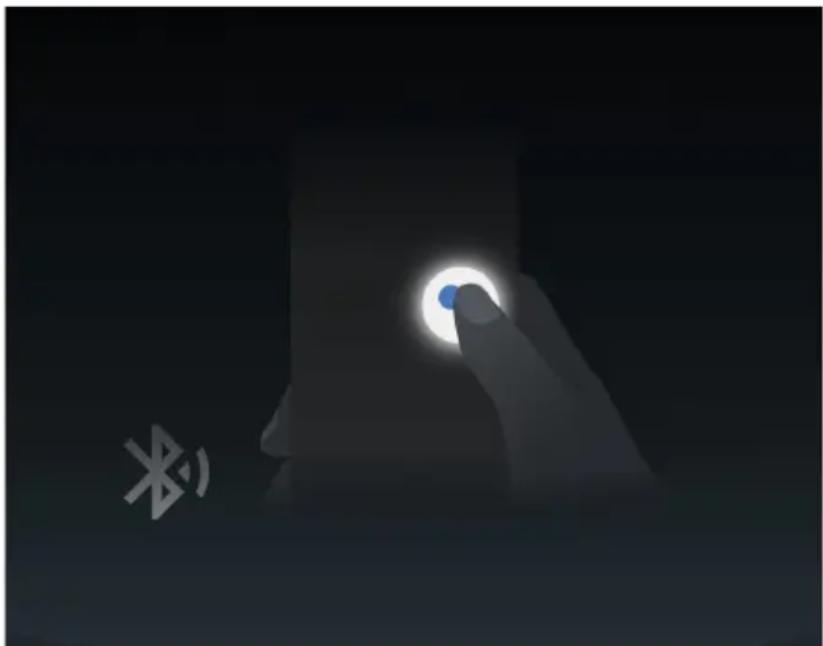
Be sure to follow the below prompts to pair your Bluetooth remote control. After the pairing is successful, you can now operate the TV.
- To pair the remote, Press the Google Assistant button during the First time setup screen below to pair.
If a notification appears, please follow it to pair RC.
- Press and hold both the HOME and the LEFT arrow button at the same time to put RC into pairing mode. (green light flashes between
POWER and MUTE buttons.
- Then press the Google Assistant button on RC to pair the remote.
natural_image
Silhouette of a hand interacting with a glowing circular button, with a small Bluetooth symbol nearby (no text or numbers present)To manually pair your BT remote control, please go to page 38 and refer to:
PAIR MY BT REMOTE CONTROL MANUALLY?
Use the ▲/▼ buttons to select system language, then press OK/SELECT to confirm.

INITIAL SETUP (CONT.)
If you just want to use your TV normally, please select "SKIP"
To connect your Android Smartphone to your TV, Select "Continue".
Quickly set up your TV with your Android phone?
You can easily transfer your Android phone's Wi-Fi network and Google Account to your TV
Continue
Skip
Press ▲/▼ to select your Wi-Fi you wish to connect to, enter the password and then confirm to connect.
Select your Wi-Fi network
You can also connect an Ethernet cable to connect to the internet.

3686

ChinaNet-Wepx

Iserver-netgear-5G

JRX-guest
By accepting the Google Terms of Service to improve the product experience, Select "ACCEPT" to proceed with this condition.
Terms of Service
By continuing, you agree to the Google Terms of Service, the Google Privacy Policy, and the Google Play Terms of Service.
This device may also receive and install updates and apps from Google, your device's manufacturer, or your operator. Some of these apps may offer optional in-app purchases. You can remove them or adjust their permissions at any time from the device settings.
Google also collects and temporarily stores the voice and audio history from microphone use to improve the product experience.
Accept
Terms of Service
Privacy Policy
Play Terms of Service
INITIAL SETUP (CONT.)
Select "YES" if you want your location identified on your ANDROID TV.
(Note: Select "YES" if you want google to inform you on weather more accurately based on location).
Location
Let Google use your device's location to improve your experience. Certain application or platform capabilities, such as streaming local content or live programming, may require your device's location to function correctly. You may choose whether to share this information with a third party app at the moment that app is installed or run. You can adjust these permissions at any time from Settings.
Yes
No
By Agreeing and selecting "YES", you agree to automatically send diagnostic information to Google to help improve your Google experience.
Help improve Android
Automatically send diagnostic information to Google, like crash reports and usage data from your device, apps, and Chromecast built-in. This information won't be used to identify you. You can adjust these permissions at any time from device settings. Learn more at: g.co/AndroidUsageHelp and g.co/cast/device_stats.
Yes
No
INITIAL SETUP (CONT.)
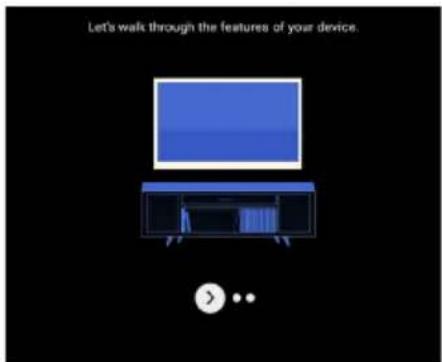
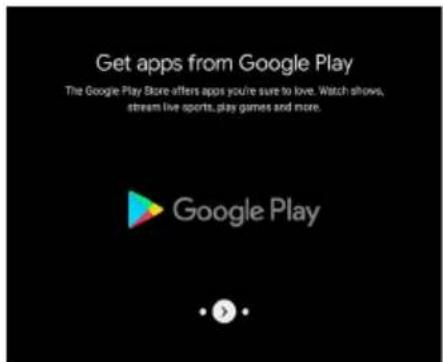
Informational screens will now appear, you can scroll through steps by press "RIGHT" directional button to continue.
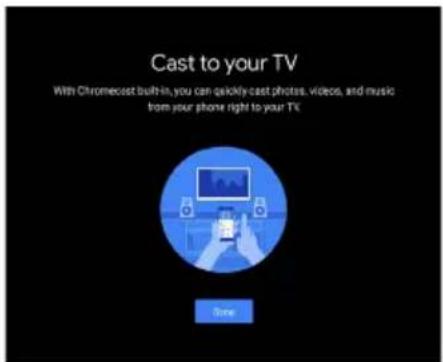
TV MODES
Please be sure in this step, select "HOME" if you are using this TV for use at home. Make sure to confirm once you have selected "HOME".
SHOP is only for retailers who are selling the product. The difference is only point of sale advertising.
Select the country you are using the device in with the ▲/▼ directional buttons.
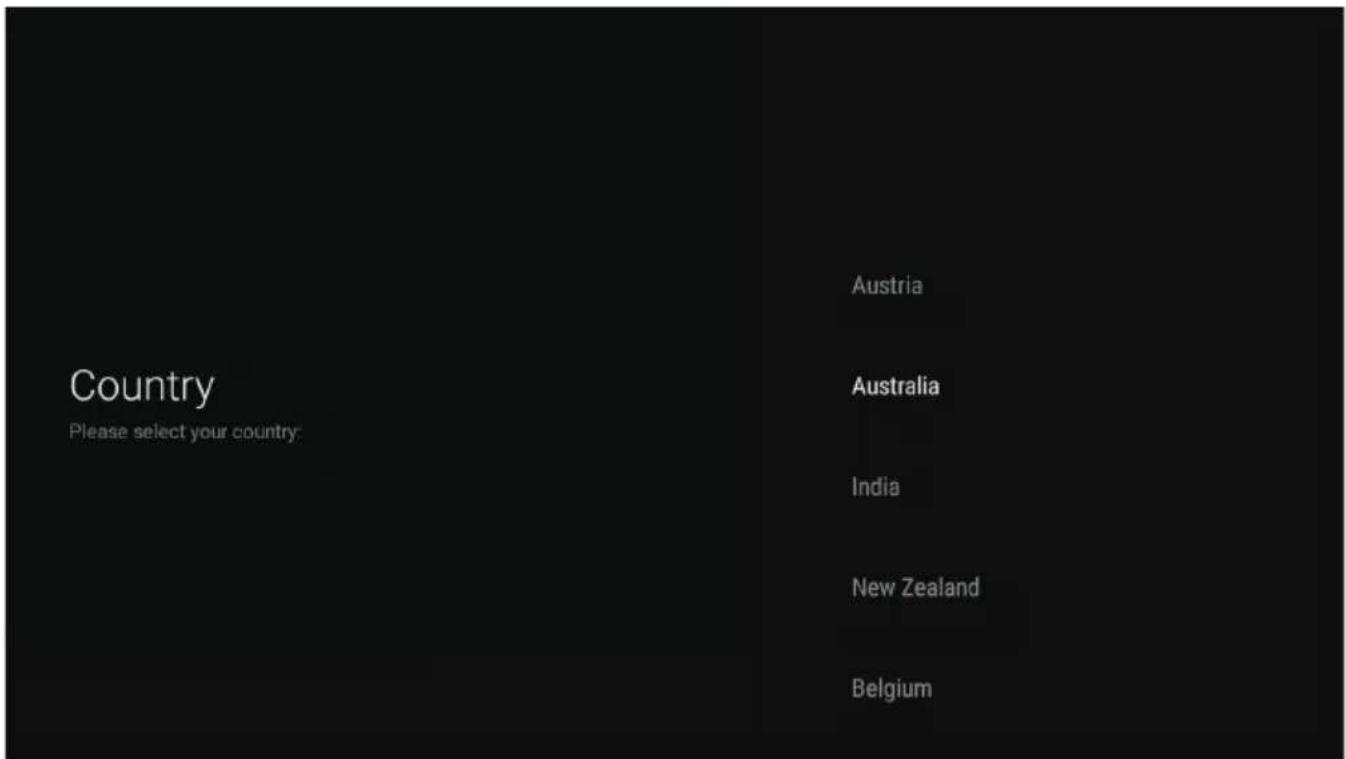
INITIAL SETUP (CONT.)
LCN SWITCH: to set your TV with logical program numbers, which is used to sort and group programs. ON (recommended)
Select the TimeZone you are using the device in with the ▲/▼ directional buttons.
| Time Zone | NSW/ACT |
| VIC | |
| QLD | |
| SA | |
| WA | |
| TAS | |
| NT |
TV SOURCE (INPUT) for Tuning your TV
MAKE SURE to only select DTV as a TV Source. DO NOT select ATV.
Selecting anything else for Australia will not work, as ATV no longer exists.
Make sure to select “SCAN” to auto tune your TV to search for DTV channels, CAUTION - Selecting ATV will not work for Australia.
Channel Scan
First, please connect antenna.
Start channel scan now?
If you skip this step, the channel scan could be performed in Menu.
Scan
Skip Scan
NOTE: Please make sure Antenna (RF) cable is plugged into the ANT IN port located on back of TV. (refer to page 11 TV ports - #10).
Once you have completed initial setup, you will now enter the ANDROID TV home screen.
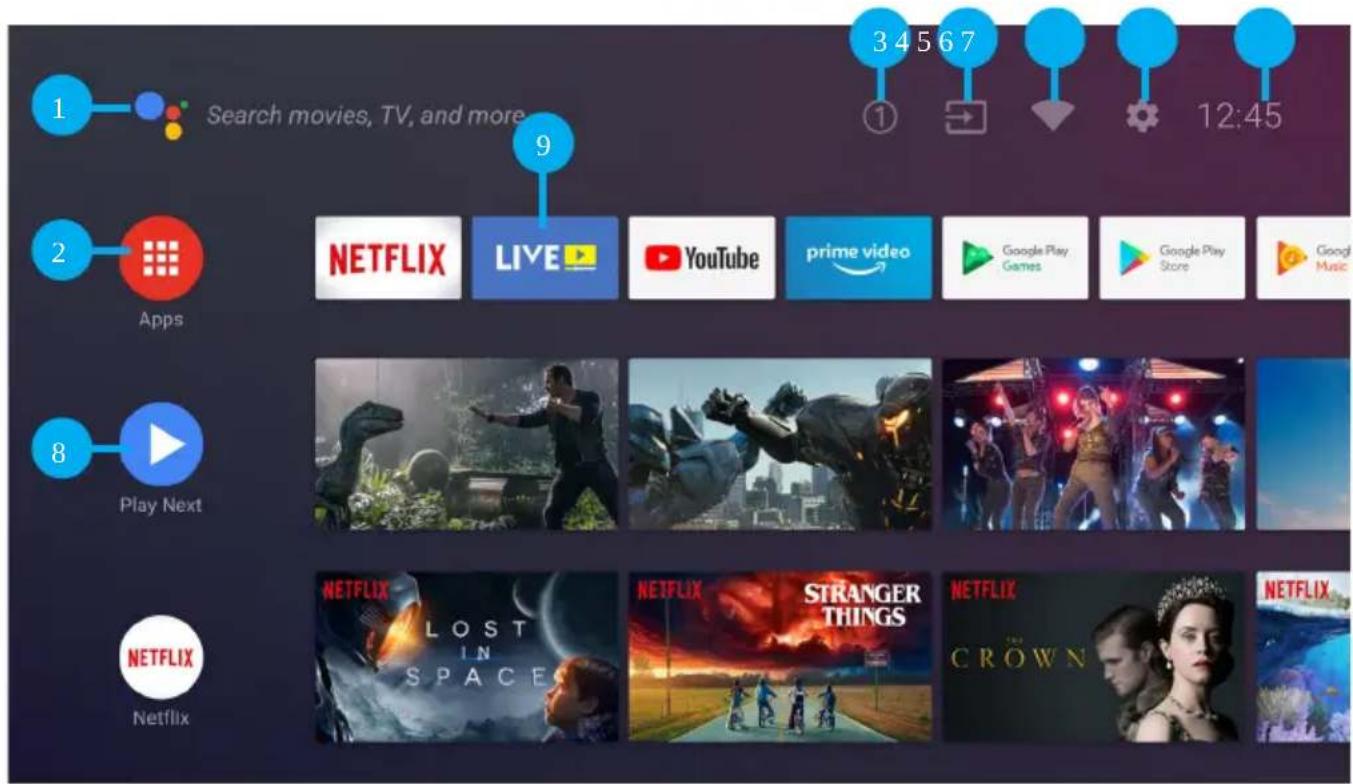
- Open Google Assistant to start a voice search.
- Selected the Multi-dot red circle to have access to all your applications.
Pre-installed applications are available for you in this FAVs row, select "Google Play Store" If you wish to search and download additional apps optimised for Android TV. - NOTIFICATION: here will display all notifications relating to anything on your ANDROID TV.
- INPUTS: Select this if you want to adjust your TV Input, Example: DTV, HDMI 1, HDMI 2.
- NETWORK: This will display what network connectivity, Wi-Fi or ETHERNET.
- SETTINGS: Select this if you want to access TV settings.
7.TIME: Displaying current time. - Each row past this point will display recommended content from the apps you already have installed.
- LIVE TV Application: Select this app when you want to watch your live DTV channels.
GOOGLE PLAY STORE
Google Play Store
To have access and to download applications from the Google Play Store, you must sign in with a Gmail account.
Once you open Google Play Store, you will be prompted to sign in or create a new account.
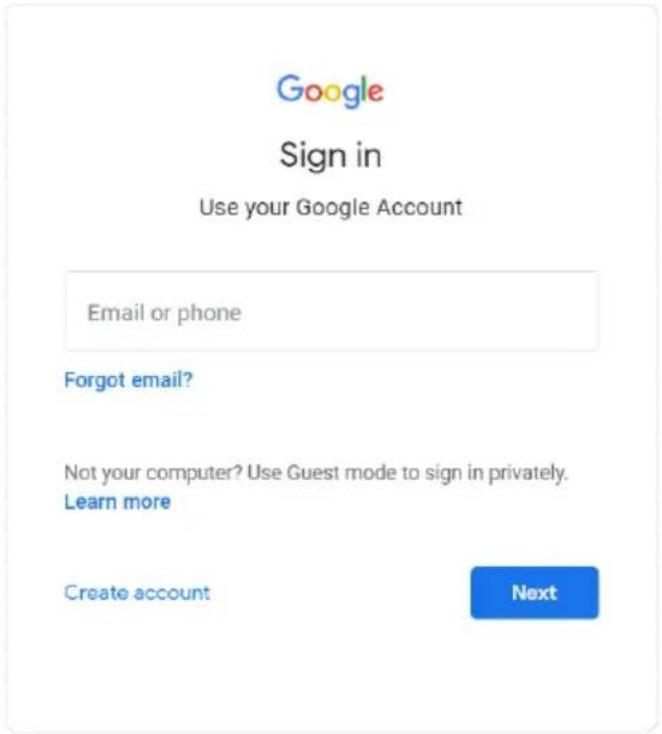
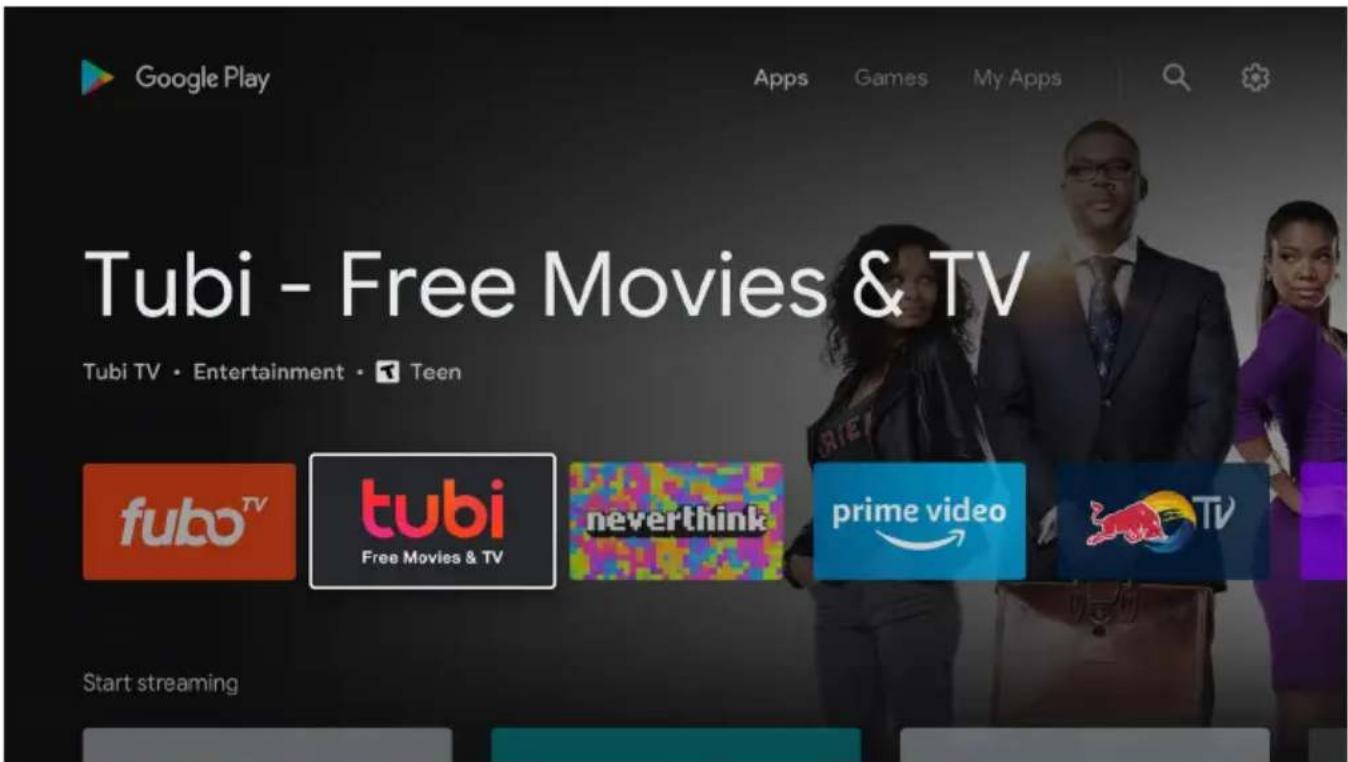
Once you have signed in, you will be brought to the below page, scroll through the list of applications available for download OR go to the search button, and search via entering Text or speaking to Google Assistant via your remote control.
GOOGLE ASSISTANT
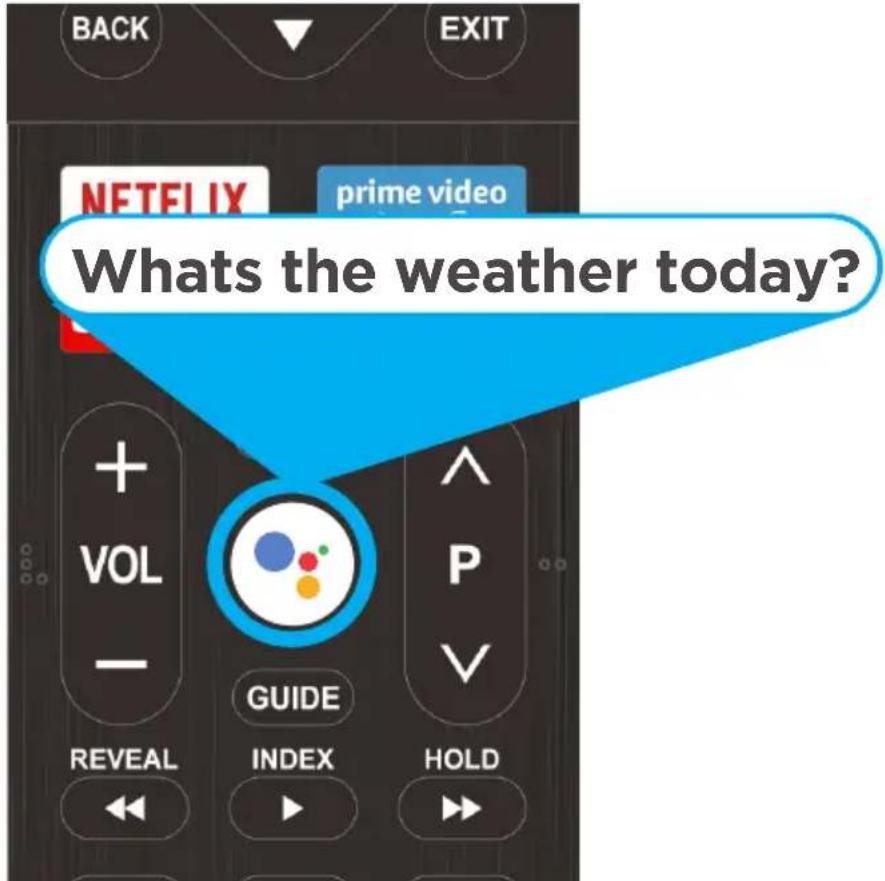
You now have access to Google Assistant via the (#1 on page 20) or by pressing
(Google Assistant) button on your remote control to commence.

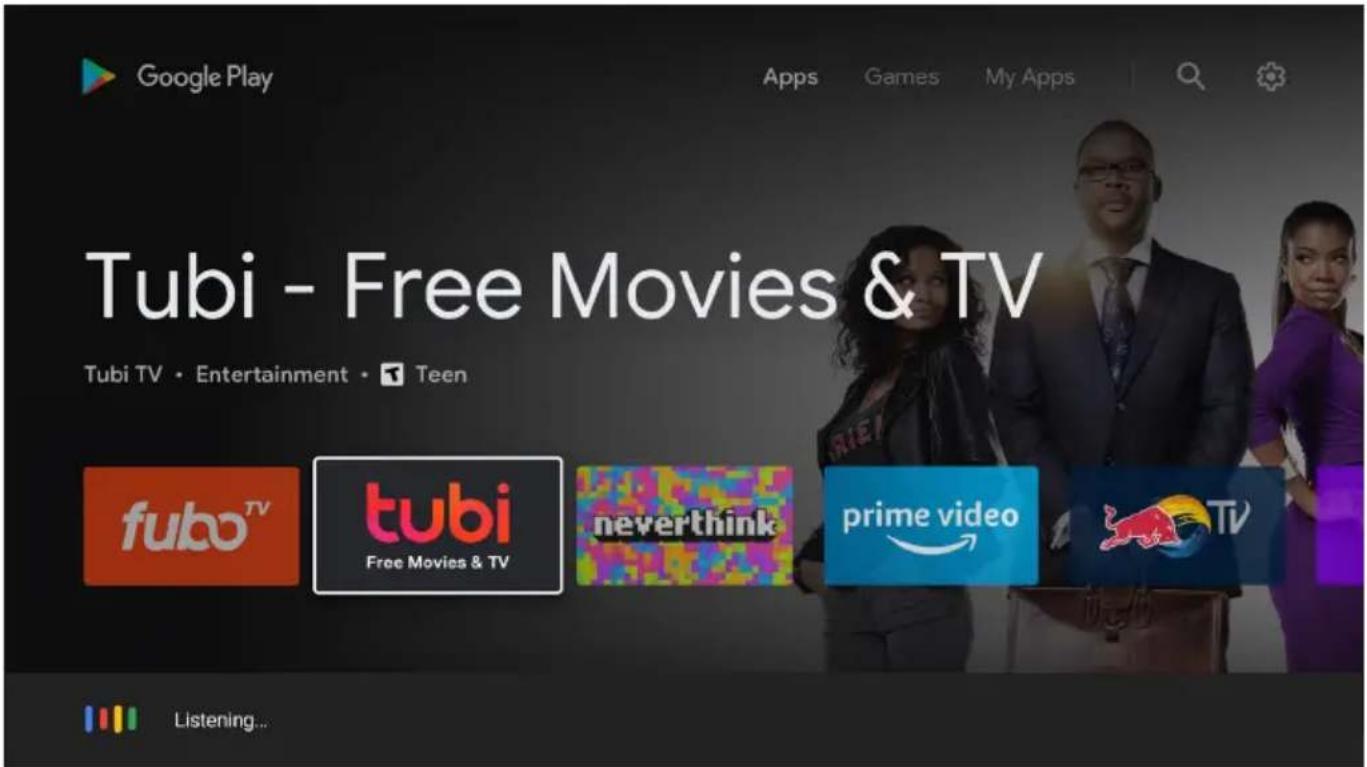
Allow for the voice box to appear at the bottom of your TV screen, stating:
"Listening" then speak clearly towards the top of your remote control for Google Assistant to hear you. Once Google Assistant understands, what you have requested will be actioned.
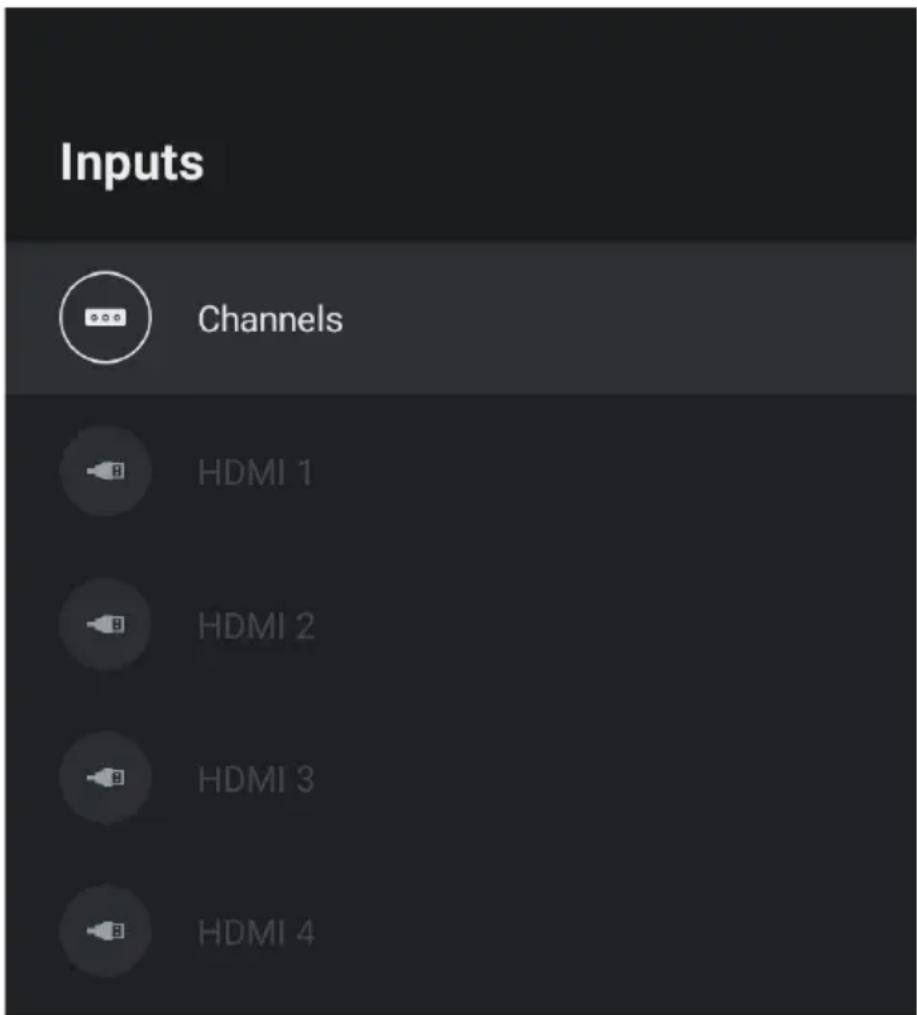
INPUT MENU
To access INPUT menu, either select INPUT (#4 on page 20) via the HOME screen or press the SOURCE button on your remote control to have quick access to INPUT menu.
The options that are AVAILABLE will be highlighted, PORTS that are not in use, you will not be able to access.
QUICK MENU
While watching LIVE TV, press the MENU button and you can access quick menu options such as:
- Picture Mode: Press LEFT or RIGHT arrow keys to adjust picture mode.
- Sound Mode: Press LEFT or RIGHT arrow keys to adjust sound mode.
- Sleep Timer: Press LEFT or RIGHT to adjust time settings, to turn TV off after a period of time.
- Source (input): Select this to select another INPUT source for your TV.
- More - Will go to TV SETTINGS, with the below options:
- Picture
- Sound
- TV
- Setup
- Parental
- Settings
These options can also be accessed via the home screen on next page 21 ANDROID TV - HOME SCREEN, then look for settings icon (6).
Vivid . . . .
Picture Mode
Source Mode
Sleep Timer
Source
More
TV SETTING
To access TV SETTINGS menu, While watching LIVE TV:
- Press MENU
- Go down and select "MORE".
-
Now you will have access to:
-
Picture
- Sound
- TV
- Setup
- Parental
- Settings
Next page will explain each menu.
TV Setting
Picture
Sound
TV
Setup
Parental
Settings
PICTURE MENU
To access CHANNEL menu, while watching LIVE TV:
- Press the MENU button on the remote control and select "MORE". (refer to page 20 Menu Settings).
- Select PICTURE.
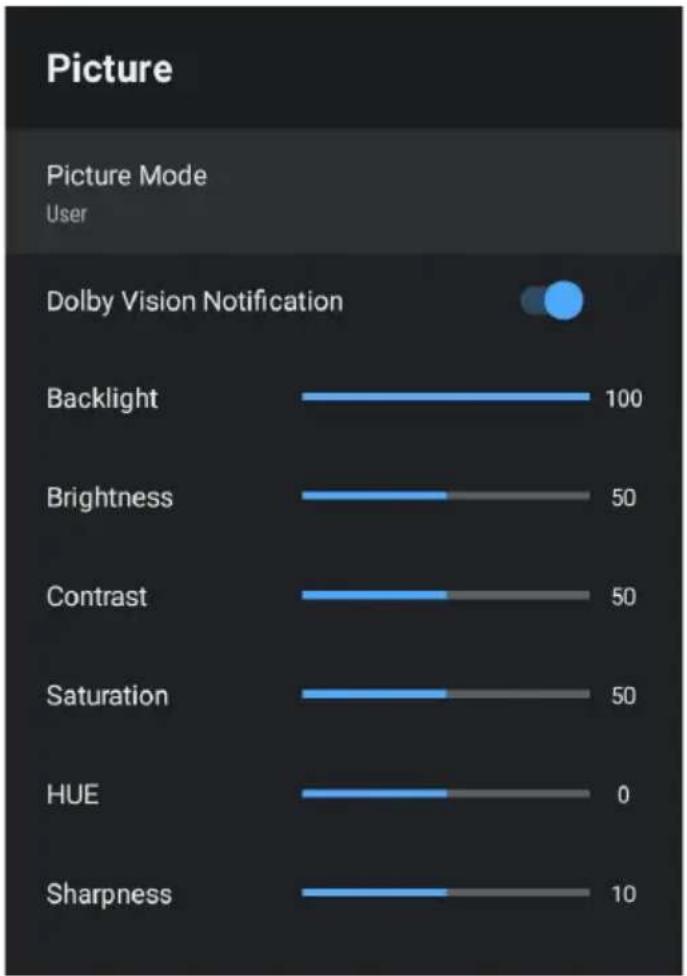
bar
Picture Picture Mode User Dolby Vision Notification | Picture Mode | Value | | :--- | :--- | | Backlight | 100 | | Brightness | 50 | | Contrast | 50 | | Saturation | 50 | | HUE | 0 | | Sharpness | 10 |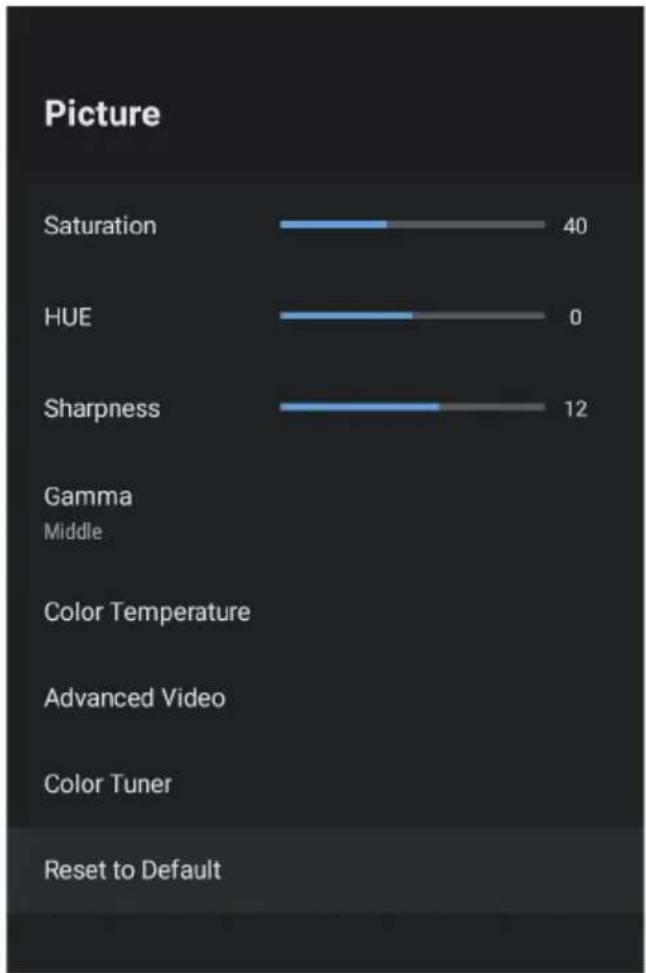
bar
Picture | Parameter | Value | | :--- | :--- | | Saturation | 40 | | HUE | 0 | | Sharpness | 12 | | Gamma Middle (Color Temperature) | | | Advanced Video (Color Tuner) | | | Reset to Default (no value shown) | |Picture Mode - Options to choose from - Standard, Vivid, Sport, Movie, Game, Energy Saving, User.
SOUND MENU
To access SOUND menu, while watching LIVE TV:
- Press the MENU button on the remote control and select "MORE". (refer to page 20 Menu Settings).
- Select SOUND.
Note: Sound menu can also be accessed within Settings icon on home menu. (refer to page 20).
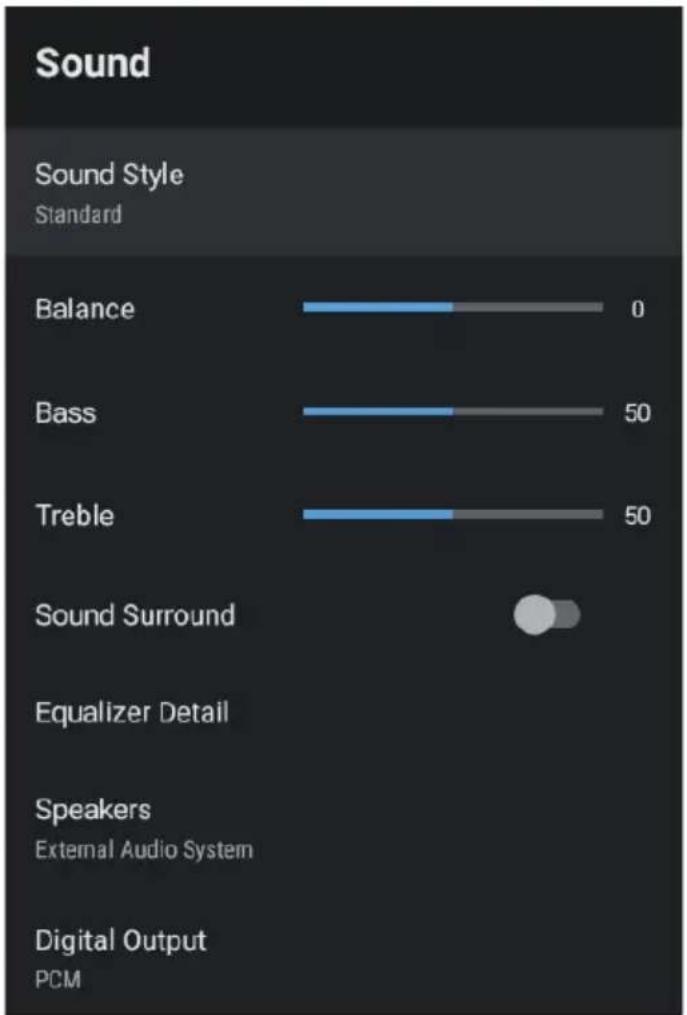
bar
| Sound Style | Value | | ----------------- | ----- | | Balance | 0 | | Bass | 50 | | Treble | 50 | | Sound Surround | - | | Equalizer Detail | - | | Speakers External Audio System | - | | Digital Output PCM | - |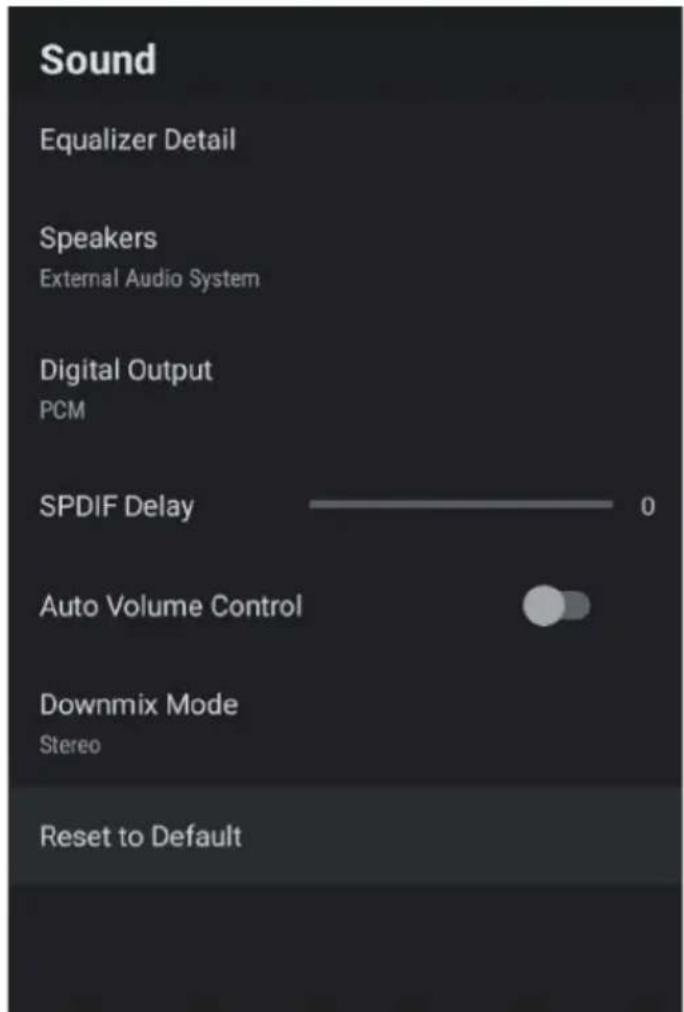
Sound Style - Options to choose from - Standard, Vivid, Sports, Movie, Music, News, User.
Speakers - TV Speakers or External Speaker
(This will force the TV to output sound through the chosen option).
Digital Output - Auto, Bypass, PCM, Dolby Digital Plus, Dolby Digital.
(It is recommended to select AUTO, as this will automatically detect quality of sound being procued by content).
TV - CHANNEL/TUNING MENU
Make sure before scanning for any TV/Programs that you are on the DTV-T/T2 SOURCE INPUT.
To do this make sure you are on LIVE TV app ( Refer to page 21 - #9 ).
- Press SOURCE on your remote control.
- Make sure to select DTV-T/T2.
Note: on any other source such as ATV or DVB-C, scanning for channel will NOT WORK.
To access CHANNEL menu, while watching LIVE TV:
- Press the MENU button on the remote control and select "MORE". (refer to page 20 Menu Settings).
- Select TV.
- Select CHANNEL.
-
You will now be on the TV menu as shown below, make sure that:
-
Tuner mode is on DVB-T/T2
- Crypted set on ALL
-
Tuning Type is on AUTO.
-
Press SCAN to scan for all channels, please allow a few minutes for the scanning to complete.
TV
Tuner Mode DVB-T/T2
CryptedAll
Tuning Type Auto
SCAN
SETUP MENU
To access SETUP menu, while watching LIVE TV:
-
Press the MENU button on the remote control and select "MORE". (refer to page 20 Menu Settings).
-
Select SETUP.
e
Auto Standby - Automatically turn off TV after certain amount of time.
Fast Boot - Sets your TV to boot faster when turning TV off/on via the Remote Control.
Note: Full boot up/turn on process occurs every time you turn off TV from the Power Outlet/Power Point.
Subtitle - Turn on the subtitles
Can also select the language, if the 1st language select is unavailable then the 2nd language selected will be displayed.
HDMI 2.0 - This is default HDMI 2.0
This must be set as 2.0 in order for 4K Ultra HD at 60Hz to display through HDMI ports. (used for Media device such as concoles/4K Blu-rays/etc).
PARENTAL MENU
To access PARENTAL menu, while watching LIVE TV: (PARENTAL GUIDANCE)
- Press the MENU button on the remote control and select "MORE".
(refer to page 20 Menu Settings).
- Select PARENTAL.
From here you have the option to select and create a new password to lock the channels you want to lock.
Note: please make sure to store/save password somewhere you can access at a later date. Forgetting password, you may need to factory reset TV to use again.
Channel Block - Block specific channels to restrict use.
Program Block - This determines the age restrictions to place on all programs.
- Undefined (none chosen)
- Kids 3-5 Years
- Kids 6-12 Years
- General
- PG 13
- PG 18
- Adult
Change Password - Change existing PIN selected when first entering this menu.
Clean All - Reset restrictions.
SETTINGS
To access SETTINGS menu, while watching LIVE TV:
-
Press the MENU button on the remote control and select "MORE". (refer to page 20 Menu Settings).
-
Select SETTINGS.
OR
- Press HOME on remote control and the Smart home page will appear.
- Select the Settings icon on the top right corner (Refer to page 20 - #6)
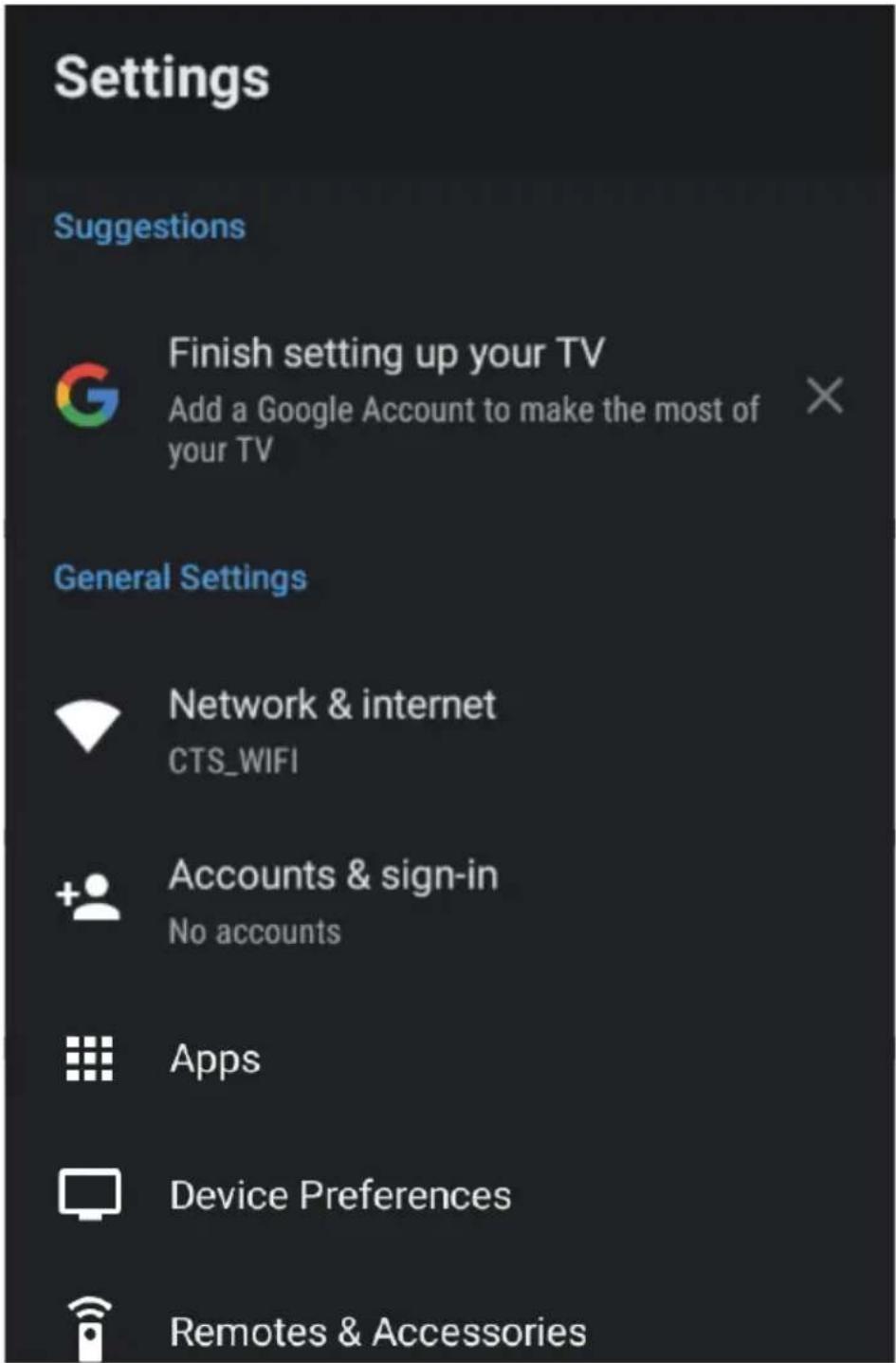
NETWORK & INTERNET
To access NETWORK menu,
- Select SETTING icon (#6 on page 20) via the HOME screen.
- Then go down and select "NETWORK & INTERNET".
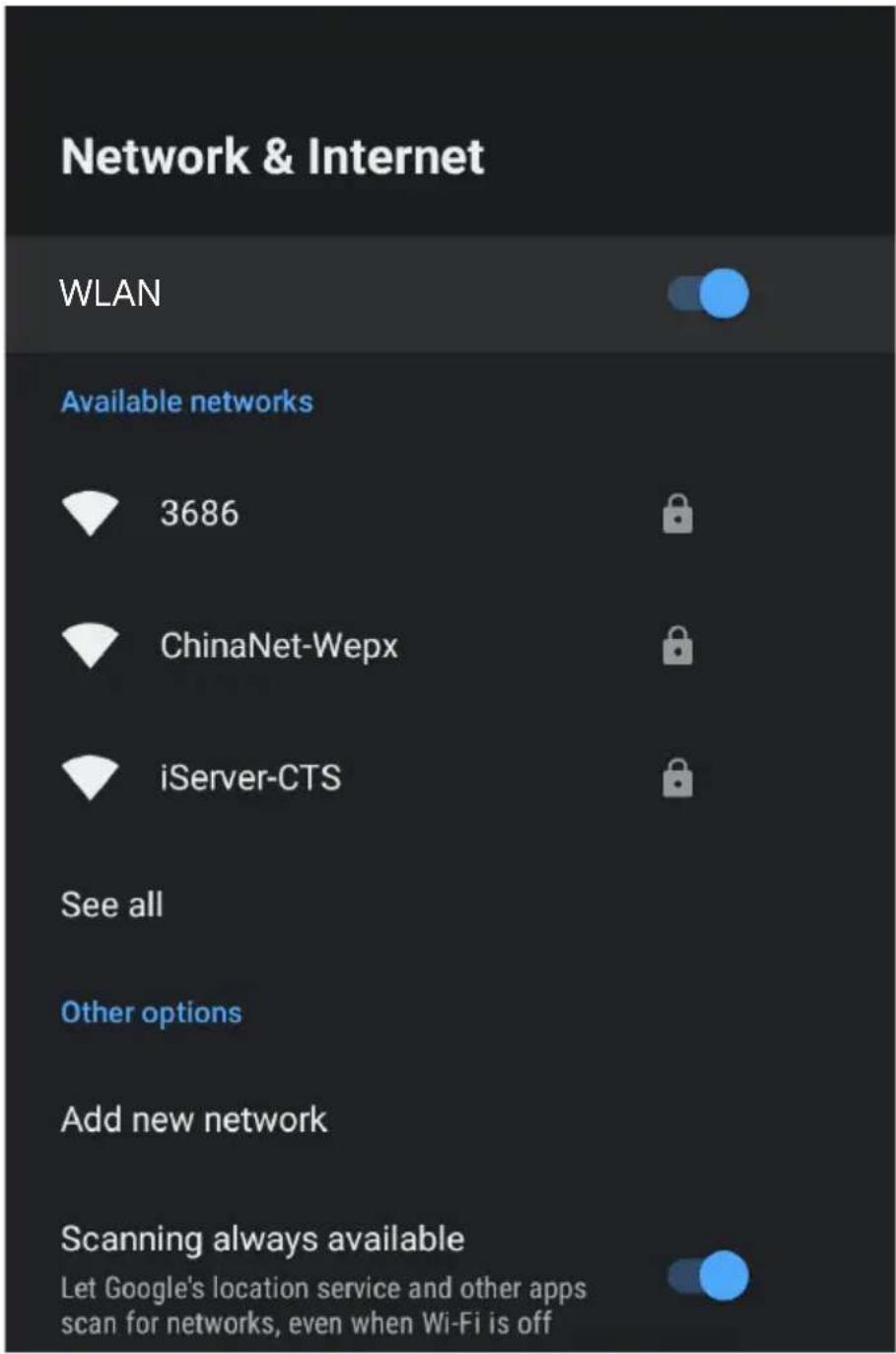
DEVICE PREFERENCES - ABOUT
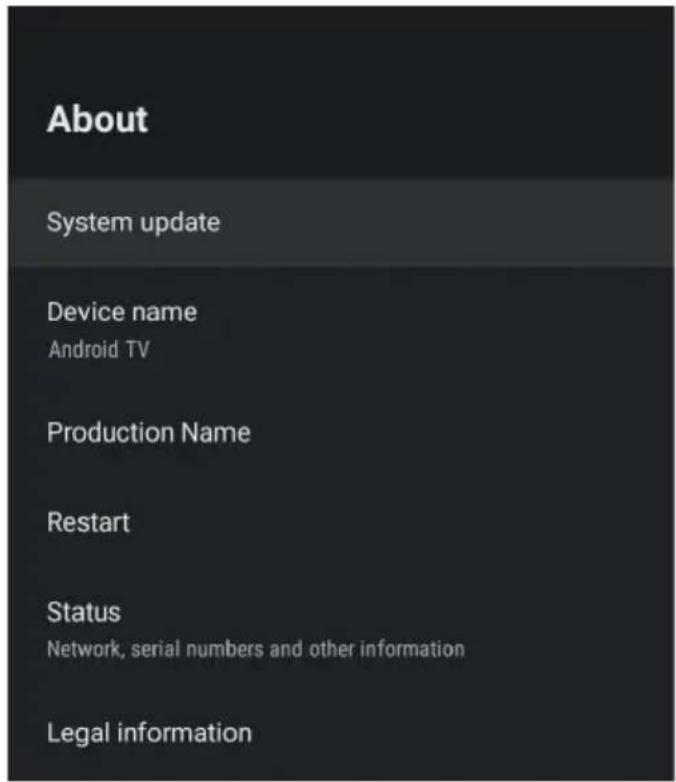
To access ABOUT menu,
- select SETTING icon (#6 on page 20) via the HOME screen.
- Then go down and select "DEVICE PREFERENCES".
- Then go down and select "ABOUT".
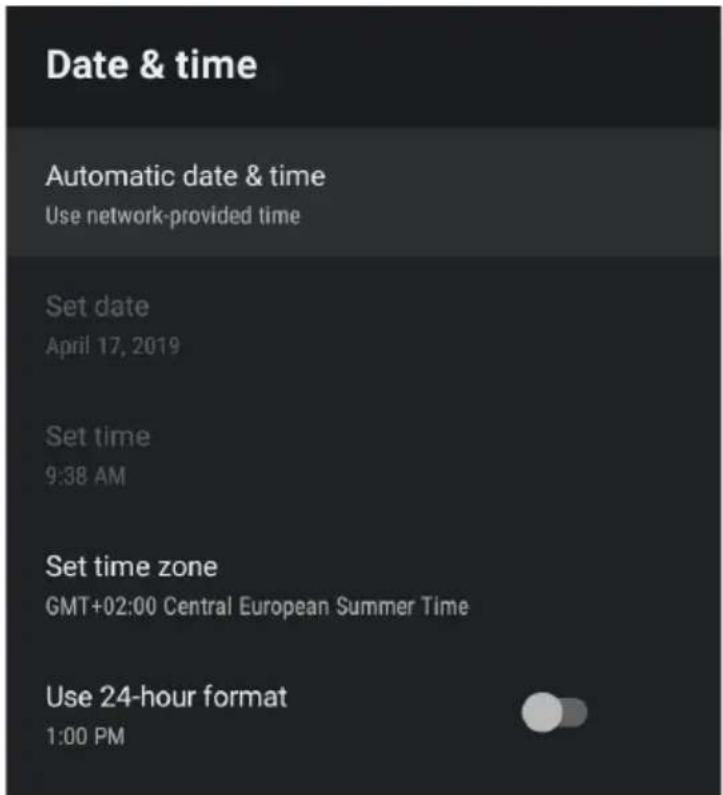
TIME
To access TIME menu,
- select SETTING icon (#6 on page 20) via the HOME screen.
- Then go down and select "DEVICE PREFERENCES".
- Then go down and select "DATE & TIME".
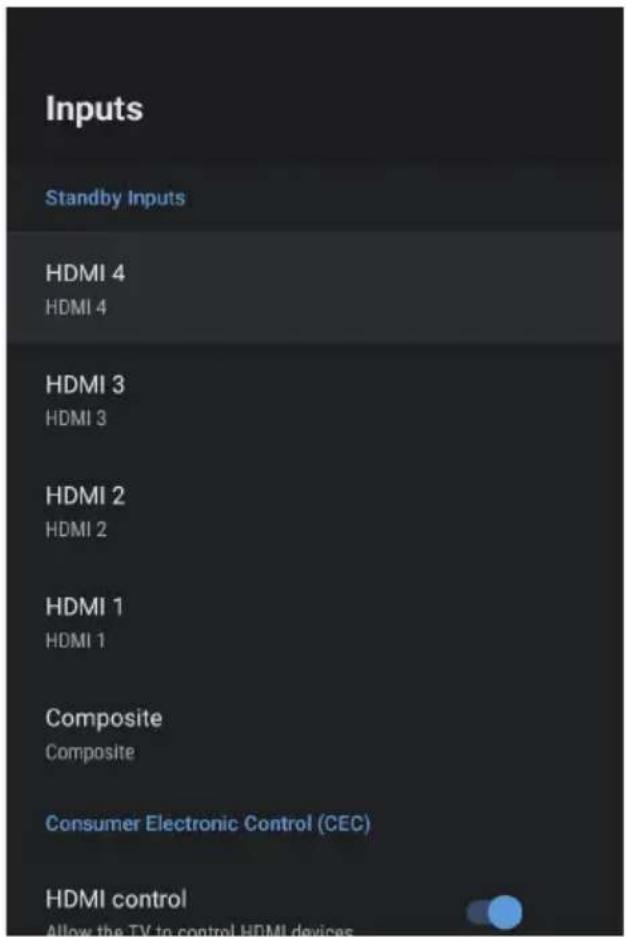
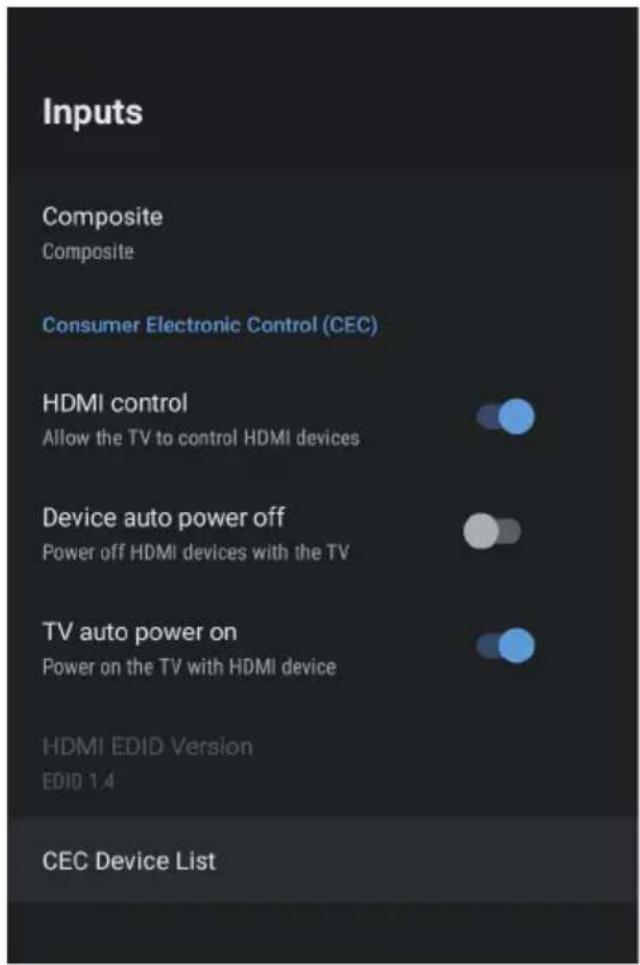
INPUT SETTINGS MENU
To access INPUT menu,
- select SETTING icon (#6 on page 20) via the HOME screen.
- Then go down and select "DEVICE PREFERENCES".
- Then go down and select "INPUTS".
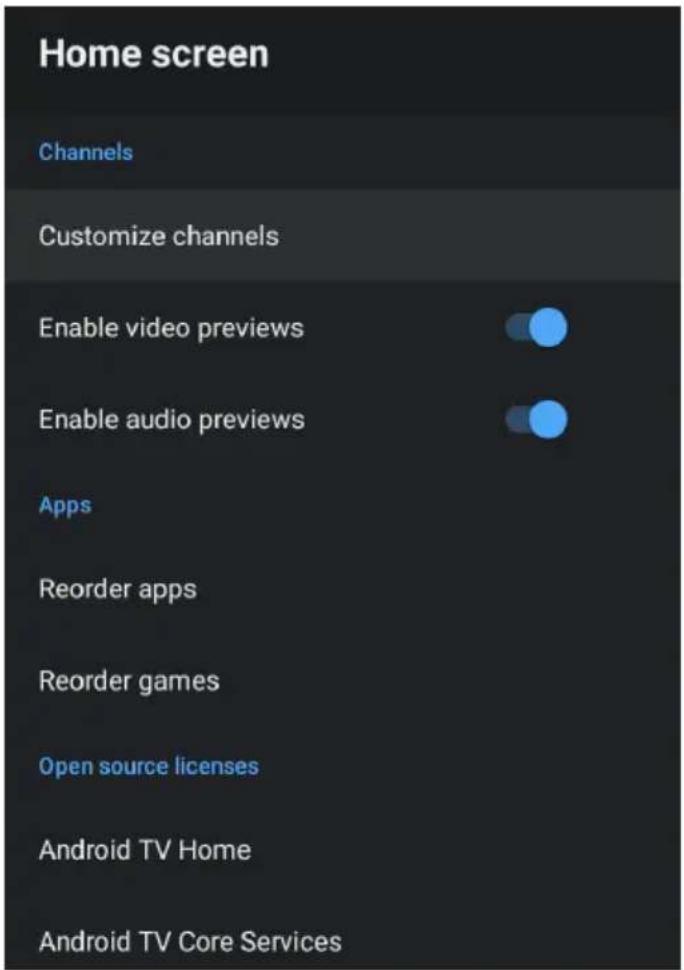
HOME SCREEN
To access HOME SCREEN menu,
- select SETTING icon (#6 on page 20) via the HOME screen.
- Then go down and select "DEVICE PREFERENCES".
- Then go down and select "HOME SCREEN".
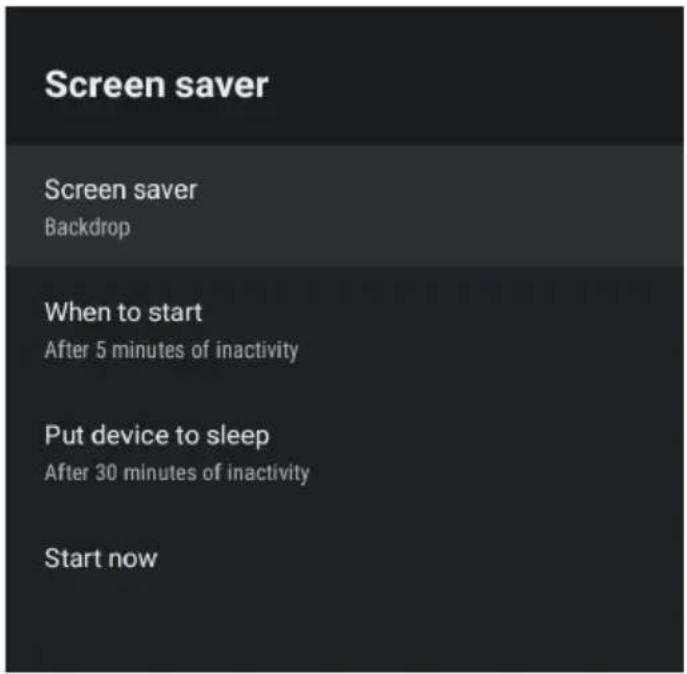
SCREEN SAVER
To access HOME SCREEN menu,
- select SETTING icon (#6 on page 20) via the HOME screen.
- Then go down and select "DEVICE PREFERENCES".
- Then go down and select "SCREENSAVER".
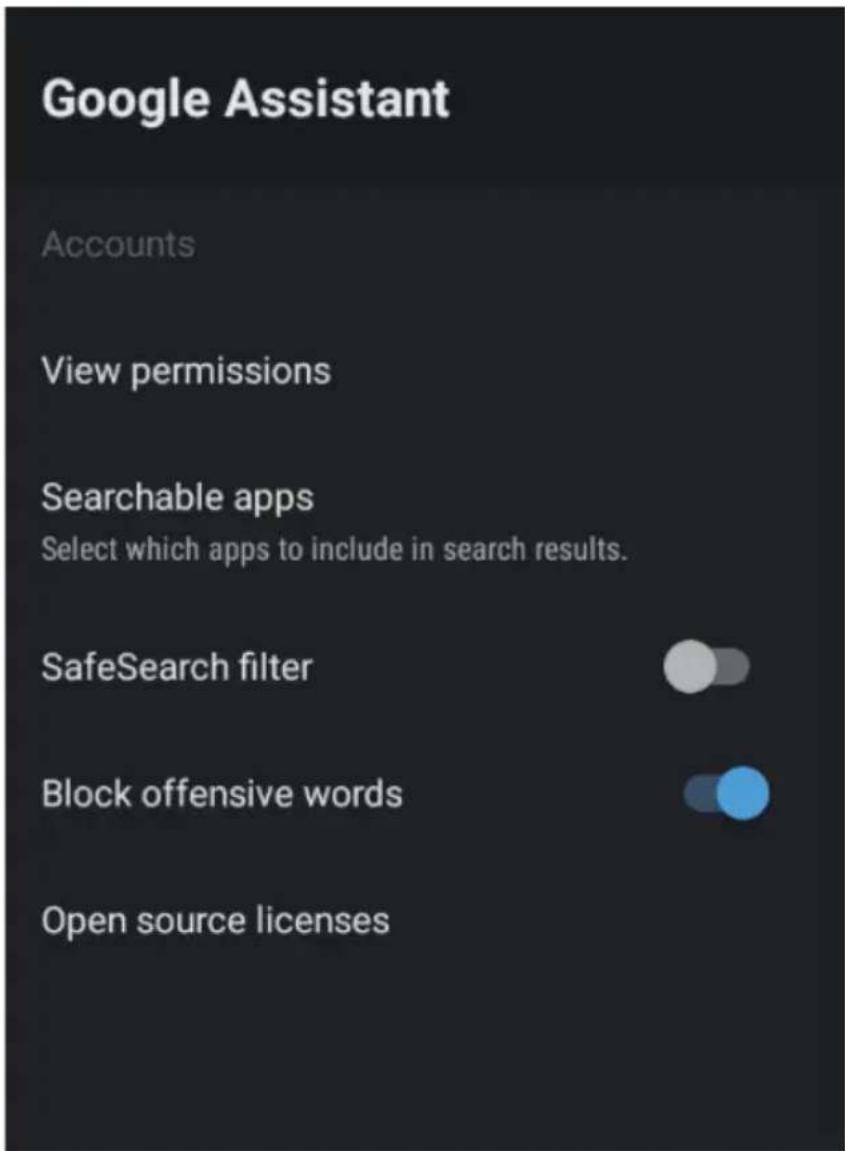
GOOGLE ASSISTANT
To access GOOGLE ASSISTANT menu,
-
Select SETTING icon (#6 on page 20) via the HOME screen.
-
Select "Device Preferences"
-
Then go down and select "GOOGLE ASSISTANT".
Accounts will only be accessible if you have connected a Gmail account via the "Google Play Store". A Gmail account is needed in order to download and install applications via the "Google Play Store".
FAQS
GENERAL PROBLEMS WITH TV SET
| Symptoms | Items to Check and Actions to Follow |
| "Ghost" or double image | This may be caused by obstruction to the antenna due to high rise buildings or hills. Using a highly directional antenna may improve the picture. |
| No power | Check if the TV's AC power cord is plugged into the outlet.Unplug the TV, wait for 60 seconds. Then reinsert plug into the outlet and turn on the TV again. |
| No picture | Check antenna connections at the rear of the TV to see if it is properly connected to the TV.Possible broadcast station trouble. Try another channel.Adjust the contrast and brightness settings.Check the Closed Captions control. Some TEXT modes could block the screen. |
| Good picture but no sound | Increase the volume level by pressing the VOL+ button on the remote control or on the TV side control panel.Press the MUTE button on the remote control to ensure mute is off. |
| Good sound but poor color | Adjust the contrast, color and brightness settings. |
| Poor picture | Poor picture quality may occur when an activated S-VHS camera or camcorder is connected to your TV and other peripherals at the same time. Switch off one of the peripherals. |
| Snowy picture and noise | Check the antenna connection. |
| Horizontal dotted line | This may be caused by electrical interference (e.g. hair dryer, nearby neon lights, etc.) Turn off the equipment. |
| Television not responding to remote control | Check whether the batteries are working. Replace if necessary.Clean the remote control sensor lens on the TV.You can still use the buttons on the side of your TV. |
| Pixels (dots) that are always dark or always lit | Your TV is precision-manufactured using an extremely high level of technology. However, sometimes pixels may not display correctly. These types of occurrences are inherent to this type of product and do not constitute a defective product. |
FAQS (CONT.)
SUBTITLE KEEPS APPEARING WHILE WATCHING LIVE TV?
If subtitles keeps appearing on your Android TV, while watching Live TV:
- Press "MENU" on your Remote Control
- Go to "MORE" and select it.
- Go to "SETUP" and select it.
- Go down to "SUBTITLE LANGUAGE" and select it.
- Select and look for OFF option within all the subtitle options.
Once all options for subtitle are switched off, then you can exit and continue watching Live TV! If the Subtitle persists to appear, you may need a software update or for further assistance please contact our customer support centre at info@ayonz.com
PAIR MY BT REMOTE CONTROL MANUALLY? (OR OTHER BT DEVICES)
If your remote control is not pairing or becomes disconnected, please make sure to go on the Smart HOME of your Android TV:
- Press "HOME" on RC > go to "Settings" icon on top right of home screen.
- Select "Remotes & Accessories" > "Add device" to then go to searching for devices screen.
- Press GOOGLE ASSISTANT button on your RC, a notification will appear.
- Press and hold both HOME + LEFT direction arrow at the same time.
- Remote indicator light at the top of remote between POWER and MUTE button will flash green, wait for RC to be found on your TV screen.
- Once RC appears on screen, Select OK to pair remote.
- Once paired, you can press HOME or EXIT to get out of menu.
NOTE: you can still using your Remote control without pairing but cannot use the "GOOGLE ASSISTANT" Feature until paired.
ANDROID TV REMOTE CONTROL - APP
If you want to control your TV via your Smart device. Search for “ANDROID TV REMOTE CONTROL” app and download. Once following prompts to connect your Smart device to your Android TV, you will then be able to have 100% control of your TV with Google Assistant Feature.
If it fails to connect, try the above steps again. Otherwise contact our support centre for further help!
SPECIFICATIONS
| Operating System Android TV 10.0 | |
| HDR (High Dynamic Range) Yes | |
| Resolution 3840 x 2160 | |
| Display Colours 1.07 Billion | |
| Contrast ratio: 1200:1 | |
| Aspect Ratio 16 : 9 | |
| Refresh Rate 60Hz | |
| ETHERNET / WiFi Yes/ 802.11 b/g/n | |
| Multimedia Playback Format under USB Mode | Movie: VP8, VP9, AV1, MPEG2, MPEG4 |
| Music: AAC, PCM, MP3 | |
| Photo: JPEG, JPG, PNG, BMP, GIF | |
| Power Source 100-240V ~ 50/60 Hz | |
| Power Consumption 150W | |
| USB 5V | --- max. 500mA |
| Dimensions | With stand: 1235.7 (w) × 273.9 (d) × 789.9 (h) mm |
| Without stand: 1235.7 (w) × 91.6 (d) × 724.2 (h) mm | |
| Weight | Net: 10.5 kg |
| Gross: 13.8 kg | |
| Accessories | 1 x Instruction Manual 2 x AAA Batteries |
| 1 x Remote Control 2 x TV Stands (L and R) | |
| 1 x Warranty Card Screws for TV | |
NOTE: This document is for reference only, the operation interface is subject to the TV software.
EKO
CUSTOMER SUPPORT:
info@ayonz.com
DISTRIBUTED BY:
Ayonz Pty Ltd


- GENERAL SAFETY
- IMPORTANT INFORMATION
- GENERAL SAFETY (CONT.)
- Installation
- WARNING!
- It is STRONGLY RECOMMENDED that you ANCHOR this product.
- Please make sure upon positioning this product, the place is:
- HDMI®
- androidtv
- Attaching the stand
- Step 1
- Step 2
- Step 3
- CAUTION!
- INSTALLATION (CONT.)
- Wall-Mounting Instructions
- BACK OF TV
- CONTROLS AND CONNECTIONS
- Press Middle:
- USB connection
- REMOTE CONTROL
- REMOTE CONTROL (CONT.)
- Using the Remote Control
- OPENING REMOTE BATTERY COMPARTMENT TO REPLACE BATTERIES
- INITIAL SETUP/PAIR REMOTE
- If a notification appears, please follow it to pair RC.
- INITIAL SETUP (CONT.)
- Quickly set up your TV with your Android phone?
- Select your Wi-Fi network
- Terms of Service
- Location
- Help improve Android
- TV MODES
- TV SOURCE (INPUT) for Tuning your TV
- Channel Scan
- GOOGLE PLAY STORE
- GOOGLE ASSISTANT
- INPUT MENU
- QUICK MENU
- TV SETTING
- Picture
- Sound
- TV
- Setup
- Parental
- Settings
- PICTURE MENU
- SOUND MENU
- TV - CHANNEL/TUNING MENU
- SETUP MENU
- PARENTAL MENU
- From here you have the option to select and create a new password to lock the channels you want to lock.
- OR
- NETWORK & INTERNET
- DEVICE PREFERENCES - ABOUT
- TIME
- INPUT SETTINGS MENU
- To access INPUT menu,
- HOME SCREEN
- SCREEN SAVER
- FAQS
- FAQS (CONT.)
- SUBTITLE KEEPS APPEARING WHILE WATCHING LIVE TV?
- PAIR MY BT REMOTE CONTROL MANUALLY? (OR OTHER BT DEVICES)
- ANDROID TV REMOTE CONTROL - APP
- SPECIFICATIONS
- EKO
Brand : EKO
Model : K55USG
Category : Television