Crescent - Pregnant Cleer - Free user manual and instructions
Find the device manual for free Crescent Cleer in PDF.


| Type de produit | Enceinte sans fil |
| Marque | Cleer |
| Modèle | Crescent |
| Dimensions | 660 mm x 184 mm x 119 mm |
| Poids | 5,6 kg |
| Assistant vocal intégré | Google Assistant |
| Haut-parleurs | 8 x 40 mm (large bande 8 W) + 2 x 84 mm (woofer 25 W) – puissance RMS totale 114 W |
| Connectivité sans fil | Wi-Fi 802.11 b/g/n/ac (2,4 et 5 GHz), Bluetooth 4.2 |
| Entrées audio | AUX 3,5 mm, optique |
| Port réseau | RJ45 (LAN) |
| Multiroom | AirPlay 2, Google Chromecast |
| Services de streaming | YouTube Music, Spotify, Pandora, Deezer, TuneIn, iHeartRadio (via app Google Home) |
| Formats audio pris en charge | MP3, WMA, FLAC, Apple Lossless |
| Modes audio | Stereo Widening (bleu), 3D (rouge), Room Fill (vert) |
| Alimentation | Adaptateur secteur DC 18 V, 5 A, 90 W |
| Nettoyage | Chiffon doux sec ou légèrement humide (éthanol) ; ne pas utiliser de nettoyants liquides ou aérosols |
| Température de fonctionnement | Non spécifiée – estimation 0-40 °C |
| Garantie | 2 ans pièces et main-d’œuvre |
| Réparabilité | Réparation par Cleer ou centre agréé ; pièces détachées disponibles via service client |
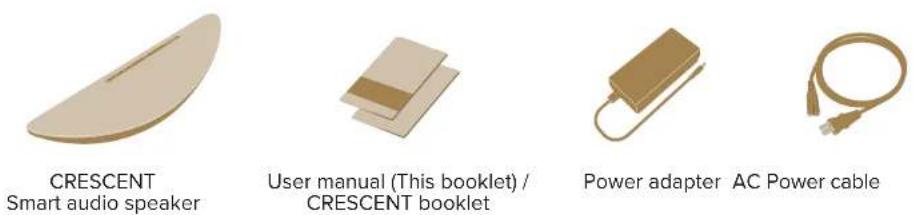
| Contenu de la boîte | Enceinte Crescent, adaptateur secteur, câble d’alimentation, guide de démarrage rapide, manuel d’utilisation, carte de garantie |
Frequently Asked Questions - Crescent Cleer
User questions about Crescent Cleer
0 question about this device. Answer the ones you know or ask your own.
Ask a new question about this device
Download the instructions for your Pregnant in PDF format for free! Find your manual Crescent - Cleer and take your electronic device back in hand. On this page are published all the documents necessary for the use of your device. Crescent by Cleer.
USER MANUAL Crescent Cleer
Quick Start Guide | User Manual | Warranty Card
CONTENTS
INTRODUCTION 2
QUICK START GUIDE 3
USER MANUAL
Set up CRESCENT to activate Google Assistant 6
Google Assistant 7
Playback with Chromecast 8
Set up CRESCENT to activate AirPlay 2 9
Bluetooth pairing 10
AUX or Optical input 11
Mute/unmute the microphone 12
Playback and volume controls 12
Audio modes 13
Firmware update 14
Restore factory settings 14
Cleaning your CRESCENT 15
LED behavior 15
Specifications 16
WARRANTY 17
NOTICE 19
CRESCENT INTRODUCTION
Box contents
Overview
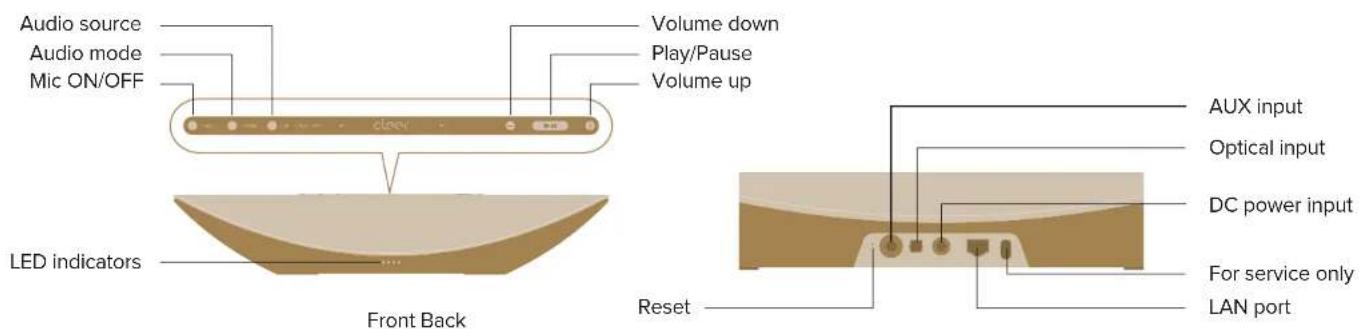
CRESCENT
QUICK START GUIDE
Google Home app



Google Home
Use the Google Home app to setup CRESCENT:
On your smartphone or tablet, download the Google Home app from the App Store (iOS devices) or the Google Play Store (Android devices).
https://account.google.com/signup
To use the built-in Google Assistant, a Google account is required.
Create an account if you don't already have one to continue setting up your CRESCENT.
CRESCENT QUICK START GUIDE
Placement
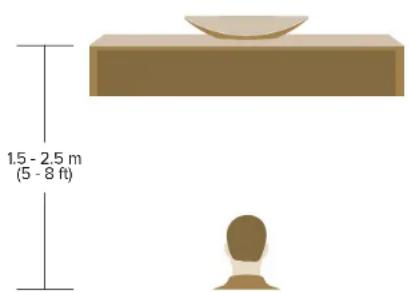
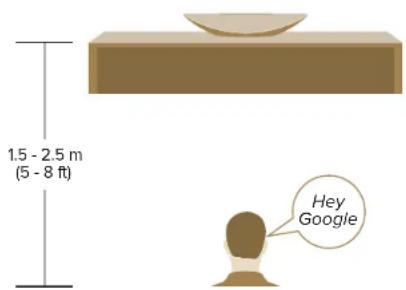
The best listening range for 3D Mode and Stereo Widening Mode is 1.5 - 2.5 meters (5 - 8 feet) away from your CRESCENT.
Place your CRESCENT on any flat and stable surface near a wall outlet.
* You can place your CRESCENT anywhere in your house, from the basement to upstairs, and from the bedroom to the kitchen. Or place it in your living room to show as an art piece. For a better Wi-Fi connection, place your CRESCENT as close to your wireless router as possible or simply connect your CRESCENT directly to your router using the LAN port.
CRESCENT
QUICK START GUIDE
Power on your CRESCENT
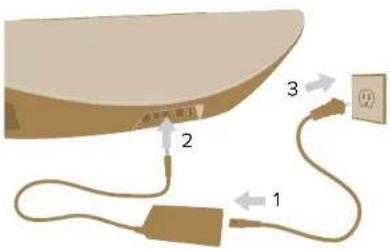
- Connect the AC power cable to the power adapter.
- Plug in the DC jack of the power adapter to the DC power input at the back of your CRESCENT.
- Plug in the AC power cable to a wall outlet.

natural_image
Plain beige background with a brown curved band at the bottom (no text or symbols)Once the power is connected, CRESCENT will power ON automatically. The LED indicators at the front will light up.
CRESCENT USER MANUAL
Set up CRESCENT to activate Google Assistant

Google Home


The Google Home app is required to connect CRESCENT to the Wi-Fi network.
- Make sure CRESCENT is plugged in and the power is ON.
- Connect the device you will use with CRESCENT to the Wi-Fi network, make sure all devices are connected to the same Wi-Fi network.
- Install the Google Home app.
- Open the Google Home app from the device.
- Follow the steps in the app.
* If you encounter any setup issues, make sure to enable Bluetooth and location services on your smartphone or tablet.
If the Wi-Fi connection is unstable, you can connect CRESCENT to your router using the LAN port with a compatible cable. (The LAN port can only be used after setting up CRESCENT with the Google Home app)
*** CRESCENT can only remember one Wi-Fi network at a time. If you changed your Wi-Fi network and your CRESCENT isn't currently connected to a Wi-Fi network, please reset your CRESCENT before setting it up on the new network. If your CRESCENT is connected to an existing Wi-Fi network, but you would like to connect it to a new one, please go to the Google Home app, tap on CRESCENT, then Settings > Wi-Fi > Forget this network.
If there is an error when resetting the Wi-Fi network or the steps above do not work, you will need to perform a factory reset to your CRESCENT.
CRESCENT
USER MANUAL
Google Assistant
You can easily enjoy music at home just with your voice; you can play your favorite music, control volume and find information about the song that you are listening to, hands-free.
You can also plan your day, set alarms and control smart devices around your home -- just by using your voice.
Just say "Hey Google" and then your request.
Like,
Hey Google, Play some music
Hey Google, Turn up the volume
Hey Google, What's the latest news?
Hey Google, What's on my calendar today?
For the latest voice commands, visit assistant.google.com.*
CRESCENT USER MANUAL
Playback with Chromecast
- Open the Chromecast enabled app.
- Tap the Cast button 📄.
- Select CRESCENT as your Chromecast device from the device list.
- Select a song, album, or playlist.
- Tap Play.

Chromecast built-in
CRESCENT
USER MANUAL
Set up CRESCENT to activate AirPlay 2
In order to use AirPlay 2, CRESCENT needs to be connected to the same Wi-Fi network as your iOS device.
If CRESCENT is already connected to the Wi-Fi network, AirPlay is ready to use.
If not, please go to Settings > Wi-Fi on your iOS device and look for Cleer_CRESCENT_XXXX in the Set Up New AirPlay Speaker section.
To use AirPlay
- Open Control Center:
- On iPhone X or later or iPad with iOS 12 or later: Swipe down from the upper-right corner of the screen.
- On iPhone 8 or earlier or iOS 11 or earlier: Swipe up from the bottom edge of any screen.
-
Press and hold the audio card in the upper-right corner, then tap AirPlay.
-
Tap CRESCENT.
-
You can also AirPlay audio from an app you're using on your iOS device. Just open the app, tap AirPlay 🔒, then tap CRESCENT.
* The name for CRESCENT is assigned during the Wi-Fi setup.
** CRESCENT can support audio streaming but not video streaming.

Works with
Apple AirPlay
CRESCENT USER MANUAL
Bluetooth pairing
You can connect to CRESCENT with Bluetooth in the following ways:
I. With Google Assistant, by saying "Hey Google, Bluetooth pairing".
OR
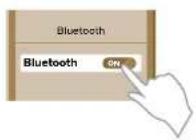
II. Enter Bluetooth pairing mode by using the Google Home app.
OR
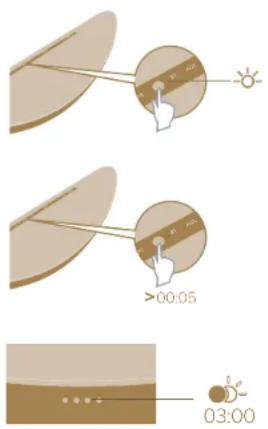
III. Enter Bluetooth pairing mode by using the physical buttons.
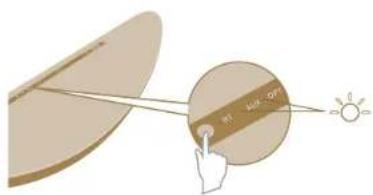
- Toggle the audio source button until the BT LED lights up.
- Press and hold the audio source button for 5 seconds to enter Bluetooth pairing mode.
- After entering Bluetooth pairing mode, the front LEDs will blink for 3 minutes, if there is a successful connection, the front LEDs will stop blinking.
CRESCENT USER MANUAL
AUX or Optical input
- Select the name you have given CRESCENT during set up on your device's Bluetooth list to connect.
- Enjoy your music.
Bluetooth performance can be affected by the distance between this product and your Bluetooth device and the environment of operation.
** CRESCENT can only go into Bluetooth pairing mode after the Google Assistant set up is completed.
Connect CRESCENT to the playback device with an AUX or Optical audio cable.
- Press the audio source button until the AUX or OPT LED lights up.
- Use an AUX audio cable or Optical audio cable to connect CRESCENT to the playback device.
- Play music on the playback device and enjoy.
CRESCENT USER MANUAL
Mute/unmute the microphone
natural_image
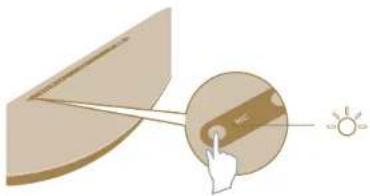
Diagram showing a hand pressing a button on a curved surface with an inset magnified view of the button (no text or symbols)Press the mic ON/OFF button to mute or unmute the built-in microphone. Voice command detection will be disabled when the microphone is muted.
The MIC LED will light up to indicate that the microphone is muted. To unmute the microphone, press the mic ON/OFF button again.
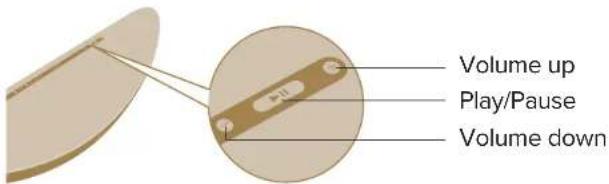
Playback and volume controls
CRESCENT
USER MANUAL
Audio modes
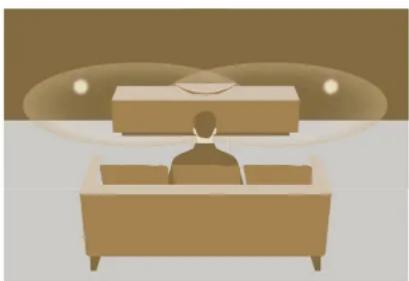
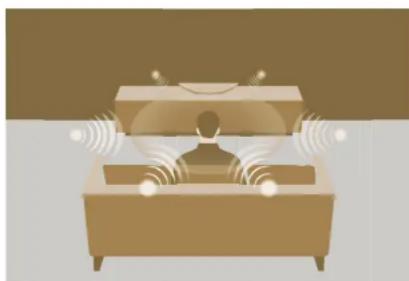
CRESCENT has three distinctive audio modes, you can toggle through them by pressing the audio mode button, the MODE LED will indicate each audio mode with a different color.
Immersive stereo music
natural_image
Illustration of a person sitting at a desk with a computer monitor above them (no text or symbols)Stereo Widening Mode - Blue LED
Experience a well-defined, wide stereo soundstage that expands well beyond the speaker's physical placement.
TV/movies or gaming
natural_image
Illustration of a person using a smart speaker with sound waves (no text or symbols)3D Mode - Red LED
CRESCENT surrounds the listener in three-dimensional, high definition audio regardless of wall locations or reflected acoustics.
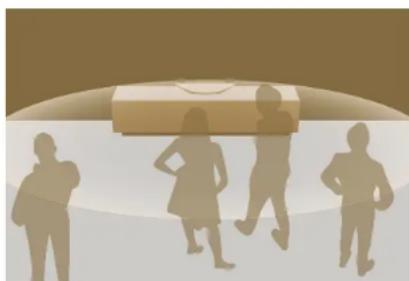
Party or casual listening
natural_image
Silhouettes of people walking and running near a large object, no text or symbols presentRoom Fill Mode - Green LED
For occasions with multiple listeners, we have created an ultra-wide sweet spot that engages listeners equally in every corner of the room.
CRESCENT USER MANUAL
Firmware update
Your CRESCENT will automatically update to the latest firmware version when it is connected to the Internet.
Restore factory settings
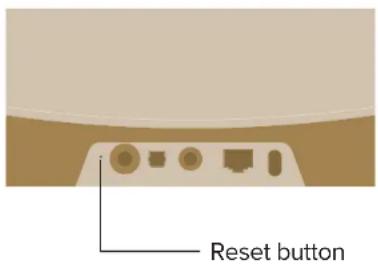
- Press and hold the reset button at the rear of your CRESCENT for 5 seconds to restore factory settings.
- The voice prompt will announce: "You are about to completely reset this device, to cancel, release the button".
- Your CRESCENT will automatically power off and restart.
DO NOT unplug CRESCENT while during the resetting process.*
CRESCENT
USER MANUAL
Cleaning your CRESCENT
Use a dry, soft cloth to wipe dust off the surfaces. For removing stains or dirt, ethanol with a soft, damp cloth can be used. Never use liquid cleaners or aerosol cleaners.
LED behavior
| LED Status | Description | ||
| 1 | MIC | Off Mic ON | |
| Red | Mic OFF | ||
| 2 | MODE | Blue | Stereo Widening Mode ON |
| Red | 3D Mode ON | ||
| Green | Room Fill Mode ON | ||
| 3 | BT | White | Audio source is Bluetooth |
| OPT | White | Audio source is Optical | |
| AUX | White | Audio source is AUX |
CRESCENT USER MANUAL
Specifications
Dimensions: 660mm x 184mm x 119mm
Weight: 5.6Kg
Voice assistant: Google Assistant
Speaker units: 40mm Full range driver 8W x 8 + 84mm Woofer 25W x 2 (RMS 114 W)
Wireless standard: 802.11 b/g/n/ac (2.4 GHz & 5GHz)
Bluetooth version: 4.2
Audio input: 1. AUX (3.5mm) 2. Optical
Network connection: LAN (RJ 45 Ethernet)
Multi-room streaming: AirPlay 2, Google Chromecast
Streaming services: YouTube music, Spotify, Pandora, Deezer, TuneIn, iHeartRadio (with the Google Home app)
Supported audio formats: MP3, WMA, FLAC, Apple Lossless
AC adapter output: DC 18V = 5A, 90W
CRESCENT WARRANTY
Cleer Limited Warranty
Cleer Limited warrants this product against defects in material or workmanship for (2) years as set forth below when purchased directly from Cleer Limited or a Cleer Limited retailer. Pursuant to this Limited Warranty, Cleer Limited will, at its option, (i) repair the product using new or refurbished parts or (ii) replace the product with a new or refurbished product. For purposes of this Limited Warranty, “refurbished” means a product or part that has been returned to its original specifications. In the event of a defect, these are your exclusive remedies.
Labor: For a period of (2) years from the original date of purchase of the product (“Labor Warranty”), Cleer Limited will, at its option, repair or replace with new or refurbished product, product determined to be defective. If Cleer Limited elects to replace the product after this Labor Warranty has expired but while the parts warranty is still in effect, it will do so for the applicable labor charge.
Parts: For a period of (2) years from the original date of purchase of the product ("Parts Warranty"), Cleer Limited will supply new or refurbished replacement parts in exchange for parts determined to be defective.
This Limited Warranty covers only the hardware components packaged with the Product. It does not cover technical assistance for hardware or software usage and it does not cover any software products whether or not contained in the Product; any such software is provided "AS IS" unless expressly provided for in any enclosed software Limited Warranty. Please refer to the End User License Agreements included with the Product for your rights and obligations with respect to the software.
Instructions: To obtain warranty service, you must deliver the Product, freight prepaid, in either its original packaging or packaging affording an equal degree of protection to the original Cleer Limited retailer (point of purchase) or Cleer Limited Customer Service. It is your responsibility to backup any data, software or other materials you may have stored or preserved on your unit. It is unlikely that such data, software or other materials will be lost or reformatted during service and Cleer Limited will not be responsible for any such damage or loss. A dated purchase receipt from Cleer Limited or a Cleer Limited retailer is required. For specific instructions on how to obtain warranty service for your product,
Visit the Cleer Limited website: www.cleeraudio.com
Following warranty service your original Product or a replacement Product will be returned to you as your Product was configured when originally purchased. Repair / Replacement Warranty: This Limited Warranty shall apply to any repair, replacement part or replacement product for the remainder of the original Limited Warranty period or for (90) days, whichever is longer. Any parts or product replaced under this Limited Warranty will become property of Cleer Limited.
CRESCENT WARRANTY
This Limited Warranty shall not apply to: (a) consumable parts, such as batteries that are designed to diminish over time, unless failure has occurred due to a defect in materials or workmanship; (b) cosmetic damage, including but not limited to scratches, dents and broken plastic on ports; (c) defects caused by normal wear and tear or otherwise due to the normal aging of the device; (d) damage caused by accident, negligence, abuse, misuse, fire, earthquakes, acts of God or damage resulting from liquid outside of the approved levels; (e) damage caused by operating the device outside Cleer Limited published guidelines; (f) damage caused by service performed by anyone who is not a representative of Cleer Limited or a Cleer Limited authorized service provider; (g) Products whose seals are tampered; (h) Products whose serial
numbers have been removed or defaced from such Product; (i) modifications, alterations or repairs to the Product made by a party other than Cleer Limited or a party authorized by Cleer Limited; (j) any failure by End User or a third party to comply with environmental and storage requirements for the Product specified by Cleer Limited, including, without limitation, temperature or humidity ranges; or (k) use of the Product in combination with any third-party devices or products that have not been provided or recommended by Cleer Limited.
LIMITATION ON DAMAGES: CLEER LIMITED SHALL NOT BE LIABLE FOR ANY INCIDENTAL OR CONSEQUENTIAL DAMAGES FOR BREACH OF ANY EXPRESS OR IMPLIED WARRANTY ON THIS PRODUCT.
DURATION OF IMPLIED WARRANTIES: EXCEPT TO THE EXTENT PROHIBITED BY APPLICABLE LAW, ANY IMPLIED WARRANTY OF MERCHANTABILITY OR FITNESS FOR A PARTICULAR PURPOSE ON THIS PRODUCT IS LIMITED TO THE DURATION OF THIS WARRANTY.
DISCLAIMER: THE LIMITED WARRANTY SET FORTH HEREIN IS EXCLUSIVE AND IN LIEU OF ALL OTHER WARRANTIES OR CONDITIONS RELATING TO THE PRODUCT, WHETHER EXPRESS OR IMPLIED, AND CLEER LIMITED EXPRESSLY DISCLAIMS ALL OTHER WARRANTIES AND CONDITIONS WHETHER EXPRESS, IMPLIED OR STATUTORY, INCLUDING ANY IMPLIED WARRANTIES OF MERCHANTABILITY, NON-INFRINGEMENT, FITNESS FOR A PARTICULAR PURPOSE, AND ANY WARRANTIES ARISING OUT OF COURSE OF DEALING OR USAGE OF TRADE AND AGAINST HIDDEN DEFECTS, TO THE FULLEST EXTENT PERMITTED BY LAW. CLEER LIMITED DOES NOT WARRANT THAT THE PRODUCT WILL MEET CUSTOMER'S REQUIREMENTS OR THAT USE OF THE PRODUCT WILL BE UNINTERRUPTED OR ERROR FREE. NO ADVICE OR INFORMATION, WHETHER ORAL OR WRITTEN, OBTAINED FROM CLEER LIMITED OR ELSEWHERE WILL CREATE ANY WARRANTY NOT EXPRESSLY STATED IN THIS WARRANTY.
CRESCENT NOTICE
Recycling


Your product is designed and manufactured with high quality materials and components, which can be recycled and reused. When you see the crossed out wheel bin symbol attached to a product, it means the product is covered by the European Directive 2002/96 EC:
Never dispose of your product with other household waste. Please inform yourself about the local rules on the separate collection of electrical and electronic products. The correct disposal of your old product helps prevent potentially negative consequences on the environment and human health. Your product contains batteries covered by the European Directive 2006/66/EC, which cannot be disposed of with normal household waste.
The device complies with RF specifications when the device used at 0mm from your body. Hereby, Cleer Limited. Declares that the product compliance with essential requirements and other relevant provisions of Directive 2014/53/EU.
This device may be operated in all member states of the EU.
Declaration for EU compliance: Operation Frequency Band/Max. RF power transmitted: 2402-2480MHz, <100mW.
Compliance with FCC rules
- This device complies with Part 15 of the FCC Rules. Operation is subject to the following two conditions:
(1) This device may not cause harmful interference.
(2) This device must accept any interference received, including interference that may cause undesired operation. - Changes or modifications not expressly approved by the party responsible for compliance could void the user's authority to operate the equipment.
NOTE: This equipment has been tested and found to comply with the limits for a Class B digital device, pursuant to Part 15 of the FCC Rules. These limits are designed to provide reasonable protection against harmful interference in a residential installation.
CRESCENT NOTICE
This equipment generates uses and can radiate radio frequency energy and, if not installed and used in accordance with the instructions, may cause harmful interference to radio communications. However, there is no guarantee that interference will not occur in a particular installation. If this equipment does cause harmful interference to radio or television reception, which can be determined by turning the equipment off and on, the user is encouraged to try to correct the interference by one or more of the following measures:
- Reorient or relocate the receiving antenna.
- Increase the separation between the equipment and receiver.
- Connect the equipment into an outlet on a circuit different from that to which the receiver is connected.
- Consult the dealer or an experienced radio/TV technician for help.
Radiation Exposure Statement:
This equipment complies with FCC radiation exposure requirement.
This transmitter must not be co-located or operating in conjunction with any other antenna or transmitter.
This equipment should be installed and operated with a minimum distance of 20cm between the radiator & your body.
Register your product and get support at www.cleeraudio.com
©2021 Cleer Limited. All rights reserved.
The Bluetooth ^® word mark and logos are registered trademarks owned by Bluetooth SIG, Inc. and any use of such marks by Cleer Limited is under license. Other trademarks and trade names are those of their respective owners.
Google and Chromecast built-in are trademarks of Google LLC.
Apple, AirPlay, Apple TV, Apple Watch, iPad, iPad Air, iPad Pro, iPhone, and Lightning are trademarks of Apple Inc., registered in the U.S. and other countries.
Made in China.
Bluetooth®
CE
Works with Apple AirPlay
Chromecast built-in
OWN THE MOMENT
Find this user manual on
www.cleeraudio.com
Follow us on social media


@CleerSound @CleerAudio

- CONTENTS
- USER MANUAL
- CRESCENT INTRODUCTION
- CRESCENT
- QUICK START GUIDE
- Google Home app
- CRESCENT QUICK START GUIDE
- Placement
- Power on your CRESCENT
- CRESCENT USER MANUAL
- Set up CRESCENT to activate Google Assistant
- Google Assistant
- Playback with Chromecast
- Set up CRESCENT to activate AirPlay 2
- To use AirPlay
- Apple AirPlay
- Bluetooth pairing
- AUX or Optical input
- Mute/unmute the microphone
- Playback and volume controls
- Audio modes
- Firmware update
- Restore factory settings
- Cleaning your CRESCENT
- Specifications
- CRESCENT WARRANTY
- Cleer Limited Warranty
- CRESCENT NOTICE
- Recycling
- OWN THE MOMENT
Brand : Cleer
Model : Crescent
Category : Pregnant