
SILVERCREST SGT 10.6 A2 - Graphic tablet

SGT 10.6 A2 - Graphic tablet SILVERCREST - Free user manual and instructions

Find the device manual for free SGT 10.6 A2 SILVERCREST in PDF.

📄 102 pages English EN Download 💬 AI Question 10 questions ⚙️ Specs
Notice SILVERCREST SGT 10.6 A2 - page 70
View the manual : Deutsch DE English EN Nederlands NL
Pick your language and provide your email: we'll send you a specifically translated version.
Product TypeGraphics Tablet
ModelSGT 10.6 A2
BrandSilverCrest
Active Area10.6 inches (diagonal)
Dimensions (approx.)11.8 x 8.2 x 0.4 inches
WeightApprox. 1.2 lbs
Power SupplyUSB bus-powered (5V, 500mA)
ConnectivityUSB Type-A
Pen TechnologyBattery-free electromagnetic resonance
Pressure Levels2048 levels
Resolution5080 LPI
Report Rate133 RPS
Express Keys6 programmable buttons
Pen Buttons2 side buttons (eraser on top)
CompatibilityWindows 7/8/10, Mac OS X 10.8+
Driver SupportDriver download available for full features
Included AccessoriesPen, USB cable, driver CD, user manual
Surface TextureMatte film for paper-like feel
CleaningUse a soft, dry cloth; avoid liquids
Repair/Spare PartsContact SilverCrest support for spare pens or cables
CertificationCE, FCC

Frequently Asked Questions - SGT 10.6 A2 SILVERCREST

How do I connect the SilverCrest SGT 10.6 A2 to my computer?
Connect the tablet to your computer using the provided USB cable. The tablet will be powered via USB. Install the latest driver from the SilverCrest website to enable all features, including pressure sensitivity and express keys.
Does the pen require batteries or charging?
No, the pen is battery-free and uses electromagnetic resonance technology. It is powered by the tablet surface when placed on the active area.
Can I use the tablet with software like Adobe Photoshop or Corel Draw?
Yes, the SGT 10.6 A2 works with any drawing software that supports pen input. Install the driver to enable pressure sensitivity in applications like Photoshop, Illustrator, Corel Painter, and more.
How do I customize the express keys?
Open the SilverCrest tablet driver settings (install driver first). In the configuration panel, you can assign functions to each of the 6 express keys, such as undo, zoom, brush size, or keyboard shortcuts.
What should I do if the cursor jumps or the pen is not recognized?
First, ensure the driver is correctly installed and the tablet is connected directly to a USB port (not a hub). Try reconnecting the USB cable or restarting your computer. If the issue persists, recalibrate the tablet in the driver settings.
How do I clean the tablet surface?
Use a soft, lint-free cloth slightly dampened with water if needed. Do not use any liquids directly on the tablet, and avoid abrasive cleaners. Gently wipe the surface and let it dry before use.
Can I replace the pen tip?
Yes, the pen tip is replaceable. Pull out the old tip with tweezers and insert a new one (standard nibs for electromagnetic tablets). Replacement nibs can be purchased from SilverCrest or compatible third-party sellers.
Is the tablet compatible with Mac computers?
Yes, the tablet supports Mac OS X 10.8 and later. Download the Mac driver from the SilverCrest support page. Note that some older Mac models may require different steps.
How do I enable the eraser function on the pen?
The top button of the pen acts as an eraser when held in apps that support erasers. In the driver settings, you can reassign this button to other functions if desired.
Where can I find the driver for the SGT 10.6 A2?
The driver is available for download on the SilverCrest support website. Search for 'SGT 10.6 A2 driver' and select your operating system. Alternatively, the included CD contains the driver, but the online version is usually more up-to-date.

User questions about SGT 10.6 A2 SILVERCREST

0 question about this device. Answer the ones you know or ask your own.

Ask a new question about this device

The email remains private: it is only used to notify you if someone responds to your question.

No questions yet. Be the first to ask one.

Download the instructions for your Graphic tablet in PDF format for free! Find your manual SGT 10.6 A2 - SILVERCREST and take your electronic device back in hand. On this page are published all the documents necessary for the use of your device. SGT 10.6 A2 by SILVERCREST.

USER MANUAL SGT 10.6 A2 SILVERCREST

natural_image Hand holding a stylus writing on a digital drawing tablet, with a website URL and a coffee cup in the background (no readable text or symbols on the device itself)

Grafiktablett SGT 10.6 A2

TARGA GMBH

Longa Wanda 4

D:39494 3689

Last Information Update:

08/2012-10.16 AS 0526121

DE AT

Grafiktablett

User manual and service information

IAN 75359

IAN 75359

[Unreadable]
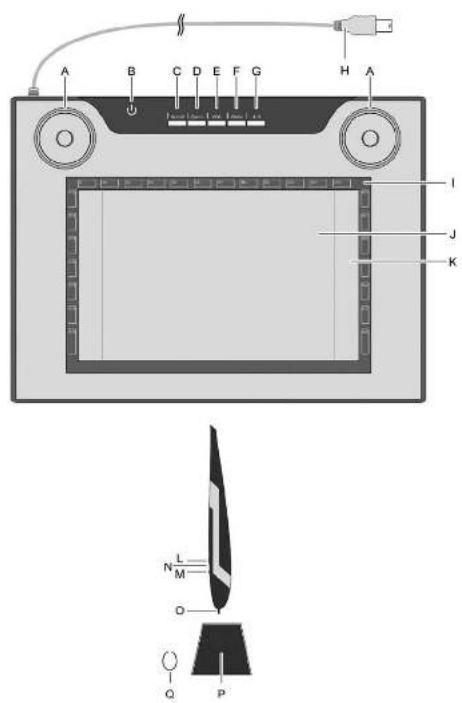
A B C D E F G H A I J K N L M O Q P

Deutsch 2

Nederlands....35

English....67

Inhaltsverzeichnis

natural_image Diagram of a missile or projectile with labeled components and directional arrow (no text or symbols)
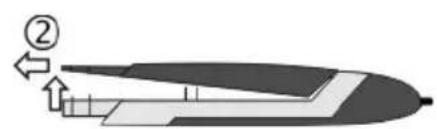
SILVERCREST SGT 10.6 A2 - Inhaltsverzeichnis - 1

natural_image Diagram of a boat hull with directional arrows indicating flow or movement (no text or symbols)
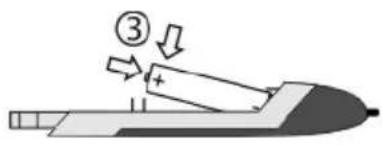
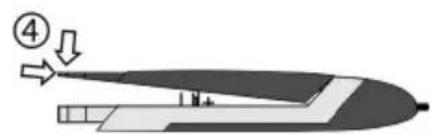
③

SILVERCREST SGT 10.6 A2 - Inhaltsverzeichnis - 3

natural_image Diagram of a spacecraft or aircraft with labeled parts and directional arrows (no text or symbols present)

SILVERCREST SGT 10.6 A2 - Inhaltsverzeichnis - 4

natural_image Diagram of a missile or projectile with labeled section 5 and directional arrow (no text or symbols)

[Exit]: Installation beenden/abbrechen.

Table of contents Click a title to access it
Manual assistant
Powered by Anthropic
Waiting for your message
Product information

Brand : SILVERCREST

Model : SGT 10.6 A2

Category : Graphic tablet