
MIHO109 - Home Automation EnerGenie - Free user manual and instructions
Find the device manual for free MIHO109 EnerGenie in PDF.


| Product Type | WiFi Smart Plug |
| Brand | EnerGenie |
| Model | MIHO109 |
| Connectivity | WiFi 2.4 GHz (802.11 b/g/n) |
| App Control | Energenie MiHome (iOS/Android) |
| Rated Voltage | 230 V AC, 50/60 Hz |
| Maximum Current | 10 A |
| Maximum Load | 2300 W (resistive) |
| Dimensions | 60 x 60 x 35 mm |
| Weight | 60 g |
| Operating Temperature | 0°C to 40°C |
| Material | Fire-resistant ABS plastic |
| Color | White |
| LED Indicator | Yes (WiFi status, pairing mode) |
| Physical Button | Manual on/off button |
| Scheduling | Programmable timers and countdown |
| Remote Control | Via smartphone app from anywhere |
| Voice Control | Compatible with Amazon Alexa, Google Assistant |
| Energy Monitoring | Real-time power consumption tracking |
| Security | Overload protection, child lock, surge protection |
| Warranty | 2 years |
| Package Contents | 1x Smart Plug, 1x Quick Start Guide |
Frequently Asked Questions - MIHO109 EnerGenie
User questions about MIHO109 EnerGenie
0 question about this device. Answer the ones you know or ask your own.
Ask a new question about this device
Download the instructions for your Home Automation in PDF format for free! Find your manual MIHO109 - EnerGenie and take your electronic device back in hand. On this page are published all the documents necessary for the use of your device. MIHO109 by EnerGenie.
USER MANUAL MIHO109 EnerGenie
- Connect to your WiFi network
Connect your phone to the WiFi network that you wish your WiFi Smart plug to use

IMPORTANT On Android you may also need to temporarily disable mobile data while setting up your WiFi Smart Plug.
- Download the Energenie MiHome app


Scan this QR Code using your phone's camera

or Visit the app store on your phone and search Energenie
The app will look like this in the iOS app store
or the Google Play store


AndroidiOS
Download it to your phone
- Open the Energenie MiHome app 4. Start pairing your WiFi Smart Plug
vodafone UK 15:18 12% R... If you are new to Energenie Mi-Home you will see this welcome screen.

Open the app and create a new account, or log in to an existing account.
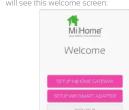
Select 'Setup WiFi Smart Adapter'
If you already have an account, choose
'Add a new device' from the menu and select 'WiFi Smart Plug'.

- Follow the on-screen instructions
Following the on-screen instructions, you should plug your WIFI Smart Plug into a socket.
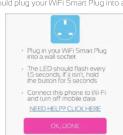
The green status LED should start flashing
every 1½ seconds.
if it does not
press and hold
the button for
5 seconds.
m - 1 ≠ 0 ;
m = 311
The quick brown fox jumps over the lazy dog.
Then press the button on the app
labelled 'OK done
PTO
- Connect the WiFi Smart Plug to WiFi
I following the off-screen instructions to connect to the WiFi Smart Plug's own network

Navigate to your phone's Wi-Fi settings. On Android you will see this button to help
In your phone's settings, connect to the

IMPORTANT On Android your phone may ask if you wish to stay supported.

If it does, choose 'Yes'
- Return to the Energenie MiHome app
Return to the Energyline will home app. Flashing should start automatically. The green LED on the plug should stop flashing.

- Name your new WiFi Smart Plug
'Go To Dashboard' to start controlling it.

Alternatively, select 'Add a New Device' to pair another Energenie MiHome product.
- Take control of your new Engronic Mills Smart!
Emergence Will some Smart Plug! Control your new plug from the dash
using the On and Off buttons.

Further Help
If you need help, try our troubleshooting guide
mihome4u.co.ult/miho109-troubleshooting
You can find the full user manual on our
website here:
•
Our technical support team can also help you.
Contact us here:
energenie4u.co.uk/about_us/contact_us
MiHome
WiFi Smart Plug
Quick Start Guide

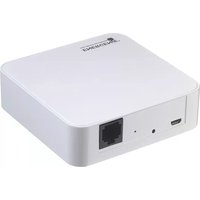


Brand : EnerGenie
Model : MIHO109
Category : Home Automation