
PROFLEX3YEAR-EXT - Software Licenses and Extensions Proflex - Free user manual and instructions
Find the device manual for free PROFLEX3YEAR-EXT Proflex in PDF.


| Product Type | Software License Extension |
| Brand | Proflex |
| Model | PROFLEX3YEAR-EXT |
| Duration | 3 years from activation |
| Compatibility | Proflex software suite |
| Activation Method | Online via license key |
| Renewal | Manual renewal required after expiration |
| License Type | Single user / per seat |
| Updates Included | All updates during license period |
| Technical Support | Email and phone support during business hours |
| Delivery | Electronic delivery via email |
| Operating Systems | Windows, macOS, Linux |
| Language Support | Multiple languages (English, German, French, etc.) |
| Installation | Download and install from official website |
| License Key | Sent via email after purchase |
| Usage Rights | Commercial and personal use permitted |
| Refund Policy | 30-day money-back guarantee |
| Security | Encrypted license key, secure activation |
| Maintenance | No physical maintenance required |
Frequently Asked Questions - PROFLEX3YEAR-EXT Proflex
User questions about PROFLEX3YEAR-EXT Proflex
0 question about this device. Answer the ones you know or ask your own.
Ask a new question about this device
Download the instructions for your Software Licenses and Extensions in PDF format for free! Find your manual PROFLEX3YEAR-EXT - Proflex and take your electronic device back in hand. On this page are published all the documents necessary for the use of your device. PROFLEX3YEAR-EXT by Proflex.
USER MANUAL PROFLEX3YEAR-EXT Proflex
v08
Proflex Room Signage
Exchange settings
Office 365
CONTENTS
Introduction 3
Architectural Overview 3
For whom 4
Technical requirements 4
Getting started 4
Step 1: Create the Outlook Room Resource(s) 5
Step 2 Create the Proflex Exchange Account 6
Adding Application Impersonation Rights 7
Add Application Impersonation Rights in Exchange Online 7
Add Application Impersonation Rights using PowerShell 9
Step 3: Validate the required Proflex Exchange Settings 10
Introduction
Proflex Signage touch panels can be easily connected to your Exchange environment. Thus ensuring that meeting room bookings that are made through Outlook Calendar appear on the touch panel(s). Vice versa bookings that are made on the spot at the touch panel(s) are synchronized with the calendars of the corresponding room resources.
The system is always up to date, in realtime and without double bookings
Architectural Overview
The Proflex Connection Manager provides the connectivity between the individual Proflex touch panels and the corresponding room resource calendars in your Exchange environment.
![graph LR A["Touch Panel 1"] --> B["Room resource email"] C["Touch Panel 2"] --> D["Room resource email"] E["Touch Panel 3"] --> F["Room resource email"] B --> G["Proflex Connection Manager"] D --> G F --> G G --> H["Proflex Exchange account"] H --> I["Exchange"]](/content/2026/05/965670/images/496c02631c6932e5c773d5493ee95b023a36f14befb5c44bfdb942cf273872e8.jpg)
This document describes the steps you have to take to connect the Proflex touch panels to your Exchange environment through the Proflex Connection Manager.
For whom
To perform the necessary steps you need Exchange Administrator rights because you need to create a Proflex Exchange Account within Exchange and you need to have the rights to define Outlook Room Resources in Exchange.
Technical requirements
The Proflex Connection Manager can connect to Room Resources in Exchange Online (Office365) and on premise Exchange 2010 sp1 or later versions.
Getting started
You need to perform the following steps to connect the Proflex Connection Manager to your Exchange environment:
- Step 1: Create the Outlook Room Resource(s)
- Step 2: Create the Proflex Exchange Account
- Step 3: Validate the Proflex Settings
- Step 4: Configure Additional Settings
Step 1: Create the Outlook Room Resource(s)
Each Proflex touch panel that you setup will be connected to an Outlook Room Resource using the Email Address of the Room Resource. You need to get this Room Resource Email Address from Exchange. Login to your Exchange environment as a Global Administrator and navigate to the Rooms & equipment page:
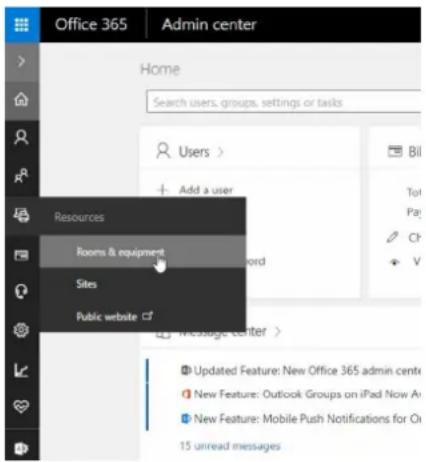
On the Rooms & equipment page you can see the Email Addresses of your Room Resources:

Make a note of the Email Address(es) of the room(s) you are going to connect Proflex touch panels to.
You will need the address when you setup the Proflex touch panel.
Step 2: Create the Proflex Exchange Account
Proflex Signage needs access to the Room Resource Calendars in Exchange through a Proflex Exchange Account with Impersonation Rights. When you setup the Proflex environment for the first time you will need to enter the Proflex Exchange Account credentials.
Note:
- The Exchange Account credentials are stored securely in Proflex using AES 256 bit encryption.
- You can use an existing account, however we recommend you create a dedicated account for Proflex so that you can ensure that the login details are not changed by mistake and it enables you to monitor the behavior of the Proflex application.
- Consider extending or even disabling the Password Policy for this account. Otherwise you will have to change the Password on the Proflex touch panel when it expires.
Login to your Exchange environment as a Global Administrator and navigate to the User screen to Add or Edit a User Account. The following screen shows you the required properties for the Proflex Exchange Account:
| Reset password Delete user | ||
| User name / Email | proflex@ReflexOnline.onmicrosoft.com | Edit |
| Allases | none | |
| Product licenses | Office 365 Small Business | Edit |
| Group memberships (0) | No groups for the user. Click edit to change group membership. | Edit |
| Sign-in status | Sign-in allowed | Edit |
| Roles | User (no admin access) | Edit |
| Display name | Proflex | Edit |
| Office phone | ||
| Mail Settings | ||
| Mailbox permissions | There are no additional mailbox permissions set on this mailbox. | Edit |
| Email forwarding | None | Edit |
| Automatic replies | Off | Edit |
Remember the account details you enter here because this account will be used by the Proflex Room Signage System to log into your Exchange Environment to access the Room Calendars.
Adding Application Impersonation Rights
For Proflex to be able to manage the Room Resource Calendars you need to configure ApplicationImpersonation for the Proflex Exchange Account. This must be done in your Exchange environment. If you are using Exchange Online follow the steps described in the section Adding ApplicationImpersonation Rights in Exchange Online. If you are using an on-premise Exchange folow the steps described in Adding ApplicationImpersonation Rights using Powershell
Add Application Impersonation Rights in Exchange Online
Login to your Exchange environment as a Global Administrator and navigate to your Exchange Admin Center:

Navigate to Permissions:

Add a New Group (e.g. Room Signage Impersonation), Add the Role Application Impersonation and Add the Proflex Exchange Account as a Member:
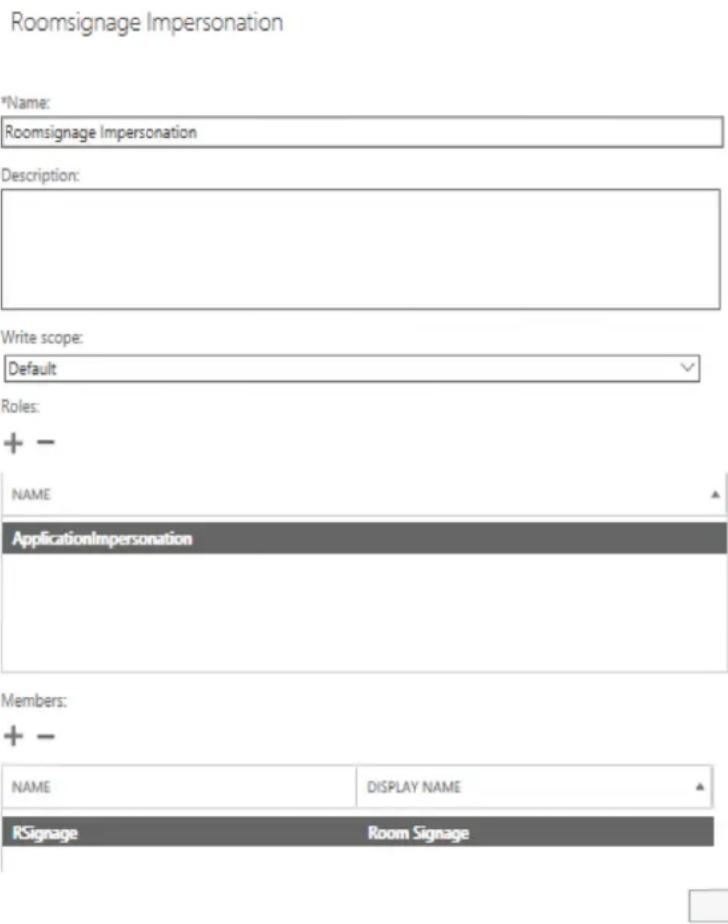
Note:
If you have a Small Business License you may not be able to add the ApplicationImpersonation Role. Microsoft informs us that in that case the ApplicationImpersonation Role is part of the Organization Management Rolegroup by default. This means that all you need to do here is add the Proflex Exchange Account to the Members.
If you have successfully completed the steps mentioned above, you can proceed to setup the ProDVX touch panel.
Add Application Impersonation Rights using PowerShell
- Run PowerShell as an Administrator
- Check the PowerShell version by typing the following cmdlet:
\$PSVersionTable
• An empty response means you are using version 1.0.
- For versions 2.0 and newer you should see a detailed answer.
- We recommend to keep PowerShell updated to avoid compatibility problems. To download the newest version of PowerShell please visit this Microsoft website.
-
If Exchange Server is in a remote location (for example hosted) or you are connecting to Office 365, learn how to connect to remote Exchange via Powershell. To manage permissions locally (MS Exchange Server on-premises or when logged on to remote Exchange via Remote Desktop, etc.) execute the commands below in Exchange Management Shell.
-
Check if the account in question already has impersonation rights assigned.
Get-ManagementRoleAssignment -RoleAssignee "<account name>" -Role ApplicationImpersonation -RoleAssigneeType user
- Where
- Add impersonation rights:
New-ManagementRoleAssignment -Name: <impersonation Assignment Name>
Role: ApplicationImpersonation -User: "<account name>"
- Where
- You can remove impersonation rights with this command if necessary:
Get-ManagementRoleAssignment -RoleAssignee "<account name>"
-Role ApplicationImpersonation -RoleAssigneeType user | Remove-
ManagementRoleAssignment
Step 3: Validate the required Proflex Exchange Settings
Before you start configuring the Proflex touchpanel you must validate the Proflex Exchange Account and Room Resource Email Address(es). This validation is done using the validation tool at www.proflexsignage.com/test-settings
Proflex ROOM SIGNAGE
Home Select your order form ▼ Support ▼ About us Contact




- PROFLEX ROOM SIGNAGE
- EXCHANGE SETTINGS
- CONTENTS
- INTRODUCTION
- ARCHITECTURAL OVERVIEW
- FOR WHOM
- TECHNICAL REQUIREMENTS
- GETTING STARTED
- STEP 1: CREATE THE OUTLOOK ROOM RESOURCE(S)
- STEP 2: CREATE THE PROFLEX EXCHANGE ACCOUNT
- NOTE
- ADDING APPLICATION IMPERSONATION RIGHTS
- ADD APPLICATION IMPERSONATION RIGHTS IN EXCHANGE ONLINE
- ADD APPLICATION IMPERSONATION RIGHTS USING POWERSHELL
- PSVERSIONTABLE
- STEP 3: VALIDATE THE REQUIRED PROFLEX EXCHANGE SETTINGS
Brand : Proflex
Model : PROFLEX3YEAR-EXT
Category : Software Licenses and Extensions