M8077 - Tablet Cello - Free user manual and instructions
Find the device manual for free M8077 Cello in PDF.


| Product type | Tablet |
| Brand | Cello |
| Model | M8077 |
| Display size | 8 inches |
| Resolution | 1280 x 800 pixels |
| Processor | Quad-core 1.3 GHz |
| RAM | 2 GB |
| Storage | 32 GB, expandable via microSD |
| Operating system | Android 10 (Go edition) |
| Battery capacity | 3000 mAh |
| Dimensions (H x W x D) | 200 x 120 x 8 mm |
| Weight | 300 g |
| Wireless connectivity | Wi-Fi 802.11 b/g/n, Bluetooth 4.2 |
| Rear camera | 5 MP |
| Front camera | 2 MP |
| Ports | Micro USB 2.0, 3.5 mm headphone jack |
| Built-in speaker | Yes, mono |
| Power input | 5V DC via micro USB |
| Cleaning | Wipe with a soft, dry cloth |
| Safety warnings | Keep away from water and extreme heat. Use only the provided charger. |
Frequently Asked Questions - M8077 Cello
User questions about M8077 Cello
0 question about this device. Answer the ones you know or ask your own.
Ask a new question about this device
Download the instructions for your Tablet in PDF format for free! Find your manual M8077 - Cello and take your electronic device back in hand. On this page are published all the documents necessary for the use of your device. M8077 by Cello.
USER MANUAL M8077 Cello
M8077

inside™
Quick Start Guide
GETTING STARTED
Congratulations on the purchase of your win8 tablet.
This quick start guide will help you to quickly get to know the functions and enjoy the quality of your Win8 experience.
Topics
- Precautions
- Getting to Know your tablet
- Connect to Bluetooth Keyboard
- Introduction to Windows 8.1 Start Screen
4.1 Basic Touch Gestures
4.2 All apps view introduction
4.3 URemove or uninstall an application or program from the start screen
4.4 Settings option bar
4.5 Snapping Apps Side by Side
- Basic Power Operations
1.0 Precautions
- Be careful not drop the tablet on hard surfaces and also prevent any kind of shock or strong impact to the tablet.
- Prevent prolonged usage of this tablet in environments where the temperature is too cold or too warm(>35°C), or in places with high humidity or high dust levels.
- Avoid using the tablet in areas with a strong magnetic or electro static field.
- If the tablet comes into contact with water or any form of liquid, switch it off immediately. Only resume usage when the said water or liquid has dried off completely.
- If cleaning is necessary, only use a dry and soft cloth or tissue paper.
- Please back up important data from time to time to avoid data loss.
- Cello shall not be held responsible for the loss of data on the tablet due to abnormal software and hardware operations or any unauthorised maintenance.
- Please do not disassemble the tablet yourself. Doing so will cause the warranty to become void. Repairs should only be carried out by authorized parties.
- Only use the battery that comes with the tablet. Using untested third party batteries is a risk to your tablet and also your personal safety.
2.0 Getting to Know Your Tablet

Front Camera: Front-facing camera.
Windows Key: Press to return to the start screen.
③ MIC: Record digital voice files.
4 MICRO SD: Load external microSD memory cards here.
⑤ Headphone Jack: Audio output connection for head-phones.
Mini HDMI: Connect to a TV or other HDMI display.
⑦ Mini USB: Connect to a USB storage device.
⑧ Power Key: Press to turn the unit on, or to turn the screen on and off.
⑨ Volume + key: Press to increase the volume level.
Volume - key: Press to decrease the volume level.
Rear Camera: Rear-facing camera.
Speaker: Speaker output is automatically muted when using headphone jack.
3.0 Connect to Bluetooth Keyboard

natural_image
Laptop with a keyboard and a grid of app icons displayed on the screen (no visible text or symbols on the device itself)
- Set the keyboard on/off switch to on, the blue indicator light will light up for 5 seconds and then go out.
- Press the connect button, the blue indicator light will flash constantly.
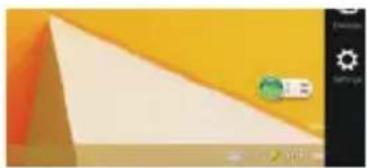
- Turn on your win8 tablet and Swipe horizontally from the right side of your device, opening the settings option bar.
natural_image
Abstract geometric design with yellow, orange, and beige triangular shapes and a green circular icon (no text or symbols)- Select settings

3.0 Connect to Bluetooth Keyboard
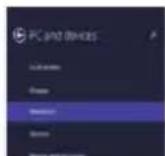
- Select "PC and devices"

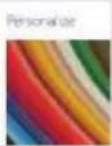
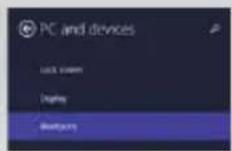
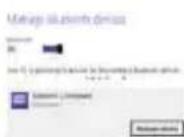
- Select and activate "Bluetooth", your tablet will search all nearby devices automatically and will instantly find your keyboard.

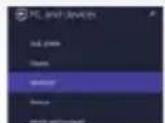
- Press "Pair" when your keyboard "Bluetooth 3.0 keyboard" is displayed on the screen.

- You will now be prompted to enter the password shown on the screen. After entering the password press enter. This will enable your keyboard to connect correctly

4.0 Introduction to Windows 8.1 Start Screen
On the win8 start screen you will see a number of pre-installed apps, such as skype, Mail ect. Any newly installed applications or programs by the user will also appear on the start screen, this depending on the users own preferences during the initial start up and user options.
* Certain applications will require the user to log into a Microsoft account in order for the app to be fully functional.
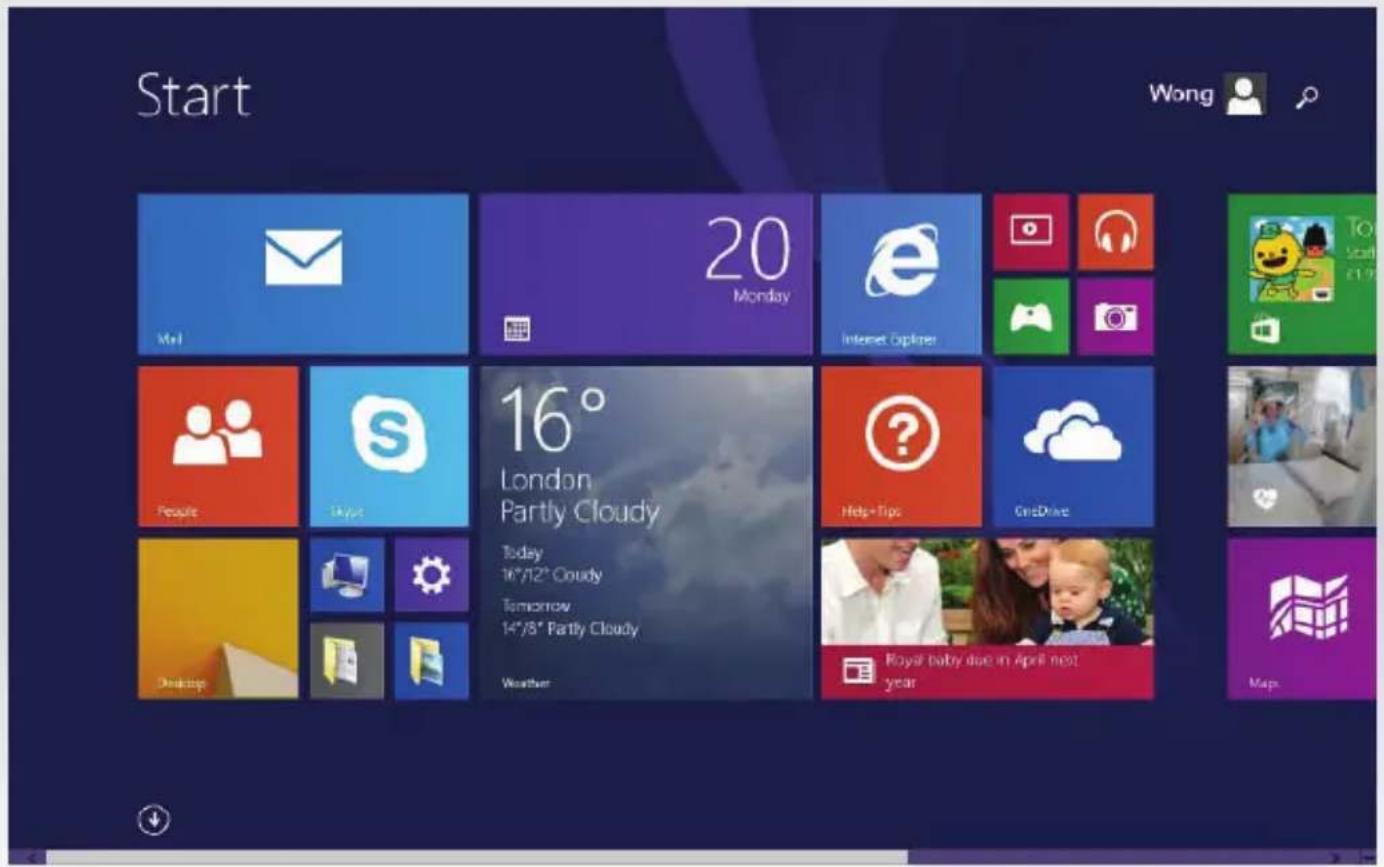
Screenshot: Start Screen
4.0 Introduction to Windows 8.1 Start Screen
4.1 Basic Touch Gestures

natural_image
Illustration of a hand pointing at a colorful digital interface with app icons (no text or symbols on the screen)Switch Apps
Slide to the right side from the left side of the screen to view running applications. Tapping on an app will switch to it.
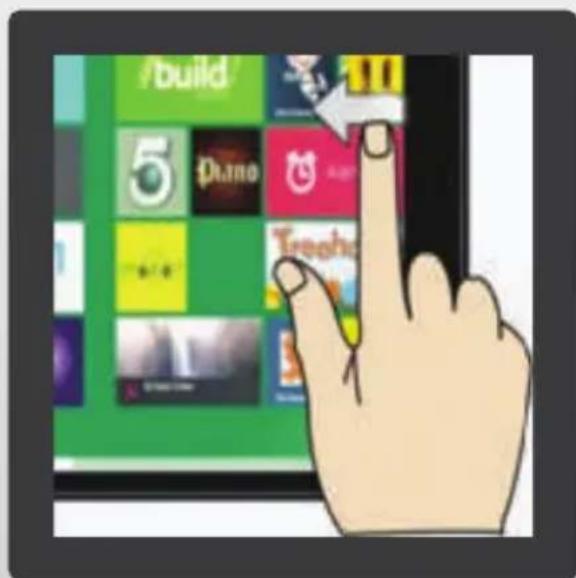
Settings option bar
Slide to the left from the right side of the screen to bring in the Settings option bar.
4.0 Introduction to Windows 8.1 Start Screen
4.1 Basic Touch Gestures

natural_image
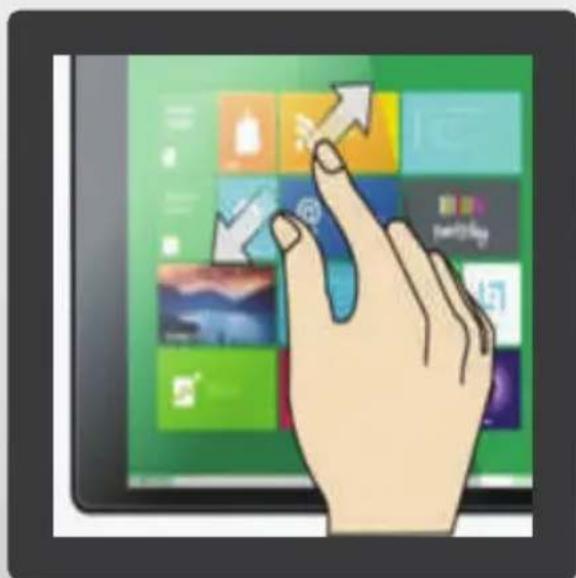
Illustration of a hand interacting with a tablet displaying a grid of app icons (no text or symbols on the icons)Zoom Out
On the touch screen, pinch two fingers inwards to zoom out.
natural_image
Illustration of a hand interacting with a tablet displaying a grid of app icons (no text or symbols on the icons)Zoom In
On the touch screen, pinch two fingers outward to zoom in.
4.0 Introduction to Windows 8.1 Start Screen
4.1 Basic Touch Gestures

natural_image
Illustration of a hand pointing at a colorful app interface with icons on the screen (no text or symbols on the hand or background)Closing Applications
To close an open application, slide your finger from the top of the screen to the bottom of the screen in a vertical manner.
natural_image
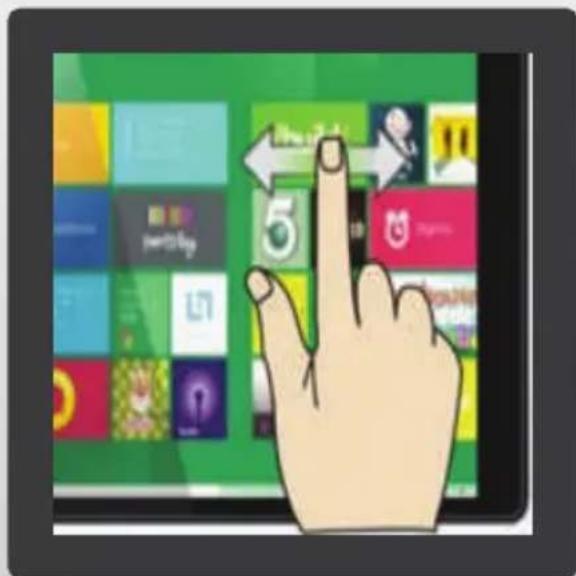
Illustration of a hand pointing at a tablet displaying app icons (no text or symbols on the device)Scrolling the Start Screen
To scroll the Start screen, slide to the left or right on it.
4.0 Introduction to Windows 8.1 Start Screen
4.1 Basic Touch Gestures

Launching all apps view
Slide upwards to show on the screen all apps installed in your device.
see next page: All apps view
4.0 Introduction to Windows 8.1 Start Screen
4.2 All apps view introduction
All apps / programs will be shown as in the screenshot below, this allowing the user to keep track of what is installed on the device.
* Some system related programs are not shown.

Screenshot: All app view
- It is possible to place an icon of any app or program in the all app view into the start screen. This will give the user easier access to this chosen app or program.
- Place an app or program to the start screen by touching the app / program for a second then letting go. Several options will appear at the bottom of the screen.
- Select "pin to start" and an icon of the selected app / program will be shown on the start screen.
4.0 Introduction to Windows 8.1 Start Screen
4.3 Remove or uninstall an application or program from the start screen
- It is possible to remove or uninstall any app / program from the start screen. This enables the user to structure the start screen to his own preference.
- To remove or uninstall an app / program from the start screen, touch the app / program for a second and let go. Several options will appear at the bottom of the screen.
- Select "unpin from start" and the icon of the selected app / program will be deleted from the start screen, the app will still be available in the all app view.
- Select "Uninstall" and the app / program will be deleted completely from the from the device and no longer available in the all app view.

Screenshot: Uninstalling an app.
4.0 Introduction to Windows 8.1 Start Screen
4.4 Settings option bar
To show the settings option bar, swipe your finger horizontally from the right side of the tablet to the left. On the bar 5 options are available: (Search, Share, Start, Devices, Settings). The date, time, wireless and battery status will also be shown in the bottom left of the screen.
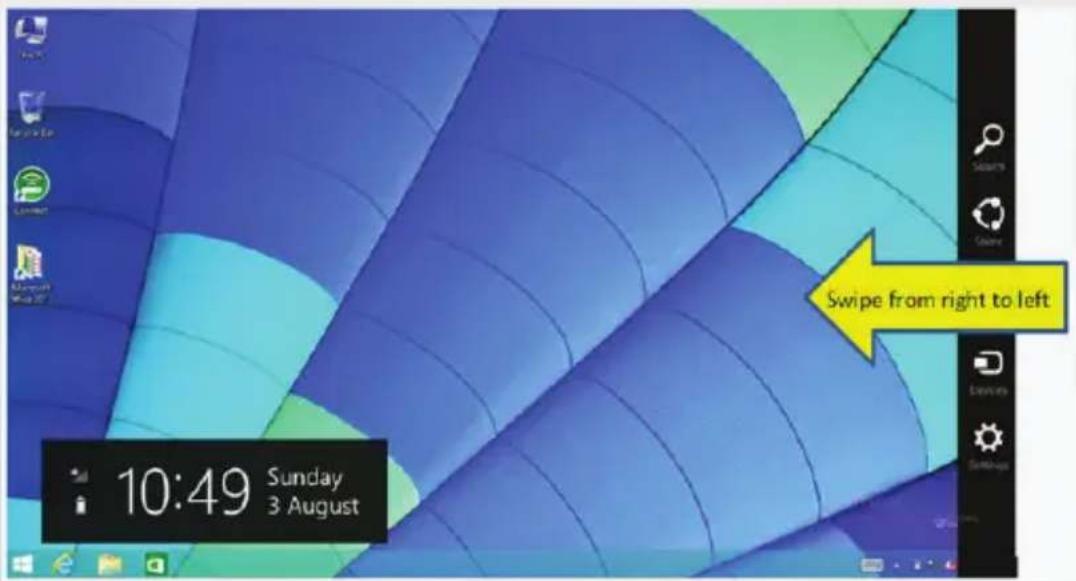
Screen shot: Settings option bar

Search:
Enables file and app searching.

Devices:
Connect to external peripherals like Printers and scanners.

Share:
Enables file sharing via Mail, OneNote, etc.
Settings:
Access options to fine tune your tablet.
Start:
Launches the Start Screen.
4.0 Introduction to Windows 8.1 Start Screen
4.5 Snapping Apps Side by Side
If you have more than 1 app running simultaneously, you can snap them side by side, giving you a view of more than 1 app at the same time.
- To do so, swipe in from the left of the screen in a horizontal gesture until you see a split screen view.
- Release the hold to snap 2 apps side by side.
- You can also adjust the proportions of each app being displayed in this view.
- Touch the partition line separating the apps and drag it left or right as you wish. You will see the apps' proportion being resized in real time.

Screenshot: Swipe to the right
4.0 Introduction to Windows 8.1 Start Screen
4.5 Snapping Apps Side by Side
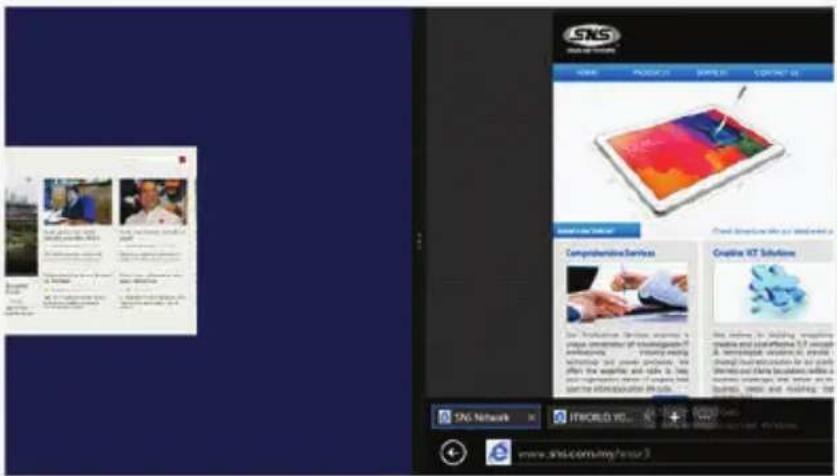
Screenshot: Split screen view appears

Screenshot: 2 Apps snapped side by side
5.0 Basic Power Operations
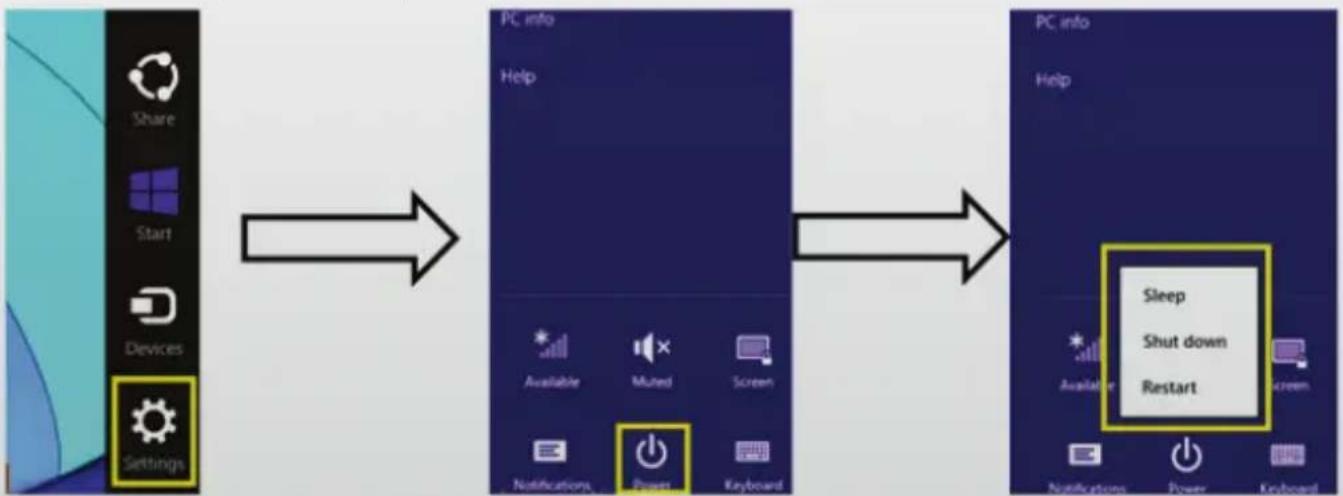
5.0 Basic power options
flowchart
graph LR
    A["Share"] --> B["PC info"]
    C["Start"] --> B
    D["Devices"] --> B
    E["Settings"] --> B
    B --> F["Help"]
    F --> G["Available"]
    F --> H["Mured"]
    F --> I["Screen"]
    G --> J["Notifications"]
    H --> K["Power"]
    I --> L["Keyboard"]
    M["PC info"] --> N["Sleep"]
    M --> O["Shut down"]
    M --> P["Restart"]
- Select the Settings option bar and select the icon for settings.
- Select the the power option and 3 settings are available (Sleep, Shut down, Restart).
- Sleep: Put the tablet into an idle state. Ideal if you will be away from the tablet for a short while.
- Shut down: This option safely closes all applications before switching off the device.
- Restart: This option safely closes all applications before restarting the device.
CELLO Tablet
Windows 8.1 with Bing
Specifications:
CPU: Intel Baytrail-CR(Quad-core), Z3735G
RAM: 1GB
ROM Flash: 16GB ^* Storage
Display: 8" IPS LCD, 800 x 1280
Multitouch: 5 Points multitouch capacitive
Camera: 2.0MP front/2.0MP back
Battery: 3.7V/4500mAh Lithium-ion polymer battery
* System software uses significant storage space; your storage capacity will be less.
Telephone support
08712887345
9:00am to 5:00pm
Monday to Friday
A low battery can prevent your Tablet from starting, please make sure the battery is sufficiently charged before use.
Please provide detailed information about any problem you are experiencing.
- M8077
- GETTING STARTED
- Topics
- Precautions
- Getting to Know Your Tablet
- Connect to Bluetooth Keyboard
- Introduction to Windows 8.1 Start Screen
- Basic Touch Gestures
- Switch Apps
- Settings option bar
- Zoom Out
- Zoom In
- Closing Applications
- Scrolling the Start Screen
- Launching all apps view
- All apps view introduction
- Screenshot: All app view
- Remove or uninstall an application or program from the start screen
- Settings option bar
- Snapping Apps Side by Side
- Basic Power Operations
- Basic power options
- CELLO Tablet
- Windows 8.1 with Bing
Brand : Cello
Model : M8077
Category : Tablet