
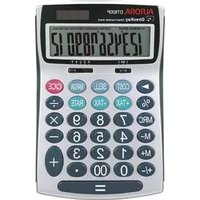
DB453B - Calculator AURORA - Free user manual and instructions
Find the device manual for free DB453B AURORA in PDF.


Pick your language and provide your email: we'll send you a specifically translated version.
| Product Type | Desktop Calculator |
| Brand | Aurora |
| Model | DB453B |
| Display | 12-digit LCD with punctuation |
| Power Source | Solar cell with LR44 battery backup |
| Key Functions | Addition, subtraction, multiplication, division, percentage, square root, memory (M+, M-, MR, MC) |
| Dimensions (W x D x H) | 150 mm x 120 mm x 30 mm |
| Weight | 110 g |
| Material | Plastic body with rubber keys |
| Battery Type | LR44 (1.5V) button cell |
| Auto Power Off | Yes, after approximately 7 minutes of inactivity |
| Operating Temperature | 0°C to 40°C |
| Cleaning | Wipe with a soft, dry cloth. Do not use solvents. |
| Safety Precautions | Avoid exposure to water, extreme temperatures, and dropping. |
| Spare Parts Availability | Not available; device is non-repairable |
| Warranty | 1 year limited warranty |
| Certifications | CE, RoHS |
Frequently Asked Questions - DB453B AURORA
How do I replace the battery in my Aurora DB453B calculator?
Slide the battery cover off on the back, remove the old LR44 battery, and insert a new one with the positive (+) side facing up. Replace the cover.
Why is my calculator display dim or not showing numbers?
The solar cell may be in low light. Move to a brighter area or replace the backup battery if the display is weak even under good light.
How do I use the memory functions (M+, M-, MR, MC)?
Press M+ to add the current number to memory, M- to subtract, MR to recall the stored value, and MC to clear memory.
What does the auto power off feature do?
The calculator automatically turns off after about 7 minutes of no key presses to save battery. Press ON/AC to turn it back on.
How do I calculate a percentage?
Enter the number, press the % key. For example, 200 × 10 % gives 20.
What is the square root function and how do I use it?
To find the square root, enter the number and press the √ key. For example, 9 √ = 3.
How should I clean my calculator?
Wipe the exterior with a soft, dry cloth. Do not use liquid cleaners, abrasives, or immerse in water.
Is the calculator suitable for heavy usage in an office?
Yes, it is designed for general office use with a durable keypad and reliable solar/battery power.
What should I do if the keys become sticky or unresponsive?
First, check for dirt or debris. Clean gently with a dry cloth. If still unresponsive, the device may need replacement as it is not repairable.
Where can I download the user manual?
The manual is available for free download in PDF format from the notice-facile.com website or other online manual databases.
User questions about DB453B AURORA
0 question about this device. Answer the ones you know or ask your own.
Ask a new question about this device
No questions yet. Be the first to ask one.
Download the instructions for your Calculator in PDF format for free! Find your manual DB453B - AURORA and take your electronic device back in hand. On this page are published all the documents necessary for the use of your device. DB453B by AURORA.
USER MANUAL DB453B AURORA
| PROBLEM | INPUT | DISPLAY |
| Tax rate set (e.g. 17.5%) | 175 | 17.5 |
| RATE | 17.5 RATE | |
| TAX+ | 17.5 TAX% | |
| Recall tax rate | RATE | 0 RATE |
| TAX- | 17.5 TAX% | |
| Add the Tax Amount | 120 | 120 |
| Price £120 without tax | TAX+ | 141 TAX+ |
| Price with tax-?(£141) | TAX+ | 21 TAX |
| Tax-?(£21) | ||
| Subtract the Tax Amount | 141 | 141 |
| Selling price with tax £141 | TAX- | 120 TAX- |
| Price without tax=? (£120) | TAX- | 21 TAX |
| Tax=? (£21) | ||
| 100÷(1−20%)=125 | 100÷20MU | 125 |
| 2+3−1=4 | ONCO22+3−1= | 4 |
| −2.4×6÷8=-1.8 | 2·4×6÷8= | −1.8 |
| 2×(3+4)−5=9 | 3+4×2−5= | 9 |
| 3×2.54=7.62 | 2ONCO3×2·54= | 7.62 |
| 2+3=5 | 2+3= | 5 |
| 4+3=7 | 4= | 7 |
| 2−3=-1 | 2−3= | −1 |
| 4−3=1 | 4= | 1 |
| 2×3=6 | 2×3= | 6 |
| 2×4=8 | 4= | 8 |
| 2÷4=0.5 | 2÷4= | 0.5 |
| 3÷4=0.75 | 3= | 0.75 |
| 2+3+3=8 | 2+3= | 8 |
| 6−2−2=2 | 6−2= | 2 |
| 2^3 =8 | 2×= | 8 |
| 20×25%=5 | 20×25% | 5 |
| 5÷20%=25 | 5÷20% | 25 |
| 20×(1+15%)=23 | 20+15% | 23 |
| 20×(1−20%)=16 | 20−20% | 16 |
| 2×3=6 | 2×3M+ | M 6 |
| −)3×4=12 | 3×4M- | M 12 |
| +)4×5=20 | 4×5M+ | M 20 |
| 14 | ME | M 14 |
| ME | 14 |

Manual assistant
Powered by Anthropic
Waiting for your message
Product information
Brand : AURORA
Model : DB453B
Category : Calculator