AC247A - Cables for Computers and Peripherals Black Box - Free user manual and instructions
Find the device manual for free AC247A Black Box in PDF.


| Product Type | Data Transfer Cable |
| Brand | Black Box |
| Model | AC247A |
| Connector Type | USB 2.0 Type-A to Type-B |
| Length | 1.8 m (6 ft) |
| Weight | Approx. 80 g |
| Data Transfer Rate | Up to 480 Mbps |
| Shielding | Double shielded for EMI protection |
| Compatibility | Computers, printers, scanners, and other USB peripherals |
| Power Supply | Bus-powered via USB |
| Main Function | Connect peripheral devices to a computer for data transfer |
| Care and Cleaning | Wipe with a dry cloth; avoid liquids and excessive bending |
| Safety | Meets RoHS and CE standards; do not use damaged cables |
| Spare Parts and Repairability | Not user-serviceable; replace if defective |
| General Information | Designed for reliable, high-speed data connections |
Frequently Asked Questions - AC247A Black Box
User questions about AC247A Black Box
0 question about this device. Answer the ones you know or ask your own.
Ask a new question about this device
Download the instructions for your Cables for Computers and Peripherals in PDF format for free! Find your manual AC247A - Black Box and take your electronic device back in hand. On this page are published all the documents necessary for the use of your device. AC247A by Black Box.
USER MANUAL AC247A Black Box
PS/2 Keyboard and Mouse Emulation Device
natural_image
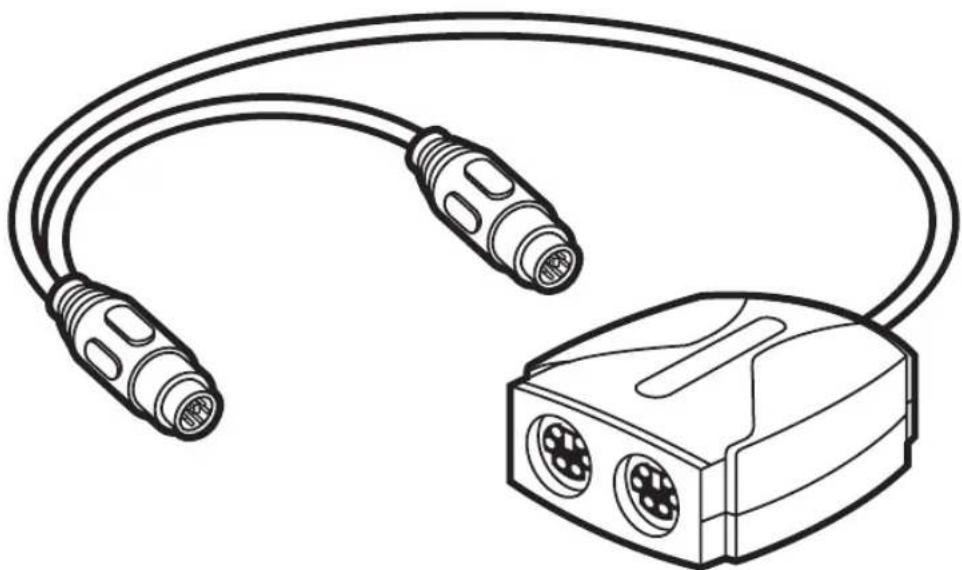
Line drawing of a cable and connector device (no text or symbols)Once you plug a PS/2 Keyboard and Mouse Emulation Device (our product code AC247A) into an IBM® PS/2® compatible computer, the emulation device mimics the responses of a keyboard and PS/2 mouse. When you power up the PC, it will boot and operate successfully without a keyboard or mouse attached. Plug a keyboard and mouse into the emulation device when you need to control the computer; the device will pass the data through to the computer. This adds a measure of security to your system, making accidental use of the computer impossible and purposeful misuse more difficult.
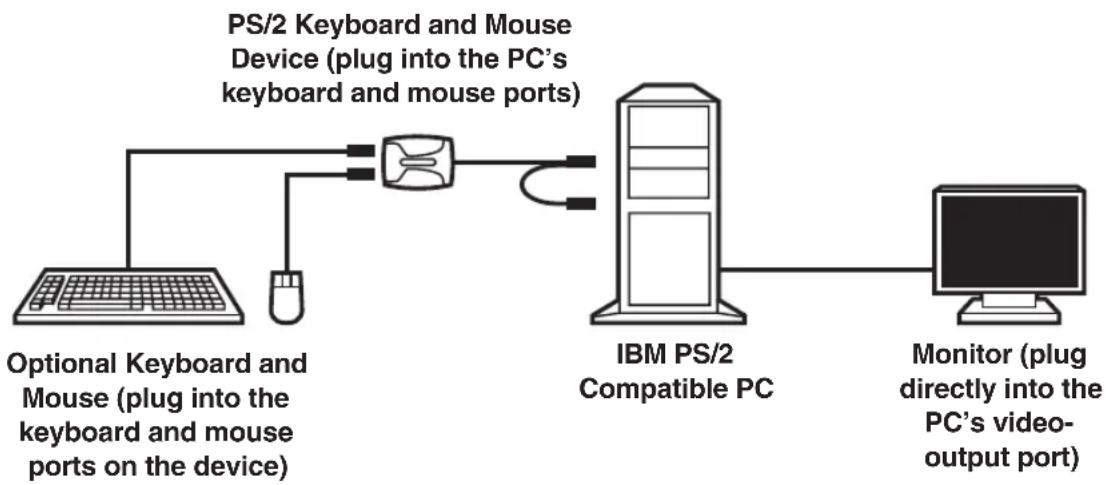
To install the Keyboard and Mouse Emulation Device, take these steps, referring to the figure on the reverse:
-
Make sure the computer is turned off and unplugged, and that nothing is attached to its keyboard or mouse ports. (The monitor's video cable should be attached to the computer's video port.)
-
There are two short cables with 6-pin mini-DIN male connectors attached to the emulation device. Plug the cable labeled with the keyboard symbol (color-coded PC99 purple) into the computer's 6-pin mini-DIN female keyboard port. Note that if you only need to emulate the mouse, the device gets its power from the keyboard interface, not the mouse interface, so you still must make this keyboard connection.
-
Plug the device cable labeled with the mouse symbol (color-coded PC99 green) into the computer's 6-pin mini-DIN female PS/2 mouse port.
PS/2 KEYBOARD AND MOUSE EMULATION DEVICE
- Power up the computer. The PS/2 Keyboard and Mouse Device should begin operating immediately from the DC voltage on the computer's keyboard port.
At any time, you can connect a keyboard to (and later disconnect it from) the device's 6-pin mini-DIN female keyboard port (labeled with a keyboard symbol that's color-coded PC99 purple) to send keyboard input to the computer. Similarly, you can at any time plug a mouse into, and unplug it from, the device's mouse port (labeled with a mouse symbol that's color-coded PC99 green) to send mouse input to the computer.
flowchart
graph LR
    A["Optional Keyboard and Mouse (plug into the keyboard and mouse ports on the device)"] --> B["PS/2 Keyboard and Mouse Device (plug into the PC's keyboard and mouse ports)"]
    B --> C["IBM PS/2 Compatible PC"]
    C --> D["Monitor (plug directly into the PC's video-output port)"]
An installed PS/2 Keyboard and Mouse Emulation Device.
TRADEMARKS USED IN THIS MANUAL
BLACK BOX and the Double Diamond logo are registered trademarks of BB Technologies, Inc.
IBM and PS/2 are registered trademarks of International Business Machines Corporation.
Any other trademarks mentioned in this manual are acknowledged to be the property of the trademark owners.
© Copyright 2007. Black Box Corporation. All rights reserved.
CUSTOMER
SUPPORT
INFORMATION
Order toll-free in the U.S.: Call 877-877-BBOX (outside U.S. call 724-746-5500)
FREE technical support, 24 hours a day, 7 days a week: Call 724-746-5500 or fax 724-746-0746
Mailing address: Black Box Corporation, 1000 Park Drive, Lawrence, PA 15055-1018
Web site: www.blackbox.com • E-mail: info@blackbox.com
Brand : Black Box
Model : AC247A
Category : Cables for Computers and Peripherals