USER MANUAL BD-SP308 ONKYO
Thank you for purchasing an Onkyo BLU-RAY DISC PLAYER. Please read this manual thoroughly before making connections and plugging in the unit.
Following the instructions in this manual will enable you to obtain optimum performance and listening enjoyment from your new BLU-RAY DISC PLAYER.
Please retain this manual for future reference.
Contents
Safety Information......2
Preparation 5
Installation ....11
Operation 23
Maintenance....32
Troubleshooting ....33
Appendix....35
WARNING:
TO REDUCE THE RISK OF FIRE OR ELECTRIC SHOCK, DO NOT EXPOSE THIS APPARATUS TO RAIN OR MOISTURE.
CAUTION:
TO REDUCE THE RISK OF ELECTRIC SHOCK, DO NOT REMOVE COVER (OR BACK). NO USER-SERVICEABLE PARTS INSIDE. REFER SERVICING TO QUALIFIED SERVICE PERSONNEL.

WARNING
RISK OF ELECTRIC SHOCK
DO NOT OPEN
AVIS
RISQUE DE CHOC ELECTRIQUE
NE PAS OUVRIR


equilateral triangle, is intended to alert the user to the presence of uninsulated “dangerous voltage” within the product’s enclosure that may be of sufficient magnitude to constitute a risk of electric shock to persons.

The exclamation point within an equilateral triangle is intended to alert the user to the presence of important operating and maintenance (servicing) instructions in the literature accompanying the appliance.
Important Safety Instructions
-
Read these instructions.
-
Keep these instructions.
-
Heed all warnings.
-
Follow all instructions.
-
Do not use this apparatus near water.
-
Clean only with dry cloth.
-
Do not block any ventilation openings. Install in accordance with the manufacturer's instructions.
-
Do not install near any heat sources such as radiators, heat registers, stoves, or other apparatus (including amplifiers) that produce heat.
-
Do not defeat the safety purpose of the polarized or grounding-type plug. A polarized plug has two blades with one wider than the other. A grounding type plug has two blades and a third grounding prong. The wide blade or the third prong are provided for your safety. If the provided plug does not fit into your outlet, consult an electrician for replacement of the obsolete outlet.
-
Protect the power cord from being walked on or pinched particularly at plugs, convenience receptacles, and the point where they exit from the apparatus.
-
Only use attachments/accessories specified by the manufacturer.
-
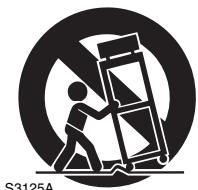
Use only with the cart, stand, tripod, bracket, or table specified by the manufacturer, or sold with the apparatus. When a cart is used, use caution when moving the cart/apparatus combination to avoid injury from tip-over.
PORTABLE CART WARNING
natural_image
Symbolic icon of a person pushing a large object with a diagonal line, enclosed in a circle (no text or symbols)
-
Unplug this apparatus during lightning storms or when unused for long periods of time.
-
Refer all servicing to qualified service personnel. Servicing is required when the apparatus has been damaged in any way, such as power-supply cord or plug is damaged, liquid has been spilled or objects have fallen into the apparatus, the apparatus has been exposed to rain or moisture, does not operate normally, or has been dropped.
-
Damage Requiring Service
Unplug the apparatus from the wall outlet and refer servicing to qualified service personnel under the following conditions:
A. When the power-supply cord or plug is damaged,
B. If liquid has been spilled, or objects have fallen into the apparatus,
C. If the apparatus has been exposed to rain or water,
D. If the apparatus does not operate normally by following the operating instructions. Adjust only those controls that are covered by the operating instructions as an improper adjustment of other controls may result in damage and will often require extensive work by a qualified technician to restore the apparatus to its normal operation,
E. If the apparatus has been dropped or damaged in any way, and
F. When the apparatus exhibits a distinct change in performance this indicates a need for service.
- Object and Liquid Entry
Never push objects of any kind into the apparatus through openings as they may touch dangerous voltage points or short-out parts that could result in a fire or electric shock.
The apparatus shall not be exposed to dripping or splashing and no objects filled with liquids, such as vases shall be placed on the apparatus.
Don't put candles or other burning objects on top of this unit.
- Batteries
Always consider the environmental issues and follow local regulations when disposing of batteries.
- If you install the apparatus in a built-in installation, such as a bookcase or rack, ensure that there is adequate ventilation.
Leave 20 cm (8") of free space at the top and sides and 10 cm (4") at the rear. The rear edge of the shelf or board above the apparatus shall be set 10 cm (4") away from the rear panel or wall, creating a flue-like gap for warm air to escape.
-
Recording Copyright—Unless it's for personal use only, recording copyrighted material is illegal without the permission of the copyright holder.
-
AC Fuse—The AC fuse inside the unit is not user-serviceable. If you cannot turn on the unit, contact your Onkyo dealer.
-
Care—Occasionally you should dust the unit all over with a soft cloth. For stubborn stains, use a soft cloth dampened with a weak solution of mild detergent and water. Dry the unit immediately afterwards with a clean cloth. Don’t use abrasive cloths, thinners, alcohol, or other chemical solvents, because they may damage the finish or remove the panel lettering.
-
Power
WARNING
BEFORE PLUGGING IN THE UNIT FOR THE FIRST TIME, READ THE FOLLOWING SECTION CAREFULLY.
AC outlet voltages vary from country to country. Make sure that the voltage in your area meets the voltage requirements printed on the unit's rear panel (e.g., AC 200-240 V, 50/60 Hz or AC 120 V, 60 Hz).
The power cord plug is used to disconnect this unit from the AC power source. Make sure that the plug is readily operable (easily accessible) at all times.
Pressing ON/STANDBY to select Standby mode does not fully shutdown the unit. If you do not intend to use the unit for an extended period, remove the power cord from the AC outlet.
- Preventing Hearing Loss
Caution
Excessive sound pressure from earphones and headphones can cause hearing loss.
- Batteries and Heat Exposure
Warning
Batteries (battery pack or batteries installed) shall not be exposed to excessive heat as sunshine, fire or the like.
-
Never Touch this Unit with Wet Hands—Never handle this unit or its power cord while your hands are wet or damp. If water or any other liquid gets inside this unit, have it checked by your Onkyo dealer.
-
Handling Notes
-
If you need to transport this unit, use the original packaging to pack it how it was when you originally bought it.
- Do not leave rubber or plastic items on this unit for a long time, because they may leave marks on the case.
- This unit's top and rear panels may get warm after prolonged use. This is normal.
- If you do not use this unit for a long time, it may not work properly the next time you turn it on, so be sure to use it occasionally.
-
When you've finished using this unit, remove all discs and turn off the power.
-
Installing this Unit
• Install this unit in a well-ventilated location.
- Ensure that there's adequate ventilation all around this unit, especially if it's installed in an audio rack. If the ventilation is inadequate, the unit may overheat, leading to malfunction.
- Do not expose this unit to direct sunlight or heat sources, because its internal temperature may rise, shortening the life of the optical pickup.
- Avoid damp and dusty places, and places subject to vibrations from loudspeakers.
- Never put the unit on top of, or directly above a loudspeaker.
- Install this unit horizontally. Never use it on its side or on a sloping surface, because it may cause a malfunction.
- If you install this unit near a TV, radio, or VCR, the picture and sound quality may be affected. If this occurs, move this unit away from the TV, radio, or VCR.
-
To Obtain a Clear Picture—This unit is a hightech, precision device. If the lens on the optical pickup, or the disc drive mechanism becomes dirty or worn, the picture quality may be affected. To maintain the best picture quality, we recommend regular inspection and maintenance (cleaning or worn part replacement) every 1,000 hours of use depending on the operating environment. Contact your Onkyo dealer for details.
-
Moisture Condensation
Moisture condensation may damage this unit.
Read the following carefully:
Moisture may condense on the lens of the optical pickup, one of the most important parts inside this unit.
- Moisture condensation can occur in the following situations:
- The unit is moved from a cold place to a warm place.
- A heater is turned on, or cold air from an air conditioner is hitting the unit.
- In the summer, when this unit is moved from an air conditioned room to a hot and humid place.
- The unit is used in a humid place.
- Do not use this unit when there's the possibility of moisture condensation occurring. Doing so may damage your discs and certain parts inside this unit. If condensation does occur, remove all discs and leave this unit turned on for two to three hours. By this time, the unit will have warmed up and any condensation will have evaporated.
-
Region Codes—The BD/DVD standard uses region codes to control how discs can be played around the world, the world being divided into three regions (BD) or six regions (DVD). This unit will only play BD/DVD discs that match its region code, which can be found on its rear panel.
-
About this Manual—This manual explains how to use all of this unit's functions. Although the BD/DVD standard offers many special features, not all discs use them all, so depending on the disc being played, this unit may not respond to certain functions. See the disc's sleeve notes for supported features.
This unit contains a semiconductor laser system and is classified as a “CLASS 1 LASER PRODUCT”. So, to use this model properly, read this Instruction Manual carefully. In case of any trouble, please contact the store where you purchased the unit.
To prevent being exposed to the laser beam, do not try to open the enclosure.
CAUTION:
CLASS 1M VISIBLE AND INVISIBLE LASER RADIATION WHEN OPEN. DO NOT VIEW DIRECTLY WITH OPTICAL INSTRUMENTS.
THIS PRODUCT UTILIZES A LASER. USE OF CONTROLS OR ADJUSTMENTS OR PERFORMANCE OF PROCEDURES OTHER THAN THOSE SPECIFIED HEREIN MAY RESULT IN HAZARDOUS RADIATION EXPOSURE.
The label on the right is applied on the rear panel.
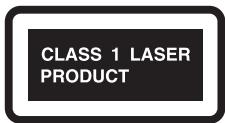
- This unit is a CLASS 1
LASER PRODUCT and employs a laser inside the cabinet.
- To prevent the laser from being exposed, do not remove the cover. Refer servicing to qualified personnel.
For U.S. models
CAUTION:
The user changes or modifications not expressly approved by the party responsible for compliance could void the user's authority to operate the equipment.
NOTE:
This equipment has been tested and found to comply with the limits for a Class B digital device, pursuant to Part 15 of the FCC Rules. These limits are designed to provide reasonable protection against harmful interference in a residential installation.
This equipment generates, uses and can radiate radio frequency energy and, if not installed and used in accordance with the instructions, may cause harmful interference to radio communications. However, there is no guarantee that interference will not occur in a particular installation. If this equipment does cause harmful interference to radio or television reception, which can be determined by turning the equipment off and on, the user is encouraged to try to correct the interference by one or more of the following measures:
- Reorient or relocate the receiving antenna.
- Increase the separation between the equipment and receiver.
- Connect the equipment into an outlet on a circuit different from that to which the receiver is connected.
- Consult the dealer or an experienced radio/TV technician for help.
For Canadian Models
NOTE: THIS CLASS B DIGITAL APPARATUS COMPLIES WITH CANADIAN ICES-003.
For models having a power cord with a polarized plug:
CAUTION: TO PREVENT ELECTRIC SHOCK, MATCH WIDE BLADE OF PLUG TO WIDE SLOT, FULLY INSERT.
About the “∅” Symbol Display
“∅” may appear on your TV display during operation and indicates that the function explained in this owner’s manual is not available on that specific media.
Symbols Used in this Manual
Note
Indicates special notes and operating features.
Caution
Indicates cautions for preventing possible damage from abuse.
A section whose title has one of the following symbols are applicable only to the disc represented by the symbol.
| BD | BD-ROM disc |
| DVD | DVD-Video, DVD ± R/RW in Video mode and finalized |
| AVCHD | DVD ± R/RW in AVCHD format |
| CD | Audio CDs |
| MOVIE | Movie files contained in the USB/Disc |
| MUSIC | Music files contained in the USB/Disc |
| PHOTO | Photo files |
Supplied Accessories
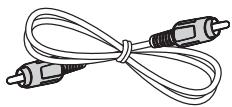
Video cable (1)
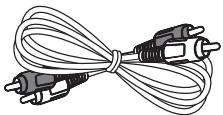
Audio cables (1)
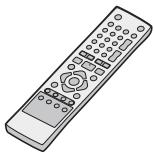
Remote control (1)
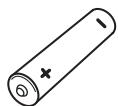
Battery (1)
Netflix Box-insert (1)
playable Discs
 | Blu-ray DiscDiscs such as movies that can be purchased or rented.BD-R/RE discs that contain Movie, Music or Photo files. |
 | DVD-VIDEO (8 cm / 12 cm disc)Discs such as movies that can be purchased or rented. |
 | DVD ± R (8 cm / 12 cm disc)Video mode and finalized onlySupports the dual layer disc also |
 | Finalized AVCHD formatDVD ± R discs that contain Movie, Music or Photo files. |
 | DVD-RW (8 cm / 12 cm disc)Video mode and finalized onlyFinalized AVCHD formatDVD-RW discs that contain Movie, Music or Photo files. |
 | DVD+RW (8 cm / 12 cm disc)Video mode and finalized onlyFinalized AVCHD formatDVD+RW discs that contain Movie, Music or Photo files. |
 | Audio CD (8 cm / 12 cm disc) |
 | CD-R/RW (8 cm / 12 cm disc)CD-R/RW discs that contain audio titles, Movie, Music or Photo files. |
Note
- Depending on the conditions of the recording equipment or the CD-R/RW (or DVD±R/RW) disc itself, some CD-R/RW (or DVD±R/RW) discs cannot be played on the unit.
- Depending on the recording software & the finalization, some recorded discs (CD-R/RW, DVD±R/RW or BD-R/RE) may not be playable.
- BD-R/RE, DVD±R/RW and CD-R/RW discs recorded using a personal computer or a DVD or CD Recorder may not play if the disc is damaged or dirty, or if there is dirt or condensation on the player's lens.
- If you record a disc using a personal computer, even if it is recorded in a compatible format, there are cases in which it may not play because of the settings of the application software used to create the disc. (Check with the software publisher for more detailed information.)
- This player requires discs and recordings to meet certain technical standards in order to achieve optimal playback quality.
-
Pre-recorded DVDs are automatically set to these standards. There are many different types of recordable disc formats (including CD-R containing MP3 or WMA files) and these require certain pre-existing conditions to ensure compatible playback.
-
Hybrid discs have both BD-ROM and DVD (or CD) layers on one side. On such discs, BD-ROM layer will be only played back in this player.
- Customers should note that permission is required in order to download MP3 / WMA files and music from the Internet. Our company has no right to grant such permission. Permission should always be sought from the copyright owner.
- You have to set the disc format option to “Mastered” in order to make the discs compatible with the Onkyo players when formatting rewritable discs. When setting the option to Live System, you cannot use it on the Onkyo player. (Mastered/Live File System: Disc format system for windows Vista)
File compatibility
Overall
Available File extensions: “.jpg”, “.jpeg”, “.png”, “.avi”, “.divx”, “.mpg”, “.mpeg”, “.mp4”, “.mp3”, “.wma”
- The name of folder and file can be displayed up to 8 characters.
- Depending on the size and number of the files, it may take several minutes to read the contents on the media.
Maximum Files/Folder: Less than 2000 (total number of files and folders)
CD-R/RW, DVD±R/RW, BD-R/RE Format:
ISO 9660+JOLIET, UDF and UDF Bridge format
MOVIE
\File format: “DIVX3.xx”, “DIVX4.xx”, “DIVX5.xx”, “XVID”, “DIVX6.xx” (Standard playback only), DivX HD ver 1.1, H.264/MPEG-4 AVC \
Available resolution size: 1920 × 1080 (W × H) pixels
Playable Audio format: “Dolby Digital”, “DTS”, “MP3”, “WMA”, “AAC”, “AC3”
- Not all the WMA and AAC Audio formats are compatible with this unit.
Sampling frequency: within 32 - 48 kHz (WMA), within 16 - 48 kHz (MP3)
Bit rate: within 20 - 320 kbps (WMA), within 32 - 320 kbps (MP3)
\subtitle \: .smi (.SMI), .srt (.SRT), .sub (.SUB), .ssa (.SSA), .txt (.TXT). (.sub (.SUB) and .txt (.TXT) files may not be recognised.)
Note
- HD movie files contained on the CD or USB 1.0/1.1 may not play properly. BD, DVD or USB 2.0 are recommended to play back HD movie files.
- This player support H.264/MPEG-4 AVC profile Main, High at Level 4.1. For a file with higher level, the warning message will appear on the screen.
- This player does not support the files that are recorded with GMC*1 or Qpel*2. Those are video encoding techniques in MPEG4 standard, like DivX or XVID have.
*1 GMC – Global Motion Compensation
*2 Qpel – Quarter pixel
MUSIC
Sampling frequency: within 8 - 48 kHz (WMA), within 11 - 48 kHz (MP3)
Bit rate: within 8 - 320 kbps (WMA, MP3)
Note
- This unit cannot support the ID3 Tag embedded MP3 file.
- The total playback time indicated on the screen may not be correct for VBR files.
PHOTO
Recommended size:
Less than 4,000 × 3,000 × 24 bit/pixel
Less than 3,000 × 3,000 × 32 bit/pixel
Note
- Progressive and lossless compression photo image files are not supported.
- Photo image files larger than 4 MB are not supported.
Region Code
Both the Blu-ray Disc Player and the discs are coded by region. These regional codes must match in order to play the disc. If the codes do not match, the disc will not play. The Region Number for this Blu-ray Disc Player is described on the rear panel of the Blu-ray Disc Player.
| Blu-ray Disc Region Code | Area |
| A | North America, Central America, South America, Korea, Japan, Taiwan, Hong Kong and South East Asia |
| B | Europe, Greenland, French territories, Middle East, Africa, Australia and New Zealand |
| C | India, China, Russia, Central and South Asia |
| DVD Region Code | Area |
| 1 | The U.S., U.S. territories and Canada |
| 2 | Europe, Japan, the Middle East, Egypt, South Africa, Greenland |
| 3 | Taiwan, Korea, the Philippines, Indonesia, Hong Kong |
| 4 | Mexico, South America, Central America, Australia, New Zealand, Pacific islands, Caribbean |
| 5 | Russia, Eastern Europe, India, most of Africa, North Korea, Mongolia |
| 6 | China |
AVCHD (Advanced Video Codec High Definition)
- This player can playback AVCHD format discs. These discs are normally recorded and used in camcorders.
- The AVCHD format is a high definition digital video camera format.
- The MPEG-4 AVC/H.264 format is capable of compressing images at higher efficiency than that of the conventional image compressing format.
- Some AVCHD discs use the “x.v.Color” format.
- This player can playback AVCHD discs using “x.v.Color” format.
- Some AVCHD format discs may not play depending on the recording condition.
- AVCHD format discs need to be finalized.
- “x.v.Color” offers a wider color range than normal DVD camcorder discs.
Certain System Requirements
For high definition video playback:
- High definition display that has COMPONENT or HDMI input jacks.
- BD-ROM disc with high definition content.
- HDMI or HDCP capable DVI input on your display device is required for some content (as specified by disc authors).
- For up-conversion of standard definition DVD, a HDMI or HDCP capable DVI input on your display device is required for copy protected content.
For Dolby® Digital Plus, Dolby TrueHD and DTS-HD multi-channel audio playback:
• HDMI connection (→ 11)
- An amplifier/receiver with a built-in (Dolby Digital Plus, Dolby TrueHD and DTS-HD) decoder.
- Main, center, surround speakers and subwoofer as necessary for chosen format.
Compatibility Notes
- Because BD-ROM is a new format, certain disc, digital connection and other compatibility issues are possible. If you experience compatibility problems, please contact an authorized Customer Service Center.
- Viewing high-definition content and up-converting standard DVD content may require a HDMI-capable input or HDCP-capable DVI input on your display device.
- Some BD-ROM and DVD discs may restrict the use of some operation commands or features.
- Dolby TrueHD, Dolby Digital Plus and DTS-HD are supported with maximum 7.1 channels if you use HDMI connection for the audio output of the unit.
- You can use a USB device that is used to store some disc related information, including downloaded on-line content. The disc you are using will control how long this information is retained.
Copyright
- It is forbidden by law to copy, broadcast, show, broadcast on cable, play in public, or rent copyrighted material without permission. Commercial BD-Video/DVD-Video discs are copy-protected, and any recordings made from these discs will be distorted. This product incorporates copyright protection technology that is protected by U.S. patents and other intellectual property rights. Use of this copyright protection technology must be authorized by Macrovision, and is intended for home and other limited viewing uses only unless otherwise authorized by Macrovision. Reverse engineering or disassembly is prohibited.
Netflix
- With this unit, you can enjoy movies and TV episodes streamed instantly from Netflix via the Internet. In order to use this feature, you must visit netflix.com/Onkyo on your PC and become a Netflix member.
(This feature is available only in the United States.)
Important Safety Instructions....2
Precautions ....3
Preparation
Introduction......5
About the “∅” Symbol Display....5
Symbols Used in this Manual....5
Supplied Accessories....5
Playable Discs ....5
File compatibility ....6
Region Code 6
AVCHD (Advanced Video Codec High Definition)......7
Certain System Requirements....7
Compatibility Notes......7
Copyright....7
Netflix....7
Remote control 9
Front panel 10
Rear panel 10
Installation
Connecting to Your TV....11
HDMI Connection....11
Component Video Connection....12
Video/Audio (Left/Right) Connection....13
Resolution Setting....13
Connecting to an AV receiver....14
Connecting to an AV receiver via HDMI Output......14
Connecting to an AV receiver via Digital Audio Output....15
Connecting to an AV receiver via 2 Channel Audio Output ....15
Connecting to your Home Network....16
Wired network connection....16
Wired Network Setup....16
USB device connection....18
Playback content in the USB device ....18
Settings....19
Adjust the Setup Settings....19
DISPLAY Menu 19
LANGUAGE Menu ....20
AUDIO Menu ....20
LOCK Menu....21
NETWORK Menu 21
OTHERS Menu....22
Operation
General Playback 23
Playing Discs.... 23
Using the disc menu....23
Resume playback....23
Advanced Playback 24
Repeat Playback 24
Repeating a specific portion.... 24
Enlarge the playback image.... 24
Marker Search....24
Using the search menu 25
Last Scene Memory 25
On-Screen display 26
Displaying content information on-screen 26
Playing from selected time 26
Hearing different audio....26
Selecting a subtitle language 27
Watching from a different angle 27
Changing the TV Aspect Ratio 27
Changing the Picture Mode....27
Enjoying BD-LIVE 28
Enjoying Netflix 28
Activating the Connection to Netflix 28
Watching Streaming Movies 28
Playing a movie file.... 29
Selecting a subtitle file 29
Changing subtitle code page.... 29
Viewing a photo 30
Options while viewing a photo.... 30
Listening to music during a slide show.... 31
Listening to music 31
Maintenance
Notes on Discs 32
Handling the Unit 32
Troubleshooting
Troubleshooting.... 33
General 33
Picture 33
Sound 33
Network 33
Netflix 34
Appendix
Controlling an AV receiver with the Supplied Remote
Control.... 35
Area Code List.... 35
Language Code List.... 36
Subtitle Code List 37
Trademarks and Licenses.... 38
Audio Output Specifications.... 39
Video Output Resolution 40
Specifications.... 41
Open source software notice.... 42
Network Service Disclaimer 43
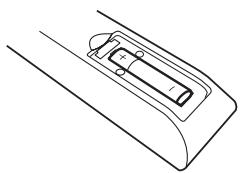
Battery Installation
natural_image
Line drawing of a mechanical component with a handle and central slot (no text or symbols)
Remove the battery cover on the rear of the Remote Control, and insert a R03 (size AAA) battery with “+” and “−” matched correctly.
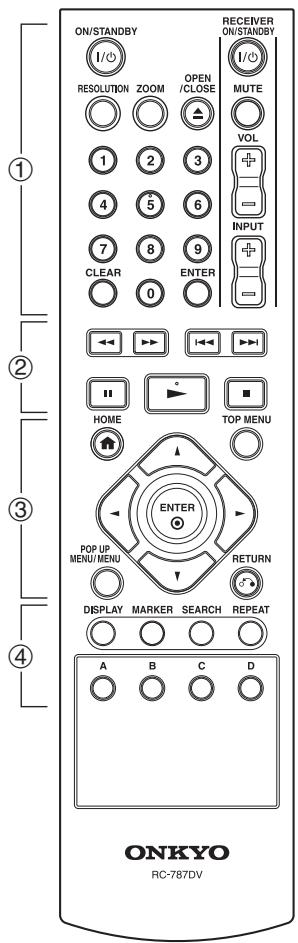
①
Switches the player ON or STANDBY.
Set the output resolution for HDMI OUT and VIDEO
OUTPUT (COMPONENT) jacks.
Displays or exits the “Zoom” menu.
Opens and closes the disc tray.
Selects numbered options in a menu or inputs letters in the keypad menu.
Removes a mark on the search menu or a number when setting the password.
Acknowledges menu selection.
(→ 35)
②
◀◀/▶▶ (SCAN) buttons
Searches backward or forward.
|◀◀/▶▶| (SKIP) buttons
Goes to the next or previous chapter / track / file.
Pauses playback.
▶ (PLAY) button
Starts playback.
■ (STOP) button
Stops playback.
③
Displays or exits the “Home Menu”.
Accesses menu on a disc.
Direction (▲/▼/◄/►) buttons
Selects an option in the menu.
Acknowledges menu selection.
Displays the DVD title menu or BD-ROM's pop-up menu, if available.
Exits the menu or resumes playback. The resume play function may not work depending on the BD-ROM disc.
④
Displays or exits On-Screen Display.
Marks any point during playback.
Displays or exits the search menu.
Repeats a desired section or sequence.
Use to navigate BD-ROM menus. They are also used for “MOVIE”, “PHOTO” and “MUSIC” menu.
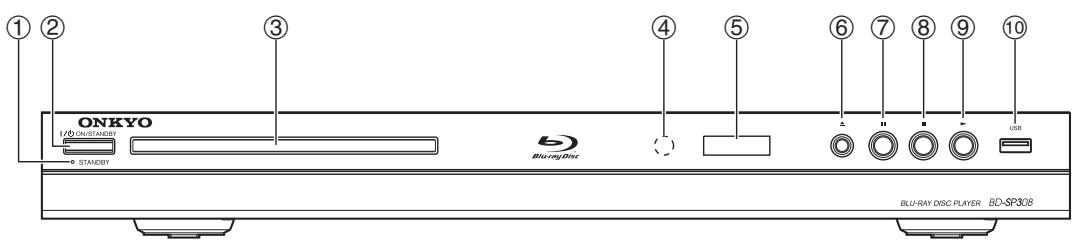
① STANDBY indicator
② I/⏻ ON/STANDBY button
③ Disc tray
④ Remote sensor
⑤ Display window
⑥ ▲ (OPEN/CLOSE) button
⑦ II (PAUSE) button
⑧ ■ (STOP) button
⑨ ▶ (PLAY) button
⑩ USB port
Rear panel
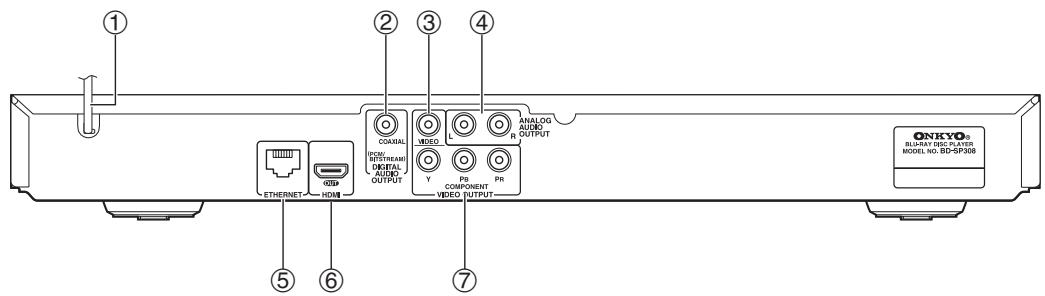
① AC power cord
② DIGITAL AUDIO OUTPUT (COAXIAL) jack
③ VIDEO OUTPUT (VIDEO) jack
④ ANALOG AUDIO OUTPUT (Left/Right) jacks
⑤ ETHERNET port
⑥ HDMI OUT jack (Type A, Version 1.3)
⑦ VIDEO OUTPUT (COMPONENT) jacks
Make one of the following connections, depending on the capabilities of your existing equipment.
• HDMI connection ( 11)
- Component Video connection (→ 12)
• Video/Audio (Left/Right) Connection (→ 13)
Note
- Depending on your TV and other equipment you wish to connect, there are various ways you could connect the player. Use only one of the connections described in this manual.
- Please refer to the manuals of your TV, Stereo System or other devices as necessary to make the best connections.
- Do not connect the player's ANALOG AUDIO OUTPUT jack to the phono in jack (record player) of your audio system.
- Do not connect your player via your VCR. The image could be distorted by the copy protection system.
HDMI Connection
If you have a HDMI TV or monitor, you can connect it to this player using a HDMI cable (Type A, Version 1.3). Connect the HDMI jack on the player to the HDMI OUT jack on a HDMI compatible TV or monitor.
HDMI Connection
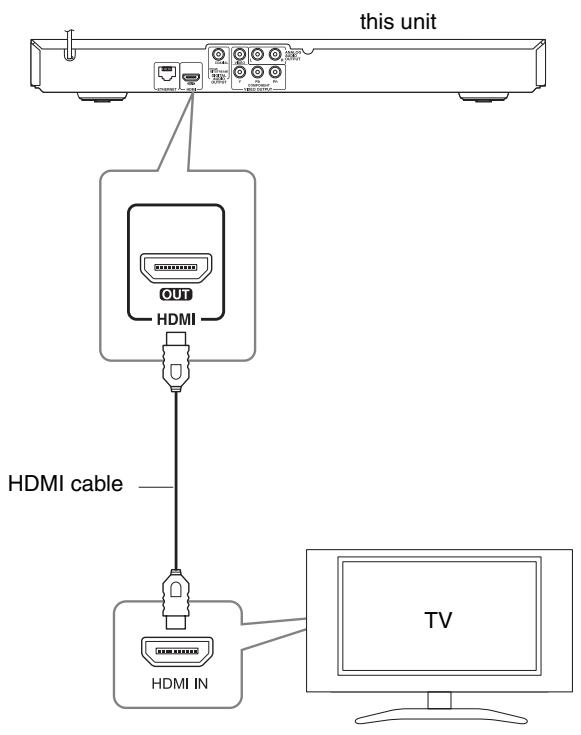
Set the TV's source to HDMI (refer to TV's Owner's manual).
HDMI-DVI Connection
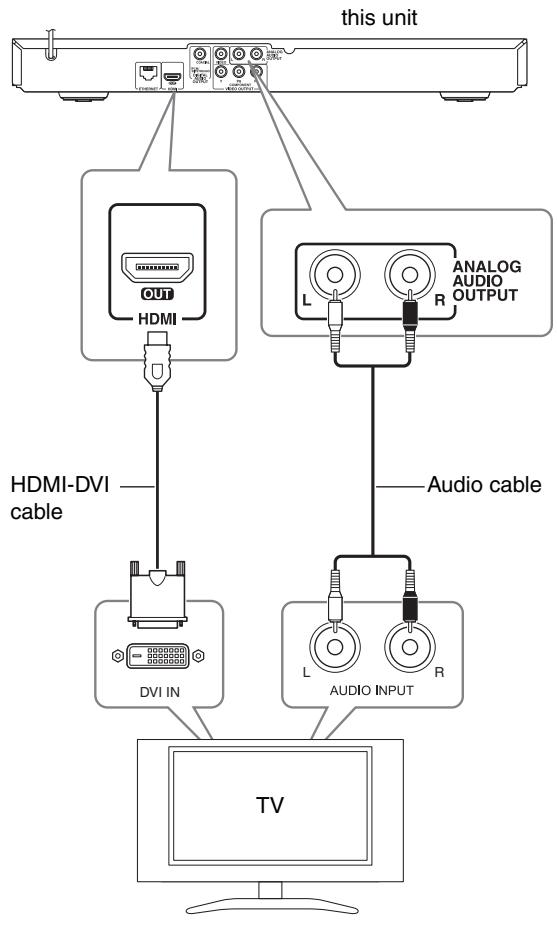
Note
- If a connected HDMI device does not accept the audio output of the player, the HDMI device's audio sound may be distorted or may not output.
- When you use HDMI connection, you can change the resolution for the HDMI output. Refer to “Resolution Setting” ( 13).
- Select the type of video output from the HDMI OUT jack using “HDMI Color Setting” option on the “Setup” menu (→ 20).
- Changing the resolution when the connection has already been established may result in malfunctions. To solve the problem, turn off the player and then turn it on again.
- When the HDMI connection with HDCP is not verified, TV screen is changed to black screen. In this case, check the HDMI connection, or disconnect the HDMI cable.
- If there are noises or lines on the screen, please check the HDMI cable (length is generally limited to 4.5 m).
- When you connect a HDMI or DVI compatible device, make sure of the following:
- Try switching off the HDMI/DVI device and this player. Next, switch on the HDMI/DVI device and leave it for around 30 seconds, then switch on this player.
- The connected device's video input is set correctly for this unit.
- The connected device is compatible with 720x480p, 1280x720p, 1920x1080i or 1920x1080p video input.
- Not all HDCP-compatible HDMI or DVI devices will work with this player.
- The picture will not be displayed properly with non-HDCP device.
- This player does not playback and TV screen is changed to black screen.
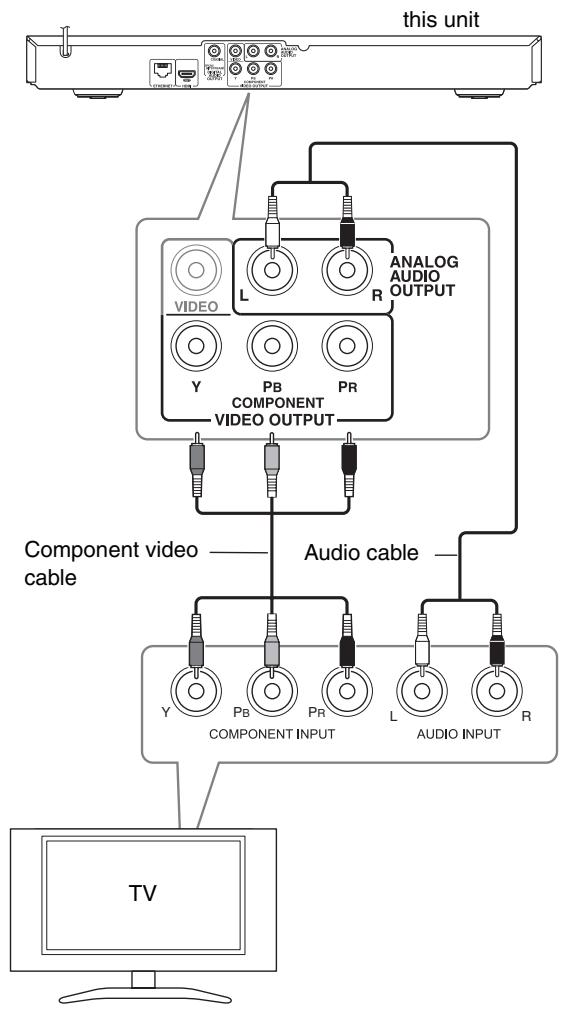
Component Video Connection
Connect the VIDEO OUTPUT (COMPONENT) jacks on the player to the corresponding input jacks on the TV using component video cable. Connect the left and right ANALOG AUDIO OUTPUT jacks of the player to the audio left and right IN jacks on the TV using the audio cables.
Component Video/Audio Connection
flowchart
graph TD
    A["TV"] --> B["Component video cable"]
    A --> C["Audio cable"]
    B --> D["VIDEO"]
    B --> E["PYB"]
    B --> F["PR"]
    C --> G["COMPONENT INPUT"]
    C --> H["COMPONENT OUTPUT"]
    C --> I["L"]
    C --> J["R"]
    D --> K["ANALOG AUDIO OUTPUT"]
    E --> K
    F --> K
    G --> K
    H --> K
    I --> K
    J --> K
Note
- When you use VIDEO OUTPUT (COMPONENT) connection, you can change the resolution for the output. Refer to “Resolution Setting” ( 13).
Video/Audio (Left/Right) Connection
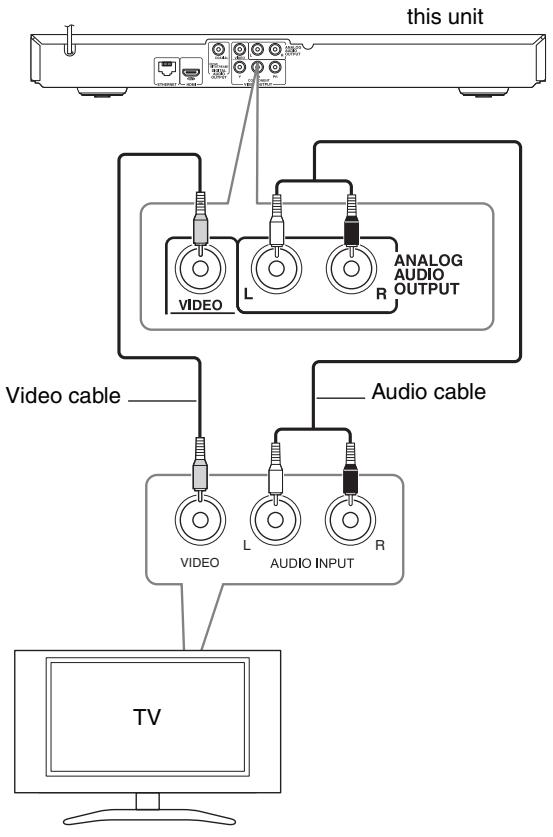
Connect the VIDEO OUTPUT (VIDEO) jack on the player to the video in jack on the TV using a video cable. Connect the left and right ANALOG AUDIO OUTPUT jacks of the player to the audio left and right IN jacks on the TV using the audio cables.
Video/Audio Connection
flowchart
graph TD
    A["TV"] --> B["Video cable"]
    A --> C["Audio cable"]
    B --> D["VIDEO"]
    B --> E["L"]
    B --> F["R"]
    C --> G["VIDEO"]
    C --> H["L"]
    C --> I["R"]
    D --> J["Analog Audio Output"]
    E --> J
    F --> J
    G --> J
    H --> J
    I --> J
Resolution Setting
The player provides several output resolutions for HDMI OUT and VIDEO OUTPUT (COMPONENT) jacks. You can change the resolution using “Setup” menu.
1 Press HOME (↑).
2 Use ◀/▶ to select the “Setup” and press ENTER (◎).
The “Setup” menu appears.
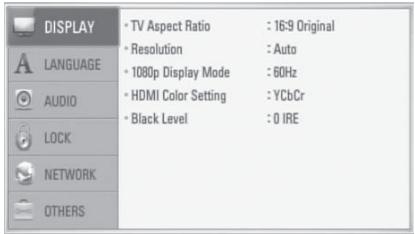
3 Use ▲/▼ to select “DISPLAY” option then press ▶ to move to the second level.
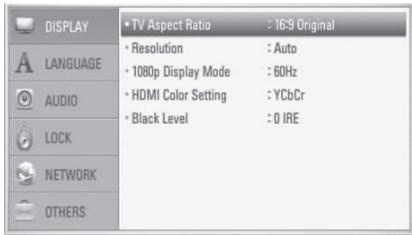
4 Use ▲/▼ to select the “Resolution” option then press ENTER (◎) to move to the third level.
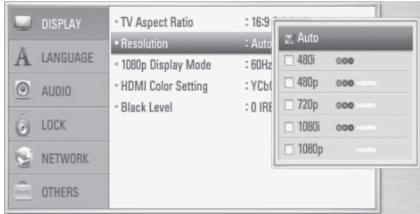
5 Use ▲/▼ to select the desired resolution then press ENTER (◎) to confirm your selection.
You can select settings marked with “☐☐☐” for a component video connection. You can select settings marked with “HDMI” for an HDMI connection.
Note
- If your TV does not accept the resolution you have set on the player, you can set resolution to 480p as follows:
-
Press OPEN/CLOSE (▲) to open the disc tray.
-
Press ■ (STOP) for more than 5 seconds.
- Since several factors affect the resolution of video output, see “Video Output Resolution” ( 40).
Make one of the following connections, depending on the capabilities of your existing equipment.
• HDMI Audio connection ( 14)
• Digital Audio connection ( 15)
• 2CH Analog Audio connection ( 15)
Since many factors affect the type of audio output, see “Audio Output Specifications” for details ( 39).
About Digital Multi-channel sound
A digital multi-channel connection provides the best sound quality. For this, you need a multi-channel AV receiver that supports one or more of the audio formats supported by your player. Check the AV receiver manual and the logos on the front of the receiver. (PCM Stereo, PCM Multi-Ch, Dolby Digital, Dolby Digital Plus, Dolby TrueHD, DTS and/or DTS-HD)
Connecting to an AV receiver via HDMI Output
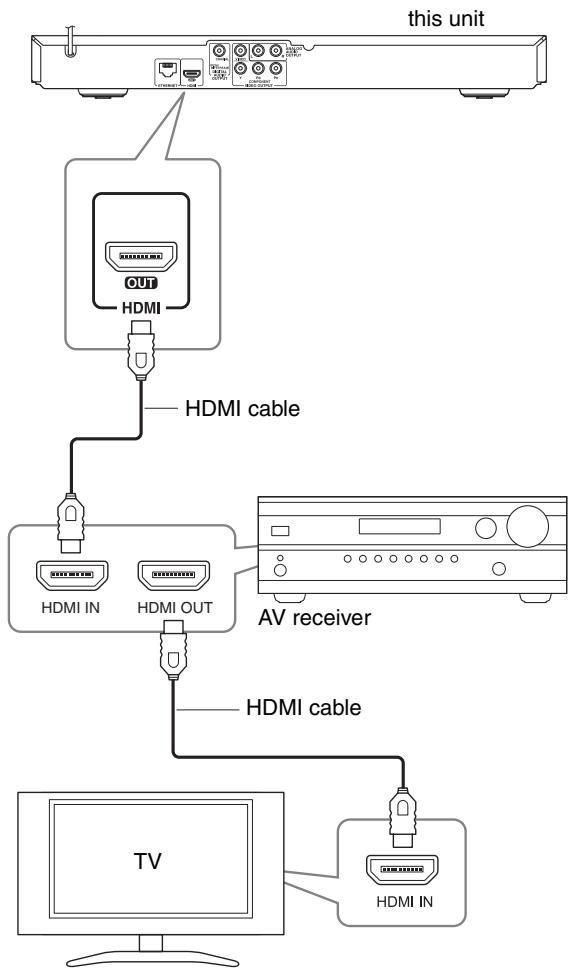
Connect the player's HDMI OUT jack to the corresponding in jack on your AV receiver using a HDMI cable. You will need to activate the player's digital output. See “AUDIO Menu” ( 20–21).
HDMI Connection
flowchart
graph TD
    A["TV"] --> B["AC Unit"]
    B --> C["AV Receiver"]
    C --> D["HDMI IN"]
    C --> E["HDMI OUT"]
    B --> F["HDMI cable"]
    F --> G["Out"]
    style A fill:#f9f,stroke:#333
    style B fill:#ccf,stroke:#333
    style C fill:#cfc,stroke:#333
    style D fill:#fcc,stroke:#333
    style E fill:#cff,stroke:#333
    style F fill:#ffc,stroke:#333
    style G fill:#fcc,stroke:#333
Connect the AV receiver's HDMI OUT jack to HDMI input jack on your TV using a HDMI cable.
Connecting to an AV receiver via Digital Audio Output
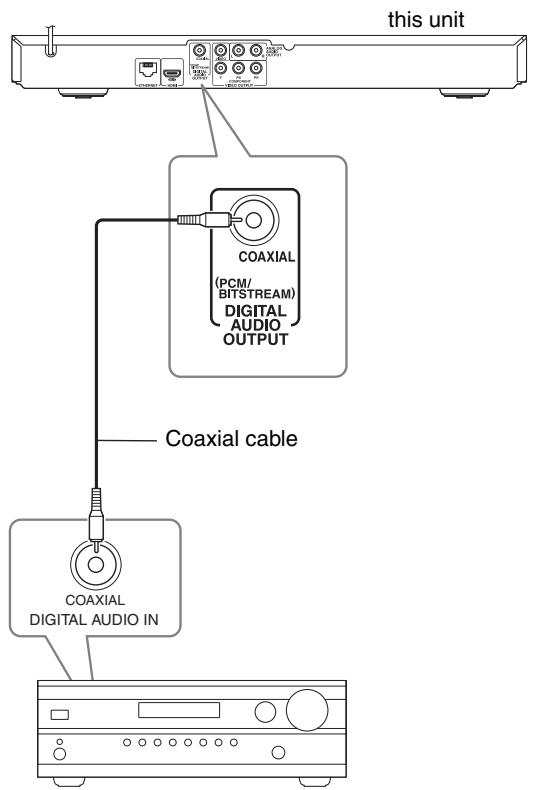
Connect the player's DIGITAL AUDIO OUTPUT jack to the corresponding in jack (COAXIAL) on your AV receiver. Use an optional digital audio cable. You will need to activate the player's digital output. See “AUDIO Menu” (→ 20–21).
Digital Audio Connection
AV receiver
Connecting to an AV receiver via 2 Channel Audio Output
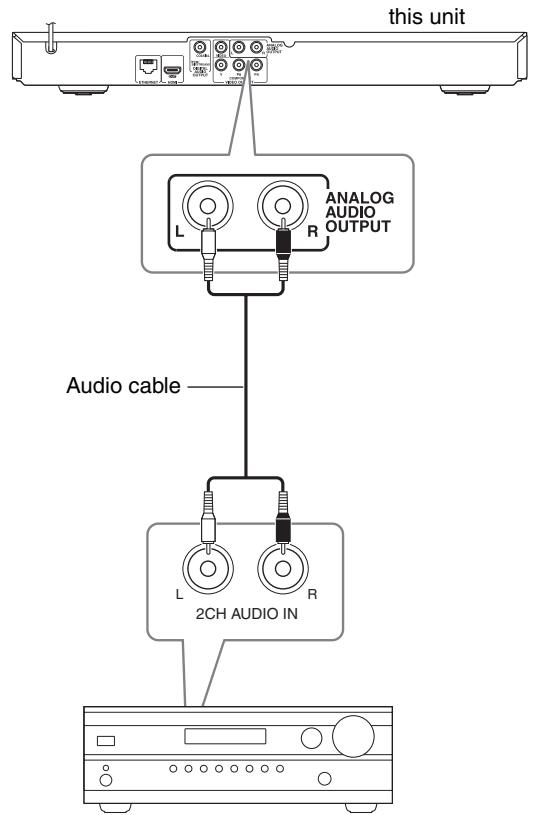
Connect the Left and Right ANALOG AUDIO OUTPUT jacks on the player to the audio left and right in jacks on your AV receiver using audio cables.
2CH Analog Audio Connection
AV receiver
This player can be connected to a local area network (LAN) via the ETHERNET port on the rear panel.
By connecting the unit to a broadband home network, you have access to services such as BD-LIVE interactivity, Netflix and software updates.
Wired network connection
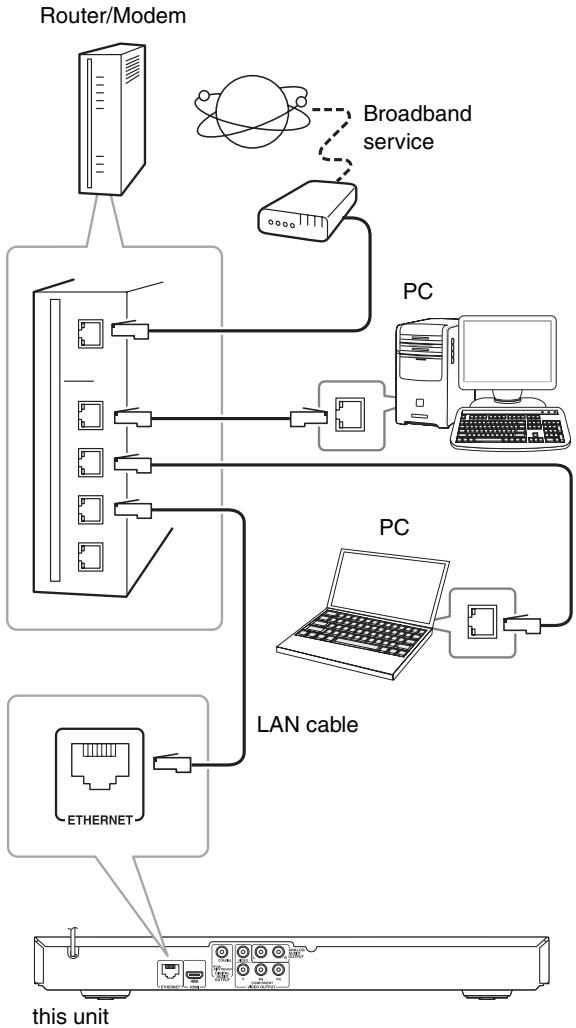
Connect the player's ETHERNET port to the corresponding port on your Modem or Router using a commercially available LAN or Ethernet cable (CAT5 or better with RJ45 connector).
Note
- When plugging or unplugging the LAN cable, hold the plug portion of the cable. When unplugging, do not pull on the LAN cable but unplug while pressing down on the lock.
- Do not connect a modular phone cable to the ETHERNET port.
- Since there are various connection configurations, please follow the specifications of your telecommunication carrier or internet service provider.
Wired Network Connection
flowchart
graph TD
    A["Router/Modem"] --> B["PC"]
    A --> C["PC"]
    A --> D["LAN cable"]
    A --> E["ETHERNET"]
    A --> F["Computer"]
    B --> G["PCI"]
    C --> H["PCI"]
    D --> I["PCI"]
    E --> J["PCI"]
    F --> K["PCI"]
    style A fill:#f9f,stroke:#333
    style B fill:#ccf,stroke:#333
    style C fill:#cfc,stroke:#333
    style D fill:#fcc,stroke:#333
    style E fill:#cff,stroke:#333
    style F fill:#ffc,stroke:#333
    style G fill:#fff,stroke:#333
    style H fill:#fff,stroke:#333
    style I fill:#fff,stroke:#333
    style J fill:#fff,stroke:#333
    style K fill:#fff,stroke:#333
Wired Network Setup
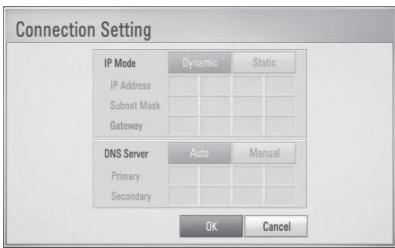
If there is a DHCP server on the local area network (LAN) via wired connection, this player will automatically be allocated an IP address. After making the physical connection, a small number of home networks may require the player's network setting to be adjusted. Adjust the “NETWORK” setting as follow.
■ Preparation
Before setting the wired network, you need to connect the broadband internet to your home network.
2 Use ▲/▼/◄/► select the IP mode between “Dynamic” and “Static”.
Normally, select “Dynamic” to allocate an IP address automatically.
Note
- If there is no DHCP server on the network and you want to set the IP address manually, select “Static” then set “IP Address”, “Subnet Mask”, “Gateway” and “DNS
Server" using ▲/▼/◄/► and numerical buttons. If you make a mistake while entering a number, press CLEAR to clear the highlighted part.
3 Select "OK" and press ENTER (◎) to apply network settings.
The player will ask you to test the network connection.
4 Select "OK" and press ENTER (◎) to complete the network connection.
5
If you select “Test” and press ENTER ( ) at step 4 above, the network connection status is displayed on the screen.
You can also test it on the “Connection Status” in the “Setup” menu.
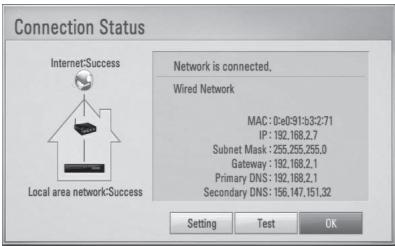
Notes on Network Connection:
- Many network connection problems during set up can often be fixed by re-setting the router or modem. After connecting the player to the home network, quickly power off and/or disconnect the power cable of the home network router or cable modem. Then power on and/or connect the power cable again.
- Depending on the internet service provider (ISP), the number of devices that can receive internet service may be limited by the applicable terms of service. For details, contact your ISP.
- Our company is not responsible for any malfunction of the player and/or the internet connection feature due to communication errors/malfunctions associated with your broadband internet connection, or other connected equipment.
- The features of BD-ROM discs made available through the Internet Connection feature are not created or provided by our company, and our company is not responsible for their functionality or continued availability. Some disc related material available by the Internet Connection may not be compatible with this player. If you have questions about such content, please contact the producer of the disc.
- Some internet contents may require a higher bandwidth connection.
- Even if the player is properly connected and configured, some internet content may not operate properly because of internet congestion, the quality or bandwidth of your internet service, or problems at the provider of the content.
- Some internet connection operations may not be possible due to certain restrictions set by the Internet service provider (ISP) supplying your broadband Internet connection.
- Any fees charged by an ISP including, without limitation, connection charges are your responsibility.
- A 10 Base-T or 100 Base-TX LAN port is required for wired connection to this player. If your internet service does not allow for such a connection, you will not be able to connect the player.
- You must use a Router to use xDSL service.
- A DSL modem is required to use DSL service and a cable modem is required to use cable modem service. Depending on the access method of and subscriber agreement with your ISP, you may not be able to use the internet connection feature contained in this player or you may be limited to the number of devices you can connect at the same time. (If your ISP limits subscription to one device, this player may not be allowed to connect when a PC is already connected.)
- The use of a “Router” may not be allowed or its usage may be limited depending on the policies and restrictions of your ISP. For details, contact your ISP directly.
This unit can play movie, music and photo files contained in the USB device.
Playback content in the USB device
1 Insert a USB device to the USB port until it fits into place.
When you connect the USB device on the HOME menu, the player plays a music file contained in the USB storage device automatically. If the USB storage device contains various types of files, a menu for the file type selection will appear.
File loading may take few minutes depending on the amount of content stored in the USB storage device.
Press ENTER (◎) while “Cancel” is selected to stop loading.
2 Press HOME (↑).
3 Select “Movie”, “Photo” or “Music” using ◀/▶, and press ENTER (◎).
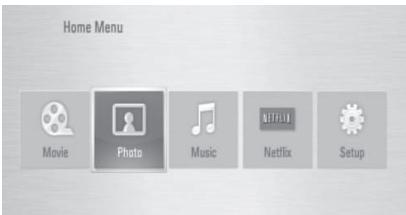
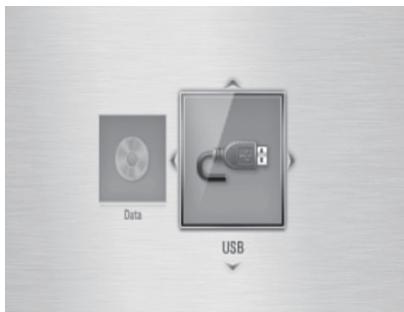
4 Select the “USB” option using ◀/▶, and press ENTER (◎).
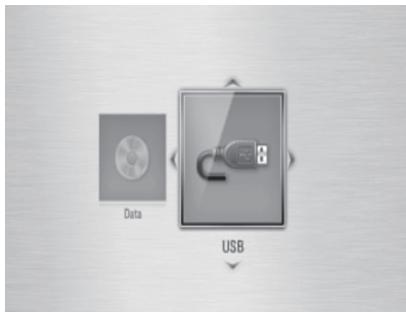
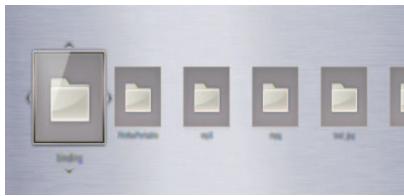
5 Select a file using ▲/▼/◄/►, and press PLAY or ENTER (◎) to play the file.
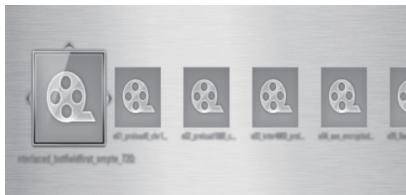
6 Withdraw the USB device carefully.
Note
- This unit supports USB flash memory formatted in FAT16, FAT32 and NTFS when accessing files (music, photo, movie). However, for BD-LIVE, only FAT16 and FAT32 formats are supported. Use the USB flash memory formatted in either FAT16 or FAT32 when using BD-LIVE.
- This unit can support up to 16 GB capacity of the USB flash memory.
- The USB device can be used for the local storage for enjoying BD-LIVE discs with Internet.
- This unit can support up to 4 partitions of the USB device.
- Do not remove the USB device during operation (play, etc.).
- A USB device which requires additional program installation when you have connected it to a computer, is not supported.
- USB device: USB device that supports USB1.1 and USB2.0.
- Movie, music and photo files can be played. For details of operations on each file, refer to relevant pages.
- Regular back up is recommended to prevent data loss.
- If you use a USB extension cable, USB HUB or USB Multi-reader, the USB device may not be recognized.
- Some USB device may not work with this unit.
- Digital camera and mobile phone are not supported.
- USB Port of the unit cannot be connected to PC. The unit cannot be used as a storage device.
Adjust the Setup Settings
You can change the settings of the player in the “Setup” menu.
1 Press HOME (↑).
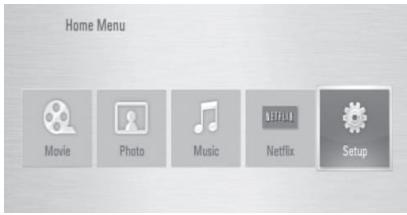
2 Use ◀/▶ to select the “Setup” and press ENTER (◎).
The "Setup" menu appears.
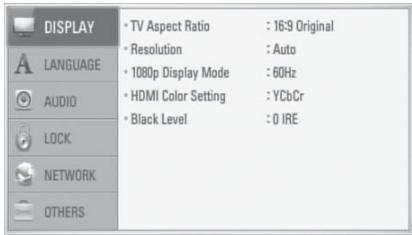
3 Use ▲/▼ to select the first setup option, and press ▶ to move to the second level.
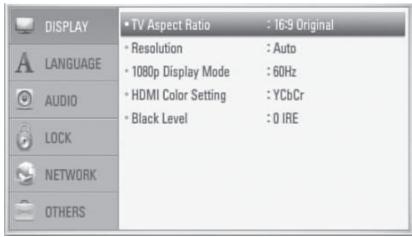
4 Use ▲/▼ to select a second setup option, and press ENTER (◎) to move to the third level.
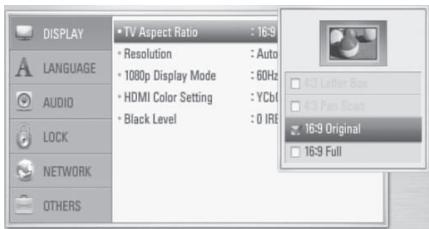
5 Use ▲/▼ to select a desired setting, and press ENTER (◎) to confirm your selection.
TV Aspect Ratio
Select a TV aspect ratio option according to your TV type.
▶4:3 Letter Box:
Select when a standard 4:3 TV is connected.
Displays theatrical images with masking bars above and below the picture.
▶ 4:3 Pan Scan:
Select when a standard 4:3 TV is connected.
Displays pictures cropped to fill your TV screen.
Both sides of the picture are cut off.
16:9 Original:
Select when a 16:9 wide TV is connected.
The 4:3 picture is displayed with an original 4:3 aspect ratio, with black bars appearing at the left and right sides.
16:9 Full:
Select when a 16:9 wide TV is connected.
The 4:3 picture is adjusted horizontally (in a linear proportion) to fill the entire screen.
Note
- You cannot select “4:3 Letter Box” and “4:3 Pan Scan” option when the resolution is set to higher than 720p.
Resolution
Sets the output resolution of the Component and HDMI video signal. Refer to page 13 and 40 for details about the resolution setting.
▶ Auto:
If the HDMI OUT jack is connected to TVs providing display information (EDID), automatically selects the resolution best suited to the connected TV. If the VIDEO OUTPUT (COMPONENT) is only connected, this changes the resolution to 1080i as default resolution.
▶ 1080p:
Outputs 1080 lines of progressive video.
▶ 1080i:
Outputs 1080 lines of interlaced video.
720p:
Outputs 720 lines of progressive video.
480p:
Outputs 480 lines of progressive video.
480i:
Outputs 480 lines of interlaced video.
1080p Display Mode
When the resolution is set to 1080p, select “24 Hz” for smooth presentation of film material (1080p/24 Hz) with a HDMI-equipped display compatible with 1080p/24 Hz input.
Note
- When you select “24 Hz”, you may experience some picture disturbance when the video switches video and film material. In this case, select “60 Hz”.
- Even when “1080p Display Mode” is set to “24 Hz”, if your TV is not compatible with 1080p/24 Hz, the actual frame frequency of the video output will be 60 Hz to match the video source format.
HDMI Color Setting
Select the type of output from the HDMI OUT jack. For this setting, please refer to the manuals of your display device.
▶ YCbCr:
Select when connecting to a HDMI display device.
RGB:
Select when connecting to a DVI display device.
Black Level
With this setting you can adjust the picture blackness for the analog video outputs. It does not affect the component video output.
▶ 0 IRE:
Blacks are darker, and the entire picture becomes darker.
7.5 IRE:
Blacks are lighter, and the entire picture becomes lighter.
Select a language for the “Setup” menu and on-screen display.
Select the language you prefer for the audio track (disc audio), subtitles, and the disc menu.
▶ Original:
Refers to the original language in which the disc was recorded.
▶ Other:
Press ENTER (◎) to select another language. Use number buttons then press ENTER (◎) to enter the corresponding 4-digit number according to the language code list (→36).
▶ Off (Disc Subtitle only):
Turn off Subtitle.
Note
- Depending on the disc, your language setting may not work.
Each disc has a variety of audio output options. Set the player's Audio options according to the type of audio system you use.
Note
- Since many factors affect the type of audio output, see “Audio Output Specifications” for details (→ 39).
HDMI / Digital Output
Select the output sound format when a device equipped with a HDMI or Digital Audio input jack is connected to the HDMI OUT or DIGITAL AUDIO OUTPUT jack on this player.
▶ PCM Stereo:
Select if you connect this unit's HDMI OUT or DIGITAL AUDIO OUTPUT jack to a device with two-channel digital stereo decoder.
▶ PCM Multi-Ch (HDMI only):
Select if you connect this unit's HDMI OUT jack to a device with multi-channel digital decoder.
▶ DTS Re-Encode:
Select if you connect this unit's HDMI OUT or DIGITAL AUDIO OUTPUT jack to a device with DTS decoder.
▶ Primary Pass-Thru:
Select if you connect this unit's DIGITAL AUDIO OUTPUT and HDMI OUT jack to a device with LPCM, Dolby Digital, Dolby Digital Plus, Dolby TrueHD, DTS and DTS-HD decoder.
Note
- When “HDMI” option is set to “PCM Multi-Ch”, the audio may output as PCM Stereo if the PCM Multi-Ch information is not detected from HDMI device with EDID.
- If the “HDMI” or “Digital Output” option is set to “DTS Re-Encode”, the DTS Re-encode audio is output for BD-ROM discs with secondary audio and the original audio is output for the other discs (like “Primary Pass-Thru”).
Sampling Freq. (Digital Audio Output)
192 kHz:
Select this if your AV receiver is capable of handling 192 kHz signals.
▶ 96 kHz:
Select this if your AV receiver is not capable of handling 192 kHz signals.
When this choice is made, this unit automatically converts any 192 kHz signals to 96 kHz so your system can decode them.
▶ 48 kHz:
Select this if your AV receiver is not capable of handling 192 kHz and 96 kHz signal. When this choice is made, this unit automatically converts any 192 kHz and 96 kHz signals to 48 kHz so your system can decode them.
Check the documentation for your AV receiver to verify its capabilities.
DRC (Dynamic Range Control)
When a title encoded in Dolby Digital or Dolby Digital Plus is playing back, you may wish to compress the dynamic range of the audio output (the difference between the loudest sounds and the quietest ones). This allows you to listen to a movie at a lower volume without losing clarity of sound. Set “DRC” to “On” for this effect.
Note
- The DRC setting can be changed only when a disc is not inserted or the unit is in complete stop mode.
The “LOCK” settings affect only BD and DVD playback. To access the any features in “LOCK” settings, you must enter the 4-digit security code you have created.
If you have not entered a password yet, you are prompted to do so. Enter a 4-digit password twice, and press ENTER (☐) to create a new password.
Password
You can create, or change the password.
None:
Enter a 4-digit password twice, and press
ENTER (◎) to create a new password.
▶ Change:
Enter the current password and press ENTER (◎).
Enter a 4-digit password twice, and press
ENTER (◎) to create a new password.
■ If you forget your password
If you forget your password, you can clear it using the following steps:
1 Remove any disc that might be in the player.
2 Select "Password" option in the "Setup" menu.
3 Use Number buttons to enter "210499".
The password is cleared.
Note
- If you make a mistake before pressing ENTER (◎), press CLEAR. Then input the correct password.
DVD Rating
Blocks playback of rated DVD based on their content. (Not all discs are rated.)
▶ Rating 1-8:
Rating one (1) has the most restrictions and rating eight (8) is the least restrictive.
Unlock:
If you select “Unlock”, parental control is not active and the disc plays in full.
BD Rating
Sets an age limit of BD-ROM playback. Use number buttons to input an age limit for BD-ROM viewing.
255:
All BD-ROM can be played.
▶ 0-254:
Prohibits play of BD-ROM with corresponding ratings recorded on them.
Note
- The “BD Rating” will be applied only for the BD disc that containing the Advanced Rating Control.
Area Code
Enter the code of the area whose standards were used to rate the DVD video disc, based on the list on page 35.
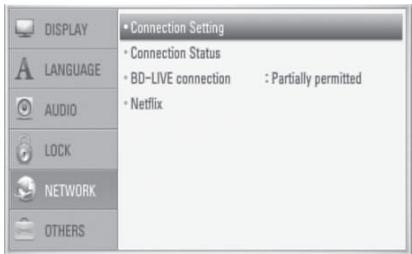
The “NETWORK” settings are needed to use BD-LIVE interactivity, Netflix and software updates.
Connection Setting
If your home network environment is ready to connect to the player, the player needs to be set up for network connection for network communication. See “Connecting to your Home Network” ( 16–17).
Connection Status
If you want to check the network status on this player, select the “Connection Status” options and press
ENTER ( ) to check whether a connection to the network and the internet have been established.
BD-LIVE connection
You can restrict Internet access when BD-LIVE functions are used.
Permitted:
Internet access is permitted for all BD-LIVE content.
▶ Partially Permitted:
Internet access is permitted only for BD-LIVE content which have content owner certificates. Internet access and AACS Online functions are prohibited for all BD-LIVE content without a certificate.
▶ Prohibited:
Internet access is prohibited for all BD-LIVE content.
Netflix
You can check the ESN number, or deactivate Netflix.
▶ Netflix ESN:
You can check the ESN number, which is a serial number to identify this unit by Netflix.
▶ Deactivate Netflix:
Deactivate the connection to Netflix.
DivX VOD
ABOUT DIVX VIDEO: DivX® is a digital video format created by DivX, Inc. This is an official DivX Certified device that plays DivX video.
Visit www.divx.com for more information and software tools to convert your files into DivX video.
ABOUT DIVX VIDEO-ON-DEMAND: This DivX Certified® device must be registered in order to play DivX Video-on-Demand (VOD) content. To generate the registration code, locate the DivX VOD section in the device setup menu. Go to vod.divx.com with this code to complete the registration process and learn more about DivX VOD.
Register:
Displays the registration code of your player.
▶ Deregister:
Deactivate your player and display the deactivation code.
Note
- All the downloaded videos from DivX VOD with this player's registration code can only be played back on this unit.
Auto Power Off
The screen saver appears when you leave the player in Stop mode for about five minutes. If you set this option to “On”, the unit automatically turns itself off after the Screen Saver is displayed for 25 minutes.
Set this option to “Off” to leave the screen saver until the unit is operated by the user.
Initialize
▶ Factory Set:
You can reset the player to its original factory settings.
▶ BD Storage Clear:
Initializes the BD contents from the connected USB storage.
Note
- If you reset the player to its original factory settings using “Factory Set” option, you have to set the network settings again.
Software
Information:
Displays the current software version.
Update:
You can update the software by connecting the unit directly to the software update server.
Check the network connection and settings
(→ 16–17).
Follow the on-screen instructions.
Caution
- During the software update procedure, do not disconnect the AC power cord or LAN cable.
Playing Discs
1 Press OPEN/CLOSE (▲), and place a disc on the disc tray.
2 Press OPEN/CLOSE (▲) to close the disc tray. For the most Audio CD, BD-ROM and DVD-ROM discs, playback starts automatically.
3 Press HOME (衆).
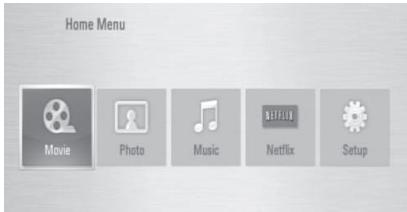
4 Select “Movie”, “Photo” or “Music” using ◀/▶, and press ENTER (◎).
5 Select the “Disc” option using ◀/▶, and press ENTER (◎).
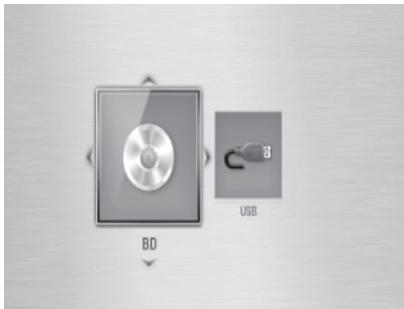
This step is only needed when a disc is set and a USB device is connected to this unit.
6 Select a file using ▲/▼/◄/►, and press ► (PLAY) or ENTER (◎) to play the file.
Note
- Playback functions described in this manual are not always available in all files and media. Some functions can be restricted depending on many factors.
- Depending on the BD-ROM titles, a USB device connection may be needed for the proper playback.
■ To stop playback
Press ■ (STOP) during playback.
■ To pause playback
Press ■ (PAUSE) during playback.
Press ▶ (PLAY) to resume playback.
■ To play frame-by-frame
Press ■ (PAUSE) while movie playback.
Press ■ (PAUSE) repeatedly to play Frame-by-Frame playback.
■ To scan forward or backward
Press ◀◀ or ▶▶ to play fast forward or fast reverse during playback.
You can change the various playback speeds by pressing ◀◀ or ▶▶ repeatedly.
■ To slow down the playing speed
While the playback is paused, press ▶▶ repeatedly to play various speeds of slow motion.
■ To skip to the next/previous chapter/track/file
During playback, press ◀◀◀ or ▶▶◀ to go to the next chapter/track/file or to return to the beginning of the current chapter/track/file.
Press ◄◀◀ twice briefly to step back to the previous chapter/track/file.
BD DVD AVCHD
■ To display the disc menu
The menu screen may be displayed first after loading a disc which contains a menu. If you want to display the disc menu during playback, press TOP MENU.
Use ▲/▼/◄/► buttons to navigate through menu items.
■ To display the Pop-up menu
Some BD-ROM discs contain a Pop-up menu that appears during playback.
Press POP UP MENU/MENU during playback, and use ▲/▼/◄/► buttons to navigate through menu items.
Resume playback
BD DVD AVCHD MOVIE CD MUSIC
The unit records the point where you pressed the
■ (STOP) depending on the disc.
If “■■ (Resume Stop)” appears on the screen briefly, press ▶ (PLAY) to resume playback (from the scene point).
If you press ■ (STOP) twice or unload the disc,
“■ (Complete Stop)” appears on the screen. The unit will clear the stopped point.
Note
- The resume point may be cleared when a button is pressed (for example; ON/STANDBY I/∅, OPEN/CLOSE (▲), etc).
- On BD-Video discs with BD-J, the resume playback function does not work.
- If you press ■ (STOP) once during BD-ROM interactive title playback, the unit will be in Complete Stop mode.
Repeat Playback
BD DVD AVCHD CD MUSIC
During playback, press REPEAT repeatedly to select a desired repeat mode.
BDs/DVDs
▶ 2 A-:
Selected portion will be repeated continuously.
Chapter:
The current chapter will be played back repeatedly.
Title:
The current title will be played back repeatedly.
To return to normal playback, press REPEAT repeatedly to select “Off”.
■ Audio CDs/Music files
Track:
The current track or file will be played back repeatedly.
▶ A▼ All:
All the tracks or files will be played back repeatedly.
▶ X:
The tracks or files will be played back in random order.
▶ X Ⓧ All:
All the tracks or files will be played back repeatedly in random order.
A-B:
Selected portion will be repeated continuously. (Audio CD only)
To return to normal playback, press CLEAR.
Note
- If you press ▶▶ once during Repeat Chapter/Track playback, the repeat playback cancels.
- This function may not work on some discs or titles.
Repeating a specific portion
BD DVD AVCHD CD
This player can repeat a portion you have selected.
| 1 | During playback, press REPEAT to select “A-” at the beginning of the portion you wish to repeat. |
| 2 | Press ENTER (◎) at the end of the portion.Your selected portion will be repeated continuously. |
| 3 | To return to normal playback, press REPEAT repeatedly to select “Off”. |
Note
- You cannot select a portion less than 3 seconds.
- This function may not work on some discs or titles.
Enlarge the playback image
BD DVD AVCHD MOVIE PHOTO
1 During playback or pause mode, press ZOOM to display the “Zoom” menu.
2 Use A or B button to zoom out or in the picture. You can move through the zoomed picture using ▲/▼/◄/► buttons.
3 To return to the normal picture size, press D button.
4 Press RETURN (💡) to exit the “Zoom” menu.
Marker Search
BD DVD AVCHD MOVIE
You can start playback from up to nine memorized points.
■ To enter a marker
1 During playback, press MARKER at the desired point.
The Marker icon appears on the TV screen briefly.
2 Repeat step 1 to add up to nine markers.
■ To recall a marked scene
1 Press SEARCH and the search menu appears on the screen.
2 Press a number button to select a marker number that you want to recall.
Playback starts from the marked scene.
■ To delete a Marker
1 Press SEARCH and the search menu appears on the screen.
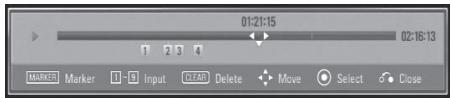
2 Press ▼ to highlight a marker number.
Use ◀/▶ to select a marked scene that you want to delete.
3 Press CLEAR and the marked scene is erased from the search menu.
Note
- This function may not work on some discs or titles.
- All marked points are cleared if the title is in complete stop (■) mode, the title is changed or if you unload the disc.
- If the total length of the title is less than 10 seconds, this function is not available.
BD DVD AVCHD MOVIE
Using search menu, you can easily to find the point where you want to start playback.
■ To search a point
1 During playback, press SEARCH to display the search menu.
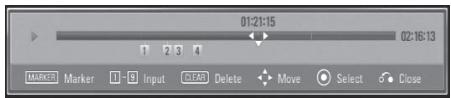
2 Press ◀/▶ to skip the playback 15 seconds forward or backward.
You can select a point that you want to skip by pressing and holding ◀/▶ button.
■ To start playback from a marked scene
1 Press SEARCH and the search menu appears on the screen.
2 Press ▼ to highlight a marker number.
Use ◀/▶ to select a marked scene that you want to playback.
3 Press ENTER (◎) to start playback from the marked scene.
Note
- This function may not work on some discs or titles.
Last Scene Memory
BD DVD
This unit memorizes the last scene from the last disc that is viewed. The last scene remains in memory even if you remove the disc from the unit or switch off the unit. If you load a disc that has the scene memorized, the scene is automatically recalled.
Note
- Last Scene Memory function for a previous disc is erased once a different disc is played.
- This function may not work depending on the disc.
- On BD-Video discs with BD-J, the last scene memory function does not work.
- This unit does not memorize settings of a disc if you switch off the unit before commencing to play it.
You can display and adjust various information and settings about the content.
Displaying content information on-screen
BD DVD AVCHD MOVIE
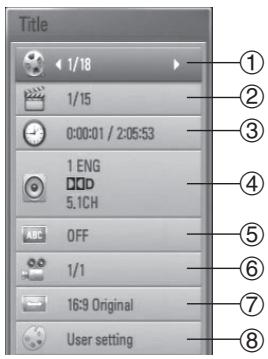
① Title
Current title number/total number of titles.
② Chapter Current chapter number/total number of chapters.
③ Time
Elapsed playing time/total playback time.
④ Audio
Selected audio language or channel.
⑤ Subtitle
Selected subtitle.
⑥ Angle
Selected angle/total number of angles.
⑦ TV Aspect Ratio
Selected TV aspect Ratio.
⑧ Picture Mode
Selected picture mode.
2 Select an option using ▲/▼.
3 Use ◀/▶ to adjust the selected option value.
4 Press RETURN (♂) to exit the On-Screen display.
Note
- If no button is pressed for a few seconds, the on-screen display disappears.
- A title number cannot be selected on some discs.
• Available items may differ depending on discs or titles.
- If BD interactive title is playing back, some setting information is displayed on the screen but prohibited to be changed.
Playing from selected time
BD DVD AVCHD MOVIE
1 Press DISPLAY during playback.
The time search box shows the elapsed playing time.
2 Select the “Time” option and then input the required start time in hours, minutes, and seconds from left to right.
For example, to find a scene at 2 hours, 10 minutes, and 20 seconds, enter “21020”.
Press ◀/▶ to skip the playback 60 seconds forward or backward.
3 Press ENTER (◎) to start playback from selected time.
Note
- This function may not work on some disc or titles.
Hearing different audio
BD DVD AVCHD MOVIE
1 During playback, press DISPLAY to display the On-Screen display.
2 Use ▲/▼ to select the “Audio” option.
3 Use ◀/▶ to select desired audio language, audio track or audio channel.
Note
- Some discs allow you to change audio selections only via the disc menu. In this case, press POP UP MENU/MENU or TOP MENU button and choose the appropriate audio from the selections on the disc menu.
- Immediately after you have switched sound, there may be a temporary discrepancy between the display and actual sound.
- On BD-ROM disc, the multi audio format (5.1CH or 7.1CH) is displayed with “MultiCH” in the onscreen display.
Selecting a subtitle language
BD DVD AVCHD MOVIE
1 During playback, press DISPLAY to display the On-Screen display.
2 Use ▲/▼ to select the “Subtitle” option.
3 Use ◀/▶ to select desired subtitle language.
4 Press RETURN (♂) to exit the On-Screen display.
Note
- Some discs allow you to change subtitle selections only via the disc menu. If this is the case, press POP UP MENU/MENU or TOP MENU button and choose the appropriate subtitle from the selections on the disc menu.
Watching from a different angle
BD DVD
If the disc contains scenes recorded at different camera angles, you can change to a different camera angle during playback.
1 During playback, press DISPLAY to display the On-Screen display.
2 Use ▲/▼ to select the “Angle” option.
3 Use ◀/▶ to select desired angle.
4 Press RETURN (♂) to exit the On-Screen display.
Changing the TV Aspect Ratio
BD DVD AVCHD MOVIE
You can change the TV aspect ratio setting during play-back.
1 During playback, press DISPLAY to display the On-Screen display.
2 Use ▲/▼ to select the “TV Aspect Ratio” option.
3 Use ◀/▶ to select desired option.
4 Press RETURN (♂) to exit the On-Screen display.
Note
- Even if you change the value of the “TV Aspect Ratio” option in On-Screen display, the “TV Aspect Ratio” option in the “Setup” menu is not changed.
Changing the Picture Mode
BD DVD AVCHD MOVIE
You can change the “Picture mode” option during play-back.
1 During playback, press DISPLAY to display the On-Screen display.
2 Use ▲/▼ to select the “Picture mode” option.
3 Use ◀/▶ to select desired option.
4 Press RETURN (♂) to exit the On-Screen display.
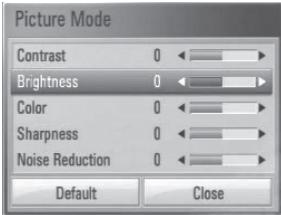
Setting the “User setting” option
1 During playback, press DISPLAY to display the On-Screen display.
2 Use ▲/▼ to select the “Picture mode” option.
3 Use ◀/▶ to select the “User setting” option, and press ENTER (◎).
4 Use ▲/▼/◄/► to adjust the “Picture mode” options.
Select “Default” option then press ENTER (◎) to reset the all video adjustments.
5 Use ▲/▼/◄/► to select the “Close” option, and press ENTER (◎) to finish setting.
This unit allows you to enjoy functions such as picture-in-picture, secondary audio and Virtual packages, etc., with BD-Video supporting BONUSVIEW (BD-ROM version 2 Profile 1 version 1.1/ Final Standard Profile). Secondary video and audio can be played from a disc compatible with the picture-in-picture function. For the playback method, refer to the instructions in the disc.
In addition to the BONUSVIEW function, BD-Video supporting BD-LIVE (BD-ROM version 2 Profile 2) that has a network extension function allows you to enjoy more functions such as downloading new movie trailers by connecting this unit to the internet.
1 Check the network connection and settings ( 16–17).
2 Insert a USB storage device to the USB port on the front panel.
A USB storage device is needed to download bonus content.
3 Press HOME (☑), and set the “BD-LIVE connection” option on the “Setup” menu (→ 21).
Depending on the disc, the BD-LIVE function may not be operated if “BD-LIVE connection” option is set to “Partially Permitted”.
4 Insert a BD-ROM with BD-LIVE.
The operations may differ depending on the disc. Refer to the manual supplied with the disc.
Caution
- Do not remove the connected USB device while content is being downloaded or a Blu-ray disc is still in the disc tray. Doing so may damage the connected USB device and BD-LIVE features may not operate properly with the damaged USB device anymore. If the connected USB device seems damaged from such an action, you can format the connected USB device from the PC and reuse it with this player.
Note
- Some BD-LIVE content access may be restricted in some territories by contents provider's own decision. It may take up to several minutes to load and start enjoying BD-LIVE content.
This unit allows you to watch movies and TV episodes streamed instantly from Netflix (Version 2.0) via the Internet.
In order to use this feature, you must visit the following website on your PC and become a Netflix member.
netflix.com/Onkyo
Activating the Connection to Netflix
In order to watch movies and TV episodes streamed instantly from Netflix via the Internet, you must activate the connection between this unit and your Netflix account.
1 Check the network connection and settings ( 16–17).
2 Press HOME (衆).
3 Select “Netflix” using ◀/▶, and press ENTER (◎).
Opening screen is displayed.
4 Select "yes" using ▲/▼, and press ENTER (◎).
Activation screen with the activation code will appear.
5 On your PC, visit netflix.com/activate and log into your account.
The entry screen of activation code will appear on your PC screen.
6 Enter the activation code which is displayed on the TV screen.
The connection to Netflix is successfully made.
Note
- Netflix is available only in the United States.
- You cannot create a Netflix account on this unit.
- You can deactivate the connection to Netflix by the “Deactivate Netflix” setting (→ 21).
- When you contact the Netflix customer service, you may be asked for the ESN number, which is a serial number to identify this unit by Netflix. You can check the ESN number on “Netflix ESN” screen ( 21).
Watching Streaming Movies
After you set up the connection to Netflix, you can watch movies on your TV.
1 Press HOME (衆).
2 Select “Netflix” using ◀/▶, and press ENTER (◎).
Opening screen is displayed.
You can play movie files contained in a disc/USB device.
1 Press HOME (衆).
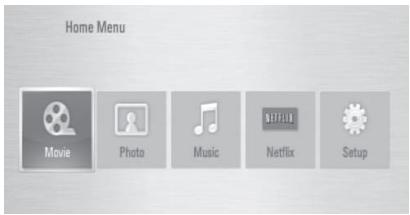
2 Select “Movie” using ◀/▶, and press ENTER (◎).
3 Select “Disc” or “USB” option using ◀/▶, and press ENTER (◎).
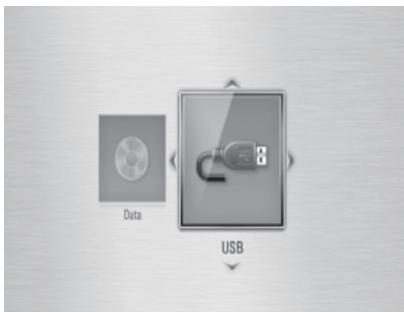
This step is only needed when a disc is set and a USB device is connected to this unit.
4 Select a file using ▲/▼/◄/►, and press ► (PLAY) or ENTER (◎) to play the file.
Note
- The file requirements are described on page 6.
- You can use various playback functions (→ 23–25).
Selecting a subtitle file
MOVIE
If a movie file name and the subtitle file name are the same, subtitle file is played automatically when playing the movie file.
If the subtitle file name is different with the movie file name, you need to select the subtitle file on the [Movie] menu before playing the movie.
1 Use ▲/▼/◄/► to select the subtitle file you wish to play in the “Movie” menu.
2 Press ENTER (◎).
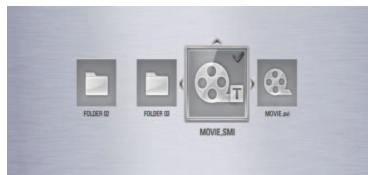
Press ENTER (◎) again to deselect the subtitle file. Selected subtitle file will be displayed when you play the movie file.
Note
- If you press ■ (STOP) during playback, the subtitle selection is cancelled.
Changing subtitle code page
MOVIE
If the subtitle is not displayed properly, you can change the subtitle code page to view the subtitle file properly.
1 During playback, press DISPLAY to display the On-Screen display.
2 Use ▲/▼ to select the “Code Page” option.
3 Use ◀/▶ to select desired code option.
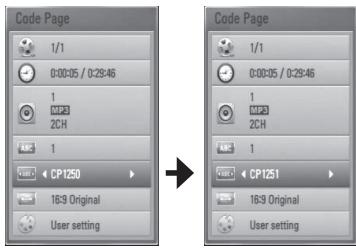
Select the subtitle code, based on the list on page 37.
4 Press RETURN (♂) to exit the On-Screen display.
You can view photo files using this player.
1 Press HOME (↑).
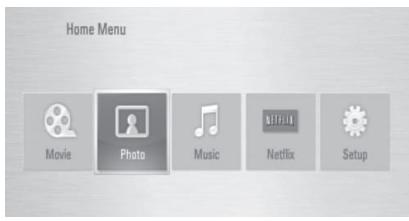
2 Select “Photo” using ◀/▶, and press ENTER (◎).
3 Select the “Disc” or “USB” option using ◀/▶, and press ENTER (◎).
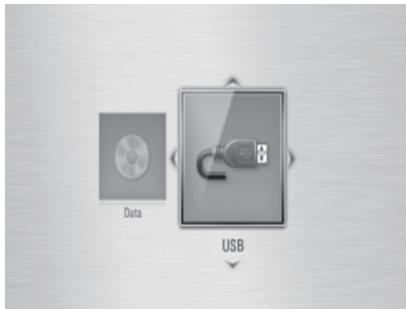
This step is only needed when a disc is set and a USB device is connected to this unit.
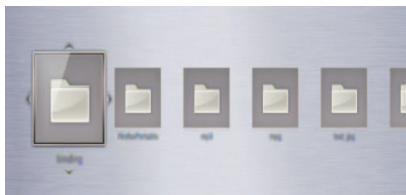
4 Select a file using ▲/▼/◄/►, and press ENTER (◎) to view the photo in full screen.
■ To play a slide show
Press ▶ (PLAY) to start slide show.
■ To stop a slide show
Press ■ (STOP) during slide show.
■ To pause a slide show
Press ■ (PAUSE) during slide show.
Press ▶ (PLAY) to re-start the slide show.
■ To skip to the next/previous photo
While viewing a photo in full screen, press ◀ or ▶ to go to the previous or next photo.
Note
- The file requirements are described on page 6.
- You can use various playback functions (→ 23–25).
Options while viewing a photo
You can use various options while viewing a photo in full screen.
2 Select an option using ▲/▼.
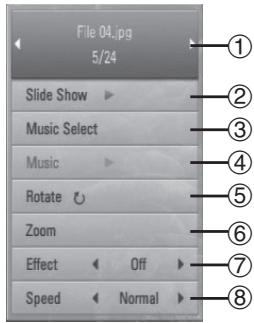
① Current photo/Total number of photos
Use ◀/▶ to view previous/next photo.
② Slide Show
Press ENTER (◎) to start or pause slide show.
③ Music Select
Select the background music for the slide show ( 31) .
④ Music
Press ENTER (◎) to start or pause background music.
⑤ Rotate
Press ENTER (◎) to rotate the photo clockwise.
⑥ Zoom
Press ENTER (◎) to display the “Zoom” menu.
⑦ Effect
Use ◀/▶ to select a transition effect between photos in a slide show.
⑧ Speed
Use ◀/▶ to select a delay time between photos in a slide show.
Listening to music during a slide show
You can display photo files while listening to music files.
1 Press HOME (↑).
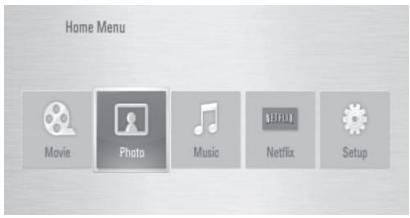
2 Select “Photo” using ◀/▶, and press ENTER (◎).
3 Select the “Disc” or “USB” option using ◀/▶, and press ENTER (◎).
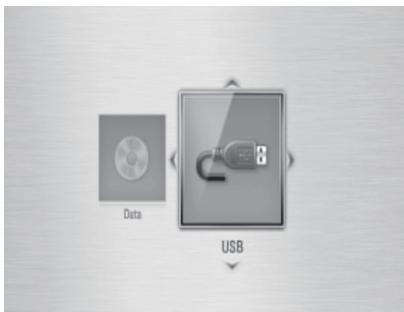
4 Select a file using ▲/▼/◄/►, and press ENTER (◎) to view the photo.
6 Use ▲/▼ to select “Music Select” option, and press ENTER (◎) to display the “Music Select” menu.
7 Use ▲/▼ to select a device, and press ENTER (◎).
8 Use ▲/▼ to select a file or a folder you wish to play.
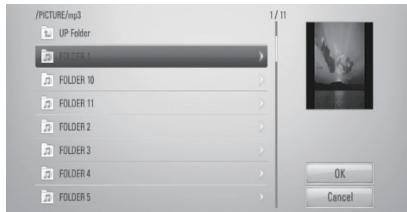
Select a folder and press ENTER ( ) to display the lower directory.
Select “☐” and press ENTER (◎) to display the upper directory.
9 Use ▶ to select “OK”, and press ENTER (◎) to complete music selection.
Listening to music
The player can play Audio CDs and music files.
1 Press HOME (↑).
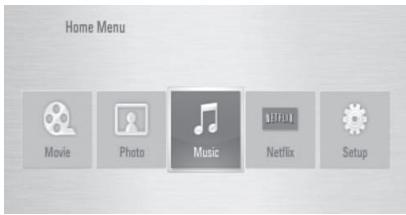
2 Select “Music” using ◀/▶, and press ENTER (◎).
3 Select the “Disc” or “USB” option using ◀/▶, and press ENTER (◎).
This step is only needed when a disc is set and a USB device is connected to this unit.
4 Select a music file or audio track using ▲/▼/◄/►, and press ENTER (◎) to play the music.
Note
- The file requirements are described on page 6.
- You can use various playback functions (→ 23–25).
Handling Discs
Do not touch the playback side of the disc. Hold the disc by the edges so that fingerprints do not get on the surface. Never stick paper or tape on the disc.
Storing Discs
After playing, store the disc in its case. Do not expose the disc to direct sunlight or sources of heat and never leave it in a parked car exposed to direct sunlight.
Cleaning Discs
Fingerprints and dust on the disc can cause poor picture quality and sound distortion. Before playing, clean the disc with a clean cloth. Wipe the disc from the center to out.
Do not use strong solvents such as alcohol, benzine, thinner, commercially available cleaners, or anti-static spray intended for older vinyl records.
When shipping the unit
Please save the original shipping carton and packing materials. If you need to ship the unit, for maximum protection, re-pack the unit as it was originally packed at the factory.
Keeping the exterior surfaces clean
- Do not use volatile liquids such as insecticide spray near the unit.
- Wiping with strong pressure may damage the surface.
- Do not leave rubber or plastic products in contact with the unit for a long period of time.
Cleaning the unit
To clean the player, use a soft, dry cloth. If the surfaces are extremely dirty, use a soft cloth lightly moistened with a mild detergent solution. Do not use strong solvents such as alcohol, benzine, or thinner, as these might damage the surface of the unit.
Maintaining the Unit
The unit is a high-tech, precision device. If the optical pick-up lens and disc drive parts are dirty or worn, the picture quality could be diminished. For details, please contact your nearest authorized service center.
General
■ The Power does not turn on.
Plug the power cord into the wall outlet securely.
■ The unit does not start playback.
Insert a playable disc. (Check the disc type, color system, and regional code.)
Place the disc with the playback side down.
Place the disc on the disc tray correctly inside the guide.
Clean the disc.
Cancel the Rating function or change the rating level.
■ The angle cannot be changed.
Multi-angles are not recorded on the DVD Video being played.
■ Cannot play music/photo/movie files.
The files are not recorded in a format that the unit can play.
The unit does not support the codec of the movie file.
■ The remote control does not work properly.
The remote control is not pointed at the remote sensor of the unit.
The remote control is too far from the unit.
There is an obstacle in the path of the remote control and the unit.
The batteries in the remote control are exhausted.
■ The unit is plugged in, but the power will not turn on or off.
■ The unit is not operating normally.
You can reset the unit as follows.
-
Press and hold the I/ON/STANDBY button for at least five seconds. This will force the unit to power off then turn the unit back on.
-
Unplug the power cord, wait at least five seconds, and then plug it in again.
Picture
There is no picture.
Select the appropriate video input mode on the TV so the picture from the unit appears on the TV screen.
Connect the video connection securely.
Check that the “HDMI Color Setting” in the “Setup” menu is set to the appropriate item that conforms to your video connection.
Your TV may not support the resolution you have set on the player. Change to a resolution that your TV accepts.
The player's HDMI OUT jack is connected to a DVI device that does not support copyright protection.
■ Picture noise appears.
You are playing a disc recorded in a color system that is different from your TV.
Set to a resolution that your TV accepts.
Sound
There is no sound or the sound is distorted.
Connect the audio connection securely.
The input source setting on the amplifier or the connection to the amplifier is incorrect.
The unit is in scan, slow motion, or pause mode.
The sound volume is low.
Check that the connected amplifier is compatible with the audio format output from the player.
The player's HDMI OUT jack is connected to a DVI device. The DVI jack does not accept audio signals.
Check that the device connected to player's HDMI OUT jack is compatible with audio format output from the player.
Network
■ BD-LIVE feature does not work.
The connected USB storage may not have enough space. Connect the USB storage with at least 1GB free space.
Ensure that the unit is correctly connected to the local area network and can access the internet ( 16–17).
Your broadband speed may not be fast enough to use the BD-LIVE features. Contact your Internet Service Provider (ISP) and increase the broadband speed as recommended.
The “BD-LIVE connection” option in the “Setup” menu is set to “Prohibited”. Set the option to “Permitted”.
Netflix
■ Cannot use Netflix feature.
Netflix is available only in the United States.
Check the network connection.
Visit netflix.com/Onkyo on your PC and become a Netflix member.
- Cannot add movies or TV episodes to the instant Queue.
Visit netflix.com on your PC.
Adding movies or TV episodes on this unit is not available.
■ Even though the speed of the Internet connection improves during playback, the picture quality of Netflix streaming movie does not improve.
The picture quality does not change during playback.
The picture quality differs depending on the speed of Internet connection at the time of loading.
■ The picture quality of streaming movie is poor.
Check the speed of your Internet connection.
■ Streaming movie often stops or start buffering during playback.
Contact your Internet service provider. (You may need to improve the broadband speed.)
Controlling an AV receiver with the Supplied Remote Control
You can control your AV receiver using the buttons below.
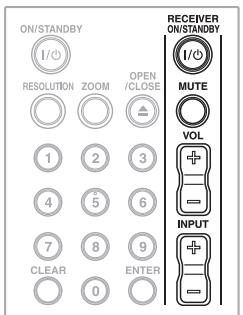
| Button | Operation |
| ON/STANDBY |/⏻ | Turn the AV receiver on or off. |
| MUTE | Mutes or unmutes the AV receiver. |
| VOL +/- | Adjust the volume of the AV receiver. |
| INPUT +/- | Switch the AV receiver's input source. |
Note
- Be sure to set the “Remote ID” setting to “1” on the AV receiver.
- Depending on the unit being connected, you may not be able to control your AV receiver using some of the buttons.
Area Code List
Choose an area code from this list.
| Area | Code | Area | Code | Area | Code | Area | Code |
| Afghanistan | AF | Ethiopia | ET | Maldives | MV | Senegal | SN |
| Argentina | AR | Fiji | FJ | Mexico | MX | Singapore | SG |
| Australia | AU | Finland | FI | Monaco | MC | Slovak Republic | SK |
| Austria | AT | France | FR | Mongolia | MN | Slovenia | SI |
| Belgium | BE | Germany | DE | Morocco | MA | South Africa | ZA |
| Bhutan | BT | Great Britain | GB | Nepal | NP | South Korea | KR |
| Bolivia | BO | Greece | GR | Netherlands | NL | Spain | ES |
| Brazil | BR | Greenland | GL | Netherlands Antilles | AN | Sri Lanka | LK |
| Cambodia | KH | Hong Kong | HK | New Zealand | NZ | Sweden | SE |
| Canada | CA | Hungary | HU | Nigeria | NG | Switzerland | CH |
| Chile | CL | India | IN | Norway | NO | Taiwan | TW |
| China | CN | Indonesia | ID | Oman | OM | Thailand | TH |
| Colombia | CO | Israel | IL | Pakistan | PK | Turkey | TR |
| Congo | CG | Italy | IT | Panama | PA | Uganda | UG |
| Costa Rica | CR | Jamaica | JM | Paraguay | PY | Ukraine | UA |
| Croatia | HR | Japan | JP | Philippines | PH | United States | US |
| Czech Republic | CZ | Kenya | KE | Poland | PL | Uruguay | UY |
| Denmark | DK | Kuwait | KW | Portugal | PT | Uzbekistan | UZ |
| Ecuador | EC | Libya | LY | Romania | RO | Vietnam | VN |
| Egypt | EG | Luxembourg | LU | Russian Federation | RU | Zimbabwe | ZW |
| El Salvador | SV | Malaysia | MY | Saudi Arabia | SA | | |
Use this list to input your desired language for the following initial settings: “Disc Audio”, “Disc Subtitle” and “Disc Menu”.
| Language | Code | Language | Code | Language | Code | Language | Code |
| Afar | 6565 | French | 7082 | Lithuanian | 7684 | Singhalese | 8373 |
| Afrikaans | 6570 | Frisian | 7089 | Macedonian | 7775 | Slovak | 8375 |
| Albanian | 8381 | Galician | 7176 | Malagasy | 7771 | Slovenian | 8376 |
| Ameharic | 6577 | Georgian | 7565 | Malay | 7783 | Spanish | 6983 |
| Arabic | 6582 | German | 6869 | Malayalam | 7776 | Sudanese | 8385 |
| Armenian | 7289 | Greek | 6976 | Maori | 7773 | Swahili | 8387 |
| Assamese | 6583 | Greenlandic | 7576 | Marathi | 7782 | Swedish | 8386 |
| Aymara | 6588 | Guarani | 7178 | Moldavian | 7779 | Tagalog | 8476 |
| Azerbaijani | 6590 | Gujarati | 7185 | Mongolian | 7778 | Tajik | 8471 |
| Bashkir | 6665 | Hausa | 7265 | Nauru | 7865 | Tamil | 8465 |
| Basque | 6985 | Hebrew | 7387 | Nepali | 7869 | Telugu | 8469 |
| Bengali; Bangla | 6678 | Hindi | 7273 | Norwegian | 7879 | Thai | 8472 |
| Bhutani | 6890 | Hungarian | 7285 | Oriya | 7982 | Tonga | 8479 |
| Bihari | 6672 | Icelandic | 7383 | Panjabi | 8065 | Turkish | 8482 |
| Breton | 6682 | Indonesian | 7378 | Pashto, Pushto | 8083 | Turkmen | 8475 |
| Bulgarian | 6671 | Interlingua | 7365 | Persian | 7065 | Twi | 8487 |
| Burmese | 7789 | Irish | 7165 | Polish | 8076 | Ukrainian | 8575 |
| Byelorussian | 6669 | Italian | 7384 | Portuguese | 8084 | Urdu | 8582 |
| Chinese | 9072 | Japanese | 7465 | Quechua | 8185 | Uzbek | 8590 |
| Croatian | 7282 | Kannada | 7578 | Rhaeto-Romance | 8277 | Vietnamese | 8673 |
| Czech | 6783 | Kashmiri | 7583 | Rumanian | 8279 | Volapuk | 8679 |
| Danish | 6865 | Kazakh | 7575 | Russian | 8285 | Welsh | 6789 |
| Dutch | 7876 | Kirghiz | 7589 | Samoan | 8377 | Wolof | 8779 |
| English | 6978 | Korean | 7579 | Sanskrit | 8365 | Xhosa | 8872 |
| Esperanto | 6979 | Kurdish | 7585 | Scots Gaelic | 7168 | Yiddish | 7473 |
| Estonian | 6984 | Laothian | 7679 | Serbian | 8382 | Yoruba | 8979 |
| Faroese | 7079 | Latin | 7665 | Serbo-Croatian | 8372 | Zulu | 9085 |
| Fiji | 7074 | Latvian, Lettish | 7686 | Shona | 8378 | | |
| Finnish | 7073 | Lingala | 7678 | Sindhi | 8368 | | |
| Code page | Language |
| 1250 | Romanian, Slovenian, Hungarian, Slovak, Polish, Albanian, Serbian (Latin), Croatian, Czech |
| 1251 | Mongolian (Cyrillic), FYRO Macedonian, Uzbek (Cyrillic), Ukrainian, Azeri (Cyrillic), Tatar, Kazakh, Belarusian, Kyrgyz (Cyrillic), Bulgarian, Serbian (Cyrillic), Russian |
| 1252 | English (Jamaica), French (Canada), French (France), French (Luxembourg), English (New Zealand), English (Ireland), Dutch (Netherlands), English (Caribbean), French (Switzerland), English (Canada), Galician, English (Belize), German (Austria), French (Monaco), English (Zimbabwe), Basque, Dutch (Belgium), French (Belgium), Finnish, Faroese, German (Germany), English (Australia), English (United States), English (United Kingdom), Catalan, English (Trinidad), English (South Africa), Danish, English (Philippines), Spanish (Paraguay), Spanish (Colombia), Spanish (Costa Rica), Spanish (Dominican Republic), Spanish (Ecuador), Spanish (El Salvador), Spanish (Guatemala), Spanish (Honduras), Spanish (International Sort), Spanish (Chile), Spanish (Nicaragua) Spanish (Mexico), Spanish (Peru), Spanish (Puerto Rico), Spanish (Traditional Sort), Spanish (Uruguay), Spanish (Venezuela), Swahili Swedish, Swedish (Finland), German (Liechtenstein), Afrikaans, Spanish (Panama), German (Luxembourg), Spanish (Bolivia), German (Switzerland), Icelandic, Indonesian, Italian (Italy), Italian (Switzerland), Norwegian (Nynorsk), Spanish (Argentina), Portuguese (Brazil), Norwegian (Bokmal), Malay (Malaysia), Malay (Brunei Darussalam), Portuguese (Portugal) |
| 1253 | Greek |
| 950 | Traditional Chinese, Simplified Chinese |
| 949 | Korean |
Subtitle codes available may vary depending on the region.
“Blu-ray Disc” is a trademark.
“BD-LIVE” logo is a trademark of Blu-ray Disc Association.
BONUS VIEW™
“BONUSVIEW” is trademark of Blu-ray Disc Association.

Java and all Java-based trademarks and logos are trademarks or registered trademarks of Sun Microsystems, Inc. in the United States and other countries.
Manufactured under license from Dolby Laboratories. Dolby and the double-D symbol are trademarks of Dolby Laboratories.
HDMI, the HDMI logo and High-Definition Multimedia Interface are trademarks or registered trademarks of HDMI licensing LLC.
“DVD Logo” is a trademark of DVD Format/Logo Licensing Corporation.
AVCHD ^TM
“AVCHD” and the “AVCHD” logo are trademarks of Panasonic Corporation and Sony Corporation.
Manufactured under license under U.S. Patent #'s: 5,451,942; 5,956,674; 5,974,380; 5,978,762; 6,226,616; 6,487,535; 7,392,195; 7,272,567; 7,333,929; 7,212,872 & other U.S. and worldwide patents issued & pending. DTS and the Symbol are registered trademarks, & DTS-HD, DTS-HD Master Audio | Essential and the DTS logos are trademarks of DTS, Inc. Product includes software. © DTS, Inc. All Rights Reserved.
DivX is a registered trademark of DivX, Inc., and is used under license.
x.v.Color
“x.v.Color” is a trademark of Sony Corporation.
Netflix and the Netflix logo are trademarks or registered trademarks of Netflix, Inc.
| Source\Jack/Setting | Analog 2CH Output | Digital Output (DIGITAL AUDIO OUTPUT)*4 |
| PCM Stereo | DTS Re-encode*3*5 | Primary Pass-Thru |
| Dolby Digital | PCM 2ch | PCM 2ch | DTS | Dolby Digital |
| Dolby Digital Plus | PCM 2ch | PCM 2ch | DTS | Dolby Digital |
| Dolby TrueHD | PCM 2ch | PCM 2ch | DTS | Dolby Digital |
| DTS | PCM 2ch | PCM 2ch | DTS | DTS |
| DTS-HD | PCM 2ch | PCM 2ch | DTS | DTS |
| Linear PCM 2ch | PCM 2ch | PCM 2ch | DTS | PCM 2ch |
| Linear PCM 5.1ch | PCM 2ch | PCM 2ch | DTS | PCM 2ch |
| Linear PCM 7.1ch | PCM 2ch | PCM 2ch | DTS | PCM 2ch |
| Source\Jack/Setting | HDMI OUT |
| PCM Stereo | PCM Multi-Ch*3 | DTS Re-encode*3*5 | Primary Pass-Thru*1*2*3 |
| Dolby Digital | PCM 2ch | PCM 5.1ch | DTS | Dolby Digital |
| Dolby Digital Plus | PCM 2ch | PCM 5.1ch | DTS | Dolby Digital Plus |
| Dolby TrueHD | PCM 2ch | PCM 5.1ch | DTS | Dolby TrueHD |
| DTS | PCM 2ch | PCM 5.1ch | DTS | DTS |
| DTS-HD | PCM 2ch | PCM 7.1ch | DTS | DTS-HD |
| Linear PCM 2ch | PCM 2ch | PCM 2ch | DTS | PCM 2ch |
| Linear PCM 5.1ch | PCM 2ch | PCM 5.1ch | DTS | PCM 5.1ch |
| Linear PCM 7.1ch | PCM 2ch | PCM 7.1ch | DTS | PCM 7.1ch |
*1 The secondary and interactive audio may not be included in the output bitstream if “Digital Output” or “HDMI” option is set to “Primary Pass-Thru”. (Except LPCM Codec: the output always includes interactive and secondary audio.)
*2 This player automatically selects the HDMI audio according to the decoding capability of the connected HDMI device even though “HDMI” option is set to “Primary Pass-Thru”.
*3 The “PCM Multi-Ch”/“Primary Pass-Thru” setting of the “HDMI” option and “DTS Re-Encode” setting of the “Digital Output” option cannot be set together. If you set them together, the “HDMI” or “Digital Output” option is set to “PCM Stereo” automatically.
*4 On the PCM audio output, the sampling frequency of DIGITAL AUDIO OUTPUT is limited to 96 kHz.
*5 If the “HDMI” or “Digital Output” option is set to [DTS Re-Encode], the audio output is limited to 48 kHz and 5.1Ch. If the “HDMI” or “Digital Output” option is set to “DTS Re-Encode”, the DTS Re-encode audio is output for BD-ROM discs, and the original audio is output for the other discs (like “Primary Pass-Thru”).
- If “HDMI” option is set to “PCM Multi-Ch” and “Digital Output” option is set to “Primary Pass-Thru” while playback Dolby Digital Plus or TrueHD audio, DIGITAL AUDIO OUTPUT is limited to “PCM 2ch”.
- If the HDMI connection is version 1.3 and Dolby Digital Plus/Dolby TrueHD is output from HDMI OUT jack, DIGITAL AUDIO OUTPUT jack is limited to “PCM 2ch” (When the HDMI and DIGITAL AUDIO OUTPUT are connected simultaneously).
- The audio is output as PCM 48 kHz/16 bit for MP3/WMA file and PCM 44.1 kHz/16 bit for Audio CD while playback.
- The Dolby TrueHD audio recorded on some Blu-ray discs consists of Dolby Digital and TrueHD audio. Dolby Digital audio is output through DIGITAL AUDIO OUTPUT jacks and “DD” displays on the screen if TrueHD audio is not output (for example, when “HDMI” is set to “PCM Stereo” and “Digital Output” is set to “Primary Pass-Thru”).
- You must select a digital audio output and a maximum sampling frequency that your Amplifier (or AV receiver) accepts using “Digital Output”, “HDMI” and “Sampling Freq.” options on the “Setup” menu ( 20).
- With digital audio connection (DIGITAL AUDIO OUTPUT or HDMI), Disc Menu button sounds of BD-ROM may not be heard if the “Digital Output” or “HDMI” option is set to “Primary Pass-Thru”.
- If the audio format of the digital output does not match the capabilities of your receiver, the receiver will produce a strong, distorted sound or no sound at all.
- Multi-channel Digital Surround Sound via digital connection can only be obtained if your receiver is equipped with a Digital Multi-channel decoder.
■ When the non-copy protected media is playing back
| Resolution\Video Out | HDMI OUT | COMPONENT VIDEO OUT |
| HDMI connected | HDMI disconnected |
| 480i | 480p | 480i | |
| 480p | 480p | 480p | |
| 720p | 720p | 720p | |
| 1080i | 1080i | 1080i | |
| 1080p 24 Hz | 1080p 24 Hz | 480i | 1080i |
| 1080p 60 Hz | 1080p 60 Hz | 480i | 1080i |
■ When the copy protected media is playing back (DVD, etc.)
| Resolution\Video Out | HDMI OUT | COMPONENT VIDEO OUT |
| HDMI connected | HDMI disconnected |
| 480i | 480p | 480i |
| 480p | 480p | 480p |
| 720p | 720p | 480i | 480p |
| 1080i | 1080i | 480i | 480p |
| 1080p 24 Hz | 1080p 24 Hz | 480i | 480p |
| 1080p 60 Hz | 1080p 60 Hz | 480i | 480p |
HDMI OUT connection
- If you select a resolution manually and then connect the HDMI jack to TV and your TV does not accept it, the resolution setting is set to “Auto”.
- If you select a resolution that your TV does not accept, the warning message will appear. After resolution change, if you cannot see the screen, please wait 20 seconds and the resolution will automatically revert back to the previous resolution.
- The 1080p video output frame rate may be automatically set to either 24Hz or 60Hz depending both on the capability and preference of the connected TV and based on the native video frame rate of the content on the BD-ROM disc.
COMPONENT VIDEO OUT Connection
BD and DVD video stream could prevent up-scaling on analog output.
VIDEO OUT connection
The resolution of the VIDEO OUT jack is always output at 480i resolution.
| Signal System | NTSC |
| Composite Video Output / Impedance | 1.0 V (p-p) / 75 Ω negative sync, RCA |
| Component Video Output / Impedance | Y: 1.0 V (p-p) / 75 Ω, PB/PR: 0.7 V (p-p) / 75 Ω, RCA |
| Component Video Frequency Response | 5 Hz ~ 13 MHz |
| Component Video Resolution | 480i, 480p |
| HDMI | Resolution | 480i, 480p, 720p, 1080i, 1080p, 1080p 24Hz |
| Audio Format | LPCM, Dolby Digital, Dolby Digital Plus, Dolby True HD, DTS, DTS-HD |
| Version | 1.3a |
| Support | x.v.Color |
| Connector | A Type |
| Frequency Response (Digital Audio) | DVD Linear Sound | 4 Hz ~ 44 kHz (96 kHz)4 Hz ~ 22 kHz (48 kHz) |
| Audio CD | 4 Hz ~ 20 kHz (44.1 kHz) |
| Signal to Noise Ratio | 100 dB |
| Audio Dynamic Range | 86 dB |
| THD (Total Harmonic Distortion) | 0.005% (1 kHz) |
| Wow and Flutter | Below threshold of measurability |
| Audio Output / Impedance (Digital/Coaxial) | 0.5 V (p-p) / 75 Ω |
| Audio Output / Impedance (Analog) | 2.0 V (rms) / 320 Ω |
General
| Power Supply | AC 120 V, 60 Hz |
| Power Consumption | 20 W |
| Stand-by Power Consumption | 0.1 W |
| Dimensions (W x H x D) | 435 mm x 53 mm x 209 mm |
| Weight | 2.0 kg |
| Operation Condition Temperature/Humidity | 5 °C ~ 35 °C (41 °F ~ 95 °F) / 5% ~ 90% |
| Bus Power Supply (USB) | DC 5V, 0.5 A |
| Disc Compatibility | CD-R, CD-RW, DVD-R, DVD-RW, DVD-R DL, DVD+R, DVD+RW, DVD+R DL, BD-R, BD-RE, USB (Discs that have not been properly finalized may only be partially playable or not playable at all.) |
Design and specifications are subject to change without notice.
Supported File Type
√: Supported
| File Type, Disc Format | Disc/Media Type |
| BD-R | BD-RE | DVD-R/RW | DVD+R/RW | CD-R/RW | USB |
| BDMV | √ | √ | - | - | - | - |
| VIDEO MODE | - | - | √ | √ | - | - |
| AUDIO CD | - | - | - | - | √ | - |
| MP3, WMA | √ | √ | √ | √ | √ | √ |
| JPEG, PNG | √ | √ | √ | √ | √ | √ |
| MPEG1, MPEG2, MPEG4 | √ | √ | √ | √ | √ | √ |
| DivX (HT V3 ~ 6) | √ | √ | √ | √ | √ | √ |
| DivX (VOD 3.0) | √ | √ | √ | √ | √ | - |
| DivX (HD V1.0) | √ | √ | √ | √ | √ | √ |
| DivX (HD V1.1) | √ | √ | √ | √ | √ | √ |
| AVCHD | - | - | √ | √ | - | - |
The following GPL executables and LGPL libraries used in this product are subject to the GPL2.0/LGPL2.1 License Agreements:
GPL EXECUTABLES: Linux kernel 2.6, bash, busybox, cramfs, dhcpcd, e2fsprogs, fdisk, mkdosfs, mtd-utils, nettools, procps, samba-3.0.25b, sysutils, tcpdump, tftpd, tinylogin, unzip, utelnetd
LGPL LIBRARIES: uClibc, DirectFB, blowfish, cairo, ffmpeg, iconv, libusb, mpg123
gSOAP Public License 1.3 LIBRARY: gsoap
Part of the software embedded in this product is gSOAP software.
Portions created by gSOAP are Copyright © 2001-2009 Robert A. van Engelen, Genivia inc. All Rights Reserved. THE SOFTWARE IN THIS PRODUCT WAS IN PART PROVIDED BY GENIVIA INC AND ANY EXPRESS OR IMPLIED WARRANTIES, INCLUDING, BUT NOT LIMITED TO, THE IMPLIED WARRANTIES OF MERCHANTABILITY AND FITNESS FOR A PARTICULAR PURPOSE ARE DISCLAIMED. IN NO EVENT SHALL THE AUTHOR BE LIABLE FOR ANY DIRECT, INDIRECT, INCIDENTAL, SPECIAL, EXEMPLARY, OR CONSEQUENTIAL DAMAGES (INCLUDING, BUT NOT LIMITED TO, PROCUREMENT OF SUBSTITUTE GOODS OR SERVICES; LOSS OF USE, DATA, OR PROFITS; OR BUSINESS INTERRUPTION) HOWEVER CAUSED AND ON ANY THEORY OF LIABILITY, WHETHER IN CONTRACT, STRICT LIABILITY, OR TORT (INCLUDING NEGLIGENCE OR OTHERWISE) ARISING IN ANY WAY OUT OF THE USE OF THIS SOFTWARE, EVEN IF ADVISED OF THE POSSIBILITY OF SUCH DAMAGE.
You can obtain a copy of the GPL, LGPL licenses from http://www.gnu.org/licenses/old-licenses/gpl-2.0.html and http://www.gnu.org/licenses/old-licenses/lgpl-2.1.html.
Also you can obtain a copy of gSOAP public license from http://www.cs.fsu.edu/\~engelen/license.html.
This software is based in part on the work of the Independent JPEG Group copyright © 1991-1998, Thomas G. Lane.
This product includes
All rights reserved.
Permission is hereby granted, free of charge, to any person obtaining a copy of this software and associated documentation files (the “Software”), to deal in the Software without restriction, including without limitation the rights to use, copy, modify, merge, publish, distribute, sublicense, and/or sell copies of the Software, and to permit persons to whom the Software is furnished to do so, subject to the following conditions:
THE SOFTWARE IS PROVIDED "AS IS", WITHOUT WARRANTY OF ANY KIND, EXPRESS OR IMPLIED, INCLUDING BUT NOT LIMITED TO THE WARRANTIES OF MERCHANTABILITY, FITNESS FOR A PARTICULAR PURPOSE AND NONINFRINGEMENT. IN NO EVENT SHALL THE AUTHORS OR COPYRIGHT HOLDERS BE LIABLE FOR ANY CLAIM, DAMAGES OR OTHER LIABILITY, WHETHER IN AN ACTION OF CONTRACT, TORT OR OTHERWISE, ARISING FROM, OUT OF OR IN CONNECTION WITH THE SOFTWARE OR THE USE OR OTHER DEALINGS IN THE SOFTWARE.
Content and services made available through this product are transmitted by third parties by means of networks and transmission facilities over which Company has no control and third party services may be terminated or interrupted at any time, and Company makes no representation or warranty that any content or service will remain available for any period of time. Without limiting the generality of this disclaimer, Company expressly disclaims any responsibility for any interruption or suspension of any content or service made available through this product. Company is not responsible for customer service related to the content and services. Any question or request for service relating to the content or services should be made directly to the respective content and service providers.
THIRD PARTY CONTENT AND SERVICES MADE AVAILABLE THROUGH THIS PRODUCT ARE PROVIDED "AS IS." COMPANY DOES NOT WARRANT CONTENT OR SERVICES SO PROVIDED, FOR ANY PURPOSE WHATSOEVER. COMPANY EXPRESSLY DISCLAIMS ANY WARRANTIES, EXPRESS OR IMPLIED INCLUDING WITHOUT LIMITATION, WARRANTIES OF MERCHANTABILITY OR FITNESS FOR A PARTICULAR PURPOSE, ACCURACY, VALIDITY, TIMELINESS, LEGALITY, SUITABILITY, OR QUALITY OF ANY CONTENT OR SERVICE MADE AVAILABLE THROUGH THIS PRODUCT.
IN NO EVENT SHALL COMPANY BE LIABLE FOR, ANY DAMAGES, WHETHER ARISING IN CONTRACT OR TORT, INCLUDING WITHOUT LIMITATION, ANY DIRECT, INDIRECT, INCIDENTAL, SPECIAL OR CONSEQUENTIAL DAMAGES, LOST PROFITS, ATTORNEY FEES, EXPENSES, OR ANY OTHER DAMAGES ARISING OUT OF, OR IN CONNECTION WITH, ANY CONTENT (OR ANY INFORMATION CONTAINED THEREIN) OR SERVICE PROVIDED TO THE USER OR ANY THIRD PARTY, EVEN IF ADVISED OF THE POSSIBILITY OF SUCH DAMAGES.
All content and services accessible through this product belong to third parties and are protected by copyright, patent, trademark and/or other intellectual property rights. Such content and services are provided solely for the User's personal noncommercial use. User may not use any content or services in a manner that has not been authorized by the content owner or service provider. Without limiting the foregoing, unless expressly authorized by the applicable content owner or service provider, you may not modify, copy, republish, upload, post, transmit, translate, sell, create derivative works, exploit, or distribute in any manner or medium any content or services made available through this product.
ONKYO CORPORATION
Sales & Product Planning Div. : 2-1, Nisshin-cho, Neyagawa-shi, OSAKA 572-8540, JAPAN
Tel: 072-831-8023 Fax: 072-831-8163
18 Park Way, Upper Saddle River, N.J. 07458, U.S.A.
Tel: 800-229-1687, 201-785-2600 Fax: 201-785-2650 http://www.us.onkyo.com/
ONKYO EUROPE ELECTRONICS GmbH
Liegnitzerstrasse 6, 82194 Groebenzell, GERMANY
Tel: +49-8142-4401-0 Fax: +49-8142-4401-555 http://www.eu.onkyo.com/
ONKYO EUROPE ELECTRONICS GmbH (UK BRANCH)
The Coach House 81A High Street, Marlow, Buckinghamshire, SL7 1AB, UK
Tel: +44-(0)1628-473-350 Fax: +44-(0)1628-401-700
ONKYO CHINA LIMITED
Unit 1 & 12, 9/F, Ever Gain Plaza Tower 1, 88, Container Port Road, Kwai Chung,
N.T., Hong Kong. Tel: 852-2429-3118 Fax: 852-2428-9039
http://www.ch.onkyo.com/
Y1007-2



