MC-NE Net Eye - Webcam ModeCom - Free user manual and instructions
Find the device manual for free MC-NE Net Eye ModeCom in PDF.


| Product Type | Webcam |
| Brand | ModeCom |
| Model | MC-NE Net Eye |
| Dimensions (approx.) | 8 x 5 x 5 cm |
| Weight | 100 g |
| Power Source | USB 2.0 |
| Resolution | 1920 x 1080 pixels (Full HD) |
| Frame Rate | 30 fps |
| Field of View | 70° |
| Focus Type | Fixed focus |
| Built-in Microphone | Yes |
| Compatibility | Windows, macOS, Linux |
| Connection | USB-A cable (1.5 m) |
| Mount Type | Clip / stand |
| Light Conditions | Low light compensation |
| Cleaning | Wipe lens with dry microfiber cloth |
| Safety | Keep away from liquids and extreme temperatures |
| Spare Parts | USB cable available separately |
| Repairability | Not user-serviceable; contact support |
Frequently Asked Questions - MC-NE Net Eye ModeCom
User questions about MC-NE Net Eye ModeCom
0 question about this device. Answer the ones you know or ask your own.
Ask a new question about this device
Download the instructions for your Webcam in PDF format for free! Find your manual MC-NE Net Eye - ModeCom and take your electronic device back in hand. On this page are published all the documents necessary for the use of your device. MC-NE Net Eye by ModeCom.
USER MANUAL MC-NE Net Eye ModeCom
natural_image
Black desktop computer with a spherical head and a black base, no visible text or symbols on the device itself.MODE COM WEB CAM
MC-NE
n e t e y e
MODE COM
MODE COM WEB CAM
MC-NE n e t e y e
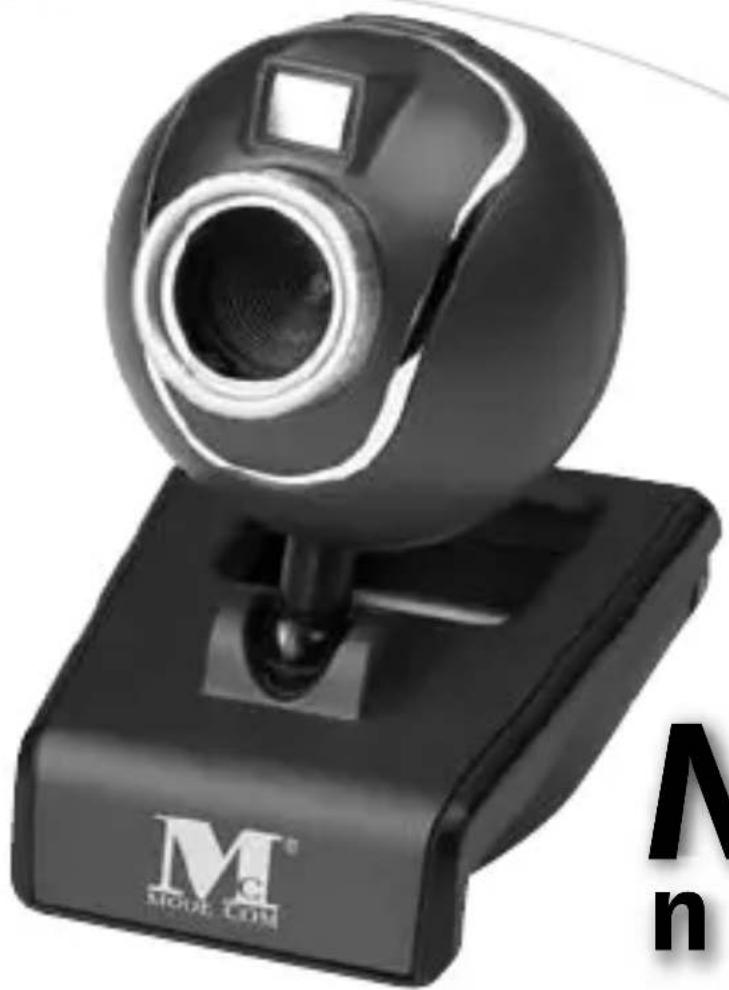
Thank you for choosing an advanced Web camera MC-NE Net Eye.
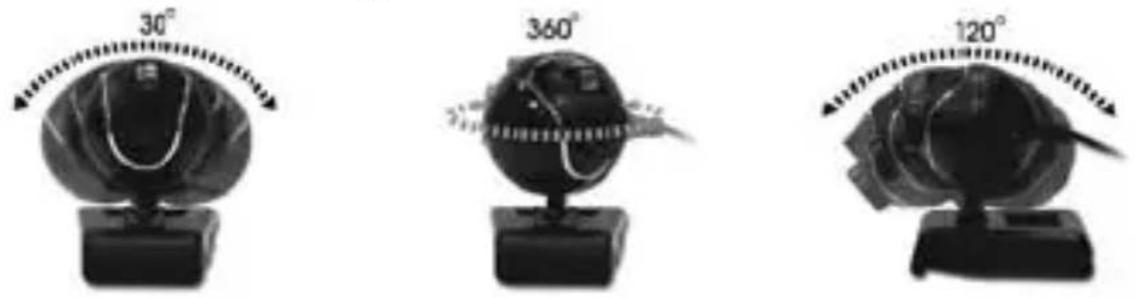
Mode Com Web camera MC-NE Net Eye is exceptional not only for its functionality, but also for its innovative technology. Our device is uniquely handy owing to the universal system of assembling, it is adjusted to CRT as well as LCD monitors. Additionally, it is a perfect solution for portable computer users since MC-NE has a very compact size. A special construction of a stand together with a rotary top of the camera enable the user to place the device almost everywhere and in every position.
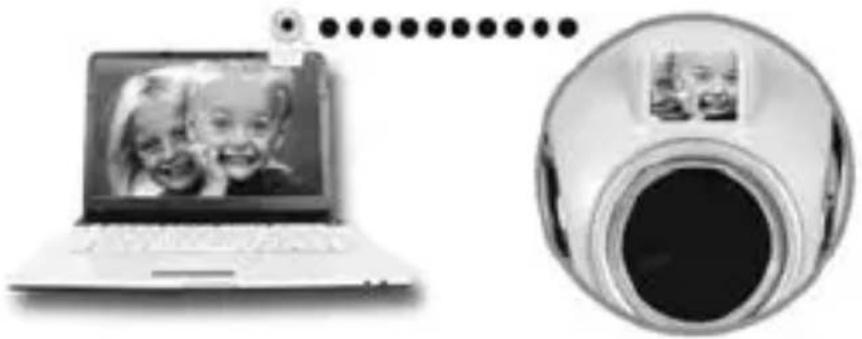
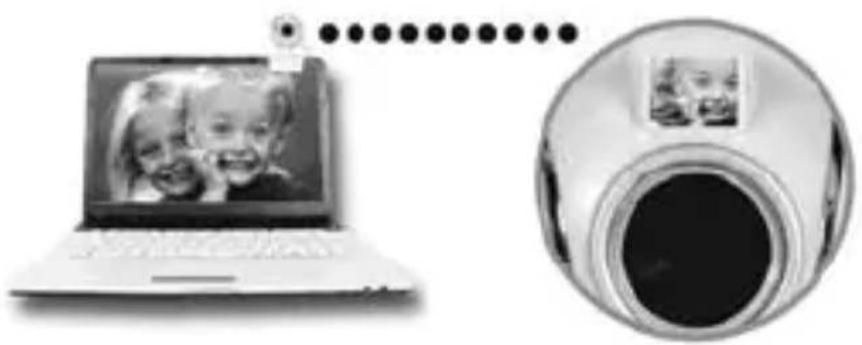
Another interesting element of this web camera is a small mirror which shows how the other person sees us. High resolution, speed and sensitivity are the features which characterize perfect parameters of MC-NE optical sensor, ensuring good view even in difficult conditions. The use of the USB 1.1 interface enables to capture high resolution images. Embedded microphone allows to carry on high quality conversations with the use of the Internet messengers. High quality of materials, attractive design and unique functionality of MC-NE Net Eye will surely meet every User's expectations.
Mode Com places a high value on the quality of its products to not only fulfi II but also exceed customers requirements. MC-NE Net Eye is designed respecting the latest knowledge and modern technology. It suits
MODE COM
every modern place of living where having the best means having Mode Com products.
Choose better future – choose Mode Com!
Package Contents
• 480K Pixels Web Camera
- CD Driver
- Instruction Manual
System Requirements
- Windows 98SE/ME/2000/XP/VISTA or Mac OS X & Above
- Pentium 4 or faster processor
- 128MB RAM
- 200MB free hard drive space
- CD-ROM drive
- 24 bit color display adapter
- Available 1.1 USB port
The Description for Each Part
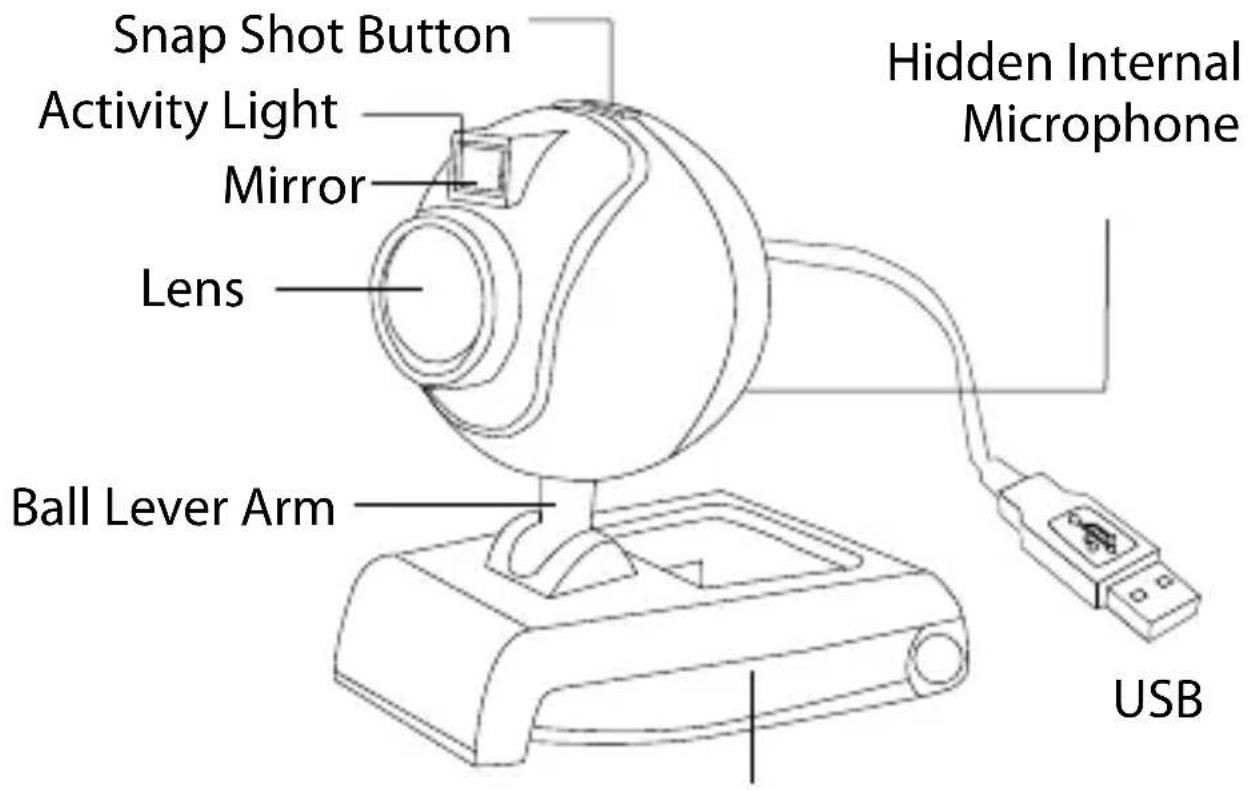
Multi-Flexible Stand
Web Camera Features
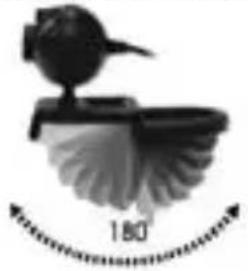
Multi-Flexible Stand
natural_image
Illustration of a bird perched on a leafy branch with an arrow indicating 180 degrees (no text or symbols present)
For LCD
Monitor
For
Notebook
natural_image
Close-up of a dark rectangular object with a small black object on top (no visible text or symbols)For CRT Monitor
MODE COM
Multi-Swivel Design
Mirror- Mirror Eff ect
natural_image
Illustration of a laptop with a photo frame and a camera lens, no text or symbols present.Web Camera Specifications
- Sensor Type: 1/4" CMOS
- Native Resolution: 640×480 pixels
- Video Capture: Up to 800×600 pixels
- Still Image Capture: 800×600 pixels
-
Frame Rate: Up to 30fps@640×480 pixels
-
Image Format: RGB24
- Brightness: Auto
- Exposed Control: Auto
- USB Protocol: USB 1.1
- Power: DC 5V
- Product Size: 40(L)×40(W)×45(H)mm (Body only)
Install the Software
Install the software FIRST and follow the on-screen instruction.
Attention: Please install the driver before the Web Cam installation.
The Steps of installation:
Step 1: Please install the driver first.
Step 2: Please install the Web Cam after fi nishing the instal-lation of driver successfully.
MODE COM
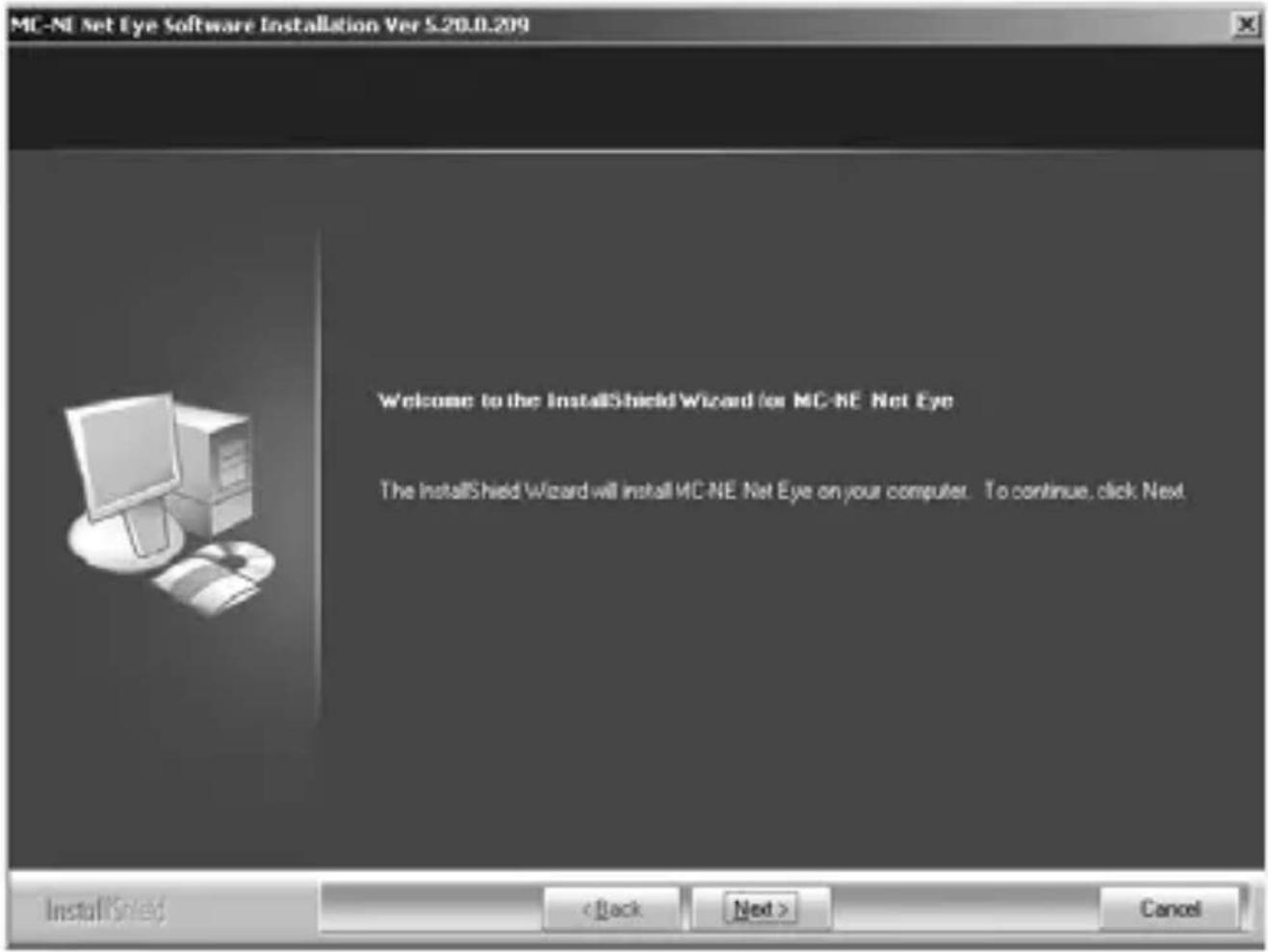
1. Click „Next“ to begin the installation
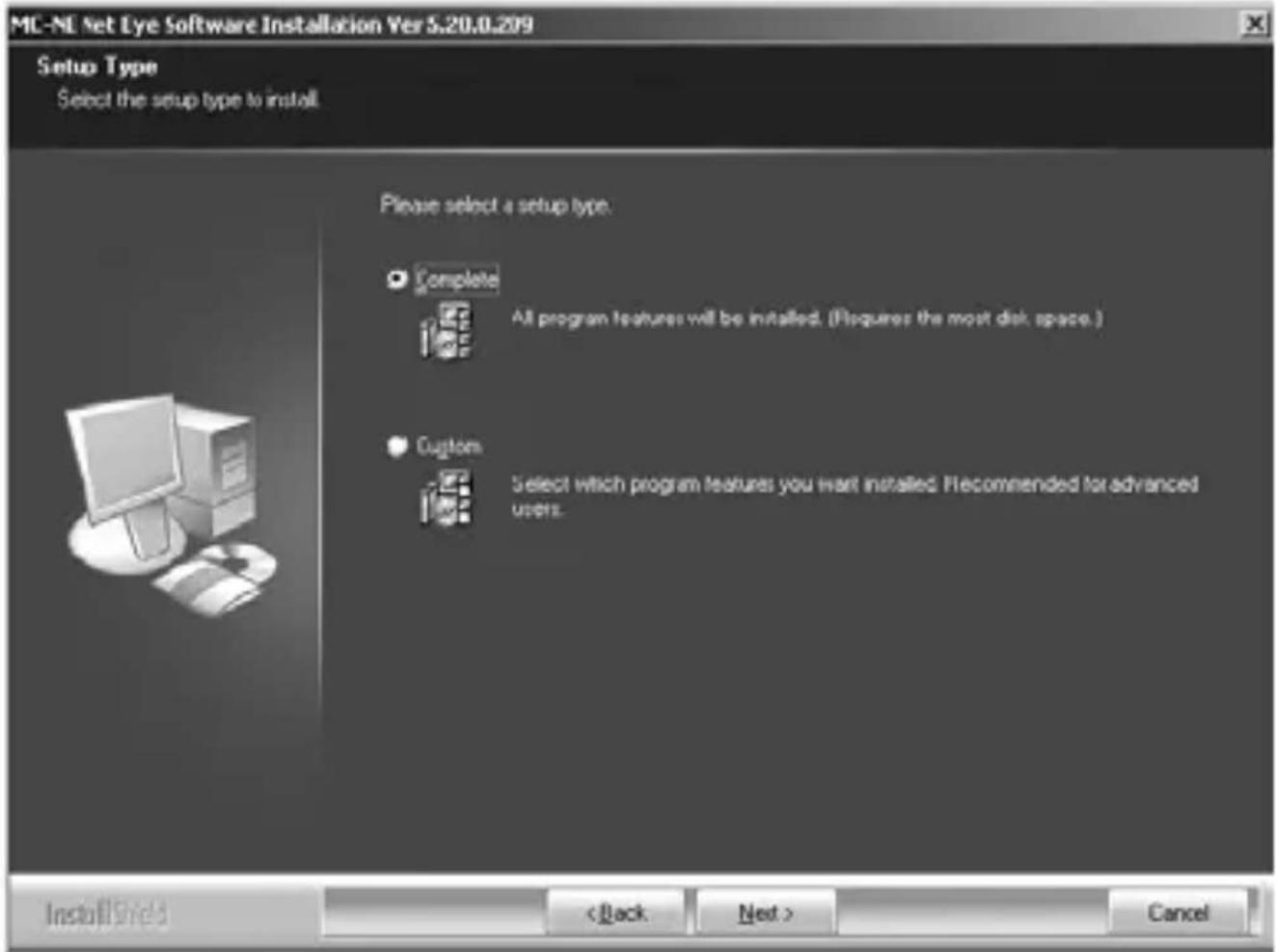
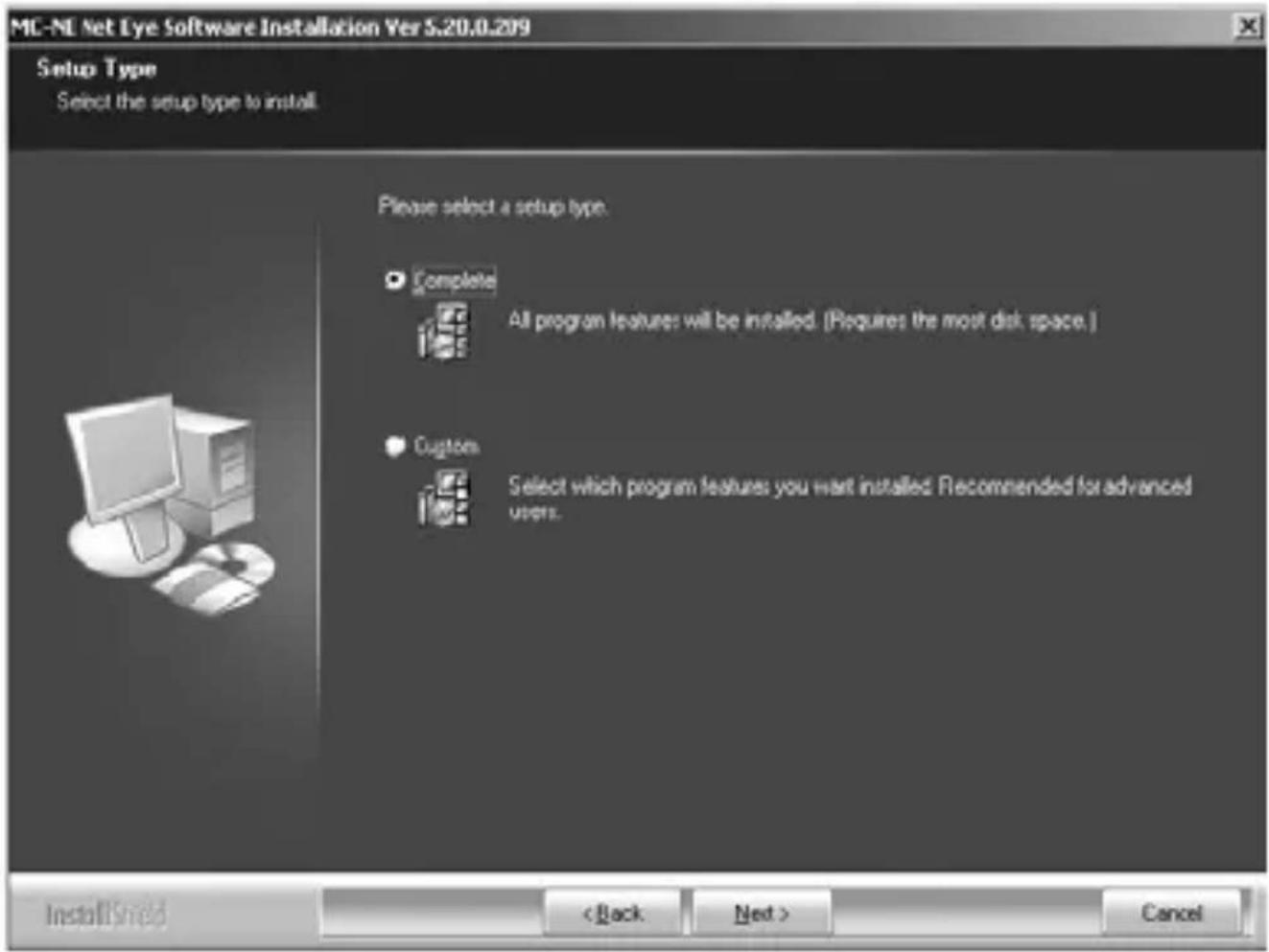
2. Select „Complete“ and click „Next“
MODE COM
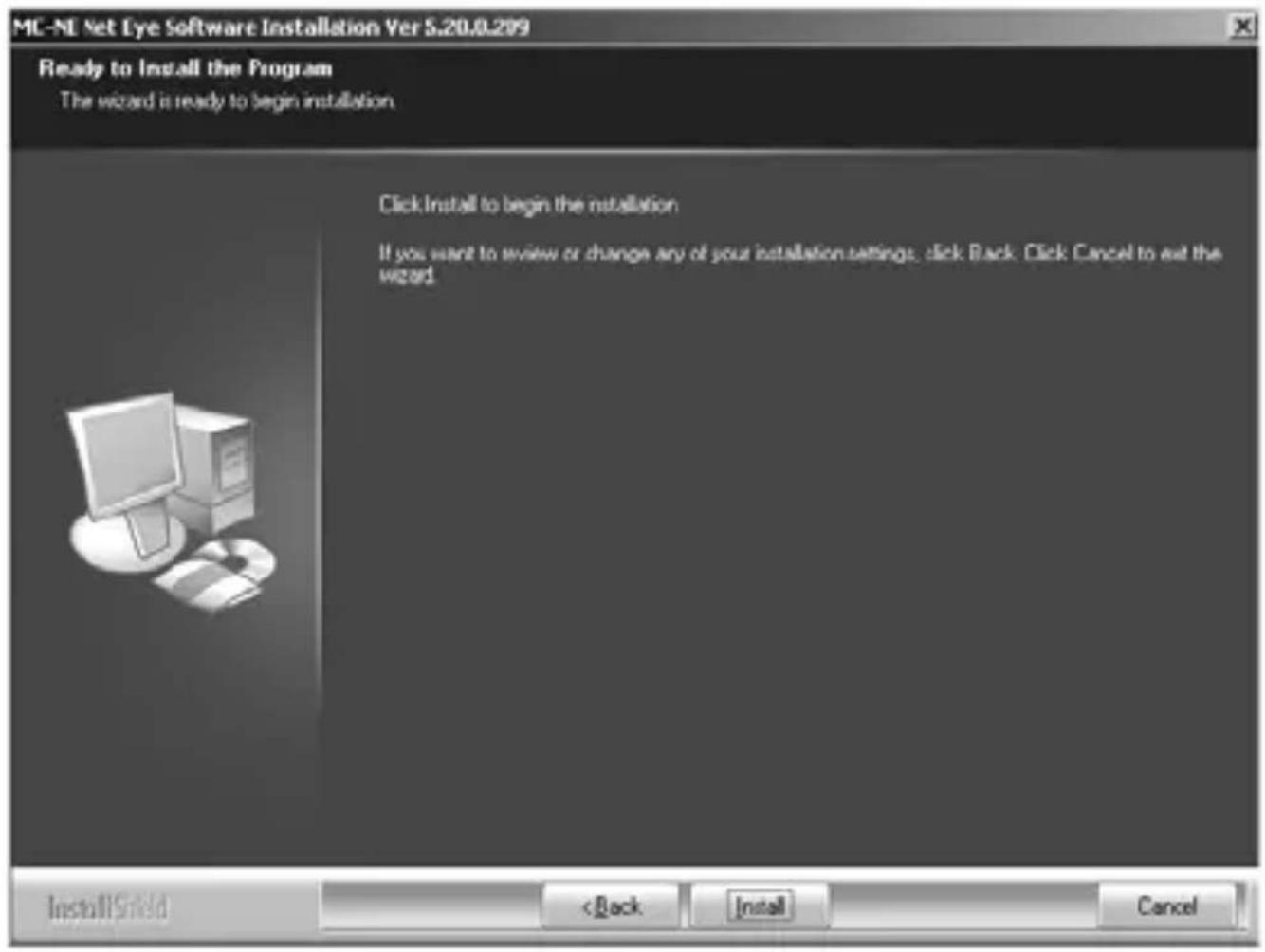
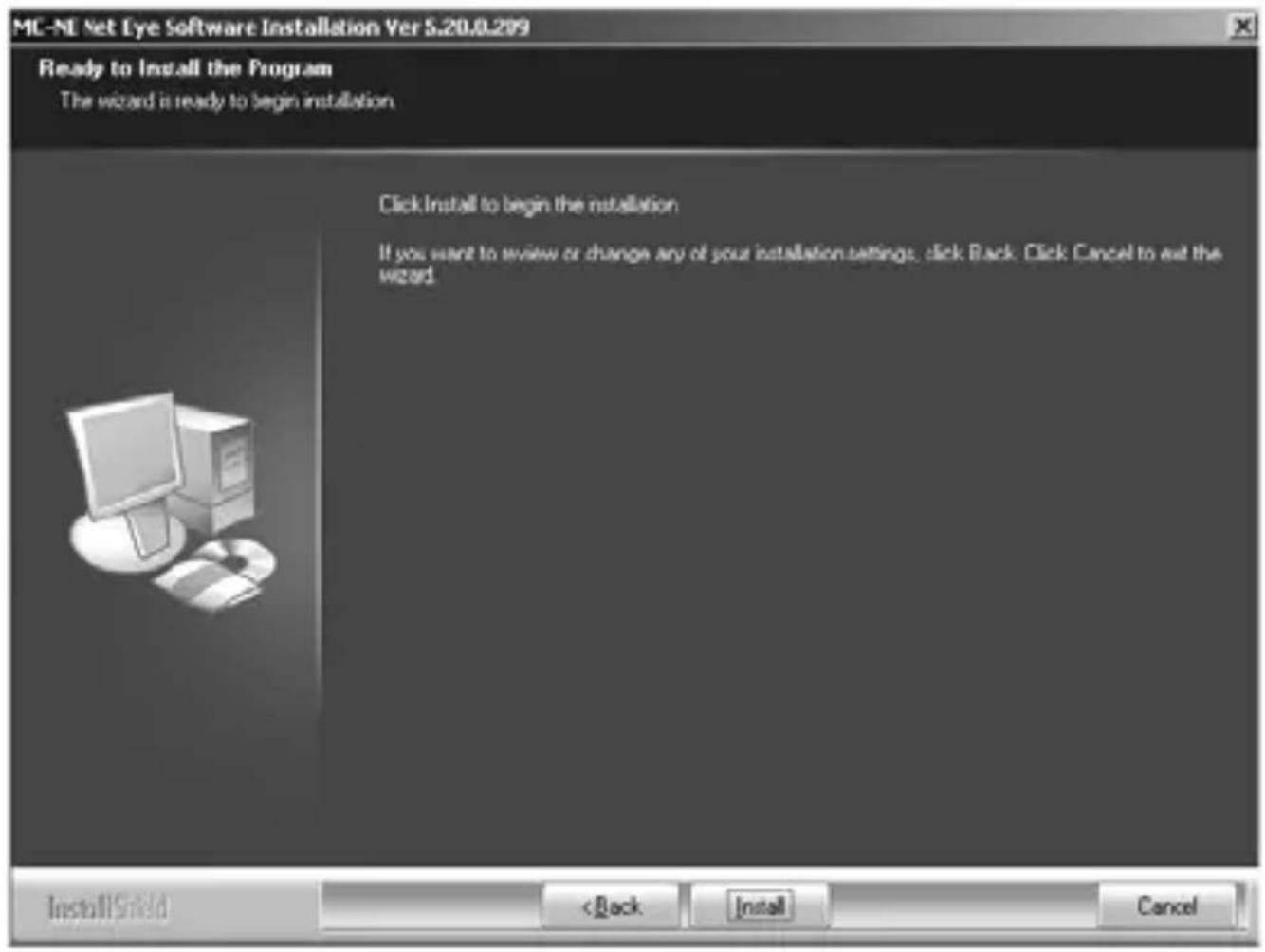
3. Select „Install“
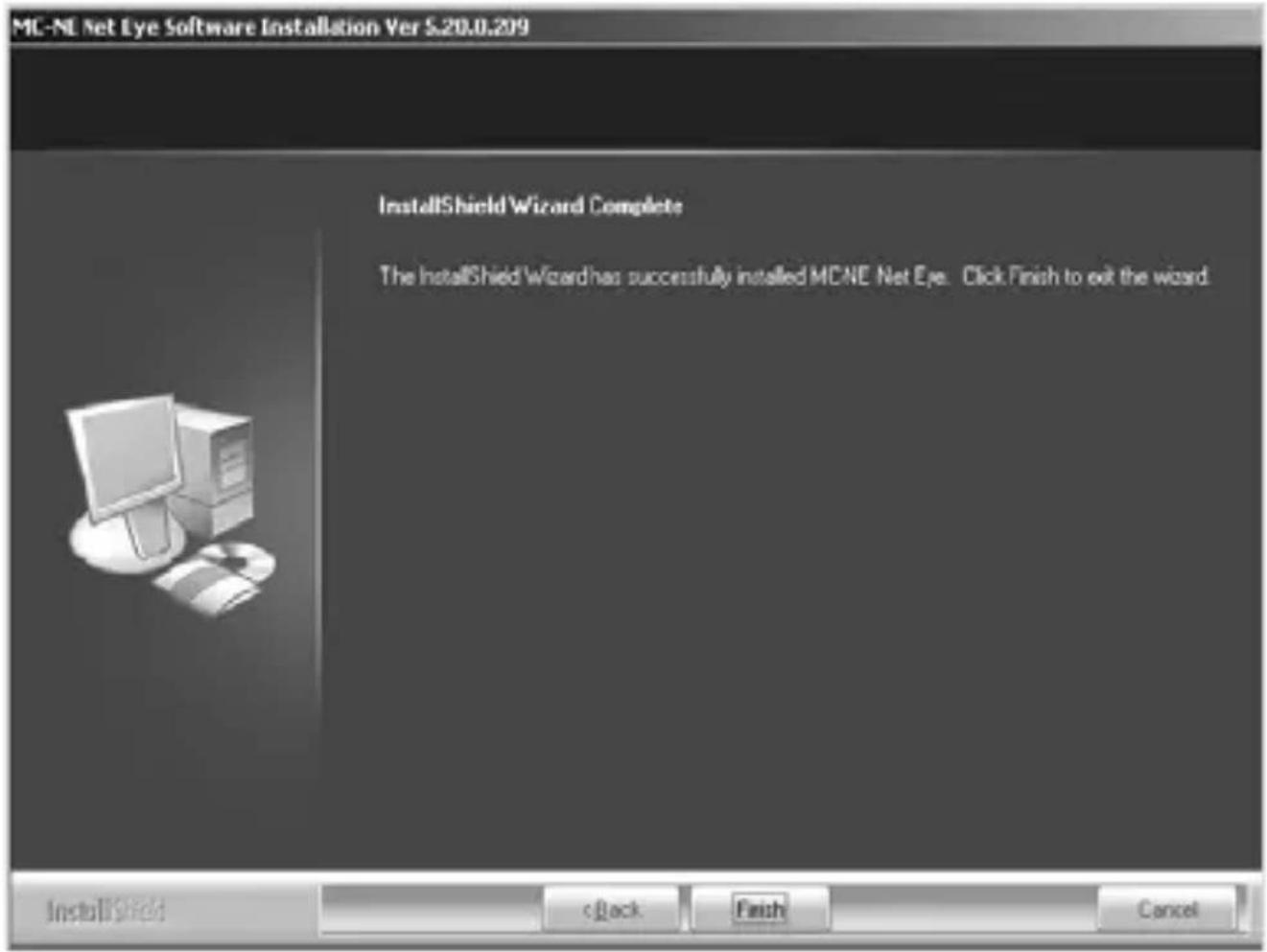
4. Select „Finish“
Connect the camera USB cable to the USB port.
MODE COM
Setting the Software
How to use AMCAP tool:
AMCAP is an application that let you capture video in your system. It captures video to an .AVI fi le. Below is a description of AMCAP's various options and features.
- File/Set Capture File: Where you save the captured file.
- Files/Allocate File Space: Capturing will work better if you capture into an .AVI fi le that already exists on your local drive. Here you set how much space to reserve (how big your fi le needs to be). It also helps if you defragment your hard drive before beginning the capture, and puts captured fi le near the beginning of the physical drive.
- File/Save Captured Video As: Use this to copy the cap- tured data to another fi le, so you can reuse the same pre- allocated fi le for your next capture.
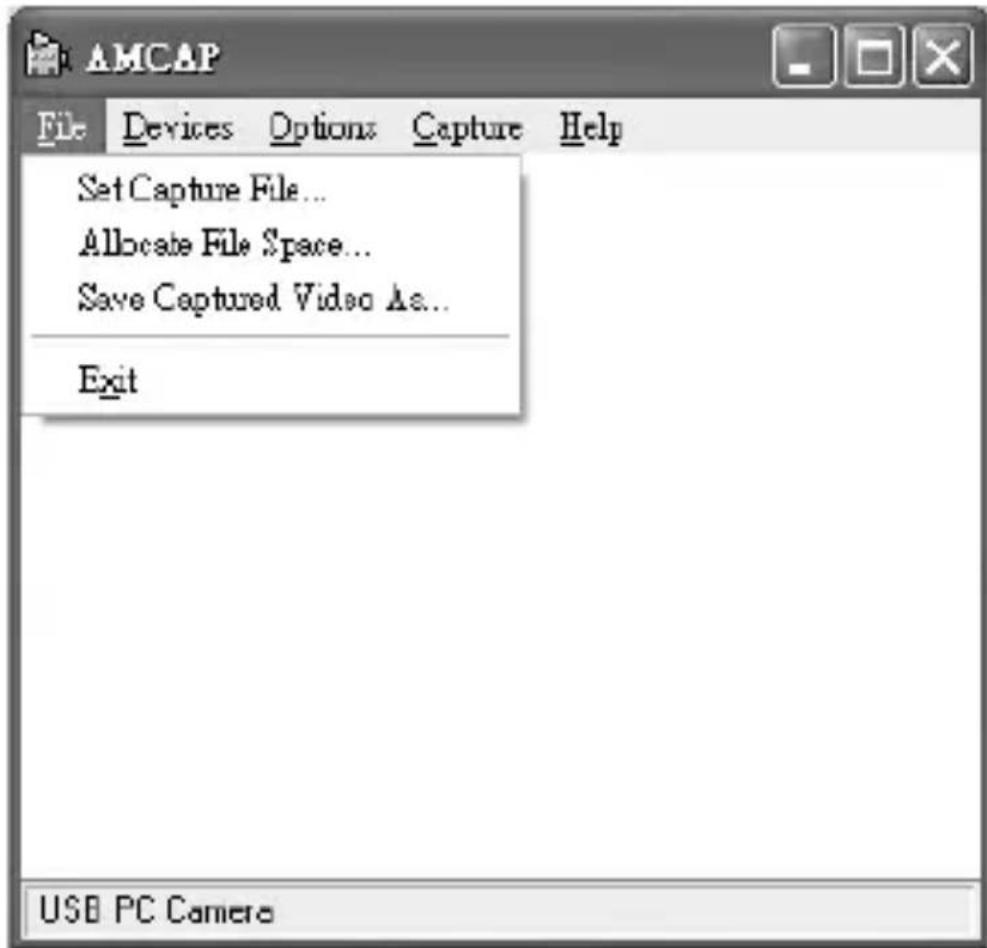
Device: Under the devices menu you choose which of your video cameras you will be capturing from.
- Options/preview: Let you watch the input video that is being recorded in the application window.
- Options/Video Capture Filter: Adjust various video setting, such as brightness, contrast, etc.
MODE COM
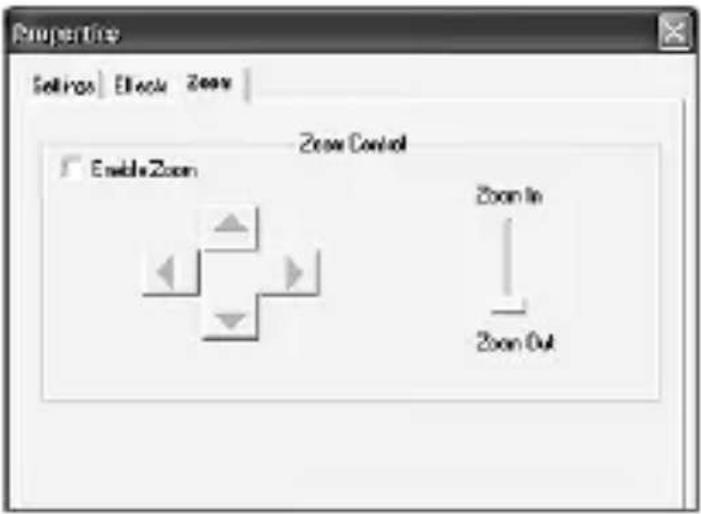
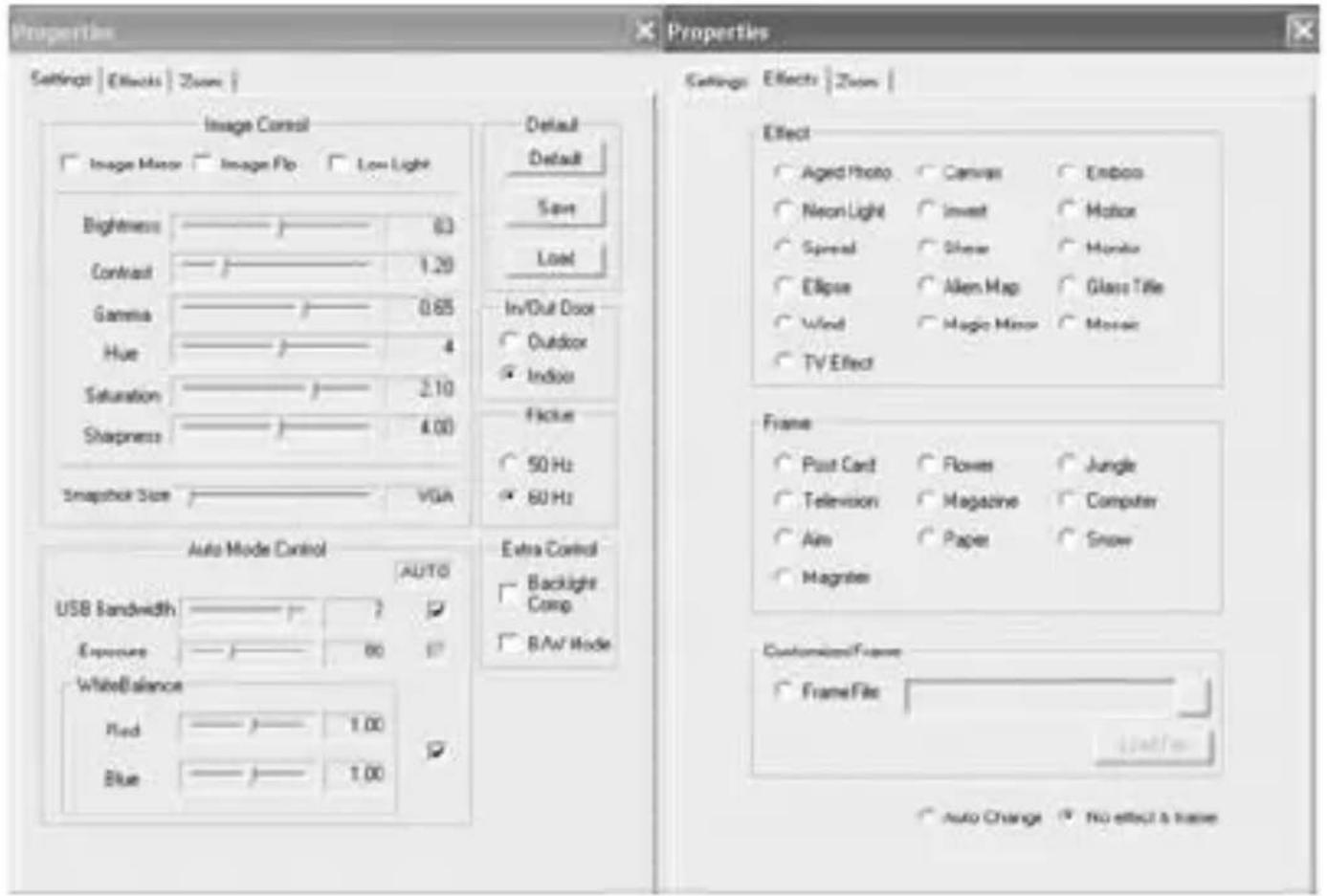
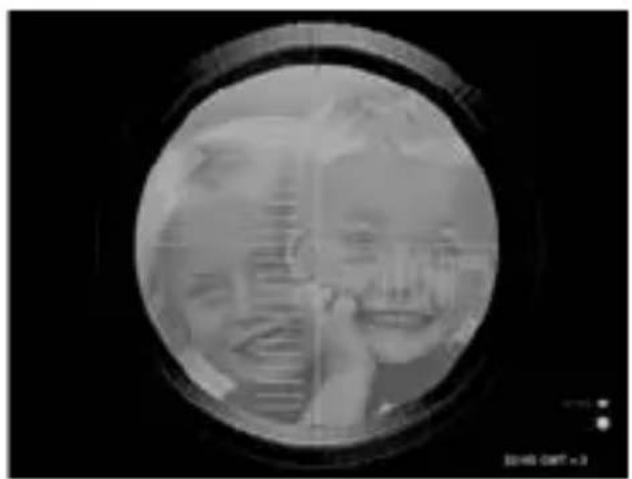
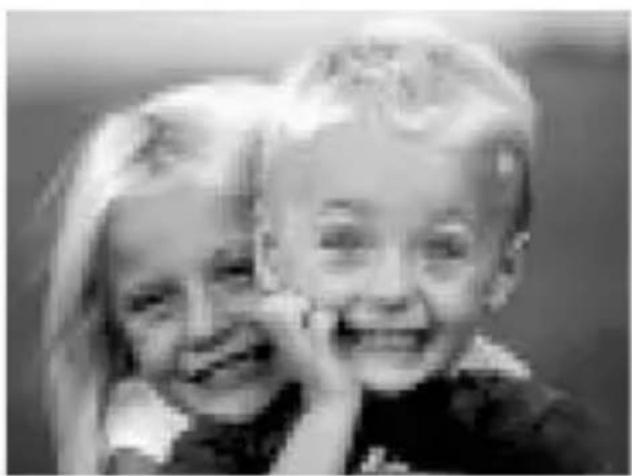
- Unique Video Effect
1) Particular Video Effect: There are 16 kinds of video effect to choose from, ex.:
natural_image
Circular grayscale image showing a person's face with hand near mouth, no visible text or symbols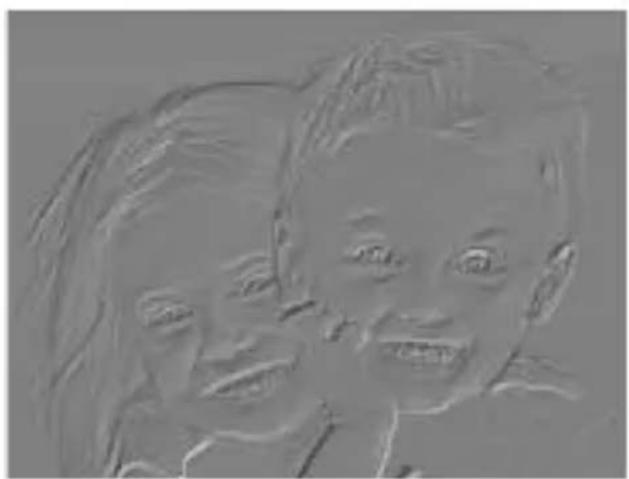
natural_image
Sketch-style illustration of two smiling children (no text or symbols)Snipping Embossment
natural_image
Black-and-white photo of two smiling children, one with long hair and the other with a smile (no text or symbols visible)Mosaic Fisheye

natural_image
Black-and-white photo of two smiling children, one covering the other's mouth (no text or symbols visible)MODE COM
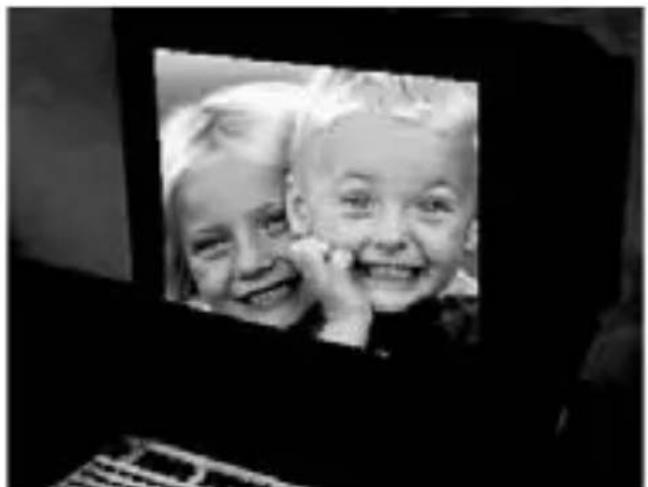
2) Special Frame Effect: There are 10 kinds of frame effect to choose from, ex.:
Top 10 Person of the world
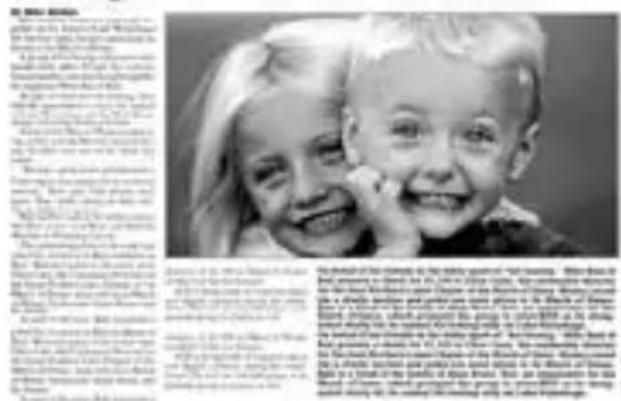
Newspaper Jungle


Postcard
natural_image
Black-and-white photo of two smiling children looking out of a computer monitor (no visible text or symbols)Computer
- Options/Video Capture Pin: Choose the video color space and video size. Supported color spaces are RGB24, 1420. Supported size is 160 × 120 , 176 × 144 , 320 × 240 , 352 × 288 , 640 × 480 and 800 × 600 .
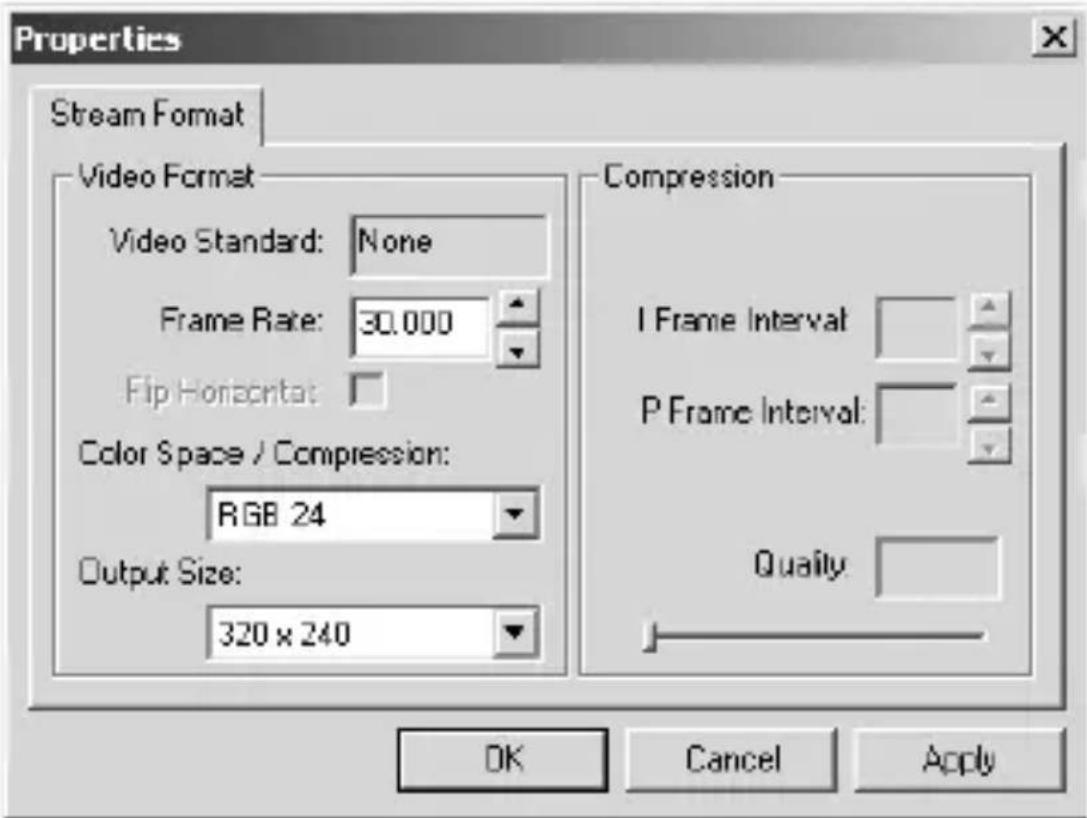
- Capture/Start Capture: Save the capture fi le in your computer and select „START“ and then „OK“ to start capturing of video sequence or „Cancel“ to cancel capturing.
MODE COM
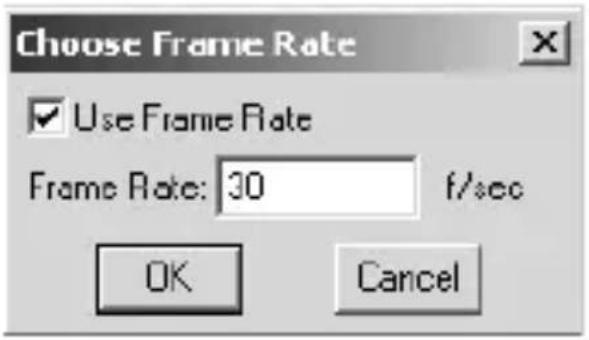
- Capture/Set Frame Rate: you can set the frame rate you want for preview and video.
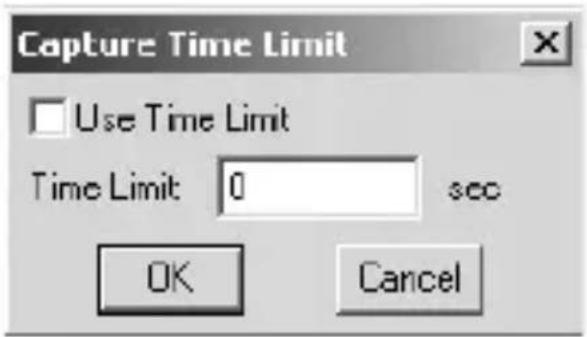
- Capture/Set Time Limit: you can set the time limit for video.
Uninstall the Software
1) Click „Start“ from the task bar and choose „Programs“
2) Select MC-NE Net Eye --> "Uninstall" and follow the instructions.
Q&A
Q: If you reverse the step of installation or you meet some problem during installation, please take the following resolution.
A: Please pull out the USB cable of Web Cam first and take the correct step for installation.
Step 1: Please install the driver first.
Step 2: Please install the Web Cam after fi nishing the instal- lation of driver successfully.
MODE COM WEB CAM
MC-NE n e t e y e
natural_image
Illustration of a bird perched on a fan-shaped object with a curved arrow labeled '160' (no text or symbols beyond the number)
do monitora LCD
do notebook'ów
natural_image
Abstract grayscale geometric shape with a dark central element (no text or symbols)do monitorów CRT
MODE COM
natural_image
Close-up of a black spherical object with a curved dotted line labeled '30°' indicating angular measurement (no other text or symbols)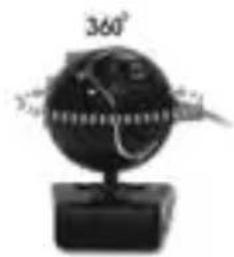
natural_image
Black-and-white photo of a spherical object with a 360° angle label, mounted on a base (no other text or symbols visible)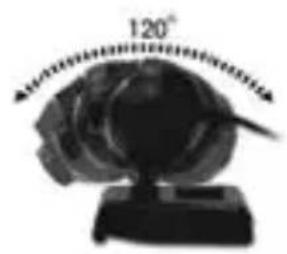
natural_image
Close-up of a globe with a 120-degree angle indicator (no text or symbols on the globe itself)Miniaturowe lusterko
natural_image
Illustration of a laptop with a photo frame and a camera lens, no text or symbols present.2. Wybierz „Complete“ [Gotowe] i kliknij „Next“ [Dalej]
MODE COM
3. Wybierz „Install“ [Instaluj]
natural_image
Circular grayscale image showing a blurred, indistinct figure with no visible text or symbolsCiecia
![ModeCom MC-NE Net Eye - Wybierz „Install“ [Instaluj] - 2](/content/2026/05/960274/images/a25e67ca2e96aa9394f09b6b4aeaab561115ab154f8cdf22faec151610fcc126.jpg)
natural_image
Abstract sketch-style drawing of two stylized human faces (no text or symbols)Wytłoczenie
![ModeCom MC-NE Net Eye - Wybierz „Install“ [Instaluj] - 3](/content/2026/05/960274/images/970ad3397dfa3900b675b5e42d49733f84f8c5a53b70f2583432b3d57a34f35c.jpg)
natural_image
Black-and-white photo of two smiling children (no text or symbols visible)Mozaika
![ModeCom MC-NE Net Eye - Wybierz „Install“ [Instaluj] - 4](/content/2026/05/960274/images/29dcd7450f5ae40dc69d5e78acfc6f6742647fe2f60c7917505e9a01316ddb88.jpg)
natural_image
Black-and-white photo of two smiling children with hands, framed in a circular frame (no text or symbols visible)Fisheye
MODE COM
natural_image
Black-and-white photo of two smiling children, one with a circular badge and the other with a '2' sticker (no text or symbols on the main subjects)
natural_image
Black-and-white photo of two smiling children looking out of a laptop screen (no text or symbols visible)Pocztówka Komputer
Environment protection:
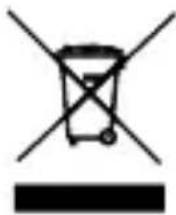
This symbol on our product nameplates proves its com-patibility with the EU Directive2002/96 concerning pro-per disposal of waste electric and electronic equipment
(WEEE). By using the appropriate disposal systems you prevent the potential negative consequences of wrong product take-back that can pose risks to the environment and human health. The symbol indicates that this product must not be disposed of with your other waste. You must hand it over to a designated collection point for the recycling of electrical and electronic equipment waste. The disposal of the product should obey all the specific Community waste management legislations. Contact your local city office, your waste disposal service or the place of purchase for more information on the collection.
Weight of the device: 63g
Copyright©2007 Mode Com Ltd. Mode Com is a registered trademark of Mode Com Ltd.
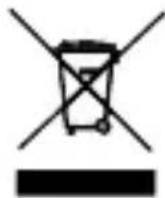
Ochrona środowiska:
- MC-NE
- n e t e y e
- MODE COM
- MODE COM WEB CAM
- MC-NE n e t e y e
- Package Contents
- System Requirements
- The Description for Each Part
- Web Camera Features
- Web Camera Specifications
- Install the Software
- The Steps of installation:
- Click „Next“ to begin the installation
- Select „Complete“ and click „Next“
- Select „Install“
- Select „Finish“
- Setting the Software
- How to use AMCAP tool:
- - Unique Video Effect
- Uninstall the Software
- Q&A
- Miniaturowe lusterko
- Wybierz „Complete“ [Gotowe] i kliknij „Next“ [Dalej]
- Wybierz „Install“ [Instaluj]
- Environment protection:
- Ochrona środowiska:
Brand : ModeCom
Model : MC-NE Net Eye
Category : Webcam