ENERGY SISTEM TV1090 - Television

TV1090 - Television ENERGY SISTEM - Free user manual and instructions

Find the device manual for free TV1090 ENERGY SISTEM in PDF.

📄 26 pages English EN Download 💬 AI Question 10 questions ⚙️ Specs
Notice ENERGY SISTEM TV1090 - page 6
Pick your language and provide your email: we'll send you a specifically translated version.
Product Type Portable Multimedia TV
Model TV1090
Screen Size 7 inches (17.8 cm) diagonal
Display Type Color TFT-LCD
Resolution 480 x 234 pixels
Dimensions 220 x 125 x 31.5 mm
Weight Approx. 0.5 kg (estimated)
Power Supply DC 12V via included AC adapter (AC 100-240V, 50/60 Hz)
Power Consumption 12 W max
Tuner DVB-T (digital terrestrial television)
Connectors RF In (IEC 69-2 female), 3.5 mm A/V In, 3.5 mm A/V Out, 3.5 mm headphone, USB 2.0, SD/MMC/MS card reader
Built-in Battery None (external power required)
Audio Built-in stereo speakers, headphone output
Remote Control IR remote with CR2025 battery
Multimedia Playback JPEG, BMP, GIF (photos); MP3, WMA (music); MPEG2, DivX, Xvid (video)
Recording USB recording (FAT16/32) with timeshift and one-button recording
Teletext Yes (DVB-T mode)
EPG Electronic Program Guide
Aspect Ratio 4:3 and 16:9 switchable
Accessories Gomoku game, calendar, calculator
Safety Notes Do not expose to moisture, ensure ventilation, disconnect before cleaning
Warranty 36 months from purchase date (subject to conditions)

Frequently Asked Questions - TV1090 ENERGY SISTEM

What should I do if there is no signal?
Check that the aerial cable is properly connected to the RF input. Ensure the aerial is not damaged or misaligned. Try an Auto Scan in the Setup > Installation menu. If still no signal, verify you are within a digital terrestrial coverage area.
Why is there no picture or sound?
Press the DTV/AV button to select the correct input source. Also ensure the SCREEN and SPEAKER buttons are enabled. If using external devices, check the A/V connections.
How do I set up the TV for the first time?
Upon first power-on, the Setup > Installation screen will appear automatically. Select your country and language, then choose Auto Scan to search for available TV and radio channels. The process may take a few minutes.
Why does the remote control not work?
First, ensure the device is powered on. Point the remote directly at the IR sensor on the front panel. Remove any obstacles. Check the CR2025 battery polarity and replace if exhausted.
Can I record TV programs?
Yes, connect a USB storage device (FAT16/FAT32) and press the RECORD button. You can also set Advanced Timer recordings via the EPG. Ensure the recording device is selected in My Record settings.
What file formats are supported for multimedia playback?
For photos: JPEG, BMP, GIF. For music: MP3, WMA. For videos: MPEG2, DivX, Xvid (standard resolution). Compatibility depends on container and codec.
How do I update the TV firmware?
Download the latest firmware from the Energy Sistem support website to a USB drive. Insert the drive, go to Setup > SW Update, and follow on-screen instructions. Do not power off during the update.
Why does the TV display 'Encoded Service'?
This means the selected program is encrypted or a pay-per-view channel. You need a subscription or CAM module. Try another channel or contact your service provider.
Can I use the TV with a car battery?
Yes, the TV operates on DC 12V. Use the included car adapter (if provided) or connect to a 12V power source with the correct polarity. The maximum power consumption is 12W.
How do I clean the TV screen?
Always unplug the device first. Use a soft, slightly damp (not wet) cloth. Do not use liquid or aerosol cleaners, and avoid excessive pressure to prevent damage.

User questions about TV1090 ENERGY SISTEM

0 question about this device. Answer the ones you know or ask your own.

Ask a new question about this device

The email remains private: it is only used to notify you if someone responds to your question.

No questions yet. Be the first to ask one.

Download the instructions for your Television in PDF format for free! Find your manual TV1090 - ENERGY SISTEM and take your electronic device back in hand. On this page are published all the documents necessary for the use of your device. TV1090 by ENERGY SISTEM.

USER MANUAL TV1090 ENERGY SISTEM

User Manual

I. INTRODUCTION

Caution RISK OF ELECTRIC SHOCK DO NOT OPEN

To ensure your safety and the safety of others, please ensure that you read all the safety information before operating this product.

Keep this information in a safe place for future reference.

WARNING: To reduce the risk of fire or electric shock, do not expose this apparatus to rain or moisture.

Safety Considerations.

  • Position the cables so that they cannot be walked on or pinched by items placed on or against them.
  • Do not use the device in humid or damp conditions.
    Do not allow the device to get wet.
    ▶ Do not expose the device to dripping or splashing.
    Do not place water filled objects such as vases on top of the device.
    Do not place naked flame sources, such as candles, on the top of the device.

Ventilation

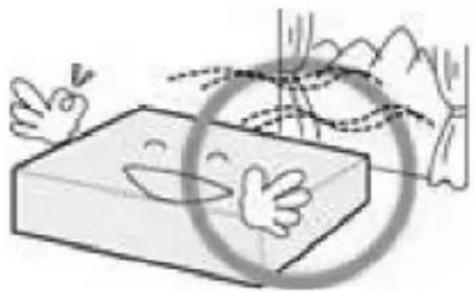
The slots and openings on the device are for ventilation. Do not cover or block them as it may cause overheating.

NEVER let children push anything into the holes or slots on the case.

Battery Disposal

Please ensure batteries are disposed of safely.

Never dispose of batteries in a fire or with other household waste.

Check with your local authority for disposal regulations.

Cleaning

ALWAYS unplug the product before you clean it.

Do not use liquid or aerosol cleaners.

Clean the device with a soft, damp (not wet) cloth.

ENERGYTV handling and care
Place the product in a well-ventilated area Don't install it in the cold or under direct sunlight
ENERGY SISTEM TV1090 - Cleaning - 1ENERGY SISTEM TV1090 - Cleaning - 2
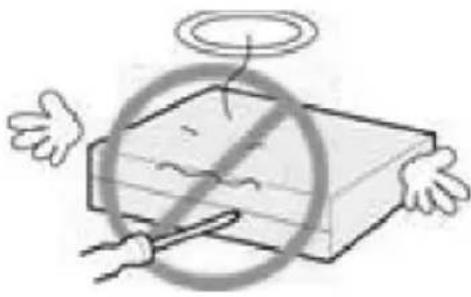
Leave a minimum 10cm gap all around the productDo not disassemble, repair, or reorganize the product
ENERGY SISTEM TV1090 - Cleaning - 3ENERGY SISTEM TV1090 - Cleaning - 4
Don't place cups with water or other liquids on the top of the productDon't place objects on the top of the product
ENERGY SISTEM TV1090 - Cleaning - 5ENERGY SISTEM TV1090 - Cleaning - 6

2. CONTROLS AND CONNECTIONS

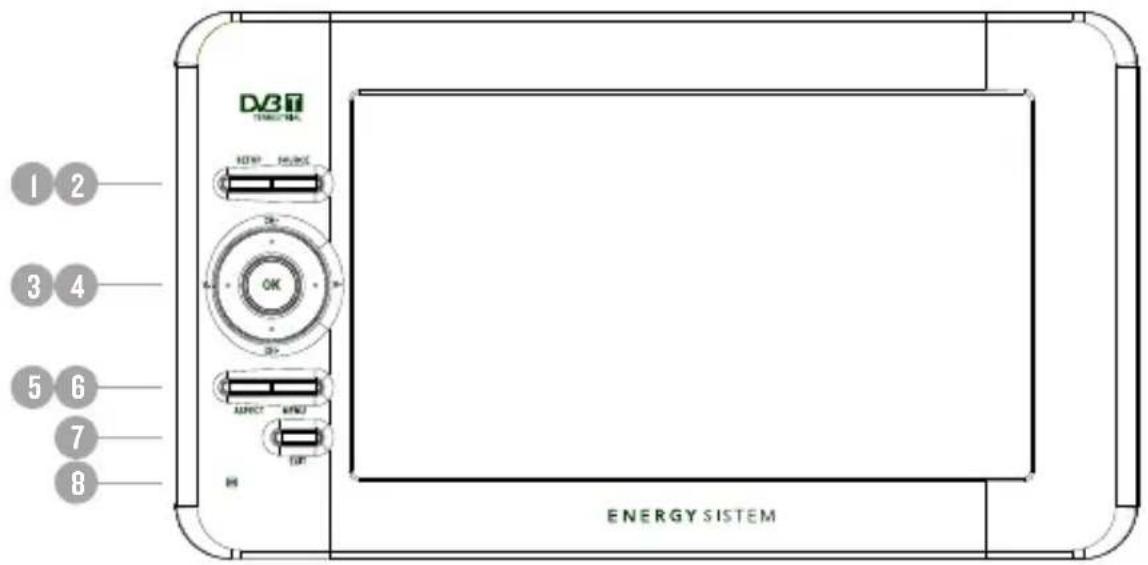
D37 ENERGY SISTEM 1 2 3 4 5 6 7 8

  1. SETUP: Adjust brightness/contrast/color/hue of the screen in playback mode.
  2. SOURCE: Select the input source.
  3. CH+/- V+/-: Navigation buttons. Used to browse the menus and to confirm selection. In playback mode changes channel / adjusts volume.
  4. OK: Confirm a selection within a menu or show the channel list in DVB-T mode.
  5. ASPECT: Switch between 4:3 and 16:9 aspect ratios.
  6. MENU: Access the setup menu.
  7. EXIT: Leave the current menu.
  8. IR Sensor: Receives the signal from the remote control.
  9. Antenna coaxial connector.
  10. 3.5 mm (1/8") TRRS A/V input.
    II. 3.5 mm (1/8") TRRS A/V output.
  11. 3.5 mm (1/8") Stereo earphone output.
  12. Power Switch.
  13. DC Power connection DC (I2 V).
  14. USB connector.
  15. Card reader.

9 10 11 12 13 14

15 16 SD/MMC 15 MS

3. REMOTE CONTROL

3.1. BUTTON DESCRIPTION

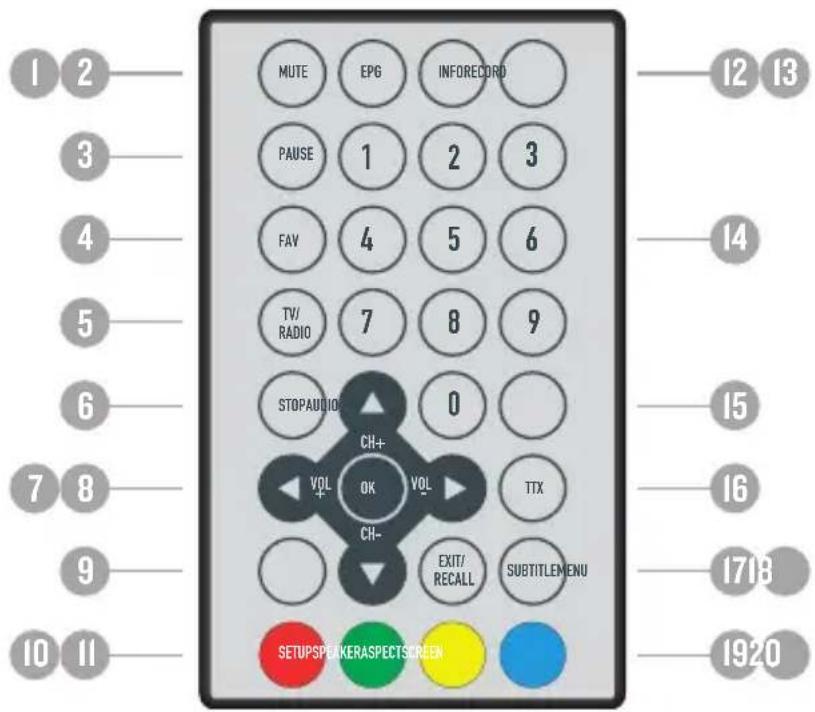
MUTE EPG INFORECORD PAUSE 1 2 3 FAV 4 5 6 TV/RADIO 7 8 9 STOPAUDIO 0 CH+ VOL OK VOL TTX CH- EXIT/RECALL SUBTITLEMENU SETUPSPEKKERASPECTSCREEN 12 13 14 15 16 1718 1920

  1. MUTE: Mute/unmute the sound.
  2. EPG: Electronic Program Guide.
  3. PAUSE: Pause or resume the playback.
  4. FAV: Access your favorite channels.
  5. TV/RADIO: Switch between TV and radio channels.
  6. STOP: Stops the playback or recording.
  7. CH+/- V+/-: Navigation buttons. Used to browse the menus and to confirm selection. In playback mode changes channel / adjusts volume.
  8. OK: Confirms the selection.
  9. MENU: Access the main menu.
  10. SETUP: Adjust the brightness/contrast/color/hue parameter of TFT screen.
    II. SCREEN: Switch on/off the screen.
  11. INFO: Display information about the channel being viewed or special function indicated on the menu.
  12. RECORD: Record the program manually and select the record duration if pressed twice.
  13. Number keys: Select channels by number or use

when numerical input is required.

  1. AUDIO: Selects between available audio tracks or sets the sound mode as LR (stereo), LL (left) or RR (right).
  2. TTX: Teletext in DVB-T mode.
  3. EXIT/RECALL: Return to the previous screen or menu.
  4. SUBTITLE: Switch among available subtitles.
  5. SPEAKER: Enables/disables the integrated speakers.
  6. ASPECT: Switch between 4:3 and 16:9 aspect ratios.

Note:

SUBTITLES/TEXT/AUDIO may not be available for all channels.

A/V output is unavailable when working in A/V in mode: it only works in DVB-T mode.

FUNCTION/SCREEN/SPEAKER/ASPECT will act as RED/GREEN/YELLOW/BLUE key depending on context.

3.2. BATTERy

Pull the battery loader out and insert a CR2025 battery.

Diagram of a mechanical or electrical component with labeled parts and directional arrows

Make sure to place the battery in the correct direction.

When not using the remote control for a long time remove the battery.

When operating range reduces replace the battery.

4. BUILT-IN RECHARgEABLE BATTERy (2070/2090 MODELS ONLY)

This portable TV uses a smart battery management system with low-battery detection.

If the battery voltage falls below a specific value, the unit will enter low battery mode displaying a flashing low battery icon in the OSD, indicating the user needs to recharge the TV immediately.
If the AC/DC adapter is connected the battery will be charged whatever the power switch is on or off.
When the battery is almost exhausted a blinking empty battery icon will be displayed on the left-up corner. The screen and audio will be disabled but the system is still working. If the user plugs the DC adaptor soon enough the system will resume playback.

5. USER INTERFACE

Note that the first time you use EnergyTV it will automatically show the Setup->Installation screen in order to scan for TV and radio channels. Please refer to Setup->Installation in page 8.

Once the channel scan is finished and all the channels are stored into the database, you can start to watch the digital terrestrial TV channel or listen to the radio broadcast, some typical operations are given in this chapter.

Press

to enter Main Menu. See Figure 1.

Press to display EnergyTV version information.

Installation TV Setup Password Advance Time Set Default Set Update SETUP

Figure I. Main Menu - Setup

5.1. SETUP

Set the system settings. See Figure 1.

5.1.1. Installation

SETUP - Instellacion 04/12/07 15:02 Antenna Setting OFF Country Setting England OGD Language English Audio Language OFF Suitable Language OFF LGN OFF Mouse Satcl Ese Auto Scan Memar Scan

SETUP - Installation 04/11/04 19:38 Auto Time Zone ON Time Zone + 00:00 Move Edit Exit Auto Scan Master Scan

Figure 2. SETUP - Installation Figure 3. SETUP - Installation (continued)

Set the receiving and playing program settings of EnergyTV. See Figure 2, Figure 3.

Antenna Setting

Set the antenna power on or off to supply +5V power to antenna or not.

Note: The default is OFF, set this option to ON only if EnergyTV is connected to an active antenna which amplifies the received RF signal, otherwise please set it to OFF.

Country Setting

Set the country for Auto Scan, Manual Scan and Time Zone.

Note: Change the Country Setting will automatically change the default Time Zone and set the default

Frequency and Bandwidth for Auto Scan.

OSD Language

Set the On Screen Display Language.

Audio Language

Set the audio language for watching a program (availability depends on channel broadcaster).

Subtitle Language

Set the language for displaying subtitle program (availability depends on channel broadcaster).

LCN

Set the Logical Channel Number to ON or OFF.

Note: LCN is a number that uniquely identifies a logical channel, which is popular in some European countries such as England or France.

Auto Time Zone / Time Zone

Allows you to enable or disable auto time zone update. If you know the GMT (Greenwich Mean Time) time zone offset of your location, set the Auto Time Zone to OFF and select an appropriate Time Zone, otherwise set it to ON and let the system update the time zone automatically according to the transport stream. See Figure 3

Note: Some Countries are covered with more than one Time Zone.

Auto Scan

Auto Scan will erase the database first, and scan default frequency and bandwidth by Country Setting.

Press button to start Auto Scan.

Press button to confirm clear action and start Auto Scan.

It costs time to do Auto Scan, you can press button to exit at anytime. See Figure 4, Figure 5.

SE&P - Installer 11/12/06 10:18 Antenna Setting OFF Counting England Database will be cleared! Continue? AUDIO YES Print Subtitle Language English LON ON Movie Select Exit Auto Scan Manual Scan

MHz 500V - Scanning 04/12/2008 1:32 Select Channel Total Lock 2 Progress CH 70 100% Frequency 600 MHz Bandwidth 8 MHz TV On Channel: 21 TV, 6 Pack: C Data Saving Please Use! TVX / RED HOT CATALUNYA FADD TVG HD CATALUNYA BFCFMAQO TV3 CATALUNYA MUSKA 3/24 Cat fm

Figure 4. Clear database message Figure 5. AutoScan Finished

Manual Scan

Press button to start Manual Scan.

Manual Scan adds the scanning results into database, it doesn't erase the database. But you have to indicate the Frequency and Bandwidth for scanning. If you scan the same Frequency and Bandwidth more than once, the previous programs will be overwritten.

Press button to enter Manual Scan Page.

Press button to select Frequency option.

Press <0\~9> button to input the Frequency value.

Press button to select Bandwidth option.

Press button to set Bandwidth value.

Press button to start scan or exit. See Figure 6, Figure 7.

MANUAL SCAN 18/02/05 22:06 Channel No. CH - 21 Frequency 474,000 MHz Bandwidth 6 MHz Strength 65 % Quality 94 %

BARCEL 2019 - CMFG 0.01/2008 02:34 Channel No CH 23 Frequency 480.00 MHz Bandwidth 8 MHz Go Channel: 1 TV, C Ratio Data Saving Please Wait

Figure 6. Manual Scan edit Figure 7. Manual Scan finished

5.1.2. TV Setup

Setup the display mode for TV. See Figure 8

TNTUP - TV Setup 04/12/07 15:47 TV Format 4.3 LB TV Mode F/A OSD Transparency 6 Banner Display Time 3.5 Video Output CVBS+RGB Video Enhancement OFF 57Hz Add+E Up Switch EM

Figure 8. TV Setup

TV Format

4:3LB(LetterBox): Typically for wide screen content on conventional 4:3 TV with black bars above and below the picture.
4:3PS(PanScan): Typically for wide screen content on conventional 4:3 TV with left and right edges cropped.
16:9PB(PillarBox)/16:9 AUTO: Typically for wide screen 16:9 TV.

TV Mode

Set PAL, NTSC or AUTO for display. AUTO will switch PAL or NTSC by program content. This setting should be matched with user's TV.

OSD Transparency

Set the On Screen Display transparency. "I" is the most transparent.

Set Banner display time. Banner does not automatically disappear when set as "Always" and disappears at timeout when set to other values.

SETUP - Password3 14 (12/07) 16:06 Menu Lock OFF Channel Lock OFF Censorship Lock No. Block Change Password NO Move Cancel Help

Figure 9. Password page

5.1.3. Password

Set password for menu, channel or censorship lock. And the user can change password here, the default Password is 6666. See Figure 9

Password-lock the menus.

Channel Lock

Lock the channel which has been set to lock status when turning on the Channel Lock. Please see

section "Lock" on page 13 for details.

Censorship Lock

Lock the program by password and censorship threshold. The censorship info is in program content. Under the censorship rating, user has to enter the right password for watching program.

Change Password

To change the Password, select this option, press button to trigger changing password and <0\~9> buttons to enter old password, new password and confirm new password. If succeed, the Password Changed message will be displayed, otherwise the Password Error message will be displayed.

5.1.4. Advance Timer

User can set timer for watching the program by date and time manually or from the TV/Radio Guide(see section "Guide" on page 14). When scheduled date/time arrives, EnergyTV will automatically switch to the scheduled program. Press any key except button, EnergyTV will ask you to abort it or not when watching booked program. You can delete the event while it is not running.

5.1.5. Set Default

Restore EnergyTV to factory default settings. All user settings will be restored to factory default values and the TV/radio channel database will be erased together.

5.1.6. SW Update

Updates EnergyTV firmware by USB.

5.2. TV/RADIO

There are two types of programs: TV and Radio.

The operation of the List and Guide of TV and Radio are almost the same. Herein take TV as an example.

5.2.1. List

10:42:06 17:24 All ID: Posqian Name Status 0001 CT SPORT 0002 Applicate NHL 0003 CT 1 0004 CT 2 0005 CT 24 0006 NOSA CHINA: 08168 HK D: 1025, 9, 1941 Fwards CHAS on Exit 18 Favorite Group Edit Save

Figure 10. TV List

There are several options to manage channels:

Favorites

User can quickly arrange the favorite programs by favorite filter. There are 8 groups of favorite channels: News, Sport, Movie, Music, Shopping, Travel, Boy and Girl. Press <1\~8> button to set or clear the favorite group when Favorites option is selected.

Lock

Lock will ask for the password before watching this program when Setup -> Password ->Channel Lock is turned on. Please see section "Channel Lock" on page II for details. Press button to set or clear lock status when Lock option is selected.

Edit

You can edit the program name, maximum length is 20 characters.

Press button to select Edit option and button to select the program.

Press button to display program info and press it again to edit program name.

Press button to select the character.

Press button to finish the editing and return to previous program info page.

Press button to save the editing and return to List or press button to return to List without saving.

Move

Move will allow you to move the position of the channels in the list.

Note: This option will not appear when SETUP->Installation->LCN is set to ON.

Sort

Sort will allow you to sort the channels by A<->Z or Pay<->Free.

Note: This option will not appear when SETUP->Installation->LCN is set to ON.

Skip

Skip will skip the program when changing a program by CH+/-. Press button to set or clear skip status when Skip option is selected.

Delete

Delete will delete the program permanently from the database. You must rescan to recover it.

Press button to set delete one or delete all when Delete option is selected.

User can search the program name by partial keyword.

Press button to select Search option.

Press button to entry search page.

Press button to input keyword.

Press button to Search and return List. The matched program will be focused.

Press button to the next or previous matched program.

5.2.2. guide

Guide is also known as EPG (Electronic Program Guide). See Figure II, Figure 12.

Press button to select program or EPG event.

Press button to change event or date.

Press button to exit all the menus or show the detailed information of a selected event (availability depends on channel broadcaster).

Press button to exit to previous menu.

Press button to enter Book page and button to save after edition. If it's in conflict with itself or other event, a conflict message will be displayed. The successful booking will be added to Main Menu-> Setup-> Advanced Timer(see section 51.4 on page 12).

TV Guide Date 0901 TVE 1 0901 TVE 3 0902 244 TVE 0903 QIAN TVE Today 18 19 20 21 22 23 11:30 Por La Martana 2007 13:15 El Negociador 14:00 Informativo Madrid 2007 14:30 Carazon De Otoplo 2007 15:00 Tsledario 1º Edicion 2007 SPO+ Date Date Prev Bom.

Figure 11. Guide - Event Figure 12. Guide - Event (detail)

TV Guide NO Program Name 0800 TVE 1 0801 TVE 2 0802 241 TVE 0803 LAN TVE Date Wed. 20/07 10/17 Detail Programa concurso presentado por Javier Capitán. En cada programa, dos concursantes intentarán bivarse la mayor cantidad 1 / 2 ▶ Book

5.3. MULTIMEDIA

Multimedia must be used with external USB device inserted, otherwise the "Device is not ready!" message will be displayed. If you remove the USB device a "Device is removed!" message will be shown and the system will return to Main Menu.

5.3.1. My Album

Use this option to view JPEG/BMP/GIF files.

If there are photos in the device root folder it will start in Thumbnail mode, otherwise it will start in Folder mode. Press button to switch to Folder mode and button to return to Thumbnail mode again.

The info (width x height and date) of selected photo will be displayed at the left bottom in Thumbnail mode and right up in Folder mode. See Figure 13 Figure 14.

My Abure - Thumbnail 01/01/2008 01:21 1024 x 768 2005:11:26 3 / 3 Move Move Visual Ext. Folder

My Album - Folder 01/21/2003 00:07 Photos : 12 1600 x 1200 2005:12:17 Rost(USB) ...Upper Folder... $tl_Images 001. 1600x1200.jpg 002. 720x576.jpg 003. PhotoPia_ing01.jpg 004. PhotoPia_ing011.j 005. PhotoPia_ing012.j 006. PhotoPia_ing013.j 007. PhotoPia_ing014.j 008. PhotoPia_ing015.j 009. PhotoPia_i…

Figure 13. My Album - Thumbnails Figure 14. My Album - Folder

Use to browse folders or files.

Press to view the selected photo and press again to start slide show.

Press to view the available functions.

Zoom

Press to zoom in / zoom out the photo in view mode. The zoom factor can be: 25-50-100-150-200 %

If zoom factor is greater than 100% you can use to move through the zoomed picture.

Rotation

Press to rotate clock/counterclockwise and to flip horizontal or vertical direction.

Slide show

Press to view the photo in Thumbnail or Folder mode and press it again to start the slide show.

Press to play/pause the slide show.

Press to set background music while slide show is running.

Press to switch between repeating modes.

Press to set the time gap between photos.

Press to manually select the previous/next photo.

5.3.2. My Music

Use this option to listen to MP3/WMA files.

The music jukebox display includes (see Figure 15 Figure 16):

Progress bar with elapsed and total playing time.
▶ Audio spectrum visualizer.

Press to browse folders and files.

Press to play or pause.

Press to stop.

Press to set play mode as Repeat All / Repeat Random / Repeat Off.

Press to set fast forward speed as x2 / x3 / x4 / normal.

Press button to adjust volume while playing.

My Music 01/05/2008 (E:\) Songs : 2 Root(US$0) Upper Folder... music 001. Irish songs 01.exe 002. Irish songs 02.mp3

My Music 01/07/2003 [5:51] Songs : 2 Root(.USB) ...Upper Fonter... music 031. wish songs 01.wnta 032. wish songs 02.mp3 00:03/04:29 Play Out Movie Video Search Tout

Figure 15. My Music - Browser Figure 16. My Music - Play

5.3.3. My Movie

My Movie can play most of MPEG2, DivX, Xvid standard-resolution files.*

It displays the playing file name at the top left corner and use the INFO key to get the current playing time and total time information while playing. See Figure 17, Figure 18.

Press INFO button to select device if an external USB hub connected while browsing, and to show the control info bar while playing.

Press to select folders and files during browsing

Press button to select a file to play.

Press button to play or pause while playing.

Press button to play the frame one by one while playing.

Press button to set fast backguard speed as x2,x4,x8,x16,x32, normal.

Mr. Movie - Folder 03/01/25/08 07:26 Movies : 2 Roost(USB) Upper Folder... roales CO1 at the mounting oil CO2 garden oil Unicn MCA MAY STIM EST

garden.AVI 00:00:03/02:00:25

Figure 17. My Movie - Browser Figure 18. My Movie - Play
* Multimedia files compatibility depends on container file format and audio / video codec

5.3.4. My Record

Within My Record you can view the programs already recorded and configure recording options.

Note: the external storage device file system must be FAT or FAT32.

Recorded List

View or delete recorded programs.

Recording Device

Select the storage device and partition where the recordings will be stored.

Recording Preference

Time Shift Size

Note that Time Shift Size is calculated automatically according to the current storage device or partition and cannot be modified.

Time Shift

Pause: Timeshift starts when button is pressed.

Auto: Timeshift is continuously active.

Off: Timeshift disabled

One Button recording

On: EnergyTV starts recording with a simple button press.

Off: After pushing you have to specify the lenght of the recording.

Default recording period

Specify the default recording period from 15 minutes to 8 hours in 15-minutes steps.

My Record 8/07/08 15:13 Recorded List Recording Device Recording Preference Move Select End

Figure 19. My Record Figure 20. Recorded list

My Record - Recorded List My Program Name 0001 Sky Travel_080717 0002 Sky Travel_080717 0003 Sky Travel_080717 0004 Sky Travel_080717 0005 OKTV History_080717 Info Sky Travel_080717 08/07/17 10:44-10:43 08/01/12

My Record - Recording Preference 30:00 PM 25:00 Time Shift Size 8.108 On Time Shift 7.900 One Button Recording OFF Default Recording Period 0200

My Program Finish End Finish 80% 80% 100% Finish End End

Figure 21. Recording Device Figure 22. Recording Preferences

5.4. ACCESSORy

There are three options: Gomoku, Calendar, Calculator.

5.4.1. gomoku

Press button to set play mode and difficulty. Press button to start play Gomoku.

Press button to select the position. Press button to place the piece.

5.4.2. Calendar

Displays the year, month and day.

5.4.3. Calculator

For mathematical calculations.

6. NORMAL PLAy

Normal Play means EnergyTV under watching TV or listening to the Radio. See Figure 23, Figure 24,

So these are what you'd call fashion pics?

0001 Volume Now 3.56 Mon. 01/01/07 08:21 Info

Figure 23. Normal Play - TV Figure 24. Normal Play - Radio

6.1. INFORMATION

Press button once to display info banner. Banner displays the program No., favorite setting, current time, program name, now and next event, lock, scramble, subtitle and teletext info. See

Figure 25.

Press button when banner exists to display detailed info of a present event Press button when detail exist to display current program info. See Figure 26.

0003 TV 1 Now: Emmerdale 155: Coronation Street Thu: 11/18/27 21:26

Program Info Program Name CPV1 Program No 0003 Video RD 0517 Channel No 0005 Audio RD 0850 Frequency 86504 HRS Bandwidth 0008 MHz Garantation QAWB4 Harmony Mode N/A Guard Interval 1/32 HP Code Rate T/B FFT 8% LP Code Rate 1/2 Strength 92% Quality 86% TVI New 19:30 Greenfield Correlation Street Thu.…

Figure 25. Information banner Figure 26. Program Info

6.2. SWITCH PROgRAM

User can switch program by or input channel number directly. If the input program number doesn't exist, EnergyTV will ignore the input.

Press button to switch to the last watched channel from the current program.

6.3. VOLUME

Press button to adjust the volume. Press button to mute.

If you adjust the volume while on mute, mute will be cancelled.

6.4. PROgRAM LIST

Press button to display Program List with No., name and lock/scramble/skip status. See Figure 27.

Press to change the channel. Press to return to the normal play mode.

No Position Name Status 0003 /TV 1 0104 Chinese 4 0106 TV 2 0114 CS 0141 DV3 0147 TV News 0169 Spectrum HK 0706 215 0800 7 Digital 0801 7 Digital 0802 7 Digital 2 0803 7 Digital 2 $

Figure 27. Program List Figure 28. Audio Channels

Audio channel Channel 2.0 Audio 0 Sound Mode LR

6.5. AUDIO

Switch the sound channel and switch sound mode to LR(stereo) or LL(left) or RR(right). If setting audio language at Setup->Installation->Audio Language, the audio channel default language will be chosen by setting. See Figure 28. Press

Press button to select Channel/Audio PID or Sound Mode option.

Press button to set the value.

6.6. PAUSE

Pause video and audio. But it will be cancelled by any input.

6.7. FAVORITES

User can switch the favorite programs in the same favorite group. About favorites settings, see section "Favorites" on page 13 for details.

Press button to switch to the favorite group in Program list.

Press button to switch to the same favorite program in normal play mode.

6.8. TELETEXT

Display teletext on screen, the style of teletext may be different by content provider. See Figure 29, Figure 30.

Press button to display the teletext setting page.

Press button to select the teletext language if the program has teletext (availability depends on channel broadcaster).

Press button to exit the teletext setting page.

Press <0\~9/Up/Down/Left/Right> button to change teletext page (if available).

TBETEXT Textest Language ang OFF 2UNNINGS Warehouse 3.00

Figure 29. Teletext settings Figure 30. Teletext

NATIONAL ERSU DETAILS Brisbane - Tropical Cyclone Engrid has crossed the fat sixth gezogenized nest in a remote area south of Lockhart river. Carrying destructive winds of around 300km, the category four cyclone swept inland accompanied by a storm surge of around the netres on top of rising sides th…

6.9. SUBTITLES

Display subtitles on screen. The style of subtitles may be different by content provider (availability depends on channel broadcaster). See Figure 31, Figure 32.

Press button to display subtitle setting page.

Press button to select subtitle language, if subtitles are available.

Press button to exit subtitle setting page.

SUBTITLE Quibble Language eng OFF

Figure 31. Subtitle settings Figure 32. Subtitles

She was enjoying herself too much. Looks like she's not the only one.

6.10. TELETEXT SUBTITLE

Display subtitle by teletext, the style of the teletext subtitle may be different by content provider (availability depends on channel broadcaster). See Figure 33. Figure 34.

Press button to display teletext or subtitle setting page. Press button to select "TTX Subtitle".

Press button to select teletext subtitle language. Press button to exit the setting page.

Tobacco Language eng OFF

ENDS SUBTYPE IITX Subtype OFF Pass given for manual OT ports and next. Excludes: Image delivery and your shipping charges shown in main menu.

Figure 33. Teletext language Figure 34. Teletext subtitles

6.11. gUIDE

Press button at normal play state, see section "Guide" on page 14 for details.

6.12. MESSAgES

There are some messages to inform user the current status of the EnergyTV.

No Signal
If the EnergyTV can't get the signal, for example if the antenna cable is disconnected.
No Service
Program doesn't have any contents to play.
▶Encoded Service
Program is encoded for payment, you need to contact with the content provider to know how to decode it.
Antenna Overload
The power of antenna is overloaded.
HDTV Not Support
If the program content is HDTV format, EnergyTV doesn't support it.
Channel Locked

Program is locked by setting lock (see section "Lock" on page 13) and turning on channel lock in password setting (see section "Channel Lock" on page 11). You must input the correct password to watch the channel. See Figure 35

Ever Password DC05 File Insert Required 11:30 Fire Note 3 In

Figure 35. Password-locked channel

6.13. SCREEN SETTING

Press the SETUP button to change the parameters of the image.

PICTURE BRIGHT 50 CONTRAST 50 COLOR 50 HUE 50 ZOOM 16:9 S-COLOR AUTO LANG ENGLISH DEFAULT SELECT ADJUST

Figure 36. Picture settings

7. TROUBLESHOOTING

If you experience problems with this receiver or its installation, in the first instance please read carefully the relevant sections of this User Manual and this Troubleshooting section.

Problem Possible cause Solution
No signal found Aerialis disconnected Check aerial lead
Aerial is damaged/misaligned Check aerial
Out of digital signal area Check with dealer
No picture or soundViewing incorrect output Press the DTV/AV buttonPress the SCREEN buttonPress the SPEAKER button
Encrypted channel messageIt's a pay-per-view channel Select an alternative channel
No response from remote controlDevice is switched off Plug in and turn on the device
Remote control is not aimed correctlyAim the remote control directly at the sensor on the front of the player
Front panel is obstructed Remove any obstacles between the remote control and the sensor
Remote control batteries inserted incorrectlyCheck the polarity of the batteries
Remote control batteries exhaustedReplace the batteries if necessary
Square blocks in picture or picture freezesAerial may not be compatible Check with dealer
Aerial is damaged/misaligned Check aerial

8. SPECIFICATIONS

Item Specification
Connectors RF in IEC69-2 female connector
Stereo headphones 3.5 mm jack
A/V out 3.5 mm Composite video (CVBS) + audio L/R
A/V in 3.5 mm Composite video (CVBS) + audio L/R
USB Multimedia playbackFAT32Some external hard disks may not be supported
Card Reader Secure Digital / MMC / Memory Stick
RF signal VHF: 174 - 230 MHzUHF: 470 - 862 MHz
Power Input AC 100—240 V 50/60 Hz
DC 12 V
Consumption 12 W max.
Screen Type Color TFT-LCD
Size 7" (1070/2070 models) or 9" (2090 model)
Resolution 480 x 234 pixels
Dimensions220 x 125 x 31.5 mm (1070/2070 models)265 x 155 x 32 mm (2090 model)

Specifications are subject to change without further notice.

WARRANTy

Energy Sistem Soyntec S.A. warrants its products to be free from defects in materials and workmanship at the time of purchase.

The warranty period is 36 months from the date of purchase.

WARRANTy PROCEDURE

Visit the Support section at http://support.energysistem.com and select your product to view the FAQ (Frequently Asked Questions). The solution to your problem is very likely to have been already published there. You will also be able to download user manuals, user guides, drivers and updates.
If you cannot find an appropriate solution in the Support section, you may send us your enquiry or warranty service request by email: support@energysistem.com
Alternatively, you may prefer to contact the distributor from which you purchased the product, presenting the purchase receipt or invoice.

Specifications are subject to change without notice.

© 2010 by Energy Sistem®. All rights reserved.

TRADEMARKS.

All company, brand and product names are trademarks or registered trademarks of their respective companies.

DECLARATION OF CONFORMITY

Manufacturer Name: Energy Sistem Soyntec S. A.

Address: Pol. Ind. Finestrat – C/ Calpe, I – 03509 Finestrat Alicante

Tel: 902 388 388

Fax: 902119034

NIF: A53107488

We declare under our own exclusive responsibility that the products:

Energy Sistem® Portable Multimedia TV Energy™ TVI070 Black

Energy Sistem® Portable Multimedia TV Energy™ TV2070 Black/White/Pink

Energy Sistem® Portable Multimedia TV Energy™ TV2090 Black

Are in compliance with the essential directives, norms and standards of the European Union 89/336/EEC (EMC Directive).

Manufacturing country: China

Manual assistant
Powered by Anthropic
Waiting for your message
Product information

Brand : ENERGY SISTEM

Model : TV1090

Category : Television