
MT852B - Media player GPX - Free user manual and instructions
Find the device manual for free MT852B GPX in PDF.


| Product Type | Media Player |
| Brand | GPX |
| Model | MT852B |
| Dimensions (approx.) | 4.0 x 2.5 x 0.8 inches (10.2 x 6.4 x 2.0 cm) |
| Weight (approx.) | 0.4 lbs (180 g) |
| Power Supply | USB 5V DC (via included cable) |
| Display | None (requires external display via HDMI) |
| Video Output | HDMI 1.4 |
| Audio Output | HDMI, 3.5mm headphone jack |
| Storage Support | USB flash drive, SD/MMC card (up to 32GB) |
| Supported Video Formats | AVI, MP4, MKV, MOV, WMV, RMVB, etc. |
| Supported Audio Formats | MP3, WMA, WAV, AAC, FLAC, OGG |
| Supported Image Formats | JPEG, BMP, PNG, GIF |
| Remote Control | Infrared remote included |
| File System | FAT32, NTFS |
| Languages | English, Spanish, French, etc. (menu) |
| Cleaning | Wipe with a soft dry cloth. Do not use liquids. |
| Safety | Keep away from water and heat sources. Use only provided power adapter. |
| Repairability / Spare Parts | No user-serviceable parts. Contact GPX support for service. |
| General Information | Portable media player for home entertainment. Plays media from USB/SD cards. |
Frequently Asked Questions - MT852B GPX
User questions about MT852B GPX
0 question about this device. Answer the ones you know or ask your own.
Ask a new question about this device
Download the instructions for your Media player in PDF format for free! Find your manual MT852B - GPX and take your electronic device back in hand. On this page are published all the documents necessary for the use of your device. MT852B by GPX.
USER MANUAL MT852B GPX
WARNING: Changes or modifications to this unit not expressly approved by the party responsible for compliance could void the user's authority to operate the equipment.
NOTE: This equipment has been tested and found to comply with the limits for a Class B digital device, pursuant to Part 15 of the FCC Rules. These limits are designed to provide reasonable protection against harmful interference in a residential installation. This equipment generates, uses, and can radiate radio frequency energy and, if not installed and used in accordance with the instructions, may cause harmful interference to radio communications. However, there is no guarantee that interference will not occur in a particular installation. If this equipment does cause harmful interference to radio or television reception, which can be determined by turning the equipment off and on, the user is encouraged to try to correct the interference by one or more of the following measures:
- Reorient or relocate the receiving antenna.
- Increase the separation between the equipment and receiver.
- Connect the equipment into an outlet on a circuit different from that to which the receiver is connected.
- Consult the dealer or an experienced radio/TV technician for help.
Warranty
For Warranty Information and the most up-to-date version of this User's Guide, go to www.gpx.com.
Touchscreen media player
Features & Included
• Digital audio: MP3, WMA
• Digital video: AVI, RM, RMVB
• 2.8" full color touch TFT display
• 4 GB pre-installed flash memory
- LCD display
• Built-in microphone
- Voice Recording
- Preset EQ
• Digital volume control
- Mini-USB port, 2.0 full speed
- Micro-SD memory card reader: supports MP3
- Stereo headphone jack
• Video conversion software
- Mini-USB to USB cable
• One set of stereo earbuds
- Battery life: \~6 hrs of audio, \~2 hrs of video
Power
DC battery power: built-in rechargeable lithium polymer battery
To charge the built-in rechargeable battery, turn the unit on using the Power switch and use the included USB cable to connect the unit to a computer that's powered on and attached to an AC power source.
Note: Make sure unit is on before attempting to charge. The unit will not charge with the power off.
System Requirements
- Windows XP, Windows Vista, Windows 7
- USB Port
- Intel® Pentium® II 233MHz (or AMD equivalent) or higher
- 64MB minimum RAM
• 10MB minimum free space on hard drive
Introduction

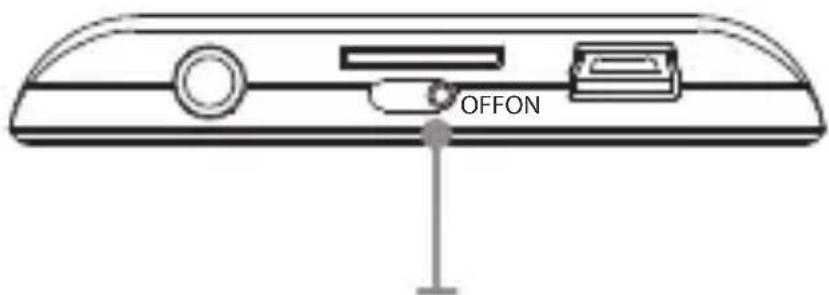
Power
Adjust to turn the unit on or off.
Display
Menu
Press to access the main menu.
Press and hold to turn the unit on and off.
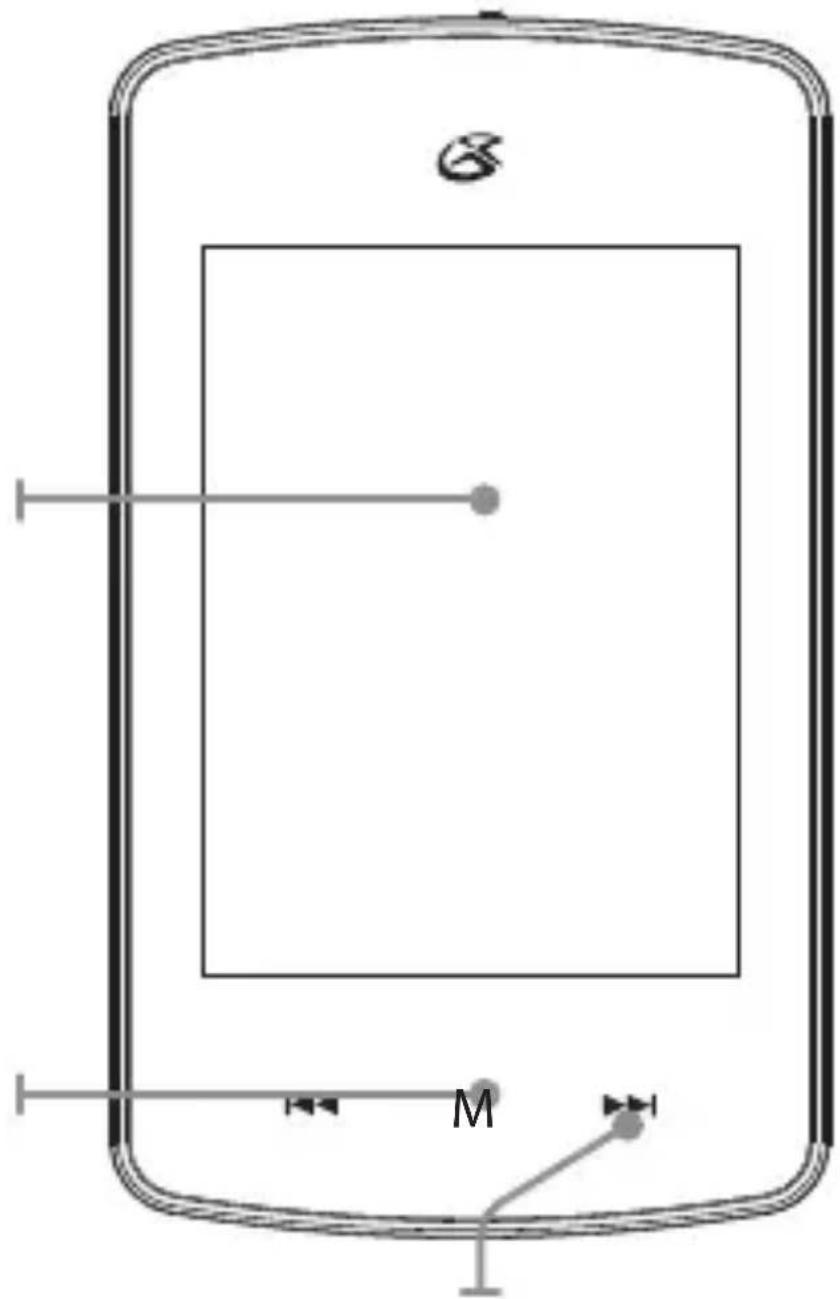
Skip/Search
Press to skip.
Press and hold to search through tracks.
Powering On
- Adjust the Power switch to the ON position.
- Press and hold the Menu button.
To power off, press and hold the Menu button and slide the on-screen bar.
Auto Lock
- The Auto Lock settings can be adjusted from the System Settings under DISPLAY.
Music and Movies
- Follow the instructions for Loading Files.
- Press the Music or Video icon on the touchscreen to open the music or movies application.
- Use the on-screen play controls to begin playing music.
Pictures
- Follow the instructions for Loading Files.
- Press the on-screen Photo icon.
- Use the on-screen controls to view loaded photos.
Company Information
International Support
To download this User's Guide in English, Spanish, or French, or to get answers to frequently asked questions, visit the support section at www.gpx.com.
- Connect the touchscreen media player to a computer using the Mini-USB Port connection and a USB cable (included).
- Once connected, the unit will show up on the connected computer as if it were a connected USB thumb drive, external hard drive, or memory card.
- Drag and drop the desired files into the unit's drive location on the connected computer.
- After the files are loaded onto the unit, right-click on the drive and eject it from the computer, then disconnect the USB cable.
File Compatibility: Digital audio: MP3, WMA (non-DRM) Digital video: AVI
Micro SD Memory Expansion Slot
Loading a Micro SD Card
1. Insert a Micro SD Card into the Memory Card Expansion Slot.
The Memory Card Expansion Slot supports Micro SD Cards up to 16GB in capacity.
File Compatibility:
Digital audio: MP3
Playing from the Micro SD Card
- Follow the instructions for Loading a Micro SD Card.
- Press the MUSIC icon on the touchscreen to open the music application.
- Press the on-screen Browser button and select the Card Dir.
- Select the desired music from the card directory and use the on-screen play controls to begin playing the selected music.
Recording Audio
- Press the Recorder icon on the touchscreen to open the recorder application.
- Press the on-screen Play/Stop button to start and stop recording.
- Press the Save button to the right of the on-screen Play/Stop button to save the recording to the player's internal memory.
Playing Recorded Audio
- Press the Music icon on the touchscreen to open the music application.
- Press the on-screen Browser button and select the Main Dir.
- From the folder browser select the Record folder.
- Select the desired recording using the touchscreen.
- Use the on-screen play controls to begin playing the selected recording.
Video Conversion Software
- Connect the media player to a computer using the included USB cable.
- Once connected, the video conversion software will open automatically.
- Use the conversion software to select a video on your computer and convert it to the AVI format so it will be playable on the media player.
- After converting, follow the instructions for Loading Files to load the newly created AVI file to the media player.

MT852B
Touchscreen Media Player
For the most up-to-date version of this
User's Guide, go to www.gpx.com
- Warranty
- Touchscreen media player
- Features & Included
- Power
- System Requirements
- Introduction
- Display
- Menu
- Skip/Search
- Powering On
- Auto Lock
- Music and Movies
- Pictures
- Company Information
- International Support
- Micro SD Memory Expansion Slot
- Loading a Micro SD Card
- Insert a Micro SD Card into the Memory Card Expansion Slot.
- Playing from the Micro SD Card
- Recording Audio
- Playing Recorded Audio
- Video Conversion Software
- MT852B
Brand : GPX
Model : MT852B
Category : Media player