
EUB9707 - Network Card/Adapter ENGENIUS - Free user manual and instructions
Find the device manual for free EUB9707 ENGENIUS in PDF.


| Product Type | Wireless Network Adapter |
| Model | EUB9707 |
| Brand | EnGenius |
| Wireless Standard | IEEE 802.11ac |
| Frequency Band | Dual-band (2.4 GHz / 5 GHz) |
| Maximum Data Rate | Up to 1200 Mbps (300 Mbps on 2.4 GHz + 867 Mbps on 5 GHz) |
| Interface | USB 3.0 |
| Antenna | Detachable high-gain dipole antenna |
| Security Protocols | WEP, WPA/WPA2, WPA-PSK/WPA2-PSK |
| Dimensions (L x W x H) | 2.8 x 0.9 x 0.4 inches (71 x 23 x 10 mm) |
| Weight | 0.8 oz (23 g) |
| Power Source | USB bus-powered |
| Operating Systems Supported | Windows 7/8/10/11, macOS 10.9+, Linux kernel 2.6.24+ |
| LED Indicators | Link/Activity |
| Operating Temperature | 0°C to 40°C (32°F to 104°F) |
| Storage Temperature | -20°C to 70°C (-4°F to 158°F) |
| Humidity | 10% to 90% non-condensing |
| Certifications | FCC, CE, RoHS |
| Package Contents | EUB9707 adapter, detachable antenna, quick installation guide |
| Maintenance | Clean with a soft, dry cloth; avoid liquids |
| Safety Warnings | Keep away from water, heat sources; do not disassemble |
| Spare Parts Availability | Detachable antenna available; other parts not user-replaceable |
| Repairability | No user-serviceable parts; contact EnGenius support for issues |
Frequently Asked Questions - EUB9707 ENGENIUS
User questions about EUB9707 ENGENIUS
0 question about this device. Answer the ones you know or ask your own.
Ask a new question about this device
Download the instructions for your Network Card/Adapter in PDF format for free! Find your manual EUB9707 - ENGENIUS and take your electronic device back in hand. On this page are published all the documents necessary for the use of your device. EUB9707 by ENGENIUS.
USER MANUAL EUB9707 ENGENIUS
Wireless USB Adapter
User Manual
Version: 1.0
Table of Contents
1. INTRODUCTION ....4
1.1. PACKAGE CONTENTS 4
1.2. USB ADAPTER DESCRIPTION....5
1.3. SYSTEM REQUIREMENTS....6
1.4. APPLICATIONS....7
1.5. NETWORK CONFIGURATION ....7
2. USB ADAPTER FOR WINDOWS ......9
2.1. BEFORE YOU BEGIN....9
2.2. INSTALLING THE DRIVERS 10
2.3. PROFILES 13
2.3.1. INFRASTRUCTURE MODE 14
2.3.2. AD-HOC MODE 15
2.3.3. AUTHENTICATION AND SECURITY....16
2.3.4. WEP Encryption 16
2.3.5. WPA, WPA2 Authentication & TKIP, AES Encryption....17
2.3.6. WPA-PSK & WPA2-PSK Authentication & TKIP, AES Encryption....18
2.3.7. LEAP Authentication....19
2.3.8. 802.1x with PEAP....20
2.3.9. PEAP Authentication with EAP/TLS Smartcard....20
2.3.10. 802.1x with TTLS with EAP-MD5, MS-CHAP, MS-CHAPv2....21
2.3.11. 802.1x CA Server....22
2.4. NETWORK (SITE SURVEY)....24
2.5. ADVANCED CONFIGURATION 26
2.6. STATISTICS....27
2.7. WMM....28
2.8. WPS....29
2.9. CCX 30
2.10. RADIO ON/OFF....30
2.11. ABOUT....31
2.12. UNINSTALL THE DRIVERS & CLIENT UTILITY 32
3. USB ADAPTER FOR MAC OS X....35
3.1. INSTALLING THE DRIVERS 35
3.2. PROFILES 38
3.2.1. INFRASTRUCTURE MODE 39
3.2.2. AD-HOC MODE 40
3.3. AUTHENTICATION AND SECURITY....41
3.3.1. WEP Encryption 41
3.3.2. WPA-PSK & WPA2-PSK Authentication & TKIP, AES Encryption....42
3.4. LINKSTATUS....43
3.5. SITESURVEY 45
3.6. STATISTICS....46
3.7. ADVANCED CONFIGURATION 46
3.8. WPS....47
3.9. ABOUT....49
APPENDIX A – GLOSSARY ....50
APPENDIX B – FCC INTERFERENCE STATEMENT ......62
1. Introduction
The high-speed wireless USB 2.0 client adapter is the most convenient way to let you put a desktop/notebook computer almost anywhere without the hassle of running network cables. Now you don't need to suffer from drilling holes and exposed cables. Once you are connected, you can do anything, just like the wired network. It's the best way to add wireless capability to your existing wired network.
To protect your wireless connectivity, the high-speed wireless USB 2.0 client adapter can encrypt all wireless transmissions with industrial standard encryption and authentication allowing you to experience the most secure wireless connectivity available.
The EnGenius Wireless USB Adapter implements 11N technology which extremely improves wireless signal for your computer than existing wireless 802.11b/g technology. The incredible speed of EnGenius USB adapter makes heavy traffic networking activities more flexible and takes the wireless into practical road. You could enjoy the racing speed of wireless connection, surfing on Internet without string wires.
Adding EnGenius Wireless USB Adapter to your laptop or desktop PC provides an excellent performance and cost-effective solution for doing media-centric activities such as streaming video and gaming.
1.1. Package Contents
Please make sure that none of the items listed below are missing. Do not discard the packing materials, in case of return; the unit must be shipped in its original package.
▶ Wireless LAN USB Adapter x 1
CD-ROM with Drivers and User's Manual Included x 1
▶ Quick Installation Guide x 1
1.2. USB Adapter Description
A standard USB adapter can fit into any USB interface.
EUB9703

EUB9706, EUB9705 & EUB9801

1.3. System Requirements
The following are the minimum system requirements in order to use the USB adapter.
▶ PC/AT compatible computer with a USB interface.
▶ Windows or Mac OS operating system.
▶ 40 MB of free disk space for installing the USB adapter driver and utility.
1.4. Applications
The wireless LAN products are easy to install and highly efficient. The following list describes some of the many applications made possible through the power and flexibility of wireless LANs:
a) Difficult-to-wire environments
There are many situations where wires cannot be laid easily. Historic buildings, older buildings, open areas and across busy streets make the installation of LANs either impossible or very expensive.
b) Temporary workgroups
Consider situations in parks, athletic arenas, exhibition centers, disaster-recovery, temporary offices and construction sites where one wants a temporary WLAN established and removed.
c) The ability to access real-time information
Doctors/nurses, point-of-sale employees, and warehouse workers can access real-time information while dealing with patients, serving customers and processing information.
d) Frequently changed environments
Show rooms, meeting rooms, retail stores, and manufacturing sites where frequently rearrange the workplace.
e) Small Office and Home Office (SOHO) networks
SOHO users need a cost-effective, easy and quick installation of a small network.
f) Wireless extensions to Ethernet networks
Network managers in dynamic environments can minimize the overhead caused by moves, extensions to networks, and other changes with wireless LANs.
g) Wired LAN backup
Network managers implement wireless LANs to provide backup for mission-critical applications running on wired networks.
h) Training/Educational facilities
Training sites at corporations and students at universities use wireless connectivity to ease access to information, information exchanges, and learning.
1.5. Network Configuration
To better understand how the wireless LAN products work together to create a wireless network, it might be helpful to depict a few of the possible wireless LAN PC card network configurations. The wireless LAN products can be configured as:
a) Ad-hoc (or peer-to-peer) for departmental or SOHO LANs.
b) Infrastructure for enterprise LANs.
a) Ad-hoc (peer-to-peer) Mode
This is the simplest network configuration with several computers equipped with the PC Cards that form a wireless network whenever they
are within range of one another. In ad-hoc mode, each client is peer-to-peer, would only have access to the resources of the other client and does not require an access point. This is the easiest and least expensive way for the SOHO to set up a wireless network. The image below depicts a network in ad-hoc mode.

flowchart
graph TD
    A["Wireless LAN Client"] --> B["Wireless LAN Client"]
    B --> C["Wireless LAN Client"]
    C --> D["Wireless LAN Client"]
    D --> A
b) Infrastructure Mode
The infrastructure mode requires an Access Point (AP). In this mode, all wireless communication between two computers has to go through the AP. It doesn't matter if the AP is stand-alone or wired to an Ethernet network. If used in stand-alone, the AP can extend the range of independent wireless LANs by acting as a repeater, which effectively doubles the distance between wireless stations. The image below depicts a network in infrastructure mode.

flowchart
graph TD
    A["Wireless LAN Client"] --> B["Access Point"]
    C["Wireless LAN Client"] --> B
    D["Wireless LAN Client"] --> B
2. USB Adapter for Windows
2.1. Before You Begin
Wi-Fi Alliance certification recommends WPA2 AES to be the security mechanism under 11N mode. System driver will automatically bring down wireless data rate to 54Mbps if other security method such as WEP or WPA is used under 11n mode.
If your 11N router is using security mechanism other than WPA2 AES, you are recommended to disable security setting or change it to WPA2 AES to fully utilize 11N capability. This policy has no effect if connecting with b/g only wireless access point.
During the installation, Windows may need to copy systems files from its installation CD. Therefore, you may need a copy of the Windows installation CD at hand before installing the drivers. On many systems, instead of a CD, the necessary installation files are archived on the hard disk in C:\WINDOWS\OPTIONS\CABS directory.
2.2. Installing the Drivers
Insert the CD provided in the package into your DVD/CD-ROM. The setup should run automatically. If the setup does not start shortly, please manually browse the file index.html with a standard file or web browser.
- Click on Windows Driver to start the install process.

- Once the setup begins you will see the InstallShield Wizard. Select Install driver and EnGenius WLAN Utility and then click on the Next> button.

3. Click on the Install button to begin the installation.

4. Wait for a few seconds until the driver and client utility is installed.
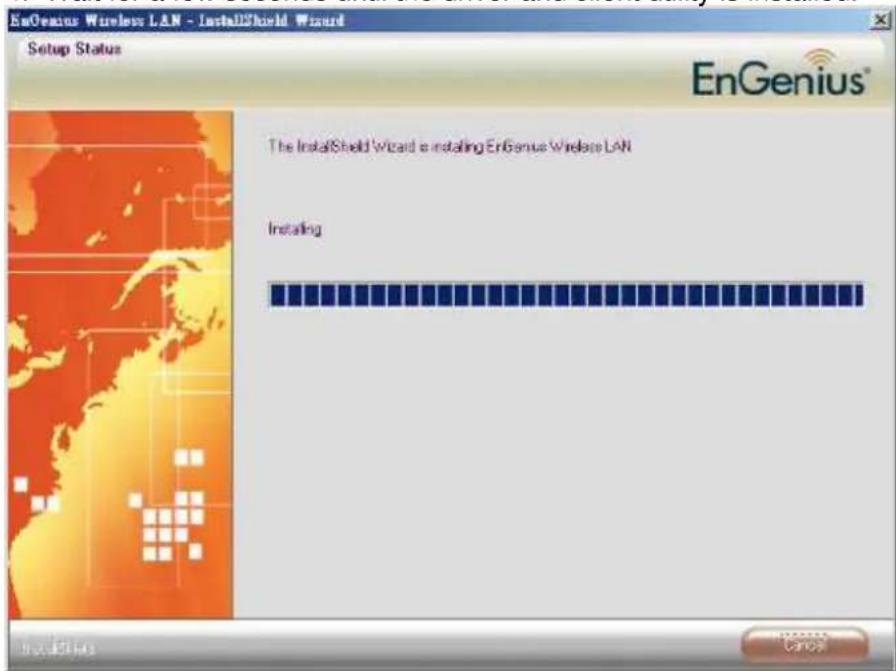
- The installation is complete. Click on the Finish button.

- Carefully insert the USB adapter into the USB port. Windows will then detect and install the new hardware.
- An EG icon will then appear in the system tray. Right click on the EG icon and then click on Launch Config Utility.

Note: Click on Use Zero Configuration as Configuration Utility if you would like to use Windows Zero Configuration (XP only feature).

![Profile Network Advanced Statistics WMM WPS SSO CCX Sorted by >> SSID Channel Signal Show dBm AP List >> EnGenius5A6C34 11 b g n 100% Rescan Add to Profile Connect Status >> EnGenius5A.. <--> 00-02-6F-5A-6C-34 Extra Info >> Link Is Up [TxPower: 100%] Channel >> 11 <--> 2462 MHz; central channel : 9 Authentication >> Open Encryption >> NONE Network Type >> Infrastructure IP Address >> 192.168.0.101 Sub Mask >> 255.255.255.0 Default Gateway >> 192.168.0.1 HT BW >> 40 SNR0 >> n/a GI >> long MCS >> 15 SNR1 >> n/a Link Quality >> 100% Signal Strength 1 >> 89% Signal Strength 2 >> 99% Transmit Link Speed >> 270.0 Mbps Max Throughput >> 0.192 Kbps 8.480 Kbps Receive Link Speed >> 162.0 Mbps Max Throughput >> 22.344 Kbps 29.400 Kbps](/content/2026/05/959286/images/79d9f339d2cf38b049b99f3ae0796163df1fc4e3bf16dbc8a862e13c6f77c74e.jpg)
2.3. Profiles
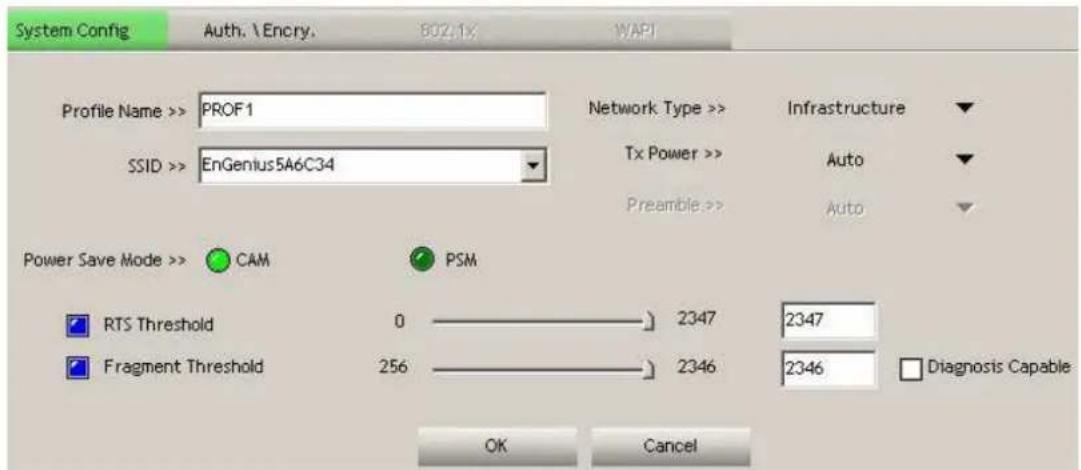
The Profile tab is used to store the settings of multiple Access Points such as home, office, café, etc. When adding a profile you are required to enter a profile name and SSID as well as configure the power-saving mode, network type, RTS/fragmentation threshold and encryption/authentication settings. A profile can be configured as Infrastructure or Ad-hoc mode. The configuration settings for each mode are described below.
2.3.1. Infrastructure Mode

Profile: Enter a name for the profile; this does not need to be the same as the SSID.
SSID: Enter the SSID of the network or select one from the drop-down list. The SSID is a unique name shared among all points in your wireless network. The SSID must be identical for all points in the network, and is case-sensitive.
▶ PSM: Select a power saving mode (PSM) option.
o CAM (Continuously Active Mode): Select this option if your notebook is always connected to the power supply.
o PSM (Power Saving Mode): Select this option if your notebook uses its battery power. This option minimizes the battery usage while the network is idle.
▶ Network Type: Select Infrastructure from the drop-down list.
TX Power: Select a transmit power from the drop-down list. If your notebook is connected to external power then select 100% or auto, if not, select one of the lower values for power saving.
RTS Threshold: Place a check in this box if you would like to enable RTS Threshold. Any packet larger than the specified value (bytes) will send RTS/CTS handshake packets.
Fragment Threshold: Place a check in this box if you would like to enable Fragment Threshold. Any packet larger than the specified value (bytes) will be fragmented.
▶ Click on the OK button to save the changes.
2.3.2. Ad-hoc Mode
Profile: Enter a name for the profile; this does not need to be the same as the SSID.
SSID: Enter the SSID of the network or select one from the drop-down list. The SSID is a unique name shared among all points in your wireless network. The SSID must be identical for all points in the network, and is case-sensitive.
▶ Network Type: Select Ad-hoc from the drop-down list.
Preamble: Select Auto from the drop-down list, unless you are aware of the preamble type (long or short) used in each station.
▶ Channel: Displays the channel number of the Access Point.
TX Power: Select a transmit power from the drop-down list. If your notebook is connected to external power then select 100% or auto, if not, select one of the lower values for power saving.
▶ Click on the OK button to save the changes.
2.3.3. Authentication and Security
Wi-Fi Alliance certification recommends WPA2 AES to be the security mechanism under 11N mode. System driver will automatically bring down wireless data rate to 54Mbps if other security method such as WEP or WPA is used under 11n mode.
If your 11N router is using security mechanism other than WPA2 AES, you are recommended to disable security setting or change it to WPA2 AES to fully utilize 11N capability. This policy has no effect if connecting with b/g only wireless access point.
The Security tab allows you to configure the authentication and encryption settings such as: WEP, WPA, WPA-PSK, WPA2, WAPI and 802.1x. Each security option is described in detail below.

2.3.4. WEP Encryption
The WEP tab displays the WEP settings. Encryption is designed to make the data transmission more secure. You may select 64 or 128-bit WEP (Wired Equivalent Privacy) key to encrypt data (Default setting is Disable). WEP encrypts each frame transmitted from the radio using one of the Keys from a panel. When you use WEP to communicate with the other wireless clients, all the wireless devices in this network must have the same encryption key or passphrase. The following information is included in this tab, as the image depicts below.

▶ Authentication Type: Select Open or Shared from the drop-down list.
▶ Encryption: Select WEP from the drop-down list.
WEP Key (Hex or ASCII): Type a character string into the field. For 64-bit enter 5 alphanumeric or 10 hexadecimal characters. For 128-bit enter 13 alphanumeric or 26 hexadecimal characters.
▶ Click on the OK button to save the changes.
Show Password check box. If you want to make sure the accuracy of password you type, click the Show Password box to check it.
2.3.5. WPA, WPA2 Authentication & TKIP, AES Encryption
WPA (Wi-Fi Protected Access) was designed to improve upon the security features of WEP (Wired Equivalent Privacy). This is used along with 802.1x security setting. The technology is designed to work with existing Wi-Fi products that have been enabled with WEP. WPA provides improved data encryption through the Temporal Key Integrity Protocol (TKIP), which scrambles the keys using a hashing algorithm and by adding an integrity-checking feature which makes sure that keys haven't been tampered with. EAP (Extensible Authentication Protocol) is an extension to the PPP protocol that enables a variety of authentication protocols to be used. It passes through the exchange of authentication messages, allowing the authentication software stored in a server to interact with its counterpart in the client.
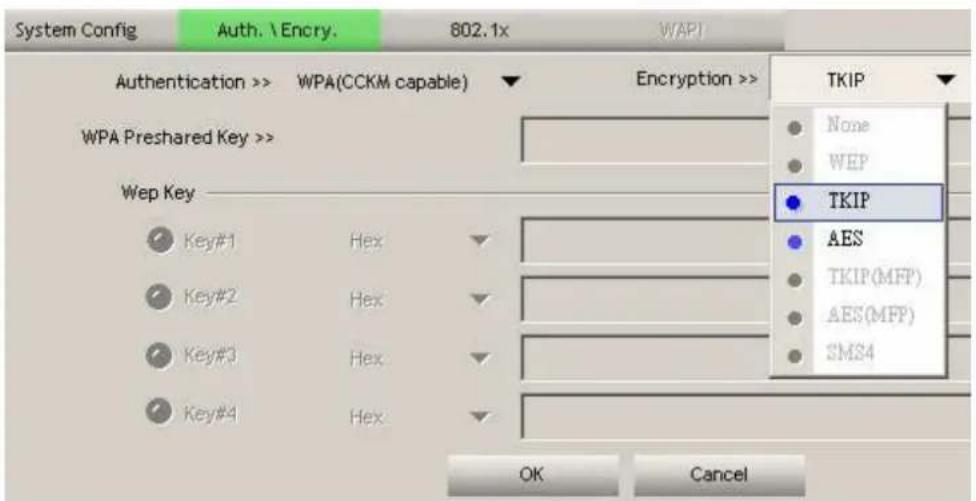
▶ Authentication Type: Select WPA or WPA2 from the drop-down list.
Encryption: Select TKIP or AES from the drop-down list.
▶ Click on the OK button to save the changes.
Show Password check box. If you want to make sure the accuracy of password you type, click the Show Password box to check it.
2.3.6. WPA-PSK & WPA2-PSK Authentication & TKIP, AES Encryption
WPA–PSK (Pre-shared Key) is used in a Pre Shared Key mode that does not require an authentication server. Access to the Internet and the rest of the wireless network services is allowed only if the pre-shared key of the computer matches that of the Access Point. This approach offers the simplicity of the WEP key, but uses stronger TKIP encryption. EAP (Extensible Authentication Protocol) is an extension to the PPP protocol that enables a variety of authentication protocols to be used. It passes through the exchange of authentication messages, allowing the authentication software stored in a server to interact with its counterpart in the client.
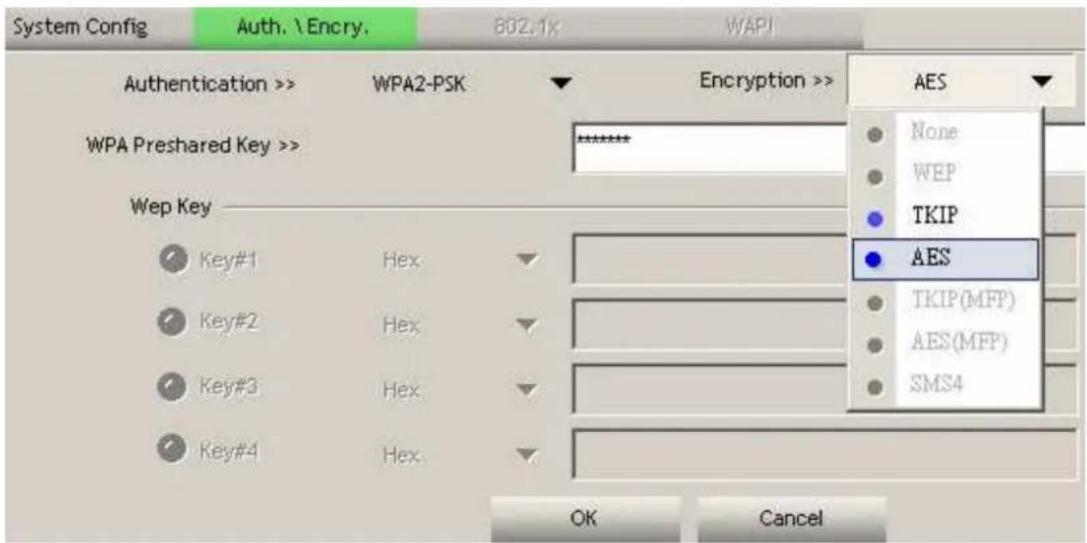
Authentication Type: Select WPA-PSK or WPA2-PSK from the drop-down list.
Encryption: Select TKIP or AES from the drop-down list.
WPA Preshared key: Enter a pass phrase which is between 8 and 32 characters long.
▶ Click on the OK button to save the changes.
2.3.7. LEAP Authentication
LEAP (Lightweight Extensible Authentication Protocol) also known as Cisco-Wireless EAP provides username/password-based authentication between a wireless client and a RADIUS server. LEAP is one of several protocols used with the IEEE 802.1X standard for LAN port access control. LEAP also delivers a session key to the authenticated station, so that future frames can be encrypted with a key that is different than keys used by others sessions. Dynamic key delivery eliminates one big vulnerability; static encryption keys that are shared by all stations in the WLAN. EAP (Extensible Authentication Protocol) is an extension to the PPP protocol that enables a variety of authentication protocols to be used. It passes through the exchange of authentication messages, allowing the authentication software stored in a server to interact with its counterpart in the client

▶ Authentication Type: Select LEAP from the drop-down list.
▶ Identity: Enter the user name.
▶ Password: Enter the password.
▶ Domain Name: Enter a domain name.
Encryption: Select WEP, WPA-TKIP or WPA2-AES encryption.
▶ Session Resumption: click to enable/disable the feature
▶ Click on the OK button to save the changes.
2.3.8. 802.1x with PEAP
802.1X provides an authentication framework for wireless LANs allowing a user to be authenticated by a central authority. 802.1X uses an existing protocol called EAP. EAP (Extensible Authentication Protocol) is an extension to the PPP protocol that enables a variety of authentication protocols to be used. It passes through the exchange of authentication messages, allowing the authentication software stored in a server to interact with its counterpart in the client.
2.3.9. PEAP Authentication with EAP/TLS Smartcard
EAP/TLS Smartcard provides for certificate-based and mutual authentication of the client and the network. It relies on client-side and server-side certificates to perform authentication and can be used to dynamically generate user-based and session-based WEP keys to secure subsequent communications between the WLAN client and the access point.

▶ EAP Method: Select PEAP from the drop-down list.
Tunnel Authentication: If your network uses TLS or Smart Card to authenticate its users, select TLS/Smartcard from the drop down list. TLS (Transport Layer Security) is an IETF standardized authentication protocol that uses PKI (Public Key Infrastructure) certificate-based authentication of both the client and authentication server.
▶ Identity: Enter the user name.
▶ Click on the OK button to save the changes.
2.3.10. 802.1x with TTLS with EAP-MD5, MS-CHAP, MS-CHAPv2
802.1X provides an authentication framework for wireless LANs allowing a user to be authenticated by a central authority. 802.1X uses an existing protocol called EAP. EAP (Extensible Authentication Protocol) is an extension to the PPP protocol that enables a variety of authentication protocols to be used. It passes through the exchange of authentication messages, allowing the authentication software stored in a server to interact with its counterpart in the client. TLS (Transport Layer Security) is an IETF standardized authentication protocol that uses PKI (Public Key Infrastructure) certificate based authentication of both the client and authentication server.

▶ Authentication Type: Select TTLS from the drop-down list.
Protocol: Select EAP-MSCHAP v2, MS-CHAP, or CHAP from the dropdown list.
▶ Identity: Enter the user name.
▶ Password: Enter the password.
▶ Click on the OK button to save the changes.
2.3.11. 802.1x CA Server
Depending on the EAP in use, only the server or both the server and client may be authenticated and require a certificate. Server certificates identify a server, usually an authentication or RADIUS server to clients. Most EAPs require a certificate issued by a root authority or a trusted commercial Certificate Authority.


▶ Use certificate chain: Place a check in this to enable the certificate use.
▶ Certificate issuer: Select the Certification Authority from the drop-down list.
Allow intermediate certificates: During tunnel creation the client must verify the server's certificate. When checking this certificate the signature is verified against a list of trusted certificate authorities. If this parameter is true then the client will also accept a signature from a trusted intermediate certificate authority, otherwise it will not.
Server name: Enter the server name if not selected from the existing dropdown list above.
▶ Click on the OK button to save the changes.
2.4. Network (Site Survey)
The Network tab displays a list of Access Points and Stations in the area, and allows you to connect to a specific one. The following information is included in this tab, as the image depicts below.

bar
| Channel | Signal Strength (%) | Noise Strength (%) | | :--- | :--- | :--- | | 200PM#2_WPA2_AES_12345678 | 52 | | | 200PM#3_WPA_TKIP_12345678 | 63 | | | 200PM#4_WPA_TKIP_12345678 | 52 | | | Engenius | 47 | | | EnGenius445566 | 47 | | | MIS ADSL | 89 | | | PM_demo | 83 | | | Status >> | Link Quality >> Max | Signal Strength 1 >> 55% | Noise Strength >> 26% | | :--- | :--- | :--- | :--- | | Extra Info >> | Link is Up [TxPower:100%] | | | | Channel >> | 1 <-> 2412 MHz | | | | Authentication >> | Open | | | | Encryption >> | WEP | | | | Network Type >> | Infrastructure | | | | IP Address >> | 10.0.174.93 | | | | Sub Mask >> | 255.255.254.0 | | | | Default Gateway >> | 10.0.175.254 | | | | HT | BW >> n/a | SNRD >> n/a | GI >> n/a | |---|---|---|---| | SSID | b g | b g | b g | | Channel | b g | b g | b g | | Signal AP List >> | 52% | 63% | 52% | | Signal AP List >>: | 47% | 47% | 89% | | Signal AP List >>: | 83% | 89% | 83% | | Transmit: Link Speed >> 54.0 Mbps | Max | | :--- | :--- | | Throughput >> 0.000 Kbps | 28.160 Kbps | | :--- | :--- | | Receive: Link Speed >> 1.0 Mbps | Max | | :--- | :--- | | Throughput >>73.680 Kbps | 25.855 Mbps | This table appears to be extracted from the image. The data is presented in a tabular format with labels for each section. The values are estimated based on the 'Signal' column.The information is displayed in the following order: SSID, MAC, Channel, Mode, Security, and Signal.
SSID: Displays the SSID of the Access Point. The SSID is a unique name shared among all points in your wireless network. The SSID must be identical for all points in the network, and is case-sensitive.
▶ MAC: AP MAC address
▶ Channel: Displays the channel number of the Access Point.
▶ Mode: Displays the supporting AP mode.
▶ Signal: Displays the receiving signal strength from the Access Point.
▶ Rescan: Click on this button to view a list of Access Points in the area.
Add to Profile: Click on this button to add the SSID and its associated settings into a profile.
Connect: connect to an Access Point, select the SSID from the list, and then click on the Connect button.
▶ Activate: Set this AP as default AP.
➢ Status: This indicates the state of the wireless connection. There are three options:
○ Associated: Indicates that the wireless client is connected to an Access Point (AP). The BSSID is shown in the form of 12 HEX digits, which is the MAC address of the AP.
- Scanning: Indicates that the wireless client is searching for an AP in the area.
○ Disconnected: Indicates that wireless card does not associate with any APs.
▶ Extra Info: Display information about the link status and the transmit power.
▶ Channel: The operating frequency channel that the client is using (infrastructure mode).
▶ Authentication: Displays authentication type.
▶ Encryption: Displays encryption type.
▶ Network Type: Displays network type; infrastructure or ad-hoc.
▶ IP Address: Displays IP address.
Sub Mask: Displays subnet mask IP address.
Default Gateway: Displays IP address of the default gateway.
Link Speed: The current rate at which the client is transmitting and receiving.
➢ Transmit/Receive Throughput: Displays the Tx (transmit) and Rx (receive) kilo-bytes per second.
Link Quality: In infrastructure mode, this bar displays the transmission quality between an AP and a client. In Ad-hoc mode, this bar displays the transmission quality between one client, and another.
▶ Signal Strength: This bar displays the strength of the signal received from an AP or client.
Noise Level: Displays the background noise level; a lower level indicates less interference.
HT: High Through-Put / 802.11 n Section
▶ BW: Channel Bandwidth
GI: Guard Interval
▶ MCS: Modulation Coding Scheme
▶ SNR: Signal Noise Rate
2.5. Advanced Configuration
The Advanced tab is used to configure Tx burst, WMM, and CCX.
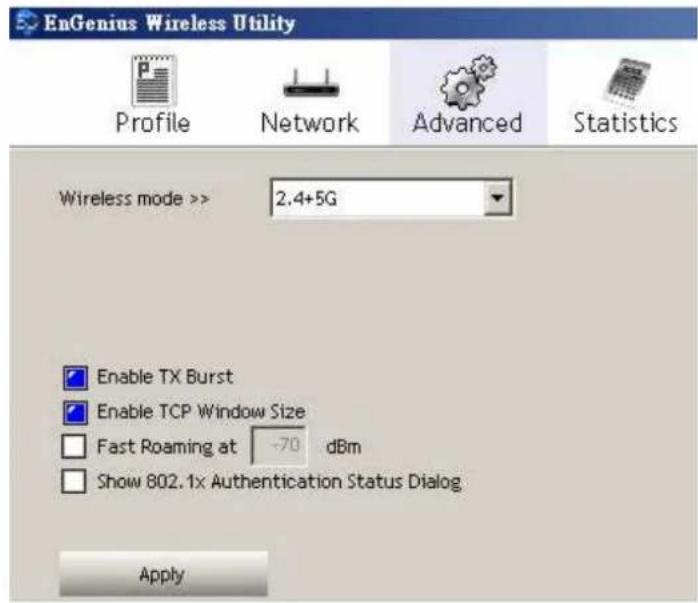
▶ Wireless mode: 2.4G, 5G & 2.4+5G
▶ Enable Tx Burst: Click the check box will enhance the throughput
▶ Enable TCP Window Size: Enhance the throughput if enable this function.
▶ Fast Roaming: setting fast roaming.
▶ Click on the Apply button to save the changes.
2.6. Statistics

▶ Transmit: Display current network TX statistics
Receive: Display current network RX statistics
▶ Reset Counter: Reset data back to zero
2.7. WMM

▶ Enable: Enable WMM feature
Power Save Enable: Enable / Disable WMM Power Save
Direct Link Setup Enable: Enable / Disable Direct Link Setup
▶ MAC Address: Define MAC address
▶ Timeout: Define time out seconds
▶ Click Apply to activate the new settings.
2.8. WPS
WPS (Wireless Push Button) is used for Wi-Fi Protected Setup. By pressing this button, the security settings of the device will automatically synchronize with other wireless devices on your network that support Wi-Fi Protected Setup.

▶ Rescan: Click on this button to view a list of Access Points in the area.
▶ Information: Display selected AP WPS details
▶ Renew: Renew the PIN code
Config Mode: Enrollee or Registrar
▶ Connect: Click to start WPS connection with the AP
▶ Rotate: to rotate the role
▶ Disconnect: Terminate the WPS connection
Export Profile: export the selected AP and store it as a profile.
▶ PIN: Regenerate PIN WPS
▶ PBC: Serve as a software pus-button WPS
▶ Delete: Delete the selected AP
2.9. CCX

This feature allows you to enable CCX (Cisco Compatible eXtensions); please do not change the settings here if you do not know what it does. This feature is a Cisco specific compatibility support. Please refer to your Cisco equipment for details.
Press Apply to activate the new settings.
2.10. Radio on/off

Click the icon to turn on or turn off the wireless radio.
2.11. About
Click on About, it will display the driver version information.

(c) Copyright 2009, EnGenius Technologies. All rights reserved.
Utility Version >> 3.1.3.5
Date >> 11-13-2009
Driver Version >> 1.4.7.0
Date >> 09-15-2009
DLL Version >> 1.0.3.3
Date >> 11-09-2009
EEPROM Version >> 1.0
Firmware Version >> 0.20
Phy_Address >> 00-02-6F-5A-62-40
WWW.ENGENIUSTECH.COM
2.12. Uninstall the Drivers & Client Utility
If the USB client adapter installation is unsuccessful for any reason, the best way to solve the problem may be to completely uninstall the USB adapter and its utility and repeat the installation procedure again.
Follow the steps below in order to uninstall the client utility:
1. Click on Start > EnGenius Wireless > Uninstall EnGenius Wireless USB Adapter

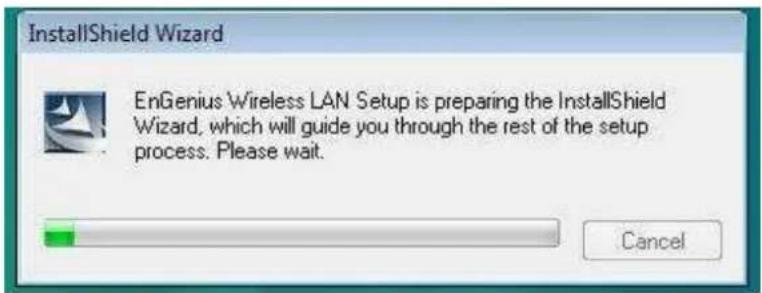
- The un-installation process will then begin.
3. Select the Remove all button.

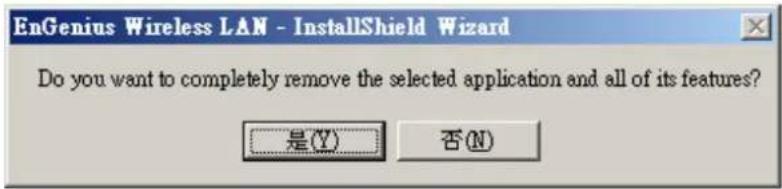
- Click on the Yes button to confirm the un-installation process and then click on the Next button.

- The un-installation process is complete. Select Yes, I want to restart my computer now radio button and then click on the Finish button. Then remove the USB adapter.
3. USB Adapter for MAC OS X
3.1. Installing the Drivers
Follow the steps below in order to install the USB adapter drivers:
- Insert the CD-ROM that is provided to you in the package. The setup should run automatically. If the setup does not run automatically, does not need you must manually select the setup (EnGenius_xxxx.dmg) file on the CD-ROM drive.
- Choose the appropriate Mac OS version you are currently using.

- Choose the package file to start installation.

- Click on the Continue button to configure the next step.
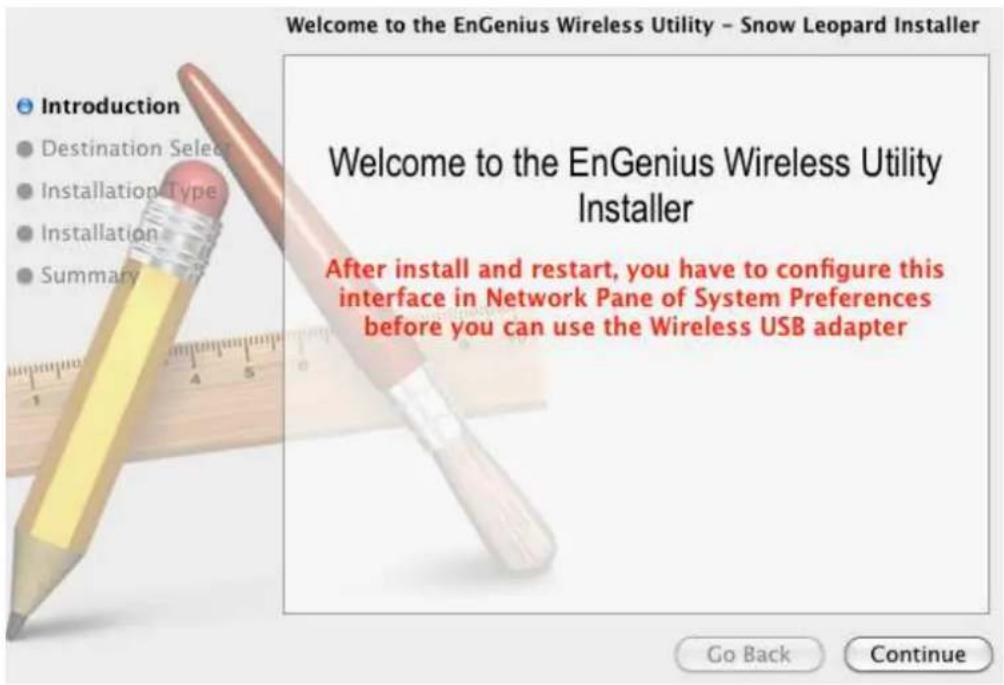
- Click on the Install button to configure the next step.

- Click on the Continue Installation button to configure the next step.
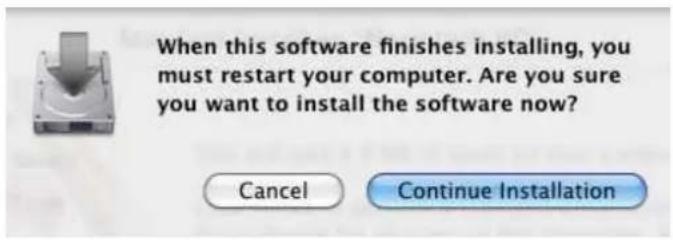
- The whole process may take about 2 minutes, please wait patiently.

- The installation is complete. Click on the Restart button.

- Carefully insert the USB adapter into the USB port. MAC OS X will then detect and install the new hardware.
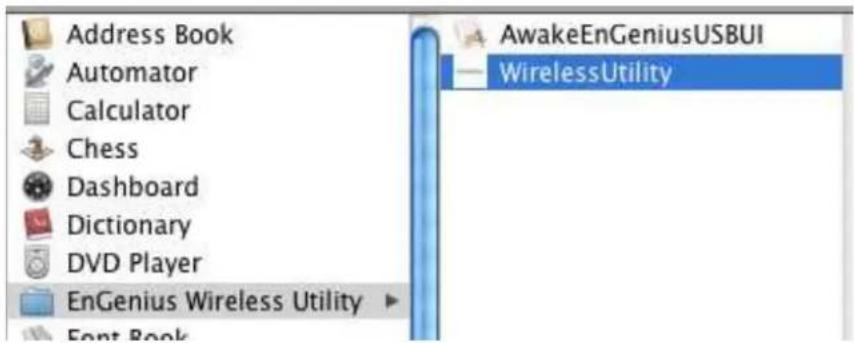
- The Client Utility is installed in the Applications folder.
3.2. Profiles
The Profile tab is used to store the settings of multiple Access Points such as home, office, café, etc. When adding a profile you are required to enter a profile name and SSID as well as configure the power-saving mode, network type, RTS/fragmentation threshold and encryption/authentication settings. A profile can be configured as Infrastructure or Ad-hoc mode. The configuration settings for each mode are described below.
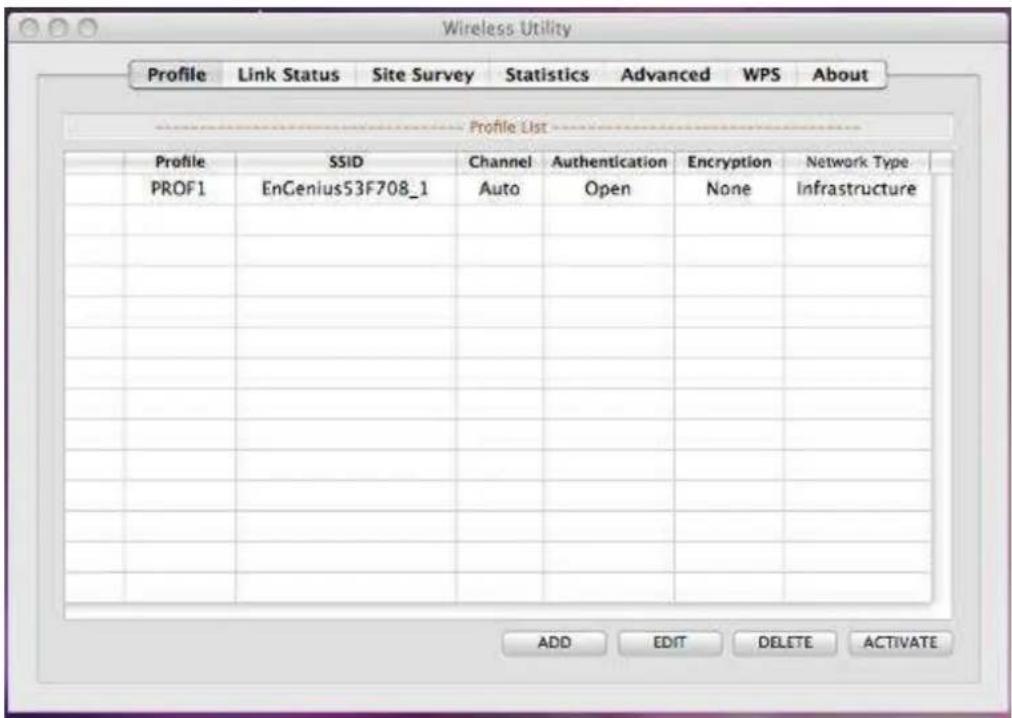
3.2.1. Infrastructure Mode

Profile: Enter a name for the profile; this does not need to be the same
as the SSID.
SSID: Enter the SSID of the network or select one from the drop-down list. The SSID is a unique name shared among all points in your wireless network. The SSID must be identical for all points in the network, and is case-sensitive.
▶ PSM: Select a power saving mode (PSM) option.
o CAM (Continuously Active Mode): Select this option if your notebook is always connected to the power supply.
o PSM (Power Saving Mode): Select this option if your notebook uses its battery power. This option minimizes the battery usage while the network is idle.
▶ Network Type: Select Infrastructure from the drop-down list.
TX Power: Select a transmit power from the drop-down list. If your notebook is connected to external power then select 100% or auto, if not, select one of the lower values for power saving.
RTS Threshold: Place a check in this box if you would like to enable RTS Threshold. Any packet larger than the specified value (bytes) will send RTS/CTS handshake packet.
Fragment Threshold: Place a check in this box if you would like to enable Fragment Threshold. Any packet larger than the specified value (bytes) will be fragmented.
▶ Click on the OK button to save the changes.
3.2.2. Ad-hoc Mode

Profile: Enter a name for the profile; this does not need to be the same as the SSID.
SSID: Enter the SSID of the network or select one from the drop-down list. The SSID is a unique name shared among all points in your wireless network. The SSID must be identical for all points in the network, and is case-sensitive.
▶ Network Type: Select Ad-hoc from the drop-down list.
TX Power: Select a transmit power from the drop-down list. If your notebook is connected to external power then select 100% or auto, if not, select one of the lower values for power saving.
Ad-hoc wireless mode: Select a wireless mode from the drop-down list depending on the type of stations used in the ad-hoc network. Select MIX options if the network consists of 11a, 11b, 11g or 11n stations. Select ONLY options if the network consists of a specified type of wireless mode. For instance, if you are using 11N only AP, please select 11N.
RTS Threshold: Place a check in this box if you would like to enable RTS Threshold. Any packet larger than the specified value (bytes) will send RTS/CTS handshake packet.
Fragment Threshold: Place a check in this box if you would like to enable Fragment Threshold. Any packet larger than the specified value (bytes) will be fragmented.
▶ Click on the OK button to save the changes.
3.3. Authentication and Security
The Security tab allows you to configure the authentication and encryption settings such as: WEP, WPA-PSK, WPA2-PSK and 802.1x. Each security option is described in detail below.
3.3.1. WEP Encryption
The WEP tab displays the WEP settings. Encryption is designed to make the data transmission more secure. You may select 64 or 128-bit WEP (Wired Equivalent Privacy) key to encrypt data (Default setting is Disable). WEP encrypts each frame transmitted from the radio using one of the Keys from a panel. When you use WEP to communicate with the other wireless clients, all the wireless devices in this network must have the same encryption key or pass phrase. The following information is included in this tab, as the image depicts below.

▶ Authentication Type: Select Open or Shared from the drop-down list.
▶ Encryption: Select WEP from the drop-down list.
WEP Key: Type a character string into the field. For 64-bit enter 5 alphanumeric or 10 hexadecimal characters. For 128-bit enter 13 alphanumeric or 26 hexadecimal characters.
▶ Click on the OK button to save the changes.
Show Password check box. If you want to make sure the accuracy of password you type, click the Show Password box to check it.
3.3.2. WPA-PSK & WPA2-PSK Authentication & TKIP, AES Encryption
WPA – PSK (Pre-shared Key) is used in a Pre Shared Key mode that does not require an authentication server. Access to the Internet and the rest of the wireless network services is allowed only if the pre-shared key of the computer matches that of the Access Point. This approach offers the simplicity of the WEP key, but uses stronger TKIP encryption. EAP (Extensible Authentication Protocol) is an extension to the PPP protocol that enables a variety of authentication protocols to be used. It passes through the exchange of authentication messages, allowing the authentication software stored in a server to interact with its counterpart in the client.

▶ Authentication Type: Select WPA or WPA2 from the drop-down list.
Encryption: Select TKIP or AES from the drop-down list.
WPA Preshared key: Enter a pass phrase which is between 8 and 32 characters long.
▶ Click on the OK button to save the changes.
Show Password check box. If you want to make sure the accuracy of password you type, click the Show Password box to check it.
3.4. Link Status
The Link Status tab displays the current status of the wireless connection. The following information is included in this tab, as the image depicts below.
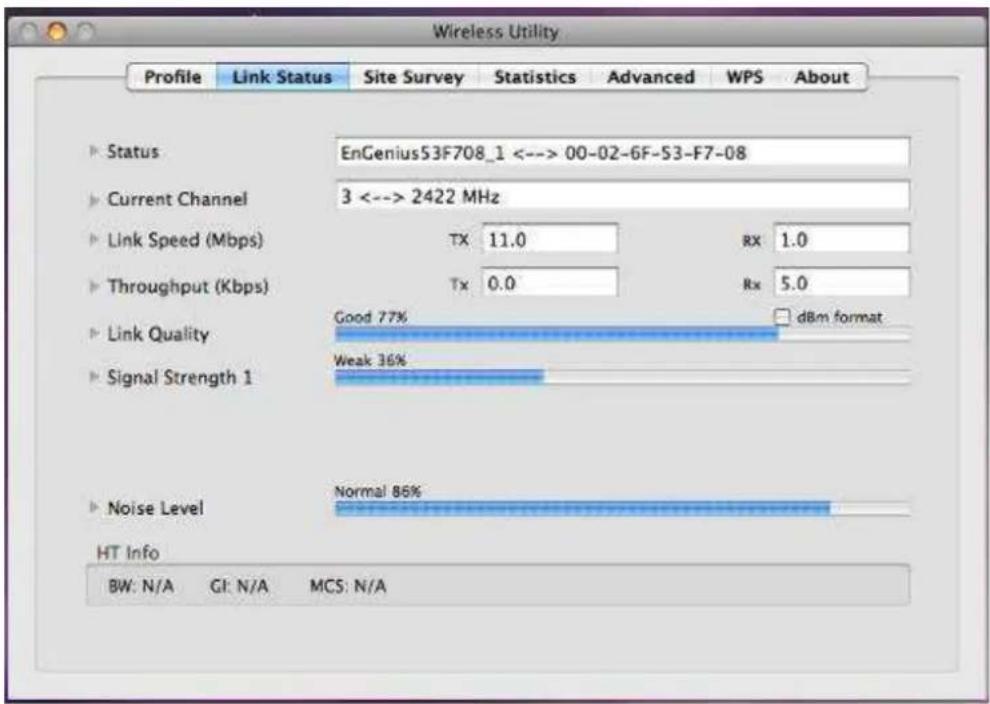
➢ Status: This indicates the state of the client. There are three options:
○ Associated: Indicates that the wireless client is connected to an Access Point (AP). The BSSID is shown in the form of 12 HEX digits, which is the MAC address of the AP.
- Scanning: Indicates that the wireless client is searching for an AP in the area.
○ Disconnected: Wrong description. Indicates that wireless does not associated with any APs.
Current Channel: The operating frequency channel that the client is using (infrastructure mode).
Link Speed: The current rate at which the client is transmitting and receiving.
Throughput (bytes/sec): Displays the Tx (transmit) and Rx (receive) kilo-bytes per second.
Link Quality: In infrastructure mode, this bar displays the transmission quality between an AP and a client. In Ad-hoc mode, this bar displays the transmission quality between one client, and another.
▶ Signal Strength: This bar displays the strength of the signal received from an AP or client.
Noise Level: Displays the background noise level; a lower level indicates less interference.
HT: High Through-Put / 802.11 n Section
▶ BW: Channel Bandwidth
GI: Guard Interval
▶ MCS: Modulation Coding Scheme
▶ dBm Check Box. When you click on the check box as the drawing below. The signal strength and noise level will be shown as the dBm measurements.
3.5. Site Survey
The Site Survey tab displays a list of Access Points and Stations in the area, and allows you to connect to a specific one. The following information is included in this tab, as the image depicts below.

SSID: Displays the SSID of the Access Point. The SSID is a unique name shared among all points in your wireless network. The SSID must be identical for all points in the network, and is case-sensitive.
▶ BSSID: Displays the MAC address of the Access Point.
▶ Signal: Displays the receiving signal strength from the Access Point.
▶ Channel: Displays the channel number of the Access Point.
Authentication: displays the authentication types of the Access Point, this includes WPA, WPA-PSK, WPA2, or Unknown.
Encryption: Displays the encryption on the Access Point, this includes WEP, TKIP, AES or None.
Network Type: Indicates whether the SSID is a Station (Ad-hoc) or Access Point (Infrastructure).
▶ Rescan: Click on this button to rescan a list of Access Points in the area.
Connect: Connect to a specific Access Point, select the SSID from the list, and then click on the Connect button.
Add Profile: Click on this button to add the SSID and its associated settings into a profile.
▶ Click on the OK button if you have made any changes.
3.6. Statistics
The Statistics tab displays transmit and receive packet statistics in real-time. Information included is frames transmitted/received successfully, transmitted successfully without and after retry, received with CRC error, duplicate frames received, etc.

3.7. Advanced Configuration
The Advanced tab is used to configure advanced wireless settings.
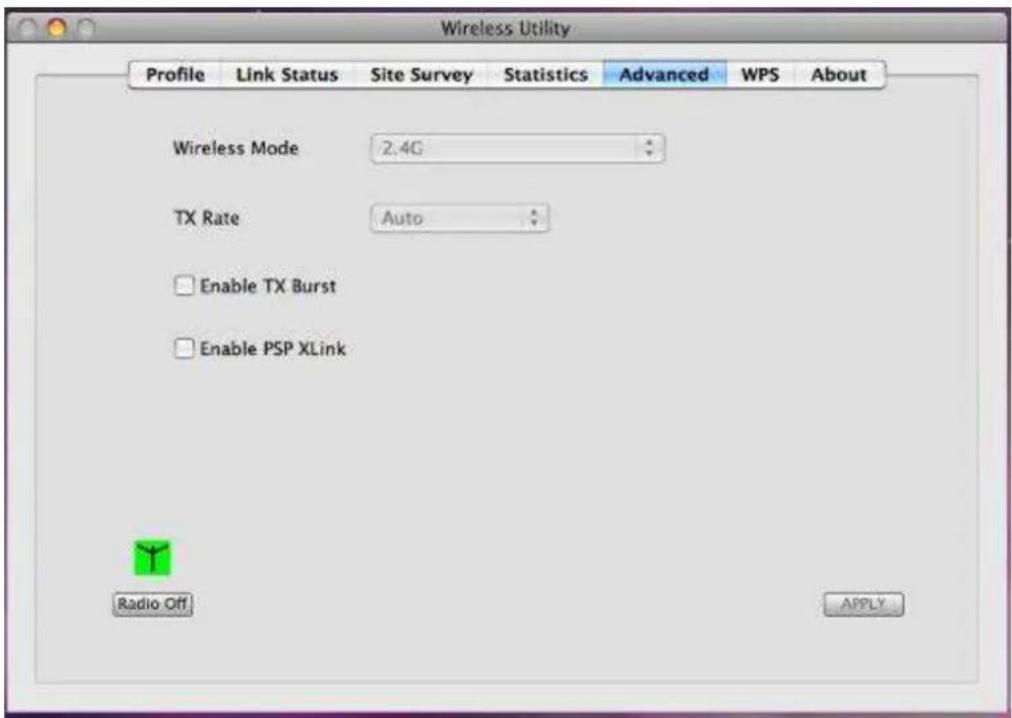
▶ Wireless mode: Select 802.11 2.4GHz, 5GHz and 2.4+5GHz.
Tx Rate: The transmit rate should is set to auto by default.
▶ Tx BURST: Click the check box will enhance the throughput
▶ Click on the Apply button to save the changes.
3.8. WPS
WPS (Wireless Push Button) is used for Wi-Fi Protected Setup. By pressing this button, the security settings of the device will automatically synchronize with other wireless devices on your network that support Wi-Fi Protected Setup.
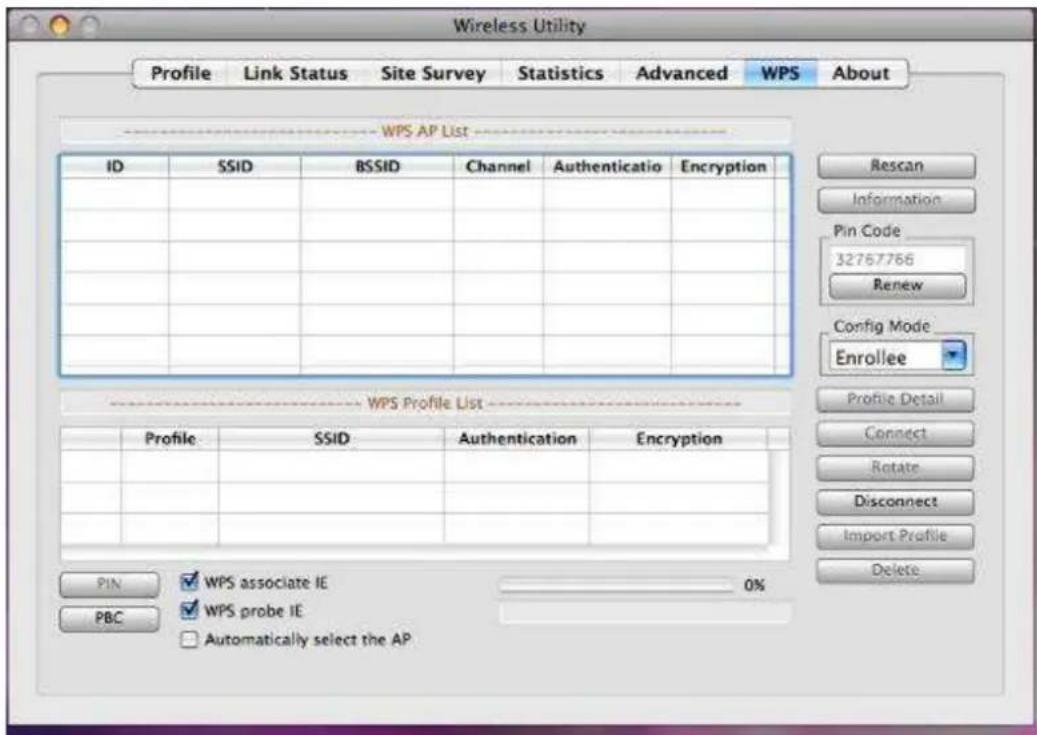
▶ Rescan: Click on this button to rescan a list of Access Points in the area.
▶ Renew: Regenerate a new PIN code
- Config Mode: Switch between Enrollee or Registrar
▶ Profile Detail: Display profile of the selected party
▶ Connect: Click to connect a AP via WPS.
▶ Disconnect: Terminate WPS connection
Import Profile: Load pre-stored profile database
▶ Delete: Remove the selected item
3.9. About
The About tab displays information about the device, such as: configuration utility version and date, and the NIC (Network Interface Card) firmware version and date.

Appendix A – Glossary
8
802.11
A family of specifications for wireless local area networks (WLANs) developed by a working group of the Institute of Electrical and Electronics Engineers (IEEE).
A
Access Control List
ACL. This is a database of network devices that are allowed to access resources on the network.
Access Point
AP. Device that allows wireless clients to connect to it and access the network
ActiveX
A Microsoft specification for the interaction of software components.
Address Resolution Protocol
ARP. Used to map MAC addresses to IP addresses so that conversions can be made in both directions.
Ad-hoc network
Peer-to-Peer network between wireless clients
ADSL
Asymmetric Digital Subscriber Line
Advanced Encryption Standard
AES. Government encryption standard
Alphanumeric
Characters A-Z and 0-9
Antenna
Used to transmit and receive RF signals.
AppleTalk
A set of Local Area Network protocols developed by Apple for their computer systems
AppleTalk Address Resolution Protocol
AARP. Used to map the MAC addresses of Apple computers to their AppleTalk network addresses, so that conversions can be made in both directions.
Application layer
7th Layer of the OSI model. Provides services to applications to ensure that they can communicate properly with other applications on a network.
ASCII
American Standard Code for Information Interchange. This system of characters is most commonly used for text files
Attenuation
The loss in strength of digital and analog signals. The loss is greater when the signal is being transmitted over long distances.
Authentication
To provide credentials, like a Password, in order to verify that the person or device is really who they are claiming to be
Automatic Private IP Addressing
APIPA. An IP address that a Windows computer will assign itself when it is configured to obtain an IP address automatically but no DHCP server is available on the network
B
Backward Compatible
The ability for new devices to communicate and interact with older legacy devices to guarantee interoperability
Bandwidth
The maximum amount of bytes or bits per second that can be transmitted to and from a network device
Basic Input/Output System
BIOS. A program that the processor of a computer uses to startup the system once it is turned on
Baud
Data transmission speed
Beacon
A data frame by which one of the stations in a Wi-Fi network periodically broadcasts network control data to other wireless stations.
Bit rate
The amount of bits that pass in given amount of time
Bit/sec
Bits per second
BOOTP
Bootstrap Protocol. Allows for computers to be booted up and given an IP address with no user intervention
Bottleneck
A time during processes when something causes the process to slowdown or stop all together
Broadband
A wide band of frequencies available for transmitting data
Broadcast
Transmitting data in all directions at once
Browser
A program that allows you to access resources on the web and provides them to you graphically
C
Cable modem
A device that allows you to connect a computer up to a coaxial cable and receive Internet access from your Cable provider
CardBus
A newer version of the PC Card or PCMCIA interface. It supports a 32-bit data path, DMA, and consumes less voltage
CAT 5
Category 5. Used for 10/100 Mbps or 1Gbps Ethernet connections
Client
A program or user that requests data from a server
Collision
When do two devices on the same Ethernet network try and transmit data at the exact same time.
Cookie
Information that is stored on the hard drive of your computer that holds your preferences to the site that gave your computer the cookie
D
Data
Information that has been translated into binary so that it can be processed or moved to another device
Data Encryption Standard
Uses a randomly selected 56-bit key that must be known by both the sender and the receiver when information is exchanged
Database
Organizes information so that it can be managed updated, as well as easily accessed by users or applications.
Data-Link layer
The second layer of the OSI model. Controls the movement of data on the physical link of a network
DB-25
A 25 ping male connector for attaching External modems or RS-232 serial devices
DB-9
A 9 pin connector for RS-232 connections
dBd
Decibels related to dipole antenna
dBi
Decibels relative to isotropic radiator
dBm
Decibels relative to one milliwatt
Decrypt
To unscramble an encrypted message back into plain text
Default
A predetermined value or setting that is used by a program when no user input has been entered for this value or setting
Demilitarized zone
DMZ: A single computer or group of computers that can be accessed by both users on the Internet as well as users on the Local Network, but that is not protected by the same security as the Local Network.
DHCP
Dynamic Host Configuration Protocol: Used to automatically assign IP addresses from a predefined pool of addresses to computers or devices that request them
Digital certificate:
An electronic method of providing credentials to a server in order to have access to it or a network
Direct Sequence Spread Spectrum
DSSS: Modulation technique used by 802.11b wireless devices
DMZ
"Demilitarized Zone". A computer that logically sits in a "no-mans land" between the LAN and the WAN. The DMZ computer trades some of the protection of the router's security mechanisms for the convenience of being directly addressable from the Internet.
DNS
Domain Name System: Translates Domain Names to IP addresses
Domain name
A name that is associated with an IP address
Download
To send a request from one computer to another and have the file transmitted back to the requesting computer
DSL
Digital Subscriber Line. High bandwidth Internet connection over telephone lines
Duplex
Sending and Receiving data transmissions at the same time
Dynamic DNS service
Dynamic DNS is provided by companies to allow users with Dynamic IP addresses to obtain a Domain Name that will always be linked to their changing IP address. The IP address is updated by either client software running on a computer or by a router that supports Dynamic DNS, whenever the IP address changes
Dynamic IP address
IP address that is assigned by a DHCP server and that may change. Cable Internet providers usually use this method to assign IP addresses to their customers.
E
EAP
Extensible Authentication Protocol
Electronic Mail is a computer-stored message that is transmitted over the Internet
Encryption
Converting data into cyphertext so that it cannot be easily read
Ethernet
The most widely used technology for Local Area Networks.
F
Fiber optic
A way of sending data through light impulses over glass or plastic wire or fiber
File server
A computer on a network that stores data so that the other computers on the network can all access it
File sharing
Allowing data from computers on a network to be accessed by other computers on the network with different levels of access rights
Firewall
A device that protects resources of the Local Area Network from unauthorized users outside of the local network
Firmware
Programming that is inserted into a hardware device that tells it how to function
Fragmentation
Breaking up data into smaller pieces to make it easier to store
FTP
File Transfer Protocol. Easiest way to transfer files between computers on the Internet
Full-duplex
Sending and Receiving data at the same time
G
Gain
The amount an amplifier boosts the wireless signal
Gateway
A device that connects your network to another, like the internet
Gbps
Gigabits per second
Gigabit Ethernet
Transmission technology that provides a data rate of 1 billion bits per second
GUI
Graphical user interface
H
H.323
A standard that provides consistency of voice and video transmissions and compatibility for videoconferencing devices
Half-duplex
Data cannot be transmitted and received at the same time
Hashing
Transforming a string of characters into a shorter string with a predefined length
Hexadecimal
Characters 0-9 and A-F
Hop
The action of data packets being transmitted from one router to another
Host
Computer on a network
HTTP
Hypertext Transfer Protocol is used to transfer files from HTTP servers (web servers) to HTTP clients (web browsers)
HTTPS
HTTP over SSL is used to encrypt and decrypt HTTP transmissions
Hub
A networking device that connects multiple devices together
|
ICMP
Internet Control Message Protocol
IEEE
Institute of Electrical and Electronics Engineers
IGMP
Internet Group Management Protocol is used to make sure that computers can report their multicast group membership to adjacent routers
IIS
Internet Information Server is a WEB server and FTP server provided by Microsoft
IKE
Internet Key Exchange is used to ensure security for VPN connections
Infrastructure
In terms of a wireless network, this is when wireless clients use an Access Point to gain access to the network
Internet
A system of worldwide networks which use TCP/IP to allow for resources to be accessed from computers around the world
Internet Explorer
A World Wide Web browser created and provided by Microsoft
Internet Protocol
The method of transferring data from one computer to another on the Internet
Internet Protocol Security
IPsec provides security at the packet processing layer of network communication
Internet Service Provider
An ISP provides access to the Internet to individuals or companies
Intranet
A private network
Intrusion Detection
A type of security that scans a network to detect attacks coming from inside and outside of the network
IP
Internet Protocol
IP address
A 32-bit number, when talking about Internet Protocol Version 4, that identifies each computer that transmits data on the Internet or on an Intranet
IPsec
Internet Protocol Security
IPX
Internetwork Packet Exchange is a networking protocol developed by Novel to enable their Netware clients and servers to communicate
ISP
Internet Service Provider
J
Java
A programming language used to create programs and applets for web pages
K
Kbps
Kilobits per second
Kbyte
Kilobyte
L
L2TP
Layer 2 Tunneling Protocol
LAN
Local Area Network
Latency
The amount of time that it takes a packet to get from the one point to another on a network. Also referred to as delay
LED
Light Emitting Diode
Legacy
Older devices or technology
Local Area Network
A group of computers in a building that usually access files from a server
LPR/LPD
"Line Printer Requestor"/"Line Printer Daemon". A TCP/IP protocol for transmitting streams of printer data.
M
MAC Address
A unique hardware ID assigned to every Ethernet adapter by the manufacturer.
Mbps
Megabits per second
MDI
Medium Dependent Interface is an Ethernet port for a connection to a straight-through cable
MDIX
Medium Dependent Interface Crossover, is an Ethernet port for a connection to a crossover cable
MIB
Management Information Base is a set of objects that can be managed by using SNMP
Modem
A device that Modulates digital signals from a computer to an analog signal in order to transmit the signal over phone lines. It also Demodulates the analog signals coming from the phone lines to digital signals for your computer
MPPE
Microsoft Point-to-Point Encryption is used to secure data transmissions over PPTP connections
MTU
Maximum Transmission Unit is the largest packet that can be transmitted on a packet-based network like the Internet
Multicast
Sending data from one device to many devices on a network
N
NAT
Network Address Translation allows many private IP addresses to connect to the Internet, or another network, through one IP address
NetBEUI
NetBIOS Extended User Interface is a Local Area Network communication protocol. This is an updated version of NetBIOS
NetBIOS
Network Basic Input/Output System
Netmask
Determines what portion of an IP address designates the Network and which part designates the Host
Network Interface Card
A card installed in a computer or built onto the motherboard that allows the computer to connect to a network
Network Layer
The third layer of the OSI model which handles the routing of traffic on a network
Network Time Protocol
Used to synchronize the time of all the computers in a network
NIC
Network Interface Card
NTP
Network Time Protocol
0
OFDM
Orthogonal Frequency-Division Multiplexing is the modulation technique for both 802.11a and 802.11g
OSI
Open Systems Interconnection is the reference model for how data should travel between two devices on a network
OSPF
Open Shortest Path First is a routing protocol that is used more than RIP in larger scale networks because only changes to the routing table are sent to all the other routers in the network as opposed to sending the entire routing table at a regular interval, which is how RIP functions
P
Password
A sequence of characters that is used to authenticate requests to resources on a network
Personal Area Network
The interconnection of networking devices within a range of 10 meters
Physical layer
The first layer of the OSI model. Provides the hardware means of transmitting electrical signals on a data carrier
Ping
A utility program that verifies that a given Internet address exists and can receive messages. The utility sends a control packet to the given address and waits for a response.
PoE
Power over Ethernet is the means of transmitting electricity over the unused pairs in a category 5 Ethernet cable
POP3
Post Office Protocol 3 is used for receiving email
Port
A logical channel endpoint in a network. A computer might have only one physical channel (its Ethernet channel) but can have multiple ports (logical channels) each identified by a number.
PPP
Point-to-Point Protocol is used for two computers to communicate with each over a serial interface, like a phone line
PPPoE
Point-to-Point Protocol over Ethernet is used to connect multiple computers to a remote server over Ethernet
PPTP
Point-to-Point Tunneling Protocol is used for creating VPN tunnels over the Internet between two networks
Preamble
Used to synchronize communication timing between devices on a network
Q
QoS
Quality of Service
R
RADIUS
Remote Authentication Dial-In User Service allows for remote users to dial into a central server and be authenticated in order to access resources on a network
Reboot
To restart a computer and reload it's operating software or firmware from nonvolatile storage.
Rendezvous
Apple's version of UPnP, which allows for devices on a network to discover each other and be connected without the need to configure any settings
Repeater
Retransmits the signal of an Access Point in order to extend it's coverage
RIP
Routing Information Protocol is used to synchronize the routing table of all the routers on a network
RJ-11
The most commonly used connection method for telephones
RJ-45
The most commonly used connection method for Ethernet
RS-232C
The interface for serial communication between computers and other related devices
RSA
Algorithm used for encryption and authentication
s
Server
A computer on a network that provides services and resources to other computers on the network
Session key
An encryption and decryption key that is generated for every communication session between two computers
Session layer
The fifth layer of the OSI model which coordinates the connection and communication between applications on both ends
Simple Mail Transfer Protocol
Used for sending and receiving email
Simple Network Management Protocol
Governs the management and monitoring of network devices
SIP
Session Initiation Protocol. A standard protocol for initiating a user session that involves multimedia content, such as voice or chat.
SMTP
Simple Mail Transfer Protocol
SNMP
Simple Network Management Protocol
SOHO
Small Office/Home Office
SPI
Stateful Packet Inspection
SSH
Secure Shell is a command line interface that allows for secure connections to remote computers
SSID
Service Set Identifier is a name for a wireless network
Stateful inspection
A feature of a firewall that monitors outgoing and incoming traffic to make sure that only valid responses to outgoing requests are allowed to pass though the firewall
Subnet mask
Determines what portion of an IP address designates the Network and which part designates the Host
Syslog
System Logger -- a distributed logging interface for collecting in one place the logs from different sources. Originally written for UNIX, it is now available for other operating systems, including Windows.
T
TCP
Transmission Control Protocol
TCP Raw
A TCP/IP protocol for transmitting streams of printer data.
TCP/IP
Transmission Control Protocol/Internet Protocol
TFTP
Trivial File Transfer Protocol is a utility used for transferring files that is simpler to use than FTP but with less features
Throughput
The amount of data that can be transferred in a given time period
Traceroute
A utility displays the routes between you computer and specific destination
U
UDP
User Datagram Protocol
Unicast
Communication between a single sender and receiver
Universal Plug and Play
A standard that allows network devices to discover each other and configure themselves to be a part of the network
Upgrade
To install a more recent version of a software or firmware product
Upload
To send a request from one computer to another and have a file transmitted from the requesting computer to the other
UPnP
Universal Plug and Play
URL
Uniform Resource Locator is a unique address for files accessible on the Internet
USB
Universal Serial Bus
UTP
Unshielded Twisted Pair
V
Virtual Private Network
VPN: A secure tunnel over the Internet to connect remote offices or users to their company's network
VLAN
Virtual LAN
Voice over IP
Sending voice information over the Internet as opposed to the PSTN
VoIP
Voice over IP
W
Wake on LAN
Allows you to power up a computer though it's Network Interface Card
WAN
Wide Area Network
WCN
Windows Connect Now. A Microsoft method for configuring and bootstrapping wireless networking hardware (access points) and wireless clients, including PCs and other devices.
WDS
Wireless Distribution System. A system that enables the interconnection of access points wirelessly.
Web browser
A utility that allows you to view content and interact with all of the information on the World Wide Web
WEP
Wired Equivalent Privacy is security for wireless networks that is supposed to be comparable to that of a wired network
Wide Area Network
The larger network that your LAN is connected to, which may be the Internet itself, or a regional or corporate network
Wi-Fi
Wireless Fidelity
Wi-Fi Protected Access
An updated version of security for wireless networks that provides authentication as well as encryption
Wireless ISP
A company that provides a broadband Internet connection over a wireless connection
Wireless LAN
Connecting to a Local Area Network over one of the 802.11 wireless standards
WISP
Wireless Internet Service Provider
WLAN
Wireless Local Area Network
WPA
Wi-Fi Protected Access. A Wi-Fi security enhancement that provides improved data encryption, relative to WEP.
X
xDSL
A generic term for the family of digital subscriber line (DSL) technologies, such as ADSL, HDSL, RADSL, and SDSL.
Y
Yagi antenna
A directional antenna used to concentrate wireless signals on a specific location
Appendix B – FCC Interference Statement
Federal Communication Commission Interference Statement
This equipment has been tested and found to comply with the limits for a Class B digital device, pursuant to Part 15 of the FCC Rules. These limits are designed to provide reasonable protection against harmful interference in a residential installation. This equipment generates uses and can radiate radio frequency energy and, if not installed and used in accordance with the instructions, may cause harmful interference to radio communications. However, there is no guarantee that interference will not occur in a particular installation. If this equipment does cause harmful interference to radio or television reception, which can be determined by turning the equipment off and on, the user is encouraged to try to correct the interference by one of the following measures:
● Reorient or relocate the receiving antenna.
- Increase the separation between the equipment and receiver.
- Connect the equipment into an outlet on a circuit different from that to which the receiver is connected.
- Consult the dealer or an experienced radio/TV technician for help.
FCC Caution: Any changes or modifications not expressly approved by the party responsible for compliance could void the user's authority to operate this equipment.
This device complies with Part 15 of the FCC Rules. Operation is subject to the following two conditions: (1) This device may not cause harmful interference, and (2) this device must accept any interference received, including interference that may cause undesired operation.
IMPORTANT NOTE:
FCC Radiation Exposure Statement:
This equipment complies with FCC radiation exposure limits set forth for an uncontrolled environment. This device complies with FCC RF Exposure limits set forth for an uncontrolled environment, under 47 CFR 2.1093 paragraph (d)(2).
This transmitter must not be co-located or operating in conjunction with any other antenna or transmitter.
- Wireless USB Adapter
- User Manual
- Table of Contents
- INTRODUCTION ....4
- USB ADAPTER FOR WINDOWS ......9
- USB ADAPTER FOR MAC OS X....35
- APPENDIX A – GLOSSARY ....50
- APPENDIX B – FCC INTERFERENCE STATEMENT ......62
- Introduction
- Package Contents
- USB Adapter Description
- System Requirements
- Applications
- a) Difficult-to-wire environments
- b) Temporary workgroups
- c) The ability to access real-time information
- d) Frequently changed environments
- e) Small Office and Home Office (SOHO) networks
- f) Wireless extensions to Ethernet networks
- g) Wired LAN backup
- h) Training/Educational facilities
- Network Configuration
- a) Ad-hoc (peer-to-peer) Mode
- b) Infrastructure Mode
- USB Adapter for Windows
- Before You Begin
- Installing the Drivers
- Click on the Install button to begin the installation.
- Wait for a few seconds until the driver and client utility is installed.
- Profiles
- Infrastructure Mode
- Ad-hoc Mode
- Authentication and Security
- WEP Encryption
- WPA, WPA2 Authentication & TKIP, AES Encryption
- WPA-PSK & WPA2-PSK Authentication & TKIP, AES Encryption
- LEAP Authentication
- 802.1x with PEAP
- PEAP Authentication with EAP/TLS Smartcard
- 802.1x with TTLS with EAP-MD5, MS-CHAP, MS-CHAPv2
- 802.1x CA Server
- Network (Site Survey)
- Advanced Configuration
- Statistics
- WMM
- WPS
- CCX
- Radio on/off
- About
- Uninstall the Drivers & Client Utility
- Click on Start > EnGenius Wireless > Uninstall EnGenius Wireless USB Adapter
- Select the Remove all button.
- USB Adapter for MAC OS X
- Installing the Drivers
- Profiles
- Infrastructure Mode
- Ad-hoc Mode
- Authentication and Security
- WEP Encryption
- WPA-PSK & WPA2-PSK Authentication & TKIP, AES Encryption
- Link Status
- Site Survey
- Statistics
- Advanced Configuration
- WPS
- About
- Appendix A – Glossary
- 8
- A
- Access Control List
- Access Point
- ActiveX
- Address Resolution Protocol
- Ad-hoc network
- ADSL
- Advanced Encryption Standard
- Alphanumeric
- Antenna
- AppleTalk
- AppleTalk Address Resolution Protocol
- Application layer
- ASCII
- Attenuation
- Authentication
- Automatic Private IP Addressing
- B
- Backward Compatible
- Bandwidth
- Basic Input/Output System
- Baud
- Beacon
- Bit rate
- Bit/sec
- BOOTP
- Bottleneck
- Broadband
- Broadcast
- Browser
- C
- Cable modem
- CardBus
- CAT 5
- Client
- Collision
- Cookie
- D
- Data
- Data Encryption Standard
- Database
- Data-Link layer
- DB-25
- DB-9
- dBd
- dBi
- dBm
- Decrypt
- Default
- Demilitarized zone
- DHCP
- Digital certificate:
- Direct Sequence Spread Spectrum
- DMZ
- DNS
- Domain name
- Download
- DSL
- Duplex
- Dynamic DNS service
- Dynamic IP address
- E
- EAP
- Encryption
- Ethernet
- F
- Fiber optic
- File server
- File sharing
- Firewall
- Firmware
- Fragmentation
- FTP
- Full-duplex
- G
- Gain
- Gateway
- Gbps
- Gigabit Ethernet
- GUI
- H
- H.323
- Half-duplex
- Hashing
- Hexadecimal
- Hop
- Host
- HTTP
- HTTPS
- Hub
- |
- ICMP
- IEEE
- IGMP
- IIS
- IKE
- Infrastructure
- Internet
- Internet Explorer
- Internet Protocol
- Internet Protocol Security
- Internet Service Provider
- Intranet
- Intrusion Detection
- IP
- IP address
- IPsec
- IPX
- ISP
- J
- Java
- K
- Kbps
- Kbyte
- L
- L2TP
- LAN
- Latency
- LED
- Legacy
- Local Area Network
- LPR/LPD
- M
- MAC Address
- Mbps
- MDI
- MDIX
- MIB
- Modem
- MPPE
- MTU
- Multicast
- N
- NAT
- NetBEUI
- NetBIOS
- Netmask
- Network Interface Card
- Network Layer
- Network Time Protocol
- NIC
- NTP
- 0
- OFDM
- OSI
- OSPF
- P
- Password
- Personal Area Network
- Physical layer
- Ping
- PoE
- POP3
- Port
- PPP
- PPPoE
- PPTP
- Preamble
- Q
- QoS
- R
- RADIUS
- Reboot
- Rendezvous
- Repeater
- RIP
- RJ-11
- RJ-45
- RS-232C
- RSA
- s
- Server
- Session key
- Session layer
- Simple Mail Transfer Protocol
- Simple Network Management Protocol
- SIP
- SMTP
- SNMP
- SOHO
- SPI
- SSH
- SSID
- Stateful inspection
- Subnet mask
- Syslog
- T
- TCP
- TCP Raw
- TCP/IP
- TFTP
- Throughput
- Traceroute
- U
- UDP
- Unicast
- Universal Plug and Play
- Upgrade
- Upload
- UPnP
- URL
- USB
- UTP
- V
- Virtual Private Network
- VLAN
- Voice over IP
- VoIP
- W
- Wake on LAN
- WAN
- WCN
- WDS
- Web browser
- WEP
- Wide Area Network
- Wi-Fi
- Wi-Fi Protected Access
- Wireless ISP
- Wireless LAN
- WISP
- WLAN
- WPA
- X
- xDSL
- Y
- Yagi antenna
- Appendix B – FCC Interference Statement
- Federal Communication Commission Interference Statement
- IMPORTANT NOTE:
- FCC Radiation Exposure Statement:
Brand : ENGENIUS
Model : EUB9707
Category : Network Card/Adapter