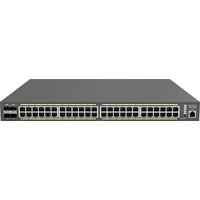
EWS2910P - Switch ENGENIUS - Free user manual and instructions
Find the device manual for free EWS2910P ENGENIUS in PDF.


Pick your language and provide your email: we'll send you a specifically translated version.
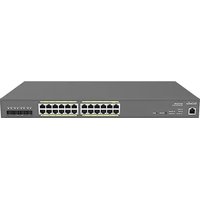
| Product Type | Managed PoE+ Switch |
| Model | EWS2910P |
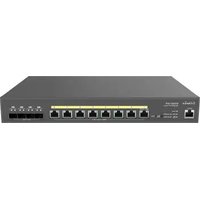
| Ports | 8 x Gigabit PoE+ (802.3af/at) + 2 x Gigabit SFP |
| PoE Budget | 130W total |
| Switching Capacity | 20 Gbps |
| Dimensions (W x D x H) | 330 x 200 x 44 mm (1U) |
| Weight | 2.5 kg |
| Power Supply | AC 100-240V, 50-60Hz, internal |
| Management | Web GUI, CLI, SNMP, VLAN, QoS, IGMP snooping, Link Aggregation |
| Cooling | Fanless (passive cooling) |
| Mounting | Desktop or rackmount (brackets included) |
| Operating Temperature | 0°C to 50°C |
| Certifications | FCC, CE, RoHS |
| Maintenance | Keep vents clean; avoid dust and moisture |
| Cleaning | Unplug device; use dry cloth only |
| Safety Instructions | Use only supplied power adapter; disconnect during storms |
| Spare Parts / Repairability | No user-serviceable parts; contact authorized service center |
| Warranty | Limited lifetime (check manufacturer site) |
Frequently Asked Questions - EWS2910P ENGENIUS
How do I reset the EWS2910P to factory defaults?
Press and hold the Reset button on the front panel for about 10 seconds until the system LED blinks. Release and wait for the switch to reboot.
What is the maximum PoE power per port?
Each PoE port supports up to 30W (802.3at), with a total budget of 130W for all ports combined.
Can I manage the switch via web interface?
Yes, you can access the web GUI by entering the default IP 192.168.1.1 in a browser. Default credentials are admin/admin.
Does it support VLAN configuration?
Yes, the EWS2910P supports 802.1Q VLAN tagging and port-based VLANs for network segmentation.
Is this switch rackmountable?
Yes, it comes with rackmount brackets and can be installed in a standard 19-inch rack (1U height).
What type of SFP modules are compatible?
The two SFP ports accept 1000BASE-SX/LX (mini-GBIC) modules for fiber connectivity.
How do I update the firmware?
Download the latest firmware from the EnGenius support site, then upload it via the web GUI under System > Firmware Upgrade.
What does the LED blinking pattern indicate?
A solid green LED means the port is connected and active; blinking indicates data activity; amber indicates PoE fault.
Can I use this switch with non-PoE devices?
Yes, PoE ports automatically detect if the connected device requires power and only deliver if needed, so non-PoE devices work normally.
What is the default IP address?
Default IP is 192.168.1.1 with subnet mask 255.255.255.0. Use a static IP in the same range to access the management interface.
User questions about EWS2910P ENGENIUS
0 question about this device. Answer the ones you know or ask your own.
Ask a new question about this device
No questions yet. Be the first to ask one.
Download the instructions for your Switch in PDF format for free! Find your manual EWS2910P - ENGENIUS and take your electronic device back in hand. On this page are published all the documents necessary for the use of your device. EWS2910P by ENGENIUS.
USER MANUAL EWS2910P ENGENIUS
Manual assistant
Powered by Anthropic
Waiting for your message
Product information
Brand : ENGENIUS
Model : EWS2910P
Category : Switch