
NX502E, NX 502 ETRK - GPS Car Stereo CLARION - Free user manual and instructions
Find the device manual for free NX502E, NX 502 ETRK CLARION in PDF.


| Product Type | GPS Car Stereo with Touch Screen |
| Brand | Clarion |
| Model | NX502E, NX 502 ETRK |
| Dimensions (W x H x D) | 178 x 50 x 160 mm (1 DIN format) |
| Weight | Approximately 1.5 kg |
| Power Supply | 12 V DC (vehicle battery) |
| Power Consumption | Max 15 A |
| Main Functions | GPS navigation, CD/DVD player, AM/FM radio, Bluetooth, USB, AUX input, 7-inch touch screen |
| Secondary Functions | Hands-free calling, audio streaming, compatible steering wheel controls, rear view camera input |
| Display | 7-inch TFT LCD, 800 x 480 px resolution |
| Maintenance and Cleaning | Clean the screen with a soft dry cloth. Avoid chemical products. |
| Safety | Built-in protection fuse, parking brake wire required for some video functions |
| Spare Parts and Repairability | Remote control, wiring harness, mounting bracket available. Repair by authorized center. |
| General Information | Compliant with directive 1999/5/EC. Manufactured by Clarion Co., Ltd. |
Frequently Asked Questions - NX502E, NX 502 ETRK CLARION
User questions about NX502E, NX 502 ETRK CLARION
0 question about this device. Answer the ones you know or ask your own.
Ask a new question about this device
Download the instructions for your GPS Car Stereo in PDF format for free! Find your manual NX502E, NX 502 ETRK - CLARION and take your electronic device back in hand. On this page are published all the documents necessary for the use of your device. NX502E, NX 502 ETRK by CLARION.
USER MANUAL NX502E, NX 502 ETRK CLARION
This appliance contains a laser system and is classified as a “CLASS 1 LASER PRODUCT”. To use this model properly, read this Owner’s Manual carefully and keep this manual for your future reference. In case of any trouble with this player, please contact your nearest “AUTHORIZED service station”. To prevent direct exposure to the laser beam, do not try to open the enclosure.
!CAUTION
USE OF CONTROLS OR ADJUSTMENTS OR PERFORMANCE OF PROCEDURES OTHER THAN THOSE SPECIFIED IN THE OWNER'S MANUAL MAY RESULT IN HAZARDOUS RADIATION EXPOSURE.
ADVARSEL.
This guide is intended to guide you through the basic functions of the unit.
Precautions....3
Operational Panel 4
Turning the Power On....5
Selecting a Source 5
Source Media Modes....6
DVD Video mode....6
CD Playback....6
MP3/WMA Playback....7
MP4/DivX Playback....7
iPod ^® Audio Playback....8
iPod video playback 8
Radio mode....9
Bluetooth Operations....11
Pairing 11
Bluetooth Telephone menu 11
Making a call 11
Bluetooth Audio Playback 11
Start using Clarion Mobile Map....12
Selecting the destination of a route....12
Map screen....13
Quick menu 13
Installation Guide 14
Before Starting 14
Package Content....14
Cautions On Installation 14
Installing The Main Unit....15
Cautions On Wiring 16
Installing The GPS Antenna....17
Wire Connection....18
Notes
- For details of functions and operation of this product, refer to "Owner's manual".
- The screens shown in the examples may differ from actual screens. Actual screens may be changed without notice for performance and function improvements.
! WARNING
For your safety, the driver should not operate the controls while driving.
Also, while driving, keep the volume to a level at which external sounds can be heard.
- When the interior of the car is extremely cold and the player is used soon after switching on the heater, moisture may form on the disc or the optical parts of the player and proper playback may not be possible. If moisture forms on the disc, wipe it off with a soft cloth. If moisture forms on the optical parts of the player, do not use the player for about one hour. The condensation will disappear naturally allowing normal operation.
- Driving on extremely bumpy or rough roads can cause the disc to skip during playback.
- This unit uses precision parts and components for its operation. In the event that trouble arises, never open the case, disassemble the unit, or lubricate the rotating parts. Contact your Clarion dealer or service center.
- “Made for iPod,” and “Made for iPhone” mean that an electronic accessory has been designed to connect specifically to iPod, or iPhone, respectively, and has been certified by the developer to meet Apple performance standards.
Apple is not responsible for the operation of this device or its compliance with safety and regulatory standards. Please note that the use of this accessory with iPod or iPhone may affect wireless performance.
iPhone and iPod are trademarks of Apple Inc., registered in the U.S. and other countries.
5. DOLBY DIGITAL
Manufactured under license from Dolby Laboratories.
"Dolby" and the double-D symbol are trademarks of Dolby Laboratories.
-
This product incorporates copyright protection technology that is protected by U.S. patents and other intellectual property rights. Use of this copyright protection technology must be authorized by Rovi Corporation, and is intended for home and other limited viewing uses only unless otherwise authorized by Rovi Corporation. Reverse engineering or disassembly is prohibited.
Use of this product by the customer is restricted to play program materials to which the Rovi copyright protection process has been applied. -
The Bluetooth® word mark and logos are registered trademarks owned by Bluetooth SIG, Inc. and any use of such marks by Clarion Co., Ltd, is under license.
-
DivX®, DivX Certified® and associated logos are trademarks of Rovi Corporation or its subsidiaries and are used under license.
DivX Certified® to play DivX® video, including premium content.
Covered by one or more of the following U.S. patents: 7,295,673; 7,460,668; 7,515,710; 7,519,274
ABOUT DIVX VIDEO: DivX® is a digital video format created by DivX, LLC, a subsidiary of Rovi Corporation. This is an official DivX Certified® device that plays DivX video. Visit divx.com for more information and software tools to convert your files into DivX videos.
ABOUT DIVX VIDEO-ON-DEMAND: This DivX
Certified® device must be registered in order to play purchased DivX Video-on-Demand (VOD) movies. To obtain your registration code, locate the DivX VOD section in your device setup menu. Go to vod.divx.com for more information on how to complete your registration.
![[■ ALL ] ALL MENU [△] ELECT [▲] NAVI/AV [POWER/VOL] RESET SD Card Slot Dummy SD card already inserted in this unit for prevent misinsertion of micro SD card. Please remove the dummy SD card before inserting SD card. . Aux Jack Micro SD card slot Only navigation map card is available and don't remove it when unit is power on.](/content/2025/01/95867/images/59f152fe7813e358dc0f749b2380f2c1deb6a74b5a00b20e1fa4f92f07b1be34.jpg)
[POWER/VOL] Knob
- Press to power on the system when ignition on.
- When power on, short press to mute the volume.
- Rotate the knob to increase or decrease the volume.
- Press and hold this key more than 1 second to turn off the system.
[■ ALL ] ALL MENU Button
- Short press to show/exit shortcut menu.
- Long press to show/exit main source menu.
[ ] NAVI/AV Button
- Press to enter navigation mode;
- Press again to return current source.
[▲] EJECT Button
- Press to eject disc.
[ MIC ] Hole
- Internal microphone
[RESET] Button
- Press to load original settings. Note: When the [RESET] button is pressed, frequencies of radio stations, titles, etc. stored in memory are cleared.
![CLARION NX502E, NX 502 ETRK - [RESET] Button - 1](/content/2025/01/95867/images/e3068ea28d691cdd196951a1be2034f5bf19d77ea42ba215a0d969653553274c.jpg)
flowchart
graph TD
    A["Device"] --> B["Signal Transmission"]
    B --> C["Clarion"]
    C --> D["Warning: Driver is prohibited by law from viewing a video signal on any In-dash monitor while the vehicle is in motion."]
    D --> E["Display Mode 1: USB, SD, Bluetooth Audio; AUX 1, AUX 2, Camera"]
    E --> F["Display Mode 2: Custom, Rear, 10:30 PM"]
Start the engine. The power is supplied to this unit.
Press [POWER/VOL] button on the panel to turn on the unit.
Selecting a Source
Long press [■ALL] button on the PANEL to show main source menu.
Touch [ - ] on the bottom of screen to show front zone sources.
Change page by dragging left or right or touching other [ - ] buttons.
Touch the icons on the screen to enter corresponding work mode, such as Disc mode, Tuner mode, Telephone mode, etc.
When you select the desired source mode (for example, the DVD Video, USB or iPod mode), the following screen will appear.
During playback, touch the bottom half of screen to show operation bar.
DVD Video mode
- Play/Pause
- Show cursor keys in DVD title menu
- Previous chapter Fast backward (long press)
- Progress bar
- Next chapter Fast forward (long press)
- Root menu Root Title (long press)
- Show other options
- Repeat play
- Select audio language
- Select subtitle language
- Select DVD angle
- Show next page
- Back to main operation bar
- Show previous page
- Turn on Widescreen mode
- Direct search
- Adjust picture effect
- Show playback information
- Mute indicator
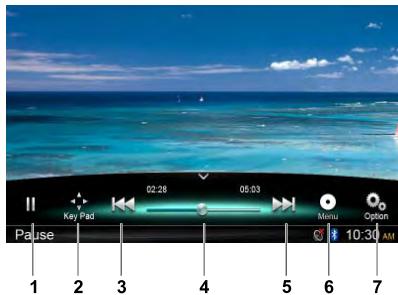
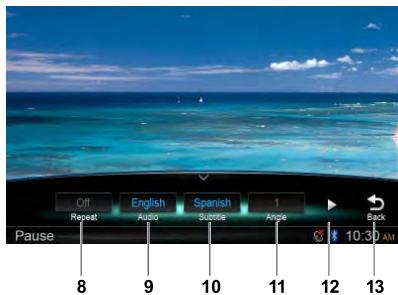
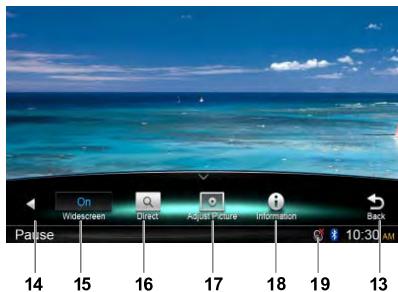
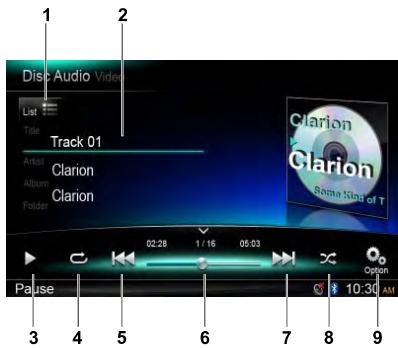
CD Playback
- Show track list (Browse)
- Title/Artist/Album information
- Play/Pause
- Repeat play
- Previous track Fast reverse (long press)
- Progress bar
- Next track Fast forward (long press)
- Random play
- Show other options Scan: Scan play stored stations
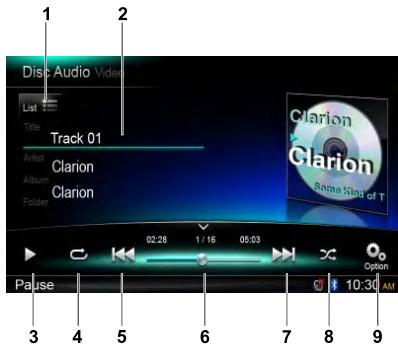
MP3/WMA Playback
- Show folder/file list (Browse)
- Folder/Title/Artist/Album information
- Play/Pause
- Repeat play
- Previous track Fast reverse (long press)
- Progress bar
- Next track Fast forward (long press)
- Random play
- Show other options
- Scan play
- Rotate the album image
- Back to main operation bar

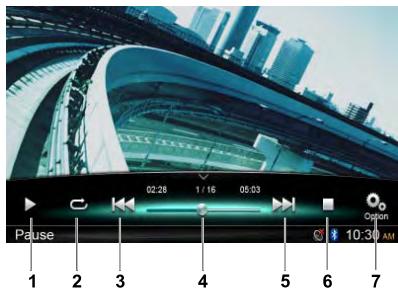
MP4/DivX Playback
- Play/Pause
- Repeat playback
- Previous file Fast reverse (long press)
- Progress bar
- Next file Fast forward (long press)
- Stop and show list menu (Browse)
- Show other options
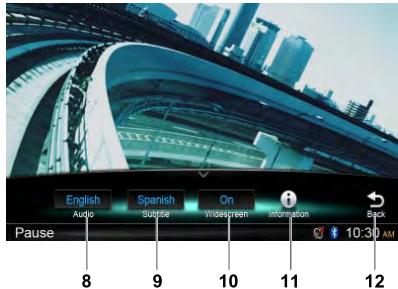
- Select audio language
- Select subtitle language
- Turn on Widescreen mode
- Show playback information
- Back to main operation bar
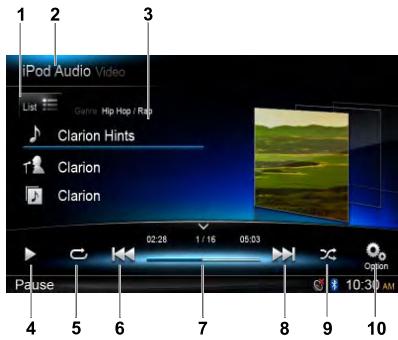
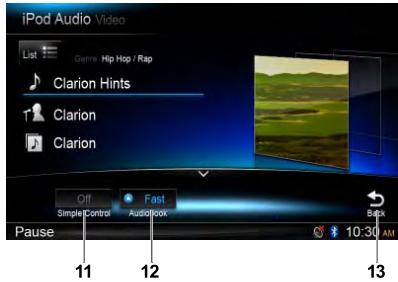
iPod ^® Audio Playback
- Show file list (Browse)
- Song/Artist/Album information
- Play/Pause
- Repeat play
- Previous track Fast reverse (long press)
- Progress bar
- Next track Fast forward (long press)
- Random play
-
Show other options
-
Switch between iPod Audio and Video
-
Turn on / off Simple Control
- Select Audiobook play speed
- Back to main operation bar
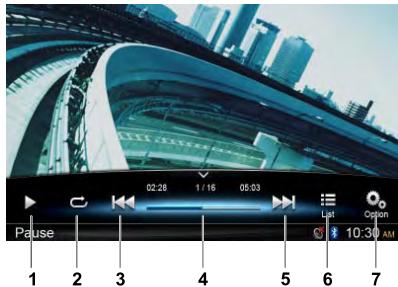
iPod Video Playback
- Play/Pause
- Repeat play
- Previous file Fast reverse (long press)
- Progress bar
- Next file Fast forward (long press)
- Show iPod list menu
-
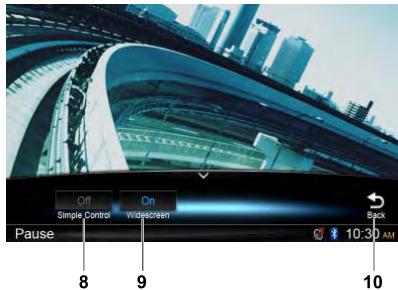
Show other options
-
Turn on / off Simple Control
-
Turn on Widescreen mode
-
Back to main operation bar
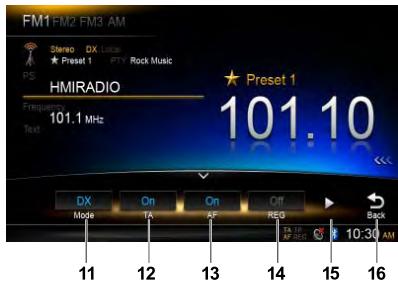
Radio Mode
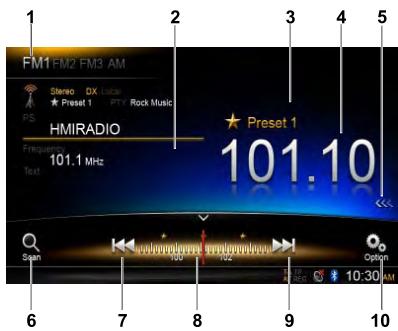
- Band switch
- Information area
- Preset station number
- Current station frequency
- Show preset stations list
- Scan preset stations
- Manual tune backward Auto tune backward. (long press)
- Frequency bar
- Manual tune forward Auto tune forward. (long press)
-
Show other options
-
Choose local or distant seeking mode
- Turn on/off Traffic Announcement
- Turn on/off Alternative Frequency
- Turn on/off Regional
- Show next page
-
Back to main operation bar
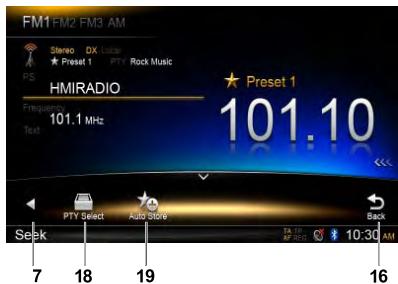
-
Show previous page
- Select Programme Type
- Auto store preset stations
DAB Operations
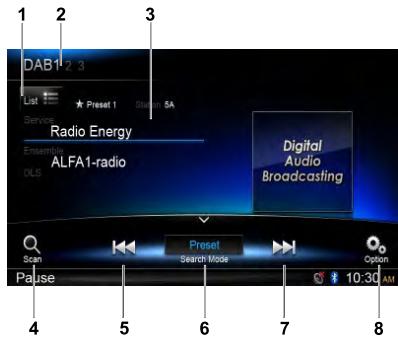
DAB302E (sold separately) is required.
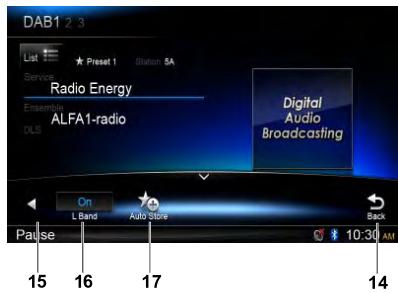
- Show service list
- Band switch
- Information area
- Scan preset stations
- Manual tune backward Auto tune backward (long press)
- Search Mode
- Manual tune forward Auto tune forward (long press)
-
Show other options
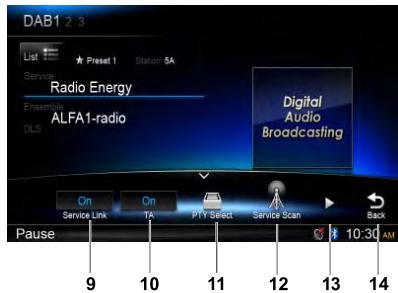
-
Turn on/off Service Link
-
Turn on/off traffic announcement
- Search service by Programme Type
- Search all service available
- Show next page
-
Back to main operation bar
-
Show previous page
- Turn on/off L Band
- Auto store preset stations
Pairing
- Touch [Custom] on the bottom left of the main menu, then select [Settings] to enter Setting menu.
- Touch [Setup], then touch the button to the right of "Bluetooth" to show Bluetooth setting menu.
- Select [On] to the right of "Bluetooth".
- Turn on Bluetooth function of your mobile phone.
- Enter mobile phone's Bluetooth setup menu.
- Search for new Bluetooth devices.
- Select NX502E from the pairing list on the mobile phone.
- Enter the password. (Default password: "0000")
- After pairing successfully, Ⓧ icon on the bottom right of the screen turns blue.
Bluetooth Telephone Menu
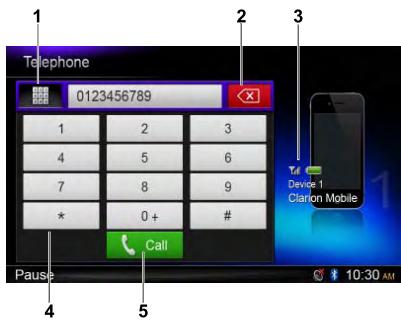
- Show history categories
- Backspace
- Paired device information
- Number pad
- Call/Hang up
Making a call
- Dial Number
- Input numbers by digit-keys on the screen.
- Touch [ Call ] button to dial.
Touch [ ✉ ] button to delete characters. - Touch [ ] button to terminate call.
You can access Dialled/Missed/Received Call History and your phone book by touching button.
- Answering a cal
You can answer an incoming call by pressing the [ Call ] button.
* Touch [ ] button to reject an incoming call.
Bluetooth Audio Playback
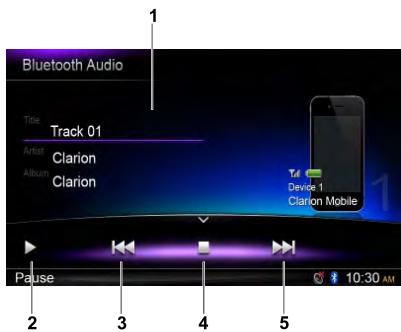
- Title/Artist/Album information
- Play/Pause
- Previous track
Fast reverse (long press) - Stop
- Next track
Fast forward (long press)
When Clarion Mobile Map is started the first time, you need to do the following:
- Select the written language of the application interface. Later you can change it in Settings.
- Select the language and speaker used for voice guidance messages. Later you can change it in Settings.
- Read and accept the End User Licence Agreement.
- Read and accept the road safety warning.
After this, the Navigation menu appears and you can start using Clarion Mobile Map.
Selecting the destination of a route
To enter an address as the destination, do as follows:
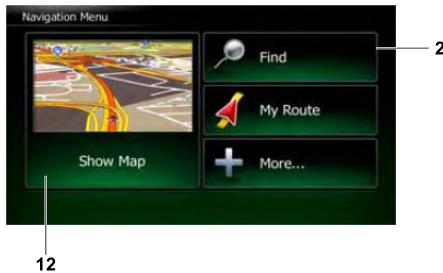
- If you are on the Map screen, tap Menu to return to the Navigation menu.
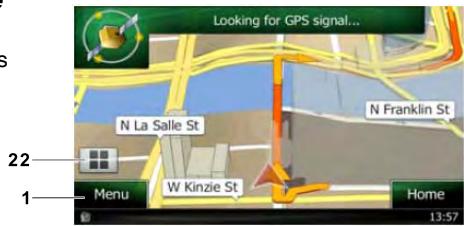
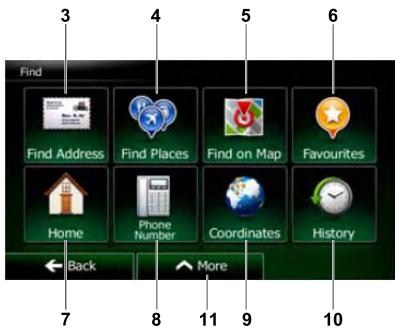
- In the Navigation menu, tap the following buttons: Find, Find And use.
-
Selecting a destination by entering the address or the postal code
-
Selecting the destination from the Places of Interest
-
Selecting a map location as the destination
-
Selecting the destination from your Favourites
-
Selecting your Home location
-
Searching for a Place of Interest by its phone number
-
Entering the coordinate of the destination
-
Selecting a recent destination from the History
-
Additional options
- For the information about other ways, see the user manual.
Map Screen
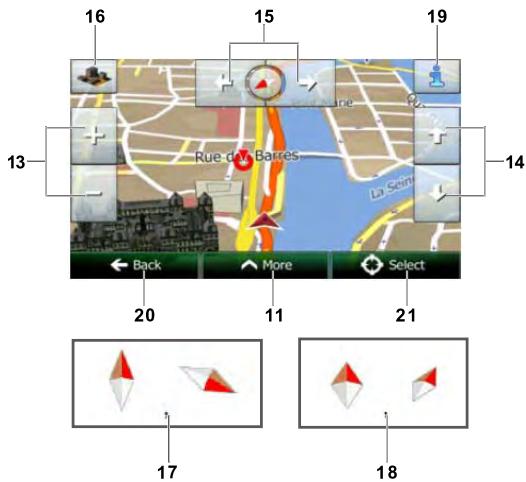
- To enlarge this small map and open the Map screen, tap [Show Map] button
- Zooming in and out
- Tilting up and down
- Rotating left and right
- 2D or 3D view
- Compass in 2D map view mode
- Compass in 3D map view mode
- Location information
- Return to normal navigation
- Select destination
Quick Menu

- The Quick menu is a selection of controls and functions that are frequently needed during navigation. It can be opened directly from the Map screen by tapping
- Find / Find Places /Quick Search (This function lets you search for a Place along your route or around your current location if there is no route calculated)
- Find / Favourite (This button opens the list of your Favourite destinations)
- Find / History (This button opens the History list. You can select one of your previous destinations)
- My Route / Edit Route (This button opens the route editing function)
- More / Settings / Route Settings (This button opens the route related settings)
- More / Settings / Map Settings (This button opens the map related settings)
- Tap the Current Street field on the Map screen (This button opens a special screen with information about the current position and a button to search for nearby emergency or roadside assistance.
- My Route / Cancel Route (This button cancels the route and stops navigation. The button is replaced with the next one if waypoints are given)

Before Starting
- This set is exclusively for use in cars with a negative ground, 12 V power supply.
- Read these instructions carefully.
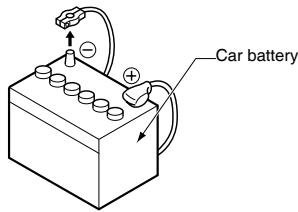
- Be sure to disconnect the battery “ ” terminal before starting. This is to prevent short circuits during installation.
Package Content
Source unit ....1
Wire connector .... 1
GPS antenna....1
CLAMP for GPS antenna's cable 3
DOUBLE FACE TAPE for GPS Antenna...1
Remote control unit ....1
Battery (CR2025)....1
(Installed in remote control)
Cleaning cloth....1
Warranty Card....1
Quick Start Guide .... 1
Owner's manual (CD-R) 1
Electro tap 2
Flush mount bolts(M5x6)......8
Hexagon Head Screw(M5x6) 8
Rear Stud Bolt....1
Rubber Parts .... 1
AV cable....1
Line out cable 1
Rear Zone out cable....1
SWC cable....1
DAB cable....1
External Microphone cable....1
Camera Visual IN AUX2 cable ....1
USB cable....1
Cautions On Installation
- Prepare all articles necessary for installing the main unit before starting.
- Install the unit within 30^ of the horizontal plane.
- If you have to do any modification on the car body, such as drilling holes, consult your car dealer beforehand.
- Use the included screws for installation. Using other screws can cause damage.
- This unit has a fan motor in the back of the main unit so as not to raise the temperature in the source unit. When the fan motor vent is covered with cords or mounting bracket, it may cause a malfunction. Be sure not to cover it when wiring cords.
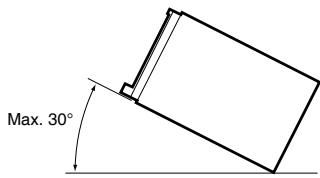
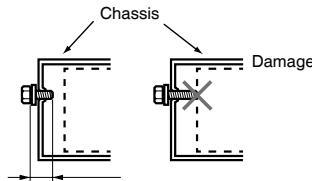
Max. 6 mm (M5 screw)
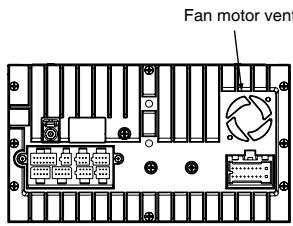
Installing The Main Unit
This unit is designed for fixed installation in the dashboard.
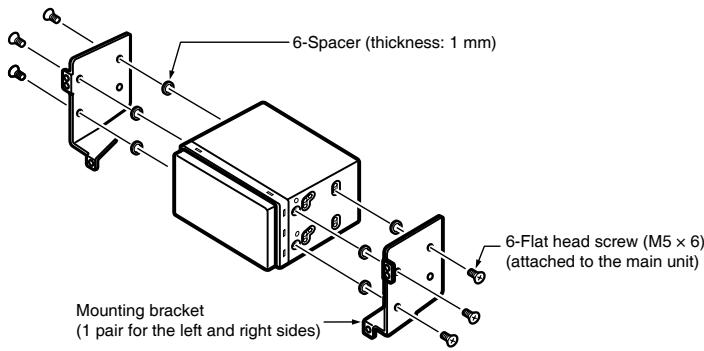
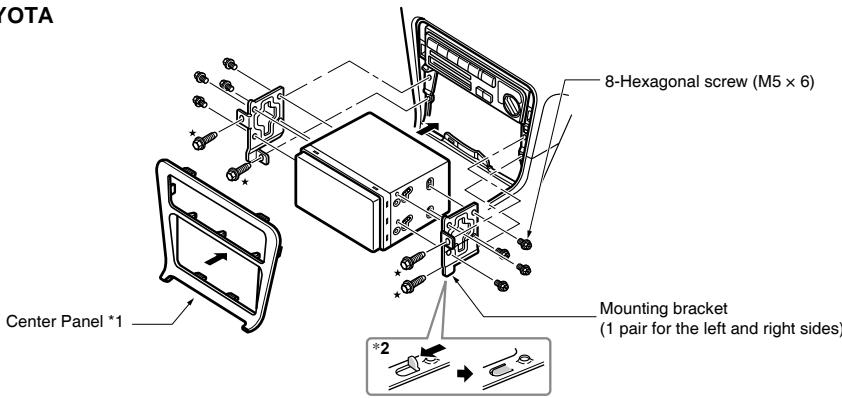
- When installing the main unit in NISSAN vehicles, use the parts attached to the unit (see "NISSAN"). When installing the main unit in TOYOTA vehicles, use the parts attached to the vehicle (see "TOYOTA").
- Wire as shown in "Wire Connection".
- Reassemble and secure the unit in the dashboard and set the face panel and center panel.
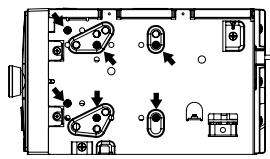
Mounting Screw Holes (Side View of the Main Unit)
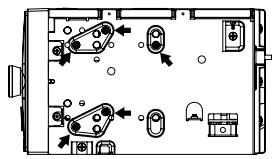
natural_image
Diagram of a mechanical or electrical component layout with no visible text, numbers, or symbols.NISSAN
natural_image
Top-down schematic of a device layout with mechanical components and directional arrows (no text or labels)TOYOTA
NISSAN
TOYOTA
Note:
*1 Some panel openings are too small for the unit depending on the vehicle type and model. In such a case, trim the upper and lower sides of the panel frame by about 0.5 to 1.5mm so the unit can be inserted smoothly.
*2 If a hook on the installation bracket interferes with the unit, bend and flatten it with a nipper or similar tool.
■ Vehicles other than NISSAN and TOYOTA
In some cases the center panel may require modification. (Trimming, filling, etc.)
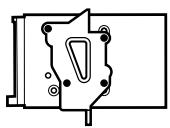
Typical Mounting Brackets
In some cases the center panel may require modification. (Trimming, filling, etc.)
natural_image
Pure mechanical component diagram without any text, numbers, or symbols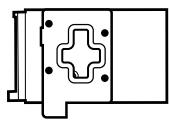
natural_image
Pure mechanical part diagram without any text, numbers, or symbols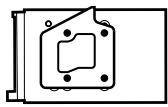
Example 1-3
Affix the screws to the ● marks.
Cautions On Wiring
- Be sure to turn the power off before wiring. Be particularly careful where you route the wires.
- Keep them well away from the engine, and exhaust pipe, etc. Heat may damage the wires.
- If the fuse should blow, check to see if the wiring is correct. If a fuse is blown, replace it with a new one of the same specification as the original.
- To replace the fuse, remove the old fuse of the power supply cord and insert the new one.
Note:
- There are various types of fuse holder. Do not let the battery side touch other metal parts.
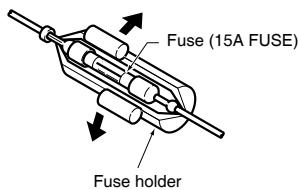
• After the connection, fix the cord by a clamp or insulation tape for protection.
Installing The GPS Antenna
WARNING
- Do not install the GPS antenna in a place where it may interfere with the operation of the airbag or hinder the driver's visual range.
- Do not use the navigation system with the GPS antenna cord cut off. The power cables in the cord may be short-circuited.
Note:
- The supplied GPS antenna is for installing inside the vehicle. Do not install it outside the vehicle.
- Install the GPS antenna more than 50 cm away from the main unit, other audio devices such as CD player, and a radar detector. If it is installed near these devices, GPS reception may be impaired.
• To improve the GPS signal reception, install the GPS antenna horizontally on a flat plane. - Do not wax or paint the cover of the GPS antenna. This may reduce the performance of the GPS antenna.
• Install the GPS antenna at least 10 cm away from the windshield. - Wipe off the dirt of the mounting surface before installing the GPS antenna.
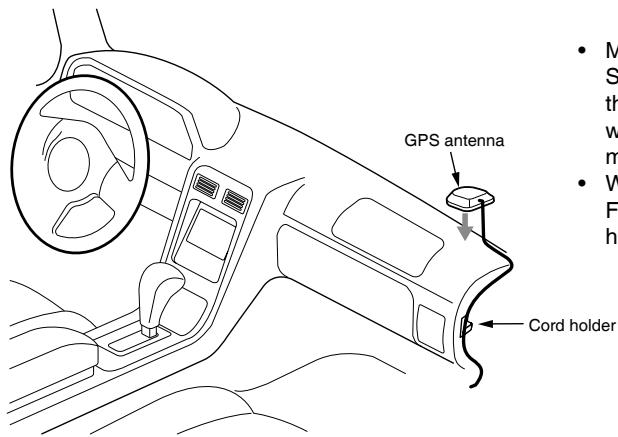
- Mount the GPS antenna. Stick it surely on a flat plane of the passengerside dashboard where GPS signal interruption is minimized.
- Wire the GPS antenna cord. Fasten the cord using the cord holders.

- Stick the double-sided tape to the bottom face of the GPS antenna.
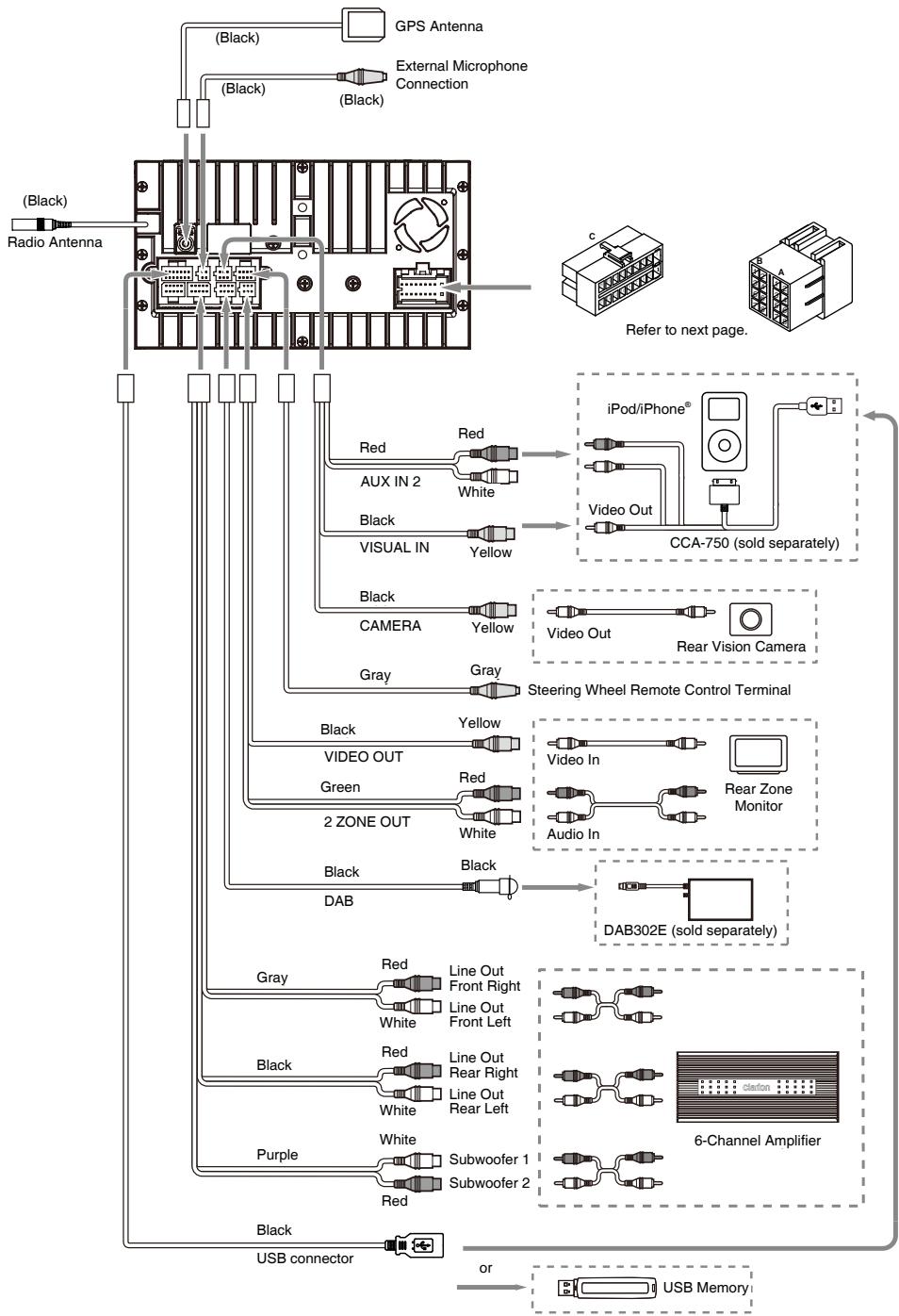
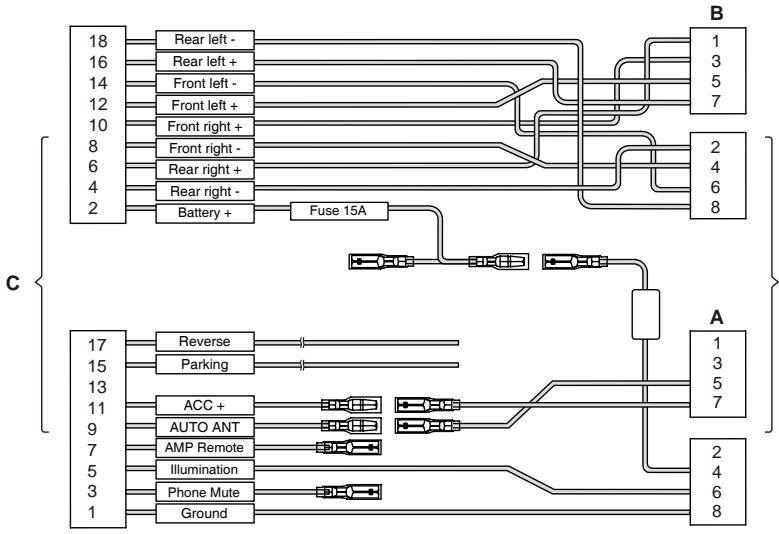
Wire Connection
flowchart
graph TD
    A["Radio Antenna"] --> B["(Black)"]
    B --> C["GPS Antenna"]
    C --> D["External Microphone Connection"]
    D --> E["(Black)"]
    E --> F["Black"]
    F --> G["USB connector"]
    G --> H["Black"]
    H --> I["USB Connector"]
    I --> J["Blue"]
    J --> K["Subwoofer 1"]
    J --> L["Subwoofer 2"]
    K --> M["Line Out Front Right"]
    K --> N["Line Out Front Left"]
    L --> O["Line Out Rear Right"]
    L --> P["Line Out Rear Left"]
    M --> Q["Gray"]
    N --> R["White"]
    O --> S["Red"]
    P --> T["Red"]
    Q --> U["AUX IN 2"]
    R --> V["AUX IN 2"]
    S --> W["AUX IN 2"]
    T --> X["AUX IN 2"]
    U --> Y["Black"]
    V --> Z["Black"]
    W --> AA["Black"]
    X --> AB["Black"]
    Y --> AC["Visual IN"]
    Z --> AD["Visual IN"]
    AA --> AE["Visual IN"]
    AB --> AF["Visual IN"]
    AC --> AG["Yellow"]
    AD --> AH["Yellow"]
    AE --> AI["Yellow"]
    AF --> AJ["Yellow"]
    AG --> AK["Camera"]
    AH --> AL["Camera"]
    AI --> AM["Silver Camera"]
    AJ --> AN["Silver Camera"]
    AK --> AO["Gray"]
    AL --> AP["Gray"]
    AM --> AQ["Gray"]
    AN --> AR["Gray"]
    AO --> AS["Steering Wheel Remote Control Terminal"]
    AP --> AT["Steering Wheel Remote Control Terminal"]
    AQ --> AU["Video In"]
    AR --> AV["Video In"]
    AU --> AW["Audio In"]
    AV --> AX["Audio In"]
    AW --> AY["Rear Zone Monitor"]
    AX --> AZ["Rear Zone Monitor"]
    AY --> BA["DAB302E (sold separately)"]
    AZ --> BB["DAB302E (sold separately)"]
    BA --> BC["6-Channel Amplifier"]
flowchart
graph TD
    subgraph A
        A1["1"] --> A2["3"]
        A2 --> A3["5"]
        A3 --> A4["7"]
        A4 --> A5["2"]
        A5 --> A6["4"]
        A6 --> A7["6"]
        A7 --> A8["8"]
        A8 --> A9["2"]
    end
    subgraph B
        B1["1"] --> B2["3"]
        B2 --> B3["5"]
        B3 --> B4["7"]
        B4 --> B5["2"]
        B5 --> B6["4"]
        B6 --> B7["6"]
        B7 --> B8["8"]
        B8 --> B9["2"]
    end
    subgraph C
        C1["17"] --> C2["Reverse"]
        C2 --> C3["Parking"]
        C3 --> C4["13"]
        C4 --> C5["11"]
        C5 --> C6["9"]
        C6 --> C7["7"]
        C7 --> C8["5"]
        C8 --> C9["3"]
        C9 --> C10["1"]
        C10 --> C11["Ground"]
        C11 --> C12["1"]
        C12 --> C13["1"]
        C13 --> C14["17"]
        C14 --> C15["15"]
        C15 --> C16["13"]
        C16 --> C17["11"]
        C17 --> C18["9"]
        C18 --> C19["7"]
        C19 --> C20["5"]
        C20 --> C21["3"]
        C21 --> C22["1"]
    end
| Location | Function | |
| Connector A | Connector B | |
| 1 | Rear right (+) / Purple | |
| 2 | Rear right (-) / Purple with black stripe | |
| 3 | Front right (+) / Gray | |
| 4 | Battery 12V(+) / Yellow | Front right (-) / Gray with black stripe |
| 5 | Auto Antenna / Blue | Front left (+) / White |
| 6 | Illumination / Orange with white stripe | Front left (-) / White with black stripe |
| 7 | ACC+ / Red | Rear left (+) / Green |
| 8 | Ground / Black | Rear left (-) / Green with black stripe |
VW, Audi
Note:
*1 Connect to the AUX audio input terminal and the iPod video input terminal. (Audio connection is required only when [Analog] is selected for the iPod output signal. See Owner's Manual.)
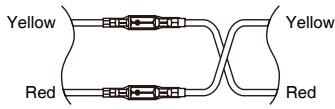
*2 In certain vehicles - Volkswagen/Opel/Vauxhall - it is necessary to exchange the accessory <
*3 When the unit is installed in a 1998 or later Volkswagen model, make sure to interrupt the <
Disconnect the <
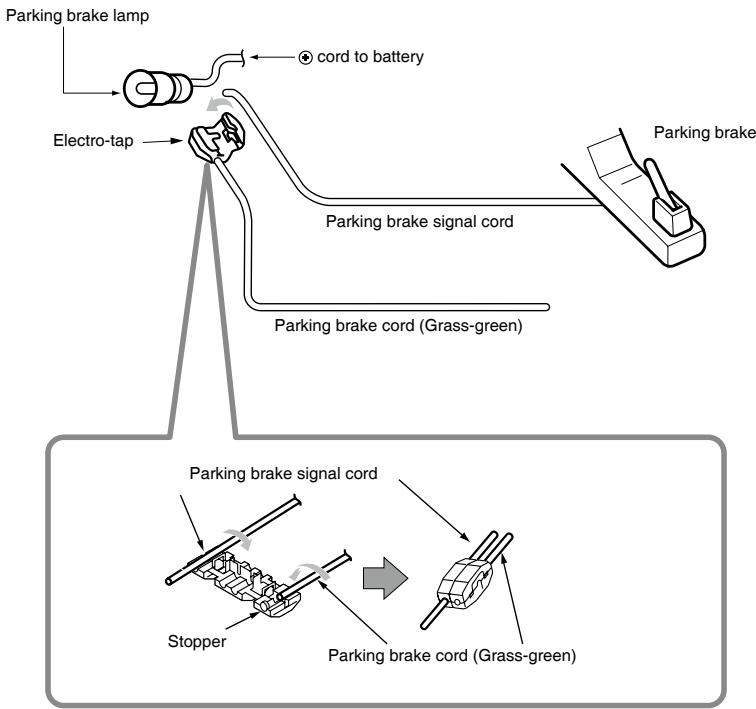
■ Connecting the parking brake cord
Connect the cord to parking brake lamp ground in the meter panel.
Note:
- Connecting the parking brake cord to lamp ground allows you to watch video images when the parking brake is engaged.
- When the parking brake cord is not connected, the monitor will not display video images.
flowchart
graph TD
    A["Parking brake lamp"] --> B["Electro-tap"]
    B --> C["pump"]
    C --> D["Parking brake signal cord"]
    D --> E["Parking brake"]
    E --> F["Parking brake"]
    G["Parking brake signal cord"] --> H["Stopper"]
    H --> I["Parking brake cord (Grass-green)"]
    I --> J["Parking brake"]
C € 2200
English:
Declaration of conformity
We Clarion declares that this model NX502E is following the provision of Directive 1999/5/EC with the essential requirements and the other relevant regulations.
Français:
All Rights Reserved. Copyright © 2012: Clarion Co., Ltd.
Printed in China / Imprimé en Chine / Gedruckt in China
Stampato in Cina / Gedrukt in China / Impreso en China
- !CAUTION
- ADVARSEL.
- Precautions....3
- Operational Panel 4
- Turning the Power On....5
- Selecting a Source 5
- Source Media Modes....6
- Bluetooth Operations....11
- Start using Clarion Mobile Map....12
- Installation Guide 14
- Notes
- ! WARNING
- DOLBY DIGITAL
- [POWER/VOL] Knob
- [■ ALL ] ALL MENU Button
- [ ] NAVI/AV Button
- [▲] EJECT Button
- [ MIC ] Hole
- [RESET] Button
- Selecting a Source
- DVD Video mode
- CD Playback
- MP3/WMA Playback
- MP4/DivX Playback
- iPod ® Audio Playback
- iPod Video Playback
- Radio Mode
- DAB Operations
- Pairing
- Bluetooth Telephone Menu
- Making a call
- - Dial Number
- - Answering a cal
- Bluetooth Audio Playback
- Selecting the destination of a route
- Map Screen
- Quick Menu
- Before Starting
- Package Content
- Cautions On Installation
- Installing The Main Unit
- NISSAN
- TOYOTA
- Note:
- ■ Vehicles other than NISSAN and TOYOTA
- Typical Mounting Brackets
- Cautions On Wiring
- Installing The GPS Antenna
- WARNING
- ■ Connecting the parking brake cord
- C € 2200
Brand : CLARION
Model : NX502E, NX 502 ETRK
Category : GPS Car Stereo