ManualGo.com
MP3 WOM - Mp3 player MPMAN - Free user manual and instructions
Find the device manual for free MP3 WOM MPMAN in PDF.


Download the instructions for your Mp3 player in PDF format for free! Find your manual MP3 WOM - MPMAN and take your electronic device back in hand. On this page are published all the documents necessary for the use of your device. MP3 WOM by MPMAN.
USER MANUAL MP3 WOM MPMAN
- Support multi-music format, such as MP3、WMA、WAV etc.
- Support Win98SE/ME, Win2000, Win XP operation system, removable USB disk, no need driver under WIN98, plug and play.
Built-in MIC
Support Micro-SD card - Energy saving setting, adjust the contrast freely, turn off player automatically.
Sound effects and circulation. - Lyric display
- Multi-languages supported
- USB transportation
- With rechargeable lithium battery
Declaration
- We appreciate your using our MP3 player!
- For Your Safety Read this user manual carefully to ensure proper usage of the product and to avoid any physical damage or danger to the unit.
- Please use the player properly.
Remarks
- Do not leave the player in a place subject to moisture or temperature higher than 35^ C or lower than 5^ C
- Please recharge under the following situation:
A、Battery icon showing:
B、The player have been turned off automatically, turned off quickly after turning on again
Note: When charging the power switch to open before charging.
- Please don't break connection while downloading/uploading/formatting, otherwise it would cause wrong program
- Do not repair the player by yourself.
- Avoid getting the player wet or dropped in water.
- Please backup important data onto your personal computer as repair or other causes may result in data loss
- Unauthorized disassembly or opening of the unit will void product warranty
Catalogue
Features. 1
Declaration. 1
Remarks. 1
Catalogues 2
1. Know player. 3
1 Apperence and button. 3
1 Display 3
2. Basic function 3
1 Function mode 3
3. Button operation and function descriptions 3
4. Music playback 4
I Simple operation--play music 4
I Lyric display in step. 4
5.Record mode. 5
I record at' record mode' 5
I choose record type. 5
6. System settings.. 6
functi introduction. 6
7. Other settings.. 7
Cycle mode setting. 7
EQ mode setting 7
Replay mode setting 7
Card folder setting. 7
Delete files setting 7
8.Micro-SD card using. 8
9. USB disk using 8
10.Trouble Shooting. 8
Answers. 8
Specifications 8
1. Know player
- Appearance and buttons
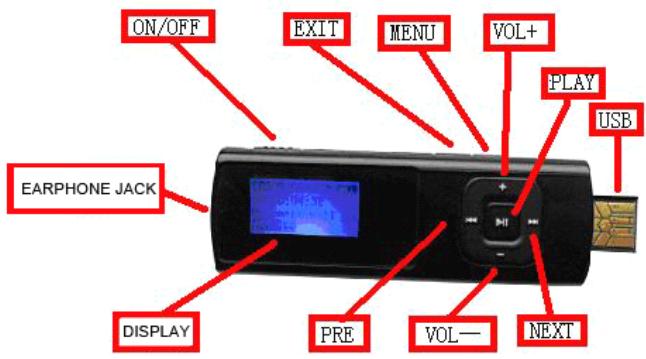
- Display (music mode)
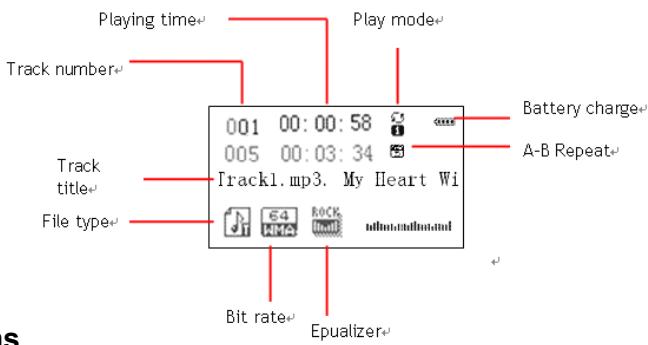
- Function modes
There are 4 kinds of modes for your optional, press / button to change, short press [MENU] button to enter.
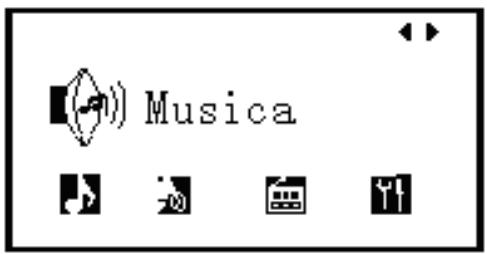
3. Button operation and function description
- 【PLAY】 button: turn on/turn off/play/stop
Long press 'play' button to turn on the shutdown conditions
Long press ' play' button to turn off on the power conditions.
Short press 'play' button to play again on the stopping condition; Short press this button again to play again, short press again to pause.
Short press 'play' button to start to record in the recording stop mode, short press 'play' button again to stop.
Short press 'Play' button to stop recording in the recording mode.
Note: this machine has the automatic power saving feature, if player is in stop mode, it will be automatically turned off within the specified time without any action.
- 【MENU】button: Function menu(music mode)
In stopping mode: short press to enter stopping submenu.
In playing mode: short press to enter playing submenu.
In playing/stopping submenu mode: short press to confirm or enter into next item.
- 【Exit】button: exit and return button (music mode)
In the music playing/stopping mode: short press to exit to main menu
In the submenu of music mode, short press to exit to last level
- button: next /fast forward (music/voice mode)
In stop mode: short press to move to next song, long press to continuous browse forward
In play mode: short press to move to next song and play, long press for fast forward.
In play/stop menu mode: short press to move menu, long press to continuous move forward.
- <button: last/rewind(music/voice mode)
In stop mode: short press to move to last song, long press to continuous browse backward
In play mode: short press to move to last song and play, long press for fast rewind.
In play/stop submenu mode: short press to move to next submenu, long press to continuous move backward
- 【VOL+】:adjust volume
In the music modes, short press [VOL+] button to increase volume, long press [VOL+] button to continuous increase
- 【VOL-】button: adjust volume
In the music modes, short press VOL- button to decrease volume, long press VOL+ button to continuous decrease
Power on/off
Control the model power on/off
- Earphone jack
Connectearphone.
- Micro-SD card jack
Support Micro-SD card
USB port
extend USB and connect to computer for data communication or recharging
4. Music playback
-
Simple operation---play music
-
insert earplugs and Micro-SD card with songs.
- Enter into the music player interface after turn on player by long press 'play' button. ( The model will automatic into music playing interface and play music when inserting Micro-SD card with songs in main interface.)
- short press 'PLAY' button to play/pause music.
- Select music
:choosepreviousmusic.
Choose next music.
- Control volume
press【VOL+】/【VOL-】to adjust volume capacity.
- Exit from music menu
press【Exit】button to exit to main menu in the music playing interface
- Lyric display in step
Support lyric file with“.LRC” format (can download from website or edit lyric), support playing music with lyrics in step How to use lyric file?
Keep the lyrics and song name same
For example:
The name of the song: Yesterday once more.mp3
The name of lyric: Yesterday once more .Irc
How to get to know if there is any lyrics?
if there are lyrics matching the music, in the music mode the icon at left upper corner “ ” will change into“ ”, Short press ‘MENU’ button into playing music submenu, Press / choice lyric file, after the short press “MENU” button to confirm the lyrics of the songs playing, the lyrics appear on-screen interface, the “MENU” interface in the lyrics short press “MENU” button to exit the lyrics display returns to music player interface.
5. Record mode
- 'record' at record mode
| 1. turn on player and enter main menu, choose 'record' | 2. press▶/←button to choose record mode. |
| 3. press【MENU】 button to enter into record interface, press【PLAY】 button to start to record. | 4. press【PLAY】 button to pause record, press【PLAY】 button again to continue to record |
| 5. long press【PLAY】 to store current file. | 6. long press【MENU】 button to store record and enter into main menu. |
Short press【Exit】button or long press【MENU】button to exit to main menu in the stopping record mode
Note: The recording must plug TF card and ensure that the residual capacity of TF card only when recording. Audio files stored in the VOICE folder's menu, the need to play audio files in the music menu, select the card list and enter in the folder list, select VOICE select the desired access audio files to play.
- Choose record type
- In the record stop interface.
- short press MENU button to enter into record submenu
- short press button to choose the submenu of "REC type"
- short press MENU to enter and choose suitable record type(32K BPS, 64K BPS, 128K BPS, 192K BPS)
- short press MENU button to confirm
Record volume adjustment
- In the record stop interface.
- short press MENU button to enter into record submenu
- short press button to choose the submenu of "Gain set"
- Short press MENU to enter and choose suitable volume(0 to 7 for your optional)
Short press MENU button to confirm.
6. System Setting
System parameters can be set here and every option varies according to the firmware version.
Enter main menu, short press button to select 'system setting', short press【MENU】button enter System Setting submenu interface is as follows:
Parameters Introduction
| (System time) | Setting the date and time for recorded file |
| (Backlight time) | Set a countdown time (in seconds), the time comes backlight off |
| Language | Set different languages displayed |
| (power off) | Set a countdown time (minutes), when the time comes will automatically shut down |
| (contrast) | Setting the contrast of the screen |
| Firmware version | Show firmware version |
| Exit | Exit from current interface |
Detailed instructions
o 'System time'
- Enter system setting interface
- Short press 'MENU' button to enter 'system time'.
- Short press "MENU" to set date and time (blink).
4.short press / / to set value.
5.short press 'MENU' button to confirm and exit.
'Backlight time'
1.press button and choose the menu of 'backlight time'.
2.short press 'MENU' button to enter to adjust backlight time.
3.short press / button to adjust time.
4.press 'MENU' button to confirm and exit.
o 'Language'
- At system setting interface, press / button to choose 'Languages'.
- Short press 'MENU' button to enter.
- Press button to choose language you like.
- Short press 'MENU' button to confirm and exit.
Power off
please reference to 'Backlight time' setting
"off time": You can set a time (unit: seconds), in stop mode, there is no key operation from the start to the time it shut off to save electricity; the number 0 means that this feature Close.
"sleep time": To set a time (unit: minutes), irrespective of the state, there is no key operation from the start to the time it shut off, before the songs used for sleeping. Note: Sleep mode settings only take effect once the first, shut down automatically after the set time has just cleared, such as the need to set this feature again.
o 'Contrast'
please reference to 'Backlight time' setting
o 'Firmware version'
Check the current firmware version for this player.
- Tips: short press "MENU" key to set the options, short press the "Exit" button to exit the menu quickly. Quick "Exit" key to exit the menu for all menu functions are valid.
7. Other setting
"Cycle mode" setting
| 1.at music playing interface | 2.short press【MENU】button to enter submenu |
| 3.press▶/← button and choose repeat mode | 4.press【MENU】button to confirm |
(optional modes: normal, repeat one, folder, repeat folder, repeat all, random, intro)
o“EQ mode” setting
| 1. at music playing interface | 2. short press【MENU】button to enter submenu |
| 3. press▶/← button and choose EQ mode | 4. press【MENU】button to confirm |
(optional modes:: natural, rock, pop, classic, soft, jazz, DBB,SRS WOW)
Replay mode" setting
| 1. at music playing interface | 2.short press【MENU】button to enter submenu |
| 3. press▶/▲ button and choose 'replay mode', press 'Menu' to enter. | 4. Starting point "A" start to blink; short press▶,then stop point "B" start to blink; short press▶to confirm, then start to replay from A to B. |
| 5. Short press'Menus' button to exit. |
o "Card folder" setting
| 1.at music playing pause interface | 2.short press【MENU】button to enter submenu |
| 3. press▶/← button and choose 'card folder'. | 3.Short press【MENU】button to enter card folder. |
| 3. press▶/← button and choose the song of "card folder". | 4.press【MENU】button to confirm and enter music playing interface to play. |
o"Delete Files" setting
| 1. at music playing pause interface | 2. short press【MENU】button to enter submenu |
| 3.press▶/← button to choose “Delete” or “Del all” | 4. press【MENU】button to enter delete interface |
| 5.press▶/← button change “NO” into “YES” | 6. press【MENU】button to confirm deleting. |
Tips: Delete documents on your computer, make sure the security pop-up player to pull out the machine after the USB interface, otherwise the file will appear the phenomenon has not been deleted.
8. Micro-SD card
- The Micro-SD card inserted into the machine Micro-SD card slot.
- Connected to the computer when the reader can use this machine.
9. USB disk
Supported operation system: Windows98 (need install driver)、above Windows 2K (no need install driver) .
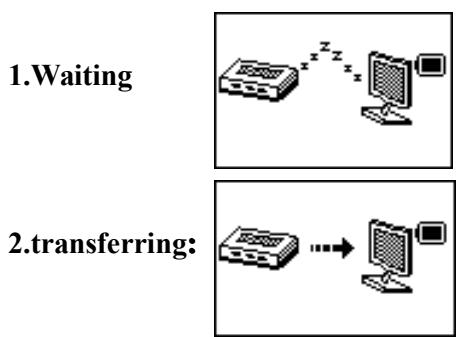
- connect the player to PC via USB port
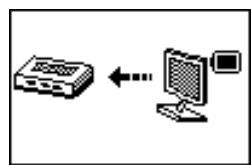
- after connection, it will show as below:
10. Trouble Shooting
| No Power | Check whether the player is turned ON |
| No sound is heard from headphone | Check whether Volume is not set to "0" and connect the headphone plugs firmly. Corrupted MP3 may make a static noise and the sound may cut off. Make sure that the music files are not corrupted. |
| Characters in LCM are corrupted | Check whether the right language has been selected. |
| Download of music files fails. | Check whether USB cable is damaged and is connected properly Check whether driver is installed correctly Check whether the player's memory is full |
- Specifications:
| Music format | MP3, WMA, WAV |
| Support card capacity | 128MB to 16GB |
| Screen | LCD |
| SNR | 85dB |
| Record format | MIC |
| Record format | WAV |
| Output frequency range | 20HZ to 22KHZ |
| Language supported | English, Italian, French, German |
| Battery | Recharging lithium battery |
| PC connection | USB2.0 |
| Operating System | Win98SE/ME, Win2000, Win XP |
Conversion
For music conversion, please use MPMANAGER software supplied in the CD ROM.
This software can be used also for UPDATE of your player
MPMANAGER manual is included in your CDROM
For more information please check our website
www.mpmaneurope.com
CE