MP152 - Tablet MPMAN - Free user manual and instructions
Find the device manual for free MP152 MPMAN in PDF.


User questions about MP152 MPMAN
0 question about this device. Answer the ones you know or ask your own.
Ask a new question about this device
Download the instructions for your Tablet in PDF format for free! Find your manual MP152 - MPMAN and take your electronic device back in hand. On this page are published all the documents necessary for the use of your device. MP152 by MPMAN.
USER MANUAL MP152 MPMAN
MP3 & Video Player with FM Radio
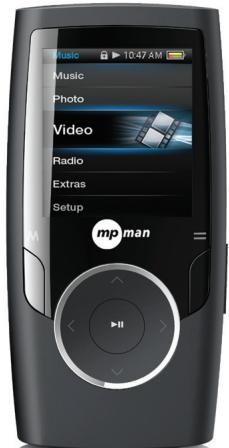
Instruction Manual
Please read this manual carefully before operation
TABLE OF CONTENTS. 2
PACKAGE CONTENTS 4
FEATURES 5
CONTROLS AT A GLANCE 6
Disabling the Controls 7
GETTING STARTED 8
Charging the Battery. 8
Charging with a Computer 8
Turning the Player On/Off 8
Resetting the Player. 9
MAIN MENU 10
Main Menu Controls. 10
MUSIC MODE 11
Music Browser Controls 11
Now Playing Controls (Music Playback) 13
Quick Option Menu 14
PHOTO MODE 16
Photo Browser Controls. 16
Photo Viewer Controls 17
VIDEO MODE 18
Video Browser Controls 18
VideoPlaybackControls 19
RADIO MODE 20
Radio Tuning Controls. 20
TEXT MODE 23
Text Browser Controls 23
Text Reader Controls. 23
RECORD MODE 26
Voice Playing Controls 26
Quick Option Menu 26
EXPLORER MODE 29
Explorer Controls 29
SETUP MODE 30
TRANSFERRING FILES TO THE PLAYER 32
Transferring with Microsoft Windows 33
Transferring with Macintosh OS X. 33
Disconnecting from a Computer 34
Microsoft Windows 34
Macintosh OS X. 35
VIDEOCONVERSION 36
TROUBLESHOOTING 37
SPECIFICATIONS 40
Please make sure that the items shown below are included in the package. Should an item be missing, please contact the local retailer from which you purchased this product.
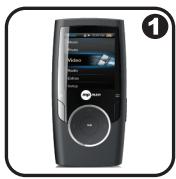
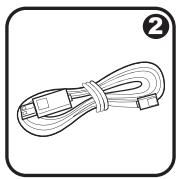
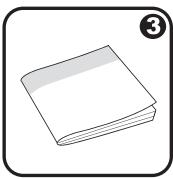
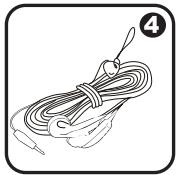
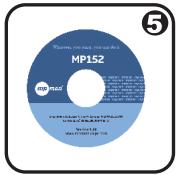
- MP152
- USB Cable
- Instruction Manual & Documentation
- Professional Stereo Earphones
- Installation CD
Integrated flash memory
1.5"CSTN LCD full-color display
Plays music, video, photos and text
ID3 and LRC support for song and synchronized lyric information display
Integrated Microphone for Digital Voice Recording
Integrated FM Radio and Recorder
+ USB 2.0 Hi-speed for fast file transfers
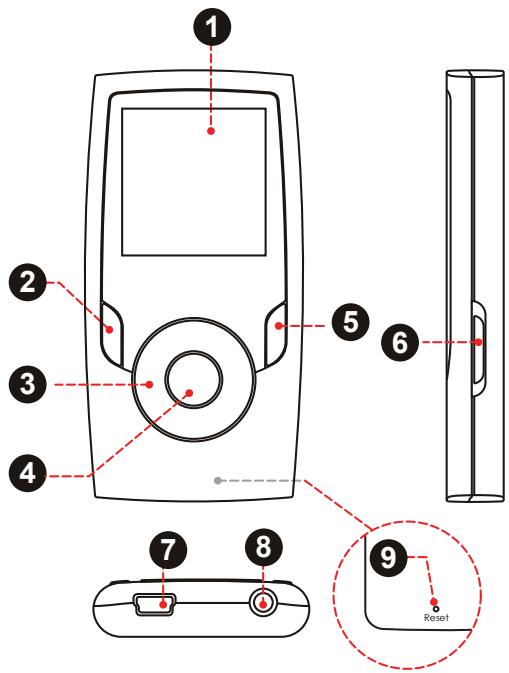
| Front View | ||
| 1. LCD Display | ||
| 2. Menu Button | <MENU> | |
| 3. Control Buttons | <UP> | |
| <DOWN> | ||
| <LEFT> | ||
| <RIGHT> | ||
| 4. Enter Button | <ENTER> | |
| 5. Option Button | <OPTION> | |
| Side View | ||
| 6. Power/Hold Switch Slide and hold the switch down for Power, slide it up for Hold. | <POWER> | |
| Bottom View | ||
| 7. USB Port/Charge | ||
| 8. 3.5mm Headphone Jack | ||
| Rear View | ||
| 9. Reset Button | <RESET> | |
Charging the Battery
Your player has an integrated rechargeable battery. Upon initial use, the battery should be charged fully to ensure optimal performance and battery life.
If the player has not been used in a while, the battery may need to be recharged overnight (about 8 hours).

The battery used in this device may present a fire or chemical burn if mistreated. Do not disassemble, incinerate, or heat the battery. Do not leave the battery in a place subject to direct sunlight, or in a car with its windows closed.
Do not connect the player to a power source other than that which is indicated here or on the label as this may result in the risk of fire or electric shock.
Charging with a Computer
Your player can be charged through a USB computer connection. Use the supplied USB cable to connect the player to a high-power USB port of a computer. The computer must be powered on and not in sleep mode.

When the player is connected and charging, a USB symbol will be displayed on the player's screen.
Turning the Player On/Off
To turn the player on, slide and hold the
To turn the player off, slide and hold the
Resetting the Player
Reset the player if it should freeze and not respond or otherwise malfunction.
- Disconnect your player if it is connected to a computer.
- Use a paper clip to gently press the
button located on the rear of the player.
Disabling the Controls (Hold)
When the
You may want to disable the controls to avoid turning on the player or activating the controls accidentally when it is in your pocket or bag.
- To disable the controls, slide the
switch up until it clicks into the "Hold" position.
To enable the controls, slide theswitch down to release it from the "Hold" position.

A lock icon will appear on the screen when the controls are disabled. Re-enable the controls to continue.
When you turn on the player, you will see the Main menu. The Main menu gives you access to the different function modes of your player. These modes are:
Music: Browse and play music.
Photo: Browse and view Photos.
Video: Browse and play Videos.
Radio: Listen to FM radio broadcasts.
Text: Browse and read text files.
Record: Make or play voice recordings.
Explorer: Browse all files.
Setup: Adjust the player's options.

Select "Extras" from the Main Menu to get the "Text", "Record", and "Explorer" menus.
Main Menu Controls
To browse through the different modes, press <UP> or <DOWN> .
To select a mode, press the
Browse for and play your music files.

If you have loaded new music files onto the player, the music library will need to be refreshed when you enter Music mode. This process may take several minutes. You will not be able to access the Music Browser screen until you refresh the music library.
For more information about how to get music onto your player, please refer to the section "Transferring Files to the Player".
Music Browser Controls
When you choose MUSIC mode from the Main menu, you will see the Music Browser screen. You can choose to browse your music by song name, album, artist, or genre, or you may choose "Browser" to view the music files and folders on the player.
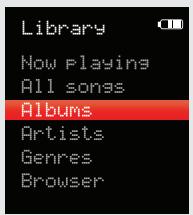
| Function | Key Action |
| To browse through the list | Press <UP> or <DOWN> |
| To select an item | Press <ENTER> |
| To return to the previous screen | Press <MENU> |
| To return to the Main menu | Hold <MENU> |

If your music files contain ID3 song information tags, you will be able to view your tracks by Artist, Album, or Genre. To view all files (including those that do not contain ID3 information), select "All Songs" or use the "Browser" option.
If music is already playing, you will have the additional option to return to the Now Playing screen.

Lyric display requires a "LRC" lyric file which may be found on the internet or may be created with a Lyric file editor. Lyric files can contain synchronized timing information as well as lyric information.
Lyric files must have the same name as its corresponding music file (e.g., "SongTitle1.Irc" and "SongTitle1.mp3") and must be placed in the same directory.
Using the Quick Play List
To create a quick Play List that contains your favorite songs:
- Select "Browser" from the Music Browser screen.
- Use the Browser controls to select a song to add.
- Press
- Press
to finish adding the song to the Play List.

This quick Play List can be played from the Quick Option menu of the Now Playing screen (see page 15 for more details).
Now Playing Controls (Music Playback)
To start playing music, browse for a song and then press
When a song is playing, the Now Playing screen appears (see below).
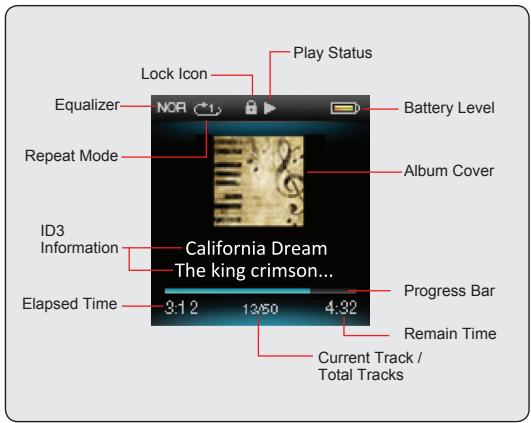
The following functions may be performed from the Now Playing screen.
| Function | Key Action |
| To play the next track | Press <RIGHT> |
| To play the previous track | Press <LEFT> |
| To forward-scan quickly through the current track | Hold <RIGHT> |
| To reverse-scan quickly through the current track | Hold <LEFT> |
| To pause/resume playback | Press <ENTER> |
| To access the Quick Option menu (see below for details) | Press <OPTION> |
| To adjust the volume level | Press <UP> or <DOWN> |
| To return to the Music Browser screen | Press <MENU> |
| To return to the Main menu | Hold <MENU> |
Quick Option Menu
To access the quick option menu, press
To browse through the settings, press <UP> or DOWN
To select a setting, press
To return to the previous screen, press
Equalizer
Select a digital equalizer preset to optimize the way the player processes audio signals. The options are: Normal, Pop, Rock, Classic, Jazz, and Bass.
Repeat
Change the repeat options to adjust the order in which tracks are played.
| Item | Description |
| No Repeat | Play tracks in normal order and no repeat. |
| One | Play the current track repeatedly. |
| All | Play all tracks repeatedly. |
| RandomAll | Play all tracks in random order. |
| Dir Normal | Repeat all tracks in the current folder. |
Library
Return to the Music Browser screen.
Play List
Selet "Play List" and then "My List" to play a list of your favorite songs.

To add songs to the list, see the section "Music Mode > Music Browser Controls > Using the Quick Playlist".
Lyric
Set the Lyric display ON or OFF.
Browse for and view your photo files (JPG and BMP).

For more information about how to get Photos onto your player, please refer to the section "Transferring Files to the Player".
Photo Browser Controls
When you choose PhotoS mode from the Main menu, you will see the Photo Browser screen. Your Photos will be displayed as thumbnail images.
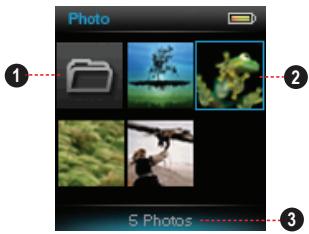
- Folder
- Photo
- Name of the selected folder or photo
Use the Photo Browser to find all Photo files loaded on your player.
| Function | Key Action |
| To browse through the Photos & folders | Press<UP>,<DOWN>,<LEFT>,<RIGHT> |
| To select/view an item | Press<ENTER> |
| To return to the previous screen | Press<MENU> |
| To return to the Main menu | Hold <MENU> |
Photo Viewer Controls
To view a Photo, browse through the thumbnail Photos and then press
The following functions may be performed from the Photo Viewer screen.
| Function | Key Action |
| To view the next Photo | Press <RIGHT> |
| To view the previous Photo | Press <LEFT> |
| To start or stop slideshow mode | Press <ENTER> |
| To return to the Photo Browser screen | Press <MENU> |
| To return to the Main menu | Hold <MENU> |
Browse for and play your Video files.

Your player supports MTV files encoded at 128 x 128 and 25 fps. Videos may need to be encoded with the included software for device playback.
For more information about converting video, please refer to the section "Video Conversion".
For more information about how to get Videos onto your player, please refer to the section "Transferring Files to the Player".
Video Browser Controls
When you choose VideoS mode from the Main menu, you will see the Video Browser screen.
Use the Video Browser to find all Video files loaded on your player.
| Function | Key Action |
| To browse through the list of Video files & folders | Press or <DOWN> |
| To select/play an item | Press <ENTER> |
| To return to the previous screen | Press <MENU> |
| To return to the Main menu | Hold <MENU> |
VideoPlaybackControls
The following functions may be performed from the Now Playing screen.
| Function | Key Action |
| To play the next Video | Press <RIGHT> |
| To play the previous Video | Press <LEFT> |
| To forward-scan quickly through the current Video | Hold <RIGHT> |
| To reverse-scan quickly through the current Video | Hold <LEFT> |
| To pause/resume playback | Press <ENTER> |
| To adjust the volume level | Press <UP> or <DOWN> |
| To return to the Video Browser screen | Press <MENU> |
| To return to the Main menu | Hold <MENU> |
Listen to FM radio broadcasts.

You must have a pair of headphones connected to the.
headphone jack to receive FM broadcasts; your player
will utilize the headphone cord as an antenna.
Radio Tuning Controls
When you choose RADIO from the Main menu, you will see the Radio Tuning screen. You can search for stations, tune to stations manually, or tune to preset stations.

You must have saved preset stations prior to using preset tuning mode. Hold
The following functions may be performed from the Radio Tuning screen.
| Function | Key Action |
| To auto-save all available stations as preset stations | Hold <ENTER> |
| To tune to a higher station | Press <RIGHT> |
| To tune to a lower station | Press <LEFT> |
| To scan to the next highest station (normal mode only) | Hold <RIGHT> |
| To scan to the next lowest station (normal mode only) | Hold <LEFT> |
| To access the Quick Option Menu | Press<OPTION> |
| To adjust the volume level | Press <UP> or <DOWN> |
| To return to the Main menu | Hold <MENU> |
Quick Option Menu
To access the quick option menu, press
To browse through the settings, press <UP> or DOWN
To select a setting, press
To return to the previous screen, press
Preset/Manual
Set the FM Tuning mode to Manual or Preset.
Save/DeleteChannel
Manual Mode: Save the current station to the Preset Station list.
Preset Mode: Delete station(s) from the Preset Station list.
Forced Mono
Set the stereo reception on or off.
Sensitivity
Set the sensitivity of Auto-Scan feature.
Auto Presetting
Scan for all stations in broadcast reception range. The player will automatically seek and save all frequencies with a broadcast signal to the Preset Station list.

The auto scan feature will overwrite any previously stored Preset Stations.
Area
Set the FM frequency range area (Worldwide, World (US), World (JP).
FM Record
Make recordings of FM radio broadcasts.
The player will start the recording immediately.
- Press
to pause recording; press again to resume recording. - Press
Read text files loaded on your player (TXT).

For more information about how to get text files onto your player, please refer to the section "Transferring Files to the Player".
Text Browser Controls
When you choose Text from the Main menu, you will see the Text Browser Screen.
Choose "All EBooks" to view all text files on the player.
If text is already reading, you will have the additional option to return to the "Now Reading" screen.
Use the Text Browser to find all text files loaded on your player.
| Function | Key Action |
| To browse through the list of text files & folders | Press or <DOWN> |
| To select/view an item | Press <ENTER> |
| To return to the previous screen | Press <MENU> |
Text Reader Controls
The following functions may be performed from the Text Display screen.
| Function | Key Action |
| To read the next page | Press <DOWN> |
| To read the previous page | Press <UP> |
| To toggle the autoScroll function | Press <ENTER> |
| To return to the Text Browser screen | Press <MENU> |
| To return to the Main menu | Hold <MENU> |
Quick Option Menu
The Quick Option menu gives you easy access to your player's option settings.
Press
Go to Page
Skip to a page directly.
Press
Press < UP> or < DOWN> to adjust the selected field.
Press
Bookmark
Select to SaveBookmark, LoadBookmark, or DeleteBookmark.
The player will display the previous bookmark(s) after you confirmBookmark from the Quick Option menu.
Press < UP> or < DOWN> to display the desired bookmark, then press < ENTER> ..
SaveBookmark: Save the current location as a bookmark.
LoadBookmark: Open (go to) the desired bookmark that you choose just now.
DeleteBookmark: Delete the desired bookmark that you chose just now.
- When you toggle to the last bookmark, press
twice to save the current location as a new bookmark.
SetFontColor
Set the text color of the display.
Auto Scroll
Set the auto page scroll on or off.
Auto Scroll Time
Press <UP> or <DOWN> to adjust the amount of time between pages during Auto Scroll mode.
Play your digital voice recording files or record sounds from external audio sources.
Voice Playing Controls
The following functions may be performed from the Voice Playing screen.
| Function | Key Action |
| To play the next track | Press <RIGHT> |
| To play the previous track | Press <LEFT> |
| To forward-scan quickly through the current track | Hold <RIGHT> |
| To reverse-scan quickly through the current track | Hold <LEFT> |
| To pause/resume playback | Press <ENTER> |
| To access the Quick Option menu (see below for details) | Press <OPTION> |
| To adjust the volume level | Press <UP> or <DOWN> |
| To return to the Main menu | Hold <MENU> |
Quick Option Menu
To access the quick option menu, press and hold
To browse through the settings, press <UP> or DOWN
To select a setting, press
To return to the previous screen, press
Repeat
Change the repeat options to adjust the order in which tracks are played.
| Item | Description |
| No Repeat | Play tracks in normal order and no repeat. |
| One | Play the current track repeatedly. |
| All | Play all tracks repeatedly. |
| RandomAll | Play all tracks in random order. |
| Dir Normal | Repeat all tracks in the current folder. |
Quality
Set the quality of the recording.

Lower quality recordings will take up less memory than higher quality recordings.
Start Record
Make voice recordings through the integrated microphone located on the back of your player.
The player will start the recording immediately.
- Press
to pause recording; press again to resume recording. - Press
Enter Explorer mode to view and delete folders and files loaded on your player.
To enter Explorer mode, select and confirm EXPLORER from the Main Menu.
Explorer Controls
When you choose EXPLORER mode from the Main menu, you will see the File Explorer screen. You can find and delete files or folders from the player.
| Function | Key Action |
| To browse through the list of files & folders | Press <UP> or <DOWN> |
| To select a folder | Press <ENTER> |
| To return to the previous screen | Press <MENU> |
| To delete a selected item | Press <OPTION> |
| To return to the Main menu | Hold <MENU> |
Enter the Setup mode to set your player's system options.
To enter Settings mode, select SETUP in the Main menu.
| Function | Key Action |
| To browse through the options | Press <UP> or <DOWN> |
| To select an item | Press <ENTER> |
| To cancel and return to the previous screen | Press <MENU> |
| To return to the Main menu | Hold <MENU> |
The following options are available. Some of these options may be set from the Quick Option menus.
| Item | Description |
| Display | |
| Backlight | Adjust the duration of time (in seconds) that the backlight will remain on after a key press. A setting of “Always On” will keep the backlight on continuously. |
| Time | |
| Sleep | Set a sleep timer to turn the player off automatically. |
| Language | |
| -- | Set the language that the on-screen menus appear in. |
| Sys Tools | |
| Format | It may become necessary to format your player if data or files become corrupt. You may choose either Quick or Complete formatting. A Complete format will take more time. |
| Reset | Restore all of the player's settings to their factory-default state. |
| Sys Info | View Firmware & Memory Usage information. |
| Sort | Sort all music that loaded on your player. Select “Force Sort” to update the music library immediately. This process may take several minutes if you have transferred music files to the player recently. |
Connect the player to a computer with the USB 2.0 cable provided to:
- Transfer files to and from your player
Perform basic file management functions.
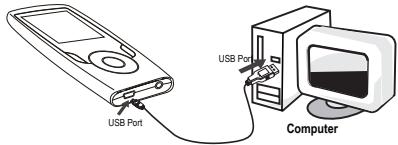
Upon connection:
- Your computer will automatically recognize the player as a Removable Disk.
To open the player to view files, double-click the icon that appears.
Once you have opened the player's folder, simply drag and drop files to the player as you would a floppy disk.
Copy music files to the root directory.
Copy Video files to the "Video.DIR" folder
+ Copy photo files to the "PHOTO.DIR" folder
Copy text files to the "TEXT.DIR" folder.
If you need further assistance with transferring files, please refer to your operating system's instruction manual or on-screen help. If you are using media management software such as iTunes, Winamp, or Windows Media Player, please refer to their documentation for support.
Transferring with Microsoft Windows
- Open a file explorer window. Locate the files you would like to transfer from your computer. Select the files/folders with the mouse and press CTRL-C (copy) on the keyboard.
- Double-click the "My Computer" icon on your desktop and then double-click the icon that represents your player (e.g., MP152 / Removable Disk). The computer will display all files and folders currently stored in the player.
- Press CTRL-V (paste) on the keyboard to transfer the files you selected in Step 1 to the player.
Transferring with Macintosh OS X
- Open a finder window. Locate the files you would like to transfer from your computer. Select the files/folders with the mouse and press APPLE-C (copy) on the keyboard.
-
Click on the Removable Disk icon located on the left side of the finder window. The computer will display all files and folders currently stored in the player.
-
Press APPLE-V (paste) on the keyboard to transfer the files you selected in Step 1 to the player.
Disconnecting from a Computer
To avoid data loss or file/firmware corruption, disconnect the player as instructed below or as by your specific operating system.
Microsoft Windows
- Double-click the green arrow in the taskbar located on the
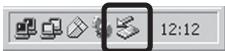
lower-right side of the computer screen (Safely Remove Hardware).
- Safely Remove Hardware:
Select "USB Mass Storage Device" from the list that appears and then click on "Stop".
Stop a Hardware Device: Select
"USB Mass Stor
age Device" from the list that appears and then click on "OK".
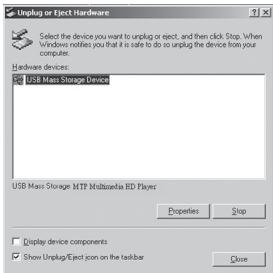
- When the "Safe to Remove Hardware" window appears, click the OK button and disconnect the USB cable from the player and your computer.
Macintosh OS X
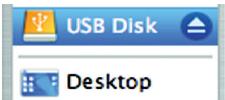
- On the left side of the Finder Window, identify the appropriate Removable Disk icon.
- Click on the "Eject" arrow on the right of the Removable Disk icon.
- Disconnect the USB cable from the player and your computer.
For Video and music synchronisation and conversion, please use MPMANAGER software supplied in the CD ROM.
This software can be used also for UPDATE of your player
MPMANAGER manual is included in your CDROM
If you have a problem with this device, please read the troubleshooting guide below.
The player does not turn on.
Ensure that the player is fully charged. Try charging the player overnight (8 hours).
Reset the player (use a paper clip to gently press the Reset button on the rear of the player) and try again.
The buttons do not work.
Reset the player (use a paper clip to gently press the Reset button on the rear of the player) and try again.
I cannot transfer files to the player.
Ensure that your computer is running a supported operating system.
If using a USB extension cable, ensure that it is securely attached to the player and the PC, or try using another USB cable.
If you have connected the player through a USB hub, try connecting the player directly to your computer.
Ensure that the player's memory capacity is not full.
There is no sound during playback.
Check the volume level.
Ensure that the headphones are attached securely to the player.
The sound quality of the music is poor.
Try playing the file on your computer. If the sound quality is still poor, try downloading the file again or re-encoding the file yourself.
Ensure that the bit rate of the file is not too low. The higher the bit rate of the file, the better it will sound. The minimum recommended bitrate is 128kbps for MP3s and 96kbps for WMAs.
Try lowering the volume of the player.
Ensure that the headphones are attached securely to the player.
The player will not play my music file.
Ensure that the file is in a compatible format.
The file may be copy-protected and you no longer have authorization to play this file. If you feel this is in error, please contact the service from which you downloaded the file.
The LCD characters are corrupted or something is wrong with the display.
Ensure that the correct menu language has been set.
Reset the player (use a paper clip to gently press the Reset button on the rear of the player) and try again.
The player has malfunctioned.
Reset the player (use a paper clip to gently press the Reset button on the rear of the player) and try again.
| Display Type | 1.5" Full-Color LCD @ 128x128 |
| Memory | MP152 FM 2GB: 2GB Flash MP152 FM 4GB: 4GB Flash MP152 FM 8GB: 8GB Flash |
| Audio Format Support | MP3, WMA |
| Video Format Support | MTV: 128x128, 25fps |
| Photo Format Support | JPG, BMP |
| Song Info Support | ID3, Windows Media |
| FM Frequency Range | 87.5 - 108.0MHz |
| PC Interface | USB 2.0 (MSC) |
| Plug and Play Support | Windows 2000/XP/Vista Macintosh OS X |
| Audio Output | 3.5mm Stereo (Headphone) |
| Audio Input | Integrated Microphone |
| Power Supply | Rechargeable Lithium-Polymer Battery USB Charge |
| Play Time | Music: 15 hours* |
| Unit Dimensions | 1.65" x 3.18" x 0.38" (WHD) |
Specifications and manual are subject to change without notice.
- Music play time is an estimated value based on playing an MP3 encoded at 128 kbps. Actual play time may vary depending on encoding method used and other factors.
For more information please check our website
www.mpmaneurope.com
CE