
Touchstone WECB460 - Modem/Router Arris - Free user manual and instructions
Find the device manual for free Touchstone WECB460 Arris in PDF.


| Product Type | Wi-Fi MoCA Bridge / Modem-Router |
| Brand | Arris |
| Model | Touchstone WECB460 |
| Dimensions (W x H x D) | 11.8 cm x 19.5 cm x 4.2 cm |
| Weight | 307 g (0.677 lbs) |
| Power Adapter Input | 100-120 V AC, 60 Hz |
| Operating Temperature | 5°C to 40°C (41°F to 104°F) |
| Storage Temperature | -40°C to 70°C (-40°F to 158°F) |
| Operating Humidity | 5 to 90% non-condensing |
| Network Interface | 1 x 75 Ohm Coaxial Connector (MoCA), 2 x Gigabit Ethernet (RJ45) |
| Wireless Standards | IEEE 802.11ac, 802.11a, 802.11b, 802.11g, 802.11n |
| Wireless Frequency Bands | 2.4 GHz and 5 GHz Dual-Band Concurrent |
| MIMO | 2x2:2 |
| MoCA Standard | MoCA 2.0 Compliant |
| Security | WEP (64/128-bit), WPA, WPA2; WPS |
| LED Indicators | Power, LAN1, LAN2, MoCA, 2.4GHz, 5GHz, WPS |
| Buttons | WPS, Reset (recessed) |
| Setup | Web browser at 192.168.100.1 or myArrisMocaRepeater.net |
| Default Username | admin |
| Default Password | password |
| Compliance | FCC Part 15 Class B, Industry Canada, UL, Wi-Fi Certified, RoHS, WEEE |
Frequently Asked Questions - Touchstone WECB460 Arris
User questions about Touchstone WECB460 Arris
0 question about this device. Answer the ones you know or ask your own.
Ask a new question about this device
Download the instructions for your Modem/Router in PDF format for free! Find your manual Touchstone WECB460 - Arris and take your electronic device back in hand. On this page are published all the documents necessary for the use of your device. Touchstone WECB460 by Arris.
USER MANUAL Touchstone WECB460 Arris
Touchstone® WECB460 Wi-Fi® MoCA® Bridge

natural_image
Black wireless router device with ventilation grilles and indicator lights (no visible text or symbols)Installation Guide
©ARRIS Enterprises, Inc. 2014 All rights reserved. No part of this publication may be reproduced in any form or by any means or used to make any derivative work (such as translation, transformation, or adaptation) without written permission from ARRIS Enterprises, Inc. ("ARRIS"). ARRIS reserves the right to revise this publication and to make changes in content from time to time without obligation on the part of ARRIS to provide notification of such revision or change.
ARRIS provides this guide without warranty of any kind, implied or expressed, including, but not limited to, the implied warranties of merchantability and fitness for a particular purpose. ARRIS may make improvements or changes in the product(s) described in this manual at any time. The capabilities, system requirements and/or compatibility with third-party products described herein are subject to change without notice.
ARRIS and the ARRIS logo are all trademarks of ARRIS Enterprises, Inc. Other trademarks and trade names may be used in this document to refer to either the entities claiming the marks and the names of their products. ARRIS disclaims proprietary interest in the marks and names of others.
Package Contents

The following items should be included: If any of these items are damaged or missing, please contact the provider of this equipment immediately.
- WECB460 Wi-Fi MoCA Bridge

natural_image
Black wireless router device with ventilation grilles and ports (no visible text or labels)- AC Power Adapter

- Cat5e Ethernet Cable
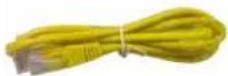
- Installation Guide and End User License Agreement


What You Need
The WECB460 Wi-Fi MoCA Bridge is used to extend coverage of existing Ethernet or MoCA networks. As such, you will need:
• Active Internet service
- POE filter(s)
- Splitters/cables
Chapter 1
Introduction
This chapter summarizes the WECB460 Wi-Fi MoCA Bridge's features, components and capabilities.
Overview
The Touchstone ^® WECB460 Wi-Fi MoCA Bridge enhances network range, coverage, and connectivity by extending existing Ethernet or MoCA service, while adding 802.11ac wireless network capability for connection to hard-to-reach and mobile wireless devices (IP cameras, laptops, tablets, etc) in your home. The WECB460 Wi-Fi MoCA Bridge offers consumers an improved network experience on all devices in the home via a simple and intuitive setup procedure. This high-speed, 802.11ac device will work with ARRIS Modems, ARRIS Gateways, and most other wireless routers and access points.
Features
- Easy Setup. Use your PC and web browser for configuration. WPS™ (Wi-Fi Protected Setup™) simplifies making client connections.
- Multimedia over Coax (MoCA) compliance. Compliant to the latest MoCA 2.0 standard, the WECB460 Wi-Fi MoCA Bridge is capable of using the coaxial network throughout your home to extend your network to any room with an unused TV coax connection, when paired with another MoCA-capable device. Where Wi-Fi coverage can often be “spotty”, guarantee network access throughout your home with MoCA!
Wireless Features
- Supports DBC (Dual-Band Concurrent) 802.11ac @ 5GHz / 802.11n @ 2.4GHz and earlier Wireless Clients: Compatible with the latest 802.11ac Wi-Fi standard, while backward compatible with the 802.11a, 802.11b, 802.11g, and 802.11n standards. This ensures simultaneous operation for all Wi-Fi-capable devices.
- WPS Support: Wi-Fi Protected Setup can simplify connection of client devices to the Wi-Fi network using the configuration button on the device.
- Security Support: Full WEP (64/128 Bit), WPA and WPA2 Personal standards are supported on the wireless interface, allowing advanced encryption of wireless data.
Location Considerations
For best performance, locate the WECB460 Wi-Fi MoCA Bridge away from known interfering devices, such as microwave ovens and baby monitors.
Chapter 2 Basic Setup

This Chapter provides details on how to install and setup the WECB460 Wi-Fi MoCA Bridge.
System Requirement
To use the wireless interface on the WECB460 Wi-Fi MoCA Bridge, other wireless devices must be compliant with the IEEE 802.11ac, IEEE 802.11a, IEEE 802.11b, IEEE 802.11g or IEEE 802.11n specifications. All wireless stations must use compatible settings.
Physical Details
LED Indicator Panel

| Power LED(Green/Amber) | On (Green) - Power on.Off - No power.On (Amber) - System failure. |
| LAN1 (Green) | On - System with Ethernet port connected.Off - No system connected.Blinking (Green) – Indicates traffic with device connected via Ethernet cable to Ethernet port 1. |
| LAN2 (Green) | On - System with Ethernet port connected.Off - No system connected.Blinking (Green) – Indicates traffic with device connected via Ethernet cable to Ethernet port 2. |
| MoCA | On (Green) – MoCA network enabled.Off – MoCA network disabled.Slow Blinking (Green) – Indicates traffic with connected client device(s) via MoCA. |
| 2.4GHz (Green) | On (Green) – 2.4 GHz wireless network is enabled and active.Off – 2.4 GHz wireless network is disabled.Fast Blinking (Green) – Indicates traffic with connected client device. |
| 5GHz (Green) | On (Green) – 5 GHz wireless network is enabled and active.Off – 5 GHz wireless network is disabled.Fast Blinking (Green) – Indicates traffic with connected client device. |
| WPS LED (Green) | Off – Not in use.Slow Blinking (Green) - When the WPS button is pressed, the LED will slow blink for up to 2 minutes or until connection to the client device is established. The LED will turn off immediately upon client pairing. |
| WPS Button | Press the WPS button on the WECB460 Wi-Fi MoCA Bridge and on your client wireless device to perform WPS setup that easily creates an encryption-secured wireless connection automatically.Client Connection:When pressed and held for over 1 second, then released, the WECB460 Wi-Fi MoCA Bridge will perform WPS setup with client devices. The WPS LED will blink for up to 2 minutes, so the WPS connection process should be completed within 2 minutes. |
Connector Panel

| Reset Button | This button is recessed. Use a pointed non-metallic object to press this button. Reset. Press for 1 to 2 seconds and release for a standard reset. Reset to manufacturer default values and reboot. When pressed and held for over 15 seconds, the settings of the WECB460 Wi-Fi MoCA Bridge will be reset to their default values. |
| Ethernet ports | Use a standard Ethernet cable to connect: A PC or other direct wired client device to the WECB460 Wi-Fi MoCA Bridge. The WECB460 Wi-Fi MoCA Bridge to a non-MoCA enabled router or gateway. (Port 1 only) |
| Ethernet LED (Green/Amber) | On (Green) – System with 1Gbps LAN port connected. On (Amber) – System with 100Mbps/10Mbps LAN port connected. Blinking (Green/Amber) – Network data activity. Off (Green/Amber) - LAN is not connected. |
| Cable | Coaxial cable connection to home MoCA network. |
| DC In | AC/DC power adapter connection. |
Connecting the WECB460 Wi-Fi MoCA Bridge
Using the WECB460 Wi-Fi MoCA Bridge and existing coax or Ethernet cab les you may extend the range of your wireless network and reduce “dead spots” in the house in locations where the gateway/access point signal is weak.
Option 1: Connecting to a MoCA Enabled Network
Requirement: You must have a MoCA enabled router or gateway installed that is capable of processing MoCA signals on the home coaxial cable RF network to install the WECB460 Wi-Fi MoCA Bridge in this configuration.
Connecting to a MoCA enabled network is the most common installation. The following diagram shows a typical installation.

flowchart
graph TD
    A["Filter"] --> B["Splitter"]
    B --> C["WECB460"]
    C --> D["Ethermet"]
    D --> E["Laptop"]
    C --> F["Laptop"]
    C --> G["Laptop"]
    B --> H["Coax RF"]
    H --> I["Coax RF"]
    I --> J["Wireless Gateway w/MoCA"]

You must have a MoCA POE (Point of Entry) filter installed within inches of the first multi-way RF splitter feeding the RF wiring in your home. This is required to isolate MoCA signals in the home.
You should also install a MoCA filter on any non-MoCA devices, such as a set top box, that will be connected to the coax network to avoid interference-related performance issues on these devices.
Perform the following steps to install the WECB460 Wi-Fi MoCA Bridge.
Step 1: Connect the WECB460 Wi-Fi MoCA Bridge to the Coax Backbone
Using a coaxial cable, connect the Cable connector on the WECB460 Wi-Fi MoCA Bridge to either an existing coaxial cable wall outlet in the home or directly to a splitter feeding the RF wiring in the home. Selecting the proper location for the WECB460 should be based on where improved Wi-Fi signal or a direct Ethernet connection is desired.
Step 2: Connect any Direct Wired Client Devices
Using an Ethernet cable, connect any client devices, such as desktop or laptop computers, to one or both of the Ethernet connectors on the WECB460 Wi-Fi MoCA Bridge. (These should be devices located close enough to make a direct wired connection practical.) Use Cat5e Ethernet cables for optimal performance on the Ethernet LAN.
Step 3: Connect your Wireless Client Devices
Configure any wireless devices, such as laptop computers, notepads or other mobile devices, to connect to the WECB460 Wi-Fi MoCA Bridge. See Setting Up your Wireless Client Devices for instructions.
Step 4: Configure Wireless Security
The WECB460 Wi-Fi MoCA Bridge ships with wireless LAN security set by default. If you need to modify the default wireless security or other wireless LAN settings, see Configuring your Wireless Connection for instructions.
Option 2: Connecting to a Non-MoCA Network via Ethernet Cable
If the router or gateway present in the home network is not MoCA enabled, you must connect the WECB460 Wi-Fi MoCA Bridge to the network using Ethernet cable. The following diagram shows a typical installation.

flowchart
graph TD
    A["Filter"] --> B["Splitter"]
    B --> C["Coax RF"]
    C --> D["Ethermet"]
    D --> E["WECB460"]
    E --> F["Ethermet"]
    G["Laptop"] --> H["Wireless Gateway without MoCA"]
    I["Smartphone"] --> J["Ethermet"]
    K["Laptop"] --> L["Ethermet"]
    M["Laptop"] --> N["Ethermet"]
    O["Computer"] --> P["Ethermet"]
    Q["Digital Phone"] --> R["Ethermet"]
Perform the following steps to install the WECB460 Wi-Fi MoCA Bridge.
Step 1: Connect the WECB460 Wi-Fi MoCA Bridge to the Router or Cable Modem
Using an Ethernet cable, connect the Ethernet 1 connector on the WECB460 Wi-Fi MoCA Bridge to an available Ethernet connector on the router or cable modem.
Step 2: Connect any Direct Wired Client Devices
Using an Ethernet cable, connect any client devices, such as desktop or laptop computers, to the Ethernet 2 connector on the WECB460 Wi-Fi MoCA Bridge. (This should be a device located close enough to make a direct wired connection practical.)
Step 3: Connect your Wireless Client Devices
Configure any wireless devices, such as laptop computers, notepads or other mobile devices, to connect to the WECB460 Wi-Fi MoCA Bridge. See Setting Up your Wireless Client Devices for instructions.
Step 4: Configure Wireless Security
The WECB460 Wi-Fi MoCA Bridge ships with wireless LAN security set by default. If you need to modify the default wireless security or other wireless LAN settings, see Configuring your Wireless Connection for instructions.
Step 5a: Set the Ethernet Port Direction to Internet
Access the configuration interface and select the HSD tab, Interface screen. Set Ethernet Port to Port 1 and set the Direction field to Internet. This tells the WECB460 Wi-Fi MoCA Bridge to consider this interface as its connection back to the Internet.

Click the Apply button to save and apply the changes.
Step 5b: Set the MoCA Direction to Client
Access the configuration interface and select the MoCA tab, Interface screen. Set the Direction field to Client. This ensures that the MoCA interface points to the home network.

Click the Apply button to save and apply the changes.
Step 6: Create a new MoCA Network in the Home (Optional)
The WECB460 Wi-Fi MoCA Bridge that is connected to the Router or Cable Modem via Ethernet can use the available RF connector to establish a new MoCA network. This requires the user to:
- connect a coaxial cable between the WECB460 Wi-Fi MoCA Bridge and the nearest available coaxial cable wall outlet, and
- to ensure a POE filter is installed at the entry of the RF network to the home and on any connected non-MoCA devices subject to interference from MoCA signals, and
- to place one or more MoCA clients on the home RF network for MoCA communications
Configuring your Wireless Connection
The WECB460 Wi-Fi MoCA Bridge ships with wireless LAN security set by default. See the security label on your product for the factory security settings: network name (SSID), encryption method, network (pre-shared) key, and WPS PIN.

You must set up your computer and other client devices to work with the security settings on the WECB460 Wi-Fi MoCA Bridge. Refer to the documentation for your client device for instructions on setting security. On most computer systems you only need to select the network name (SSID) device and enter the encryption (pre-shared) key.
If your computer or client device supports Wi-Fi Alliance WPS (Wireless Protected Setup), activate WPS on your computer or client device and the WECB460 Wi-Fi MoCA Bridge simultaneously to easily set up your system security.
Accessing the Configuration Interface
If you need to modify the WECB460 Wi-Fi MoCA Bridge's default wireless security settings, or if you want to configure any other wireless LAN settings, refer to the following instructions.
Follow these steps to access the configuration interface. You should have already set up the WECB460 Wi-Fi MoCA Bridge as described in Connecting the WECB460 Wi-Fi MoCA Bridge.
Step 1a: If security has been properly set up on your computer to access the wireless LAN on the WECB460 Wi-Fi MoCA Bridge, use the connection utility for your operating system to connect to the wireless LAN using its network name (SSID), as shown on the security label.
Step 1b: If you cannot access the wireless LAN, you must first establish a wired Ethernet connection between your computer and the WECB460 Wi-Fi MoCA Bridge.
Step 2: In your web browser, open the page http://192.168.100.1/ or the predefined URL, http://www.myArrisMocaRepeater.net, to access the WECB460 Wi-Fi MoCA Bridge configuration interface*. It is normal that this interface will not become available immediately after power is applied to the WECB460 Wi-Fi MoCA Bridge. Please allow up to one minute to pass before attempting connection to the configuration interface.
* If you can't access the configuration interface, the WECB460 Wi-Fi MoCA Bridge may have been assigned a dynamic IP address by your router or gateway. If so, access your router's or gateway's interface to determine the IP address assigned to it and access the WECB460 Wi-Fi MoCA Bridge's configuration interface using that IP address.
The Login screen displays.
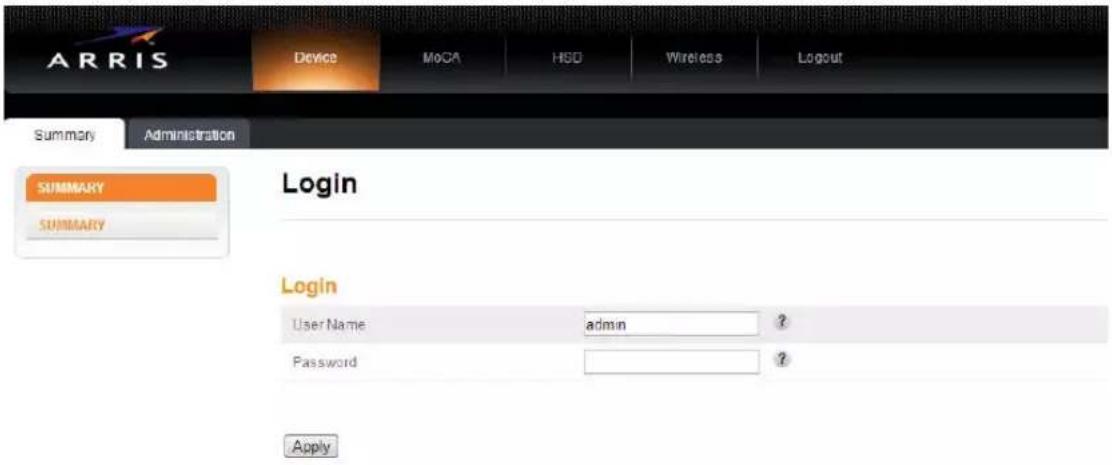
Step 3: Enter the user name and password and click the Apply button to log in.
The default user name is "admin". The default password is "password", in lower case letters.
The Device Summary screen displays.

Step 4: Click Wireless on the top menu, then click either the 2.4 GHz Radio tab or the 5 GHz Radio tab.
The Wireless Basic Setup screen for the respective radio displays.
2.4 GHz Radio Setup screen:
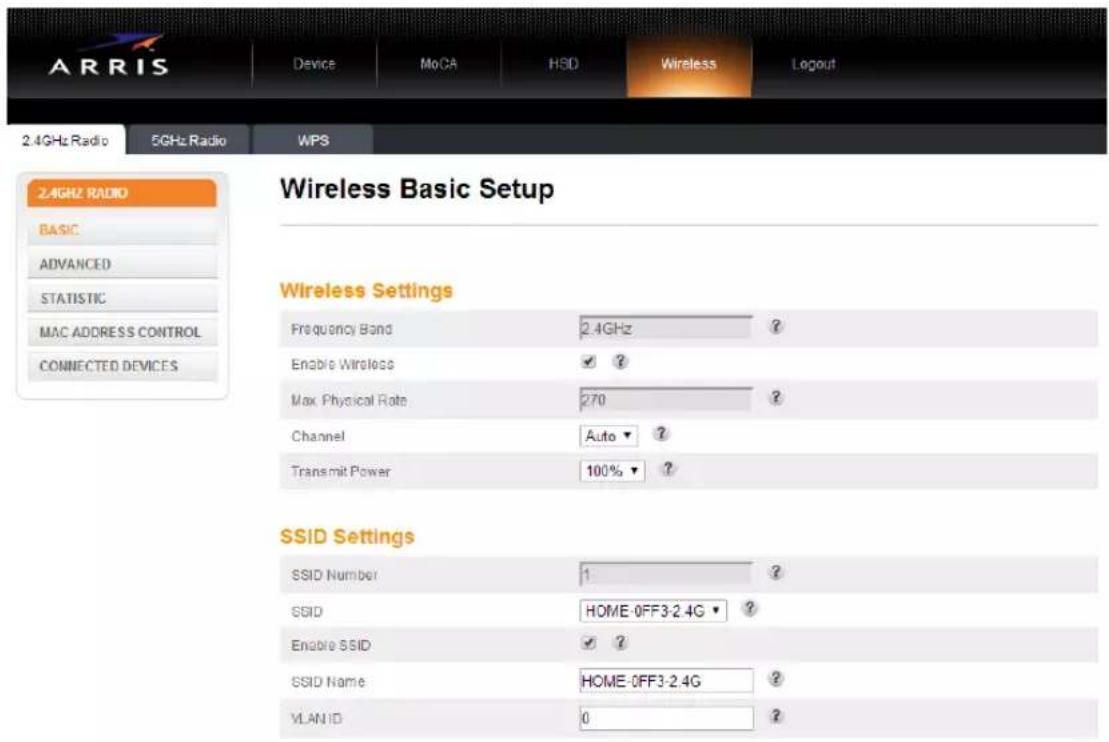
Click the Apply button to save and apply any changes.
5 GHz Radio Setup screen:
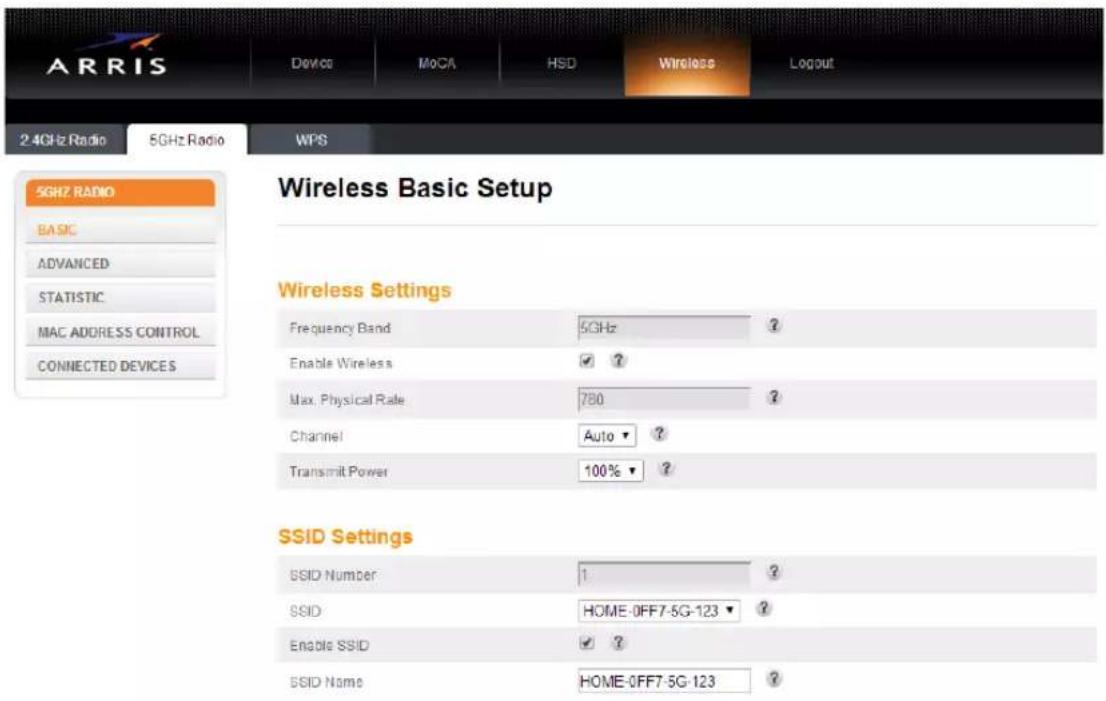
Use the online help information in the configuration interface to set wireless radio configuration parameters as required.

IMPORTANT: For best performance check that “Auto” is selected for your Channel setting. If manually selecting your channel, be sure to select a channel that does not conflict with the channel used by your existing network router’s or gateway’s wireless radio. You can reset the WECB460 Wi-Fi MoCA Bridge to rescan for the best channel when using the “Auto” setting.
Additional configuration settings and system information are available on the Advanced, Statistics, MAC Address Control, and Connected Devices screens.
Click the Apply button to save and apply any changes.
Step 5: Click the WPS tab.
The Wireless Protected Setup (WPS) screen displays.

Use the online help information in the configuration interface to set WPS configuration parameters as required.
Click the Apply button to save and apply your changes.
Setting Up your Wireless Client Devices
You must configure your wireless client devices to access the WECB460 Wi-Fi MoCA Bridge.

The WECB460 Wi-Fi MoCA Bridge creates a new access point at the installed location to supplement existing Wi-Fi services. Users sometimes replicate the same SSID settings to allow clients to “roam” and choose which access point to connect to based on signal strength. Note that the ability of a client to roam as signal conditions change is solely a function of the individual client. Some are designed to roam quickly while others will remain connected to an inferior access point indefinitely until manually changed by the user.
Configuring Client Devices without WPS
PCs and laptops typically do not have a WPS function. However, if previously configured to your wireless router/access point, they should automatically access the network through the WECB460 Wi-Fi MoCA Bridge without any additional configuration.
If your client was NOT previously configured for your router/access point, perform the following steps:
Step 1: Configure the client device (e.g. PC or laptop) with the same SSID and encryption keys using your operating system's network utility.
Step 2: The connection is successfully established after the 2.4 GHz or 5 GHz LED remains on.
Step 3: The client device can then access the wireless network.
Configuring WPS Enabled Client Devices
Step 1: Power on the WPS enabled client device (e.g. IP Camera) and make sure it is in wireless mode
Step 2: Press the WPS button on the WECB460 Wi-Fi MoCA Bridge for more than 1 second and then release it. The WPS LED will start blinking and blink for up to 2 minutes.
Step 3: Next press the WPS button on the client device. Make sure to press the button within 2 minutes after pressing the WECB460 Wi-Fi MoCA Bridge WPS button.
Step 4: Wait for the WPS LEDs to be solid on both the WECB460 Wi-Fi MoCA Bridge and the client device. The WPS connection process should be completed within 2 minutes. The client device can now access the wireless network.
Appendix A
Specifications
WECB460 Wi-Fi MoCA Bridge
| Dimensions | 11.8 cm (W) x 19.5 cm (H) x 4.2 cm (D) |
| Weight | 307 grams (0.677 lbs.) |
| Operating Temperature | 5°C to 40°C (41°F to 104°F) |
| Operating Relative Humidity | 5 to 90% non-condensing |
| Antenna Internal antenna | |
| Storage Temperature | -40°C to 70°C (-40°F to 158°F) |
| Network Interface | 1 External 75 Ohm Coaxial Connector (MoCA)2 Gigabit Ethernet 100/1000 Base-T (RJ45) LAN connections |
| Wireless interface | 2.4 GHz/5 GHz Dual-Band Concurrent, 2x2:2 MIMO2.4 GHz Typical EIRP (Effective Isotropic Radiated Power) at 100% transmission power are:802.11b: 22 dBm @ 11Mbps802.11g: 20 dBm @ 54Mbps802.11n: 19 dBm @ HT40 MCS75 GHz Typical EIRP at 100% transmission power are:802.11a: 19 dBm @ 54 Mbps802.11ac: 18 dBm @ VHT80 MCS9 |
| LEDs 7 | |
| Power AC/DC Power Adapter100~120V AC, 60 Hz | |
| Standards RoHS, WEEEIEEE 802.3, 802.11a, 802.11b, 802.11g, 802.11n.802.11acUL, Industry Canada, FCC Part 15 Class BWi-Fi Alliance CertifiedMoCA 2.0 Compliant | |
Regulatory Approvals
FCC Statement
This equipment has been tested and found to comply with the requirements for a Class B digital device under Part 15 of the Federal Communications Commission (FCC) rules. These requirements are intended to provide reasonable protection against harmful interference in a residential installation.
This equipment generates, uses, and can radiate radio frequency energy and, if not installed and used in accordance with the instructions, may cause harmful interference to radio communications. However, there is no guarantee that interference will not occur in a particular installation. If this equipment does cause harmful interference to radio or television reception, which can be determined by turning the equipment off and on, the user is encouraged to try to correct the interference by one of the following measures:
• Reorient or relocate the receiving antenna.
- Increase the separation between the equipment and receiver.
- Connect the equipment into an outlet on a circuit different from that to which the receiver is connected.
- Consult the dealer or an experienced radio/TV technician for help.
Warning: To assure continued compliance, any changes or modifications not expressly approved by the party responsible for compliance could void the user's authority to operate this equipment. (Example - use only shielded interface cables when connecting to computer or peripheral devices).
FCC Radiation Exposure Statement
This equipment complies with FCC RF radiation exposure limits set forth for an uncontrolled environment. This equipment should be installed and operated with a minimum distance of 7.9 inches (20 centimeters) between the radiator and your body.
This device complies with Part 15 of the FCC Rules. Operation is subject to the following two conditions:
(1) This device may not cause harmful interference, and
(2) This device must accept any interference received, including interference that may cause undesired operation.
This transmitter must not be co-located or operating in conjunction with any other antenna or transmitter.
(blank page)


- Touchstone® WECB460 Wi-Fi® MoCA® Bridge
- Installation Guide
- Package Contents
- What You Need
- Chapter 1
- Introduction
- Overview
- Features
- Wireless Features
- Location Considerations
- Chapter 2 Basic Setup
- System Requirement
- Physical Details
- Connector Panel
- Connecting the WECB460 Wi-Fi MoCA Bridge
- Option 1: Connecting to a MoCA Enabled Network
- Step 1: Connect the WECB460 Wi-Fi MoCA Bridge to the Coax Backbone
- Step 2: Connect any Direct Wired Client Devices
- Step 3: Connect your Wireless Client Devices
- Step 4: Configure Wireless Security
- Option 2: Connecting to a Non-MoCA Network via Ethernet Cable
- Step 1: Connect the WECB460 Wi-Fi MoCA Bridge to the Router or Cable Modem
- Step 5a: Set the Ethernet Port Direction to Internet
- Step 5b: Set the MoCA Direction to Client
- Step 6: Create a new MoCA Network in the Home (Optional)
- Configuring your Wireless Connection
- Accessing the Configuration Interface
- Setting Up your Wireless Client Devices
- Configuring Client Devices without WPS
- Configuring WPS Enabled Client Devices
- Appendix A
- Specifications
- Regulatory Approvals
- FCC Statement
- FCC Radiation Exposure Statement
Brand : Arris
Model : Touchstone WECB460
Category : Modem/Router