
DS-2000 - Docking Station Cyber Acoustics - Free user manual and instructions
Find the device manual for free DS-2000 Cyber Acoustics in PDF.


| Product Type | Docking Station |
| Brand | Cyber Acoustics |
| Model | DS-2000 |
| Dimensions (W x D x H) | 6.5 x 2.5 x 0.8 in (16.5 x 6.4 x 2.0 cm) |
| Weight | 0.5 lb (227 g) |
| Power Supply | USB bus-powered, no external adapter required |
| Input Interface | USB 3.0 Type-A (upstream) |
| Output Ports | 2x USB 3.0 Type-A, 1x HDMI, 1x VGA, 1x Gigabit Ethernet, 1x 3.5mm audio combo |
| Video Support | HDMI up to 1920x1080 @ 60Hz, VGA up to 1920x1080 @ 60Hz |
| Compatible Operating Systems | Windows 7/8/10/11, macOS 10.12+, Chrome OS |
| Compatible Devices | Laptops with USB 3.0 port (backward compatible with USB 2.0) |
| Cable Length | 6 in (15 cm) integrated cable |
| LED Indicators | Power and Ethernet link/activity |
| Maximum Resolution (HDMI) | 1920 x 1080 @ 60Hz |
| Maximum Resolution (VGA) | 1920 x 1080 @ 60Hz |
| Ethernet Speed | 10/100/1000 Mbps |
| Operating Temperature | 32°F to 104°F (0°C to 40°C) |
| Storage Temperature | -4°F to 140°F (-20°C to 60°C) |
| Humidity | 10% to 90% non-condensing |
| Cleaning Instructions | Wipe with a soft, dry cloth. Do not use liquid cleaners. |
| Safety Warnings | Keep away from liquids and extreme heat. Do not disassemble. |
| Spare Parts Available | USB cable (integrated, not replaceable), power adapter (not required) |
| Repairability | Not user-serviceable. Contact Cyber Acoustics support. |
| Warranty | 1-year limited warranty |
Frequently Asked Questions - DS-2000 Cyber Acoustics
User questions about DS-2000 Cyber Acoustics
0 question about this device. Answer the ones you know or ask your own.
Ask a new question about this device
Download the instructions for your Docking Station in PDF format for free! Find your manual DS-2000 - Cyber Acoustics and take your electronic device back in hand. On this page are published all the documents necessary for the use of your device. DS-2000 by Cyber Acoustics.
USER MANUAL DS-2000 Cyber Acoustics
The Essential Dock for Your Desk
www.CyberAcoustics.com
Note: The Docking Station is packed below the insert in the box. Pull out the top insert to locate Docking Station below.

Essential Docking Station

Quick-Start Guide
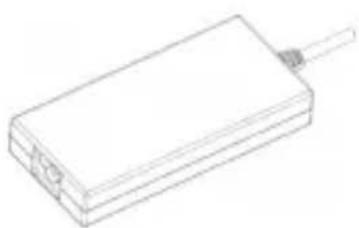
AC Power Adapter

AC Power Cable
Table of Contents
Pages
Connecting the Power to the CA Essential Docking Station .... 1
Connecting the CA Essential Docking Station to Your Laptop.... 2
Connecting Your Peripherals to the CA Essential Docking Station .... 3
Cooling Function of the CA Essential Docking Station 4
Technical Specifications....5
Frequently Asked Questions 6
Contacting Customer Support 7
Safety and Precautions....8
Connecting the Power to the CA Essential Docking Station
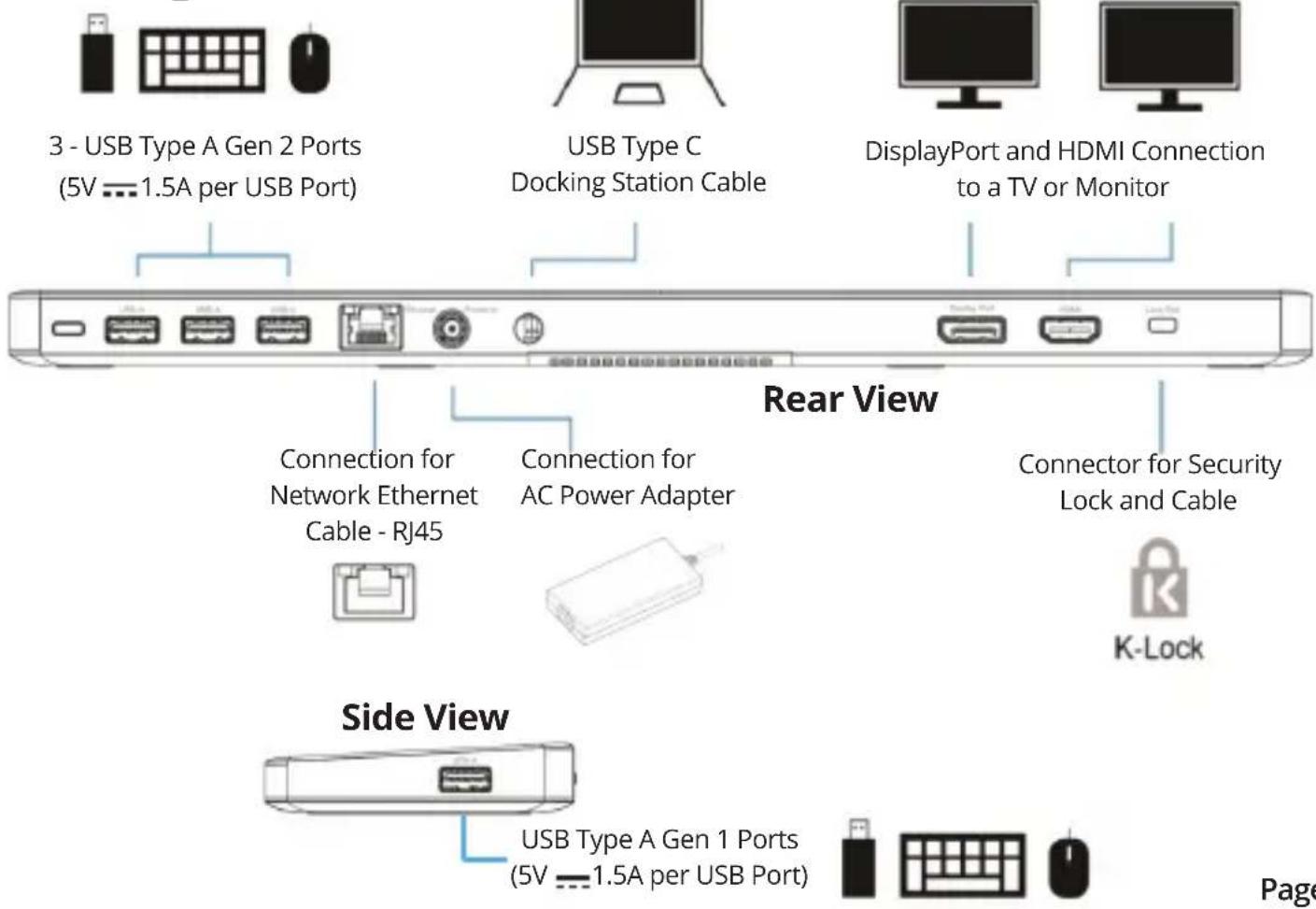
Rear View

Connecting the CA Essential Docking Station to Your Laptop
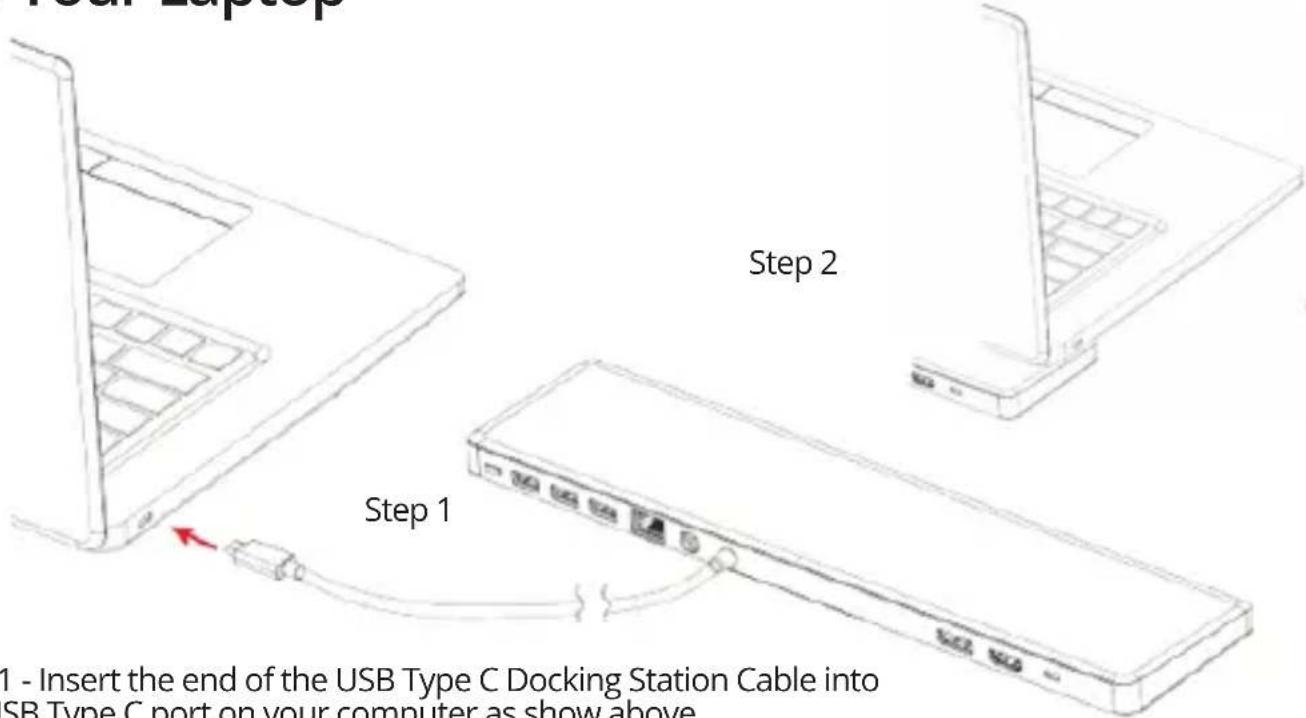
Step 1 - Insert the end of the USB Type C Docking Station Cable into the USB Type C port on your computer as show above.
Step 2 - Place the laptop on the CA Essential Docking Station as shown. The Laptop should rest on the front 1/3 or 1/2 of the Docking Station to maximize the performance of the Cooling function as described on Page 4.
Note: The CA Essential Docking Station provides power to your Laptop computer when connected and will slowly charge the battery on your laptop.
Connecting Your Peripherals to the CA Essential Docking Station
Cooling Function of the CA Essential Docking Station
Your CA Essential Docking Station provides a cooling system for your laptop. The cooling system has 3 different speeds for the internal fan that pushes the external air into the laptop to reduce the internal heat of the Laptop.
Utilize the lowest speed for the quietest fan noise and the highest speed for the air flow and cooling to you Laptop.

From the Off Position:
- Press the Cooling Button one time to turn the cooling system to the low speed.
- Press the Cooling Button two times to turn the cooling system to the medium speed.
- Press the Cooling Button three times to turn the cooling system to the high speed.
- Press the Cooling Button four times to turn off the cooling system.
Technical Specification
| Specifications | |
| Power Supplied from Docking Station | • USB-C with DP alt mode: support up to 90W Power Deliver y |
| USB Ports | • 3 - USB 3.1 Gen 2 Type-A port (10Gb/s)• 1 - USB 3.0 Gen 1 Type-A port (5Gb/s) |
| Video Output Ports and Supported Resolutions | • DP 1.4 source with DSC – Both ports up to 2k@60Hz or a single port up to 4k@60Hz• DP 1.2 source or below – Both ports up to 1080P or a single port at 4k@30HzNote: 4K/60Hz only supported on computer with HBR3 feature. |
| Ethernet | 10/100/1000 GbE |
| AC Power Adapter (Dual Voltage) | Input 100-120V or 200-240V at 50/60Hz |
| Recommended system requirements | |
| Supported operating system | Windows 10 64 Bit |
| Operating temperature | Product working at ambient temperature for 0~35°C |
Frequently Asked Questions
| Frequently Asked Question | Possible Solutions |
| The docking station is not working on with the USB-C port on your computer | ·You may need to update your computer's BIOS and computer graphic drivers to the latest versions. Please refer to your Laptop manufactures User Manual for specific instructions on how to update the BIOS and graphics drivers. Older BIOS versions and drivers could result in your computer not recognizing the docking station or not functioning optimally. |
| Multiple displays are not working | ·The docking station adapter supports dual display out and if unable to display. You can connect a peripheral to the HDMI port or DisplayPort monitor one at a time to verify the display issue. |
| Unable to read and write to an external SSD/HDD and optical (CD/DVD/Blu-ray) drive when connected to the docking station adapter | ·Some external SSD/HDD/Optical drives require higher power than what your docking station adapter can support.·It is recommended that you connect external SSD/HDD/Optical drive to your computer directly. |
| Power surge message pops up when connecting a peripheral to the docking station adapter | ·The peripheral you connected to the docking station adapter needs more power.·Disconnect other peripherals connected to the docking station adapter.·For high-power peripherals, it is recommended to connect the peripheral to your computer directly.·All devices will disconnect when connecting a high-power device to a USB port that is over the USB current limitation. A power surge message will be shown on the Laptop. You can remove the high-power device and the other low power device will recover automatically.·This message for the power surge will not impact video functions. |
| Resolution on the monitor is lower than 4K at 60 Hz when connected to the HDMI or DisplayPort of the Docking Station | ·Supports dual ports (DP and HDMI) of 4K resolution at 60 Hz with computers that have DisplayPort 1.4 with DSC. Computers with DisplayPort 1.2 or below, the docking supports dual ports of 1080 resolution at 60Hz or a single port of 4K resolution at 30Hz. |
| The docking station adapter is not charging your computer through the USB-C port | ·The docking station adapter supports up to 90W max Power Delivery.·The minimal power requirement for charging is platform dependent. Please refer the minimal power requirement in your platform user manual. |
| No video on the monitor attached to the docking station adapter | ·Check the video connection cables.·Disconnect the monitor from the docking station adapter and wait for 10 seconds then re-connect the monitor. |
| Video on the attached monitor is distorted or corrupted | ·Check the video connection cables.·Check and update the video resolution under Settings > Display > Display resolution |
| Video on the attached monitor is not displayed in extended mode | ·Change the setting under Settings > Display > Multiple displays·Switch modes by pressing the Windows Key + P |
Customer Support
If you have a question about your CA Essential Docking Station our Customer Support Team wants to assist you.
Contact us at:
www.cyberacoustics.com/support/contact
Safety and Precautions
- Read and follow all instructions – All operating and use instructions should be followed.
- Protect the AC Power Adapter and Cable from being pinched, particularly at the connectors. Unplug during lightning storms or when unused for long periods of time.
- Do not place near any heat sources such as radiators, heat registers, stoves, or other apparatus (including amplifiers) that produce heat.
- Do not make alterations to the Docking Station.
- Do not place near naked flame sources, such as lighted candles.
- Do not expose to excessive heat (e.g. from storage in direct sunlight, fire or the like)
- Use with Listed Information Technology Equipment only.
2020 Cyber Acoustics or its subsidiaries. All rights reserved. Cyber Acoustics and other trademarks are trademarks of Cyber Acoustics or its subsidiaries. Other trademarks may be trademarks of their respective owners.

Brand : Cyber Acoustics
Model : DS-2000
Category : Docking Station