
G-Slate - Tablet LG - Free user manual and instructions
Find the device manual for free G-Slate LG in PDF.


| Product Type | Tablet |
| Brand | LG |
| Model | G-Slate |
| Display Size | 8.9 inches |
| Display Resolution | 1280 x 768 pixels |
| Processor | NVIDIA Tegra 2 |
| Operating System | Android 3.0 Honeycomb |
| RAM | 1 GB |
| Storage | 32 GB |
| Camera (Rear) | 3 MP (with flash) |
| Camera (Front) | 2 MP |
| Battery Capacity | 5000 mAh |
| Dimensions (H x W x D) | 250 x 150 x 12 mm |
| Weight | 600 g |
| Connectivity | Wi-Fi 802.11 b/g/n, Bluetooth 3.0 |
| Ports | Micro-USB, HDMI, 3.5mm headphone jack |
| Card Slot | microSD (up to 32 GB) |
| Power Supply | AC adapter (5V, 2A) |
| Cleaning Instructions | Wipe with a soft, dry cloth. Avoid liquid cleaners. |
| Safety Warning | Do not expose to water or high temperatures. |
| Spare Parts Availability | Battery, screen, chargers available from LG service centers. |
Frequently Asked Questions - G-Slate LG
User questions about G-Slate LG
0 question about this device. Answer the ones you know or ask your own.
Ask a new question about this device
Download the instructions for your Tablet in PDF format for free! Find your manual G-Slate - LG and take your electronic device back in hand. On this page are published all the documents necessary for the use of your device. G-Slate by LG.
USER MANUAL G-Slate LG
- Some of the contents of this manual may not apply to your device depending on your device's software or your service provider.
- This device is not recommended for the visually impaired because of its touch-screen keypad.
• Copyright ©2011 LG Electronics, Inc. All rights reserved. LG and the LG logo are registered trademarks of LG Group and its related entities. All other trademarks are the property of their respective owners. - Google™, Google Maps™, Gmail™, YouTube™, Google Talk™ and Android Market™ are trademarks of Google, Inc.
natural_image
Front view of a tablet device with blank screen (no text or symbols visible)This guide provides you with everything you need to get started. For more information and support, please visit www.t-mobile.com/support where you can:
- Register for my.t-mobile.com to check your minutes, pay your bill, upgrade your device, and change your rate plan.
- Review the User Manual and troubleshooting FAQs.
- View the latest troubleshooting solutions in the Support Forums or ask a question of your own.
You can also access Help information on your tablet:
From any Home screen, touch 1. Apps.
2. Touch My Account or My Device.
SERVICE ACTIVATIONOV
If you are a new T-Mobile ^® customer and your service has not been activated, simply call Customer Care at 1-800-937-8997 from your landline and a T-Mobile Activations representative will assist you. You will need the following information when activating service:
- Service Agreement and agent code on your Agreement.
- Your name, home address, home device, and billing address.
NOTE: For business and government accounts, please provide the name of your company or government agency, address, and tax ID.
- Your Social Security number, current driver's license number, and date of birth for credit check purposes.
- Your choice of T-Mobile rate plan and services (see www.t-mobile.com for latest plan information).
- SIM serial number and IMEI number (located on the box bar code label).
By activating service, you acknowledge that you have read, understand, and agree to be bound by each of T-Mobile's Terms and Conditions and your Service Agreement.
Contents
OVERVIEW 2
SERVICE ACTIVATION ...... 2
FOR YOUR SAFETY 6
Understanding your device ....16
Before you using the device, please read this!.16
To optimize Battery Life 16
To download the USB Driver 16
To reboot your device when the screen freezes 16
To assure optimal device performance ..... 17
To transfer files to a computer using USB ..... 17
Before installing an open source application and OS 17
Device components ....18
Inserting the SIM card 20
Charging your battery 20
Turning your device on and off ....21
Locking and unlocking the screen 21
Secure your lock screen 22
Using HDMI....22
Google account set up ......23
Your Home screen and basics .....24
Using the Navigation buttons 24
Customizing the Home screen 25
Using the Multi-tasking functions .....26
Status and Notification icons 27
Notifications Panel and Quick Settings ...... 27
Touch screen tips 28
On-screen Keyboard 29
Using the on-screen keyboard 29
Entering text by speaking 29
Editing text 29
Connecting to Networks and Devices ....30
Wi-Fi Networks 30
Turn on Wi-Fi and connect to a network ..... 30
USB Tethering & Portable Wi-Fi hotspot ..... 30
Bluetooth 31
Turn on Bluetooth....31
To pair your device with a Bluetooth device ....31
Connecting to a computer via USB ....32
Maps and Latitude ....34
Getting directions 34
Starring a location 34
Joining Latitude 35
Finding your friends with Latitude 35
Market 36
Talk 37
Managing Your Friends List 37
Chatting with a friend 37
To sign out of Google Talk™ 37
Books 38
Email 39
Adding an account 39
Opening inbox 39
Using Combined view 39
Changing account settings ....39
Remove an email account ....40
Gmail™ 40
Contacts 41
4 LG-V909 | User Guide
Adding a new contact ....41
Editing a contact 41
Searching for a contact 41
Importing and Exporting contacts to your memory ....41
Sharing contacts via Bluetooth 42
Photos and videos ......43
Camera 43
Getting to know your camera view finder .....43
Taking a photo 43
Tagging location information to your photo ... 44
Video Camera....44
Getting to know your video camera view finder 44 Taking a video 44
Gallery 45
Viewing your albums 45
Viewing and browsing pictures and videos .....45
Using a picture as a Contact icon or Wallpaper 45
Getting details about your photo 45
Sharing a picture 46
Deleting files 46
3D Camcorder and 3D Player....46
Getting to know your 3D Camcorder view finder ....46
Taking a 3D Video 47
Playing a 3D Video 47
Utilities 48
Calendar....48
Viewing your calendar 48
Creating an event 48
Change synchronization and display settings 48
Clock 48
Calculator 48
Music 49
Viewing your music library....49
To create a playlist ....49
Playing music 49
Browser 51
Opening webpages 51
Opening multiple pages ....51
Adding Bookmarks to your Home screen .....51
Changing browser settings ....51
Settings 52
Wireless & networks 52
Sound 52
Screen 52
Location & security 53
Applications 53
Accounts & sync 54
Privacy 54
Storage 55
Language & input 55
Accessibility 56
Date & time 56
About tablet 56
Software update ....56
Accessories 57
FAQ 58
FOR YOUR SAFETY
WARNING: Failure to follow the below safety instructions could result in injury or damage to the device or other property.
BEFORE USING YOUR DEVICE, PLEASE READ AND OBSERVE ALL SAFETY INFORMATION BELOW AND OPERATING INSTRUCTIONS BEFORE USING THIS DEVICE. FOR DETAILED OPERATING INSTRUCTIONS, PLEASE SEE THE USER MANUAL.
Use and Care of the Device
Handling. Your device contains many sensitive components and should be handled with care at all times. Do not drop, disassemble, puncture, microwave, incinerate, paint or insert foreign objects into your device. If you put your device in a bag or suitcase without covering the power receptacle, metallic articles, such as a coin, paperclip or pen, may short-circuit the device. Always cover the power receptacle when not in use. Never attempt to repair the device yourself. Any defect or malfunction caused by your disassembling the device on your own, or through an unauthorized repair entity, will void the warranty.
Battery. This device has an internal rechargeable battery. The battery isn't user accessible and should only be replaced by an LG Authorized Service Center. Never replace or have replaced the battery with an unapproved battery since this could damage the device or cause the device to explode or catch fire. The battery pack has protection circuits to protect
against certain dangers, like overheating. Do not use the device near a place which generates static electricity more than 100V because this could damage the protection circuit. If the device is emanating a bad smell, immediately discontinue use and contact customer service.
Exposure to Liquids. You should avoid exposing your devices to any water or liquids. Do not use your device in the rain or in other wet or humid environments. Do not spill liquids on your device. If the device gets wet, immediately unplug it, power it down and allow it dry completely. Do not attempt to accelerate the drying process with an external heating source, such as oven, microwave or hair dryer. Damage to your device as a result of exposure to liquid is not covered under your warranty.
Charger and Power Adapter. Recharge the battery after long period of non-use to maximize battery life. Battery will vary due to usage pattern and environmental conditions. Use only an authorized charging and power adapter device compatible with this device. Always insure that the power plug is firmly connected. For a connection to a power supply not in North America, use the correct adapter for your device. The charger and adapter are intended for indoor use only. Insert the charger vertically into the wall power socket. Do not connect or disconnect the charger with wet hands. Always unplug the charger from the wall socket after the device is fully charged to save unnecessary power consumption of the charger.
Unplug the charger in the event of any of the following: (1) during lightning storms; (2) the power cord or plug is damaged or frayed; (3) the adapter case is damaged; or (4) the charger or device has become exposed to liquid. LG is not responsible for, nor shall your warranty cover, damage to your device resulting from use with any unauthorized chargers or power adapters.
Charging temperature range is between 32 °F and 113 °F. Charging out of recommended range might cause the generating heat or serious damage of battery as well as the deterioration of the battery's characteristics and cycle life.
Do not damage the power cord by bending, twisting or heating and do not allow the power chord to become crimped as it may cause electric spark or fire.
Display Screen. The display on this device is made of glass and could break or crack if dropped or if it receives a substantial impact. Do not use, touch or attempt to remove or fix broken glass if chipped or cracked. Damage to the glass display due to abuse or misuse is not covered under the warranty.
Cleaning the Device. To clean your device, unplug all cables and turn off the device. Use a soft, slightly damp, lint-free cloth to clean the device and do not get liquid or moisture in any of the ports or openings of the device. The screen may be cleaned simply with a soft, dry, lint free cloth. Do not use harsh chemicals, cleaning solvents or strong detergents to clean the device.
Extreme Temperatures. Operate the device in an environment that is between 32 °F and 95 °F. Never store your device in temperature less than -4 °F or
greater than 113 °F. Do not leave your device under the blazing sun or in a heated car. The battery may generate heat, smoke or flame. Storage in extreme temperatures may also cause the deterioration of the battery or cycle life.
Warning About 3-D Viewing, Seizures and Blackouts
Failure to follow the following safety warnings and instructions could result in a serious accident or injury.
3-D Content. Viewing 3D content, including videos and games, for a long period of time can cause eyestrain, drowsiness, headaches, nausea or fatigue. Stop viewing immediately and rest if you experience any of these symptoms.
- Use 3D imaging function only for watching 3D images.
- Some 3D content may cause you to react with sudden motions, such as ducking or dodging the image displayed in the video/game. Therefore, it is best if you do not view 3D content near fragile objects or near any sharp objects that can create injuries.
- It is recommended that parents speak to a physician before allowing children under the age of 5 to view 3-D content.
• Some viewers may feel disoriented after viewing 3D content. Therefore, after you view 3D content on your device, take a moment to regain awareness of your surrounding before moving.
Warning for photosensitization seizure.
- Photosensitization seizures are seizures that are triggered by visual stimuli that form patterns in time or space, such as flashing lights, bold, regular patterns, or regular moving patterns.
- If you or anyone in your family has a history of epilepsy or seizure, please check with a medical specialist before viewing 3D content.
- If you or anyone in your family experience any of the following symptoms, immediately stop viewing the content and consult a doctor: dizziness or lightheadedness, visual transition or altered vision, visual or facial instability, such as eye or muscle twitching, unconscious action, convulsions, loss of consciousness, confusion or disorientation, loss of directional sense, cramps, or nausea. Parents should closely monitor their children, including teenagers, for these symptoms as they may be more sensitive to the effects of watching content.
- Note: These symptoms can occur in unspecified conditions without any previous history.
- Avoid prolonged, uninterrupted use of this device, hold the device some distance from your eyes, use in a well-lit room and take frequent breaks.
Risk of photosensitization seizure can be reduced with the following actions:
• Take frequent breaks from watching content on your device, especially 3D content.
- For those who have vision that is different in each eye, they should only view 3D content after taking vision correction measures.
- Do not watch the 3D content when tired or sick, and avoid viewing the 3D content for a long period of time.
- Some viewers may feel disoriented after viewing 3D content. Therefore, after you view 3D content on your device, take a moment to regain awareness of your surrounding before moving.
- Avoid prolonged, uninterrupted use of this device, hold the device some distance from your eyes, use in a well-lit room and take frequent breaks.
Driving Safety
It can be dangerous to use this device while driving a vehicle. Please check the laws and regulations on the use of wireless devices in the areas where you drive and always obey them. If using this device while driving, please remember the following:
- Give full attention to driving. Driving safely is always your first responsibility;
- Never use wireless data services, such as text messaging, email, or web browsing, while operating your vehicle.
- If your device is capable of receiving or making voice calls, use of a hands-free device is recommended and may be required pursuant to local law.
- Use of headphones to listen to your device while driving, even if only in one ear, is dangerous and illegal is most jurisdictions.
- Laws in some states prohibit or limit the ability to mount this device on or near the windshield of a vehicle. Please consult your state or local laws.
For Vehicles Equipped with an Air Bag
An air bag inflates with great force. DO NOT place objects, including either installed or portable wireless equipment, in the area over the air bag or in the air bag deployment area. If in-vehicle wireless equipment is improperly installed and the air bag inflates, serious injury could result.
GPS/Location Services/Navigation
Your device uses Global Positioning System (GPS) signals for its location-based applications, like maps and turn-by-turn navigation. Data collected by these applications are provided by third parties and are subject to change without notice. Further, GPS services may not be available or of limited availability in certain areas or information may be outdated, incomplete or inaccurate. Therefore, GPS applications should only be relied on for general location based guidance. Users should always visually confirm that navigation instructions are accurate and consistent with what they see before following them. Users may also wish to consult additional sources for precise locations and directions. LG takes no responsibility for the accuracy or results of any data or information provided by a third party provider of maps or navigation services, even if preloaded on your device.
USERS OF GPS SERVICES SHOULD ALWAYS BE CAREFUL TO PAY ATTENTION TO ROAD SIGNS, TRAFFIC LIGHTS, TRAFFIC CONDITIONS, ROAD CONDITIONS, CLOSURES AND ALL OTHER FACTORS THAT AFFECT SAFE AND LAWFUL DRIVING.
Location-based information includes information that can be used to determine the approximate location of your device. Your device transmits location-based information while connected to a wireless carrier network. In addition, certain location-based applications require location-based information to function properly and also transmit your location-based data. Location-based data may be shared with third parties, including your wireless service provider, LG, third party application providers and others.
Third Party Software
Many services and applications offered through this device are provided by various third party operating system, software and application developers. If you download or use such a service or application, including from an applications marketplace, you should carefully review the terms of such service or application. If you USE ANY of these services or applications, personal information you submit may be read, collected, or used by the service or application provider and/or other users of those forums. LG is not responsible for your use of those applications or information you choose to submit or share with others. Specific terms and conditions, terms of use, and privacy policies apply to those applications and services. Please review carefully any and all terms and conditions applicable to those applications and services including those related to any location-based services for any particular privacy policies, risks or waivers.
Avoid Potential Hearing Loss
Prolonged exposure to loud sounds (including music) is the most common cause of preventable hearing loss. Some scientific research suggests that using portable audio devices, such as portable music players, at high volume settings for long durations may lead to permanent noise-induced hearing loss. This includes the
use of headphones (including headsets, earbuds and Bluetooth® or other wireless devices). Exposure to very loud sound has also been associated in some studies with tinnitus (a ringing in the ear), hypersensitivity to sound and distorted hearing. Individual susceptibility to noise-induced hearing loss and other potential hearing problems varies. The amount of sound produced by a portable audio device varies depending on the nature of the sounds, the device, the device setting and the headphones. You should follow some commonsense recommendations when using any portable audio device:
- Set the volume in a quiet environment and select the lowest volume at which you can hear adequately.
- When using headphones, turn the volume down if you cannot hear the people speaking near you or if the person sitting next to you can hear what you are listening to.
- Do not turn the volume up to block out noisy surrounding. If you choose to listen to your portable device in a noisy environment, use noise-cancelling headphone to block out background environmental noise.
- Limit the amount of time you listen. As the volume increase, less time is required before your hearing could be affected.
- Avoid using headphones after exposure to extremely loud noises, such as music concerts, that might cause temporary hearing loss. Temporary hearing loss might cause unsafe volumes to sound normal.
- Do not listen at any volume that causes you discomfort. If you experience ringing in your ears, hear muffled speech or experience any temporary hearing difficulty after listening to your portable
audio device, discontinue use and consult your doctor.
Children's Safety
This device is packaged with small parts that can, if swallowed by children, cause asphyxiation or suffocation resulting in serious injury or death. This device also contains an internal battery that can be hazardous if the device is not used or maintained properly. Keep this device and its accessories away from small children.
Proper Device Disposal
This device and its battery should be recycled to avoid harm to the environment. Disposal of your device and the battery inside should be in accordance with all applicable laws. It may be prohibited by law to dispose of this device and its battery with your household trash. Never dispose of your battery in a fire or with other hazardous or flammable materials.
FCC Radio Frequency (RF) Information
WARNING! Read this information before operating the device.
In August 1996, the Federal Communications Commission (FCC) of the United States, with its action in Report and Order FCC 96-326, adopted an updated safety standard for human exposure to Radio Frequency (RF) electromagnetic energy emitted by FCC regulated transmitters. Those guidelines are consistent with the safety standard previously set by both U.S. and international standards bodies. The design of this device complies with the FCC guidelines and these international standards.
Bodily Contact During Operation
This device was tested for typical use with the back of the device kept 0 inch (0 cm) from the body.
Vehicle-Mounted External Antenna
(Optional, if available.)
To satisfy FCC RF exposure requirements, keep 8 inches (20 cm) between the user / bystander and vehicle-mounted external antenna. For more information about RF exposure, visit the FCC website at www.fcc.gov.
Caution
Use only the supplied antenna. Use of unauthorized antennas (or modifications to the antenna) could impair RF quality, damage the device, void your warranty and/or violate FCC regulations. Don't use the device with a damaged antenna. A damaged antenna could cause a minor skin burn. Contact your local dealer for a replacement antenna.
Consumer Information About Radio Frequency Emissions
Your wireless device, which contains a radio transmitter and receiver, emits radio frequency energy during use. The following consumer information addresses commonly asked questions about the health effects of wireless devices.
Are wireless devices safe?
Scientific research on the subject of wireless devices and radio frequency ("RF") energy has been conducted worldwide for many years, and continues. In the United States, the Food and Drug Administration ("FDA") and the Federal Communications Commission ("FCC") set policies and procedures for wireless
devices. The FDA issued a website publication on health issues related to cell device usage where it states, "The scientific community at large believes that the weight of scientific evidence does not show an association between exposure to radiofrequency (RF) from cell devices and adverse health outcomes. Still the scientific community does recommend conducting additional research to address gaps in knowledge. That research is being conducted around the world and FDA continues to monitor developments in this field. You can access the joint FDA/FCC website at http://www.fda.gov (under "C" in the subject index, select Cell Devices > Research). You can also contact the FDA toll-free at (888) 463-6332 or (888) INFO-FDA. In June 2000, the FDA entered into a cooperative research and development agreement through which additional scientific research is being conducted. The FCC issued its own website publication stating that "there is no scientific evidence that proves that wireless device usage can lead to cancer or a variety of other problems, including headaches, dizziness or memory loss". This publication is available at http://www.fcc.gov/oet/rfsafety or through the FCC at (888) 225-5322 or (888) CALL-FCC.
What does "SAR" mean?
In 1996, the FCC, working with the FDA, the U.S. Environmental Protection Agency, and other agencies, established RF exposure safety guidelines for wireless devices in the United States. Before a wireless device model is available for sale to the public, it must be tested by the manufacturer and certified to the FCC that it does not exceed limits established by the FCC. One of these limits is expressed as a Specific Absorption Rate, or "SAR." SAR is a measure of the
rate of absorption of RF energy in the body. Tests for SAR are conducted with the device transmitting at its highest power level in all tested frequency bands. Since 1996, the FCC has required that the SAR of handheld wireless devices not exceed 1.6 watts per kilogram, averaged over one gram of tissue. Although the SAR is determined at the highest power level, the actual SAR value of a wireless device while operating can be less than the reported SAR value. This is because the SAR value may vary from call to call, depending on factors such as proximity to a cell site, the proximity of the device to the body while in use, and the use of hands-free devices. Before a device model is available for sale to the public, it must be tested and certified to the FCC that it does not exceed the limit established by the government-adopted requirement for safe exposure. The tests are performed in positions and locations (e.g., at the ear and worn on the body) as required by the FCC for each model.
The highest SAR value for this device when worn on the body, as described in this user guide, is 1.05 W/kg. While there may be differences between SAR levels of various devices and at various positions, they all meet the government requirement for safe exposure. The FCC has granted an Equipment Authorization for this model device with all reported SAR levels evaluated as in compliance with the FCC RF emission guidelines. SAR information on this model device is on file with the FCC and can be found under the Display Grant section of http://www.fcc.gov/oet/ea/fccid/ after searching on FCC ID BEJV909. For more information about SARs, see the FCC's OET Bulletins 56 and 65 at http://www.fcc.gov/Bureaus/
Engineering_Technology/Documents/bulletins or visit the Cellular Telecommunications Industry Association website at http://www.ctia.org/consumer_info/index.cfm/AID/10371. You may also wish to contact the manufacturer of your device.
Can I minimize my RF exposure?
If you are concerned about RF, there are several simple steps you can take to minimize your RF exposure. You can, of course, reduce your use time. You can place more distance between your body and the source of the RF, as the exposure level drops off dramatically with distance. The FDA/FCC website states that "hands-free kits can be used with wireless devices for convenience and comfort. On the other hand, if the device is mounted against the waist or other part of the body during use, then that part of the body will absorb more RF energy. Wireless devices marketed in the U.S. are required to meet safety requirements regardless of whether they are used against the head or against the body. Either configuration should result in compliance with the safety limit."
Do wireless devices pose any special risks to children?
The FDA/FCC website states that "the scientific evidence does not show a danger to users of wireless communication devices, including children." The FDA/FCC website further states that "some groups sponsored by other national governments have advised that children be discouraged from using wireless devices at all". For example, the Stewart Report from the United Kingdom ["UK"] made such a recommendation in December 2000. In this report a
group of independent experts noted that no evidence exists that using a cell device causes brain tumors or other ill effects. The UK's recommendation to limit cell device use by children was strictly precautionary; it was not based on scientific evidence that any health hazard exists. A copy of the UK's leaflet is available at http://www.dh.gov.uk (search "mobile"), or you can write to: NRPB, Chilton, Didcot, Oxon OX11 ORQ, United Kingdom. Copies of the UK's annual reports on mobile devices and RF are available online at www.iegmp.org.uk and http://www.hpa.org.uk/radiation/ (search "mobile"). Parents who wish to reduce their children's RF exposure may choose to restrict their children's wireless device use.
Where can I get further information about RF emissions?
For further information, see the following additional resources (websites current as of April 2005):
U.S. Food and Drug Administration
FDA Consumer magazine
November-December 2000
Telephone: (888) INFO-FDA
http://www.fda.gov (Under "c" in the subject index, select Cell Devices > Research.)
U.S. Federal Communications Commission 445 12th Street, S.W.
Washington, D.C. 20554
Telephone: (888) 225-5322
http://www.fcc.gov/oet/rfsafety
Independent Expert Group on Mobile Devices
http://www.iegmp.org.uk
Royal Society of Canada Expert Panels on Potential
Health Risks of Radio Frequency Fields from Wireless
Telecommunication Devices
283 Sparks Street
Ottawa, Ontario K1R 7X9
Canada
Telephone: (613) 991-6990
World Health Organization
Avenue Appia 20
1211 Geneva 27
Switzerland
Telephone: 011 41 22 791 21 11
http://www.who.int/mediacentre/factsheets/fs193/en/
International Commission on Non-Ionizing Radiation
Protection
American National Standards Institute
1819 L Street, N.W., 6th Floor
Washington, D.C. 20036
Telephone: (202) 293-8020
http://www.ansi.org
National Council on Radiation Protection and
Measurements
7910 Woodmont Avenue, Suite 800
Bethesda, MD 20814-3095
Telephone:(301)657-2652
http://www.ncrponline.org
Engineering in Medicine and Biology Society, Committee on Man and Radiation (COMAR) of the Institute of Electrical and Electronics Engineers http://ewh.ieee.org/soc/embs/comar/
RF Interference
Electronic Devices. Most modern electronic equipment is shielded from RF signals. However, certain electronic equipment may not be shielded against the RF signals from your wireless device.
Pacemakers. The Health Industry Manufacturers Association recommends that a minimum separation of six (6) inches be maintained between a handheld wireless device and a pacemaker to avoid potential interference with the pacemaker. These recommendations are consistent with the independent research by and recommendations of Wireless Technology Research.
Persons with pacemakers:
- Should ALWAYS keep the device more than six (6) inches from their pacemaker when the device is turned ON;
• Should not carry the device in a breast pocket; - Should use the ear opposite the pacemaker to minimize the potential for interference;
- Should turn the device OFF immediately if there is any reason to suspect that interference is taking place.
Hearing Aids. Some digital wireless devices may interfere with some hearing aids. In the event of such interference, you may want to consult your service provider (or call the customer service line to discuss alternatives).
Other Medical Devices. If you use any other personal medical device, consult the manufacturer of your device to determine if it is adequately shielded from external RF energy. Your physician may be able to assist you in obtaining this information.
Health Care Facilities. Turn your device OFF in health care facilities when any regulations posted in these areas instruct you to do so. Hospitals or health care facilities may use equipment that could be sensitive to external RF energy.
Vehicles. RF signals may affect improperly installed or inadequately shielded electronic systems in motor vehicles. Check with the manufacturer or its representative regarding your vehicle. You should also consult the manufacturer of any equipment that has been added to your vehicle.
Posted Facilities. Turn your device OFF in any facility where posted notices so require.
Aircraft. FCC regulations prohibit using your device while in the air. Switch OFF your device before boarding an aircraft.
Blasting Areas. To avoid interfering with blasting operations, turn your device OFF when in a "blasting area" or in areas posted: "Turn off two-way radio". Obey all signs and instructions.
Potentially Explosive Atmosphere
Turn your device OFF when in any area with a potentially explosive atmosphere and obey all signs and instructions. Sparks in such areas could cause an explosion or fire resulting in bodily injury or even death. Areas with a potentially explosive atmosphere are often, but not always marked clearly. Potential areas may include: fueling areas (such as gasoline stations); below deck on boats; fuel or chemical transfer or storage facilities; vehicles using liquefied petroleum gas (such as propane or butane); areas where the air contains chemicals or particles (such as grain, dust, or metal powders); and any other area where you would normally be advised to turn off your vehicle engine.
Contact With Magnetic Items.
Do not place items containing magnetic components such as a credit card, device card, bank book or subway ticket near your device. The magnetism of the device may damage the data stored in the magnetic strip.
FCC Compliance Statement
FCC Part 15 Class B Compliance
This device and its accessories comply with part 15 of FCC rules. Operation is subject to the following two conditions: (1) This device and its accessories may not cause harmful interference, and (2) this device and its accessories must accept any interference received, including interference that causes undesired operation.
Part 15.21 statement
Any changes or modifications not expressly approved by the manufacturer could void the user's authority to operate the equipment.
Part 15.105 Statement
This equipment has been tested and found to comply with the limits for a class B digital device, pursuant to Part 15 of the FCC Rules. These limits are designed to provide reasonable protection against harmful interference in a residential installation. This equipment generates uses and can radiate radio frequency energy and, if not installed and used in accordance with the instructions, may cause harmful interference to radio communications. However, there is no guarantee that interference will not occur in a particular installation. If this equipment does cause harmful interference or television reception, which can be determined by turning the equipment off and on, the user is encouraged to try to correct the interference by one or more of the following measures:
• Reorient or relocate the receiving antenna.
- Increase the separation between the equipment and receiver.
- Connect the equipment into an outlet on a circuit different from that to which the receiver is connected.
- Consult the dealer or an experienced radio/TV technician for help.
Understanding your device
Before you using the device, please read this!
To optimize Battery Life:
You can extend your battery's life between charges by turning off features that you don't need to run constantly in the background. You can also monitor how applications and system resources consume battery power.
To extend the life of your battery:
- Turn off radio communications that you aren't using, such as Wi-Fi, Bluetooth, or GPS.
- Turn down screen brightness and set a shorter screen timeout.
- Turn off automatic syncing for Gmail™, Calendar, Contacts, and other applications.
- If you know you won't be near a mobile or Wi-Fi network for a while, switch to Airplane mode.
To check the battery charge level:
- Apps > Settings > About tablet > Status
To monitor and control what uses the battery:
The Battery use screen lists the apps that have been using the battery, from greatest to least battery use. You can use it to turn off apps that you've downloaded, if they are consuming too much power.
- Apps > Settings > Applications > Battery use.
To download the USB Driver:
To use USB tethering and USB debugging, you need to install the "LG USB Driver" on your PC first.
The LG USB Driver is downloadable from the following site: http://www.lg.com/us/mobile-phones/index.jsp → Click Mobile Support → Select the Carrier (T-Mobile) → Select the Model (LG-V909) Click Driver to download.
To reboot your device when the screen freezes:
If the device does not respond to user input or the screen freezes:
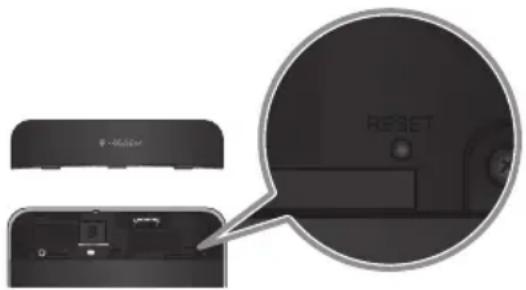
Remove the back cover and press the RESET button with a pointed object to restart your device. If it still does not work, please contact customer service.
natural_image
Close-up of a black electronic device with a magnified inset showing a labeled 'RESET' button (no readable text or symbols beyond the label)To assure optimal device performance:
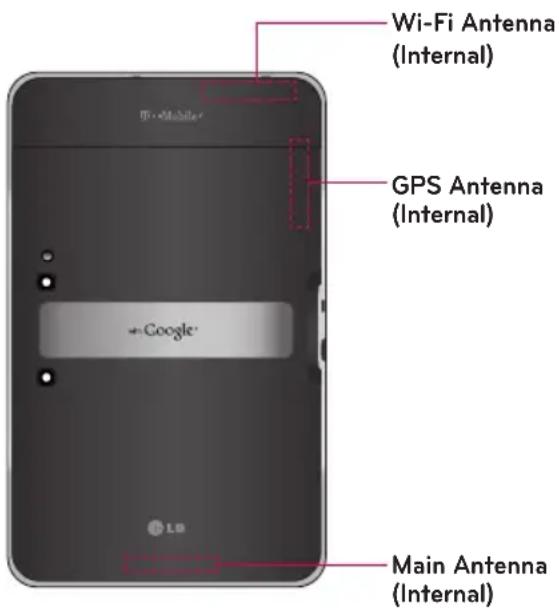
- Ensure the back cover is attached to your device while sending and receiving data using Wi-Fi or Bluetooth. Since the Wi-Fi and Bluetooth internal antenna is attached to the back cover, removal of the back cover may reduce the antenna performance.
- Avoid holding the part of the device where the antenna is located while sending and receiving data. Avoiding contact with the antenna area when the device is in use optimizes the antenna performance and the battery life.
To transfer files to a computer using USB:
You must install the latest version of Windows Media Player to the computer.
Refer to 'Connecting to a computer via USB' on page 32 for more information.
Before installing an open source application and OS:

WARNING: To protect your device and personal data, download applications only from stored sources, such as Android Market™. If some applications are not properly installed on your device, your device may not work normally or a serious error can occur. You will need to uninstall use applications and all of its data and settings in the device.

WARNING: If you install and use an OS other in the one provided by the manufacturer, this may cause your device to malfunction and your service is no longer covered by the warranty.
Device components
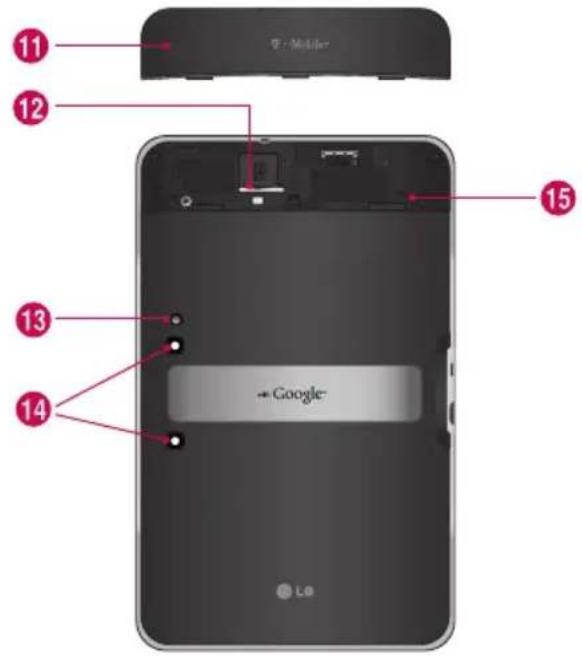
WARNING: Placing a heavy object on the device or sitting on it can damage its LCD and touch screen functionalities.
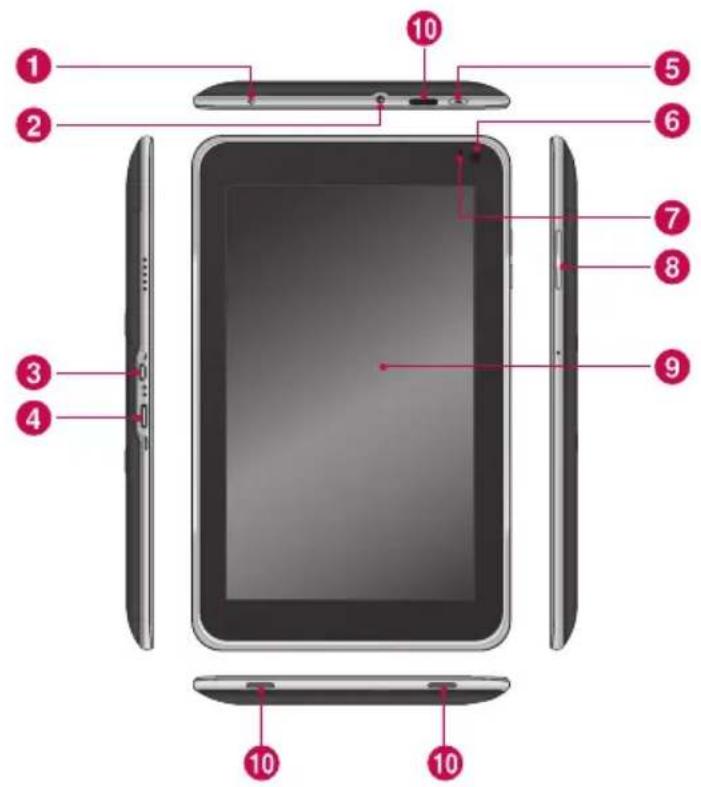
| 1 | Charger port lets you charge your device using the provided travel adapter. |
| 2 | 3.5mm Headset Jack lets you to plug in an optional headset for convenient, hands-free use. You can also plug in headphones to listen to music. |
| 3 | USB cable port allows you to connect a USB cable. |
| 4 | HDMI cable port allows you to connect an HDMI cable. |
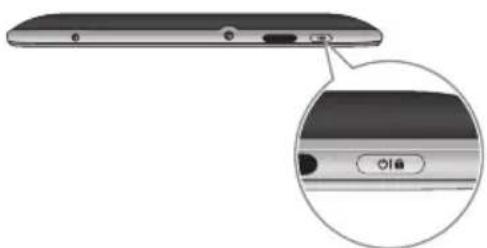
| 5 | Power/Lock Key locks the screen on your device. Press and hold to open the power off menu. |
| 6 | Front-facing Camera Lens use for taking pictures and recording videos. Keep clean for optimal performance. |
| 7 | Ambient Light Sensor detects available environmental light and automatically increases or decreases the display's backlighting. |
| 8 | Volume Keys allow you to adjust the notification and media volumes. |
| 9 | Touchscreen displays all the information needed to operate your device, such as applications, date, time, signal status, and battery strength. |
| 10 | Speaker lets you hear notifications and sounds. |
| 11 | Back Cover encloses the SIM card compartment. |
| 12 | SIM card slot encloses the SIM card. |
| 13 | Camera Flash helps picture and video quality when taking pictures or recording videos in low light conditions. |
| 14 | Rear-facing Camera Lens use for taking pictures and recording videos. Keep clean for optimal performance. |
| 15 | Reset button reboots your device. |
Inserting the SIM card
Before you can start exploring your new device, you'll need to set it up.
To insert the SIM card:
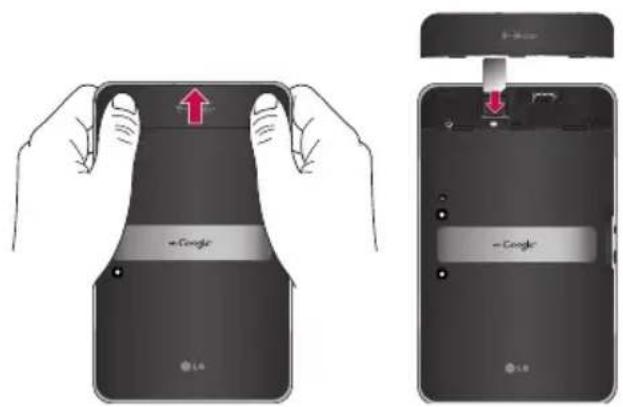
Press and slide the back cover upwards with 1. both hands (see image below).
Slide the SIM card into the SIM card slot until 2. it clicks into place. Make sure the gold contact area on the card is facing downwards.
Slide the back cover downwards until it clicks 3. into place (see image below).
NOTE: If you install the SIM card while the device is on, your device will reboot automatically.
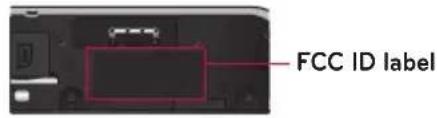
NOTE: When you open the back cover to insert the SIM card, you can find a label showing the FCC ID number.
Charging your battery
Your device has an internal rechargeable battery. Keep the battery charged while not in use in order to maximize use and standby time. The battery charge level is shown on the Status Bar at the bottom right corner of the screen.
When your battery level is less than 15%, your tablet will make a warning sound to let you know the low battery power. And if the battery level becomes too low, the device will automatically power off. Recharge your battery to continue using your device.
WARNING: The battery must be fully charged initially to improve battery lifetime.
NOTE: Please use only an approved charging accessory to charge your LG device. Improper handling of the charger port, as well as the use of an incompatible charger or adapter, may cause damage to your device and void the warranty.
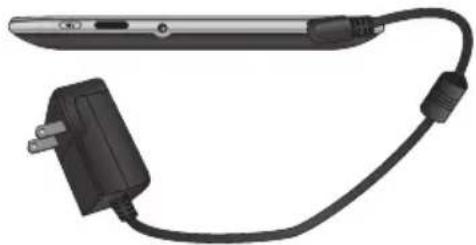
Connect the provided travel adapter into the wall 1. power socket.
Plug the other end (as shown below) into the 2. device's charger port.
natural_image
Illustration of a handheld electronic device with a black cable and a small plug attached (no text or symbols visible)WARNING: Fully insert the plug into the device's charger port, otherwise it may not charge your device.
Turning your device on and off
natural_image
Close-up of a smartphone rear panel with a close-up inset showing the screen and button (no text or symbols visible)- To turn on the device, press and hold the Power/Lock Key for a few seconds.
- To turn off the device, press and hold the Power/Lock Key and touch OK to confirm.
Locking and unlocking the screen
When you do not use the device for a while, the screen is turned off and locked automatically to prevent unintended operation and save the battery power. When you are not using your device, press the Power/Lock Key to lock your device.
You can turn on the screen by pressing the 1. Power/Lock Key. Your Lock Screen will appear.
Touch and hold 2 A circle appears on the screen around your finger.
Drag your finger to the edge of the larger circle 3. that surrounds it. The screen is unlocked and the last screen you were working on opens.
NOTE: If you have set up an Unlock Pattern, use your fingertip to draw the pattern. If you set up a PIN or Password, enter it and touch OK.
To adjust the delay before the screen turns off:
- Apps > Settings > Screen > Timeout
Secure your lock screen
You can lock your screen so that only you can unlock it to access your data, buy applications, etc.
To set an Unlock Pattern, PIN, or Password for the first time:
- Apps > Settings > Location & security > Configure lock screen > Pattern, PIN, or Password
The first time you set an Unlock Pattern, you will see a tutorial with instructions on how to create it.
From then on, any time you wish to turn the device on or unlock the screen, you will need to draw your Unlock Pattern to unlock the screen.
You can also lock your screen by using a PIN or Password. Once it is set, you can change it on the Configure lock screen menu.
NOTE: If you forgot your Unlock Pattern, PIN, or Password:
You have 5 opportunities to enter your Unlock Pattern, PIN or Password. If you used all the 5 opportunities, you can attempt it after 30 seconds.
If you forgot your unlock pattern:1.
- If you've created a Google account on the device, touch Forgot pattern? Then you are required to sign in with your Google account to unlock your device.
- If you haven't created a Google account on the device, please contact customer service.
If you forgot your PIN or password:2.
- Please contact customer service.
Using HDMI
LG-V909 supports HDMI output. Enjoy High-Definition video recorded on your device on other display devices via HDMI cable, such as a TV or a projector that allows HDMI input.
Your tablet supports:
• Video - resolutions up to 1080p
• Non video - resolution up to 720p
• 3D Frame Packing - up to 720p
NOTE:
- It may take time to play media files depending on the display device connected.
- Files may not be played properly when using a cable or display device that is not HDMI-certified.
- The image orientation set in your tablet may be Landscape-only and not be rotated to change the orientation.
- Your tablet may automatically adjust the output resolution according to the resolution of the display device you connected.
- During the HDMI connection, video playback is only visible on the display device.
Google account set up
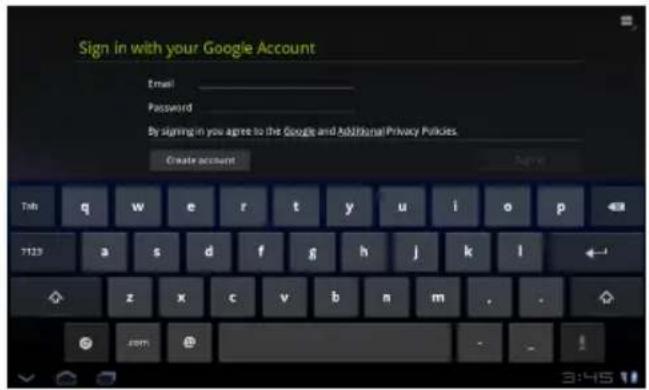
When you first turn on your tablet, you have the opportunity to activate your mobile data service, to sign into your Google Account, and to decide how you want to use some Google services.
Setting up your Google account
Sign into a Google Account from the prompted set up screen.
OR
- Touch a Google application, such as Gmail.
- At the setup screen, touch Create account to create a new account. If you have a Google account, enter your e-mail address and password, then touch Sign in.
Once you have set up your Google account on 3. your device, your device will be automatically synchronized with your Google account on the web (It depends on your synchronization settings).
Signing in to your Google Account lets you synchronize Gmail and your Google contacts, calendars between your device and the web, and Books. You also need to sign in to a Google Account to use Google applications, such as Google Talk™ and Android Market™.
Adding additional accounts
After setup, you can add Google™, Microsoft Exchange ActiveSync, conventional email, and other kinds of accounts, depending on what applications you have installed. Each account syncs some or all of the account's data. If you add more than one Google Account, only the first Google Account you sign into is backed up to Google servers. Some applications that only work with a single account display data only from the first account that you sign into.
Your Home screen and basics
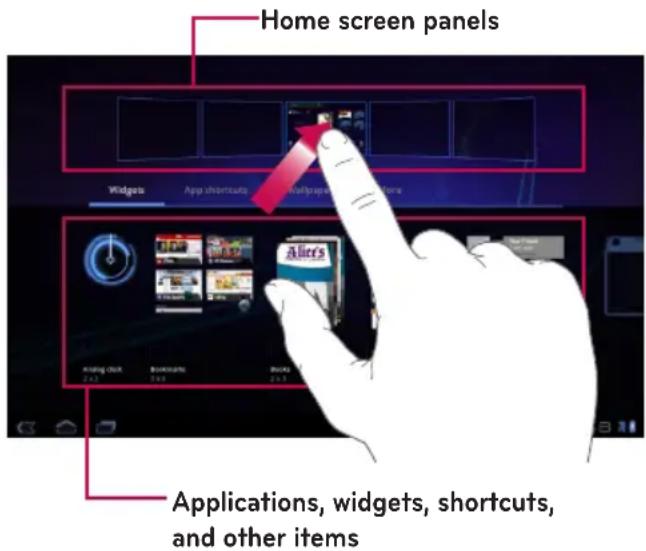
To navigate your Home screen, simply swipe your finger to the left or right to view your Home screen panels. You can also customize each panel with widgets and shortcuts to your favorite applications, folders and set a wallpaper.
The Home screen is your starting point to access all the features on your device. It displays application shortcuts, icons, widgets, and other features.
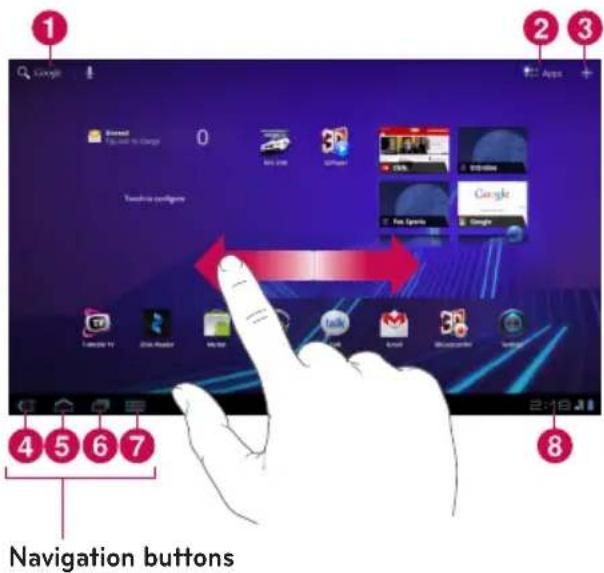
| 1 |  | Google SearchTM opens the Google SearchTM application. |
| 2 |  | Apps Launcher open the Launch screen to view installed applications. |
| 3 |  | Home screen Settings allows you to customize your home screen panels. |
| 4 |  | Back go to the previous screen. |
| 5 |  | Home return to the Home screen. |
| 6 |  | Recent Apps displays a list of your recently used applications. |
| 7 |   | Legacy is displayed only on some applications and opens the options menu for applications designed for previous versions of Android. |
| 8 | Status Bar displays device status information, including the time, signal strength, battery status, and notification icons. | |
Using the Navigation buttons
The Navigation buttons at the left bottom make it easy to quickly switch among applications.
In some media applications, the Navigation buttons and Status Bar are replaced by dim dots when you're watching a movie, slideshow, etc., so you can better enjoy them without the distraction. You can touch a dot as it if were the control it stands for, or touch a blank area of the bottom of the screen to restore it to full view.
Customizing the Home screen
You can personalize your Home screen by adding application icons, shortcuts, widgets, and other items to any Home screen panel. You can also change the wallpaper.
To move an item on the Home screen
Touch and hold the item on your Home screen.1.
Drag the item to a new location on the screen. 2. Pause at the left or right edge of the screen to drag the item into the next available Home screen panel.
When the item is placed where you want it to 3. be, lift your finger.
To delete an item from the Home screen
Touch and hold the item until the Apps launcher 1.
icon is changed to a Trash can

- Drag the item to the Trash can finger.

and lift your
Adding Widgets on your Home screen
You can edit Home screen panels by touching 1.
+ on the Home screen.
Touch and hold the items from the 2. Widgets category, then drag it to the Home screen panel you want.
Pause on the Home screen panel and when it 3. gets enlarged, drag the item to the location you want.
When the item is placed where you want it to 4. be, lift your finger.
- The screen will return to the Home screen settings automatically.
Changing the Home screen wallpaper
- Touch +, then Wallpapers.
- Select an image from Gallery, Live Wallpapers, or Wallpapers.
- Touch the wallpaper, then Set wallpaper (if necessary). If the wallpaper needs to be cropped, crop it and touch OK.
Adding More
You can add specific shortcut menus to the home screen to your device, including Bookmarks and Settings menus. Touch More and choose the menu(s) you want to add.
Adding a quick contact icon to your Home screen
You can create a quick access icon of your favorite contact on your Home screen. It makes it easy to get in touch with your contacts.
- Touch +, then More.
- Touch Contact. You contact list will be displayed on the screen. Select a contact you want to add from the list.
Your contact will be added to the Home screen.3.
Using the Multi-tasking functions
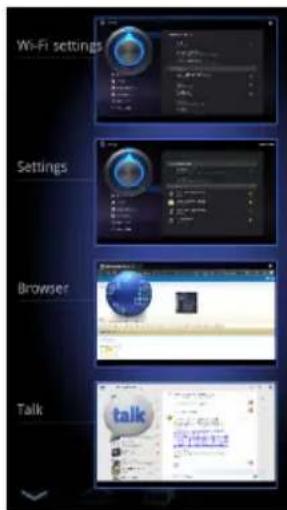
Multi-tasking is easy with Android because open applications keep running even when you open another application. There's no need to quit an application before opening another. You can use and switch among several open applications. Android manages each application, stopping and starting them as needed, to ensure that idle applications don't consume resources unnecessarily.
Opening and Switching Applications
Simply touch the screen to view the list recently used applications. Touch an application to return to it.
Status and Notification icons
The Status Bar appears at the bottom of every screen. It displays icons indicating that you've received notifications and icons indicating the device's status along with the current time.
Below is a table explaining the meaning of icons you're likely to see in the Status Bar.
| No signal | |
| Signal strength | |
| Bluetooth activated | |
| Bluetooth connected | |
| Alarm | |
| Flight mode | |
| Battery level | |
| Battery is charging | |
| USB debugging connected | |
| Data download | |
| Data upload | |
| Onscreen keyboard Input Method | |
| Downloaded application | |
| New Email message | |
| New Gmail message | |
| Music is ON | |
| Wi-Fi |
| USB tethering is active | |
| Portable Wi-Fi hotspot is active | |
| Both USB tethering and Portable Wi-Fi hotspot are active |
Notifications Panel and Quick Settings
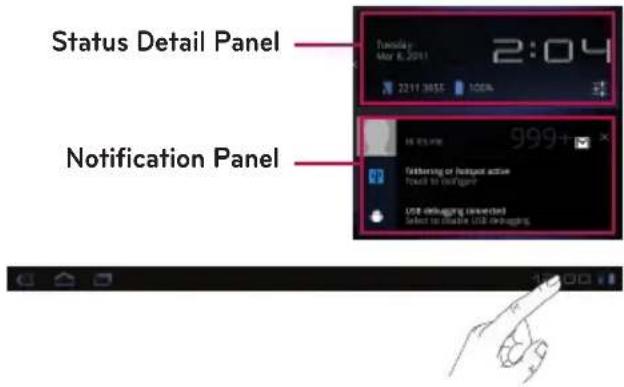
The Notifications Panel allows you to check and manage Wi-Fi, Bluetooth as well as other notifications, such as the arrival of new messages, calendar events, alarms, and ongoing events. When you receive a notification, text appears briefly and the notification icon will be displayed in the Status Bar. Depending on your settings, you may hear a notification sound.
You can open the Notifications Panel to view a list of all recent notifications. When you touch the Status Bar once, you can see the Notifications Panel along with the Status Detail Panel.
Work with Quick Settings
If you touch the Status Detail Panel, you can open the Quick Settings to view and control the most common settings for your tablet.
The following icons are displayed on the Quick Settings:
| Enables and disables Airplane Mode. | |
| Directs you to the Wireless & networks menu. | |
| Choose to automatically switch the orientation of the screen as you turn the device to a horizontal position. | |
| Adjust the brightness of the screen. | |
| Choose to enable or disable notifications and display status icons on the Status Bar. | |
| Directs you to the Settings menu. |
Touch screen tips
Your touchscreen provides an excellent way to interact with and use your device.
Here are some tips on how to navigate around your device.
Touch - A single finger touch selects items.
Touch and hold – Touch and hold an item on the screen by touching it and not lifting your finger until an action occurs.
Drag - To scroll through a list or move slowly, drag across the touch screen.
Flick – To scroll through a list or move quickly, flick across the touch screen (drag quickly and release).
Swiping - Swiping means to quickly drag your finger vertically or horizontally on the screen to move the area of focus or to scroll through a list. For example: slide your finger left or right on the Home screen to scroll among the five panels.
Rotating the screen – The screen can be rotated to change the orientation from portrait to landscape.
Double-tap - Double-tap to zoom a web page or a map.
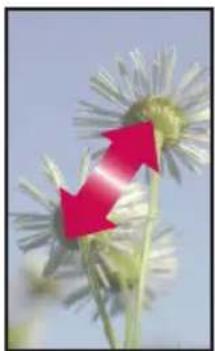
Zoom-in and Zoom-out – Pinch fingers together or spread fingers apart on the screen when you're viewing images, web pages or on maps to zoom in and out.
natural_image
Close-up of a dandelion flower with a red upward arrow pointing to its bloom (no text or symbols)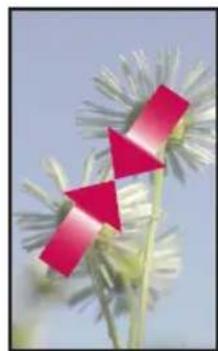
natural_image
Close-up of a white flower with a red triangular ribbon attached to its stem (no text or symbols visible)On-screen Keyboard
The on-screen keyboard displays automatically on the screen when you need to enter text. To manually display the keyboard, simply touch a text field where you want to enter text.
 | Caps/Shift Key lets you enter capital letters. To lock the Caps/Shift Key, touch it twice. To unlock it, touch it again. |
 | Settings Key lets you switch the input language or access Android keyboard settings. You can also touch and hold it to access Android keyboard settings. |
 | Number and Symbols Key change the input to the numbers and symbols keyboard. |
 | Enter Key moves the cursor to the next field or text line or submits your query. |
 | Close Key removes the keyboard from the screen. |
 | Delete Key deletes a single space or character with each touch. Touch and hold to delete text quicker. |
 | Voice to Text Key enters text by voice. |
 | Emoticon Key lets you insert emoticons easily. Touch and hold to open a list of emoticons. |
Using the on-screen keyboard
Touch a text field where you want to type. The 1. on-screen keyboard will open automatically. Text fields for device numbers and other special purposes may display numbers and symbols.
Touch the keys on the keyboard to start typing.2.
Touch 3 when you're done.
Entering text by speaking
You can enter text by speaking in most places that you can enter text with the on-screen keyboard.
Touch a text field.1.
Touch 📁 on the keyboard.
When prompted to "Speak now", speak what 3. you want to enter.
Editing text
You can edit the text you enter in text fields and cut, copy, or paste text.
Touch the text you want to edit. The cursor is 1. inserted where you touched.
Drag the cursor by its tab to the location where 2. you want to edit text (If you previously copied text, the Paste Panel appears briefly above the cursor).
To cut, copy or paste text:
Touch and hold the text or word you want to 1. select.
Drag either selection tab to expand or reduce 2. the range of selected text or touch Select all.
- Touch Cut, Copy or Paste.
Connecting to Networks and Devices
Wi-Fi Networks
With Wi-Fi, you can use high-speed Internet access within the coverage of the wireless access point. You can enjoy wireless Internet with Wi-Fi without extra charges. Once the Wi-Fi setting is ON, a list of active and in-range Wi-Fi networks is displayed. You may need a password depending on the network.
Turn on Wi-Fi and connect to a network
Apps1. Settings > Wireless & networks > Wi-Fi settings > Wi-Fi
A checkmark indicates that Wi-Fi is on.2.
A list of active and in-range Wi-Fi networks will 3. load. Touch the network you wish to connect to.
- If the network is open, touch Connect. If the network is secured with a password, enter the password and touch Connect.
NOTE: If you are out of the Wi-Fi zone or set Wi-Fi to Off, additional charges may be applied by your mobile operator for mobile data use.
USB Tethering & Portable Wi-Fi hotspot
USB tethering and portable Wi-Fi hotspot are great features when there are no wireless connections available. By using USB tethering, you can share your device's mobile data connection with a single PC via USB cable. This will provide an internet service to a PC over the mobile network.
- Apps > Settings > Wireless & networks > Tethering & portable hotspot > USB tethering
A checkmark indicates that USB tethering is on.
NOTE: To use USB tethering, you need to install the "LG USB Driver" on your PC first.
The LG USB Driver is downloadable from the following site: http://www.lg.com/us/mobile-phones/index.jsp → Click Mobile Support →
Select the Carrier (T-Mobile) → Select the Model (LG-V909) → Click Driver to download.
By turning your device into a portable Wi-Fi hotspot, you can share your device's data connection with more than a single device at once.
- Apps > Settings > Wireless & networks > Tethering & portable hotspot > Portable Wi-Fi hotspot
A checkmark indicates that portable Wi-Fi hotspot is on.
When your device is sharing its data connection, an icon appears in the Status Bar and as an ongoing notification in the Notifications Panel.
Bluetooth
Bluetooth is a short-range wireless communications technology that devices can use to exchange information. The most common Bluetooth devices are headphones for listening to music and other portable devices, including laptops and cell phones. To connect to a Bluetooth device, you must turn on your device's Bluetooth. To use your device's Bluetooth with another device, you must first pair the two devices. Pairing creates a secure connections between the two devices.
Turn on Bluetooth
- Apps > Settings > Wireless & networks > Bluetooth
A checkmark indicates that Bluetooth is on.
To pair your device with a Bluetooth device
You must pair your device with another device before you connect to it.
If Bluetooth is off, you need to touch Bluetooth to turn it on first.
- Apps > Settings > Wireless & networks > Bluetooth settings > Find nearby devices
Your device will scan for and display the IDs 1. of all available Bluetooth in-range devices. If the device you want to pair with isn't on the list, make sure the target device is set to be discoverable, then scan again.
Touch the ID of the device you want to pair 2. with your device. If you're prompted to enter a passcode, try entering 0000 or 1234 (the most common passcodes), or consult the documentation that came with the target device to find its passcode.
Once the pairing is successful, your device will 3. connect to the device.
Connecting to a computer via USB
You can connect your device to a computer with a USB cable, to transfer music, pictures, and other files between your tablet and the computer. Using Media Transfer Protocol (MTP), you can manage contents on your tablet storage.
NOTE: Before using MTP, please read the following first!
- You must install the latest version of Windows Media Player to use MTP. You can download the latest version of Windows Media Player from the Microsoft website: http://www.microsoft.com/windows/windowsmedia/download
- MTP works with:
- Windows XP Service Pack 2 or higher with Windows Media Player 10 or higher installed (Windows Media Player 11 or higher is recommended).
- Windows Vista and Windows 7.
- Mac OS with third party software XNJB.
-
Linux with third party software libmtp.
-
You have to upgrade your device's firmware to the latest version before using the MTP mode.
- MTP is not activated if USB tethering is ON. Please ensure USB tethering is OFF.
To connect as a removable storage device:
Connect your device to a computer using the 1. supplied USB cable.
Your tablet is automatically recognized as a 2. portable device.
Find your device in My Computer using file 3. explorer on the computer. Files and folder structure of your tablet will be displayed under Device Storage.
You can now copy files and folders to and from 4. your tablet.
During the file transferring, the screen below will 5. be displayed.

Sync in progress
NOTE:
- Please be aware that other applications currently running may be paused while the tablet is syncing with your computer. You can stop syncing by canceling it on the computer.
- Please do not disconnect the USB cable during loading or synchronizing. It may cause malfunction of the player and may corrupt the files.
To Synchronize with Windows Media Player:
Connect your device to a computer using the 1. supplied USB cable.
When connected, a pop-up window will appear 2. on the PC.
Open Windows Media Player.3.
Edit or enter your device's name in the pop-up 4. window (if necessary).
- Select the Sync tab on Windows Media Player.
Select and drag files you want from the Library 6. to the Sync List window.
- Click Start Sync on the bottom of the Sync List window to start. It will copy files in the Sync List to your tablet.
For details about usage of Windows Media Player, refer to the Windows Media Player Help.
Maps and Latitude
You can find your current location, view real-time traffic conditions and get detailed directions. You can search on a street map or a satellite image to locate an address or a landmark.
To open the Maps application
- Apps > Maps
| Icon | Description |
| [0ST3W] | Search – You can search for a location you want. |
| [CZ05] | My Location – Point your current location on the map. |
 | Places – Searches for places around your current location that are related to the category you choose. |
| [K05Y] | Directions – This will let you find out the route of any place you enter. Touch the My Location and End point fields to input the data. You can also choose a location from Contacts or a point on the map. |
 | Layers – You can switch view from Traffic to Satellite, Terrain, or others. |
 | More – Clear map or find Starred places and more. |
Getting directions
While viewing a map, touch1.

Enter your start point and destination point, type 2. the address, or find from contacts.
Choose the transportation method and touch 3. Go.
Starring a location
You can star any location or labeled feature on a map to make it easy to spot.
Touch and hold a location or labeled feature on 1. a map.
Touch the balloon that opens.2.
Touch the gray star at the top of the screen to 3. star the location.
You can open a list of your starred locations, so you can quickly go to a starred location on the map.
- Touch

Starred Places
Joining Latitude
Google Latitude™ lets you and your friends view each others' locations on maps and share status messages with each other. Your location is not shared automatically. You must join Latitude and then invite your friends to view your location, or accept invitations from your friends.
This allows you to choose to share your location with friends you choose.
- While viewing a map on the Google Maps application, touch ➞Join Latitude
Finding your friends with Latitude
-
Apps > Latitude > ≡ > Add friends
-
Touch Select from Contacts to check all of the contacts you want to invite. Touch Add via email address to enter one or more email addresses, then touch Add friends.
When your friend accepts your invitation, you 3. can share locations.
Market
Android Market™ lets you download useful applications and games. If you install applications and games from Android Market™, they appear in the menu. You can check the downloaded application by touching the My apps tab.
To open the Market application
- Apps > Market
Downloading applications
Select a category to browse its contents.1.
Choose an application to install.2.
For free applications, touch Install. For paid 3. applications, touch the price button.
Read the information on the type of information 4. the application will access. If you agree to the application's access requirements, touch OK.
Removing applications
Apps1. > Market
Touch the 2. My apps tab.
Choose the application you wish to remove and 3. touch Uninstall.
You can also remove an application from the Settings menu.
- Apps > Settings > Applications > Manage applications > Downloaded
WARNING: To protect your device and personal data, download applications only from trusted sources, such as Android Market™. If some applications are not properly installed on your device, your device may not work normally or a serious error can occur. You will need to uninstall those applications and all of its data and settings from the device.
Talk
This application lets you chat with other people who also use Google Talk™. You remain signed in, even when you're using other applications, until you deliberately sign out.
Managing Your Friends List
Your Google Talk™ Friends list contains the friends you've invited to become friends or whose invitations you've accepted in Google Talk™. Friends can invite each other to chat in Google Talk™ and see each others' online status in Google Talk™ and other applications, such as in Gmail™ and Google Maps™.
To add a friend: Touch and enter your friend's email address. Then touch Send invitation.
Chatting with a friend
Apps1. > Talk
Find the friend you want to chat with and enter 2. your message. Then touch 📋 send it.
The messages that you exchange are displayed on the screen and include information about the chat, such as whether it's on the record, the time a message was sent (if there's no response after a short while), etc.
- If your friend is available for voice chat, 📋 will appear next to their name on the Friends list. Touch in the conversation screen to begin a voice chat.
- If your friend is available for video chat, ■ will appear next to their name on the Friends list. Touch ■ in the conversation screen to begin a video chat.
To sign out of Google Talk™
You can sign out of Google Talk™. For example, if you want to limit Google Talk™ conversations to your device. Also, signing out can extend your battery life.
- Apps > Talk > Sign out
Books
Use Books to read eBooks you purchase or download for free from the web-based Google Books service.
TIP: This feature is available depending on your SIM card and service provider. Please contact customer service for more information.
To shop for books:
-
Apps > Books > Shop
-
You will be connected to Market where you can search for books.
To read books:
Apps > Books > Select a book from the library.
- To show the menu while you are reading, touch the screen.
• returns to the main Book screen at any time.
• shows the table of the contents. - Aa goes to the settings.
• ≡ opens the book menu.
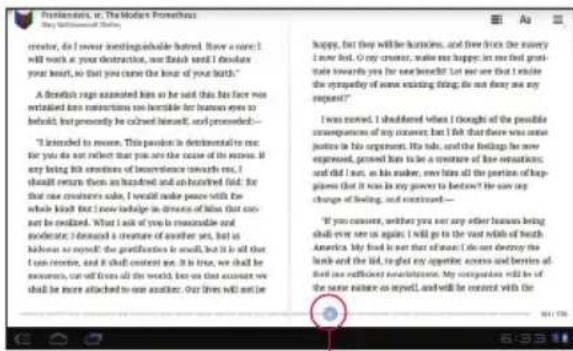
Slide the bar to skip the page backward and forward.
Enjoy user-friendly Email environment with your device. You can add multiple Email accounts using POP3, IMAP and Exchange ActiveSync.
To open the Email application
- Apps > Email
Adding an account
The first time you open the Email application, a setup wizard opens to help you set up an email account. Your service provider or system administrator can provide the account settings you need.
To add other email accounts:
- Apps > Email > ≡ > Account settings > Add account
OR
- Apps > Settings > Accounts & sync > Add account
Opening inbox
After the initial setup, Email displays the contents of your inbox. If you have added more than one account, you can switch among accounts.
• allows you to compose an email.
- synchronizes your messages with the mail web server.
Using Combined view
If you added more than one account, you can view all messages sent to all accounts. The accounts are distinguished by colored labels.
- Touch Combined view from the drop-down menu at the top left corner of the screen. You can also switch accounts by touching the desired account on this menu.
Changing account settings
Once you finished setting up the email account, you can change the general settings and set your favorite ringtone to notify you when new email has arrived or add and remove accounts.
- Apps > Email
- Touch ≡ > Account settings
- Personalize the settings according to your needs.
Remove an email account
- Apps > Email > ≡ > Account settings > Remove account
Gmail™
Gmail ^™ is configured when you first set up your device. Depending on your synchronization settings, Gmail ^™ on your device is automatically synchronized with your Gmail ^™ account on the web.
When you open the Gmail application, the most recent conversations are displayed in your Inbox.
To open the Gmail application
- Apps > Gmail
The current Google account is displayed at the top left corner of the Inbox. If you have more than one Gmail account, you can switch accounts to view the messages in each Inbox.
To search specific emails
- Apps > Gmail >
A list of results will appear, displaying all of the conversations with emails that contain the words you searched for.
Contacts
You can add contacts on your device and synchronize them with the contacts in your Google account or other accounts that support syncing contacts.
To open the Contacts application
- Apps > Contacts
Adding a new contact
1. Touch Apps > Contacts.
Touch 2.1 to create a new contact.
Choose the account you wish to add the contact to, if necessary.
If you want to add a picture to the new contact, 3. touch the image area. Choose Take photo to take a photo with the Camera or Select photo from Gallery to choose one from your Gallery.
Enter any contact information you want to add.4.
Touch 5. Done when you finish editing.
Editing a contact
While viewing a contact's details, touch and enter the desired contact information. Then touch Done to save the contact entry.
Searching for a contact
Touch Find contacts on the top left side of your screen and type the name you want to find. Matching contacts will be displayed immediately. Touch the contact you are searching for.
Once you find a contact, you can use the following options:
- Touch the Email field to send an email.
- Touch the Website field connect to the URL.
- Touch the Address field to pinpoint the location on the map.
- Touch the IM field to connect to instant messaging.
- Touch ≡ and Delete contact to delete a contact.
Importing and Exporting contacts to your memory
If you have contacts stored in vCard format on your device's memory, you can import and export them into your Contacts application.
You can also export all of the contacts on your device to your device's memory as vCard files.
To export your contacts:
Apps1. > Contacts
Select a contact you want to export.2.
- Touch ≡ > Import/Export > Export to USB storage then OK.
To import your contact:
Apps1. > Contacts
- Touch ≡ > Import/Export > Import from USB storage.
You can import one or multiple vCard files at 3. once. Choose the option you want and touch OK.
In the menu that opens, all the vCard files 4. currently in your device's memory are displayed. Select the vCard file(s) you want to import.
Sharing contacts via Bluetooth
To share a contact:
Apps1. > Contacts
- Touch ≡ > Share contact > Bluetooth
Check if Bluetooth is ON and let the tablet scan 3. for nearby devices.
Choose the device you want to send from the 4. list.
To share all visible contacts:
- Touch ≡ > Import/Export > Share visible contacts > Bluetooth, then follow the steps 3 and 4 from the previous section.
Photos and videos
Camera
Getting to know your camera view finder
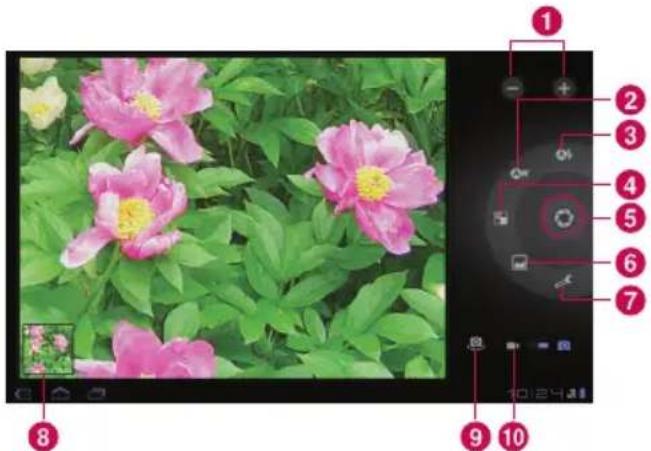
Taking a photo
Apps1. > Camera
Holding the device, point the lens towards the 2. subject you want to photograph.
- Touch the Capture button lightly and a focus box will appear in the center of the viewfinder screen. (A focus box appears only on the rear-facing camera mode.)
Position the device so you can see the subject 4. in the focus box.
When the focus box turns green, the camera 5. has focused on your subject.
- Take your finger off the Capture button.
| 1 | Zoom Zoom in or | zoom out. |
| 2 | White balance | Adjust the amount of sunlight entering the image. |
| 3 | Flash mode Enable | and disable Flash. |
| 4 | Color effect | Choose a color tone for a new photo. |
| 5 | Capture | Takes a photo. |
| 6 | Scene mode | Change Scene mode. |
| 7 | Camera settings | Change the camera settings. |
| 8 | Gallery | Access your saved photos from within the camera mode. |
| 9 | Switch lenses | Switch between the rear-facing camera lens and the front-facing camera lens. |
| 10 | Video mode | Touch the video icon to switch to video mode. |
Tagging location information to your photo
Activate to use your device's location-based services. Take pictures wherever you are and tag them with the location. If you upload tagged pictures to a blog that supports geo-tagged photographs, you can see the pictures displayed on a map.
NOTE: This function is only available when GPS is active.
- Apps > Camera > Camera settings > Store location
On
Video Camera
Getting to know your video camera view finder
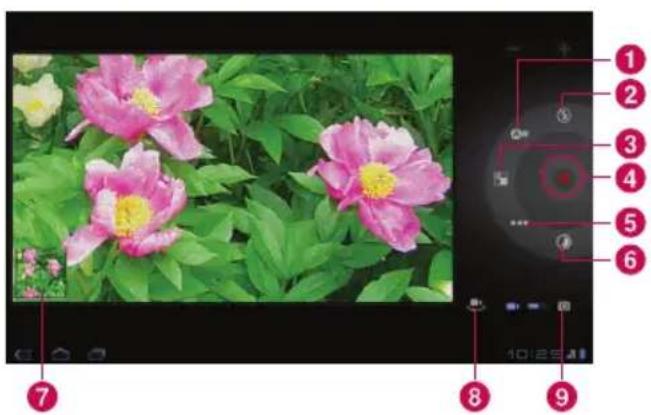
Taking a video
Apps1. > Camera
Touch the 2. Video mode button.
Holding the device, point the lens towards the 3. subject you want to record.
-
Touch the Record button once to start recording. A timer showing the length of the video will appear on your viewfinder.
-
Touch the Stop button to stop recording.
| 1 | White balance | Adjust the amount of sunlight entering the video. |
| 2 | Flash mode | Enable and disable Flash. |
| 3 | Color effect | Choose a color tone for a new video. |
| 4 | Record/Stop | Starts and stops recording a video. |
| 5 | Video quality | Adjusts the video quality. |
| 6 | Time lapse interval | Captures each frame at a rate much slower than it will be played back. When replayed at normal speed, time appears to be moving faster and thus lapsing. |
| 7 | Gallery | Access your saved videos from within the video mode. |
| 8 | Switch lenses | Switch between the rear-facing camera lens and the front-facing camera lens. |
| 9 | Camera mode | Touch the camera icon to switch to camera mode. |
Gallery
Open the Gallery application to view albums of your pictures and videos.
You can store multimedia files to your memory and have easy access to all your image and video files.
To open the Gallery application
- Apps > Gallery
Viewing your albums
• returns to the main Gallery screen at any time.
- opens the Camera application.
• i provides the file and folder properties.
• play a slideshow of all your pictures.
Viewing and browsing pictures and videos
Touch a picture or video in an album to view it.
- delete a file from device's memory.
- allows you to share the file with others.
- opens more options.
- Turn the device to view the picture in upright (portrait) or sideways (landscape) orientation. The picture is displayed in the new orientation.
- Touch the picture to view the available menus.
-
You can use the pinch-to-zoom method; spread out your two finger tips to zoom in and gather your two finger tips to zoom out.
-
When the picture is zoomed in, drag the picture to view parts that are not in view.
- Swipe the screen left or right to view the next or previous picture or video in the album.
Using a picture as a Contact icon or Wallpaper
Choose images to use as a contact icon or wallpaper.
Touch a picture to view the available menus, 1. then touch ☐ Set picture as.
2. Choose from Contact photo or Wallpaper.
- If you choose Contact photo, choose the contact you wish to set the photo to from your contact list.
- If you choose Wallpaper, crop the photo and touch Ok.
Getting details about your photo
You can view a photo's detailed information, such as Title, Time, File Size, etc. Touch a picture to view the available menus, then touch Details.
Sharing a picture
Touch a picture to view the available menus, 1. then touch
In the menu that opens, touch the application 2. you would like to use to share the selected pictures. Enter the necessary information, if needed, and send it.
Deleting files
You can delete the entire contents of one or more albums or individual images or videos from an album.
While in the Gallery, touch and hold an album, 1. picture or video.
Touch each of the files you want to delete. You 2. can use Select All to select all the available files. Touch 📋 to delete the file(s).
3D Camcorder and 3D Player
Getting to know your 3D Camcorder view finder
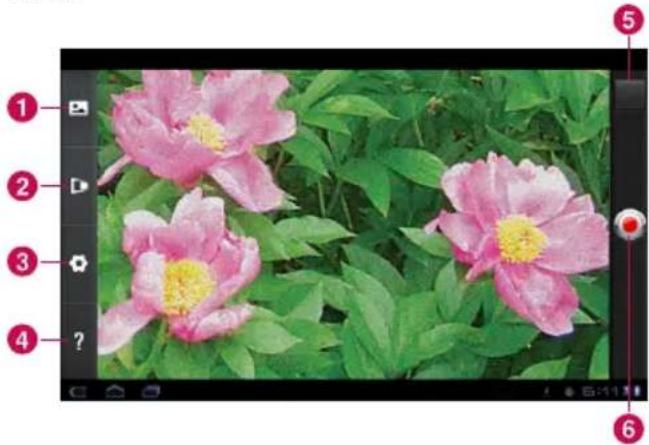
natural_image
Close-up of pink peony flowers with green foliage, labeled with numbered annotations (1-6) and a play button icon on the right.| 1 | 3D mode Choose the 3D camera mode. | |
| 2 | Depth control Control the depth of 3D video. | |
| 3 | 3D Camera settings | Change the 3D camera settings. |
| 4 | Help | Provides you with a quick guide for 3D Camera. |
| 5 | Gallery | Access your saved 3D videos from within the 3D camera mode. |
| 6 | Record/Stop | Starts and stops recording a 3D video. |
Taking a 3D Video
Apps1. > 3DCamcorder
Holding the device, point the lens towards the 2. subject you want to record.
-
Touch the Record button once to start recording. REC will appear on your viewfinder with a timer showing the length of the video.
-
Touch the Stop button to stop recording.
TIP: Use Help whenever you want to know how this function operates.
Playing a 3D Video
Apps1. > 3DPlayer
Select a video from your 3D video list. It will start 2. playing automatically.
- Watching the 3D video on your tablet:
Switch to mode at the bottom left corner of the screen and wear the 3D glasses (red and blue anaglyph glasses).
• Watching the 3D video on a 3D TV:
Connect the HDMI cable from the tablet to your 3D TV. Switch to 📄ode and wear the 3D glasses (for 3DTV).
Utilities
Calendar
Calendar makes it easy to create and manage events, meetings, and appointments.
To open the Calendar application
- Apps > Calendar
When you first set up your device, you configured it to use an existing Google account or you created a new account. The first time you open the Calendar application on your device, it displays any existing calendar events from your Google account on the web. Calendar will keep your events synchronized between your device and the web.
Viewing your calendar
Apps1. > Calendar
On the top left corner of the screen, you can 2. find the different view types of the Calendar (Day, Week, Month).
Events from each account you have added to your device and configured to synchronize calendars are displayed in Calendar. Events from each calendar are displayed in a different color.
Creating an event
Apps1. > Calendar >
Enter the necessary information and touch 2. Done.
Change synchronization and display settings
You can control whether an account synchronizes changes to calendar events between a Google ^™ or other calendar service with the Settings.
- Apps > Calendar > > Settings
Clock
Use Clock to display the date and time in large characters on your screen. You can also use it to set alarms.
Setting an alarm
-
Apps > Clock > Add alarm
-
Enter the alarm details and touch Set.
When an alarm sounds, touch Dismiss to turn it off or Snooze to delay for ten minutes.
Calculator
To open and use the calculator
Apps1. > Calculator
Enter numbers and arithmetic operators. 2.
- Touch ✗ to delete numbers while you type. Touch and hold ✗ delete all the numbers you entered at once.
- Touch CLR to delete the calculation result.
- To copy what you've entered, touch and hold the input field.
Music
The Music application plays audio files that are stored on your device's memory. Copy audio files from your computer onto the memory before you open the Music application.
To open the Music application
- Apps > Music
NOTE: Music file copyrights may be protected by international treaties and national copyright laws.
Therefore, it may be necessary to obtain permission or a licence to reproduce or copy music. In some countries, national laws prohibit private copying of copyrighted material. Before downloading or copying the file, please check the national laws of the relevant country concerning the use of such material.
Viewing your music library
The Music application searches the memory for music files you copied to your memory, then builds a catalog of your music based on the information contained in each music file.
The Music library screen opens with options to view your music library organized by New and recent, Albums, Artists, Songs, Playlists or Genres.
To create a playlist
When viewing a list of songs in the library, touch 1. to the right of the song name.
Touch 2. Add to playlist.
- Touch New playlist. If you want to add songs to a playlist you have already created, touch the name of it.
- Enter a name for the playlist, then touch OK.
Playing music
Touch a song in your library to listen to it.
The Playback screen opens and the song you touched or the first song in the album or other playlist starts to play. Playback stops only if you stop it, even when you switch applications.
To control playback:
The Playback screen contains several icons that you can touch to control the playback of songs, albums, and playlists.
| Icon Description | |
| Touch to pause playback. | |
| Touch to resume playback. | |
| Touch to skip to the next track in the album, playlist, or shuffle. | |
| Touch to skip to the previous track in the album, playlist, or shuffle. | |
| Touch to play the current playlist in shuffle mode (tracks are played in random order). | |
| Touch to set repeat mode: don't repeat, repeat the playlist, or repeat the current track. | |
Browser
Browser gives you a fast, full color world of games, music, news, sports, entertainment, and much more, right on your tablet device. Wherever you are and whatever you're into.
NOTE: Additional charges apply when connecting to these services and downloading content. Check data charges with your network provider.
Opening webpages
Apps1. > Browser
Touch the URL field and input the URL, then 2. touch ▶
To zoom in or out, double-tap the screen. You can also use the two finger zoom; place your two fingers on the screen and slowly pinch or spread apart.
While browsing the web page, use the following options:
 | Open a new tab. |
 | Add the current web page as a Bookmark. |
 | Refresh the web page. |
 | Go to the page you connected later than current page. |
 | Goes to the previous page. |
 | View your current bookmarks and add a new bookmark. You can also view your browser history. |
 | Search web pages. |
Opening multiple pages
With this feature, you can use multiple web page simultaneously. Just touch 📋 open a web page on a new tab.
Adding Bookmarks to your Home screen
Make quick access menus to your Home screen with this feature. You can add icons of your favorite site and make easy access by touching an icon on your Home screen like other menus.
- Apps > Browser > Add bookmark > Add to Home screen > OK
Changing browser settings
- Apps > Browser > Settings
Settings
The Settings application contains most of the tools for customizing and configuring your device. Some of functions are detailed on another chapter.
- Apps > Settings
Wireless & networks
Allows you to manage Wi-Fi and Bluetooth connections. You can also set Mobile networks and Airplane mode.
Airplane mode – When Airplane mode is activated, all wireless communications are disabled.
Wi-Fi settings – This allows you to set up and manage wireless access points.
- Wi-Fi – Checkmark to turn on Wi-Fi so you can connect to Wi-Fi networks.
- Network notification – Checkmark to receive a notification when an open Wi-Fi network becomes available and is in range.
- Wi-Fi disconnect policy – Specify when to switch from Wi-Fi to mobile data.
- Wi-Fi networks – Displays a list of Wi-Fi networks you've previously configured and those detected when the device last scanned for Wi-Fi networks.
- Add Wi-Fi Network – Allows you to add a Wi-Fi network by entering its SSID (the name it broadcasts) and security type.
Sound
Allows you to manage various Sound settings.
Volume – Allows you to set the multimedia, notification, and alarm volumes.
Notification ringtone – Allows you to choose a ringtone for your notifications.
Audible selection – Plays a sound when making a screen selection.
Screen lock sounds – Plays a sound when locking and unlocking the screen.
Screen
Allows you to manage various Screen settings.
Brightness - Adjust the brightness of the screen.
Auto-rotate screen – Checkmark to automatically switch the orientation of the screen as you turn the device sideways.
Animation – Opens a dialog where you can set whether you want to enjoy animated transitions for some effects, for all supported effects, or to enjoy a device without any optional animation effects.
Timeout – Opens a dialog where you can set how long to wait after you touch the screen or press a button before the screen darkens. For the best battery performance, use the shortest convenient timeout.
Location & security
Allows you to set your preferences for using and sharing your location when you search for information and use location-based applications.
Use wireless networks – If you check Use wireless networks, your device will determine your approximate location by using Wi-Fi and mobile networks. When you check this option, you're asked whether you consent to allowing Google™ to use your location when providing these services.
Use GPS satellites – If you check Enable GPS satellites, your device will be determine your location to street-level accuracy.
Use location for Google search – Checkmark to allow Google search to use your location for improved results.
Configure screen lock – Set an unlock pattern to secure your device. When setting this option, a set of screens open and guide you through drawing a screen unlock pattern. You can also set a PIN or Password instead of a Pattern or leave as Unsecure or Off.
When you turn on your device or wake up the screen, you're prompted to draw your unlock pattern to unlock the screen.
Owner info – Allows you to choose if you want to display owner information on the lock screen.
Set up SIM card lock – Set up a PIN to be required for device use or change the SIM PIN.
Visible passwords – Select to show passwords as you type them or deselect to hide passwords.
Device administrators – Allows you to view or deactivate device administrators.
Use secure credentials – Allows you to access secure certificates.
Install from USB storage – Allows you to install certificates from USB storage.
Set password - Set or change the credential storage password.
Clear credentials – Clear credential storage of all contents and reset its password.
Applications
Allows you to view details about the applications installed on your device, manage their data, force them to stop, and to set whether you want to permit installation of applications that you obtain from websites and email.
Manage applications – Opens a list of all the applications and other software installed on your device, along with their sizes.
Running services – Allows you to view and control currently running services.
Storage use – Allows you to view the storage amount used by applications.
Battery use – Allows you to view what applications have been using the battery.
Unknown Sources – Permits installation of applications that you obtain from websites, email, or other locations other than Android Market™.
Development – Allows you to set options for application development.
NOTE: To use USB debugging, you need to install the "LG USB Driver" on your PC first.
The LG USB Driver is downloadable from the following site: http://www.lg.com/us/mobile-phones/index.jsp → Click Mobile Support → Select the Carrier (T-Mobile) → Select the Model (LG-V909) → Click Driver to download.
Accounts & sync
Allows you to activate Background data synchronization or Auto-sync. You can also verify or add accounts and change their data and synchronization settings.
This allows you to add, remove, and manage your Google™ and other supported accounts. You also use these settings to control how and whether all applications send, receive, and sync data on their own schedules and whether all applications can synchronize user data automatically.
Background data – Permits applications to synchronize data in the background, whether or not you are actively working in them. Unchecking this setting can save battery power and lowers data use.
Auto-sync - Check to permit applications to synchronize data on their own schedule. Synchronizing data automatically is disabled if Background data is unchecked.
Privacy
Allows you to manage your personal information.
Back up my data – Checkmark to back up application data, Wi-Fi passwords, and other settings to Google servers.
Backup account – Backs up your accounts to debug-only private cache.
Automatic restore - Checkmark to restore backed up settings or other data when reinstalling an application.
Factory data reset – Erases all of your personal data from internal device storage, including information about your Google account, any other accounts, your system and application data and settings, and any downloaded applications. If you reset the device in this way, you're prompted to reenter the same kind of information as when you first started your tablet.
Tip: Make sure you backup any important data before performing this function.
Storage
Displays the amount of internal storage available and what types of files are using storage space.
Language & input
Language settings:
Select the language for the text on your tablet and configure the on-screen keyboard, including words that you have added to its dictionary.
Voice recognizer settings:
Language – Select a language for the Google voice recognition.
SafeSearch – Set the device to filter explicit text and/or images from voice search results.
Block offensive words – Allows you to hide recognized offensive words from voice results.
Text-to-speech settings:
Listen to an example – Plays a brief sample of the speech synthesizer, using your current settings.
Always use my settings – Check to use the settings on this screen in place of speech synthesizer settings available in other applications.
Default Engine – Opens a dialog where you can set the text-to-speech application you want to use, if you have more than one installed.
Install voice data – If your device does not have speech synthesizer data installed, touching this option connects to Android Market and guides you through the process of downloading and installing the data. This setting is not available if the data is already installed.
Speech rate – Opens a dialog where you can select how quickly you want the synthesizer to speak.
Language – Opens a dialog where you can select the language of the text you want the synthesizer to read. This is particularly useful in combination with the
Always Use My Settings setting, to ensure that text is spoken correctly in a variety of applications.
Engines – Lists the text-to-speech engines installed on your device. Touch one to view or change its settings.
Keyboard settings:
The Android Keyboard settings apply to the on-screen keyboard that is included with your device. The correction and capitalization features affect only the English version of the keyboard.
Accessibility
Check to enable all installed accessibility plug-ins.
NOTE: Requires additional plug-ins to become selectable.
Date & time
Allows you to change the date and time formats and choose to automatically update it.
About tablet
View legal information and check device status and software version.
Notice!
Open Source Software
To obtain the corresponding source code under GPL, LGPL, MPL and other open source licences, please visit http://opensource.lge.com/
All referred licence terms, disclaimers and notices are available for download with the source code.
Software update
LG Mobile Software update via Over-the-Air (OTA)
This feature allows you to update the firmware of your phone to the newer version conveniently via OTA without connecting the USB cable. This feature is only available if and when LG makes the newer version of the firmware available for your device.
Apps > Settings > About tablet > System updates
allows you to check for Android system firmware updates if and when such updates are made available for your device by LG.
NOTE: LG reserves the right to make firmware updates available only for selective models at its own discretion and does not guarantee the availability of the newer version of the firmware for all handset models.
Accessories
These accessories are available for use with the LG-V909 (Items described below may be optional).
Travel Adapter
This adapter allows you to charge the battery.
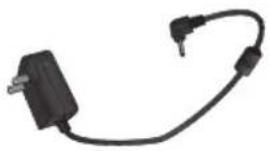
natural_image
Black electrical plug with attached cable (no text or symbols visible)USB Cable
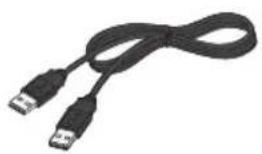
natural_image
Black USB cable with two connectors, no text or symbols visibleUSB Gender
LG-V909 supports standard type of USB keyboard and USB Hub. Other types of USB devices may not work with LG-V909.
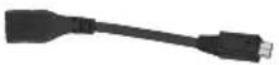
3D Glasses

WARNING:
- Use 3D glasses only for watching 3D images. They are not a suitable substitute for sunglasses.
- Wearing 3D Glasses for a long period of time can cause drowsiness, headaches, nausea or fatigue.
User Guide
Learn more about your LG-V909.
NOTE:
- Always use genuine LG accessories. Failure to do this may void your warranty.
• Accessories may vary in different regions.
FAQ
Please check to see if any problems you have encountered with your device are described in this section, before taking the device in for service or calling a service representative.
| CategorySub-Category | Question Answer | |
| BTBluetooth Devices | What are the functions available via Bluetooth? | You can connect a Bluetooth audio device such as a stereo headset and share pictures, videos, contacts, etc via the Gallery/Contacts menu. |
| DataContacts Backup | How can I back up Contacts? | The Contacts data can be synchronized between your device and GmailTM. |
| DataSynchronization | Is it possible to set up one-way sync with GmailTM? | Only two-way synchronization is available. |
| DataSynchronization | Is it possible to synchronize all the Email folders? | The Inbox is automatically synchronized. |
| Google ServiceTMGmail Log-In | Should I have to log into GmailTM whenever I want to access GmailTM? | Once you log into GmailTM, you don't need to log in GmailTM again. |
| Google ServiceTMGoogle account | Is it possible to filter emails? No, email filtering is not supported via the device. | |
| Device Function YouTubeTM | Is it possible to play YouTubeTM videos? | Yes, YouTubeTM videos are supported but may have to be viewed through the YouTubeTM application (and not the browser). |
| Device FunctionEmail | What happens when I execute another application while writing an email? | Your email will automatically be saved as a draft. |
| Device Function Ringtone | Is there a file size limitation for when I want to use a .MP3 file as a ringtone? | There is no file size limitation. |
| Device Function Navigation | Is it possible to install another navigation application on my device? | Any application that is available on Android MarketTM and is compatible with the hardware can be installed and used. |
| Device Function Synchronization | Is it possible to synchronize my contacts from all my email accounts? | Only Gmail & MS Exchange server (Company Email Server) contacts can be synchronized. |
| Device Function Security | What are the device's security functions? | You are able to set the device to require the entry of an Unlock Pattern, PIN or Password before the device can be accessed or used. |
| Device Function Security | How can I enter the PUK code when the SIM card is blocked as a result of entering my PIN incorrectly three times? | You must enter the PIN Unblocking Key(PUK) supplied by your service provider to unblock the SIM and set a new PIN.1. Press and hold the Volume Down Key for 5 seconds on the lock screen until PUK input screen appears.2. Enter the PUK and new PIN.Now you can use the device with your new PIN. |
| Device Function Unlock Pattern | What should I do if I forgot my the Unlock Pattern? | After attempting the Unlock Pattern 5 times, you can touch the Forgot pattern? option and use your Google account information to unlock your device. |
| Device Function Unlock Pattern | What should I do if I forgot the Unlock Pattern and I didn't create the Google account on the device? | Without entering the Unlock Pattern, you will not be able to access your device.If you forgot your unlock pattern, please contact customer service. |
| Device FunctionUnlock Pattern | How do I create the Unlock Pattern? | 1. From the Home screen, touch Apps.2. Touch Settings > Location & security.3. Touch Configure lock screen (under the Lock screen section of the settings). The first time you do this, a short tutorial about creating an Unlock Pattern appears.4. Touch Pattern and set up by drawing your pattern once, then again for confirmation. |
| Device FunctionMemory | Will I know when my memory is full? | Yes, you will receive a notification. |
| Device FunctionLanguage Support | Is it possible to change the language? | The device has bilingual capabilities.To change the language:1. From the Home screen, touch Apps and touch Settings.2. Touch Language & input > Select language.3. Touch the desired language. |
| Device FunctionVPN | How do I set up a VPN? | VPN access configuration is different according to each company. To configure VPN access from your device, you must obtain the details from your company's network administrator. |
| Device FunctionScreen time out | My screen turns off after only 15 seconds. How can I change the amount of time for the backlight to turn off? | 1. From the Home screen, touch Apps.2. Touch Settings > Screen.3. Under Screen settings, touch Timeout.4. Touch the preferred screen backlight timeout time. |
| Device FunctionWi-Fi & 3G | When Wi-Fi and 3G are both available, which service will my device use? | When using data, your device may default to the Wi-Fi connection (if Wi-Fi connectivity on your device is set to On). However, there will be no notification when your device switches from one to the other.To know which data connection is being used, use the 3G or Wi-Fi icon at the top of your screen. |
| Device FunctionHome screen | Is it possible to remove an application from the Home screen? | Yes. Just touch and hold the icon until the trash can icon labeled asRemoveappears at the upper right corner of the screen. Then, without lifting your finger, drag the icon to the trash can. |
| Device FunctionApplication | I downloaded an application and it causes a lot of errors. How do I remove it? | 1. From the Home screen, touchApps.2. TouchSettings>Applications>Manage applications.3. Touch the application, then touchUninstall. |
| Device FunctionCharger | Is it possible to charge my device by USB cable? | No, USB does not supply enough power. Please use the included travel adapter for charging. |
| Device FunctionAlarm | Will my alarm be audible or will it go off if the device is turned off? | No, this is not supported. |
| Device FunctionAlarm | If my Ringer Volume is set to Off, will I hear my Alarm? | Your Alarm is programmed to be audible even in these scenarios. |
| Device FunctionMTP | Is your device is not recognized after installing Windows Media Player 11? | Some devices that support the Media Transfer Protocol (MTP) might not be recognized in Windows Media Player 11 for Windows XP.1. Uninstall the device in Device Manager by performing the steps in Issues with devices after removing Windows Media Player.2. Disconnect the portable device from your computer.3. Reconnect the device to your computer.4. Start Windows Media Player 11 for Windows XP and verify that your device is recognized and displays in the Player. |
| Device SpecBattery Time | What is the maximum amount of time my device's battery will last before I need to recharge it? | Standby: Approx. 15 days |
| Device SpecBand | Which wireless bands are supported by the device? | Your device is able to operate on the UMTS 900Mhz, 1700Mhz, 2100Mhz bands and GSM 850Mhz, 1800Mhz, 1900Mhz bands. |
| Device SpecMultimedia | What kind of media formats does your device support? | Audio format: 3gp, mp4, m4a, mp3, mid, ogg, wavImage format: jpg, gif, png, bmpVideo format: 3gp, mp4 (H.263, H.264 BP, MPEG-4 SP) |
| Recovery SolutionReset | How can I restart my device when the screen freezes? | If the device does not respond to user input or the screen freezes:Remove the back cover and press the RESET button with a pointed object to restart your device. If it still does not work, please contact customer service. |
| Recovery SolutionFactory Reset | How do I perform a factory reset? | 1. From the Home screen, touch Apps.2. Touch Settings > Privacy > Factory data reset.3. Read the warning and touch Reset tablet.4. Touch Erase everything.Attention:If a factory reset is performed, all installed application and user data will be erased. Please remember to back up any important data before performing a factory reset. |
LIMITED WARRANTY STATEMENT
1. WHAT THIS WARRANTY COVER:
LG offers you a limited warranty that the enclosed hardware unit and its enclosed accessories branded with the LG logo will be free from defects in material and workmanship, according to the following terms and conditions:
(1) The limited warranty for the product extends for TWELVE (12) MONTHS beginning on the date of purchase of the product with valid proof of purchase, or absent valid proof of purchase, FIFTEEN (15) MONTHS from date of manufacture as determined by the unit's manufacture date code.
(2) The limited warranty extends only to the original purchaser of the product and is not assignable or transferable to any subsequent purchaser/end user.
(3) This limited warranty extends only to the hardware unit and the included accessories branded with the LG logo.
(4) This warranty is good only to the original purchaser of the product during the warranty period as long as it is in the U.S., including Alaska, Hawaii, U.S. Territories and Canada.
(5) The external housing and cosmetic parts shall be free of defects at the time of shipment and, therefore, shall not be covered under these limited warranty terms.
(6) Upon request from LG, the consumer must provide information to reasonably prove the date of purchase.
(7) The customer shall bear the cost of shipping the product to the Customer Service Department of LG. LG shall bear the cost of shipping the product back to the consumer after the completion of service under this limited warranty.
2. WHAT THIS WARRANTY DOES NOT COVER:
(1) Defects or damages resulting from use of the product in other than its normal and customary manner.
(2) Defects or damages from abnormal use, abnormal conditions, improper storage, exposure to moisture or dampness, unauthorized modifications, unauthorized connections, unauthorized repair, misuse, neglect, abuse, accident, alteration, improper installation, or other acts which are not the fault of LG, including damage caused by shipping, blown fuses, spills of food or liquid.
(3) Breakage or damage to antennas unless caused directly by defects in material or workmanship.
(4) Alleged product defects or malfunction of which the Customer Service Department at LG was not notified by consumer during the applicable limited warranty period.
(5) Products which have had the serial number removed or made illegible.
(6) Damage resulting from use of non-LG approved accessories.
(7) All plastic surfaces and all other externally exposed parts that are scratched or damaged due to normal customer use.
(8) Products operated outside published maximum ratings.
(9) Products used or obtained in a rental program.
(10) Consumables (such as fuses).
(11) Defects or damage caused by carrier signal reception or transmission.
(12) Defects, damage, compatibility issues or viruses, bugs or other software problems originating from third party software, including third party software pre-loaded onto or packaged with the device or as may be loaded on to the device or upgraded by the customer.
3. LIMITATIONS ON LG'S WARRANTY
TO THE EXTENT PERMITTED BY LAW, THIS WARRANTY AND THE REMEDIES SET FORTH ABOVE ARE EXCLUSIVE AND IN LIEU OF ALL OTHER WARRANTIES, REMEDIES AND CONDITIONS, WHETHER ORAL, WRITTEN, STATUTORY, EXPRESS OR IMPLIED, AS PERMITTED BY APPLICABLE LAW. LG SPECIFICALLY DISCLAIMS ANY AND ALL STATUTORY OR IMPLIED WARRANTIES, INCLUDING, WITHOUT LIMITATION, WARRANTIES OF MERCHANTABILITY AND FITNESS FOR A PARTICULAR PURPOSE AND WARRANTIES AGAINST HIDDEN OR LATENT DEFECTS.
LG SHALL NOT BE LIABLE FOR THE LOSS OF THE USE OF THE PRODUCT, INCONVENIENCE, LOSS OR ANY OTHER DAMAGES, DIRECT OR CONSEQUENTIAL, ARISING OUT OF THE USE OF, OR INABILITY TO USE, THIS PRODUCT OR FOR ANY BREACH OF ANY EXPRESS OR IMPLIED WARRANTY, INCLUDING THE IMPLIED WARRANTY OF MERCHANTABILITY OR FITNESS FOR A PARTICULAR PURPOSE APPLICABLE TO THIS PRODUCT. SOME STATES DO NOT ALLOW
THE EXCLUSIVE LIMITATION OF INCIDENTAL OR CONSEQUENTIAL DAMAGES OR LIMITATIONS ON HOW LONG AN IMPLIED WARRANTY LASTS; SO THESE LIMITATIONS OR EXCLUSIONS MAY NOT APPLY TO YOU. THIS WARRANTY GIVES YOU SPECIFIC LEGAL RIGHTS AND YOU MAY ALSO HAVE OTHER RIGHTS WHICH VARY FROM STATE TO STATE. IF LG CANNOT LAWFULLY DISCLAIM ANY STATUTORY OR IMPLIED WARRANTIES THEN SUCH WARRANTIES SHALL BE LIMITED IN DURATION TO THE DURATION OF THE EXPRESS WARRANTY PROVIDED IN THIS LIMITED WARRANTY AND TO THE OBLIGATION OF REPAIRING OR REPLACING ANY DEFECTIVE PRODUCT COVERED THEREBY.
FROM TIME TO TIME USERS MAY USE, LOAD, DOWNLOAD, UPDATE OR UPGRADE THIRD PARTY SOFTWARE OR SERVICES OR USE THIRD PARTY EQUIPMENT OR ACCESSORIES IN CONJUNCTION WITH THIS DEVICE (COLLECTIVELY, THIRD PARTY ITEMS"). LG MAKES NO WARRANTIES OR REPRESENTATIONS AND THERE ARE NO CONDITIONS, EXPRESS OR IMPLIED, STATUTORY OR OTHERWISE, AS TO THE QUALITY, CAPABILITIES, OPERATIONS, PERFORMANCE, COMPATIBILITY OR SUITABILITY OF ANY THIRD PARTY ITEMS, WHETHER INCLUDED WITH THE PRODUCT OR OTHERWISE. THE QUALITY, CAPABILITY, OPERATIONS, PERFORMANCE AND SUITABILITY OF ANY SUCH THIRD PARTY ITEMS SHALL BE THE SOLE RESPONSIBILITY OF THE USER OR THE VENDOR ORIGINATING, SELLING OR DISTRIBUTING SUCH THIRD PARTY ITEMS.
LG IS NOT RESPONSIBLE FOR RETURNING ANY REMOVABLE STORAGE MEDIA LIKE MEMORY CARDS YOU SEND WITH OR CONTAINED IN THE DEVICE. PLEASE REMOVE SUCH MEDIA PRIOR TO SENDING IN YOUR DEVICE FOR REPAIR.
THE RESELLERS, DEALERS, DISTRIBUTORS AGENTS, OR EMPLOYEES OF LG ARE NOT AUTHORIZED TO MAKE ANY MODIFICATION, EXTENSION, OR ADDITION TO THIS LIMITED WARRANTY SO ANY SUCH STATEMENT BY ANY OF THE FOREGOING SHOULD NOT BE RELIED UPON.
4. HOW TO GET WARRANTY SERVICE:
To obtain warranty service, please call or fax to the following telephone numbers from anywhere in the continental United States:
Tel. 1-800-793-8896
Or visit http://us.lgservice.com. Correspondence may also be mailed to:
LG Electronics Service- Mobile Handsets
P.O. Box 240007, Huntsville, AL 35824
DO NOT RETURN YOUR PRODUCT TO THE ABOVE
ADDRESS. Please call or write for the location of the LG authorized service center nearest you and for the procedures for obtaining warranty claims.

LG
Life's Good
ESPAÑOL
Guía del usuario
LG-V909
P/NO : MFL67201801 (1.0) www.lg.com
Bluetooth QD ID B017664
natural_image
Front view of a rectangular tablet device with a blank screen (no text or symbols visible)445 12th Street, S.W.
Washington, D.C. 20554
Ottawa, Ontario K1R 7X9
Canadá
natural_image
Close-up of a device showing internal components and a magnified view of the main body (no text or symbols visible)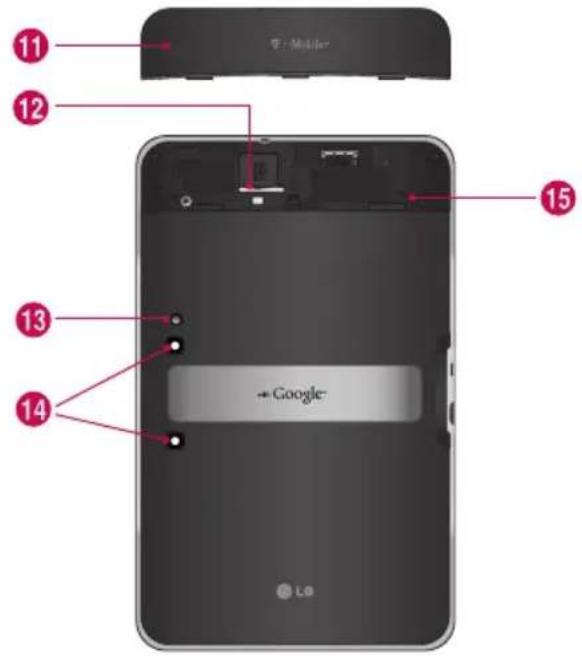
natural_image
Illustration of a handheld electronic device with a black cable and a small plug attached (no text or symbols visible)natural_image
Close-up of a smartphone rear panel with a close-up inset showing the screen and button (no text or symbols visible)natural_image
Close-up of a white flower with a red upward arrow pointing to its bloom (no text or symbols)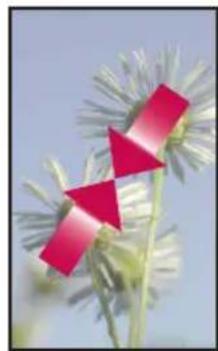
natural_image
Close-up of a red triangular object with green stems against a white flower background (no text or symbols)Teclado en pantalla
Tomar una foto
Grabar un video
natural_image
Close-up of pink peony flowers with yellow centers surrounded by green foliage, labeled 1 to 6 (no text or symbols on the flower image itself)natural_image
Coiled black cable or connector with a small rectangular component attached (no visible text or symbols)Cable USB
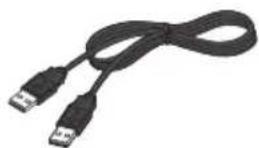
natural_image
Coiled black USB cable with two connectors (no text or symbols visible)Adaptador USB
LG Electronics Service - Mobile Handsets
Casilla Postal 240007, Huntsville, AL 35824
- You can also access Help information on your tablet:
- Touch My Account or My Device.
- SERVICE ACTIVATIONOV
- Contents
- Maps and Latitude ....34
- Market 36
- Talk 37
- Books 38
- Email 39
- Contacts 41
- Photos and videos ......43
- Utilities 48
- Music 49
- Browser 51
- Settings 52
- Accessories 57
- FAQ 58
- FOR YOUR SAFETY
- Use and Care of the Device
- Warning About 3-D Viewing, Seizures and Blackouts
- Warning for photosensitization seizure.
- Risk of photosensitization seizure can be reduced with the following actions:
- Driving Safety
- For Vehicles Equipped with an Air Bag
- GPS/Location Services/Navigation
- Third Party Software
- Avoid Potential Hearing Loss
- Children's Safety
- Proper Device Disposal
- FCC Radio Frequency (RF) Information
- WARNING! Read this information before operating the device.
- Bodily Contact During Operation
- Vehicle-Mounted External Antenna
- (Optional, if available.)
- Caution
- Consumer Information About Radio Frequency Emissions
- Are wireless devices safe?
- What does "SAR" mean?
- Can I minimize my RF exposure?
- Do wireless devices pose any special risks to children?
- Where can I get further information about RF emissions?
- RF Interference
- Persons with pacemakers:
- Potentially Explosive Atmosphere
- Contact With Magnetic Items.
- FCC Compliance Statement
- FCC Part 15 Class B Compliance
- Part 15.21 statement
- Part 15.105 Statement
- Understanding your device
- Before you using the device, please read this!
- To optimize Battery Life:
- To extend the life of your battery:
- To check the battery charge level:
- To monitor and control what uses the battery:
- To download the USB Driver:
- To reboot your device when the screen freezes:
- To assure optimal device performance:
- To transfer files to a computer using USB:
- Before installing an open source application and OS:
- Inserting the SIM card
- To insert the SIM card:
- Charging your battery
- Turning your device on and off
- Locking and unlocking the screen
- Secure your lock screen
- To set an Unlock Pattern, PIN, or Password for the first time:
- NOTE: If you forgot your Unlock Pattern, PIN, or Password:
- If you forgot your unlock pattern:1.
- If you forgot your PIN or password:2.
- Using HDMI
- Your tablet supports:
- NOTE:
- Google account set up
- Setting up your Google account
- OR
- Adding additional accounts
- Your Home screen and basics
- Using the Navigation buttons
- Customizing the Home screen
- To move an item on the Home screen
- To delete an item from the Home screen
- Adding Widgets on your Home screen
- Changing the Home screen wallpaper
- Adding More
- Adding a quick contact icon to your Home screen
- Using the Multi-tasking functions
- Opening and Switching Applications
- Status and Notification icons
- Notifications Panel and Quick Settings
- Work with Quick Settings
- Touch screen tips
- On-screen Keyboard
- Using the on-screen keyboard
- Entering text by speaking
- Editing text
- To cut, copy or paste text:
- Connecting to Networks and Devices
- Wi-Fi Networks
- Turn on Wi-Fi and connect to a network
- USB Tethering & Portable Wi-Fi hotspot
- Bluetooth
- Turn on Bluetooth
- To pair your device with a Bluetooth device
- Connecting to a computer via USB
- NOTE: Before using MTP, please read the following first!
- To connect as a removable storage device:
- To Synchronize with Windows Media Player:
- Maps and Latitude
- To open the Maps application
- Getting directions
- Starring a location
- Joining Latitude
- Finding your friends with Latitude
- Market
- To open the Market application
- Downloading applications
- Removing applications
- Talk
- Managing Your Friends List
- Chatting with a friend
- To sign out of Google Talk™
- Books
- To shop for books:
- To read books:
- To open the Email application
- Adding an account
- To add other email accounts:
- Opening inbox
- Using Combined view
- Changing account settings
- Remove an email account
- Gmail™
- To open the Gmail application
- To search specific emails
- Contacts
- To open the Contacts application
- Adding a new contact
- Touch Apps > Contacts.
- Editing a contact
- Searching for a contact
- Once you find a contact, you can use the following options:
- Importing and Exporting contacts to your memory
- To export your contacts:
- To import your contact:
- Sharing contacts via Bluetooth
- To share a contact:
- To share all visible contacts:
- Photos and videos
- Camera
- Taking a photo
- Tagging location information to your photo
- Video Camera
- Taking a video
- Gallery
- To open the Gallery application
- Viewing your albums
- Viewing and browsing pictures and videos
- Using a picture as a Contact icon or Wallpaper
- Choose from Contact photo or Wallpaper.
- Getting details about your photo
- Sharing a picture
- Deleting files
- 3D Camcorder and 3D Player
- Taking a 3D Video
- Playing a 3D Video
- Utilities
- Calendar
- To open the Calendar application
- Viewing your calendar
- Creating an event
- Change synchronization and display settings
- Clock
- Setting an alarm
- Calculator
- To open and use the calculator
- Music
- To open the Music application
- Viewing your music library
- To create a playlist
- Playing music
- To control playback:
- Browser
- Opening webpages
- While browsing the web page, use the following options:
- Opening multiple pages
- Adding Bookmarks to your Home screen
- Changing browser settings
- Settings
- Wireless & networks
- Sound
- Screen
- Location & security
- Applications
- Accounts & sync
- Privacy
- Storage
- Language & input
- Language settings:
- Voice recognizer settings:
- Text-to-speech settings:
- Keyboard settings:
- Accessibility
- Date & time
- About tablet
- Notice!
- Open Source Software
- Software update
- LG Mobile Software update via Over-the-Air (OTA)
- Apps > Settings > About tablet > System updates
- Accessories
- Travel Adapter
- USB Cable
- USB Gender
- 3D Glasses
- WARNING:
- User Guide
- FAQ
- LIMITED WARRANTY STATEMENT
- WHAT THIS WARRANTY COVER:
- WHAT THIS WARRANTY DOES NOT COVER:
- LIMITATIONS ON LG'S WARRANTY
- HOW TO GET WARRANTY SERVICE:
- Tel. 1-800-793-8896
- DO NOT RETURN YOUR PRODUCT TO THE ABOVE
- Teclado en pantalla
- Tomar una foto
- Grabar un video
- Adaptador USB
Brand : LG
Model : G-Slate
Category : Tablet