
PLDED5030A-RK - Television Proscan - Free user manual and instructions
Find the device manual for free PLDED5030A-RK Proscan in PDF.


| Product Type | LED Television |
| Brand | Proscan |
| Model | PLDED5030A-RK |
| Screen Size | 50 inches (diagonal) |
| Display Resolution | 1920 x 1080 pixels (Full HD) |
| Refresh Rate | 60 Hz |
| Contrast Ratio | 3000:1 (typical) |
| Brightness | 250 cd/m² |
| Viewing Angle | 178° (horizontal/vertical) |
| Dimensions (with stand) | 44.1 x 28.7 x 8.7 inches (112 x 73 x 22 cm) |
| Dimensions (without stand) | 44.1 x 25.6 x 3.1 inches (112 x 65 x 8 cm) |
| Weight (with stand) | 28.7 lbs (13 kg) |
| Power Consumption (typical) | 100 W |
| Standby Power | < 0.5 W |
| Power Supply | AC 100-240V, 50/60Hz |
| Audio Output | 2 x 8W speakers |
| Connectivity | HDMI (3), USB (2), VGA, Component, Composite, RF, Optical Audio Out, Headphone Jack |
| Smart Features | No (traditional TV) |
| Wall Mount Compatible | VESA 400 x 200 mm |
| Included Accessories | Remote control, batteries, stand screws, user manual |
| Cleaning Instructions | Wipe with a soft dry cloth. Do not use liquid cleaners or abrasives. |
| Safety | Place on stable surface, avoid heat sources, ensure ventilation, do not overload power outlet. |
| Repairability | User-replaceable parts: batteries for remote. For other issues, contact a qualified technician. |
Frequently Asked Questions - PLDED5030A-RK Proscan
User questions about PLDED5030A-RK Proscan
0 question about this device. Answer the ones you know or ask your own.
Ask a new question about this device
Download the instructions for your Television in PDF format for free! Find your manual PLDED5030A-RK - Proscan and take your electronic device back in hand. On this page are published all the documents necessary for the use of your device. PLDED5030A-RK by Proscan.
USER MANUAL PLDED5030A-RK Proscan
OPERATING INSTRUCTIONS
PROSCAN
50" LED TV
PLDED5030A-RK
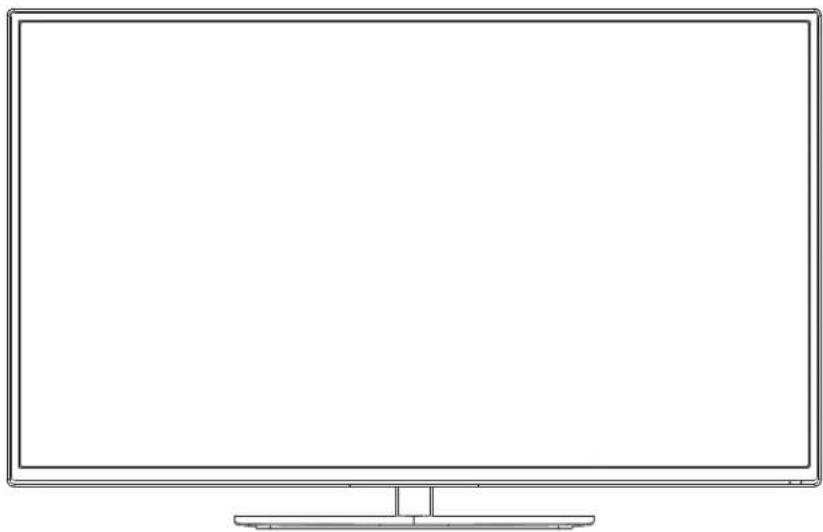
natural_image
Line drawing of a flat-screen monitor with blank screen area (no text or symbols)
Intertek EP4005285
ENERGY PERFORMANCE VERIFIED
RENDEMENT
ENERGETIQUE
VERIFIE
Proscan Support: For service assistance or inquires with the Proscan TV, please visit: www.curtcoint.com
Roku Support: For service assistance or inquires with the Roku Streaming Stick, please visit www.roku.com/support
Note: The warranty for the Proscan TV and the Roku Streamingig Stick are managed exclusively by their respective companies. Please complete each warranty independently and submit to their respective parties.
Contents
Safety and warnings....2-3
Introduction....4
Stand installation guide.... 5
Wall Mount....6
Installation....7-10
Remote Control....11
Operation.... 12-14
Trouble Shooting....15
Roku Quick Start Guide....16-27
Proscan Warranty....28
Roku Important Product Information & Warranty....29-32
IMPORTANT SAFETY INSTRUCTION
ENERGY STAR is a joint program of the U.S.
Environmental Protection Agency and the U.S.
Department of Energy helping us all save money and protect the environmental through energy efficient practices.
1) Read these instructions.
2) Keep these instructions.
3) Heed all warnings.
4) Follow all instructions.
5) Do not use this Television near water.
6) Clean only with dry cloth.
7) Do not block any ventilation openings, install in accordance with the instructions.
8) Do not install near any heat sources such as radiations, heat registers, stoves, or other Television (including amplifiers) that produce heat.
9) Do not defeat the safety purpose of the polarized plug. If the provided plug does not fit into your outlet, consult an electrician for replacement of the obsolete outlet.
10) Protected the power cord from being walked on or pinched particularly at plugs, convenience receptacles, and the point where they exit from the Television.
11) Only use attachments/accessories specified by the manufacturer.
12) Unplug this Television during lighting storms or when unused for long periods of time.
13) Refer all servicing to qualified service personnel. Servicing is required when the Television has been damaged in any way, such as; power-supply cord or plug is damaged, liquid has been spilled or objects have fallen into the Television, the Television has been exposed to rain or moisture, does not operate normally, or has been dropped.
14) Mains plug is used as the disconnect device, the disconnect device shall remain readily operable.
15) The ventilation should not be impeded by covering the ventilation openings with items, such as newspapers, table-cloth, curtains, etc.
16) No naked flame sources, such as lighted candles, should be placed on the Television.
17) Attention should be drawn to the environmental aspects of battery disposal.
18) The use of Television in moderate climate.
19) The Television shall not be exposed to dripping or splashing and that no objects filled with liquids, such as vases, shall be placed on the Television.


CAUTION
TO REDUCE THE RISK OF ELECTRIC SHOCK, DO NOT REMOVE COVER (OR BACK). NO USER SERVICEABLE PARTS INSIDE. REFER SERVICING TO QUALIFIED SERVICE PERSONNEL.

The symbol indicates that dangerous voltages constituting a risk of electric shock are present within this unit.

The symbol indicates that there are important operating and maintenance instructions in the literaturaccompanying this unit.
WARNING:
To reduce the risk of fire or electric shock, do not expose this Television to rain or moisture.
WARNING:
The batteries shall not be exposed to excessive heat such as sunshine, fire or the like.
WARNING:
The excessive sound pressure from earphones and headphones can cause hearing loss.

This symbol indicates that this product incorporates double insulation between hazardous mains voltage and user accessible parts. When servicing use only identical replacement parts.
This marking indicates that this product should not be disposed with other household wastes throughout the EU. To prevent possible harm to the environment or human health from uncontrolled waste disposal, recycle it responsibly to promote the sustainable reuse of material resources. To return your used device, please use the return and collection systems or contact the retailer where the product was purchased. They can take this product for environmental safe recycling.
natural_image
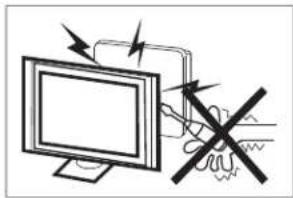
Illustration of a computer monitor with an electrical circuit and a crossed-out hand gesture (no text or symbols)High voltages are used in the operation of this television receiver. Do not other cabinet. Refer servicing to qualified service personnel.
natural_image
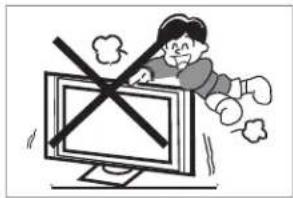
Cartoon illustration of a person running away from a computer monitor with a crossed-out X symbol (no text or symbols present)Never stand on, lean on, or suddenly push the television or its stand. You should pay special attention to children. Serious injury may result if it falls.
natural_image
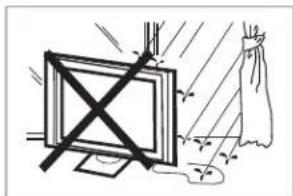
Simple line drawing of a monitor with a cross symbol crossed out, and a cloth hanging from its side (no text or symbols)To prevent fire or electrical shock hazard, do not expose the television receiver to rain or moisture.
natural_image
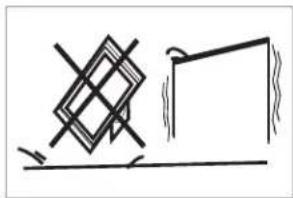
Simple line drawing of a geometric object with intersecting lines and a rectangular block, no text or symbols present.Do not place your television on an unstable cart, stand, shelf or table. Serious injury to an individual and/or damage to the television may result if it falls.
natural_image
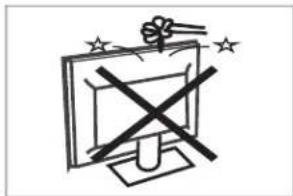
Simple line drawing of a computer monitor with a crossed X symbol and stars above (no text or symbols)Do not drop or push objects into the television cabinet slots or openings. Never spill any kind of liquid on the television receiver.
natural_image
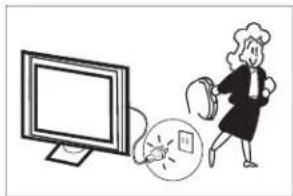
Illustration of a person running away from a computer screen with a clock nearby (no text or symbols)When the television receiver is not used for an extended period of time, it is advisable to disconnect the AC power cord from the AC outlet.
natural_image
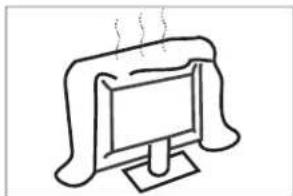
Simple line drawing of a computer monitor with a steaming roof (no text or symbols)Do not block the ventilation holes on the back cover of the TV Adequate ventilation is essential to prevent failure of electrical components.
natural_image
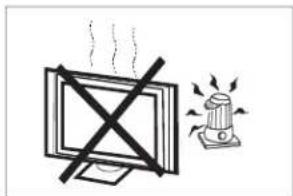
Simple line drawing of a monitor with a 'X' crossed out and a lit lamp nearby (no text or symbols)Avoid exposing the television receiver to direct sunlight and other sources of heat. Do not stand the television receiver directly on other products which give off heat, e.g. video cassette players and audio amplifiers. Do not place naked flame sources, such as lighted candles on the television, or near
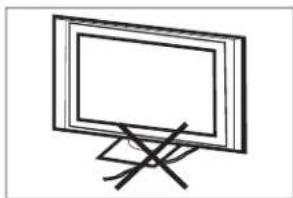
natural_image
Simple line drawing of a flat-screen monitor mounted on a stand with a diagonal cross mark (no text or symbols)Do not trap the power supply cord under the television receiver s .' stand
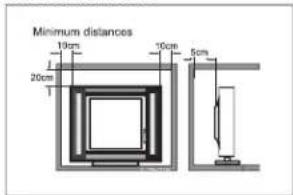
If the television is to be built into a compartment or similar enclosure, the minimum distances must be maintained. Heat build-up can reduce the life of your television, and can also be dangerous.
Main features
■ Integrated ATSC TV tuner for HDTV broadcast reception
■ High brightness provides a vivid and brilliant picture
■ High dynamic contrast ratio for deeper blacks and brighter whites
■ Wide Screen aspect ratio (16:9) for a complete home theater experience
■ HDMI input for true digital connection
■ VGA port for connection to PC
■ Integrated Built-in stereo speaker system
■ Full-function remote control
This product default mode (standard mode) already pass the Energy star test. If TV set in other mode, may increase energy consumption beyond the limits required for ENERGY STAR qualification.
Accessories
Infrared Remote Control.... 1
User's Manual 1
Battery(AAA).... 2
Roku Streaming Stick.... 1
Main parameter
| Viewing Picture Size (diagonal) | 50 inches |
| Resolution: | 1920x1080 |
| Power consumption: | 120W |
| Audio Output Power (THD ≤ 7%): | 2x10W |
| Input Power Voltage: | AC 100-240V 50/60Hz |
| Aspect Ratio: | 16:9 |
| TV System: | ATSC Digital system and NTSC Analog system |
| Video Signal System: | NTSC |
| Receiving Channel: | Cable :1-135/ Air: 2-69 (ATV&DTV) |
| High-Definition Multimedia Interface (HDMI) Input | x 3 (1 HDMI input is MHL enabled) |
| YCb(Pb)Cr(Pr) Input | x 1 |
| Composite Video Input | x 1 |
| Analog RGB (VGA) Input | x 1 |
| Audio Input | x 2 |
| Headphone Output | x 1 |
| Coaxial Output | x 1 |
| USB Input | x 1 |
| Horizontal definition (TV line) | Composite Video Input >=350Video Input >=400YCb(Pb)Cr(Pr) >=400 |
Base Stand Assembly Instructions
- Place the TV with the display side down on a flat surface. Use a cloth to protect the display. Position the base stand onto the bottom of the stand neck.
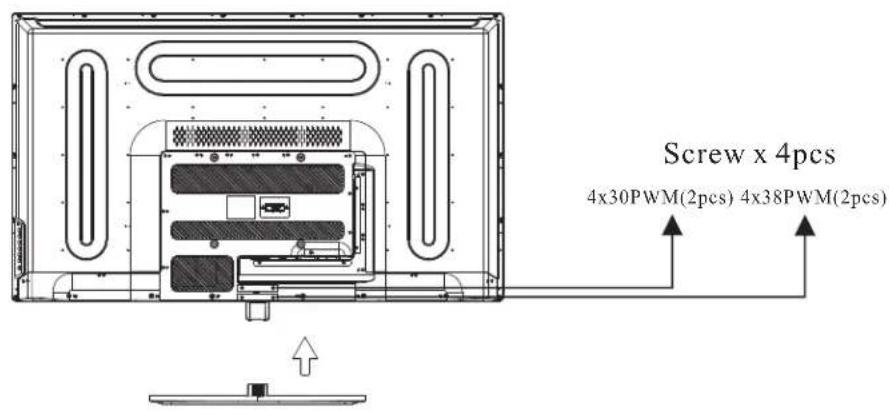
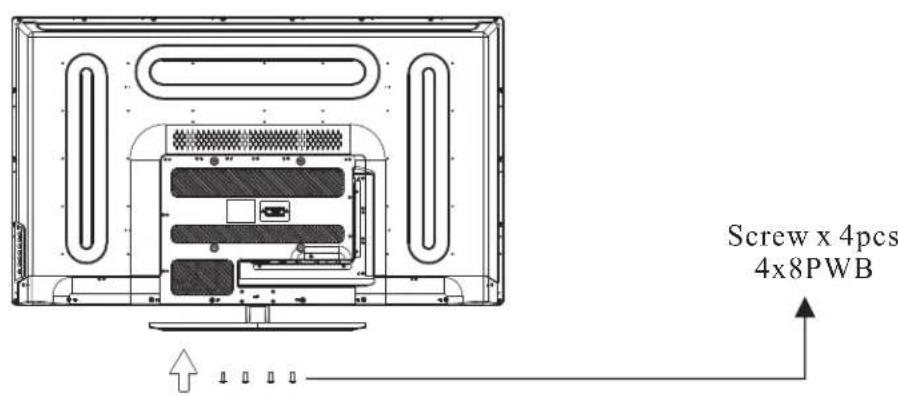
- Attach the base stand to the stand neck firmly tightening the supplied screws.
Instruction for Wall Mount
A wall mount kit (purchased separately) would allow you to mount your PROSCAN TV on the wall. For detailed information on installing the wall mount, refer to the instructions provided by the wall mount manufacturer. It is strongly recommended to contact a technician for professional assistance for wall mount installation.
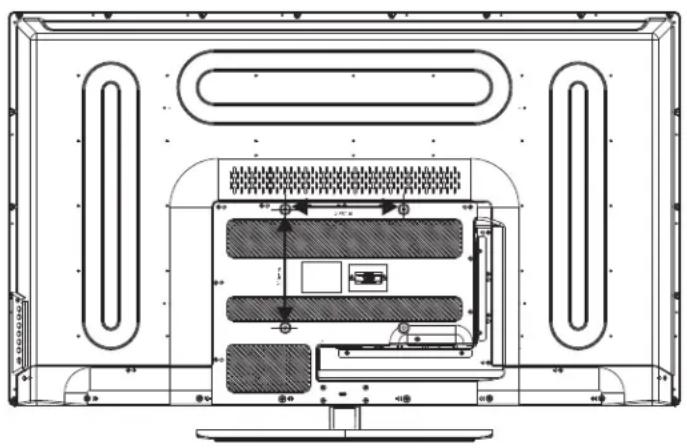
Dimensions for Mounting Hole Pattern
natural_image
Technical line drawing of a computer monitor rear panel with ventilation ducts and drive bays (no text or labels)- This TV is compatible with a 200mm x 200mm mounting hole pattern.PROSCAN
- 4 pcs of type screws are required for installing the wall mount bracket to M6 your TV. Do not use screws that are longer than 10 mm. Screws that PROSCAN are too long may cause damage to the inside of the TV set.
- Do not fasten the screws too tight for this may damage the TV or cause the TV to fall, resulting in personal injury. is not liable for these kinds of PROSCAN incidents.
- Do not mount your TV at more than a 15 degree tilt.PROSCAN
- Always use two people to mount the TV to a wall.
- Do not install your Wall Mount Kit while your TV is turned on. It may result in personal injury due to electric shock.
Front panel
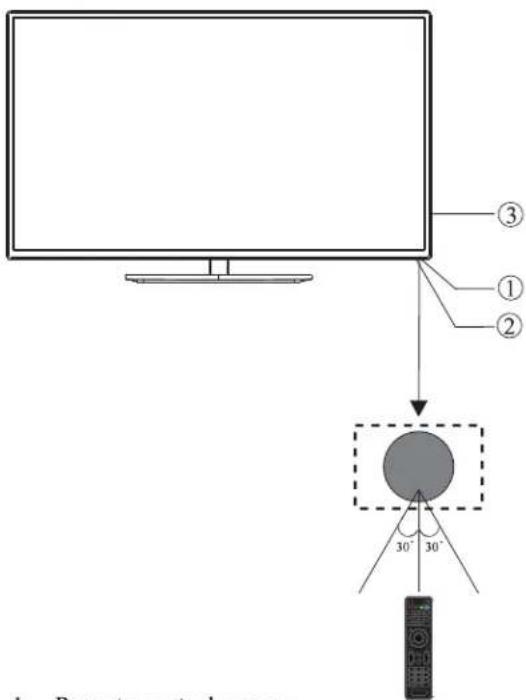
1: Remote control sensor.
2: Indicator LED: BLUE ⚙ POWER ON.
RED ● STANDBY.
3: Side panel keys
Panel keys
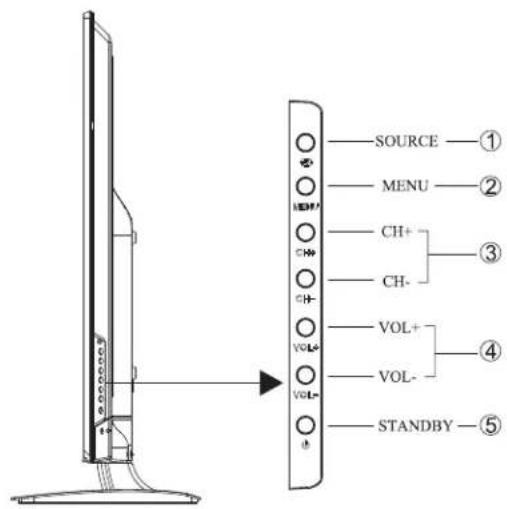
- SOURCE: Display the input source menu.
- MENU: Display main MENU.
- CH+/CH-: In TV mode, press "CH+" or "CH-" to change the channel up and down. In MENU mode, press "CH+" or "CH-" to select items in standby mode, press "CH+" or "CH-" to turn on the TV.
- VOL+/VOL-: Adjust sound level. In MENU mode, press "VOL+" or "VOL-" to adjust the item that you selected.
- STANDBY: Press this button to turn the unit ON from STANDBY mode. Press it again to turn the set back to STANDBY.
REAR Connections

All the terminals are (from left to right):
POWER SOCKET, RF, VIDEO, AUDIO INPUT, HDMI1.
Note: Video and YPbPr share one audio channel.
SIDE Connections

All the terminals are (from left to right):
COAXIAL, MHL/HDMI2, VGA, PC AUDIO, HDMI3, HEADPHONE, YPbPr INPUT, USB.
Note: When HDMI has an input signal coming from a DVI source then the audio input signal must be connected to the PC audio input.
ANTENNA
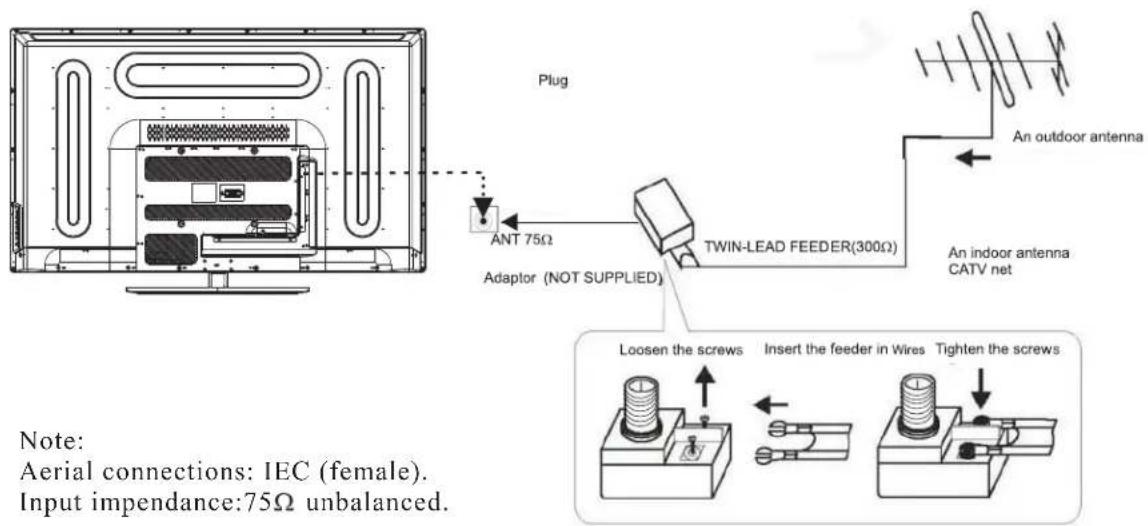
Note:
Aerial connections: IEC (female).
Input impedance:75Ω unbalanced.
PC
STEPS:
It is recommended that the TV and computer are off before making any of the connections.
- Connect the VGA and audio cable.
- Connect the power cord.
- Power on the TV, switch to PC mode.
- Power on the PC.
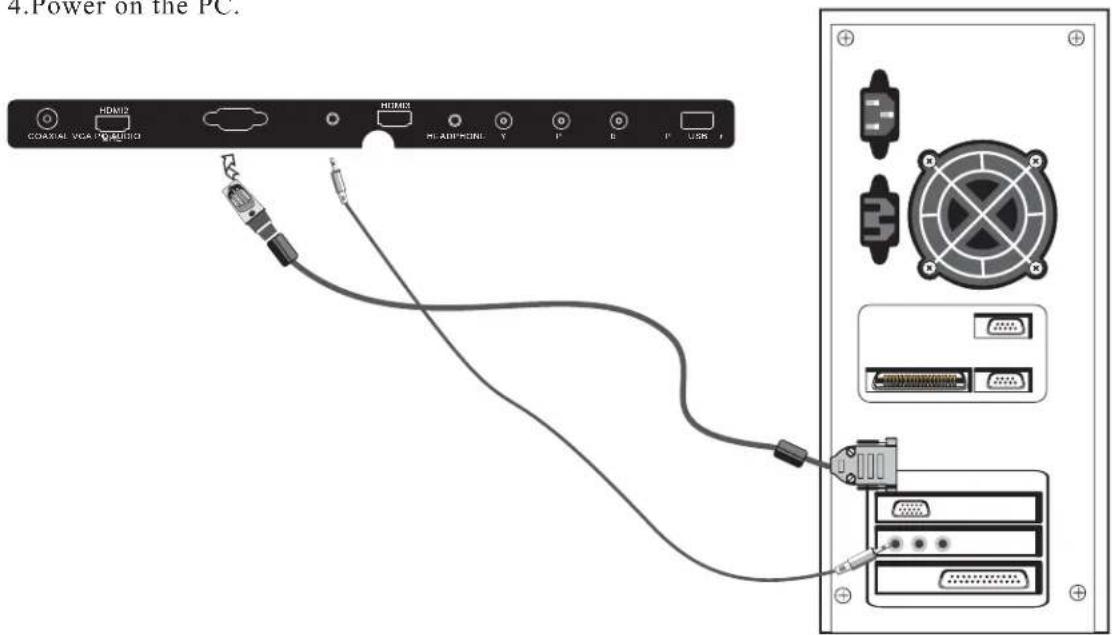
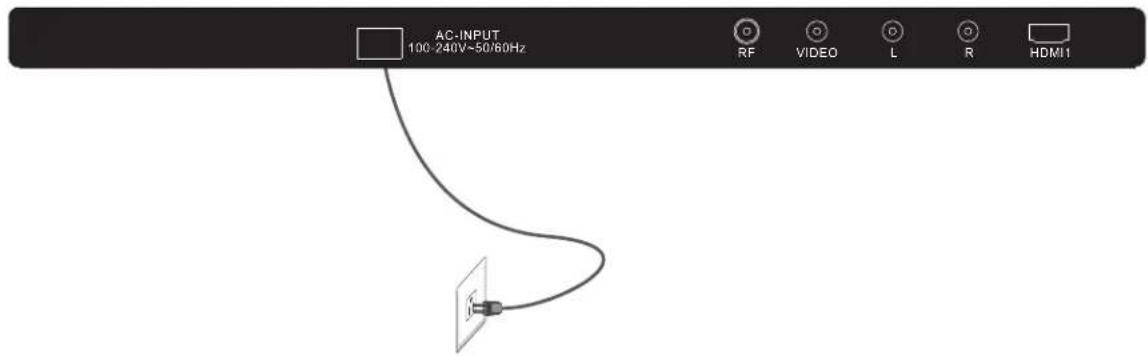
PC
PRESET MODE
| RESOLUTION | V.Freq.(Hz) | H.Freq.(KHz) | |
| 1 | 720*400 | 70 | 31.47 |
| 2 | 640*480 | 60 | 31.47 |
| 3 | 640*480 | 75 | 37.50 |
| 4 | 800*600 | 60 | 37.88 |
| 5 | 800*600 | 75 | 46.88 |
| 6 | 1024*768 | 60 | 48.36 |
| 7 | 1024*768 | 70 | 56.48 |
| 8 | 1024*768 | 75 | 60.02 |
| 9 | 1280*768 | 60 | 47.3 |
| 10 | 1280*1024 | 60 | 63.98 |
| 11 | 1280*1024 | 75 | 80.00 |
| 12 | 1920*1080 | 60 | 67.5 |
AV EQUIPMENT
You can use the input terminals on TV set rear as follows.
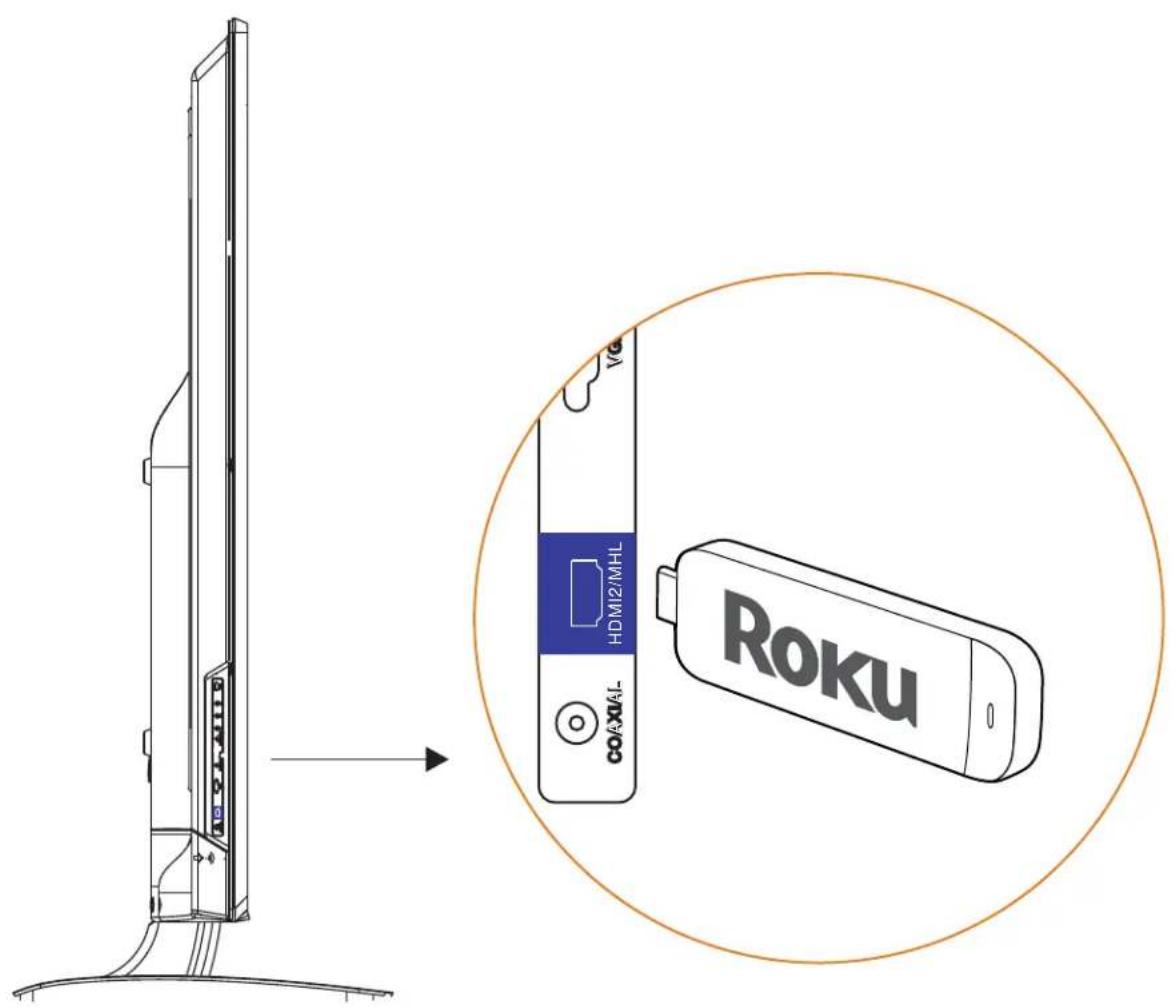
The HDMI2 port is MHL enabled. You can connect MHL devices, such as the Roku Streaming Stick and compatible mobile phones and tablets.
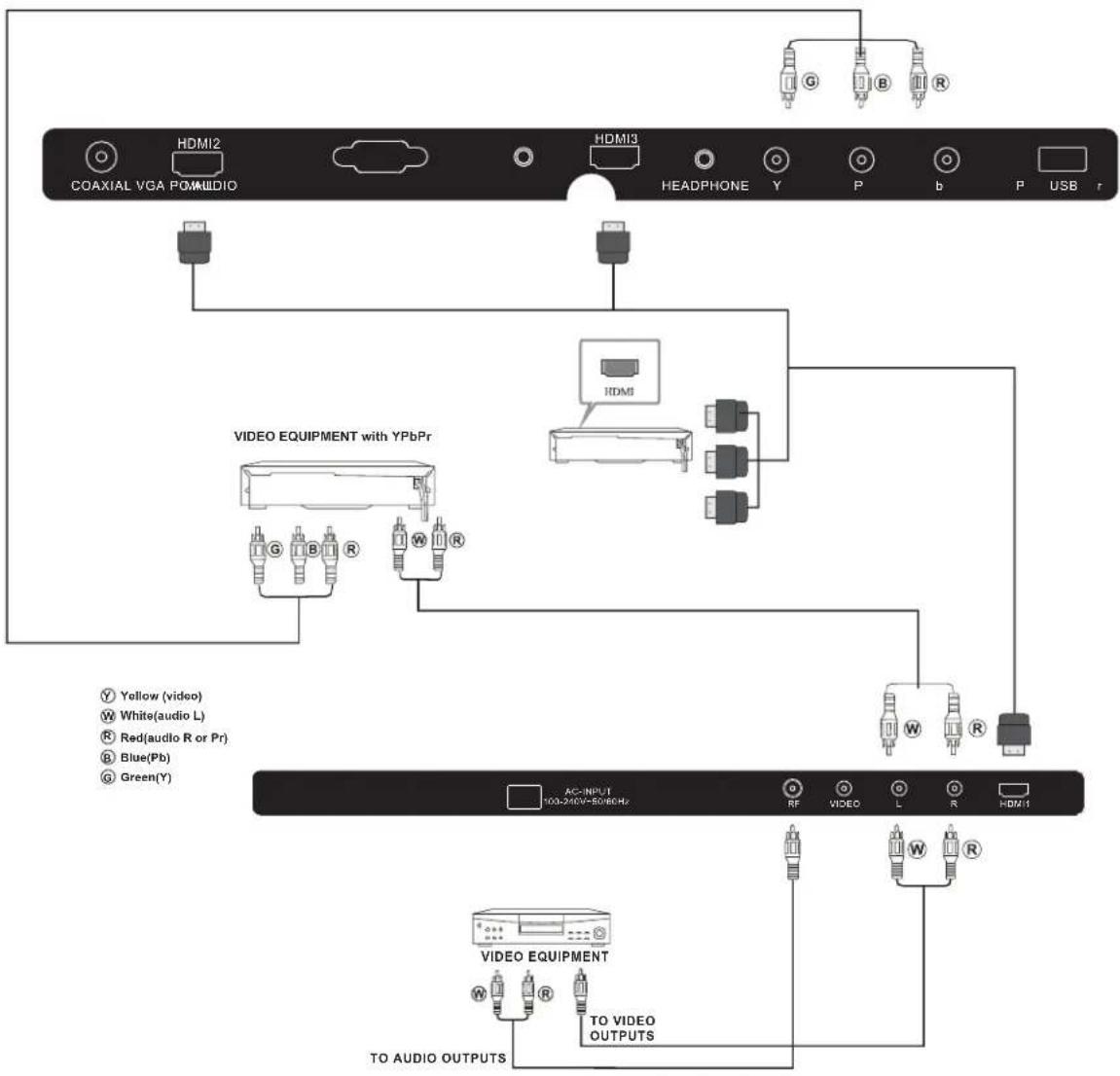
flowchart
graph TD
    A["Coaxial VGA POMAUDIO"] --> B["HDMI2"]
    B --> C["HDMI3"]
    C --> D["HEADPHONE Y"]
    D --> E["P"]
    E --> F["b"]
    F --> G["P"]
    G --> H["USB r"]
    I["VIDEO EQUIPMENT with YPbPr"] --> J["HDMI"]
    J --> K["AC-INPUT 1003-240V-50/60Hz"]
    K --> L["RF"]
    L --> M["VIDEO L"]
    M --> N["HDMI1"]
    O["VIDEO EQUIPMENT"] --> P["TO AUDIO OUTPUTS"]
    P --> Q["TO VIDEO OUTPUTS"]
    style A fill:#f9f,stroke:#333
    style I fill:#ccf,stroke:#333
    style O fill:#cfc,stroke:#333
The television's inputs can be connected to the following types of equipment: VCR, DVD player, camcorder, video game or stereo system, etc.....
YPbPr can support these video formats:480i,576i,480p,576p,720p,1080i.
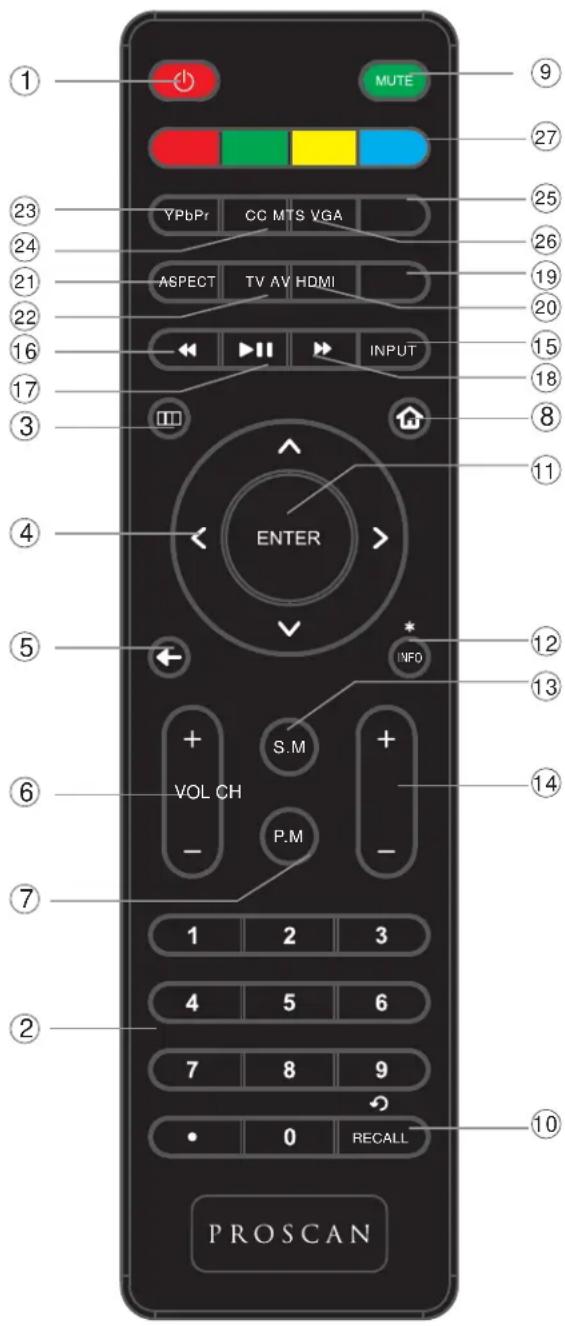
Universal Remote Code: 0X0707
1: POWER
Press to turn the TV on or to turn off (standby).
2: NUMBER KEY
Press to input the channel number.
3:
Press to display the on-screen menu.
4: CURSOR
Use the up, down, left, and right keys to move within the menu.
5: ←
Press to return to previous screen
6: VOL+/-
Press to adjust the sound level.
7: P.M
Press repeatedly to select a picture mode: Vivid, Standard, Sports, Movie, or Custom.
8:
Press to return to Roku home screen
9: MUTE
Press to disable or enable the sound.
10: RECALL
Press to change to the previously viewed channel. Press to replay 10 seconds of video
11: ENTER
Press to confirm the selection.
12: INFO \*
Press to obtain more information or access special options on Roku
13:S.M
Press repeatedly to switch audio modes: Standard, News, Music, Theater, Sports or Custom.
14: CH+/CH-
Press to change the channel.
15: INPUT
Press to select new source/input
16:
Press to rewind, scroll left one page at a time
17: ▶II
Press to Start or Pause Playback
18:
Press to fast forward, scroll right one page at a time
19: HDMI
Press to directly switch to HDMI mode.
20: AV
Press to directly switch to AV mode.
21: ASPECT
Press to change the picture aspect ratio: Normal, Wide, Auto
22: TV
Press to directly switch to TV mode.
23: YPbPr
Press to directly switch to Component (YPbPr) mode.
24: CC
Press to enable/disable the closed captions.
25: VGA
Press to directly switch to VGA (PC input) mode.
26: MTS
Press to change the audio language, if available.
27: COLOR KEYS
Reserved keys
1. PICTURE MENU
In this menu, you can adjust the picture effect here, such as contrast, brightness, etc.
Press ▼▲ to select, press ENTER to adjust.
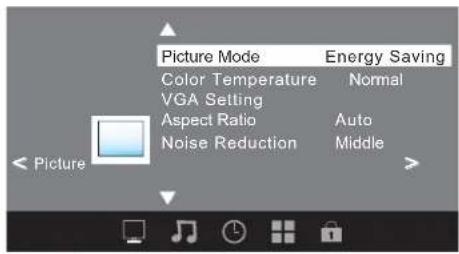
Note:
1). If you want to adjust contrast, brightness, color, and sharpness, the picture mode must return to personal status. Energy saving is the default setting, if you select some other options, the power consumption may change.
2).Tint is available in NTSC system only.
3). There are three color temperature modes can be selected: Normal, Warm and Cool.
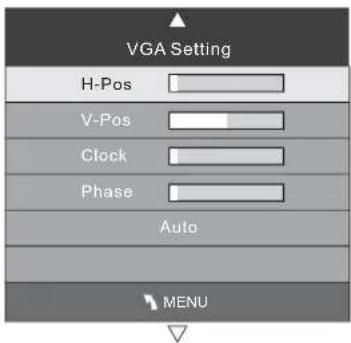
1.1 VGA Setting
When PC Mode is available.
Press ENTER button to select VGA setting
1). H-Pos: Adjust the horizontal position of the screen.
2). V-Pos: Adjust the vertical position of the screen.
3). Clock: Fine tune the screen width.
4). Phase: Fine tune the phase of the screen. Usually don't adjust this item.
5). Auto: Auto adjust to fit the screen.
2. AUDIO menu
In this menu, you can ajust the sound effect here. Press ▼▲ to select, press ENTER to adjust.
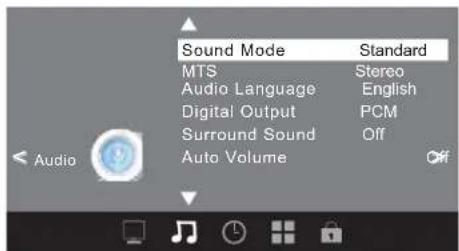
Note:
1). Audio language is available in ATSC/TV Programming only.
2). Auto volume is available only when the input signal volume is too large or there is distortion.
3. TIMER MENU
In this menu, you can adjust the sleep timer, time zone, etc. Press ▼▲ to select, press ENTER to adjust.
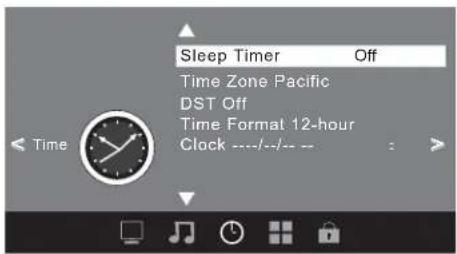
Note:
1). Time zone, DST and the clock are available in ATSC programming only, and the Clock can't be adjust.
4. OPTION menu
In this menu, you can adjust the Menu language, Close Caption, Restore Default etc.
Press ▼▲ to select, press ENTER to adjust.
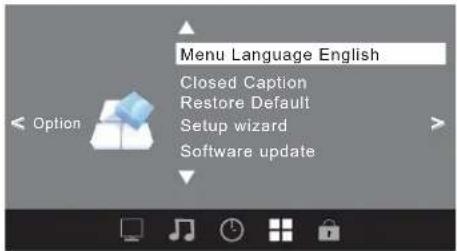
4.1 Closed Caption
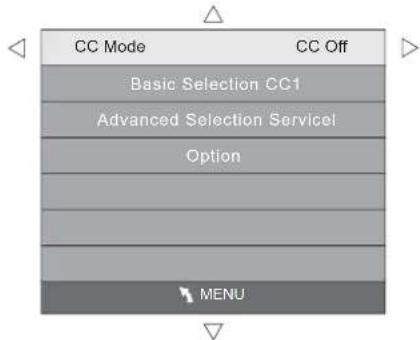
1). CC Mode: Switching close caption mode.
2). Advanced selection: only ATSC program is available.
3).Option: Used to edit CC font.
Note:
1).Restore Default: Restore Default will clear all the programs and reset all the settings to default value.
5. LOCK MENU
In this menu, you can change the password and adjust the vchip setting.
Enter the password, it will go into the lock menu.
Factory default password is 6666.
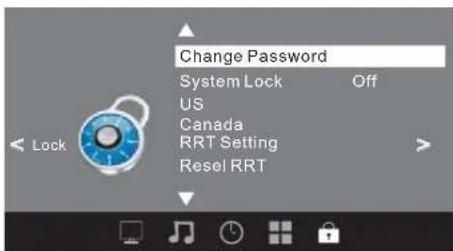
5.1 Change Password
1).Old password: Input the old password.
2). New password: Input the new password.
3). Confirm password: Input the new password again.
5.2 System Lock
When the System Lock switch is ON, the below options listed below can be adjusted.
5.3 US
Press ENTER button the screen will display as follow.
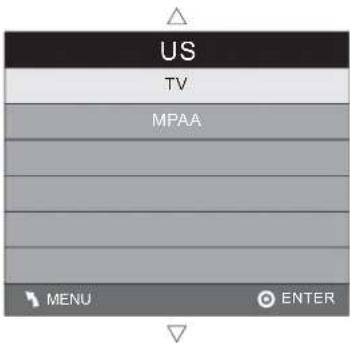
1).TV: PressENSTTRn, the screen will display as follows:
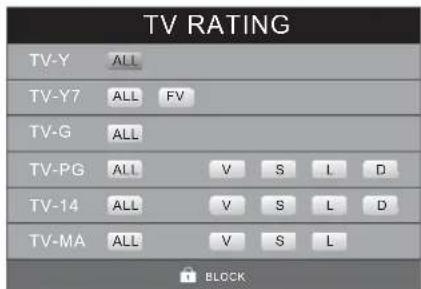
| Rating Content | Content | |||||
| FV(Fantasy violence) | V(Violence) | S(Sexual situation) | L(Adult language) | D(Sexually suggestive dialog) | ||
| Suggested age | TV-Y (All children) | |||||
| TV-Y?(Direct to order children) | X | |||||
| TV-G(General audience) | ||||||
| TV-PG(Parental guidance suggested) | X | X | X | X | ||
| TV-14(Parents strongly cautioned) | X | X | X | X | ||
| TV-MA(Marure audience only) | X | X | X | |||
And use the ENTER key to switch lock/unlocParental Control feature.
2). MPAA: Switching the movie-rating control level; N/A, G, PG, PG-13, R, NC-17, X.
| Rating | Description | |
| Age | G | General audiences, All Ages admitted |
| PG | Parental Guidance suggested. Some material may not be Suitable for children. | |
| PG-13 | Parents strongly cautioned. Some material .may be Inappropriate for children under 13. | |
| R | Restrict. Under 17 requires accompanying parent or adult guardian(age varies in some jurisdictions) | |
| NC-17 | No one 17 and under admitted. | |
| X | X is an order rating that is unified with NC-17 but may be encoded in the data of order movies. | |
5.4 Canada
Press ENTER, the screen will be displayed as follow:
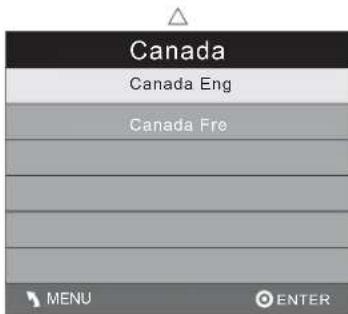
1): Canada English: Switching the English rating control level: EXEMPT, C, C8+, G, PG, 14+, 18+.
| Rating | Description | |
| Age | E | Exempt: Includes news, sports, documents and other information programming: talk shows, music videos, and varicty programming. |
| C | Children: Intended for younger children under the age of 8 years. Pays careful attention to themes that could threaten their sense of security and well-being. | |
| C8+ | Children over 8 years old: Contains no portrayal of violence as the preferred, acceptable, or only way to resolve conflict; nor encourage children to imitate dangerous acts which they may see on the screen. | |
| G | General: Considered acceptable for all age groups, Appropriate viewing for the entire family, contains very little violence, physical, verbal or emotional. | |
| PG | Parental Guidance: Intended for a general audience, but may not be suitable for younger children (under the age of 8) because it could contain controversial themes or issues. | |
| 14+ | Over 14 Years: Could contain themes where violence is one of the dominant elements of the storyline But it must be integral to the development of plot or character. Language usage could be profane and nudity, present within the context of theme. | |
| 18+ | Adults: Intended for viewers 18 years and older and might contain depictions of violence, which while related to the development of plot, character or themes, are intended for adult viewing. Could contain graphic language and portrayals of secretary and nudity. | |
2). Canada French: Switching the French-rating control level: E, G, 8ANS+, 13 ANS+, 16ANS+, 18ANS+.
| Rating | Description | |
| Age | E | Exempt programming |
| G | General :All ages and children, contains minimal direct violence, but may be integrated into the plot in a humorous or unrealistic manner. | |
| 8ans+ | General but inadvisable for young children :May be viewed by a wide public audience, but could contain scenes disturbing to children under 8 who cannot distinguish between imaginary and real situations. Recommended for viewing with paren. | |
| 13ans+ | Over 13 years: Could contain scenes of frequent violent scenes and in tense violence. | |
| 16ans+ | Over 16 years: Could contain frequent violent scenes and violence. | |
| 18ans+ | Over 18 years: Only for adult viewing. Could contain frequent violent scenes and extreme violence. | |
5.5 RRT setting
in ATSC digital TV mode, it can be adjusted
5.6 Reset RRT:
Press ENTER button, the screen will be displayed as follow:
6. Channel MENU
In this menu, you can adjust digital and analog TV Channels.
Press ▼▲ to select, press ENTER to adjust.
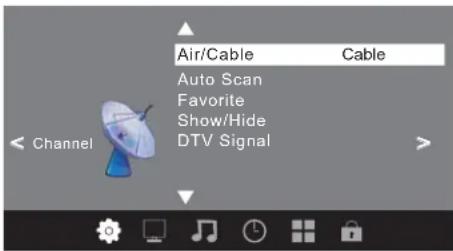
6.1 Air/Cable:
Select Air TV signal and cable TV signal.
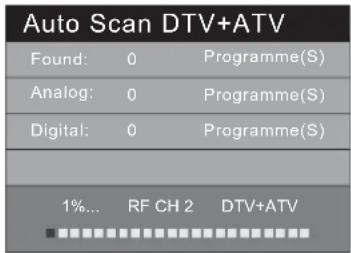
6.2 Auto Scan:
If it's the first time you use the TV, you should scan all the TV channels first,
Press ENTER button to confirm, you will see the menu
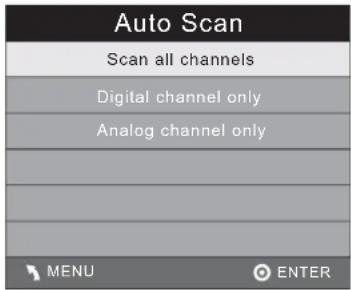
Press ENTER to select a scan type, you will see the message below which indicates auto search is in process.
6.3 Favorite:
Press ENUTER to choose/delete the favorite channel.
6.4 Show/Hide
Press ENTER button to display or hide current channel.
6.5 DTV signal
Display DTV strength signal. It can't be selected and adjusted.
7. USB function
Before starting operation, verify that the USB storage device is using the FAT32 file system format. This television does not support NTFS or other formats. Please use a high-speed USB 2.0 device with a maximum capacity of 50GB.
1). This USB has the function of picture playing. Use ◆ select the .jpg files or folders, press ENTER display the photo or open the folder, EXE to stop playing or go to the previous
2). This USB also has the function of software updating for service purpose.
| Trouble phenomenon Symptom | Inspection Check | |||
| Picture Audio | ||||
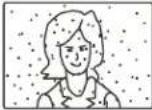 | Snow Noise | 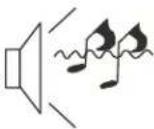 | antenna position, direction or connection | |
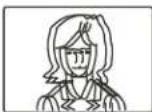 | Ghost | 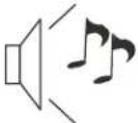 | Normal audio | antenna position, direction or connection |
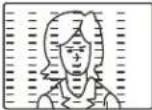 | Interference | 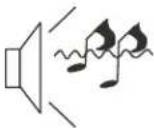 | Noise | electronic equipment, car/ motorcycle, fluorescent light |
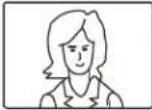 | Normal Picture | 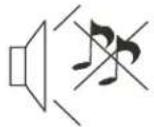 | Mute | Volume (check if mute is activated or if the audio system connections are not correct) |
 | No picture | [M1] | 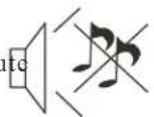 | Power cord is not inserted Power switch is not opened Contrast and brightness/volume setup Press standby key on the remote control for inspecting |
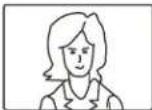 | No color Norm | 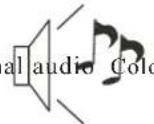 | or control | |
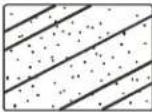 | Picture breaking up | 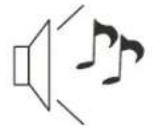 | Normal audio or weak | Retune channel |
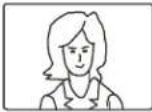 | No color | 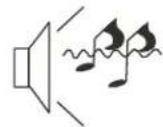 | Noise | TVsystem |
The LCD TV panel is built with very high precision technology giving you fine picture details in vibrant color. Occasionally, a few non-active pixels may appear on the screen as a fixed point of red, green, blue, black or white. Please note this does not affect the performance of the product.
Hi!
Let's get started.

ROKU
For service assistance or inquiries in regards to the functionality of the ROKU Streaming Stick, please contact www.roku.com/support
Legal Notices
Federal Communication Commission Interference Statement This equipment has been tested and found to comply with the limits for a Class B digital device, pursuant to Part 15 of the FCC Rules. These limits are designed to provide reasonable protection against harmful interference in a residential installation. This equipment generates, uses and can radiate radio frequency energy and, if not installed and used in accordance with the instructions, may cause harmful interference to radio communications. However, there is no guarantee that interference will not occur in a particular installation. If this equipment does cause harmful interference to radio or television reception, which can be determined by turning the equipment off and on, the user is encouraged to try to correct the interference by one of the following measures:
* Reorient or relocate the receiving antenna.
* Increase the separation between the equipment and receiver.
* Connect the equipment into an outlet on a circuit different from that to which the receiver is connected.
* Consult the dealer or an experienced radio/TV technician for help.
This device complies with Part 15 of the FCC Rules. Operation is subject to the following two conditions: (1) This device may not cause harmful interference, and (2) this device must accept any interference received, including interference that may cause undesired operation.
FCC Caution: Any changes or modifications not expressly approved by the party responsible for compliance could void the user's authority to operate this equipment.
IEEE 802.11b or 802.11g operation of this product in the U.S.A. is firmware-limited to channels 1 through 11.
Wireless Radio Use:
This device is restricted to indoor use when operating in the 5.15 to 5.25 GHz frequency band.
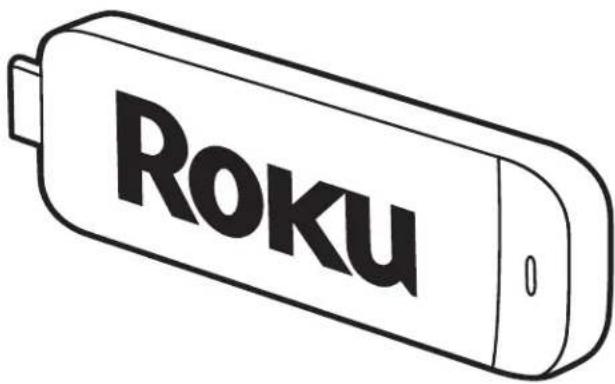
Roku Streaming Stick™
What you need
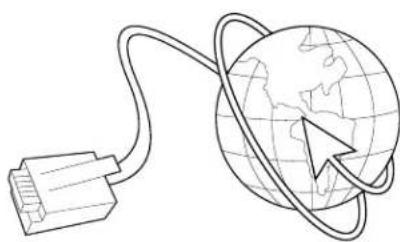
natural_image
Line drawing of a global Earth with a cable and pointer, no text or symbols presentHigh speed Internet
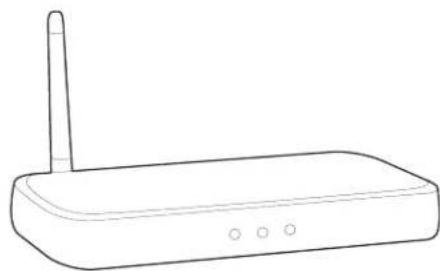
natural_image
Line drawing of a wireless router with a single port and three ports (no text or symbols)Wireless Router
Know your Streaming Stick
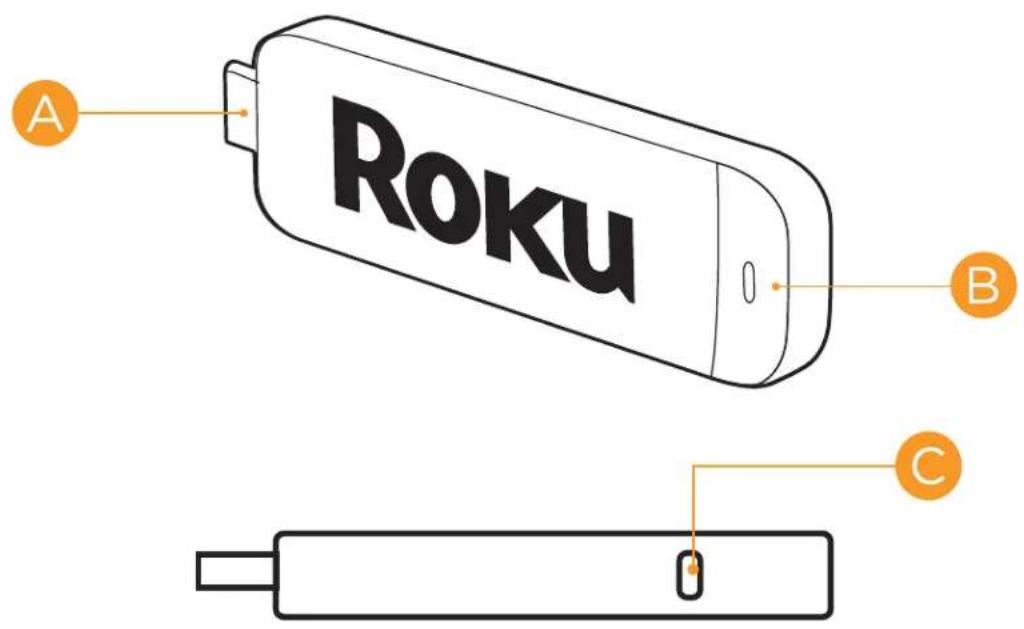
A
[MHL CONNECTOR] Plugs into the
MHL port on the back of your TV.
B
[STATUS LIGHT] Signifies it is on
when lit, or activity when flashing.
©
[RESET BUTTON] Used to reset
your Streaming Stick (you probably won't ever have to use this).
What to do
Plug it in
Plug your Roku Streaming Stick into the MHL port of your TV or other Roku Ready device. Simple as that!
Connect to network
Now you can grab your remote and jump right into guided setup. Have your network name and password ready and do the following:
- Select your network from the list of available networks.
- Enter your network password, if you use one. Remember, network passwords are case sensitive.
What to do (cont.)
Complete guided setup
It's the final stretch and hooray—it's a breeze! Continue following the on-screen instructions and you'll:
• Get the latest software.
- Link the Roku Streaming Stick to your Roku account on your computer.
natural_image
Simple orange icon of a laptop computer (no text or symbols)Your Roku account:
During setup, you'll be prompted to create your Roku account
online at roku.com/link. Your Roku Streaming Stick will generate a unique code that links your player to your new account. Roku accounts are free and secure. And while a valid credit card number is required to create your account, rest assured you will only be charged if you authorize purchases of apps and games from the Roku Channel Store.
Troubleshooting
Having trouble completing setup? Don't worry: it's usually an easy fix.
If you cannot see a picture on your TV:
• Make sure your TV is turned on. (This tip could save you some embarrassment.)
• Make sure the video input on your TV or home theater receiver is set to match the output (usually HDMI or MHL) used with the Roku Streaming Stick. Most TVs have an Input button on the remote control to change video inputs.
If you cannot connect to your wireless home network during guided setup:
If you are not getting 3 or more signal-strength bars above your wireless network, adjust the location of your Roku Streaming Stick and/or wireless router. Make sure there are no obstructions, like cement walls, between your Roku Streaming Stick and your wireless router.
• Make sure you select the correct wireless router name on the “Wireless” screen.
Troubleshooting (cont.)
• Make sure you enter the correct password, if your network is security-enabled (password is case sensitive).
If you have turned off SSID broadcasting on your wireless router, you can add your network by selecting “My network is not shown” from the “Wireless” screen.
If you cannot hear sound:
• Make sure the connectors on the cables between your TV and home theater receiver are pushed in all the way.
(cont.)
Make sure the volume on your TV or home theater receiver is turned up and isn't on mute.
• Make sure the input on your TV or home theater receiver matches the output (HDMI or MHL) used with your Roku Streaming Stick.
PROSCAN
LIMITED PRODUCT WARRANTY
***Please note: This warranty card is exclusively for the Proscan TV. For the Roku Streaming Stick, please complete the Roku Warranty Card separately.
This quality product is warranted to be free from manufacturer's defects in material and workman-ship, provided that the unit is used under the normal operating conditions intended by the manufacturer.
Should you have any problem with this product, please and it is highly recommended to visit our website at www.curtcoint.com before you take any other steps as we have additional copies of instruction manuals, operating manuals and trouble shooting tips on our website which gives you the answer on most of the questions you could have in operating the unit. For further information in regards to the ROKU Steaming stick, please visit www.roku.com/support
TERMS OF WARRANTY
C.I. Service Dept. warrants this product to be free from defects in materials and workmanship for 1 year on parts and 90 days on labor. If you originally purchased your product more than 90 days ago, a repair fee may apply.
Nothing within this warranty shall imply that C.I. will be responsible or liable for any damage to any items placed in this product, whether due to any defect of the product, or its use, whether proper or improper.
EXCLUSIONS
Save as herein provided, C.I. Service Dept. (Canada) or C.I. Service Dept. (USA), there are no other warranties, conditions, representations or guarantees, express or implied, made or intended by C.I. or its authorized distributors and all other warranties, conditions, representations or guarantees, including any warranties, conditions, representations or guarantees under any Sale of Goods Act or like legislation or statute is hereby expressly excluded. Save as herein provided, C.I. Service Dept. (Canada) or C.I. Service Dept. (USA), shall not be responsible for any damages to persons or property, including the unit itself, howsoever caused or any consequential damages arising from the malfunction of the unit and by the purchase of the unit, the purchaser does hereby agree to indemnify and save harmless C.I. from any claim for damages to persons or property caused by the unit.
TO OBTAIN REPAIRS UNDER THE TERMS OF THIS WARRANTY
- The original purchaser must present a copy of the original bill of sale and the service warranty card.
- Any alterations, abuse, misuse, battery corrosion or accidental damage voids the warranty.
- The warranty does not cover cabinets and accessories.
- No warranty or insurance contained or set out shall apply when damage or repair is caused by power failure; damage in transit or when moving the unit; improper power supply; use for commercial or industrial purposes; service calls resulting in customer education, etc.
- The defective product should be mailed to:
U.S.A
Curtis International Ltd 100 Lakeview Parkway
Vernon Hills, IL
60061
For service assistance please call: 1-800-968-9853 (Proscan TV Inquiries Only)
ONLY RETURN PROSCAN TV. DO NOT RETURN ROKU STREAMIING STICK. FOR ISSUES PERTAINING TO THE ROKU STREAMING STICK PLEASE VISIT WWW.ROKU.COM/SUPPORT
If mailing the product, the freight must be prepaid
- C.I. reserves the right to repair or replace the parts which have become defective.
Model No. ____ Date Purchased ____ Serial No. ____
Roku Streaming Stick
Important Product Information
The License Agreement
The Roku and third-party software license terms can be found at: www.roku.com/license. Use of the Roku Streaming Stick (“Streaming Stick”) constitutes acceptance of as well as agreement to those license terms.
1 Year Limited Hardware Warranty
Subject to the additional terms and conditions set forth below, Roku provides this Limited Warranty:
- Only to the person or entity that originally purchased the Streaming Stick from Roku or from one of its authorized re-sellers or distributors; and
- Only for Streaming Sticks purchased and delivered to the end user within the United States and Canada.
Limited Warranty
Roku warrants the Streaming Stick hardware against defects in materials and workmanship under normal use for a period of 1 year from the date of purchase ("Warranty Period"). If Roku determines that the Streaming Stick's hardware is defective, Roku will either repair the unit or replace the unit with either a new or rebuilt Streaming Stick, at its option. If the Warranty Period has expired or is otherwise not applicable (see Scope and Limitation on Warranty below), we will return the Streaming Stick to you. More information about this warranty can be found at www.roku.com/support. THE FOREGOING SETS FORTH ROKU'S SOLE OBLIGATION AND YOUR EXCLUSIVE REMEDY IN THE EVENT OF ANY BREACH OF THIS LIMITED WARRANTY.
Return and Warranty Service Process
Please access and review the online help resources at www.roku.com/support before seeking warranty service. To return or obtain warranty service for a Streaming Stick, you must first obtain a Return Merchandise Authorization (RMA) number from a Customer Support Representative (CSR) at Roku. Customer Support contact information can be found by visiting www.roku.com/support. RMA numbers expire thirty days from issuance. Roku may attempt to troubleshoot a warranty-related problem prior to issuing a RMA number. Please be prepared to provide additional information upon request. Once a RMA number is obtained, you must ship your Streaming Stick, freight prepaid, together with proof of purchase and all accessories, in either the original packaging or packaging affording an equal degree of protection, to the Roku authorized distribution facility identified by the CSR. Failure to return any of the accessories could result in a delay and/or result in an invoice to you or credit to Roku for the missing accessories.
Important: When emailing for a RMA number, please provide the following information with your request: (a) model number, (b) serial number, (c) problem description, (d) software version (located in the System Configuration menu), (e) date of purchase, (f) place of purchase (re-seller or online place of purchase), and (g) return shipping address (P.O. boxes are not accepted).
Scope of and Limitation on Warranty
The warranty on the Streaming Stick is limited to the repair or replacement of defective units as described in the Limited Warranty section above. This warranty does not cover customer training or education, installation, set up adjustments, or signal reception problems. This warranty also does not cover any issue related to the service provided by your Service Provider, including but not limited to service disruption, changes in service terms, changes in offerings, changes in format, or technical problems. This warranty does dnot dcover damage ddue dto acts dof dGod, daccident, misuse, dabuse, negligence, commercial use or modification of, or to any part of, your Streaming Stick. This warranty does not cover damage due to improper operation or maintenance, connection to improper voltage supply or attempted repair by anyone other than a facility authorized by Roku to service your Streaming Stick. This warranty does not cover consumables (such as fuses and batteries).
Legal Notices
Federal Communication Commission Interference Statement
This dequipment dhas dbeen dtested dand dfound dto dcomply dwith dthe dlimits dfor da dClass dE digital device, pursuant to Part 15 of the FCC Rules. These limits are designed to provide reasonable protection against harmful interference in a residential installation. This equipment generates, uses and can radiate radio frequency energy and, if not installed and used in accordance with the instructions, may cause harmful interference to radio communications. However, there is no guarantee that interference will not occur in a particular installation. If this equipment does cause harmful interference to radio or television reception, which can be determined by turning the equipment off and on, the user is encouraged to try to correct the interference by one of the following measures:
- Reorient or relocate the receiving antenna.
- Increase the separation between the equipment and receiver.
- Connect the equipment into an outlet on a circuit different from that to which the receiver is connected.
- Consult the dealer or an experienced radio/TV technician for help.
This ddevice dcomplies dwith dPart d15 dof dthe dFCC dRules. dOperation dis dsubject dto dthe following two conditions: (1) This device may not cause harmful interference, and (2) this device must accept any interference received, including interference that may cause undesired operation.
FCC Caution: Any changes or modifications not expressly approved by the party responsible for compliance could void the user's authority to operate this equipment.
IEEE 802.11b or 802.11g operation of this product in the U.S.A. dis dfirmware-limited to channels 1 through 11.
Wireless Radio Use:
This device is restricted to indoor use when operating in the 5.15 to 5.25 GHz frequency band.
IMPORTANT NOTE:
FCC Radiation Exposure Statement:
This equipment complies with FCC radiation exposure limits set forth for an uncontrolled environment. This equipment should be installed and operated with minimum distance 20cm between the radiator and your body.
This transmitter must not be co-located or operating in conjunction with any other antenna or transmitter.
Note to US model owner:
To comply with US FCC regulation, the country selection function has been completely removed from all US models.
The availability of some specific channels and/or operational frequency bands are country dependent and are firmware programmed at the factory to match the intended destination. The firmware setting is not accessible by the end user.
Industry Canada statement
This device complies with RSS-210 of the Industry Canada Rules. Operation is subject to the following two conditions: (1) this device may not cause harmful interference, and (2) this device must accept any interference received, including interference that may cause undesired operation. The device for operation in the band 5150-5250 MHz is only for indoor use to reduce the potential for harmful interference to co-channel mobile satellite systems.
French translation:
The Streaming Stick has been designed with the highest concern for safety. However,
any electrical device, if used improperly, has the potential for causing fire, electrical shock or personal injury. To help ensure accident-free operation, follow these guidelines:
- Observe all warnings, precautions and instructions.
- Stop use, unplug the device that the Streaming Stick is inserted into from the electrical outlet and disconnect any other cables immediately if the Streaming Stick or the device functions in an abnormal manner, produces unusual sounds or smells or becomes too hot to touch.
- dFor dmore dinformation don dproduct dsafety dand dtroubleshooting, dplease dgo dto dwww.roku.com/support.
Use and Handling
- When playing video games, use in a well-lit area and stand or sit as far away from the screen as possible.
• Take a 10-15 minute break every hour if playing video games and avoid prolonged use of the remote. - Stop playing video games if you begin to feel tired or if you experience discomfort or pain in your hands or arms while operating the remote if the condition persists, consult a doctor.
- dIf dyou dexperience dany dof dthe dfollowing dhealth dproblems, ddiscontinue duse dof dthe Streaming Stick immediately:
— Dizziness, nausea, fatigue or symptoms similar to motion sickness.
— Discomfort or pain in a part of the body, such as eyes, ears, hands, or arms.
If symptoms persist, consult your physician.
- Keep the Streaming Stick and any accessories, including the remote, out of the reach of small children.
- Do not touch the Streaming Stick during an electrical storm.
- Do not allow liquid, small particles or other foreign objects to get into the Streaming Stick or accessories.
- Do not expose the Streaming Stick to smoke or steam.
- dDo dnot dexpose dthe dStreaming dStick dor daccessories dto dhigh, dtemperatures, dhigh humidity or direct sunlight.
www.roku.com
4100000038-02
Copyright © 2012 Roku, Inc. All rights reserved. Roku and the Roku logo are trademarks or registered trademarks of Roku, Inc.
- OPERATING INSTRUCTIONS
- PROSCAN
- 50" LED TV
- Contents
- IMPORTANT SAFETY INSTRUCTION
- CAUTION
- WARNING:
- Main features
- Accessories
- Base Stand Assembly Instructions
- Instruction for Wall Mount
- ANTENNA
- PC
- STEPS:
- AV EQUIPMENT
- 1: POWER
- 2: NUMBER KEY
- 3:
- 4: CURSOR
- 5: ←
- 6: VOL+/-
- 7: P.M
- 8:
- 9: MUTE
- 10: RECALL
- 11: ENTER
- 12: INFO \*
- 13:S.M
- 14: CH+/CH-
- 15: INPUT
- 16:
- 17: ▶II
- 18:
- 19: HDMI
- 20: AV
- 21: ASPECT
- 22: TV
- 23: YPbPr
- 24: CC
- 25: VGA
- 26: MTS
- 27: COLOR KEYS
- PICTURE MENU
- Note:
- VGA Setting
- AUDIO menu
- TIMER MENU
- OPTION menu
- Closed Caption
- LOCK MENU
- Change Password
- System Lock
- US
- Canada
- RRT setting
- Reset RRT:
- Channel MENU
- Air/Cable:
- Auto Scan:
- Favorite:
- Show/Hide
- DTV signal
- USB function
- Hi!
- Let's get started.
- ROKU
- Legal Notices
- What you need
- Know your Streaming Stick
- What to do
- Plug it in
- Connect to network
- What to do (cont.)
- Complete guided setup
- Your Roku account:
- Troubleshooting
- If you cannot connect to your wireless home network during guided setup:
- Troubleshooting (cont.)
- If you cannot hear sound:
- (cont.)
- LIMITED PRODUCT WARRANTY
- TERMS OF WARRANTY
- EXCLUSIONS
- TO OBTAIN REPAIRS UNDER THE TERMS OF THIS WARRANTY
- U.S.A
- Curtis International Ltd 100 Lakeview Parkway
- ONLY RETURN PROSCAN TV. DO NOT RETURN ROKU STREAMIING STICK. FOR ISSUES PERTAINING TO THE ROKU STREAMING STICK PLEASE VISIT WWW.ROKU.COM/SUPPORT
- Roku Streaming Stick
- The License Agreement
- Year Limited Hardware Warranty
- Limited Warranty
- Return and Warranty Service Process
- Scope of and Limitation on Warranty
- IMPORTANT NOTE:
- FCC Radiation Exposure Statement:
- Note to US model owner:
- Industry Canada statement
- French translation:
- Use and Handling
Brand : Proscan
Model : PLDED5030A-RK
Category : Television