
F4L - Smartphone NUU Mobile - Free user manual and instructions
Find the device manual for free F4L NUU Mobile in PDF.


| Product Type | Smartphone (Flip Phone) |
| Dimensions | Approx. 105 x 52 x 15 mm |
| Weight | Approx. 110 g (with battery) |
| Battery | Removable Li-ion, 1200 mAh |
| Power Supply | Micro-USB 5V DC charger |
| Display | 2.4-inch LCD screen |
| Processor | MediaTek MT6739 quad-core 1.5 GHz |
| Memory | 512 MB RAM, 4 GB internal storage |
| Expandable Storage | Up to 32 GB via microSD card |
| Network | 4G LTE (SIM card) |
| Camera | Rear: 2 MP with flash; Front: 0.3 MP |
| Connectivity | Bluetooth 4.2, Wi-Fi 802.11 b/g/n, FM radio |
| Sensors | Accelerometer, Proximity |
| Operating System | Android 8.1 Oreo (Go edition) |
| Key Features | Flip to answer, speed dial, SOS button, torch |
| Audio Jack | 3.5 mm headset jack |
| Notification LED | Green for messages, red for charging |
| Care and Cleaning | Wipe with soft dry cloth; avoid liquids |
| Safety | Keep away from water, heat, and magnets |
| Spare Parts and Repairability | Battery, back cover, keypad available; contact service center |
| General Information | Manufacturer: NUU Mobile; Model: F4L |
Frequently Asked Questions - F4L NUU Mobile
User questions about F4L NUU Mobile
0 question about this device. Answer the ones you know or ask your own.
Ask a new question about this device
Download the instructions for your Smartphone in PDF format for free! Find your manual F4L - NUU Mobile and take your electronic device back in hand. On this page are published all the documents necessary for the use of your device. F4L by NUU Mobile.
USER MANUAL F4L NUU Mobile
Table of Contents
- Overview
- Setting up your phone
- Settings
- Calls
- Contacts
- Messaging
- Camera
- Gallery
- Music
- Hotspot
- Factory Reset
- Task Switcher
F4L Overview
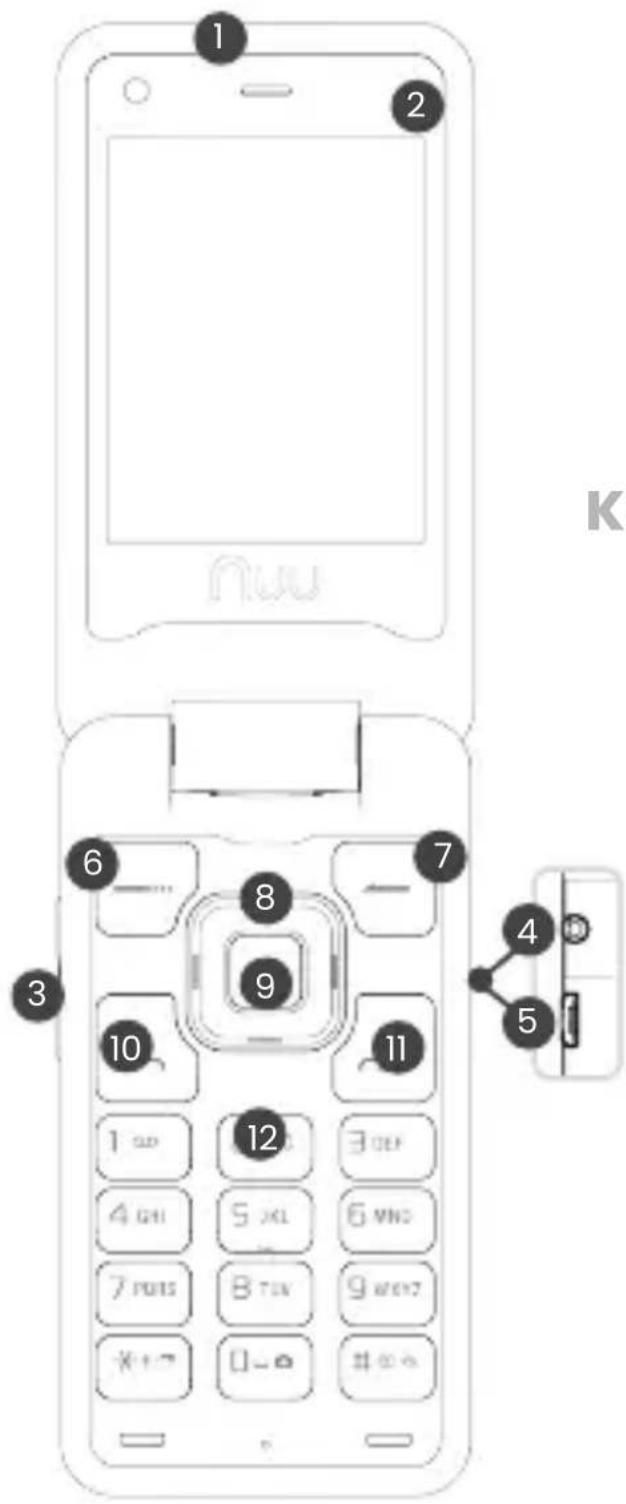
1 Earpiece
2 LCD Screen
3 Volume Control
4 AUX-In/Headset Jack
5 Micro-USB Connector
Keypad
6 Left Soft Key
7 Right Soft Key
8 Navigation Pad
9 Center Soft Key
1 Phone Key
End/Power Key
12 Number Pad
a. Press & Hold 1 for voicemail
b. Press & Hold # to change between normal mode & vibrate mode
c. Press & Hold * to display recent tasks
d. Press & Hold 0 for camera
F4L Overview cont.
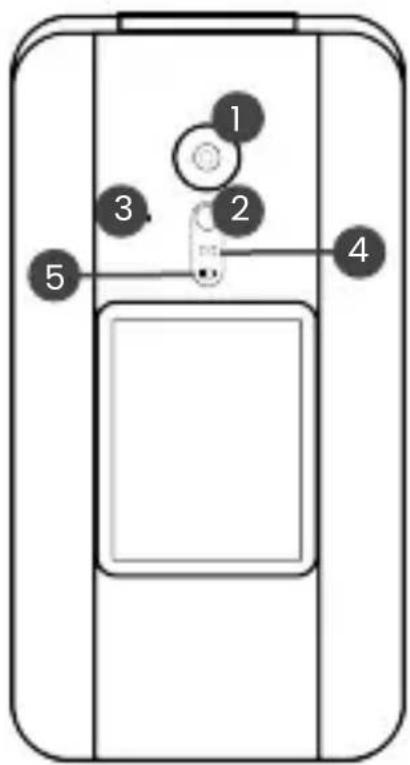
1 Camera
2 Flash
3 Microphone
4 Mail/Message Notification
5 Battery Notification
Mail/Message notification will slowly flash green when you have a new message. This could be a new SMS message, Voicemail, or WhatsApp message.
The Battery notification will slowly flash red while charging.
Setting Up Your Phone
Follow these step-by-step instructions to set up your F4L. Power off the phone before inserting any
cards!

1 Remove Back Cover
- Remove the back cover by prying at the corner
2 Insert Sim
- Orient SIM card to match diagram on slot.
●SIM supports 4G LTE connections.
3 Insert microSD Memory Card (Optional)
- Remember to power off the phone and remove battery before inserting memory card.
4 Insert the Battery
- Align the battery contacts, then insert the battery contacts-first.
5 Replace Back Cover
- After installing the SIM card, memory card, and battery, align the cover and snap it closed. Be sure to press around all the edges to ensure a secure fit.
6 Charge/Sync
- Plug in the Micro-USB connector to charge the phone or transfer data.
Warning:
SIM cards are small enough to become a choking hazard, so please keep them away from children & pets. SIM cards are also quite delicate. Please be careful when handling your card.
Settings
To access Settings, press the Center Soft Key from the home screen and select Settings
Network & Internet
Here you can enter Airplane mode, see a list of available WiFi networks, monitor data usage, and turn on Hotspot or tethering
Connected Devices
Connect to external Bluetooth devices
Battery
See remaining battery and other battery usage statistics
Display
Adjust brightness level, change background wallpaper, and adjust the display sleep settings
Sound
Adjust Media, Alarm and Ring Volume using the Navigation Pad
Storage
View used storage on both the device and a portable SD card (when installed)
Security & Location
Security settings such as screen lock, SIM Card lock and location permissions.
Calls
Making a call
Dialing - From the home screen, use the Number Pad to dial the number and press the green Phone Key
Call History – Access your call history by pressing the green phone key. Use the Number Pad to view all calls or missed calls. Press the green Phone Key to place a call to the selected number.
Deleting Call History – Access your call history by pressing the green phone key. Press the Center Soft Key. In the Drop Down Menu that appears scroll down and select delete. Select the calls you want to delete, and then scroll up to the trash can and confirm your choice to delete.
Contacts - Press the Center Soft Key to access the App list. Select Contacts and use the Navigation Pad to locate the contact. Press the Center Soft Key to display the contact information. Select the number you wish to call and press the Phone key to call.
Answering a call
To answer an incoming call simply flip open the phone. By default, opening the phone will answer the call and closing the phone will end the call. This can be changed by opening the phone app and selecting Menu > Settings > Call settings
Ending a call
Press the red End/Power Key
to end the call.

Calls
Voicemail -In order to access your voicemail, press and hold the key while on the main home screen or the phone dialer app. Voicemail functions such as listening and deleting messages are controlled by your Wireless Service Provider. Listen for the command prompts or check with your provider for more information.
Contacts
Adding a contact
Press the Center Soft Key 📄 to list all apps and then select Contacts. Select Create New Contact. Then chose if you want to save the contact to the phone itself or to the SIM Card. When you are done entering the information, scroll all the way up to the top, and select the three dots icon and then select Save.
Deleting a contact
Press the Center Soft Key 📄 to list all apps and then select Contacts. Highlight the contact you want to delete and then press and hold the Center Soft Key. 📄 Highlight the Trash Can icon and then press the Center Soft Key 📄 to delete.
Setting speed dial contacts
Once you have a number of contacts entered, you may want to set some of those frequently called phone numbers to your speed dial. Each of the keys 0-9 can be set as a speed dial shortcut.
Press the Center Soft Key to list all apps and then select Contacts. Use the navigation pad to select the hamburger menu icon in the upper left hand corner. Scroll down and select settings. Scroll down and select Set contact to Speed Dial. Choose the numbered slot to save to, and then press the center key to select and choose Add. Scroll to the contact you wish to add and press the center soft key to finalize the choice.
Once those speed dial contacts are entered. You can simply press and hold the desired shortcut key from the home screen and the call will begin.
Searching contacts
Once you have a larger number of contacts entered, you may find it easier to search for a specific contact rather than scrolling to find it. From the contact screen, select the magnifying glass in the upper right hand of the screen to search. Use the End/Power key to switch between text and numeric inputs.
Messaging
Press the Center Soft Key 📄 to list all apps and then select Messaging.
Sending a message – Press the Left Soft Key 📋 to create a new message. Type in the phone number or the name of the contact you wish to send a message to and then compose your message in the Type text message box. When your message is complete, select the Send Arrow and press the Center Soft Key.
Press the * key to switch input methods:
•en: lowercase
- En: Sentence Case
- EN: All Caps
•123: Numeric
- KT9: Predictive Word Mode
If you'd like to send a picture or a video you can select the paperclip icon and choose the type of attachment to send.
Deleting a message – Open the text thread that contains the message you want to delete by pressing the center soft key. Press the Left Soft Key and choose "Select message". Scroll to the message you want to delete, press the center soft key to select it. Then scroll all the way up to the top and select the trash can.
You can also delete ALL messages by selecting "Delete all threads" from the main pop up screen.
Camera
To open the Camera app, press the Center Soft Key, use the Navigation Pad to highlight the Camera app and press the Center Soft Key 📄 to open.

*You can also access the camera by pressing and holding the 0 key 📁 on the Number Pad.
Press the Center Soft Key 📄 to take a picture. If you want to switch to video, use the Navigation Pad to select the Video option in the lower right-hand corner, and press the Center Soft Key to confirm.
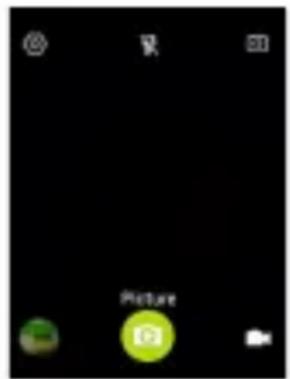

There are 3 icons across the top. Settings, Flash and Selfie
The Settings section is where you can customize the camera settings such as adding a timer, adjusting the white balance, and changing the picture file size.
The Flash settings allow you to turn the flash on, off, or on automatic.
The Selfie button switches to the front facing cam.
To view the Gallery, select the circular icon in the lower left hand of the screen.

Gallery
The Gallery is your collection of photos and videos to view, edit, share or delete.
To access the Gallery from within the Camera app, select the Gallery icon in the lower left hand corner.

You can also access the Gallery from the list of all apps.
Within the Gallery App:
Use the Navigation Pad 📄 to highlight an image or video, and then press the Center Soft Key 📋 to view. With an image selected, press the Left Soft Key 📋 to bring up your available options such as Delete or Share
Music
The F4L comes with a music player pre-installed. Here is a simple way to get music onto your F4L.
First, Download the music you want to hear onto your personal computer or laptop.
Next plug the F4L into your PC using the data cable that comes with the phone. Copy the downloaded music to the NUU F4L > Internal shared storage > Music folder.
Hotspot
The F4L can act as a mobile Hotspot converting the data from your wireless plan into a signal that your laptop or other smartphone can use.
To enable Hotspot on your device press the Center Soft Key from the home screen and select Settings, then select Network & Internet, followed by Hotspot & tethering.
Select Wi-Fi hotspot, and then press the center softkey to turn the hotspot on.
You will now be able to connect to the NUU F4L hotspot on your laptop or other devices.
If you want to change the hotspot network name, or security settings, you can select Set up Wi-Fi hotspot on the F4L hotspot menu.
Factory Data Reset
Sometimes it is necessary to perform a Factory Data Reset on your device. This will delete ALL user data on the phone, and return the phone to its out of box state.
Before proceeding with a Factory Data Reset, be sure all data is backed up so you can restore if needed.
Press the Center Soft Key from the home screen and select Settings, then select System. Select Reset options. Scroll down to Erase all data (factory reset) and press the center soft key to confirm.
Read through the warning screen, and then select reset phone and then confirm the Erase Everything choice if you want to proceed.
It will take a few minutes to erase the data, but soon you will see the NUU startup screen and you will be returned to the home screen.
Task Switcher
From the main Home Screen, you can easily switch between open applications by pressing and holding the * key on the numbered key pad.
Holding this key will bring up a window showing cards of the open apps, and you can use the navigation pad to scroll up and down through the open apps. Press the Center soft key to select the app.

natural_image
Simple green circular ring shape on white background (no text or symbols)


- Table of Contents
- F4L Overview
- Keypad
- F4L Overview cont.
- Setting Up Your Phone
- Remove Back Cover
- Insert Sim
- Insert microSD Memory Card (Optional)
- Insert the Battery
- Replace Back Cover
- Charge/Sync
- Warning:
- Settings
- Network & Internet
- Connected Devices
- Battery
- Display
- Sound
- Storage
- Security & Location
- Calls
- Making a call
- Answering a call
- Ending a call
- Contacts
- Adding a contact
- Deleting a contact
- Setting speed dial contacts
- Searching contacts
- Messaging
- Camera
- Gallery
- Music
- Hotspot
- Factory Data Reset
- Task Switcher
Brand : NUU Mobile
Model : F4L
Category : Smartphone