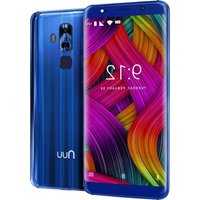
G3 - Smartphone NUU Mobile - Free user manual and instructions
Find the device manual for free G3 NUU Mobile in PDF.


| Product Type | Smartphone |
| Brand | NUU Mobile |
| Model | G3 |
| Dimensions | 146 x 72 x 8.5 mm |
| Weight | 150 g |
| Display Size | 5.0 inches |
| Display Resolution | 480 x 854 pixels (FWVGA) |
| Processor | Quad-core 1.3 GHz |
| RAM | 1 GB |
| Internal Storage | 8 GB, expandable via microSD |
| Battery Capacity | 2000 mAh (removable) |
| Operating System | Android 8.1 Go Edition |
| Rear Camera | 5 MP with autofocus and LED flash |
| Front Camera | 2 MP |
| Connectivity | 4G LTE, Wi-Fi 802.11 b/g/n, Bluetooth 4.0, GPS |
| Ports | Micro USB 2.0, 3.5 mm headphone jack |
| Sensors | Accelerometer, Proximity |
| SIM Card | Dual SIM (Micro-SIM) |
| Colors Available | Black, Blue, Gold |
| Maintenance | Wipe with a soft, dry cloth; avoid liquids and abrasive cleaners. |
| Safety | Use only approved chargers; avoid exposure to extreme temperatures; do not disassemble. |
| Spare Parts | Battery, screen, charging port available from NUU Mobile service centers. |
| General Information | Full user manual available for download in PDF format. |
Frequently Asked Questions - G3 NUU Mobile
User questions about G3 NUU Mobile
0 question about this device. Answer the ones you know or ask your own.
Ask a new question about this device
Download the instructions for your Smartphone in PDF format for free! Find your manual G3 - NUU Mobile and take your electronic device back in hand. On this page are published all the documents necessary for the use of your device. G3 by NUU Mobile.
USER MANUAL G3 NUU Mobile
Getting Started With Your

LTE mobile phone
Model: N5702L, G3
Hereby, SUN CUPID TECHNOLOGY (HK) LIMITED declares
that this Mobile phone is in compliance with the
essential requirements and other relevant provisions of Directive 2014/53/EU.
Index
G3 Overview 3
Setting up Your Phone 4
Getting Start 6
Safety information 8
Certificate
12
Warranty information & Registration 15
Customer Support 15
G3 Overview
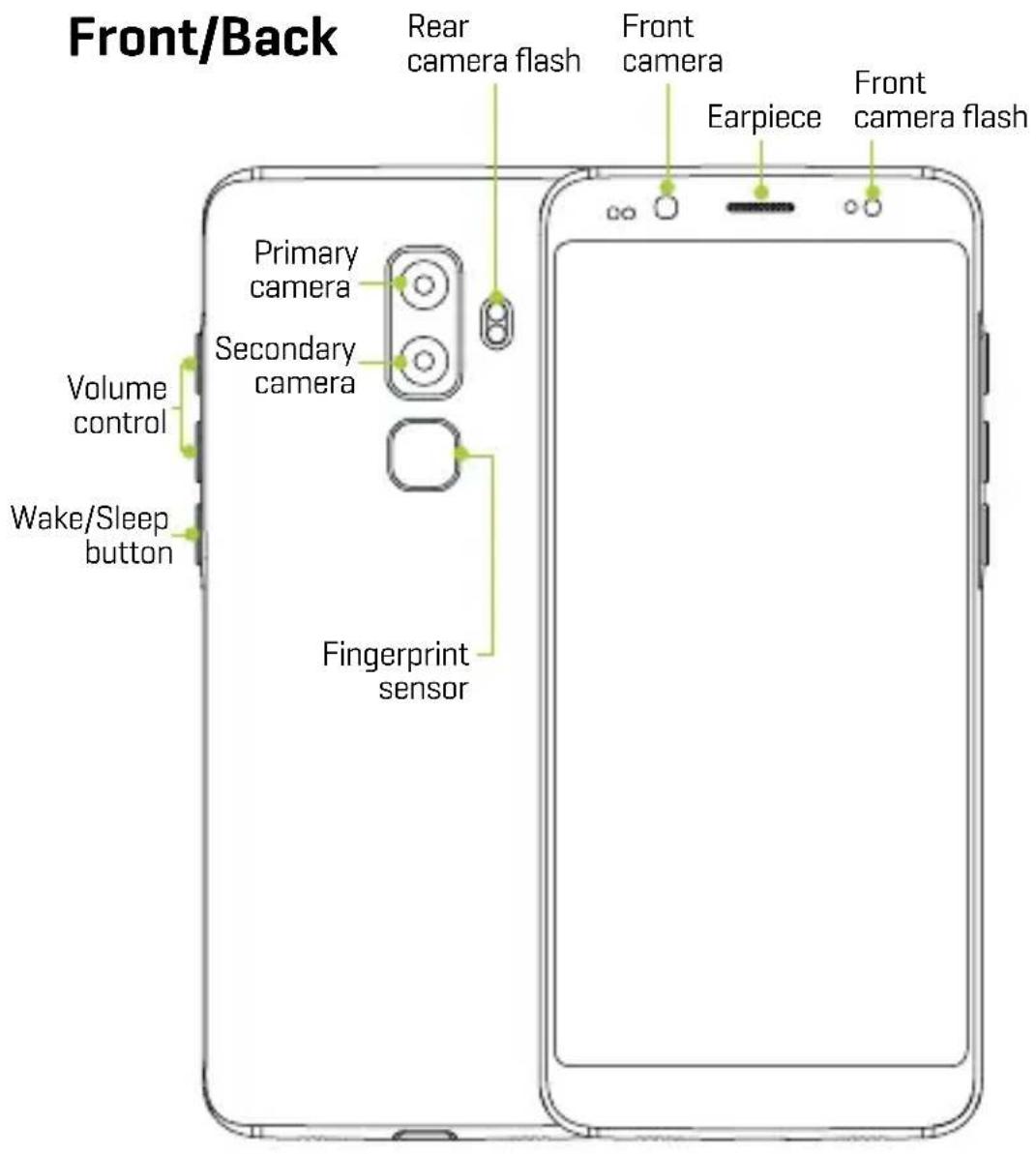
Top

Bottom

Setting Up Your Phone
Follow these step-by-step instructions to set up your G3.
Power off the phone before inserting any cards!
1 Remove SIM Tray
- Remove the SIM tray by inserting a pin eject key/paper clip in the small circular hole at the bottom of the tray. The tray will then eject from the phone.
2 Configuration 1: Dual SIM Standby
- Orient SIM card to match layout on tray.
• SIM 1 [Nano] supports 4GLTE connections.
• SIM 2 [Nano] supports 4GLTE connections.
3 Configuration 2: microSD™ Card/SIM
- Orient microSD/SIM card to match layout on tray.
- microSD card supports up to 64GB
• SIM 2 [Nano] supports 4GLTE connections.
4 Replace SIM Tray
- After placing the SIMs and/or memory card in the tray, slide it back into its slot. It will click and hold in place.
5 Charge/Sync
- Plug in the type C connector to charge the phone or transfer data.
Warning:
SIM cards are small enough to become a choking hazard, so please keep them away from Children & Pets. SIM cards are also quite delicate. Please be careful when handling your card.

Getting Started
How to use the phone keys
EN
In any screen, tap the back key “☐” to return to previous screen or exit the application. Tap the home key “☐” to return to the home screen. Tap the recent key “☐” to display all the programs that are currently in use. Tap the “on/off” button, to turn on or off the screen and lock the screen. Long press “on/off” to shut down or to restart your mobile device. Press and hold the “on/off” button and the volume down key at the same time to take a screen capture.
Language
Tap the settings icon. Scroll down under "Personal" and tap "Language & input", then select your preferred language by tapping "Language".
Calls
Tap the "Phone" icon, then tap on "to select the contact you would like to call. Or, simply make a call by entering the number after selecting the "icon."
Android™ Messages
Tap the Android Messages icon, then tap “+” to create a new message. Input a name or number into the “To” field or choose someone from your contact list, then tap “○” and input your message. Press the paperclip icon if you want to attach a picture, video or other media. When done, tap “Send”.
Writing and copying a text
The phone will make recommendations as you type. If you want to copy or cut text, long press the text for a few seconds and use the selecting arrows to select, or use the “select all” option, then copy or paste your text.
Camera
Tap the "camera" icon to open the camera. The phone supports a variety of picture modes such as HDR, flash, Face beauty etc. To access these modes, select the "options" icon.
Google Photos
Tap the Google Photos icon in the Google folder to open the gallery to browse your photos, tap on a photo to open it. Tap “/” to enter edit mode. You can add color filter effects, rotate, crop and so on. Click “save”.
Video camera
Tap the "camera" icon to open the camera and switch to "video" mode by tapping "☐" to record.
Gmail
Tap the Gmail icon in the Google folder. Then select the “icon” icon in the lower right corner to compose a new message. Use the paperclip to attach files or images. Tap on “>” when done. Note: You must set up an email account first.
Google Play Music
Tap the Google Play Music icon in the Google Folder. Select the playlist or song you would like to play. Playlists can be categorized by Artist, Albums, Genre or what you have created.
FM Radio
Connect earphones to the audio jack, tap the "FM Radio" icon in All Apps "and select frequency.
Primeros pasos
- This section contains important information about the operation of your device, it also contains information about how to use the device safely. Read this information carefully before using your device.
Electronic device
Do not use your device if using the device is prohibited.
Do not use the device if doing so causes danger or interference with other electronic devices.
Interference with medical equipment
- Follow rules and regulations set forth by hospitals and health care facilities. Do not use your device where prohibited.
- Some wireless devices may affect the performance of hearing aids or pacemakers. Consult your service provider for more information.
- Pacemaker manufacturers recommend that a minimum distance of 15 cm be maintained between a device and a pacemaker to prevent potential interference with the pacemaker. If using a pacemaker, hold the device on the side opposite the pacemaker and do not carry the device in your front pocket.
Protecting your hearing when using a headset
- To prevent possible hearing damage, do not listen at high volume levels for long periods.
- Using a headset at high volumes may damage your hearing. To reduce this risk, lower the headset volume to a safe and comfortable level.
- Exposure to high volumes while driving may cause distraction and increase your risk of an accident.
Areas with flammables and explosives
- Do not use the device where flammables or explosives are stored (in a gas station, oil depot, or chemical plant, for example). Using your device in these environments increases the risk of explosion or fire. In addition, follow the instructions indicated in text or symbols.
- Do not store or transport the device in containers with flammable liquids, gases, or explosives.
Traffic security
- Observe local laws and regulations while using the device. To reduce the risk of accidents, do not use your wireless device while driving.
- Concentrate on driving. Your first responsibility is to drive safely.
- Do not hold the device while driving. Use hands-free accessories.
- When you must make or answer a call, pull off the road safely and park the vehicle first.
- RF signals may affect the electronic systems of motor vehicles. For more information, consult the vehicle manufacturer.
- Do not place the device over the air bag or in the air bag deployment area in a motor vehicle. Doing so may hurt you because of the strong force when the air bag inflates.
- Wireless devices may interfere with the airplane's flight system. Do not use your device where wireless devices are not allowed according to the airplane company's regulations.
Operating environment
- Avoid dusty, damp, or dirty environments. Avoid magnetic fields. Using the device in these environments may result in circuit malfunctions. Do not use your device during thunderstorms
to protect your device against any danger caused by lightning.
- Ideal operating temperatures are 0 °C to 35 °C. Ideal storage temperatures are -20 °C to 45 °C. Extreme heat or cold may damage your device or accessories.
- Do not expose your device to direct sunlight (such as on a car dashboard) for prolonged periods.
- To protect your device or accessories from fire or electrical shock hazards, avoid rain and moisture.
- Keep the device away from sources of heat and fire, such as a heater, microwave oven, stove, water heater, radiator, or candle.
- Do not place sharp metal objects, such as pins, near the earpiece or speaker. The earpiece may attract these objects and result in injury.
- Stop using your device or applications for a while if the device is overheated. If skin is exposed to an overheated device for an extended period, low temperature burn symptoms, such as red spots and darker pigmentation, may occur.
- Do not use your device's camera flash directly in the eyes of people or pets. Otherwise temporary loss of vision or damage to the eyes may occur.
- Do not touch the device's antenna. Otherwise, communication quality may be reduced.
- Do not allow children or pets to bite or suck the device or accessories. Doing so may result in damage or explosion.
- Observe local laws and regulations, and respect the privacy and legal rights of others.
Child's safety
- Comply with all precautions with regard to child's safety. Letting children play with the device or its accessories may be dangerous. The device includes detachable parts that may present a choking hazard. Keep away from children.
- The device and its accessories are not intended for use by children. Children should only use the device with adult supervision.
Accessories
- Using an unapproved or incompatible power adapter, charger or battery may cause fire, explosion or other hazards.
- Choose only accessories approved for use with this model by the device manufacturer. The use of any other types of accessories may void the warranty, may violate local regulations and laws, and may be dangerous.
- If the power cable is damaged (for example, the cord is exposed or broken), or the plug loosens, stop using it at once. Continued use may lead to electric shocks, short circuits, or fire.
- Do not touch the power cord with wet hands or pull the power cord to disconnect the charger.
- Do not touch the device or the charger with wet hands. Doing so may lead to short circuits, malfunctions, or electric shocks.
- If your charger has been exposed to water, other liquids, or excessive moisture, only an authorized service center has the right to inspect.
Battery safety
- Do not connect battery poles with conductors, such as keys, jewelry, or other metal materials. Doing so may short-circuit the battery and cause injuries or burns.
- Keep the battery away from excessive heat and direct sunlight. Do not place it on or in heating devices, such as microwave ovens, stoves, or radiators. Batteries may explode if overheated.
- Do not attempt to modify or remanufacture the battery, insert foreign objects into it, or immerse or expose it to water or other liquids. Doing so may lead to fire, explosion, or other hazards.
- If the battery leaks, ensure that the electrolyte does not make direct contact with your skins or eyes. If the electrolyte touches your skins or splashes into your eyes, immediately flush with clean water and consult a doctor.
- In case of battery deformation, color change, or overheating while charging or storing, immediately stop using the device and remove the battery. Continued use may lead to battery leakage, fire, or explosion.
- Do not put batteries in fire as they may explode. Damaged batteries may also explode.
- Dispose of used batteries in accordance with local regulations. Improper battery use may lead to fire, explosion, or other hazards.
- Do not allow children or pets to bite or suck the battery. Doing so may result in damage or explosion.
- Do not smash or pierce the battery, or expose it to high external pressure. Doing so may lead to a short circuit or overheating.
- Do not drop the device or battery. If the device or battery is dropped, especially on a hard surface, it may be damaged.
- If the device standby time shortens significantly, replace the battery.
Cleaning and maintenance
- Keep the device and accessories dry. Do not attempt to dry it with an external heat source, such as a microwave oven or hair dryer.
- Do not expose your device or accessories to extreme heat or cold. These environments may interfere with proper function and may lead to fire or explosion.
- Avoid collision, which may lead to device malfunctions, overheating, fire, or explosion.
- Before you clean or maintain the device, stop using it, stop all applications, and disconnect all cables connected to it.
- Do not use any chemical detergent, powder, or other chemical agents (such as alcohol and benzene) to clean the device or accessories. These substances may cause damage to parts or present a fire hazard. Use a clean, soft, and dry cloth to clean the device and accessories.
- Do not place magnetic stripe cards, such as credit cards and phone cards, near the device for extended periods of time. Otherwise the magnetic stripe cards may be damaged.
- Do not dismantle or remanufacture the device and its accessories. This voids the warranty and releases the manufacturer from liability for damage. In case of damage, contact an authorized service center for assistance or repair.
- If the device screen is broken in a collision, immediately stop using the device. Do not touch or attempt to remove the broken parts. Promptly contact an authorized service center.
Emergency calls
- The availability of emergency calls is subject to your cellular network quality, service provider policy, and local laws and regulations. Never rely solely on your device for critical communications like medical emergencies.
Environmental protection
- The device and its accessories (if included), such as the power adapter, headset, and battery should not be disposed of with household garbage.
- Disposal of the device and its accessories is subject to local regulations. Support proper collection and recycling.
Safety precautions
- Use of wireless hands-free system (headphone, headset) with a low power Bluetooth emitter.
- Make sure the cell phone has a low SAR.
- Keep your calls short or send a text message (SMS) instead. This advice applies especially to children, adolescents and pregnant women.
- Use cell phone when the signal quality is good.
- People having active medical implants should preferably keep the cell phone at least 15 cm away from the implant.
Disposal and recycling information

This symbol on the device or on its packaging indicates that the device (including its electrical accessories) should not be disposed of as normal household garbage. Do not dispose of your device as unsorted municipal waste. The device should be handed over to an authorized collection center for recycling or proper disposal at the end of its life.
Battery Caution
- Use only NUU approved batteries, chargers, and cables to charge your phone. Unapproved chargers or cables can cause the battery to explode or damage the device.
- Use only NUU approved batteries, chargers and cables. Use unapproved batteries, chargers and cables may cause safety issue and the warranty will be lost.
- You can recharge your battery many times, but all batteries have a limited lifespan. If you notice a significant deterioration in your phone's battery life, you will need to purchase a replacement battery for replacement. If the battery is built-in in the phone, do not attempt to remove built-in batteries and contact an authorized NUU service center for a replacement.
- Your phone may become warm after prolonged use or when exposed to high ambient temperatures. If your phone becomes hot to the touch, unplug the USB cable, disable non-essential features, and avoid prolonged skin contact. Place your phone in a cool location and allow it to cool down to room temperature.
- Charging times may vary depending on the ambient temperature and the remaining battery level.
- Avoid using your phone when it is charging. Do not cover your phone or the charger when it is charging.
FCC Information
FCC STATEMENT
- This device complies with Part 15 of the FCC Rules. Operation is subject to the following two conditions:
- This device may not cause harmful interference.
- This device must accept any interference received, including interference that may cause undesired operation.
- Changes or modifications not expressly approved by the party responsible for compliance could void the user's authority to operate the equipment.
NOTE:
This equipment has been tested and found to comply with the limits for a Class B digital device, pursuant to Part 15 of the FCC Rules. These limits are designed to provide reasonable protection against harmful interference in a residential installation.
This equipment generates uses and can radiate radio frequency energy and, if not installed and used in accordance with the instructions, may cause harmful interference to radio communications. However, there is no guarantee that interference will not occur in a particular installation. If this equipment does cause harmful interference to radio or television reception, which can be determined by turning the equipment off and on, the user is encouraged to try to correct the interference by one or more of the following measures:
Reorient or relocate the receiving antenna.
Increase the separation between the equipment and receiver.
Connect the equipment into an outlet on a circuit different from that to which the receiver is connected.
Consult the dealer or an experienced radio/TV technician for help.
SAR Information Statement
Your wireless phone is a radio transmitter and receiver. It is designed and manufactured not to exceed the emission limits for exposure to radio frequency (RF) energy set by the Federal Communications Commission of the U.S. Government. These limits are part of comprehensive guidelines and establish permitted levels of RF energy for the general population. The guidelines are based on standards that were developed by independent scientific organizations through periodic and thorough evaluation of scientific studies. The standards include a substantial safety margin designed to assure the safety of all persons, regardless of age and health. The exposure standard for wireless mobile phones employs a unit of measurement known as the Specific Absorption Rate, or SAR. The SAR limit set by the FCC is 1.6 W/kg. * Tests for SAR are conducted with the phone transmitting at its highest certified power level in all tested frequency bands. Although the SAR is determined at the highest certified power level, the actual SAR level of the phone while operating can be well below the maximum value. This is because the phone is designed to operate at multiple power levels so as to use only the power required to reach the network. In general, the closer you are to a wireless base station antenna, the lower the power output. Before a phone model is available for sale to the public, it must be tested and certified to the FCC that it does not exceed the limit established by the government adopted requirement for safe exposure. The tests are performed in positions and locations (e.g., at the ear and worn on the body) as required by the FCC for each model. The highest SAR value for this model phone when tested for use at the ear is 0.235W/Kg and when worn on the body, as described in this user guide, is 0.369W/Kg (Body-worn measurements differ among phone models, depending upon available accessories and FCC requirements).
The maximum scaled SAR in hotspot mode is 0.487W/Kg. While there may be differences between the SAR levels of various phones and at various positions, they all meet the government requirement for safe exposure. The FCC has granted an Equipment Authorization for this model phone with all reported SAR levels evaluated as in compliance with the FCC RF exposure guidelines. SAR information on this model phone is on file with the FCC and can be found under the Display Grant section of http://www.fcc.gov/oet/fccid after searching on
FCC ID: 2ADINN5702L Additional information on Specific Absorption Rates (SAR) can be found on the Cellular Telecommunications Industry Association (CTIA) website at http://www.wow-com.com. * In the United States and Canada, the SAR limit for mobile phones used by the public is 1.6 watts/kg (W/kg) averaged over one gram of tissue. The standard incorporates a sub-stantial margin of safety to give additional protection for the public and to account for any variations in measurements.
Body-worn Operation
This device was tested for typical body-worn operations. To comply with RF exposure requirements, a minimum separation distance of 10mm must be maintained between the user's body and the handset, including the antenna. Third-party belt-clips, holsters, and similar accessories used by this device should not contain any metallic components. Body-worn accessories that do not meet these requirements may not comply with RF exposure requirements and should be avoided. Use only the supplied or an approved.
IC STATEMENT
This device complies with Industry Canada licence-exempt RSS standard(s)
Operation is subject to the following two conditions:
(1) This device may not cause interference, and
(2) This device must accept any interference, including interference that may cause undesired operation of the device.
This equipment complies with IC radiation exposure limits set forth for an uncontrolled environment. End user must follow the specific operating instructions for satisfying RF exposure compliance. This transmitter must not be co-located or operating in conjunction with any other antenna or transmitter.
These requirements set a SAR limit of 1.6W/kg averaged over one gram of tissue.
The highest SAR value for this model phone when tested for use at the ear is 0.235W/Kg and when worn on the body is 0.369W/Kg. The maximum scaled SAR in hotspot mode is 0.487W/Kg. This device was tested for typical body-worn operations. To comply with RF exposure requirements, a minimum separation distance of 15mm must be maintained between the user's body and the handset, including the antenna. Third-party belt-clips, holsters, and similar accessories used by this device should not contain any metallic components. Body-worn accessories that do not meet these requirements may not comply with RF exposure requirements and should be avoided. Use only the supplied or an approved antenna.
Warranty information
Please visit our website for details on warranty information.
Warranty Registration
Register Your Device
Thank you for choosing NUU mobile. To receive helpful tips and faster tech support, register your device online at
US:
us.nuumobile.com/my-account/product-registration
Customer Support
Questions? Let us help. We're here to support you.
US:
Service Center: 5050 75th AVE NW
Byron, MN 55920
Phone: Toll Free: 844-NUU-3365
U.S. hours: M-F 8:00am-4:30pm CT
Email: support@nuumobile.com

natural_image
Simple green circular logo with curved lines, no text or symbols presentLearn more about NUU Mobile products, features and accessories at

www.nuumobile.com

everyday genius
© 2018 NUU Limited.
Made in China


- Getting Started With Your
- Index
- G3 Overview
- Setting Up Your Phone
- Remove SIM Tray
- Configuration 1: Dual SIM Standby
- Configuration 2: microSD™ Card/SIM
- Replace SIM Tray
- Charge/Sync
- Warning:
- Getting Started
- How to use the phone keys
- EN
- Language
- Calls
- Android™ Messages
- Writing and copying a text
- Camera
- Google Photos
- Video camera
- Gmail
- Google Play Music
- FM Radio
- Primeros pasos
- Electronic device
- Interference with medical equipment
- Protecting your hearing when using a headset
- Areas with flammables and explosives
- Traffic security
- Operating environment
- Child's safety
- Accessories
- Battery safety
- Cleaning and maintenance
- Emergency calls
- Environmental protection
- Safety precautions
- Disposal and recycling information
- Battery Caution
- FCC Information
- FCC STATEMENT
- NOTE:
- SAR Information Statement
- Body-worn Operation
- IC STATEMENT
- Warranty information
- Warranty Registration
- Register Your Device
- US:
- Customer Support
Brand : NUU Mobile
Model : G3
Category : Smartphone