
UA Scale - Smartwatch HTC - Free user manual and instructions
Find the device manual for free UA Scale HTC in PDF.


| Product Type | Smart Scale |
| Brand | HTC / Under Armour |
| Model | UA Scale |
| Power Supply | 4 AA batteries (pre-installed) |
| Connectivity | Wi-Fi 802.11 b/g, Bluetooth |
| Maximum Weight Capacity | 180 kg (396 lbs) |
| Supported User Profiles | Up to 8 |
| Body Fat Measurement | Yes, with Athlete Mode for muscular users |
| Display | LCD with action icons |
| Weight Units | kg or lbs (switchable) |
| Language Support | Multiple languages (set via app) |
| Compatible App | UA Record (Android & iOS) |
| Body Fat Sensors | Can be turned off |
| Audio Cues | Can be turned off |
| Cleaning Instructions | Damp cloth; no chemicals or submerging |
| Safety Precautions | Not for use by pregnant women or those with pacemakers |
Frequently Asked Questions - UA Scale HTC
User questions about UA Scale HTC
0 question about this device. Answer the ones you know or ask your own.
Ask a new question about this device
Download the instructions for your Smartwatch in PDF format for free! Find your manual UA Scale - HTC and take your electronic device back in hand. On this page are published all the documents necessary for the use of your device. UA Scale by HTC.
USER MANUAL UA Scale HTC
natural_image
Red and white abstract logo resembling a stylized 'B' or eye-like shape (no text or symbols)UNDER ARMOUR.
UA Scale™
User guide
Contents
Getting started
Your UA Scale 5
Measuring your weight 10
Choosing a profile if you are not recognized 11
Selecting a profile before measuring 12
Checking your past weigh ins 12
Changing to another Wi-Fi connection 15
Changing your display name 16
Switching units of measurement 16
Turning sound on and off 17
Choosing a different language 17
Trademarks and copyrights
About this guide
In this user guide, we use the following symbols to indicate useful and important information:

This is a note. A note often gives additional information, such as what happens when you choose to do or not to do a certain action. A note also provides information that may only be applicable to some situations.

This is a tip. A tip gives you an alternative way to do a particular step or procedure, or lets you know of an option that you may find helpful.

This indicates important information that you need in order to accomplish a certain task or to get a feature to work properly.

This provides safety precaution information, that is, information to which you must pay careful attention to avoid potential problems.
Important Notices
Do not use if...
The unit is wet.
■ There are any signs of damage.
- You weigh more than 180 kg (\~396 lbs).
Do not use body fat feature if...
- You are pregnant.
- You have a pacemaker installed.
- You have any medical device installed that is electrically sensitive.
See Turning off the body fat sensors on page 11.
H RECORD
Any and all data synced with UA Record ^™ is subject to the Under Armour Terms and Conditions of Use and Privacy Policy. You can review both notices at UA.com.
SCALE
UA Scale ^™ is not a healthcare device and should not be used as a substitute for medical care. The accuracy of the data captured is not verified. You should never disregard medical advice or delay seeking medical advice or treatment because of any content presented on or through UA Scale, and you should never use the content presented on or through UA Scale for diagnosing or treating a health condition. Please consult your healthcare provider before beginning any wellness or fitness routine.
Getting started
Your UA Scale
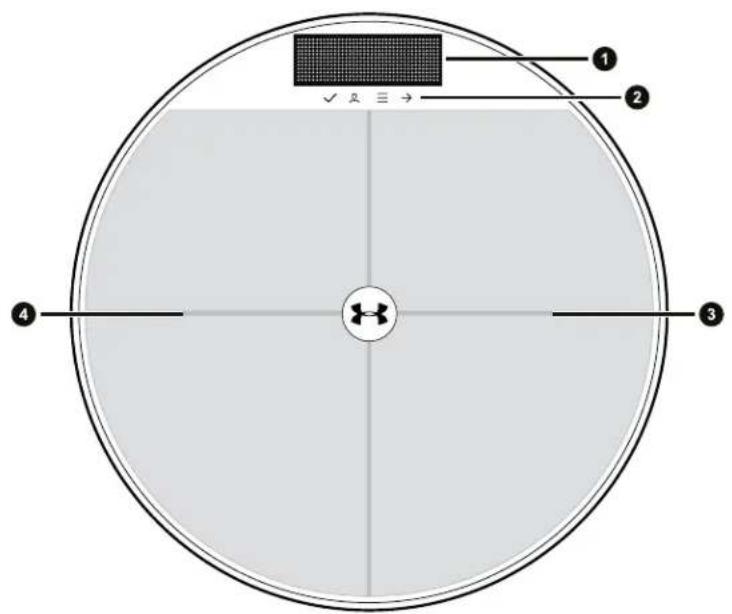
- Display
- Action icons
- Right Foot Pad
- Left Foot Pad
Navigating your UA Scale is done by pressing the left and right foot pads.
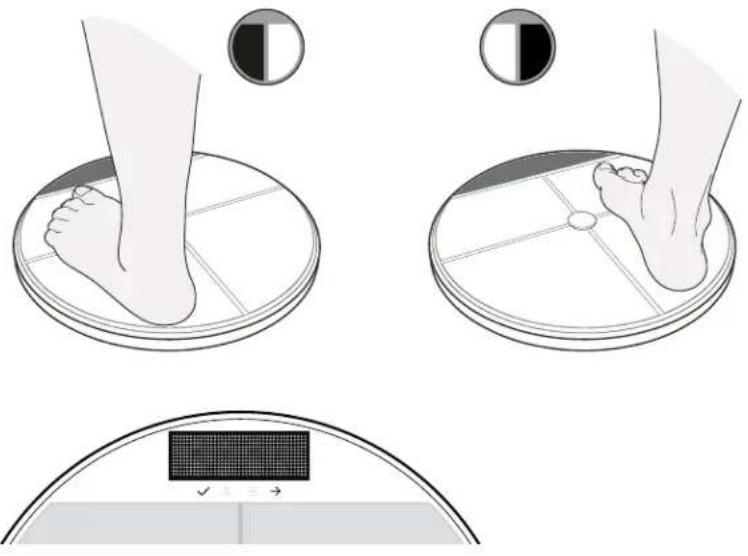
When navigating your UA Scale, you need to pay attention to icons just beneath the display.
The icons light up to indicate what can be done with the foot pads.
Left foot pad Right foot pad


Select Next


Change Profile Menu


Battery
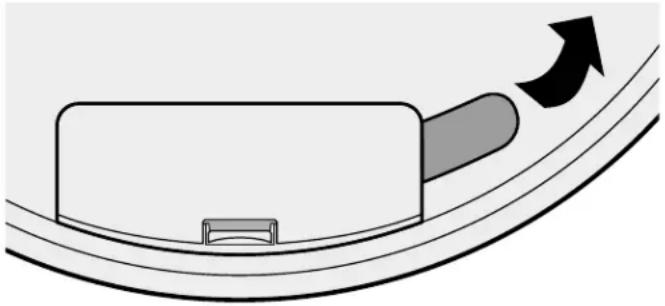
Your UA Scale is powered by four AA batteries which come preinstalled.
To begin using your UA Scale, remove the battery tab. You'll find the battery compartment located on the bottom of your UA Scale.
natural_image
Diagram of a car with an arrow indicating speed or motion, showing a curved ramp and a rectangular component (no text or symbols)When the batteries need to be replaced, there will be a notification on the display.

You can also see the battery level in UA Record under your UA Scale settings.
Before using your UA Scale, you'll need to find a proper place to put it.
- Place your UA Scale on a hard level surface in order to give you the most accurate readings.
- Make sure your UA Scale is within range of the Wi-Fi ^ router that you want to use.
- Be sure not to place your UA Scale on slippery surfaces.
UA Record app
Download and install the UA Record app on your phone to set up UA Scale and explore all of its great features.
- Set target weight and body fat goals and seamlessly track your progress.
- Analyze your training performance and check progress toward your fitness goals.
- Manage your UA Scale settings from your phone using UA Record.

The first time you open the UA Record app, make sure to create or sign in with your Under Armour account to sync your fitness data and enjoy the other features.
Downloading and installing the UA Record app



Before downloading the UA Record app, please make sure that your phone meets the minimum system requirements indicated on the UA Record app's download page.
- On your phone, open the Play Store or App Store ^® .
- Search for UA Record.
- Download and install the UA Record app.
- On your phone, open the UA Record app.
- Tap Register.
- Register with your Facebook account or fill in the fields and tap Create Account.

You can also create a UA Record account at https://record.underarmour.com/
Set up your UA Scale with your UA Record account and Wi-Fi connection so it can automatically log your measurements.

- The UA Record app must be installed on your phone. You also need to have a UA Record account.
- Make sure the Bluetooth ^ setting on your phone is on to connect your UA Record account with your UA Scale.
■ Make sure your device is in close proximity to your phone.
■ Make sure your UA Scale is in range of your Wi-Fi router. -
Your UA Scale supports Wi-Fi 802.11 b/g.
-
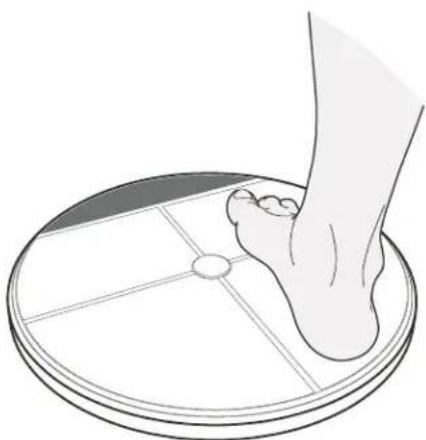
Briefly press your UA Scale with your foot to turn it on.
natural_image
Illustration of a human foot resting on a circular scale with measurement grid (no text or symbols)The first time you turn on your UA Scale, you'll be prompted to pair it with the UA Record app.
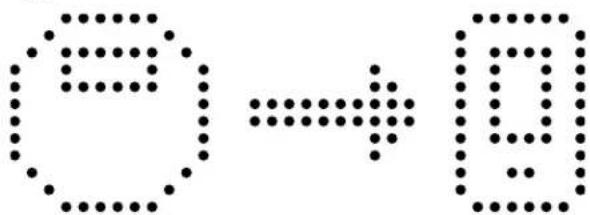
-
On your phone, open the UA Record app.
-
Do one of the following:
| If you are a new UA Record user... | 1. Create your UA Record account.2. On the Connect Devices screen, tap SCALE |
| If you already have a UA Record account... | 1. Sign in to your UA Record account.2. Tap >Connect |
- When your UA Scale shows Press to confirm, press on your UA Scale with your foot. Your UA Scale will show Scale Confirmed to indicate that it has successfully paired with UA Record. By pairing the UA Record app with your UA Scale, you will also create a profile on your UA Scale.
- On your phone, choose your body fat measurement preference, and then tap Next.

Do not use the body fat measurement feature if you are pregnant, have a pacemaker installed, or have any electrically sensitive medical device installed.
- Select your Wi-Fi router, enter your required credentials, and tap Join.
- Tap Continue to begin using your UA Scale.
Using your UA Scale
Measuring your weight
Your UA Scale measures your weight and automatically keeps track of it in UA Record. You can also measure your body fat percentage.

If you are pregnant or have medical devices such as a pacemaker installed, turn off the body fat sensors. See Turning off the body fat sensors on page 11.

■ Make sure your UA Scale is in range of your Wi-Fi router.
- For the most accurate measurements, use your UA Scale with bare feet.
- Step onto your UA Scale to turn it on and immediately start measuring your weight.

When stepping onto your UA Scale, position your feet closer to the center to help prevent tipping your UA Scale.
- After you see your weight, wait for your UA Scale to identify you. If your UA Scale doesn't correctly identify you, see Choosing a profile if you are not recognized on page 11 or Selecting a profile before measuring on page 12.
- Keep standing on your UA Scale to measure your body fat percentage.
- If you have a weight goal set in UA Record, you'll see how close to your goal you're getting, or if you achieved it.
- When your UA Scale shows Done, you can step off.
After weighing in, your results will be uploaded to and recorded in UA Record.
Turning on Athlete Mode
If you have low body fat percentage because you are naturally thin, train frequently, or have a muscular body type, then you'll need to change the body fat settings to Athlete Mode to get more accurate measurements.

■ Make sure you have Bluetooth enabled on your phone.
■ Make sure your device is in close proximity to your phone.
- Briefly press your UA Scale with your foot to turn it on.
- On your phone, open the UA Record app.
- On the main screen of the UA Record app, tap .
- Tap and wtaAdr Ehe app to connect to your UA Scale.
- Under Preferences, tap Body Fat Settings.
- Make sure the Measure Body Fat option is on.
- Tap Athlete Mode.
Turning off the body fat sensors
If you don't want to use the body fat sensor, you can easily turn it off in UA Record.

■ Make sure you have Bluetooth enabled on your phone.
■ Make sure your device is in close proximity to your phone.
-
Briefly press your UA Scale with your foot to turn it on.
-
On your phone, open the UA Record app.
-
On the main screen of the UA Record app, tap .
-
Tap and Wait Ad: The app to connect to your UA Scale.
-
Under Preferences, tap Body Fat Settings and then turn off Measure Body Fat.
Choosing a profile if you are not recognized
If your weight has changed by 5 kg (11 lbs) or more, or if you are in close in weight to another user of your UA Scale, your UA Scale may not recognize you.
- Step onto your UA Scale to turn it on and immediately start measuring your weight.
-
After weighing, if your UA Scale shows Hi there or another profile name instead of yours, step off of your UA Scale and press to change the profile.
-
Press until you see the name you used on your UA Record account.
-
Press to select the profile.

If you don't see your profile name, someone may have deleted your profile from your UA Scale. See Reconnecting a profile on page 14.
Selecting a profile before measuring
If there are multiple users that weigh about the same, then you may want to select your profile prior to measuring your weight.
-
Briefly press your UA Scale with your foot to turn it on.
-
When the display shows Step up, press.
-
Press to select the Profile menu.
-
Press until you see the profile you want to select, and then press to select it.
-
Press to confirm.
Checking your past weigh ins
Check your past weigh-ins to see how much progress you've made.
-
On your phone, open the UA Record app.
-
On the main screen of the UA Record app, tap .
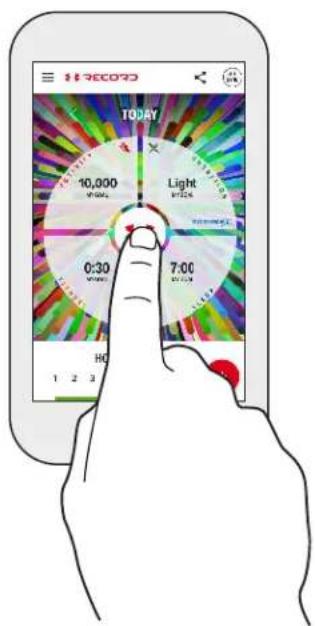
- Tap the same area again while your weight is visible to view your past weigh ins, set a weight goal, and view progress.
Follow these tips to properly care for your UA Scale.
Do's
- Keep your UA Scale dry.
- Use a few drops of water and gently wipe the surface of your UA Scale.
Don'ts
- Do not jump onto your UA Scale.
- Do not place your UA Scale in humid or dusty environments.
- Do not submerge your UA Scale in any liquid.
- Do not spray or otherwise subject your UA Scale to streams of water or liquid.
- Do not clean the surface of your UA Scale with any chemicals.
User profiles
When you add your profile, your UA Scale remembers who you are each time you step onto it. Your UA Scale remembers up to eight different people.
Adding profiles
Connect your UA Record app to your UA Scale to add your profile to it.

- The UA Record app must be installed on your phone. You also need to have a UA Record account.
-
Make sure the Bluetooth setting on your phone is on to connect your UA Record account with your UA Scale.
■ Make sure your device is in close proximity to your phone.
■ Make sure your UA Scale is in range of your Wi-Fi router. -
Briefly press your UA Scale with your foot to turn it on. Your UA Scale should show Step up on the display when it is ready to connect.
- On your phone, open the UA Record app.
- On the main screen of the UA Record app, tap
- Tap ConnectE

- When your UA Scale shows Press to confirm, press ⏻ or ⏻. Your UA Scale will show Scale confirmed to indicate that it has successfully paired with UA Record.
- On your phone, choose your body fat measurement preference, and then tap Next.

Do not use the body fat measurement feature if you are pregnant, have a pacemaker installed, or have any electrically sensitive medical device installed.
By pairing the UA Record app with your UA Scale, you will also create a profile on your UA Scale.
Deleting a profile
If there are already 8 profiles on your UA Scale, you will need to delete one to add another profile.
- Briefly press your UA Scale with your foot to turn it on.
- Press until you see Profile, and then press to select it.
- Press until you see the profile you want to delete, and then press to select it.
- Press show the delete option, and then press to select it.
- Press to confirm.
Reconnecting a profile
If your profile has been removed from your UA Scale, you can easily reconnect it.

■ Make sure Bluetooth is enabled on your phone.
■ Make sure your device is in close proximity to your phone.
- Make sure no other phones are connected to your UA Scale via Bluetooth.
- On your phone, open the UA Record app.
- On the main screen of the UA Record app, tap .SYNC
- Tap and wait for the app to connect to your UA Scale.
- On the pop-up message, tap Reconnect.
Settings
■ Make sure you have Bluetooth enabled on your phone.
■ Make sure your device is in close proximity to your phone.
■ Make sure your UA Scale is in range of your Wi-Fi router.
- Briefly press your UA Scale with your foot to turn it on.
- On your phone, open the UA Record app.
- On the main screen of the UA Record app, tap .
- Tap and SADr Ehe app to connect to your UA Scale.
- Tap Bluetooth Settings > Forget this device.
- Tap Forget to confirm.
Changing to another Wi-Fi connection
You can easily change the Wi-Fi settings if you need to. For example, if you've changed the name of your Wi-Fi network, or if you want to connect to a different Wi-Fi network, you'll need to update the Wi-Fi settings.

■ Make sure you have Bluetooth enabled on your phone.
■ Make sure your device is in close proximity to your phone.
- Make sure your UA Scale is in range of the Wi-Fi router you want to connect to.
■ Your UA Scale supports Wi-Fi 802.11 b/g.
- Briefly press your UA Scale with your foot to turn it on.
- On your phone, open the UA Record app.
- On the main screen of the UA Record app, tap .
-
Tap and SCALE The app to connect to your UA Scale.
-
Tap Wi-Fi Settings, and select a Wi-Fi connection.
- Enter the required credentials and tap Join.
Changing your display name
There may be times when you may want to change your profile name. For example, if your profile name is longer than 10 characters, it will be truncated. Or if there are multiple profile names that are the same, you may want to change your profile name to make it easy to distinguish.

■ Make sure you have Bluetooth enabled on your phone.
■ Make sure your device is in close proximity to your phone.
- Briefly press your UA Scale with your foot to turn it on.
- On your phone, open the UA Record app.
- On the main screen of the UA Record app, tap .
- Tap and Wait Adr The app to connect to your UA Scale.
- Tap Display Name, enter a new name, and then tap Done.
Switching units of measurement
Kilos or pounds? You can choose between imperial or metric units of measurement.
- Briefly press your UA Scale with your foot to turn it on.
- Press until you see Unit, and then press to select it.
- Press until you see the your preferred unit of measurement, and then press to select it.

You can also change this setting in UA Record. On the UA Scale settings screen, tap Units, select your preference, and then tap Ok.
Turning sound on and off
You can turn off the audio cues if you prefer not to hear them.
- Briefly press your UA Scale with your foot to turn it on.
- Press until you see Sound, and then press to select it.
- Press until you see your preferred sound setting, and then press to select it.

You can also change this setting in UA Record. On the UA Scale settings screen, tap Sound to toggle the setting.
Choosing a different language
Besides English, you can choose from some of the supported languages.

■ Make sure you have Bluetooth enabled on your phone.
■ Make sure your device is in close proximity to your phone.
-
Briefly press your UA Scale with your foot to turn it on.
-
On your phone, open the UA Record app.
-
On the main screen of the UA Record app, tap .
-
Tap >Language
-
Select your preferred language and then tap OK.
- Briefly press your UA Scale with your foot to turn it on.
- Press until you see Reset, and then press to select it.
- Press to confirm.
Trademarks and copyrights
©2016 HTC Corporation. All Rights Reserved.
HTC, the HTC logo, and all other HTC product and feature names are trademarks or registered trademarks in the U.S. and/or other countries of HTC Corporation and its affiliates.
Under Armour is a registered trademark of Under Armour, Inc.
Android and Google Play are trademarks of Google Inc.
Apple, the Apple logo, App Store, and iPhone are trademarks of Apple Inc., registered in the U.S. and other countries.
The Bluetooth® word mark and logos are registered trademarks owned by Bluetooth SIG, Inc.
Wi-Fi ^® is a registered trademark of the Wireless Fidelity Alliance, Inc.
All other company, product, and service names are the property of their respective owners and their use does not indicate an affiliation with, association with, or endorsement of or by HTC Corporation.
Screen images contained herein are simulated. HTC shall not be liable for technical or editorial errors or omissions contained herein, nor for incidental or consequential damages resulting from furnishing this material. The information is provided "as is" without warranty of any kind and is subject to change without notice. HTC also reserves the right to revise the content of this document at any time without prior notice.
No part of this document may be reproduced or transmitted in any form or by any means, electronic or mechanical, including photocopying, recording or storing in a retrieval system, or translated into any language in any form without prior written permission of HTC.


- UA Scale™
- User guide
- Contents
- Getting started
- Trademarks and copyrights
- About this guide
- Important Notices
- Do not use if...
- Do not use body fat feature if...
- H RECORD
- SCALE
- Left foot pad Right foot pad
- Battery
- UA Record app
- Downloading and installing the UA Record app
- Using your UA Scale
- Measuring your weight
- Turning on Athlete Mode
- Turning off the body fat sensors
- Choosing a profile if you are not recognized
- Selecting a profile before measuring
- Checking your past weigh ins
- Do's
- Don'ts
- User profiles
- Adding profiles
- Deleting a profile
- Reconnecting a profile
- Settings
- Changing to another Wi-Fi connection
- Changing your display name
- Switching units of measurement
- Turning sound on and off
- Choosing a different language
Brand : HTC
Model : UA Scale
Category : Smartwatch