
UA Heart Rate - Smartwatch HTC - Free user manual and instructions
Find the device manual for free UA Heart Rate HTC in PDF.


| Product Type | Chest strap heart rate monitor |
| Brand | HTC |
| Model | UA Heart Rate |
| Battery Type | CR2032 coin battery |
| Battery Life | Approximately 365 hours of use |
| Module Dimensions | Approx. 40 x 30 x 10 mm (estimated) |
| Strap Length | Adjustable, fits chest circumference 70-100 cm (estimated) |
| Weight | Approx. 50 g (module and strap, estimated) |
| Water Resistance | Not waterproof; avoid water exposure |
| Connectivity | Bluetooth (to smartphone or UA Band) |
| Heart Rate Zones | Blue (50-59% max HR), Green (60-69%), Yellow (70-79%), Orange (80-89%), Red (90-100%) |
| LED Indicator | Blue when connected, red when battery low |
| Sensor Pads | Two conductive pads; must be moistened for optimal contact |
| Compatible Apps | UA Record (iOS/Android) and UA Band |
| Automatic Power Off | After 60 seconds if not in contact with skin |
| Cleaning | Wipe module with alcohol; clean strap with damp cloth; do not use bleach |
| Battery Replacement | User-replaceable; open compartment with coin |
| Warranty Disclaimer | Not a medical device; for fitness tracking only |
| Firmware Update | Via UA Record app; LED must not be flashing red |
| Package Contents | Heart rate module, chest strap, user guide (no additional accessories) |
Frequently Asked Questions - UA Heart Rate HTC
User questions about UA Heart Rate HTC
0 question about this device. Answer the ones you know or ask your own.
Ask a new question about this device
Download the instructions for your Smartwatch in PDF format for free! Find your manual UA Heart Rate - HTC and take your electronic device back in hand. On this page are published all the documents necessary for the use of your device. UA Heart Rate by HTC.
USER MANUAL UA Heart Rate HTC
natural_image
Red and white abstract logo resembling a stylized 'B' or eye-like shape (no text or symbols)UNDER ARMOUR.
UA Heart Rate™
User guide
Contents
Getting started
Tracking workouts with your UA Band 12
Checking your stats 13
Removing your UA Heart Rate 14
Changing the battery 14
Cleaning 15
Precautions 16
Settings
Updating the firmware 17
Trademarks and copyrights
About this guide
In this user guide, we use the following symbols to indicate useful and important information:

This is a note. A note often gives additional information, such as what happens when you choose to do or not to do a certain action. A note also provides information that may only be applicable to some situations.

This is a tip. A tip gives you an alternative way to do a particular step or procedure, or lets you know of an option that you may find helpful.

This indicates important information that you need in order to accomplish a certain task or to get a feature to work properly.

This provides safety precaution information, that is, information to which you must pay careful attention to avoid potential problems.
4 Important Notices
Important Notices
H RECORD
Any and all data synced with UA Record ^™ is subject to the Under Armour Terms and Conditions of Use and Privacy Policy. You can review both notices at UA.com.
HEART RATE
UA Heart Rate ^™ is not a healthcare device and should not be used as a substitute for medical care. The accuracy of the data captured is not verified. You should never disregard medical advice or delay seeking medical advice or treatment because of any content presented on or through UA Heart Rate, and you should never use the content presented on or through UA Heart Rate for diagnosing or treating a health condition. Please consult your healthcare provider before beginning any wellness or fitness routine.
Getting started
Your UA Heart Rate
Use your UA Heart Rate to track your heart rate while you exercise. Pair it with the UA Record app on your smartphone to track your training performance and fitness goals.
Front view
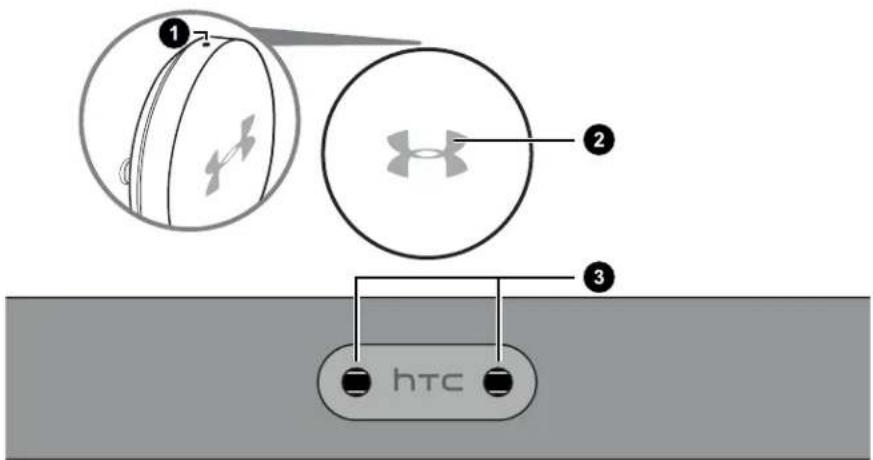
- Orientation mark
- LED
- Module sockets
Back view
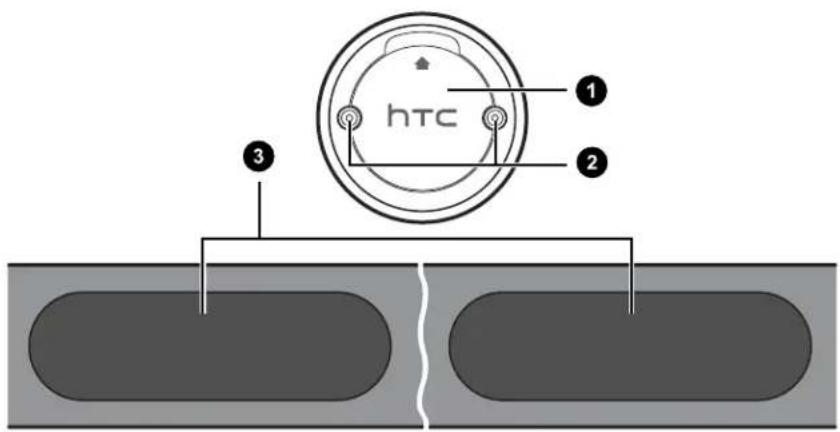
- Battery compartment cover
- Module posts
- Sensor pads
UA Record app
Download and install the UA Record app on your phone to set up UA Heart Rate and explore all of its great features.
- View real time heart rate stats during workouts for smarter training.
- Analyze your training performance and check progress toward your fitness goals.
- Manage your UA Heart Rate settings from your phone using UA Record.

The first time you open the UA Record app, make sure to create or sign in with your Under Armour account to sync your fitness data and enjoy the other features.
Downloading and installing the UA Record app

ANDROID APP ON Google play

Download on the App Store

Before downloading the UA Record app, please make sure that your phone meets the minimum system requirements indicated on the UA Record app's download page.
- On your phone, open the Play Store or App Store ^® .
- Search for UA Record.
- Download and install the UA Record app.
- On your phone, open the UA Record app.
- Tap Register.
- Register with your Facebook account or fill in the fields and tap Create Account.

You can also create a UA Record account at https://record.underarmour.com/
7 Getting started
Turning your UA Heart Rate on and off
Turning on your UA Heart Rate is simple. Just insert the module into the strap and touch the sensors on the back of the strap.
- Hold the heart rate module and strap so the HTC logos are facing up.
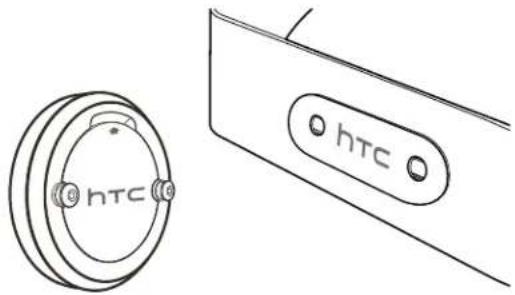
- Align the module posts with the sockets on the chest strap. Make sure that the orientation mark on the module is above the HTC logo and the HTC logo is facing up.
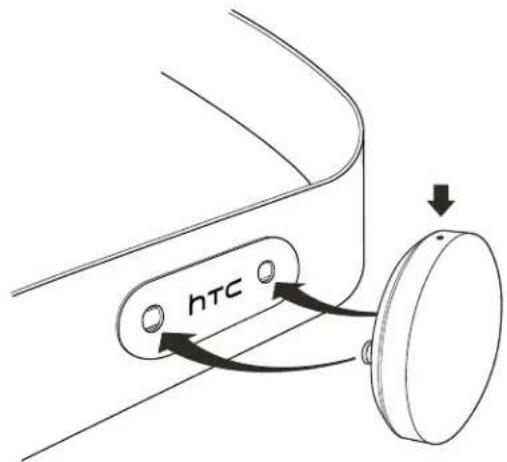
-
Insert the module posts into the sockets and snap them into place.
-
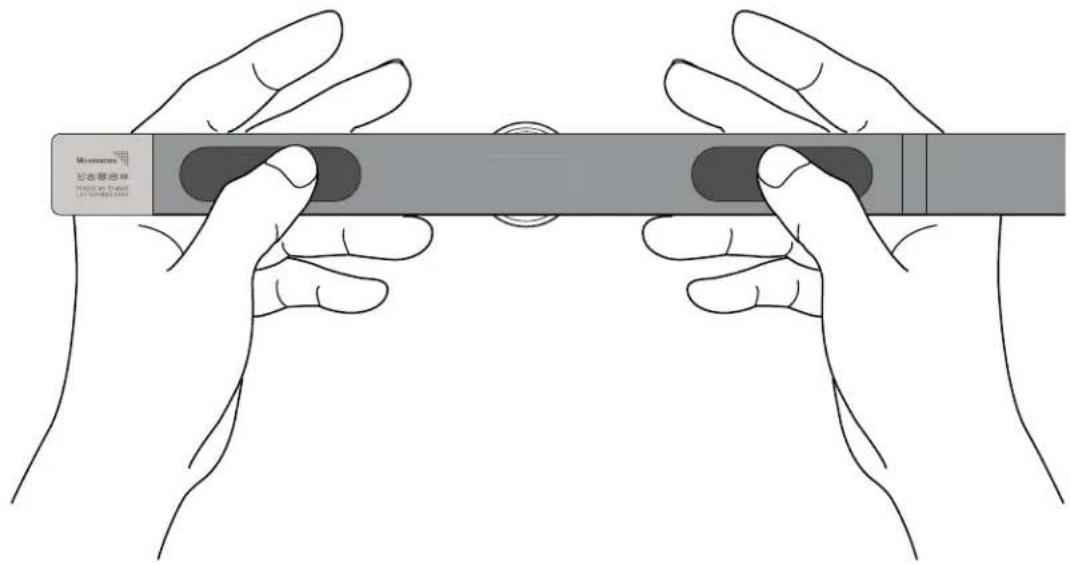
Touch both sensors on the back of the chest strap to turn on your UA Heart Rate. Your UA Heart Rate will automatically power off after 60 seconds if not kept in contact with skin.
natural_image
Illustration of two hands holding a device with a circular button, no text or symbols visibleConnect your UA Heart Rate with UA Record to start recording your heart rate while you exercise.

- The UA Record app must be installed on your phone. You also need to have a UA Record account.
-
Make sure the Bluetooth ^ setting on your phone is on to connect your UA Record account with your UA Heart Rate.
■ Make sure your device is in close proximity to your phone. -
Turn on your UA Heart Rate. The LED on the front of your UA Heart Rate should be blinking blue.
- On your phone, open the UA Record app.
- Do one of the following:
If you are a new UA Record user...
- Create your UA Record account.
- On the Connect Devices screen, tap
HEART RATE
If you already have a UA Record account...
- Sign in to your UA Record account.
- Tap ①> CompART RATE
9 Getting started
- When prompted, tap Confirm.
- Tap Continue.
Wear your UA Heart Rate properly to get the most accurate measurements.

- The module should be attached to the strap before wearing. See Turning your UA Heart Rate on and off on page 7.
-
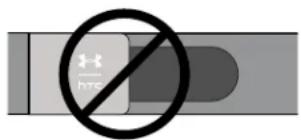
The sensor pads must be in direct contact with your skin.
-
Moisten the sensor pads with a few drops of water for better connectivity.
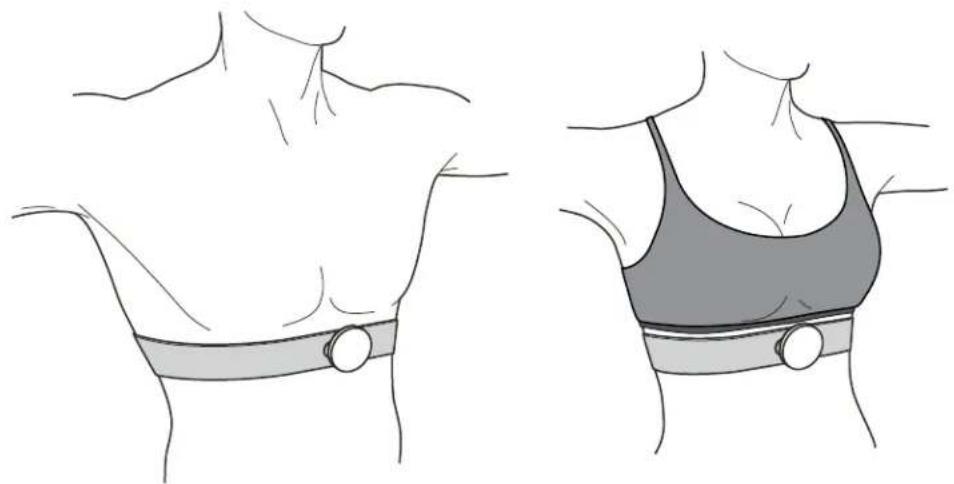
- With the orientation mark facing up, wrap the strap around your torso. The entire surface of both sensor pads should be in direct contact with your skin while in use. Make sure not to block it with the label.
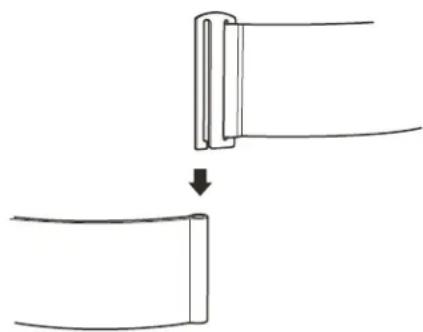
- Connect the ends by inserting the hook into the loop.
natural_image
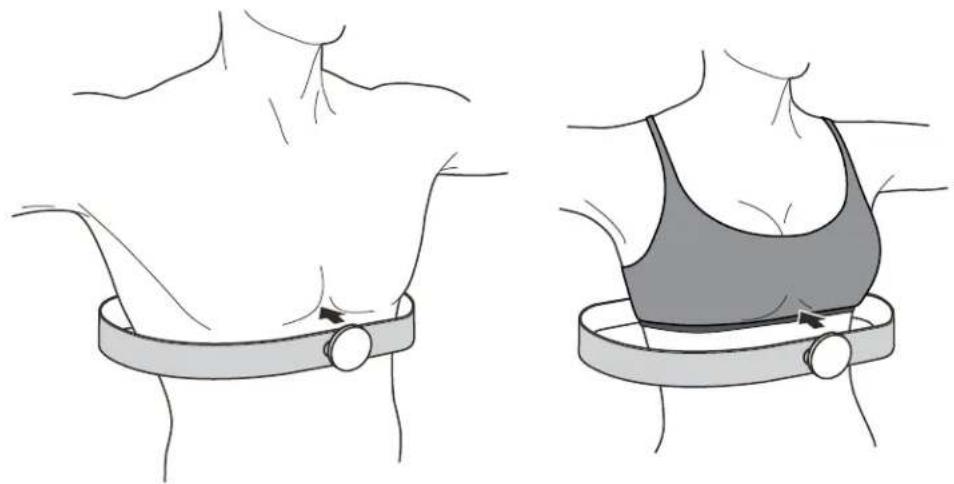
Diagram showing a mechanical component being folded into a curved sheet, with an arrow indicating the process (no text or symbols present)- Rotate the strap so that the heart rate module sits centered just below your chest.
natural_image
Illustration of two different positions of a person wearing a belt, showing head and torso positioning (no text or symbols)- Adjust the strap so that it snuggly wraps around you and does not slip down. You should feel a slight compression.
natural_image
Illustration of a person's torso and chest with a bandage, showing different body positions (no text or symbols)Your chest strap should fit snugly but comfortably. If the strap is too tight, it may cause discomfort while exercising.
Tracking your workout with UA Record
Keep a record of your heart rate while you exercise so you can tailor your workout sessions for optimum effectiveness. To see and log your heart rate, you'll first need to start a workout in UA Record or UA Band™.
- Put on your UA Heart Rate.
- On your phone, open the UA Record app.
- Tap >Workout > Track Workout.
- Choose the workout you want. You should see your live heart rate on the screen.
- Tap Start Workout when you're ready.
Tracking workouts with your UA Band
Your UA Heart Rate works together with your UA Band to track your workout sessions.

Your UA Heart Rate and UA Band must both be linked to the same UA Record account.
- Put on your UA Heart Rate and your UA Band.
- On your UA Band, press the Home button to turn on the display.
- Swipe left or right until you see the Fitness screen.
- Tap .

- Select the type of workout you want, and then tap . You'll see a confirmation that UA Heart Rate is connected to UA Band.

-
While working out, you can:
-
See your heart rate zone indicated by the color shown on the indicator LED on UA Band.
- Tap to see your calories burned, current heart rate, and more.
- Tap to pause tracking your workout.

While your workout is paused, you can tap ▶ to resume or ▶ to finish tracking your workout.
LED color Heart rate zone
Blue Low/resting heart rate (50-59% of max)
Green Light (60-69% of max)
Yellow Moderate (70-79% of max)
Orange Vigorous (80-89% of max)
Red Peak heart rate (90-100% of max)
Check UA Record to see a history of the exercise sessions you've tracked.
- On your phone, open the UA Record app.
- On the main screen of the UA Record app, tap the workout tile.
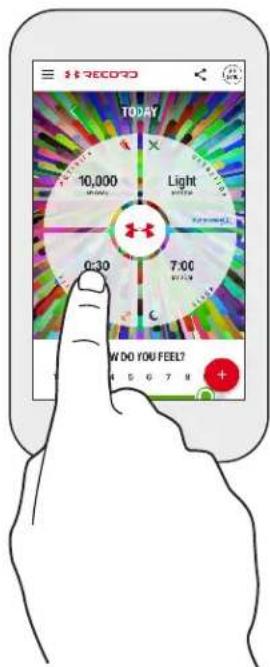
After using your UA Heart Rate to track your workout sessions, you should disconnect the module from the chest strap to prevent accidentally turning it on.
While still wearing the chest strap, remove the module diagonally from the chest strap.

Do not try to remove the module from the left or right side. Doing so may damage the locking mechanism.
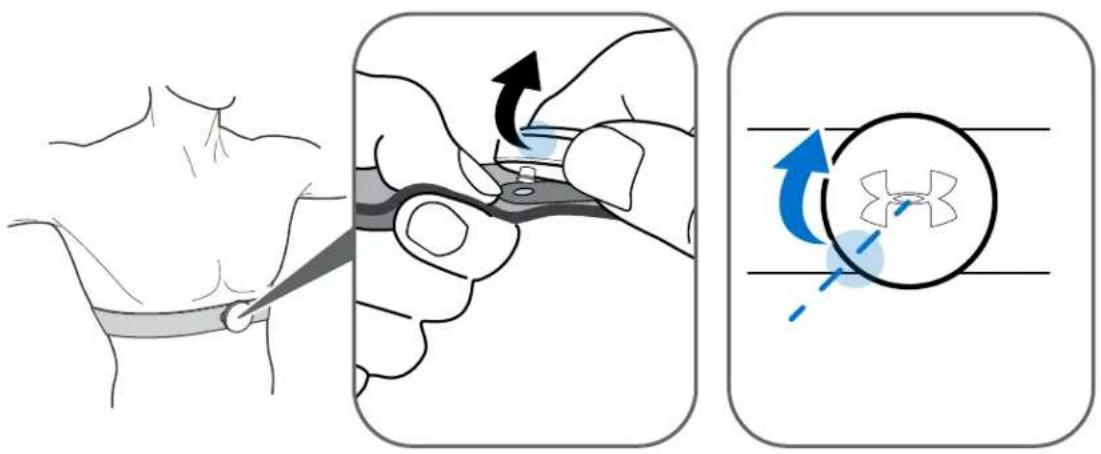
Changing the battery
Your UA Heart Rate is powered by a CR2032 coin battery. Under normal use, the battery should last about 365 hours. When it's time to change the battery, the LED should flash red for about 10 seconds after you turn it on.
- Hold your UA Heart Rate module with the back facing up.
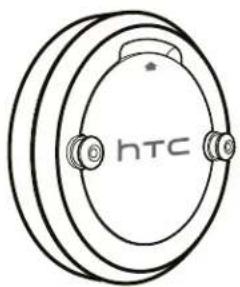
-
Take a small coin and insert it into the opening above the HTC logo.
-
Gently twist the coin to open the battery compartment.
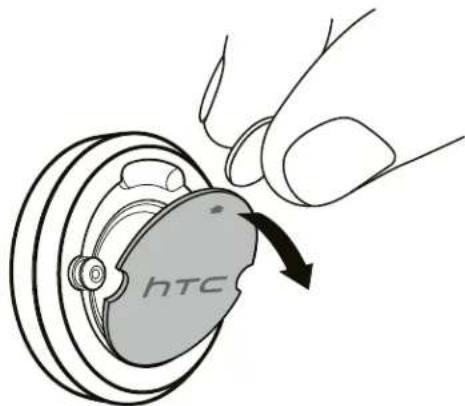
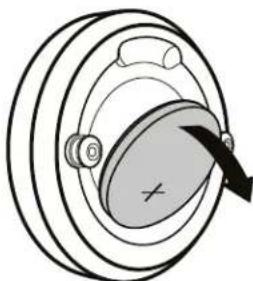
- Remove the old battery.
natural_image
Diagram of a mechanical bearing or dial assembly with a central cross-shaped component and directional arrows (no text or labels)-
Place a new battery with the positive face of the battery facing out. The battery may seem loose, but that is normal. The battery compartment cover will keep the battery in place.
-
Replace the battery compartment cover with the HTC logo upright.
Cleaning
- Wipe the surface of the heart rate module with a drop of alcohol.
- Clean the surface of the strap with a damp cloth.
- Do not use bleach or other harsh cleaning agents.
- Do not soak the chest strap in liquid.
■ Do not wring the chest strap.
Precautions
- When storing your UA Heart Rate, do not crease or fold the strap flat.
- Your UA Heart Rate is not waterproof. Do not expose the module to water.
- Do not stretch the non-elastic part of the chest strap.
Settings
If you need to unpair your UA Heart Rate, you can do that in UA Record. For example, if you lose or damage your UA Heart Rate and need to replace it, you'll need to disassociate your old UA Heart Rate from your UA Record account so that you can pair a new one.
- On your phone, open the UA Record app.
- On the main screen of the UA Record app, tap .
- Tap HEART RATE > Bluetooth Settings > Forget this device.
Updating the firmware
From time to time, you may get notifications that newer firmware is available for your UA Heart Rate. You'll see a small red circular badge on the SYNC icon in UA Record. Update your firmware to get the latest changes.

- You will need to connect your UA Heart Rate to your phone to update the firmware.
-
If the LED is flashing red when you turn on your UA Heart Rate, you won't be able to update the firmware. See Changing the battery on page 14.
-
On your phone, open the UA Record app.
- On the main screen of the UA Record app, tap .
- Tap and HEARTUARATED to connect to your UA Heart Rate.
- Tap Software Version > Install > Continue.
Trademarks and copyrights
©2016 HTC Corporation. All Rights Reserved.
HTC, the HTC logo, and all other HTC product and feature names are trademarks or registered trademarks in the U.S. and/or other countries of HTC Corporation and its affiliates.
Under Armour, UA, and UA Record are registered trademarks of Under Armour, Inc.
Android and Google Play are trademarks of Google Inc.
Apple, the Apple logo, App Store, and iPhone are trademarks of Apple Inc., registered in the U.S. and other countries.
The Bluetooth® word mark and logos are registered trademarks owned by Bluetooth SIG, Inc.
All other company, product, and service names are the property of their respective owners and their use does not indicate an affiliation with, association with, or endorsement of or by HTC Corporation.
Screen images contained herein are simulated. HTC shall not be liable for technical or editorial errors or omissions contained herein, nor for incidental or consequential damages resulting from furnishing this material. The information is provided "as is" without warranty of any kind and is subject to change without notice. HTC also reserves the right to revise the content of this document at any time without prior notice.
No part of this document may be reproduced or transmitted in any form or by any means, electronic or mechanical, including photocopying, recording or storing in a retrieval system, or translated into any language in any form without prior written permission of HTC.


- UA Heart Rate™
- User guide
- Contents
- Getting started
- Settings
- Trademarks and copyrights
- About this guide
- Important Notices
- H RECORD
- HEART RATE
- Your UA Heart Rate
- Front view
- Back view
- UA Record app
- Downloading and installing the UA Record app
- Turning your UA Heart Rate on and off
- Tracking your workout with UA Record
- Tracking workouts with your UA Band
- LED color Heart rate zone
- Changing the battery
- Cleaning
- Precautions
- Updating the firmware
Brand : HTC
Model : UA Heart Rate
Category : Smartwatch