
PlayBook Tablet v1.0 - Tablet BLACKBERRY - Free user manual and instructions
Find the device manual for free PlayBook Tablet v1.0 BLACKBERRY in PDF.


| Product Type | Tablet |
| Brand | BlackBerry |
| Model | PlayBook Tablet v1.0 (RDJ21WW) |
| Operating System | BlackBerry Tablet OS |
| Display | 7-inch capacitive touch screen, 1024 x 600 resolution |
| Processor | 1 GHz dual-core |
| Memory | 1 GB RAM |
| Storage | 16, 32, or 64 GB internal flash memory |
| Rear Camera | 5 megapixels, 1080p HD video recording |
| Front Camera | 3 megapixels |
| Connectivity | Wi-Fi 802.11 a/b/g/n, Bluetooth 2.1 + EDR |
| Ports | Micro-USB, HDMI, headset jack, charging contacts |
| Battery | Lithium-ion, up to 10 hours of mixed usage |
| Weight | 425 g (0.94 lbs) |
| Dimensions | 194 x 130 x 10 mm (7.6 x 5.1 x 0.4 in) |
| Audio | Stereo speakers, built-in microphone |
| Security | Password protection, device wipe, VPN and certificate support |
| Special Features | BlackBerry Bridge integration, BlackBerry App World, Music Store, Video Chat |
| Additional Sensors | Accelerometer, gyroscope, compass |
Frequently Asked Questions - PlayBook Tablet v1.0 BLACKBERRY
User questions about PlayBook Tablet v1.0 BLACKBERRY
0 question about this device. Answer the ones you know or ask your own.
Ask a new question about this device
Download the instructions for your Tablet in PDF format for free! Find your manual PlayBook Tablet v1.0 - BLACKBERRY and take your electronic device back in hand. On this page are published all the documents necessary for the use of your device. PlayBook Tablet v1.0 by BLACKBERRY.
USER MANUAL PlayBook Tablet v1.0 BLACKBERRY
BlackBerry PlayBook Tablet
User Guide
Version: 1.0.7

Contents
Getting started 4
Getting to know your BlackBerry PlayBook tablet.... 4
Using the touch screen....6
Gestures to use with your BlackBerry® PlayBook™ 8
Personalizing your tablet.... 11
View your notifications.... 12
Status bar icons and indicators.... 13
Switch to a new tablet.... 13
Connections.... 15
Wi-Fi.... 15
Bluetooth technology.... 18
Tether your tablet to a Bluetooth enabled device.... 19
Share files between your computer and tablet using Wi-Fi.... 20
Share files between your computer and tablet using a USB connection.... 21
Turn on airplane mode.... 21
BlackBerry Bridge 22
About BlackBerry Bridge.... 22
Connect your tablet and smartphone using BlackBerry Bridge.... 23
Tips for using BlackBerry Bridge.... 23
About synchronizing Wi-Fi profiles and VPN profiles between your tablet and smartphone.... 24
About using BlackBerry Bridge with a BlackBerry Enterprise Server.... 24
Troubleshooting: BlackBerry Bridge 25
Security 26
Set a password.... 26
Managing VPN profiles.... 26
Managing certificates.... 26
Import a certificate from your computer using a Wi-Fi connection.... 27
Import a certificate from your computer using a USB connection.... 27
Browser 28
Browsing the web.... 28
Bookmarking webpages.... 28
Change browser options.... 29
Troubleshooting: Browser 29
Camera 30
Taking pictures.... 30
Recording videos.... 30
Pictures.... 31
Viewing your pictures.... 31
Videos.... 32
Playing videos.... 32
Music.... 33
Playing your music.... 33
Creating playlists and organizing your music.... 33
Music Store 35
Buy and download music.... 35
Podcasts.... 36
Downloading and subscribing to podcasts.... 36
Video chat.... 37
About video chats.... 37
Starting video and audio-only chats.... 37
Add, change, or delete a contact.... 38
View chat history.... 38
Turn on the Do Not Disturb feature.... 38
Troubleshooting: Video chat.... 39
Voice notes.... 40
Recording voice notes.... 40
BlackBerry App World 41
Download apps with BlackBerry App World 41
Clock 42
Setting the clock.... 42
Battery and power 43
Turning off your tablet and using standby mode.... 43
Extending your battery life.... 43
Keyboard and typing 44
Using the keyboard.... 44
Typing tips.... 44
Copy and paste.... 45
Checking spelling.... 45
Troubleshooting: keyboard and typing.... 45
Facebook 46
Navigating Facebook for BlackBerry PlayBook tablets.... 46
Contacting your friends.... 46
Posting and tagging photos and videos.... 46
Posting comments and liking items.... 47
Adding friends and pages.... 47
Keeping up with events.... 47
Check in to a place.... 47
Word to Go.... 49
Creating and editing documents.... 49
Word To Go icons.... 49
Sheet to Go.... 50
Creating and editing spreadsheets.... 50
Bing Maps.... 51
Finding a location or business.... 51
Get directions.... 51
Troubleshooting: Bing Maps.... 52
Legal notice.... 53
Getting started
Getting to know your BlackBerry PlayBook tablet

Watch the video

Watch all videos


Using the touch screen

Watch the video
Here are some common gestures to help you get started using your BlackBerry® PlayBook™ tablet.
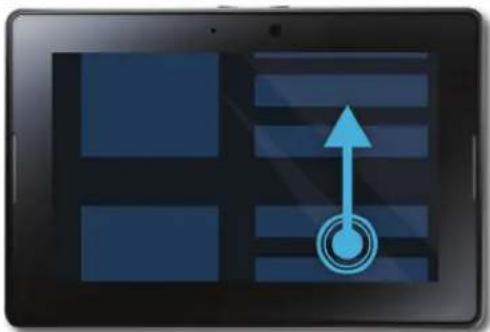
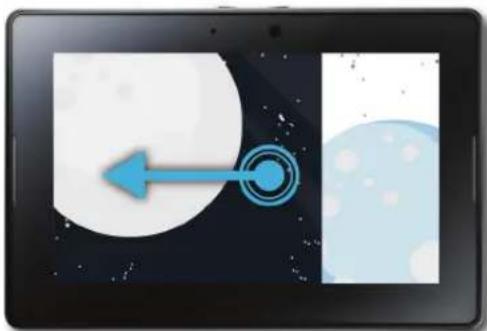
Swipe
To scroll a list, pan a webpage, move between pictures, and more, touch the screen and slide your finger up and down or right and left.
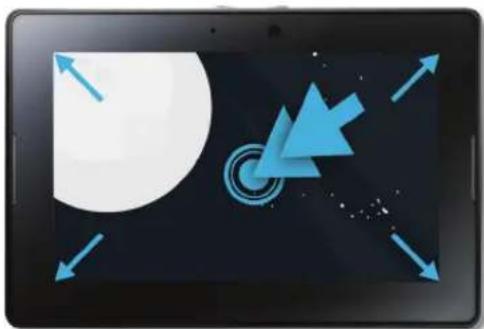
Pinch
To zoom in and out of a webpage, picture, video, or other content, touch the screen with your finger and thumb and pinch them together or apart.


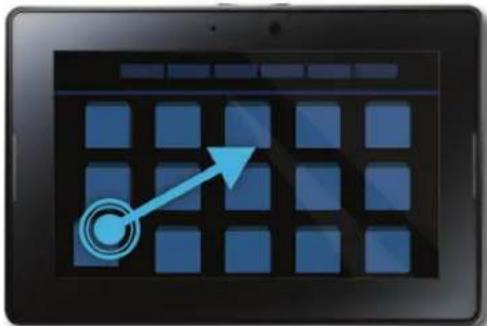
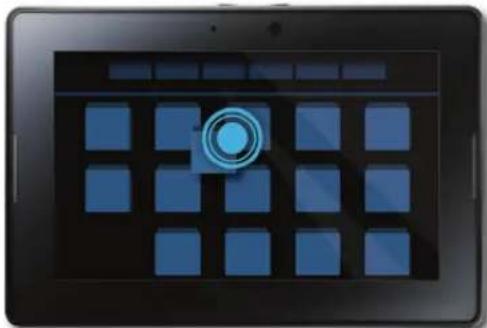
Drag
To move an item from one place to another, touch and hold the item. Slide your finger to the position where you want it.
Gestures to use with your BlackBerry® PlayBook™

Watch the video
Show the home screen and minimize apps
Swipe up from the bottom frame onto the screen.

Show the menu
In many apps, you can find additional features, options, and help in the menu.
In an app, swipe down from the top frame onto the screen. To close the menu, tap away from the menu.

Switch between apps
You can flip between your open apps without having to return to the home screen.
In an app, swipe in from the left or right frame onto the screen.

Show the status bar
You can peek at the status bar without leaving the app you're using. This is a great way to quickly check your notifications, see the time, keep an eye on your battery power level, change system options, and more.
In an app, swipe in from the top-left frame onto the screen.

Close an app
Show the home screen to minimize the app. Touch the minimized app and swipe up.

Switch between views on the home screen
Swipe left or right in the lower part of the home screen.

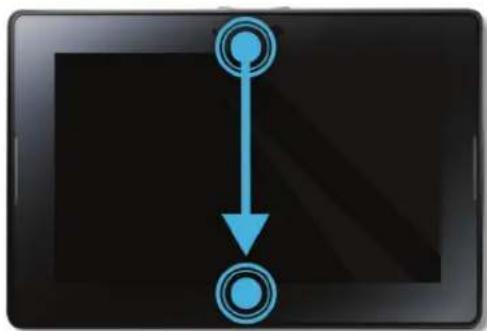
Wake up your tablet
Your tablet enters sleep mode after a certain period of time to conserve battery power. To wake it up, swipe from one side of the frame to the other.
Show the keyboard
Swipe in from the bottom-left frame onto the screen.

Zoom in and zoom out quickly
Double-tap a webpage, picture, or other content.
Personalizing your tablet

Watch the video
There are many ways you can personalize your BlackBerry® PlayBook™ tablet. In addition to the personalization suggestions listed here, the Options menu provides many additional settings you can use to customize your PlayBook tablet.
| Set the date and time on the home screen | In the status bar, tap Date and Time.To set up a custom clock, on the home screen, tap the Clock application. |
| Change the keyboard type | In the status bar, tap Keyboard. Tap a keyboard type. |
| Change the language | In the status bar, tap Language. Tap a language. |
| Set a password | In the status bar, tap > Security > Password > Change Password. Set the Enable Password switch to On. Complete the fields. |
| Move an app Touch and hold an icon. When it starts to blink, drag the icon in any direction. | |
| Run applications in the background | On the home screen, in the status bar, tap General. In the Application Behavior drop-down list, select Showcase. |
View your notifications

Watch the video
Your BlackBerry® PlayBook™ tablet uses notifications to keep you informed about software updates, new messages, calendar reminders, battery power level, and much more. When new notifications come in, the top-left or top-right corner of the screen glows red.
Do any of the following:
- If you're in an application, swipe in from the top-left frame onto the screen. Tap .
- If you're on the home screen, on the status bar, tap ⚠️.
| Return to what you were doing | Tap away from the status bar. |
| Dismiss a notification | Tap ✗ |
| View a specific type of notification On the status bar, tap the icon for the type of notification that you want to see. | |
Jump to the related app Tap the notification message. For example, if you tap an email notification, the email opens in the Messages app.
Status bar icons and indicators
The following icons and indicators appear in the status bar of the home screen.
 | Airplane mode Alarm |  |
 | Battery power level BlackBerry® BridgeTM |  |
| [6x77] | Bluetooth® connection Development mode | [4800] |
| [6x91] | Music Presentation mode |  |
 | Orientation lock All notifications |  |
 | Settings Software update |  |
 | Wi-Fi® indicator |
The following additional indicators appear to notify you of new email messages, appointments, and more when you connect to a BlackBerry smartphone through BlackBerry Bridge:
| 31 | Calendar notification | √ | Task |
Switch to a new tablet
If you want to start using a new BlackBerry® PlayBook™ tablet, you can use the BlackBerry® Desktop Software on your computer to move your media files, applications, and settings from your current tablet to your new tablet.
- On your computer, in the BlackBerry Desktop Software, click Help > Check for updates. If an update is available, click the update to update your version of the BlackBerry Desktop Software.
- Click Device > Switch devices.
- Click the icon for your current tablet.
-
Select the media files, applications, or settings you want to transfer, and select the appropriate options.
-
Follow the instructions on the screen to back up your tablet data and connect your new tablet to your computer.
- Click the icon for your new tablet to import your tablet data.
Remember to delete your tablet data before reselling it, giving it away or recycling it. In an effort to help the environment, please visit www.blackberry.com/recycling for information about returning your tablet to RIM for recycling and safe disposal.
Connections
Wi-Fi
Connect to a Wi-Fi network

Watch the video
Your BlackBerry® PlayBook™ tablet can connect to the Internet using Wi-Fi®. Public Wi-Fi networks are available in many public places, such as libraries, airports, hotels, coffee shops, and so on. When you connect to a Wi-Fi network, your tablet saves the network and connects to it automatically the next time you're within range.
-
On the Status bar, tap >Wi-Fi.
-
Tap the network you want to connect to.
To only see networks that don't require a password, in the Networks drop-down list, select Open Networks.
-
If necessary, type the network password.
-
Tap Connect.
| Connect using a Wi-Fi Protected SetupTM button | Tap > Wi-Fi >Use WPS > Press WPS Button on Router. On your Wi-Fi router, press the button. On your tablet, tap Start. |
| Connect using a Wi-Fi Protected Setup PIN code | Tap > Wi-Fi >Use WPS > Enter PIN into Router > Start. On the administration screen for your Wi-Fi router, type the PIN displayed. |
| Connect manually If you want to connect to a hidden Wi-Fi network or save the settings for a network that's not currently available, you can connect manually.Tap WI-Fi > Connect Manually. Type the name of the network. If the network is hidden, select Hidden SSID. Select the security type and specify any additional information. Tap Connect to connect now or tap Save to save without connecting. | |
Change, delete, or reorder saved Wi-Fi networks
Your BlackBerry® PlayBook™ tablet remembers the Wi-Fi® networks you connect to and automatically connects whenever you're in range. If multiple networks are available, your tablet connects to the one closest to the top of your list of saved networks.
-
On the status bar, tap >Wi-Fi.
-
In the drop-down list, tap Saved Networks.
-
To change options for a saved network, tap the network.
- To move a saved network up or down in the list, touch and hold the network. Drag it to where you want it.
- To delete a saved network, tap . Beside the network, tap
- To stop your tablet from automatically connecting to a saved network, tap the network. Clear the Enable Profile checkbox. Tap Save.
Wi-Fi network options
For most Wi-Fi ® networks, you won't need to change the network options. If you're having trouble connecting or if you need to connect manually, you can set the network options yourself.
The options available depend on the type of network you're connecting to. To find out what settings to use, if you're connecting to a home network, see the information that came with your Wi-Fi router; if you're connecting to an enterprise Wi-Fi network, talk to your administrator; if you're connecting to a hotspot, see the information provided about the hotspot or talk to an employee at the hotspot who might have details about how to connect.
| Option Description |
| Name Enter the name that you want to see in your list of saved Wi-Fi networks. |
| SSID If the Wi-Fi network is hidden, type the SSID (the name the network uses to identify itself). Your BlackBerry® PlayBookTM tablet uses this name to find the network. |
| Hidden SSID If the Wi-Fi network is hidden, select this checkbox. Hidden networks don't appear in the list of available networks. |
| Security Type Set the security type that the Wi-Fi network uses. |
| Security Sub Type If you're connecting to an enterprise Wi-Fi network, set the security subtype that the Wi-Fi network uses. |
| VPN Profiles To use a VPN Profile when connecting to this network, select the profile you want to use. For more information, see the Security section of the help. |
| Automatically Obtain IP Address Clear this checkbox if you need to manually specify an IP address for your tablet.When you clear this checkbox, additional options appear. To find out what information to enter, talk to your administrator. |
| Enable IPv6 Set whether the network uses the IPv6 protocol. |
| Option Description | |
| Use HTTP Proxy Select this checkbox if you want to connect to a proxy server. When you select this checkbox, additional options appear. To find out what options to use, see the information provided for the proxy server. | |
| Allow inter-access point handover If the network spans multiple access points, set whether your tablet should remain connected when you move from one access point to another. | |
| CA Certificate If necessary, set the root certificate that your tablet should use to verify that it's connecting to the correct Wi-Fi network. If the network requires a certificate, you need to transfer it to your tablet before you can connect. For more information, talk to your administrator. | |
| Client Certificate If necessary, set the authentication certificate that your tablet should use to connect to the Wi-Fi network. If the network requires a certificate, you need to transfer it to your tablet before you can connect. For more information, talk to your administrator. | |
I can't connect to a Wi-Fi network
Try one of the following actions:
- On the status bar, tap 📤 and verify that the switch is set to On.
- The connection might have timed out. Try connecting again.
- Your BlackBerry® PlayBook™ tablet might be too far away from the wireless access point or wireless router to connect. Move your tablet closer and try connecting again.
- Verify that you're in a Wi-Fi® coverage area. If you're connecting to a home network, see if other wireless devices are able to connect. If you're connecting to an enterprise Wi-Fi network or a hotspot, talk to your administrator or an employee at the hotspot.
- Verify that the time on your tablet is synchronized with the network time. If the times are different, it could prevent your tablet from connecting (for example, if connecting to the network requires you to have a certificate on your tablet and the certificate has an expiration date).
- If the Wi-Fi network doesn't appear in the list of available networks, the network might be hidden. If you know the network name, try connecting to it manually.
- Verify that the options for the Wi-Fi network are correct. To find out what options to use, for a home network, refer to the information that came with your router; for an enterprise Wi-Fi network, talk to your administrator; for a public hotspot, refer to any information provided for the hotspot or talk to an employee at the hotspot who might have details about how to connect.
- If you switched Wi-Fi networks manually, try switching to another Wi-Fi network.
-
If you are using the Push Button Setup method, verify that the access point uses Wi-Fi Protected Setup™, and that it has been set to send its profile. Verify that another device is not also attempting to connect at the same time, and that not more than one access point within range is in this mode. For more information, see the information that came with your router.
-
If you use PEAP, EAP-TLS, EAP-FAST, or EAP-TTLS to connect to a Wi-Fi network, verify that you have installed the root certificate for the certificate authority server that created the certificate for the authentication server. The certificate must be transferred to your tablet before you can connect to the network. For more information, talk to your administrator.
- If you use EAP-TLS to connect to a Wi-Fi network, verify that you have added your authentication certificate to your tablet. The certificate must be transferred to your tablet before you can connect to the network. For more information, talk to your administrator.
- To view details about your tablet and the network you're connected to that might help with advanced troubleshooting, on the status bar, tap > Wi-Fi. In the lower-left corner, tap
Bluetooth technology
Connect a Bluetooth enabled device

Watch the video
You can use Bluetooth® technology to connect your BlackBerry® PlayBook™ tablet to a wireless keyboard, mouse, mobile phone, headset, or other device that uses a supported Bluetooth profile. The first time you connect to a device, you pair it with your tablet. Your tablet remembers paired devices and usually connects to them automatically whenever they're in range.
For information about connecting your tablet to a BlackBerry smartphone, see the BlackBerry Bridge section of the Help.
- On the status bar, tap >Bluetooth.
- Set the Bluetooth switch to On.
- Tap Add New Device > Search.
- Tap a device.
-
If necessary, do one of the following:
-
Type a pairing passkey of your choice on both the device you're pairing with and on your tablet.
- On your tablet, type the pairing passkey that appears on the device you're pairing with or in the information that came with the device. If you don't know the passkey, try 0000.
Reconnect to a paired device
In the list of paired devices, tap the device > Connect.
Change options for a paired device In the list of paired devices, tap the device.
Delete a paired device In the list of paired devices, tap the device > Delete.
Make your tablet discoverable To allow other Bluetooth enabled devices to search for your
tablet and attempt to connect to it, you can make it discoverable. Set the Discoverable switch to On.
To help protect your tablet against unauthorized access, you can make it discoverable for 2 minutes only. Tap Add New Device > Listen.
Supported Bluetooth profiles
Your BlackBerry® PlayBook™ tablet uses Bluetooth® profiles to communicate with different types of Bluetooth enabled devices. To find out if your tablet supports a specific Bluetooth enabled device, you can check the information available for the device to see what profiles it uses. Your tablet supports the profiles listed here.
| Profile Description | |
| Dial-up Networking (DUN) Your tablet uses this profile to connect to a tethered mobile phone or other Internet-enabled device to access its Internet connection. | |
| Human Interface Device (HID) Your tablet uses this profile to connect to a wireless keyboard. | |
| Serial Port Profile (SPP) Your tablet uses this profile to connect to your BlackBerry smartphone through the BlackBerry® BridgeTM application. | |
I can't connect to a Bluetooth device
Try the following actions:
- Verify that the Bluetooth® enabled device is compatible with your BlackBerry® PlayBook™ tablet. Check the information that came with the Bluetooth enabled device to find out what Bluetooth profiles it uses and verify that your tablet supports those profiles.
- If you don't know the passkey for the Bluetooth enabled device, see the information that came with the device. If you can't find any passkey information, try 0000.
- If your tablet can't detect the Bluetooth enabled device, try making the Bluetooth enabled device discoverable, or try making your tablet discoverable and searching for your tablet from the Bluetooth enabled device.
My list of paired Bluetooth devices doesn't appear
Verify that the Bluetooth ® connection on your BlackBerry ® PlayBook ™ is turned on.
Tether your tablet to a Bluetooth enabled device
Need Internet on the go, but you're not near a Wi-Fi hotspot? When there's no other way to access the Internet, you can tether your BlackBerry PlayBook TM tablet to a Bluetooth enabled smartphone.
Note: In order to tether your tablet to a Bluetooth enabled device, your smartphone must have a data plan that supports tethering, and your wireless service provider must allow tethering. Your smartphone must also be Bluetooth enabled, and the IT policy for Bluetooth DUN must be enabled. For more information about any of these requirements, contact your wireless service provider or administrator, check your wireless service plan, and consult the documentation that came with your smartphone.
- On your tablet, tap Internet Tethering.
- Select a Bluetooth enabled smartphone from the list.
-
To assign an Internet tethering profile, do one of the following:
-
Select a wireless service provider from the list.
-
To create a custom profile, tap Add and complete the fields.
-
Tap Connect.
When you are not using the tethering connection, you should disconnect the session. To disconnect, tap 🙏 > Internet
Tethering > Disconnect.
While your smartphone is tethered to your tablet, you might not be able to use your smartphone's Phone application, Messaging applications, or applications that use the Internet. To receive a phone call, your smartphone might turn off the tethered internet connection. In addition, when your tablet is tethered to a smartphone, you cannot send messages from your tablet to the tethered smartphone.
Share files between your computer and tablet using Wi-Fi
Want an easy way to connect your BlackBerry® PlayBook™ tablet for easy file sharing? By using the file-sharing option with WiFi®, you can drag and drop documents, pictures, videos, music, and other files from your computer to your tablet. If you set a password to help protect your files, you are prompted to enter it before you can move files between your tablet and your computer.
- On your tablet, tap 📋 > Storage and Sharing.
- Set the Wi-Fi Sharing switch to On.
- To set a password to help protect your files, tap Password.
- On your tablet, tap ⚙ > About.
- In the drop-down list, tap Network and make note of the USB IPv4 address for your tablet.
-
Do one of the following:
-
If your computer uses a Windows® operating system, click Start > Run. Type your tablet IP address in the following format: \xx.xxx.xxx.xxx.
-
If your computer uses a Mac operating system, select Go > Connect to Server. Type your tablet IP address in the following format: smb://xx.xxx.xxx.xxx.
-
Drag a file from a location on your computer to a folder on your tablet.
Share files between your computer and tablet using a USB connection
There's no need to leave your favorite pictures, videos, music, and other files behind! By connecting your BlackBerry® PlayBook™ tablet to your computer using a USB cable, you can move the files you need between your tablet and computer. To perform this task, you must have the BlackBerry® Desktop Software installed on your computer. To install the latest version, visit www.blackberry.com/desktop. If you set a password to help protect your files, you are prompted to enter it before you can move files between your tablet and your computer.
- On your tablet, tap > Storage and Sharing.
- Set the USB Sharing switch to On.
- To set a password to help protect your files, tap Password.
- On your tablet, tap ⚙ > About.
- In the drop-down list, tap Network and make note of the USB IPv4 address for your tablet.
- Connect your tablet to your computer using a USB cable. Your computer automatically maps your tablet to a drive on your computer.
- Drag a file from a location on your computer to a folder on your tablet.
- After you disconnect the USB cable, the drive for your tablet no longer appears on your computer.
- If you want to browse to the Certs folder, on your computer, use the file browser to navigate to your tablet USB IPv4 address. To find your tablet IPv4 address, tap 📋 > About > Network.
Turn on airplane mode
You should turn off the network connections on your BlackBerry® PlayBook™ tablet in certain places, such as on an airplane or in a hospital.
- In the status bar, tap 🙏 > Airplane Mode.
- Set the switch to ON.
BlackBerry Bridge
About BlackBerry Bridge

Watch the video
If you're running BlackBerry® Device Software 5.0 or later on your BlackBerry smartphone, you can connect your BlackBerry® PlayBook™ tablet to your smartphone to access email, calendars, BlackBerry® Messenger, files, and other data directly from your tablet.
Your tablet connects to your smartphone using Bluetooth® technology. To connect, you need BlackBerry® Bridge™ installed on your smartphone. You can download it from the BlackBerry App World™ storefront.
When your tablet and smartphone are connected, these icons appear on your tablet home screen:
 | BBMCommunicate virtually instantly with other BlackBerry® Messenger users. It's everything you love about chatting with BBMTM, on your tablet. |
 | MessagesTake advantage of the reading pane and larger screen on your tablet to work through your message inbox more quickly. Attach files from your tablet or smartphone, or save attachments to your smartphone for later use. |
 | CalendarKeep on top of your schedule at a glance with Day and Month views or a convenient split-screen view. |
 | ContactsConnect with the people in your network through the Contacts app. Quickly jump to a contact to send an email, schedule a meeting, or start a BBM chat. |
 | TasksHave a growing to-do list? Use the Tasks app to help you stay focused on important actions. |
 | MemosInstead of jotting notes on scraps of paper that can be easily misplaced, use memos to keep your information organized and easy to find. |


Bridge Files
Browse and open files stored on your smartphone.
Bridge Browser
Browse the Internet using your smartphone's connection to the Internet. If your administrator allows corporate intranet browsing, you can also browse your organization's intranet.
Connect your tablet and smartphone using BlackBerry Bridge
To connect your BlackBerry® PlayBook™ tablet to your BlackBerry smartphone, you need to install the BlackBerry® Bridge™ app on your smartphone. You can download it from the BlackBerry App World™ storefront.
- On your tablet home screen, on the status bar, tap

ackBerry Bridge.
- Tap Setup > Next > Continue.
- In BlackBerry Bridge on your smartphone, click Add New Tablet > Continue.
- Point your smartphone camera at the barcode that appears on your tablet to scan the barcode.
Tips for using BlackBerry Bridge
| Lock BlackBerry® BridgeTM | You can lock BlackBerry Bridge to prevent unauthorized access to your BlackBerry smartphone data. Your smartphone password is required to unlock BlackBerry Bridge.On the home screen, in the status bar, taplock. |
| View email for a specific address If you have multiple email addresses on your smartphone, such as an enterprise address and a Yahoo!® Mail address, you can view all email together or you can view email for each address separately.At the top of your message inbox, depending on the current view, tapAllMessagesor the name of the address currently displayed. Tap the email address you want to view. | |
| View email in a folder | At the top of your inbox, depending on the current view, tapAllMessagesor the name of the address currently displayed. TapView Folder. |
| Move an email to a folder | View the message. Below the message, tap |
| Multiselect email | At the bottom of your inbox, tap Select the checkbox beside each email you want to select. Tap an icon at the bottom of your inbox to perform an action, such as marking your email as opened or filing your email. |
| View a single calendar | At the bottom of the screen, tap |
| Start a multiperson chat | At the bottom of your BBMTM contact list, tap Tap the people you want to include. |
| View your BBM profile or display your barcode | Tap your name or your profile picture. |
About synchronizing Wi-Fi profiles and VPN profiles between your tablet and smartphone
When you connect your BlackBerry® PlayBook™ tablet to your BlackBerry smartphone using BlackBerry® Bridge™, your saved Wi-Fi® profiles and VPN profiles are automatically synchronized between your tablet and smartphone to make connecting to the networks you use easier. Then, when you use your tablet in a Wi-Fi coverage area where you've previously used your smartphone, your tablet automatically connects to the access point.
For security reasons, Wi-Fi profiles and VPN profiles that are associated with a BlackBerry ® Enterprise Server are not synchronized. Passwords for secure networks are also not synchronized.
The order and how quickly your smartphone or tablet attempts to connect to a network is determined by the priority level of a profile. By default, profiles that connect directly from either a tablet or a smartphone have a high-priority level. Profiles that are synchronized through BlackBerry Bridge have priority level 0 (the lowest level). You can change your network profiles on your tablet to increase or decrease the priority, or to add other information, such as passwords for secure networks.
If a profile requires a client authentication certificate, you must import the certificate manually.
About using BlackBerry Bridge with a BlackBerry Enterprise Server
To help protect your organization's data, when you use BlackBerry® Bridge™ to connect your BlackBerry® PlayBook™ tablet to a smartphone that uses a BlackBerry® Enterprise Server, the following security restrictions apply:
- You can open files on your smartphone only through the BlackBerry Bridge Files application, or from an email attachment.
- You can't save files that you create on your tablet onto your smartphone.
- You can browse your organization's intranet only if your administrator has turned on corporate intranet browsing.
Troubleshooting: BlackBerry Bridge
| Issue Possible cause or solution | |
| I can't pair my BlackBerry® PlayBookTM tablet with my BlackBerry smartphone | Verify that the BlackBerry® BridgeTM app is installed on your smartphone. You can download the application from the BlackBerry App WorldTM storefront.Verify that the Bluetooth® connection on your smartphone is turned on and that your smartphone is within range. |
| I can't reconnect to my BlackBerry smartphone | Verify that the Bluetooth connection on your smartphone is turned on and that your smartphone is within range.The BlackBerry Bridge app on your smartphone might not be set to automatically connect to your tablet. Try opening BlackBerry Bridge and connecting manually.Your smartphone might already be connected to another tablet. In the BlackBerry Bridge app on your smartphone, disconnect the other tablet and then try connecting again. |
| The Bridge Browser icon is dimmed or missing | Verify that your tablet is connected to the BlackBerry Bridge app.You might need a smartphone data plan that supports tethering, or this feature might not be supported by your wireless service provider. For more information, contact your wireless service provider. |
| I can't find a draft message I saved When you save a draft message, the message appears in your message inbox with a draft icon. If you have multiple email addresses, look for the draft message in the inbox of the address you are sending the message from. If you received a lot of email since you saved the draft, it might appear far down in the inbox. | |
| I can't find a memo I'm searching for You can search only the titles of memos, not the contents. | |
Security
Set a password

Watch the video
- On the home screen, swipe down from the top frame.
- Tap Security > Password.
- Set the Enable Password switch to On.
- Complete the fields.
- Tap OK.
| Change your password | Swipe down from the top frame. TapSecurity>Password>Change Password.Complete the fields. Tap OK. |
| Wipe your tablet data | Swipe down from the top frame. TapSecurity>Device Wipe.Complete the field. Tap Wipe Data.Note:If you wipe data from your tablet, the BlackBerry ID connection is broken. You will need to re-establish the bond. |
Managing VPN profiles
| Add a new VPN profile | Swipe down from the top frame. Tap Security >VPN > Add New. Complete the fields. Tap Save. |
| View the details of a VPN profile | Swipe down from the top frame. Tap Security >VPN > |
Managing certificates
| Import a certificate | Swipe down from the top frame. Tap Security > Certificates> Import. |
View details for a certificate
Swipe down from the top frame. Tap Security > Certificates. Tap a certificate.
Import a certificate from your computer using a Wi-Fi connection
- If Wi-Fi ® file sharing is not turned on, on your BlackBerry ® PlayBook ™ tablet, tap 📋 > Storage and Sharing. Set the Wi-Fi Sharing switch to On. To set a password to help protect your data, tap Password.
- On your tablet, tap About.
- In the drop-down list, tap Network and make note of the USB IPv4 address for your tablet.
- On your computer, navigate to your tablet IPv4 address.
- In a separate file browser window, navigate to and copy the certificate.
- On the tablet drive on your computer, navigate to the Certs folder and paste the certificate.
- Tap Next.
- On your tablet, swipe down from the top frame.
- Tap Security > Certificates > Import.
Import a certificate from your computer using a USB connection
- If USB file sharing is not turned on, on your BlackBerry® PlayBook™ tablet, tap > Storage and Sharing. Set the USB Sharing switch to On. To set a password to help protect your data, tap Password.
- Connect your tablet to your computer using a USB cable.
- On your tablet, tap 🎨 > About.
- In the drop-down list, tap Network and make note of the USB IPv4 address for your tablet.
- On your computer, navigate to your tablet IPv4 address.
- In a separate file browser window, navigate to and copy the certificate.
- On the tablet drive on your computer, navigate to the Certs folder and paste the certificate.
- Tap Next.
- On your tablet, swipe down from the top frame.
- Tap Security > Certificates > Import.
Browser
Browsing the web

Watch the video
When you browse to a webpage using your BlackBerry® PlayBook™ tablet, you might have the option of viewing either the mobile or the regular version of the webpage. Choose the regular view to take advantage of your tablet's full screen.
| Search for or go to a webpage In the address bar, type search terms or a web address. Tap Go. | |
| Reload a webpage | In the address bar, tap |
| Open a new tab for a webpage | Swipe down from the top frame. Tap |
| Switch between tabs Swipe down from the top frame. Tap a thumbnail. | |
| Save an image from a webpage Touch and hold an image. Tap Save Image. | |
| View your browsing history | Tap |
| Zoom Slide your fingers together or apart to zoom in or zoom out. Double-tap to zoom in to an image or a column of text. | |
| Open a file that you downloaded | Swipe down from the top frame. Tap |
| Hide the navigation bar | On the navigation bar, tap |
| Show the navigation bar | Swipe down from the top frame. Tap |
Bookmarking webpages
| Bookmark a page in your browser | Go to the page. Tap [icon: 🎩]ap Add to Bookmarks. |
| Add a bookmark on your home screen | Go to the page. Tap [icon: 🎩]ap Add to Home Screen. Change the name of the shortcut. |
| View your bookmarks | Tap |
| Delete a bookmark | On theBookmarksscreen, tap □ Beside the bookmark, tap ✗. |
Change browser options

Watch the video
-
Swipe down from the top frame to show the menu.
-
Tap

| Turn on private browsing When private browsing is turned on, the browser only storesyour history, cached files, cookies, and other information temporarily. This information is deleted when you close the browser.Tap Privacy & Security. Set the Private Browsing switch to On. | |
| Delete saved data Tap Privacy & Security > Clear All. | |
| Share your location with websites Some websites use your location to show you customized content.Tap Permissions. Set the Allow Websites to Access My Location switch to On. |
Troubleshooting: Browser
| Issue | Possible cause or solution |
| I can't play a song or video on a web page The media format might not be supported or the link might be broken. | |
Camera
Taking pictures

Watch the video
Your BlackBerry® PlayBook™ tablet has a 5 megapixel rear-facing camera that you can use to capture great pictures. The 3 megapixel front-facing camera is perfect for quickly taking a self-portrait or creating a profile picture. Pictures that you take are saved in the Pictures app. For more info, see the Pictures section of the Help.
| Take a picture | Tap |
| Switch between the front-facing camera and the rear-facing camera | Tap |
| Change the camera scene mode and settings Swipe down from the top frame until more modes appear.Tap the one you want to use. | |
| Turn on geotagging | Tap |
| Look at pictures you took Swipe down from the top frame. Tap Camera Pictures. | |
| Zoom in or out on a subject Tap . | |
| Show more camera options Tap the screen. | |
| Record a video from the camera screen Tap . | |
Recording videos

Watch the video
Record crisp, clear, 1080p high definition videos with your BlackBerry® PlayBook™ tablet, no matter what the occasion. You can instantly switch between the video camera and cameras to capture a moment in time.
| Record a video | Tap ▶. T●stop recording, tap . ■ |
| Switch between the video camera and camera | Tap ▶ |
| Record a video from the Videos app | Swipe down from the top frame. Tap Take Videos. |
Pictures
Viewing your pictures

Watch the video
Your BlackBerry® PlayBook™ tablet is the perfect way to take your pictures with you and share them with friends and family on a high-resolution screen. Pictures that you take are saved in the Pictures app.
| Zoom in to a picture Pinch out. Double-tap to fit the picture to the screen. | |
| Move between pictures Swipe left or right. | |
| Pan a picture When you are zoomed into a picture, touch and drag in any direction. | |
| Delete a picture Tap a picture. Swipe down from the top frame. Tap Delete. | |
| Set a picture as your wallpaper Tap a picture. Swipe down from the top frame. Tap Set as Wallpaper. | |
| Play a slideshow Tap an album. Tap a picture. Tap . | ▶ |
| Move pictures between your tablet and your computer Connect your tablet and computer using a USB cable. On your computer, open the BlackBerry® Desktop Software. Click Pictures and complete the instructions on the screen. | |
| Take a screen shot | Press the Volume Up key and the Volume Down key at the same time. |
Videos
Playing videos

Watch the video
Watch videos wherever you go with your BlackBerry® PlayBook™ tablet. Your tablet plays high-resolution videos and supports a variety of video formats, such as AVI, ASF, Fv4, MP4, and WMV. For information about recording videos, see the Camera section of the Help.
| Stop playing a video Tap the screen. Tap . | II |
| Delete a video | Swipe down from the top frame. Tap 📋ap a video. Tap . |
| Play a video using HDMI Connect your tablet and an HDMI display, such as a TV, projector, or computer monitor, using the HDMI cable. | |
| Mute a video Press and hold the Play/Pause key on the top of your tablet. | |
| Record a video Swipe down from the top frame. Tap Take Videos. | |
| Move videos between your tablet and your computer Connect your tablet and computer using a USB cable. On your computer, open the BlackBerry® Desktop Software. Click Videos and complete the instructions on the screen. | |
Music
Playing your music

Watch the video
Your BlackBerry® PlayBook™ tablet supports popular types of audio formats, including MP3, M4A, WMA, and WAV. Plug in your headphones, use the built-in stereo speakers, or hook up your tablet to a home entertainment system using HDMI for some serious sound.
| Change the volume Touch and drag the volume bar. | |
| Mute a song Press and hold the Play/Pause key on the top of your tablet. | |
| Shuffle or repeat songs | Tap ▶ . [IMAGE] |
| Switch to a different music category Swipe down from the top frame. Tap a category. | |
| See what's next in a playlist | Tap ▶ beside the album art of the song that is currently playing. |
| Search your music Tap Search All. Enter the title or artist you're looking for. | |
| Jump to a specific song or album | On the All Songs or Album screen, swipe up from the bottom-left corner. Enter the first letters of the song or album. Click Return to jump to that section of your music list. |
| Control music from the status bar | Tap ▶ Tap , ▶or ▶ ▶ |
Creating playlists and organizing your music

Watch the video
Your BlackBerry® PlayBook™ tablet comes with an empty PlayBook Playlist that you can use to add your favorite songs and artists. You can also use the BlackBerry® Desktop Software on your computer to add music to your tablet that you have on your computer or BlackBerry smartphone.
PlayBook Playlists are limited to 5000 items.
| Add a song to your PlayBook Playlist Tap a song, artist, album, or genre. Swipe down from the top frame. Tap Edit. Tap Add. | |
| Delete a song from your PlayBook Playlist | Tap PlayBook Playlist > Edit. Tap a song or songs. Tap Remove. |
| Add playlists from your computer to your tablet Connect your tablet and computer using a USB cable. On your computer, open the BlackBerry Desktop Software. Click Music and complete the instructions on the screen to add playlists that you created using a music library such as Windows Media® Player or iTunes. | |
Music Store
Buy and download music

Watch the video
Buy and download your favorite music on the go. If you don't already have a Music Store account, when you first visit the Music Store, you can create one to download music.
Before you buy or download music, make sure that the time and date on your BlackBerry® PlayBook™ tablet are correct.
- Tap a song or album.
- Tap the price button.
- If prompted, enter your login information and click Sign In.
- Confirm your payment method and tap Buy Now.
| Preview a song Tap the song. | |
| Sign in to your Music Store account | Swipe down from the top frame. Tap Sign In. |
| Turn off explicit content | Swipe down from the top frame. Tap Clear the Allow explicit content checkbox. |
| Create a Music Store account | Swipe down from the top frame. Tap Sign In > Create account. Enter your information. Tap Sign Me Up. |
| Add or change your payment method | Swipe down from the top frame. Tap Sign In. Enter your login information. Tap Update. |
| Access your music Tap the Music icon > My Purchases. | In case of accidental deletion, you can download your music purchases up to three times. To download the music again, tap the Music icon > My Purchases. Find the music that you want to download again. Tap Download. |
Additional terms and conditions might apply to content made available through the Music Store. Data charges might apply when you download content over the wireless network.
Podcasts
Downloading and subscribing to podcasts

Watch the video
You can use the BlackBerry® Podcasts app to download or subscribe to your favorite podcasts. When you download a podcast, it appears on the Downloads screen.
| Download a podcast Tap a podcast > Download. | |
| Display an indicator when new podcasts have downloaded | Tap Select the Display new Podcast alerts checkbox. |
| Turn off explicit content | Tap ear the Allow explicit content checkbox. |
| Set how many podcast episodes your BlackBerry® PlayBookTM tablet keeps | Tap change the When new episodes arrive, keep field. |
| Subscribe to a podcast channel Tap a podcast channel. Tap Subscribe. | |
Video chat
About video chats

Watch the video
See your friends, colleagues, or family members in high-resolution, real-time video as you chat with them directly from one BlackBerry® PlayBook™ tablet to another. You can easily share your surroundings by switching between the front-facing and rear-facing cameras, or turn off video altogether for a voice-only chat or one-way video chat.
To start a video chat, both BlackBerry PlayBook tablets must be connected to Wi-Fi ® . The first time that you start a video chat, you must enter the BlackBerry ® ID email address for the person that you want to chat with.
Whether or not the request is answered, all incoming and outgoing chats are recorded in the chat history for both tablets.
Starting video and audio-only chats
The first time you start the Video Chat application on your BlackBerry® PlayBook™ tablet, you must enter a BlackBerry® ID email address for the person that you want to talk to.
The next time you chat, you can either select a contact from the contacts list, or enter a new email address.
| Start a video chat Enter the BlackBerry ID email address for the person you want to chat with. Tap | |
| Start a video chat with a contact Tap Contacts. Tap a contact. | |
| Start an audio-only chat Tap http Contacts. Tap a contact. | |
| Accept a chat request Tap Accept or No Video. | |
| End the chat Tap . | |
| Switch between the front-facing camera Tap and rear-facing camera | |
| Move the preview image Touch your preview image and drag it to a different corner of the screen. | |
| Turn on or turn off mute During a chat, tap the screen. Tap jump again to enable the sound. | |
| Adjust the call volume During a chat, touch and drag the volume bar to the left or to the right. |
Add, change, or delete a contact
You are not required to add contacts in order to make video chats. However, adding contacts means that you don't have to type the BlackBerry® ID email address or search your chat history for the contact every time you want to start a chat.
| Add a contact Tap New Contact. Enter the contact information. | |
| Add a contact from your chat history | TapRecent or Frequent. Tap beside the contact you want to add. |
| Change a contact | Swipe down from the top frame. Tap tap a contact. |
| Add or change a contact picture | Swipe down from the top frame. Tap tap a contact. Tap the contact picture. Tap a new image. Zoom and position the new image. |
| Delete a contact | Swipe down from the top frame. Tap tap beside the contact you want to delete. |
View chat history
You can review the list of incoming and outgoing chats in order to return a chat request or add a contact. The Recent and Frequent tabs do not appear until you have at least one incoming or outgoing chat.
Tap Recent or Frequent to view your chat history.
| Add a contact from your chat history | Tap enter the contact's information. Tap Done. |
| Start a chat from your chat history | Tap a contact in theRecent or Frequent tab. |
Turn on the Do Not Disturb feature
Don't want to be interrupted by a video chat request? If you turn on the Do Not Disturb feature, you won't receive notification of incoming video chat requests, but they'll still be recorded in the chat history. The caller receives a message that you're unavailable. So you don't forget your status, 📄 appears in red on your Status bar when you turn on the feature.
To turn on the Do Not Disturb feature, tap

Troubleshooting: Video chat
| Issue Possible cause or solution |
| I can't start a video chat Verify that you are connected to a Wi-Fi® network or try connecting to a different Wi-Fi network. |
| My chat was dropped Try connecting to a different Wi-Fi network. You cannot switchWi-Fi networks during a call. |
| I want to improve the chat quality You or the person you are having the Video Chat with may nothave a sufficiently strong Wi-Fi signal. Try a different Wi-Finetwork with a stronger connection, or move closer to the wireless access point. |
Voice notes
Recording voice notes

Watch the video
Record a reminder or audio from your lectures or meetings with a single tap. Voice notes are listed by the date and time that you record them.
| Record a voice note Tap . To stop recording, tap . | ● | ■ | |
| Stop or pause the playback Tap or tap . | ■ | || |
Delete a voice note Swipe down from the top frame. Tap Edit. Tap a voice note.
Tap Delete.
BlackBerry App World
Download apps with BlackBerry App World

Watch the video
Enhance your BlackBerry® PlayBook™ tablet with the many games, and social networking and productivity apps available through the BlackBerry App World™ storefront. Search for apps or browse the top downloaded and best selling apps. You can pay for items using your credit card or PayPal® account. The My World screen shows a streamlined view of all your apps and statuses, so you can quickly see which apps are installed, archived, deleted, or pending.
- If prompted, enter your BlackBerry ® ID to log in.
-
Search for an app or tap the app you want to download.
-
To download a free or trial version of an app, if available, tap Install or Download Trial.
- To buy an app, tap Purchase > Buy Now.
| Update an app | Tap My World > Upgrade. Complete the instructions on the screen. |
| Delete or remove an app Tap an app. Tap Delete. | |
| Update your BlackBerry ID account information | Go to https://blackberryid.blackberry.com/bbid/login/ |
Additional terms and conditions might apply to software and services made available through BlackBerry App World. Data charges might apply when you add or use an application over the wireless network.
Clock
Setting the clock

Watch the video
You can add multiple clocks to your BlackBerry® PlayBook™ tablet to keep track of different time zones. Your tablet also includes a stopwatch and a timer.
| Set an alarm Tap a clock. Tap Alarm. Set the alarm options. Tap On. | |
| Display the date | Swipe down from the top frame. Set the Date switch to On. |
| Edit a clock Tap a clock. Change the options. | |
| Add a new clock Swipe down from the top frame. Tap New Clock. Set optionsfor the time zones and clock face. To close the options, tap away from the options panel. | |
| Delete a clock Tap a clock. Tap Delete. You can't delete your Home Clock. | |
| Time laps with the stopwatch Tap the stopwatch. Tap Start > Lap. | |
| Set the timer Tap the timer. Set the options. Tap Start. | |
Battery and power
Turning off your tablet and using standby mode

Watch the video
| Check the battery power level | On the status bar, tap when the battery power level is low, your BlackBerry®PlayBookTM tablet notifies you. |
| Enter standby mode Press the Power button on the top of your tablet. | |
| Exit standby mode Swipe down from the top frame to bottom frame. | |
| Turn off your tablet Press and hold the Power button. Tap Shut Down. | |
Extending your battery life
To help extend your BlackBerry® PlayBook™ tablet battery life, charge it regularly, close applications that you're not using, and keep it out of the sun and other hot places. Also consider the following guidelines:
| Dim the screen | On the status bar, tap | Screen. Change the Brightness setting. |
| Turn off the screen automatically | On the status bar, tap | > Screen. Change the Backlight Time-out field. |
| Enter standby mode automatically | On the status bar, tap | > Screen. Change the Standby Time-out field. |
| Turn off Wi-Fi® | On the status bar, tap | > the Wi-Fi switch to Off. |
| Turn off Bluetooth® connectivity | On the status bar, tap | > Set the Bluetooth switch to Off. |
| Pause apps when you show the home screen or switch between apps | On the status bar, tap | > General. Set the Application Behavior switch to Paused. |
Keyboard and typing
Using the keyboard

Watch the video
| Show the keyboard Tap a text field or swipe in from the bottom-left corner of the frame. | |
| Hide the keyboard Tap the Hide Keyboard icon on the bottom-left corner of the keyboard. | |
| Change the keyboard type | On the home screen, in the status bar, tap 🎨Keyboard.Tap a keyboard type. |
Typing tips
| Capitalize a letter Tap the Shift key. Tap the letter. |
| Turn on CAP lock Touch and hold the Shift key. To turn off CAP lock, tap the Shift key again. |
| Type a symbol Tap the 123 sym key. If the symbol you're looking for isn't displayed, tap the More Symbols key. |
| Type an accented or special character Touch and hold a letter key to display a list of accented versions of the letter and special characters. Tap the accented or special character. |
| Type a number in a text field Tap the 123 sym key. Tap the number. To show the standard keys again, tap the ABC key. |
Copy and paste
| Copy text Touch and hold the text. Tap Copy. Touch the cursor and slideit to select the text you want. |
| Paste text Touch and hold where you want to paste the text. Tap Paste. |
Checking spelling
| Check spelling |
| Add, change, or delete a word in the custom dictionary You can add words to the custom dictionary on your tablet. |
| Add, change, or delete an autotext entry AutoText replaces words that you type with other words, usually to correct typos and common spelling mistakes. You can also use custom autotext entries as typing shortcuts to type common words with a few quick keystrokes. |
| Change options for checking spelling |
Troubleshooting: keyboard and typing
| Issue | Possible cause or solution |
| A word I type is not recognized | |
| I cannot check spelling You can only check the spelling of text that you type. | |
| The touch screen keyboard is not displayed If you have an external Bluetooth keyboard connected, the touch screen keyboard is not displayed. Turn off or disconnect your Bluetooth keyboard to use the touch screen keyboard. | |
Navigating Facebook for BlackBerry PlayBook tablets

Watch the video
| Go to a different screen | Tap |
| Refresh your News Feed In your News Feed, drag down. | |
| Log out of Facebook® for BlackBerry® | Swipe down from the top frame. Tap Log out. |
| PlayBookTM tablets | |
Contacting your friends
| Send a message to a friend | Tap ➕Messages > New Message. |
| Write on a friend's Wall Tap a friend's profile picture. Tap Post. | |
| Chat with a friend | Tap ➕Chat. Tap a friend's name. |
| Turn off chat | Swipe down from the top frame. Tap . Set the Chat switch to Off. |
Posting and tagging photos and videos
| Post a photo or video | Tap Media. Tap a photo or video. Tap Open. |
| Tag friends in a photo or video | Open a photo or video. Tap the photo or video. Tap |
| Change your photo and video permissions | Swipe in from the top-right frame. Tap Security > Facebook. |
Posting comments and liking items
| Post a comment | On a News Feed item, tap > Comment. |
| Comment on a photo | Open a photo. Tap the photo. Tap .Tap the Write a comment field. |
| Like an item | Tap > Like. |
Adding friends and pages
| Send a friend request | Tap >Everyone. Type a name. Tap the person's profile picture. Tap Add as friend. |
| Add a Page to your Pages list | Tap >Pages. Type a page name. Tap the page. Tap Like. |
Keeping up with events
| Respond to an event invitation | Tap ➕ Events. Next to an event, tap Respond. |
| View the Wall and details for an event | Tap ➕ Events. Tap an event. |
| Write on the Wall for an event | Tap ➕ Events. Tap an event. Tap Write on Wall. |
Check in to a place
- On the News Feed screen, tap Check in.
-
Do one of the following:
-
Tap a place.
-
Type a place name and tap Add
. -
Tap Check in.
| View a place on a map | Tap ➕Places. Tap a place. Tap the map. |
| Stop sharing your location with Facebook® | Swipe in from the top-right frame. Tap ➕Security > Facebook. |
Word to Go
Creating and editing documents

Watch the video
With your BlackBerry® PlayBook™ and Word to Go you can edit, update, and save your important information in one convenient location.
Create a new document Tap New Document.
Open a document Tap Browse. Tap a file that you want to open. Tap OK.
Save a document Swipe down from the top frame. Tap the Save icon.
Word To Go icons

Change the font.


Change text alignment.


Increase or decrease an indent.


Apply a font style.

Find the word count for a document.

Apply paragraph formatting.
Sheet to Go
Creating and editing spreadsheets

Watch the video
| Create a new spreadsheet Tap New Document. | |
| Open a spreadsheet TapBrowse. | |
| Save a spreadsheet Swipe down from the top frame. Tap theSaveicon. | |
| Change the font | TapFont. |
| Change number formatting | TapNumber. |
| Hide a column or row | Tap the column or row that you want to hide. Tapshow a column or row again, tap |
| Clear a cell Tap the cell that you want to clear. Tap . | |
| Apply a font style to a cell | Tap the cell that you want to apply a font style to. TapBorU |
Bing Maps
Finding a location or business
| Search for a business or location | In the search field, type the name of a business or an address. Tap Return. |
| Filter search results using current location | Tap  |
| Search for a coffee shop, restaurant, or bar Swipe down from the top frame to show the quick search icons. To search for a coffee shop, tap . To search for a restaurant, tap . To search for a bar, tap . | |
| View a business or location by category | Tap > view businesses > category. |
Get directions
- Tap > get directions.
- In the location field, type the name of a business or an address.
- Tap Get directions.
| Find your current location | Tap |  |
| Change route options | Tap Edit route. Select the checkbox beside the route option you want to change. |
| Add another location to your route | Tap Edit route > Add to route. In the location field, type the name of a business or an address. Tap Get directions. |
| Change units of measure Tap Edit route > Settings. | |
Troubleshooting: Bing Maps
Issue Possible cause or solution
I can't find my current location Verify that the Wi-Fi® connection is turned on.
Verify that you're in a Wi-Fi coverage area.
To reload your current location, tap

Legal notice
©2011 Research In Motion Limited. All rights reserved. BlackBerry®, RIM®, Research In Motion®, and related trademarks, names, and logos are the property of Research In Motion Limited and are registered and/or used in the U.S. and countries around the world.
7digital is a trademark of 7digital Limited. iTunes is a trademark of Apple Inc. Bluetooth is a trademark of Bluetooth SIG. Windows Media Player is a trademark of Microsoft Corporation. PayPal is a trademark of PayPal, Inc. Wi-Fi is a trademark of the Wi-Fi Alliance. Yahoo! Mail is a trademark of Yahoo! Inc. All other trademarks are the property of their respective owners.
This documentation including all documentation incorporated by reference herein such as documentation provided or made available at www.blackberry.com/go/docs is provided or made accessible "AS IS" and "AS AVAILABLE" and without condition, endorsement, guarantee, representation, or warranty of any kind by Research In Motion Limited and its affiliated companies ("RIM") and RIM assumes no responsibility for any typographical, technical, or other inaccuracies, errors, or omissions in this documentation. In order to protect RIM proprietary and confidential information and/or trade secrets, this documentation may describe some aspects of RIM technology in generalized terms. RIM reserves the right to periodically change information that is contained in this documentation; however, RIM makes no commitment to provide any such changes, updates, enhancements, or other additions to this documentation to you in a timely manner or at all.
This documentation might contain references to third-party sources of information, hardware or software, products or services including components and content such as content protected by copyright and/or third-party web sites (collectively the "Third Party Products and Services"). RIM does not control, and is not responsible for, any Third Party Products and Services including, without limitation the content, accuracy, copyright compliance, compatibility, performance, trustworthiness, legality, decency, links, or any other aspect of Third Party Products and Services. The inclusion of a reference to Third Party Products and Services in this documentation does not imply endorsement by RIM of the Third Party Products and Services or the third party in any way.
EXCEPT TO THE EXTENT SPECIFICALLY PROHIBITED BY APPLICABLE LAW IN YOUR JURISDICTION, ALL CONDITIONS, ENDORSEMENTS, GUARANTEES, REPRESENTATIONS, OR WARRANTIES OF ANY KIND, EXPRESS OR IMPLIED, INCLUDING WITHOUT LIMITATION, ANY CONDITIONS, ENDORSEMENTS, GUARANTEES, REPRESENTATIONS OR WARRANTIES OF DURABILITY, FITNESS FOR A PARTICULAR PURPOSE OR USE, MERCHANTABILITY, MERCHANTABLE QUALITY, NON-INFRINGEMENT, SATISFACTORY QUALITY, OR TITLE, OR ARISING FROM A STATUTE OR CUSTOM OR A COURSE OF DEALING OR USAGE OF TRADE, OR RELATED TO THE DOCUMENTATION OR ITS USE, OR PERFORMANCE OR NON-PERFORMANCE OF ANY SOFTWARE, HARDWARE, SERVICE, OR ANY THIRD PARTY PRODUCTS AND SERVICES REFERENCED HEREIN, ARE HEREBY EXCLUDED. YOU MAY ALSO HAVE OTHER RIGHTS THAT VARY BY STATE OR PROVINCE. SOME JURISDICTIONS MAY NOT ALLOW THE EXCLUSION OR LIMITATION OF IMPLIED WARRANTIES AND CONDITIONS. TO THE EXTENT PERMITTED BY LAW, ANY IMPLIED WARRANTIES OR CONDITIONS RELATING TO THE DOCUMENTATION TO THE EXTENT THEY CANNOT BE EXCLUDED AS SET OUT ABOVE, BUT CAN BE LIMITED, ARE HEREBY LIMITED TO NINETY (90) DAYS FROM THE DATE YOU FIRST ACQUIRED THE DOCUMENTATION OR THE ITEM THAT IS THE SUBJECT OF THE CLAIM.
TO THE MAXIMUM EXTENT PERMITTED BY APPLICABLE LAW IN YOUR JURISDICTION, IN NO EVENT SHALL RIM BE LIABLE FOR ANY TYPE OF DAMAGES RELATED TO THIS DOCUMENTATION OR ITS USE, OR PERFORMANCE OR NON-PERFORMANCE OF ANY SOFTWARE, HARDWARE, SERVICE, OR ANY THIRD PARTY PRODUCTS AND SERVICES REFERENCED HEREIN INCLUDING WITHOUT LIMITATION ANY OF THE FOLLOWING DAMAGES: DIRECT, CONSEQUENTIAL, EXEMPLARY, INCIDENTAL, INDIRECT, SPECIAL, PUNITIVE, OR AGGRAVATED DAMAGES, DAMAGES FOR LOSS OF PROFITS OR REVENUES, FAILURE TO REALIZE ANY EXPECTED SAVINGS, BUSINESS INTERRUPTION, LOSS OF BUSINESS INFORMATION, LOSS OF BUSINESS OPPORTUNITY, OR CORRUPTION OR LOSS OF DATA, FAILURES TO TRANSMIT OR RECEIVE ANY DATA, PROBLEMS ASSOCIATED WITH ANY APPLICATIONS USED IN CONJUNCTION WITH RIM PRODUCTS OR SERVICES, DOWNTIME COSTS, LOSS OF THE USE OF RIM PRODUCTS OR SERVICES OR
ANY PORTION THEREOF OR OF ANY AIRTIME SERVICES, COST OF SUBSTITUTE GOODS, COSTS OF COVER, FACILITIES OR SERVICES, COST OF CAPITAL, OR OTHER SIMILAR PECUNIARY LOSSES, WHETHER OR NOT SUCH DAMAGES WERE FORESEEN OR UNFORESEEN, AND EVEN IF RIM HAS BEEN ADVISED OF THE POSSIBILITY OF SUCH DAMAGES.
TO THE MAXIMUM EXTENT PERMITTED BY APPLICABLE LAW IN YOUR JURISDICTION, RIM SHALL HAVE NO OTHER OBLIGATION, DUTY, OR LIABILITY WHATSOEVER IN CONTRACT, TORT, OR OTHERWISE TO YOU INCLUDING ANY LIABILITY FOR NEGLIGENCE OR STRICT LIABILITY.
THE LIMITATIONS, EXCLUSIONS, AND DISCLAIMERS HEREIN SHALL APPLY: (A) IRRESPECTIVE OF THE NATURE OF THE CAUSE OF ACTION, DEMAND, OR ACTION BY YOU INCLUDING BUT NOT LIMITED TO BREACH OF CONTRACT, NEGLIGENCE, TORT, STRICT LIABILITY OR ANY OTHER LEGAL THEORY AND SHALL SURVIVE A FUNDAMENTAL BREACH OR BREACHES OR THE FAILURE OF THE ESSENTIAL PURPOSE OF THIS AGREEMENT OR OF ANY REMEDY CONTAINED HEREIN; AND (B) TO RIM AND ITS AFFILIATED COMPANIES, THEIR SUCCESSORS, ASSIGNS, AGENTS, SUPPLIERS (INCLUDING AIRTIME SERVICE PROVIDERS), AUTHORIZED RIM DISTRIBUTORS (ALSO INCLUDING AIRTIME SERVICE PROVIDERS) AND THEIR RESPECTIVE DIRECTORS, EMPLOYEES, AND INDEPENDENT CONTRACTORS.
IN ADDITION TO THE LIMITATIONS AND EXCLUSIONS SET OUT ABOVE, IN NO EVENT SHALL ANY DIRECTOR, EMPLOYEE, AGENT, DISTRIBUTOR, SUPPLIER, INDEPENDENT CONTRACTOR OF RIM OR ANY AFFILIATES OF RIM HAVE ANY LIABILITY ARISING FROM OR RELATED TO THE DOCUMENTATION.
Prior to subscribing for, installing, or using any Third Party Products and Services, it is your responsibility to ensure that your airtime service provider has agreed to support all of their features. Some airtime service providers might not offer Internet browsing functionality with a subscription to the BlackBerry® Internet Service. Check with your service provider for availability, roaming arrangements, service plans and features. Installation or use of Third Party Products and Services with RIM's products and services may require one or more patent, trademark, copyright, or other licenses in order to avoid infringement or violation of third party rights. You are solely responsible for determining whether to use Third Party Products and Services and if any third party licenses are required to do so. If required you are responsible for acquiring them. You should not install or use Third Party Products and Services until all necessary licenses have been acquired. Any Third Party Products and Services that are provided with RIM's products and services are provided as a convenience to you and are provided "AS IS" with no express or implied conditions, endorsements, guarantees, representations, or warranties of any kind by RIM and RIM assumes no liability whatsoever, in relation thereto. Your use of Third Party Products and Services shall be governed by and subject to you agreeing to the terms of separate licenses and other agreements applicable thereto with third parties, except to the extent expressly covered by a license or other agreement with RIM.
Certain features outlined in this documentation require a minimum version of BlackBerry® Enterprise Server, BlackBerry® Desktop Software, and/or BlackBerry® Device Software.
The terms of use of any RIM product or service are set out in a separate license or other agreement with RIM applicable thereto. NOTHING IN THIS DOCUMENTATION IS INTENDED TO SUPERSEDE ANY EXPRESS WRITTEN AGREEMENTS OR WARRANTIES PROVIDED BY RIM FOR PORTIONS OF ANY RIM PRODUCT OR SERVICE OTHER THAN THIS DOCUMENTATION.
BlackBerry® Tablet OS incorporates certain third party software. The license and copyright information associated with this software is available at http://worldwide.blackberry.com/legal/thirdpartysoftware.jsp.
BlackBerry® PlayBook™ tablet model number: RDJ21WW
CE0560①
This is a Wi-Fi ® enabled device subject to restrictions of use in some member states of the European Community.
Research In Motion Limited
295 Phillip Street
Waterloo, ON N2L 3W8
Canada
Research In Motion UK Limited
Centrum House
36 Station Road
Egham, Surrey TW20 9LF
United Kingdom
Published in Canada
- BLACKBERRY PLAYBOOK TABLET
- CONTENTS
- GETTING STARTED 4
- CONNECTIONS.... 15
- BLACKBERRY BRIDGE 22
- SECURITY 26
- BROWSER 28
- CAMERA 30
- GETTING STARTED
- GETTING TO KNOW YOUR BLACKBERRY PLAYBOOK TABLET
- USING THE TOUCH SCREEN
- SWIPE
- PINCH
- DRAG
- SHOW THE HOME SCREEN AND MINIMIZE APPS
- SHOW THE MENU
- SWITCH BETWEEN APPS
- SHOW THE STATUS BAR
- CLOSE AN APP
- SWITCH BETWEEN VIEWS ON THE HOME SCREEN
- WAKE UP YOUR TABLET
- SHOW THE KEYBOARD
- ZOOM IN AND ZOOM OUT QUICKLY
- PERSONALIZING YOUR TABLET
- VIEW YOUR NOTIFICATIONS
- WATCH THE VIDEO
- STATUS BAR ICONS AND INDICATORS
- SWITCH TO A NEW TABLET
- CONNECTIONS
- WI-FI
- CONNECT TO A WI-FI NETWORK
- CHANGE, DELETE, OR REORDER SAVED WI-FI NETWORKS
- WI-FI NETWORK OPTIONS
- I CAN'T CONNECT TO A WI-FI NETWORK
- BLUETOOTH TECHNOLOGY
- CONNECT A BLUETOOTH ENABLED DEVICE
- SUPPORTED BLUETOOTH PROFILES
- I CAN'T CONNECT TO A BLUETOOTH DEVICE
- MY LIST OF PAIRED BLUETOOTH DEVICES DOESN'T APPEAR
- TETHER YOUR TABLET TO A BLUETOOTH ENABLED DEVICE
- SHARE FILES BETWEEN YOUR COMPUTER AND TABLET USING WI-FI
- SHARE FILES BETWEEN YOUR COMPUTER AND TABLET USING A USB CONNECTION
- TURN ON AIRPLANE MODE
- BLACKBERRY BRIDGE
- ABOUT BLACKBERRY BRIDGE
- BRIDGE FILES
- BRIDGE BROWSER
- CONNECT YOUR TABLET AND SMARTPHONE USING BLACKBERRY BRIDGE
- TIPS FOR USING BLACKBERRY BRIDGE
- ABOUT SYNCHRONIZING WI-FI PROFILES AND VPN PROFILES BETWEEN YOUR TABLET AND SMARTPHONE
- ABOUT USING BLACKBERRY BRIDGE WITH A BLACKBERRY ENTERPRISE SERVER
- SECURITY
- SET A PASSWORD
- MANAGING VPN PROFILES
- MANAGING CERTIFICATES
- IMPORT A CERTIFICATE FROM YOUR COMPUTER USING A WI-FI CONNECTION
- IMPORT A CERTIFICATE FROM YOUR COMPUTER USING A USB CONNECTION
- BROWSER
- BROWSING THE WEB
- BOOKMARKING WEBPAGES
- CHANGE BROWSER OPTIONS
- TROUBLESHOOTING: BROWSER
- CAMERA
- TAKING PICTURES
- RECORDING VIDEOS
- PICTURES
- VIEWING YOUR PICTURES
- VIDEOS
- PLAYING VIDEOS
- MUSIC
- PLAYING YOUR MUSIC
- CREATING PLAYLISTS AND ORGANIZING YOUR MUSIC
- MUSIC STORE
- BUY AND DOWNLOAD MUSIC
- PODCASTS
- DOWNLOADING AND SUBSCRIBING TO PODCASTS
- VIDEO CHAT
- ABOUT VIDEO CHATS
- STARTING VIDEO AND AUDIO-ONLY CHATS
- ADD, CHANGE, OR DELETE A CONTACT
- VIEW CHAT HISTORY
- TURN ON THE DO NOT DISTURB FEATURE
- TROUBLESHOOTING: VIDEO CHAT
- VOICE NOTES
- RECORDING VOICE NOTES
- BLACKBERRY APP WORLD
- DOWNLOAD APPS WITH BLACKBERRY APP WORLD
- CLOCK
- SETTING THE CLOCK
- BATTERY AND POWER
- TURNING OFF YOUR TABLET AND USING STANDBY MODE
- EXTENDING YOUR BATTERY LIFE
- KEYBOARD AND TYPING
- USING THE KEYBOARD
- TYPING TIPS
- NAVIGATING FACEBOOK FOR BLACKBERRY PLAYBOOK TABLETS
- CONTACTING YOUR FRIENDS
- POSTING AND TAGGING PHOTOS AND VIDEOS
- POSTING COMMENTS AND LIKING ITEMS
- ADDING FRIENDS AND PAGES
- KEEPING UP WITH EVENTS
- CHECK IN TO A PLACE
- WORD TO GO
- CREATING AND EDITING DOCUMENTS
- WORD TO GO ICONS
- SHEET TO GO
- CREATING AND EDITING SPREADSHEETS
- BING MAPS
- GET DIRECTIONS
- TROUBLESHOOTING: BING MAPS
- ISSUE POSSIBLE CAUSE OR SOLUTION
- LEGAL NOTICE
Brand : BLACKBERRY
Model : PlayBook Tablet v1.0
Category : Tablet