LSI00210 - Controller LSI - Free user manual and instructions
Find the device manual for free LSI00210 LSI in PDF.


| Product Type | Wireless Controller |
| Brand | LSI |
| Model | LSI00210 |
| Dimensions | 150 x 100 x 50 mm |
| Weight | 200 g |
| Power Supply | 2x AA batteries or USB 5V |
| Wireless Connectivity | RF 2.4 GHz |
| Range | Up to 10 m |
| Compatible Systems | Windows, Mac, Android, iOS |
| Main Functions | Navigation, selection, media control, gaming |
| Button Count | 12 buttons + D-pad |
| Battery Life | Up to 40 hours (alkaline) |
| Charging Time | 2-3 hours (via USB) |
| Material | ABS plastic |
| Maintenance & Cleaning | Wipe with a soft dry cloth; avoid liquids |
| Safety Precautions | Do not expose to water, heat, or direct sunlight |
| Spare Parts & Repairability | Batteries replaceable; other parts not user-serviceable |
| Package Contents | Controller, USB cable, user manual |
| Warranty | 1 year limited |
| General Information | Designed for easy and intuitive control |
Frequently Asked Questions - LSI00210 LSI
User questions about LSI00210 LSI
0 question about this device. Answer the ones you know or ask your own.
Ask a new question about this device
Download the instructions for your Controller in PDF format for free! Find your manual LSI00210 - LSI and take your electronic device back in hand. On this page are published all the documents necessary for the use of your device. LSI00210 by LSI.
USER MANUAL LSI00210 LSI
natural_image
Abstract geometric pattern with diagonal colored bands (green, orange, blue, light green) on white background, no text or symbols presentRevision History
Version and Date Description of Changes
46563-00 Rev. A, June 2010 Initial release of document.
LSI and the LSI logo are trademarks or registered trademarks of LSI Corporation or its subsidiaries. All other brand and product names may be trademarks of their respective companies.
This preliminary document describes a preproduction product and contains information that may change substantially for any final commercial release of the product. LSI Corporation makes no express or implied representation or warranty as to the accuracy, quality, or completeness of information contained in this document, and neither the release of this document nor any information included in it obligates LSI Corporation to make a commercial release of the product. LSI Corporation reserves the right to make changes to the product(s) or information disclosed herein at any time without notice. LSI Corporation does not assume any responsibility or liability arising out of the application or use of any product or service described herein, except as expressly agreed to in writing by LSI Corporation; nor does the purchase, lease, or use of a product or service from LSI Corporation convey a license under any patent rights, copyrights, trademark rights, or any other of the intellectual property rights of LSI Corporation or of third parties.
This document contains proprietary information of LSI Corporation. The information contained herein is not to be used by or disclosed to third parties without the express written permission of LSI Corporation.
Corporate Headquarters Email Website
Milpitas, CA globalsupport@lsi.com www.lsi.com
800-372-2447
Document Number: 46563-00
Copyright © 2010 LSI Corporation
All Rights Reserved
Quick Installation Guide
MegaRAID SAS 9280-16i4e RAID Controller
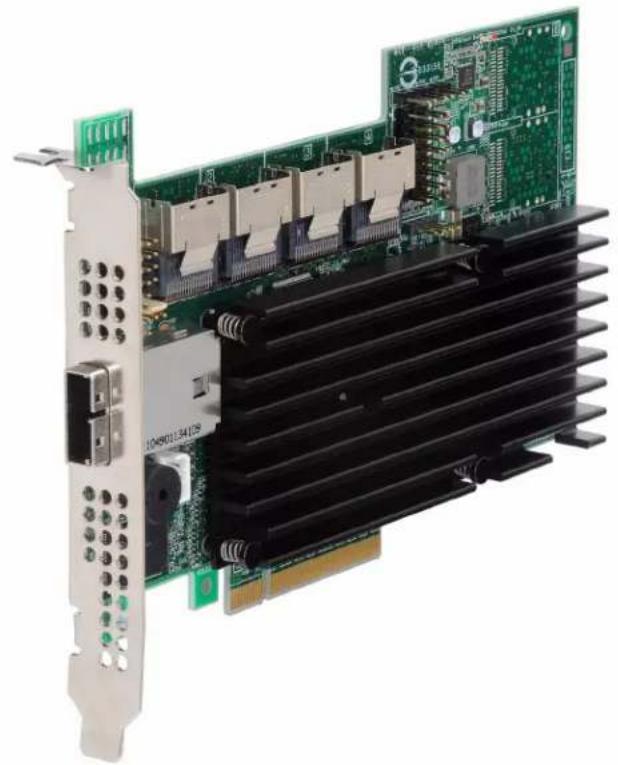
The MegaRAID® SAS 9280-16i4e RAID controller is a PCI-Express, standard-height, half-length RAID controller that offers a 6 Gb/s transfer rate. It controls 16 internal SAS/SATA ports through four SFF-8087 x4 internal connectors and four external SAS/SATA ports through one SFF-8088 x4 external connectors.
Thank you for purchasing the LSI™ MegaRAID 6Gb/s SAS 9280-16i4e RAID controller. Your MegaRAID controller provides reliability, high performance, and fault-tolerant drive subsystem management. Before you install your RAID controller, please take a few minutes to read this quick installation guide. If you need more information about any topic covered in this guide, refer to the related documents on your MegaRAID Universal Software Suite CD.
Figure 1 shows the MegaRAID SAS 9280-16i4e RAID controller.
Figure 1: MegaRAID SAS 9280-16i4e RAID Controller
natural_image
Close-up of a green PCI expansion card with cooling fins and ports, no visible text or symbolsNOTE: Record your controller serial number in a safe location in case you need to contact LSI.
NOTE: SATA II is the only type of SATA supported by this RAID controller.
You can connect your MegaRAID SAS 9280-16i4e RAID controller remotely to the LSI intelligent Battery Backup Unit 07 (LSliBBU07) and the LSI intelligent Battery Backup Unit 08 (LSliBBU08). For more information about these batteries, refer to the MegaRAID iBBU07 Intelligent Battery Backup Unit Quick Installation Guide and the MegaRAID iBBU08 Intelligent Battery Backup Unit Quick Installation Guide on the MegaRAID Universal Software Suite CD.
Controller Installation

Back up your data before changing your system configuration. Otherwise, you might lose data.
1. Unpack the RAID Controller
Unpack the RAID controller in a static-free environment. Remove it from the antistatic bag, and inspect it for damage. If the RAID controller appears to be damaged, or if the MegaRAID Universal Software Suite CD is missing, contact LSI or your MegaRAID OEM support representative.
The CD contains utility programs, device drivers for various operating systems, and the following documentation:
— MegaRAID 6Gb/s SAS RAID Controllers User's Guide
— MegaRAID SAS Software User's Guide
— MegaRAID SAS Device Driver Installation User's Guide
— Battery Backup Units for MegaRAID SAS RAID Controllers User's Guide
— MegaRAID iBBU07 Intelligent Battery Backup Unit Quick Installation Guide
— MegaRAID iBBU08 Intelligent Battery Backup Unit Quick Installation Guide
— Software license agreement
2. Prepare the Computer
Turn off the computer, and unplug the power cords from the rear of the power supply. Remove the cover from the computer.

Before you install the RAID controller, make sure that the computer is disconnected from the power and from any networks.
3. Review the Jumpers and the Connectors
Figure 2 shows the location of the jumpers and the connectors on the RAID controller. The jumpers are set at the factory, and you usually do not need to change them.
Figure 2: Layout of the SAS 9280-16i4e RAID Controller
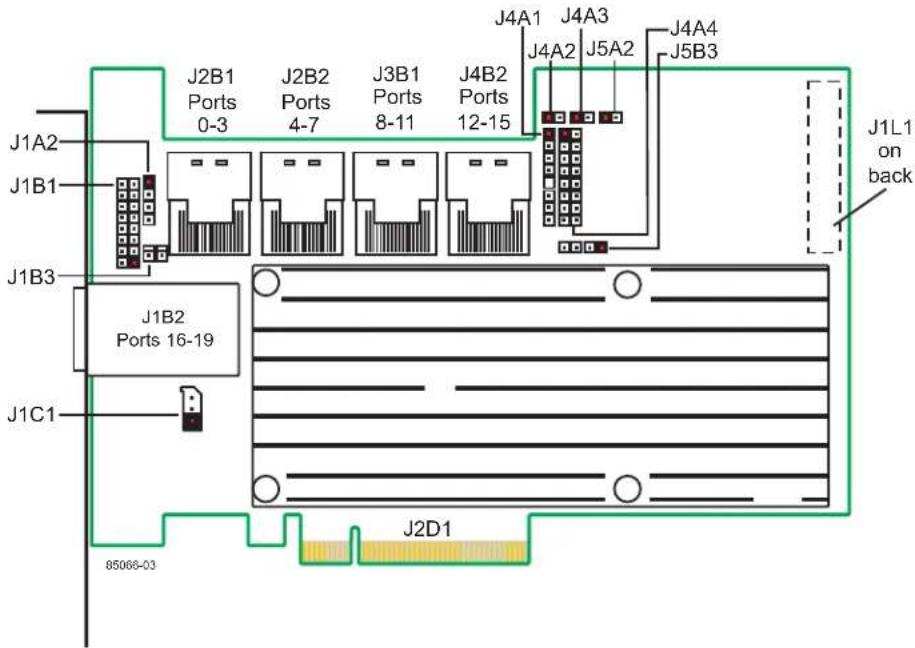
NOTE: Pin 1 on the headers and connectors is highlighted in black and red in Figure 2.
Table 1 describes the jumpers and the connectors on the RAID controller.
Table 1: Jumpers and Connectors
| Jumper/ Connector | Type Description | |
| J1A2 Universal | Asynchronous Receiver/Transmitter (UART) for the Expander | 4-pin connectorReserved for LSI use. |
| J1B1 LED Locate | and Fault Indication headerPorts 0-3Ports 4-7 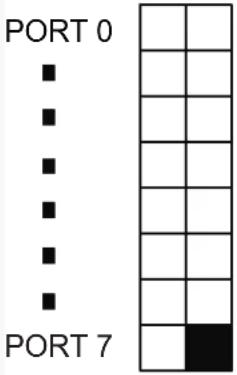 J1B1 J1B1 | 2x8-pin connectorConnects to an LED that indicates whether a drive is in a fault condition. There is one LED per port. When lit, each LED indicates the corresponding drive has failed or is in the unconfigured-bad state.The LEDs function in a direct-attach configuration (there are no SAS expanders). Direct attach is defined as a maximum of one drive connected directly to each port.NOTE:This header is used for RAID controllers with internal SAS ports only. |
| J1B2 x4 SAS P | Ports 16-19 external connector | SFF-8088 x4 external mini SAS connectorConnects the controller by cable to a SAS/SATA backplane or an expander. |
| J1B3 Advanced | Software Hardware Key header | 2-pin headerEnables support for selected advanced features, which include recovery, CacheCade, FastPath, and SafeStore disk encryption. |
| J1C1 | IPMI-style I2C connector | 3-pin connectorSupports SES (SCSI enclosure services) over I2C through an internal I2C backplane cable. |
| J1L1 Remote | Battery Backup connector(on the backside of the controller) | 20-pin connectorConnects the LSliBBU07 intelligent Battery Backup Unit or the LSliBBU08 intelligent Battery Backup Unit remotely to the RAID controller. |
| J2B1 x4 SAS P | Ports 0-3 internal connector SFF-8087 x4 | internal mini SAS connectorConnects the controller by cable to SAS drives or SATA 2 drives. |
| J2B2 | x4 SAS Ports 4-7 internal connector | SFF-8087 x4 internal mini SAS connector Connects the controller by cable to SAS drives or SATA 2 drives. |
| J2D1 Standard | edge card connector The RAID controller | I2C interface connected to the I2C bus for IPMI. |
| J3B1 | x4 SAS Ports 8-11 internal connector | SFF-8087 x4 internal mini SAS connector Connects the controller by cable to SAS drives or SATA 2 drives. |
| J4A1 Module | CPLD 1x8-pin connector | Reserved for LSI use. |
| J4A2 Activity | LED header 2-pin connector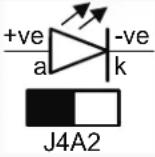 | Connects to an LED that indicates activity on the drives connected to the controller. |
| J4A3 Global drive | drive fault LED header 2-pin connector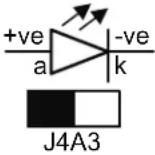 | Connects to an LED that indicates whether a drive is in a fault condition. |
J4A4 LED Locate and Fault Indication headerPorts 8-11Ports 12-15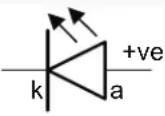 PORT 8■■■■■■■■■■■■■■■■■■■■■■■■■■■■■■■■■■■■■■■■■■■■■■■■■■■■■■■■■■■■■■■■■■■■■■■■■■■■■■■■■■■■■■■■■■■■■■■■■■■■□J4A4 PORT 8■■■■■■■■■■■■■■■■■■■■■■■■■■■■■■■■■■■■■■■■■■■■■■■■■■■■■■■■■■■■■■■■■■■■■■■■■■■■■■■■■■■■■■■■■■■■■■■■■■■■□J4A4 | 2x8-pin headerConnects to an LED that indicates whether a drive is in a fault condition. There is one LED per port. When lit, each LED indicates the corresponding drive has failed or is in the Unconfigured-Bad state.The LEDs function in a direct-attach configuration (there are no SAS expanders). Direct attach is defined as a maximum of one drive connected directly to each port.NOTE: This header is used for RAID controllers with internal SAS ports only. | |
| J4B2 x4 SAS Ports 12-15 internal connector | SFF-8087 x4 internal mini SAS connector Connects the controller by cable to SAS drives or SATA 2 drives. | |
J5A2 Write pending LED header 2-pin connector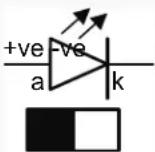 J5A2 J5A2 | Connects to an LED that indicates when the data in the cache has yet to be written to the storage devices. Used when the write-back feature is enabled. | |
| J5B3 Universal Asynchronous Receiver/Transmitter (UART) debugging | 4-pin connectorReserved for LSI use. |
4. Install the RAID Controller
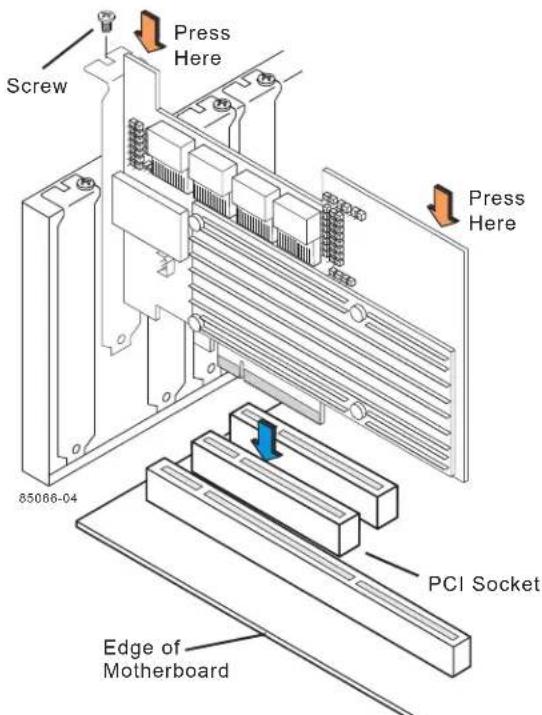
Insert the controller into a PCI Express slot on the motherboard, as shown in Figure 3. Press down gently, but firmly, to seat the card correctly in the slot. Secure the RAID controller to the computer chassis with the bracket screw.
NOTE: This is a PCI Express x8 card and it can operate in x8 or x16 slots. However, some PCIe slots support only PCIe graphics cards; if a RAID controller is installed, it will not function.
NOTE: Refer to the guide for your motherboard for information about the PCI Express slot.
Figure 3: Installing the MegaRAID SAS 9280-16i4e RAID Controller
5. Configure and Install the SAS Devices, SATA II Devices, or Both in the Host Computer Case
Refer to the documentation for the devices for any preinstallation configuration requirements.
6. Connect the RAID Controller to the SAS Devices, SATA II Devices, or Both in the Host Computer Case
Use SAS cables to connect the RAID controller to SAS devices, SATA II devices, or both. See Figure 2 to view the connector locations.
NOTE: Refer to the MegaRAID 6Gb/s SAS RAID Controllers User's Guide on the MegaRAID Universal Software Suite CD for detailed information about the SAS cables.
7. Turn on the Power to the Computer
Reinstall the computer cover, and reconnect the power cords. Turn on the power to the computer. Make sure that the power is turned on to the SAS devices and the SATA II devices before or at the same time that the power to the host computer is turned on. If the power is turned on to the computer before it is turned on to the devices, the computer might not recognize the devices.
The firmware takes several seconds to initialize. During this time, the controller scans the ports.
8. Run the WebBIOS Configuration Utility
Run the WebBIOS Configuration Utility to configure the groups and the virtual drives. When the message Press
NOTE: Refer to the MegaRAID SAS Software User's Guide for detailed steps on configuring groups and virtual drives.
9. Install the Operating System Driver
The controller can operate under various operating systems, but you must install the software drivers first.
The MegaRAID Universal Software Suite CD includes the software drivers for the supported operating systems, along with documentation. You can view the supported operating systems and download the latest drivers for RAID controllers from the LSI web site at: http://www.lsi.com/cm/DownloadSearch.do. Access the download center, and follow the steps to download the driver.
Refer to the MegaRAID SAS Device Driver Installation User's Guide on the MegaRAID Universal Software Suite CD for more information about installing the driver. Be sure to use the latest service packs that are provided by the operating system manufacturer and to review the readme file that accompanies the driver.
Supported RAID Levels
This RAID controller supports drive groups using the following RAID levels:
RAID 0 (data striping): Data is striped across all drives in the group, enabling very fast data throughput. There is no data redundancy. All data is lost if any drive fails.
RAID 1 (drive mirroring): Data is written simultaneously to both drives in the drive group, providing complete data redundancy if one drive fails. RAID 1 supports an even number of drives from 2 to 32 in a single span.
■ RAID 5 (drive striping with distributed parity): Data is striped across all drives in the group. Part of the capacity of each drive stores parity information that reconstructs data if a drive fails. RAID 5 provides good data throughput for applications with high read request rates.
RAID 6 (drive striping with distributed parity across two drives): Data is striped across all drives in the group and two parity drives are used to provide protection against the failure of up to two drives. In each row of data blocks, two sets of parity data are stored.
RAID 00 (data striping across RAID 0 drive groups): RAID 00 is a spanned drive group that creates a striped set from a series of RAID 0 drive groups.
RAID 10 (RAID 1 and RAID 0 in spanned groups): RAID 10 uses mirrored pairs of drives to provide complete data redundancy. RAID 10 provides high data throughput rates.
RAID 50 (RAID 5 and RAID 0 in spanned groups): RAID 50 uses both parity and drive striping across multiple drives to provide complete data redundancy. RAID 50 provides high data throughput rates.
RAID 60 (RAID 6 and RAID 0 in spanned groups): RAID 60 uses both distributed parity across two parity drives and drive striping across multiple drives to provide complete data redundancy and high fault tolerance.
NOTE: Refer to the MegaRAID SAS Software User's Guide on the MegaRAID Universal Software Suite CD for more information about RAID levels
Technical Support
For assistance in installing, configuring, or running the SAS 9280-16i4e RAID controller, contact an LSI Technical Support representative.
Click the following link to access the LSI Technical Support page for storage and board support:
http://www.lsi.com/support/storage/tech_support/index.html
From this page, you can send an email or call Technical Support, or submit a new service request and view its status.
E-mail:
http://www.lsi.com/support/support_form.html
Phone Support:
http://www.lsi.com/support/storage/phone_tech_support/index.html
1-800-633-4545 (North America)
00-800-5745-6442 (International)
NOTE: The international toll-free number does not require country-specific access codes.