
Tab 700NV - Tablet Sunstech - Free user manual and instructions
Find the device manual for free Tab 700NV Sunstech in PDF.


User questions about Tab 700NV Sunstech
0 question about this device. Answer the ones you know or ask your own.
Ask a new question about this device
Download the instructions for your Tablet in PDF format for free! Find your manual Tab 700NV - Sunstech and take your electronic device back in hand. On this page are published all the documents necessary for the use of your device. Tab 700NV by Sunstech.
USER MANUAL Tab 700NV Sunstech
natural_image
Digital tablet displaying a wind turbine against a blue sky with floating bubbles (no text or symbols)CPU: Rockchip 2928 Cortex A9 1Ghz LCD Screen:7 "800 * 480 TFT LCD Camera: Build-in 0.3M pixel camera Operating System: Google Android 4.1 Network Connection: Built-in 802.11b/g/n wireless Audio format: MP3,WMA,MP2,OGG,AAC,M4A,FLAC,APE,WAV Video format: max 1080p full HD video (AVI,3GP,MP4, MPG,RM,RMVB,MOV,FLV,WMV,MKV) Touch Panel: Capacitive Multi-touch Language: support multiple language Ports: mini USB*1(OTG),mini HDMI*1,Earphone * 1,TF card slot * 1,DC IN*1 Buttons: Power/Reset
Quick Start
Battery management and charging
Before using this device, please charge it fully. Put the charger adapter into the DC jack, the device will start to charge.
【TIPS】:
This device adopts built-in polymer battery. Only the specified charger should be used.
when it is charging, the icon of battery will be rolling.
when the charging finish, the battery icon will turn green and stop rolling.
If you do not use this device for a long time, please charge/release it once per month to avoid deep discharge.
When it is power off because of low battery, connect to the charger, the device will indicate "low power" or "charging", please wait for a second until the machine can turn to the main interface once the power is enough.
The built-in polymer battery should be charged regularly. The damage caused by battery over-consuming is not included in the warranty.
Boot and Shutdown
Boot: Press and hold the power button, the system will enter the boot process System has been started, entering the Android system.
The system enters the default home interface.
Shutdown: Press the power button, pop-up device options, select Power off, Click OK, you can safely shut down.
Connect with PC
By mini USB (OTG) interface of the device, you can connect with PC by mini USB cable attached with the device. USB Data transferring is available. You can operate the files through the PC.
When your device is connected successfully, to pull up the notification area of the status bar, can see the USB icon
Then click
USB connected
to enter the next step
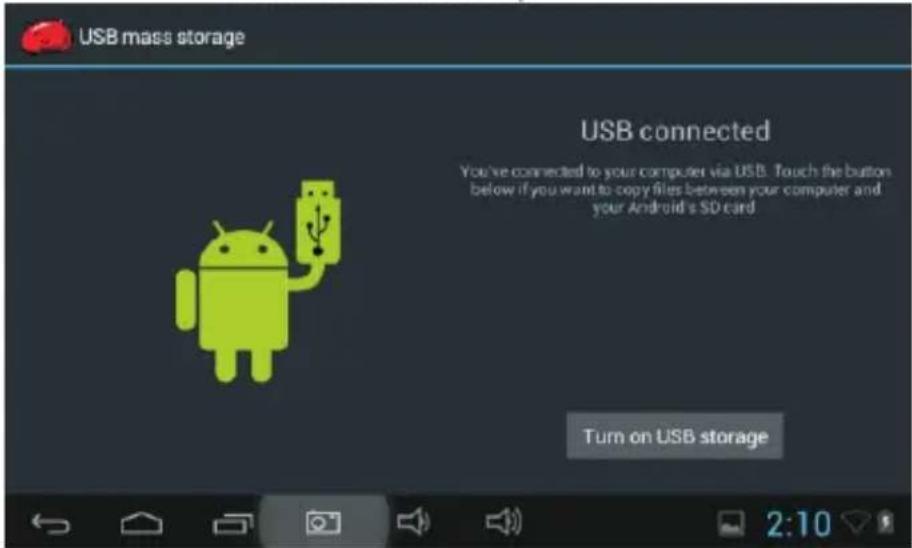
Click, Then the device can transmission data with PC.
Note: The device also supports the FAT32 format for external devices, for example U disk, Micro SD card to Transfer data.
Interface Introduction
Bottom bar of the Interface

A. Menu, Home, Back, virtual buttons
B. OTG connect icon: If the device connected to the PC, will show the OTG connected icon.
C. Time display: Display the time of the current system, which has been set.
D. WIFI signal status icon: If connected to the WIFI wireless network, the icon will be displayed
E. Battery status icon: Displays the current battery level and the charging status.
The HOME Screen menu
Press the menu icon on the device . (top right side of the screen), it will display a home screen menu.
Basic Operation
Click the "Settings" icon setting interface.

in the main applications area, you can open the system
Select the appropriate operation of the relevant items, such as: wireless and network, Display, date and time settings, about Device, etc.
Date and time settings:
Click "Date & time" to enter the Date and time settings interface:
Select to set the date, select the time zone, set the time, time format, date format and other information.
Select +: that the increase of 1 unit, Select
- : that the reduction of 1 unit.
Also you can choose the number, enter the input mode. Directly entering the desired number, then click "Done" to set the Date.
Display settings
In the settings interface choose "Display" to enter the display settings interface, select "Brightness", Pull the progress bar to adjust the brightness.
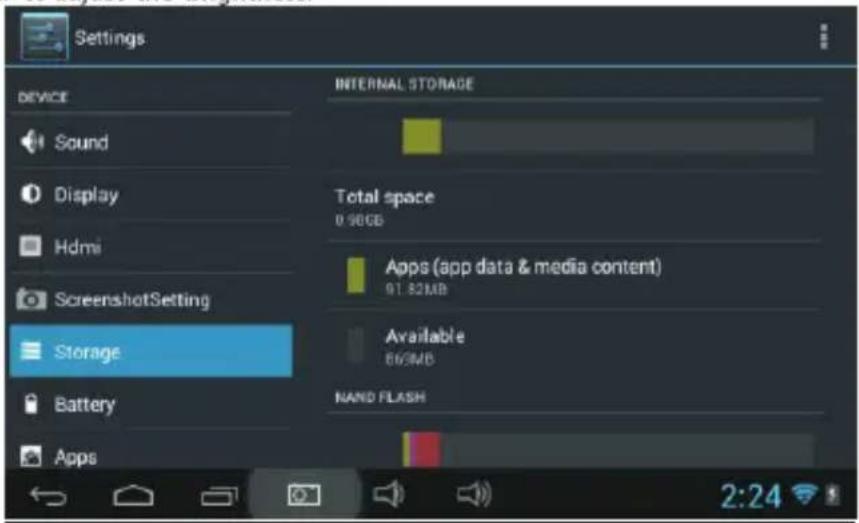
Click Sleep, adjust the inactivity time of the device. You can press power key to activate the device. When display "Screen locked" interface, follow the prompts to unlock it.
Wireless Connection:
Click the main menu "Settings" icon, go to "Settings" screen, click on "Wireless and networks" into the "Wireless and networks settings" interface. Turn on Wi-Fi switch, the Wi-Fi module built-in the device will search AP lists automatic, click the searched AP can be used, will pop up settings dialog, please follow the prompts to complete the WIFI network links. Some encrypted network, need to enter a valid key.
According to the above method to connected Wi-Fi, as shown below,

Applications install and uninstall
Install applications from Google play:
Google play is the on-line shop preinstalled in this device, that allows look for and download applications. You just need to press the icon "Play Store".
The user can find and buy applications (not all the applications are free of charge) and games among the 450.000 available. It also allows the user to watch HD new releases, award winner and classic films. It's possible to watch the movies on-line or download them to watch them when, for example there is no wi-fi convection available. It also allow the user to find a wide selection of eBooks.
All the applications are classified in different categories to make it easier for the user to find the desired application. And also there is the possibility to read the comments that other users have left regarding the applications, or write their own opinion after the application has been installed.
To install the application, you just need to press the button "Install", and the device will automatically start downloading and installing the application. During the process of installing the application, the device will show a notification message, and once it is installed, the icon of the application will appear on the screen of the device (please remember that you can also access to the installed applications on the applications sacreen)
Install applications thag doesn't come from Google play
- First you should select the Unknown sources which allow installation of non-Market apps
- Copy the APK installer software to Micro SD or NAND FLASH.
- Click Apk Installer to find the app directory, then Select applications to install. Users can "Android market" online installation, or download via the computer, or online through the machine built-in browser to download and install.
Uninstall applications
Click on the item "Settings – Apps – Downloaded," select the appropriate application has been installed, click the applications which you need to uninstall
Browser
When the network connected, open the Web browser enter the URL, you can quickly Browse the Web or through the main desktop search bar enter the URL, open the web page.
Video player:
Online video: The product supports HTML5 online video playback.
Local video: Click the Video Icon. The Player can loading new albums and photos automatically which stored in local disk or micro SD card, then select the videos to playback
Music player:
Click the music icon
you can enter the music player interface.
Click the music files you will enter the player to play music
Click:  | Play the previous music, long press to fast reverse. |
Click:  | Click it to suspend, the icon turn to "click and return to the normal playing again. |
Click:  | To play the next song, long press to do function. |
Click:  | To display the present playing list. |
Click:  | To select the random playing mode. |
Click:  | To select the repeat playing mode. |
Photo Browser
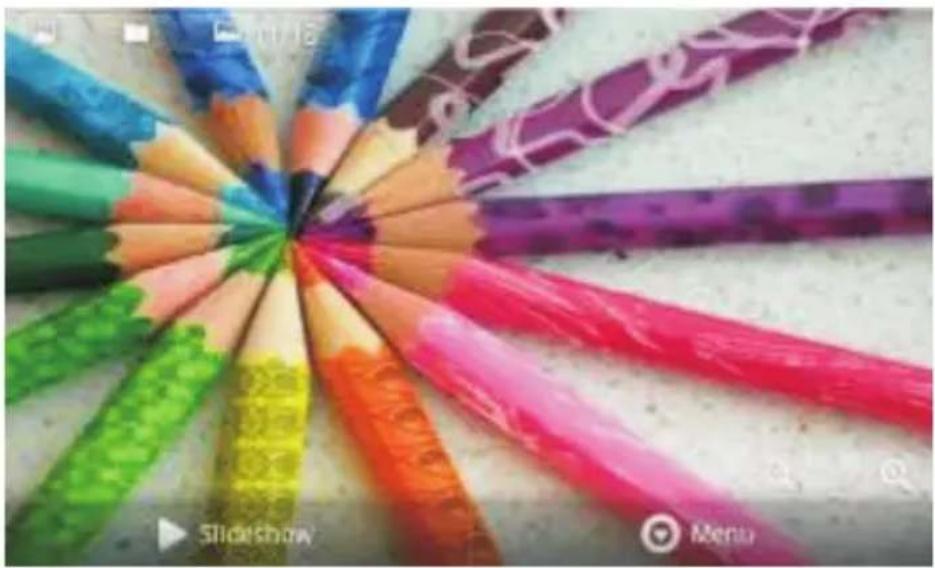
Click "Gallery" to get into Photo Browser directly, there will list all the picture files and video files
Select a picture file and enter the picture playback interface, as shown below. Can select "Zoom", "narrow" "set" and "delete" etc operation.
natural_image
Colorful pencil spools arranged in a circular pattern on a textured surface (no text or symbols visible)Camera
Click the Camera icon

in the applications menu, as shown below
Click the camera shutter

to take photos or videos
Sound Recorder
Click the recorder icon

in the applications menu.
Note: Select "Record" Button
to record when it is completed select "stop."
button At this point you can find the recordings folder in the file browser, which saved the recordings.
Market
Click the icon
create a Gmail account
HDMI connection
We suggest you to conect TAB700 to your TV through the HDMI convection. Connecting TAB700 to your TV will allow you to enjoy all your contents with a resolution up to 1080p. For HDMI connection you need an adapter of Mini HDMI to HDMI.
Frequently Asked Questions
Android
Q: What Android OS version is on my Device?
A: 4.1
APK
Q: What is APK?
A: APK is Android Package acronym that Android installation package.
Q: How to obtain the APK?
A: You can download via PC-side installation, you can also "Android market" online to download and install.
Q: Can I use any of my personal email addresses to send/receive email?
A: The device supports POP3 and SMTP accounts. Some free email accounts are not supported on mobile devices. Check with your email provider to see if you account is supported.
Q: Which media cards are compatible with my Device?
A: micro SD cards or TF cards.
Music
Q: What type of music files can I play on my device?
A: MP3, WMA, MP2, OGG, AAC, M4A, FLAC, APE, WAV
Photos
Q: What type of photo files can I view on my device?
A: JPG, JPEG, BMP, JPG and PNG.
Video
Q: What type of video files can I play on my device?
A: AVI, 3GP, MP4, MPG, RM, RMVB, MOV, FLV, WMV, MKV (max 1080p full HD video)
Q: Can I play YouTube videos on my device?
A: Yes, you can. Tap the YouTube application icon to quick access videos.
Wi-Fi
Q: Do I need a Wi-Fi adapter to connect to the Internet?
A: No. The Wi-Fi adapter is built-in to the device.
Important Safety Precautions
Always follow these basic safety precautions when using your Tablet. This reduces the risk of fire, electric shock, and injury.
Do not expose this product to rain or moisture.
Keep the device out of direct sunlight and heat sources.
Protect the power cord. Route power cords so that they are not likely to be walked on or pinched by items placed on or against them. Pay particular attention to the point where the cord attaches to the device.
Only use the AC adapter included with the device. Using any other power adapter voids your warranty.
Do not remove the cover. There are no user-serviceable parts inside.
Clean your Device
Treat the screen gently. To clean fingerprints or dust from the screen, we recommend using a soft, non-abrasive cloth such as a camera lens cloth.
! As a switching equipment, power adaptor should be convenient for operating. the device should be far away from water dropping and splashing, as well as vase full of liquid.
Warranty conditions
- The warranty of this product is for 2 years since the purchase date.
- The warranty will exclude breakdowns caused by bad use of the product, wrong installation or installation in not desirable places for a proper maintenance of the product, rips, updates of the products that are not the supplied by the brand, pieces wore away for its use or for not domestic or inappropriate use. Also are excluded breakdowns caused for manipulations of the products by people or companies alien to our company.
- For any request regarding the warranty terms, the purchase receipt must be attached.
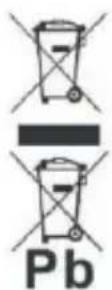
Correct disposal of this Product
(Waste Electrical & Electronic Equipment(WEEE)
Your product is designed and manufactured with high quality materials and components which can be recycled and reused.
This symbol means that electrical and electronic equipment, at their end-of-life should be disposed of separately from your household waste.
Please dispose of this equipment at your local community waste collection/recycling centre.
In the European Union there are separate collection systems for used electrical and electronic products. Please help us to conserve the environment we live in!
Introducción Básica
CPU: Rockchip 2928 Cortex A9 1Ghz
☒ Pantalla LCD: TFT LCD 7" 800 * 480
Cámara: Cámara integrada con 0.3M píxeles
Sistema operativo: Google Android 4.1
☒ Conexión de Red: 802.11b/g/n inalámbrico integrado
Formato audio: MP3, WMA, MP2, OGG, AAC, M4A, FLAC, APE, WAV
Formato vídeo: máx. 1080p vídeo full HD (AVI, 3GP, MP4, MPG, RM, RMVB, MOV, FLV, WMV, MKV)
☒ Pantalla Táctil: Multitáctil Capacitiva
☒ Idioma: permite varios idiomas
☒ Puertos: mini USB*1(OTG), mini HDMI*1, Auricular * 1, Ranura TF * 1, DC IN*1
☒ Botones: Power/Reset
GUIA RAPIDA
LEA ESTA GUIA RÁPIDA ANTES DE COMENZAR A USAR ESTE DISPOSITIVO POR PRIMERA VEZ. GÚARDELA PARA FUTURAS CONSULTAS.
natural_image
Colorful pencil spines arranged in a radial pattern on a textured surface (no text or symbols visible)Cámara
WMV,MKV(max 1080p full HD video)
natural_image
Colorful pencil spines arranged in a radial pattern on a textured background (no text or symbols visible)Appareil photo
natural_image
Colorful pencil spines arranged in a starburst pattern on a textured background (no text or symbols)Câmara


- Quick Start
- Battery management and charging
- Boot and Shutdown
- Connect with PC
- Interface Introduction
- Bottom bar of the Interface
- The HOME Screen menu
- Basic Operation
- Date and time settings:
- Display settings
- Wireless Connection:
- Applications install and uninstall
- Install applications from Google play:
- Install applications thag doesn't come from Google play
- Uninstall applications
- Browser
- Video player:
- Music player:
- Photo Browser
- Camera
- Sound Recorder
- Market
- HDMI connection
- Frequently Asked Questions
- Android
- APK
- Music
- Video
- Wi-Fi
- Important Safety Precautions
- Warranty conditions
- Correct disposal of this Product
- Introducción Básica
- GUIA RAPIDA
- LEA ESTA GUIA RÁPIDA ANTES DE COMENZAR A USAR ESTE DISPOSITIVO POR PRIMERA VEZ. GÚARDELA PARA FUTURAS CONSULTAS.
- Cámara
- Appareil photo
- Câmara
Brand : Sunstech
Model : Tab 700NV
Category : Tablet