
TPL-420E2K - Powerline Adapter TRENDNET - Free user manual and instructions
Find the device manual for free TPL-420E2K TRENDNET in PDF.


| Product Type | Powerline 1200 AV2 Adapter |
| Model | TPL-420E2K (Kit of 2) |
| Data Rate | Up to 1.2 Gbps (theoretical) |
| Port | 1 x Gigabit Ethernet |
| Power Supply | 100-240VAC, 50-60Hz, 0.1A |
| Dimensions | Approx. 7.5 x 5.5 x 3.5 cm |
| Weight | Approx. 150 g per adapter |
| Coverage | Up to 465 sq. m (5,000 sq. ft.) or 300 m line |
| MIMO Technology | Uses all three wires (live, neutral, ground) |
| Compatibility | HomePlug AV compliant (AV2, 600, 500, 200) |
| Maximum Nodes | Up to 8 adapters per network |
| Encryption | Pre-encrypted with 128-bit AES |
| Sync Button | Press 2s to synchronize; press 15s to randomize network name |
| Reset Button | Press 1s to factory defaults |
| Power Save Mode | Automatic standby after 10-20 min without traffic (reduces power up to 80%) |
| Software Utility | Windows (requires WinPcap) for management and firmware upgrade |
| Standards | FCC Part 15 Class B, CE, RoHS, ErP |
| Warranty | 3 years limited |
| Care & Cleaning | Wipe with dry cloth; do not use liquids or abrasives |
| Safety Instructions | Do not open device; avoid water, power strips, and surge protectors |
| Spare Parts & Repairability | No user-serviceable parts; contact TRENDnet support for issues |
Frequently Asked Questions - TPL-420E2K TRENDNET
User questions about TPL-420E2K TRENDNET
0 question about this device. Answer the ones you know or ask your own.
Ask a new question about this device
Download the instructions for your Powerline Adapter in PDF format for free! Find your manual TPL-420E2K - TRENDNET and take your electronic device back in hand. On this page are published all the documents necessary for the use of your device. TPL-420E2K by TRENDNET.
USER MANUAL TPL-420E2K TRENDNET
Table of Contents....2
Product Overview ....4
Features....4
Device Label....6
Product Outlook....6
Ground Wire 7
Push Buttons....7
Diagnostic LEDs....8
Application Diagram....9
Diagram Explanation: 9
Installing Your Powerline Adapter 10
Powerline Security....10
Scramble your Network Name Away from the Factory Default....10
Scramble with the Sync button....10
Before Physical Installation....11
Connecting the Powerline Adapters....11
Start connecting....11
Connecting Additional Powerline Adapters....11
Physical Installation....12
Create Multiple Powerline Networks....13
Move Powerline adapters between different overlapping powerline networks....14
The Powerline Utility....15
Powerline Utility System Requirements....15
Software Installation ....15
Using the Utility....19
Before using the utility, please do the following:....19
Powerline Utility - Map View 20
Auto Scan....20
Remote Devices 20
Local Device 20
Manage your device....20
Rename 20
Enter Password ....20
Add Device....20
Scan....20
Network Type....20
Rename remote device....21
Enter Password 21
Add Device....21
Scan....21
Powerline Utility - Detailed View 22
Show Active Device(s) Only....22
Delete....22
Add Device....22
Save Report....22
Remote Devices 22
TRENDnet User's Guide TPL-420E/TPL-420E2K
System Information....22
Manage your report....22
Powerline Utility - Device Setup....23
Use Default 23
Private Network Name 23
Multicast Address....23
Set Remote Devices....23
Set Local Device....23
Select Local Device....24
Powerline Utility - Advanced 24
Factory Defaults....24
Reset Device....24
Upgrade Firmware....24
Powerline Utility - Options....25
Scan Options....25
Powerline Utility - About 26
About Powerline Utility 26
Regulations....27
Federal Communication Commission Interference Statement....27
RoHS....27
Industry Canada 28
Europe - EU Declaration of Conformity 28
Safety 28
EMC....28
Energy Efficiency....28
Directives 28
ErP Statement....29
Limited Warranty....32
TRENDnet User's Guide TPL-420E/TPL-420E2K
Product Overview

natural_image
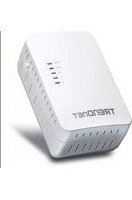
White Trenchnet device with ventilation slots and ventilation ducts (no visible text or symbols on body)TPL-420E
Package Contents
• TPL-420E Powerline 1200 AV2 Adapter
• Multi-Language Quick Installation Guide
• CD-ROM (Utility & User's Guide)
• Network cable (1.5 m / 5 ft.)
TPL-420E2K
Package Contents
• 2 x TPL-420E Powerline 1200 AV2 Adapter
• Multi-Language Quick Installation Guide
• CD-ROM (Utility & User's Guide)
- 2 x Network cable (1.5 m / 5 ft.)
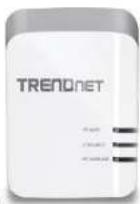
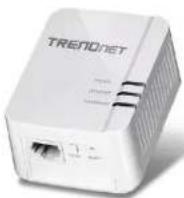
If any package content is missing or damaged, please contact the retail store, online retailer, or reseller/distributor from which the product was purchased.
Features
TRENDnet's Powerline 1200 AV2 Adapter, model TPL-420E, creates an extreme performance Powerline 1200 network using an existing electrical system. Two adapters are needed to start a network. No CD installation required—encrypted TRENDnet adapters auto-connect out of the box. Plug in the first adapter and network it to your existing router. Plug in other adapters on the same electrical system and they auto-connect to the first adapter for immediate internet access.
Powerline 1200
Extreme 1.2 Gbps Powerline networking over existing electrical lines use all three electrical wires: the live, neutral, and ground wires to achieve ground breaking networking throughput speeds**
Whole Home Coverage
Connects over electrical lines for homes up to 465 sq. m (5,000 sq. ft.) or over an electrical power line for a linear distance of 300 m (980 ft.)
MIMO Powerline Technology
Enhanced performance and range with Multiple Input Multiple Output (MIMO) Powerline technology
Gigabit Port
Gigabit port extends high performance wired connections
Network Stability
Ultra-stable Powerline networking is preferred by internet service providers
TRENDnet User's Guide TPL-420E/TPL-420E2K
Multiple Adapters
Two adapters are needs to start a network—use up to 8 adapters to network an entire home
No CD Installation
Simply plug in the adapters—TRENDnet adapters auto-connect out of the box
Cross Compatible
Backward compatible with HomePlug AV compliant Powerline 600, 500, and 200 adapters
Compact
Compact form factor saves space around a crowded electrical outlet
Pre-Encrypted
For your convenience the adapter arrives pre-encrypted
Sync Button
Press the Sync button to change existing encryption keys
Energy Savings
Power Save mode reduces electrical consumption by up to 80%
* Maximum of 8 adapters (nodes) recommended for streaming video across your network.
** 1.2 Gbps is the maximum theoretical Powerline data rate when connected to another Powerline 1200 device. Data throughput may vary by circuit wire conditions. If an electrical system does not have a grounded connection, the theoretical networking speed is reduced to 600 Mbps.
*** Powerline communication works on a single electrical system. (Usually controlled by a single distribution panel). Power strip, GFCI outlets, and AFCI circuit breakers may degrade Powerline network signals.
TRENDnet User's Guide TPL-420E/TPL-420E2K
Device Label

Product Outlook
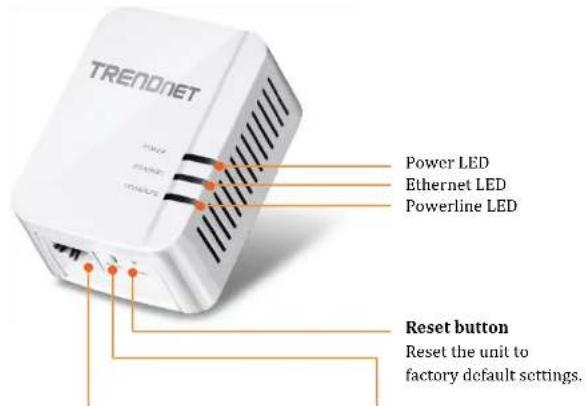
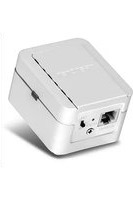
Gigabit Network Port
Connect network cables from Powerline Adapter to your computer, game console, network TV, and other network devices.
Sync button
Synchronize with other Powerline Adapters.
TRENDnet User's Guide TPL-420E/TPL-420E2K
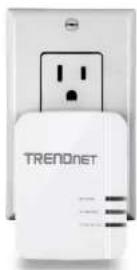
Power plug (US)
Plug directly into an available power outlet. Not on a power strip.

natural_image
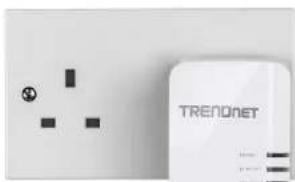
Close-up of a white TRENNET electrical outlet with two black buttons, no visible text or symbols on the device itself.EU Power plug with grounding wire (EU)
natural_image
Close-up of a white wall socket with black electrical symbols and a TRENONE-branded device (no readable text or labels)UK Power plug (UK)
Ground Wire
TPL-420E using all 3 power wires to boost up the Powerline communication speed to gigabit. Please use 3 wire sockets and make sure your electric system installed with all load, natural and ground 3 wires.

Push Buttons
| Button | Action | Function |
| Reset | Push for 1 second | Reset device settings to factory defaults (All LEDs will turn off and turn back on). It will reset to the factory default private network name “HomePlug AV”. |
| Sync | Push for 15 seconds until all LEDs goes off | Generate a new random network name and encryption key (All LEDs will turn off and turn back on). |
| Sync | Push for 2 seconds | Start a synchronization session. The POWER LED will start blink for 2 minutes. Start the synchronization session on another power adapter within the time to synchronize the network name and exchange the encryption keys. |
Power Save Mode: The Powerline adapter will automatically going into standby mode to reduce power usage when there is no network traffic for more than 10\~20 minutes. All LEDs are going off.
It can be wake up automatically when the network traffic is coming again. It takes a couple seconds to wake up and resume back to full speed of service.
TRENDnet User's Guide TPL-420E/TPL-420E2K
Diagnostic LEDs
| LED | Color | Sequence | Definition |
| POWER | Green | Solid | Device is powered on |
| Green | Blinking | Powerline synchronization in progress | |
| N/A | Off | Device is powered off or in sleep | |
| POWERLINE | Green | Solid | Powerline connected (Best) |
| Blinking | Data transmission over Powerline (Best) | ||
| Amber | Solid | Powerline connected (Better) | |
| Amber | Blinking | Data transmission over Powerline (Better) | |
| Red | Solid | Powerline connected (Good) | |
| Red | Blinking | Data transmission over Powerline (Good) | |
| N/A | Off | Powerline is not connected or synchronized. Or, the Powerline adapter is in sleep mode. | |
| ETHERNET | Green | Solid | Network connection established |
| Green | Blinking | Data transmission through network port. | |
| N/A | Off | Network standby or no network connection. |
Powerline Connections: Powerline LED color indicates the strength and quality of the Powerline connection through the electrical system. The following factors may affect the Powerline network's connection quality:
- Ground Wire – TPL-420E using all 3 wires for data transmission in accurate wiring may still supply power to your apparatus and TPL-420E, but will down grade the performance.
- Noise - Generated by appliances which use your electrical system (e.g. Microwaves, ovens, hair dryer, irons, dishwashers, etc.). The quality of your household electrical wiring may also cause additional noise on your electrical system.
- Distance – Long lengths of electrical wiring through your electrical system between connected Powerline adapters.
TRENDnet User's Guide TPL-420E/TPL-420E2K
Application Diagram

flowchart
graph TD
    A["Internet"] --> B["TRENDET"]
    B --> C["TRENDET"]
    C --> D["Powerline"]
    style A fill:#f9f,stroke:#333
    style B fill:#ccf,stroke:#333
    style C fill:#cfc,stroke:#333
    style D fill:#fcc,stroke:#333
Diagram Explanation:
The first Powerline unit is networked to a router which is in turn connected to a router (typically supplied by your Internet Service Provider (ISP)) that provides Internet connectivity. A second Powerline Adapter is plugged into a wall power outlet near a media center and is providing Internet connectivity to a game a game console and a Blu-ray player / media player via Ethernet.
Installing Your Powerline Adapter
Powerline Security
All out-of-the-box TRENDnet HomePlugAV Powerline adapters can be connected to each other without further configuration. To add additional network security to your network, you can change your Powerline network name away from the factory default. With a customized private network name, no one can connect to your Powerline network with an out-of-the-box HomePlugAV adapter.
TRENDnet HomePlugAV certified Powerline adapters have the same default network name "HomePlugAV". TRENDnet recommends that you change the Powerline network name away from the factory default to increase network security. Once configured, the Powerline network name will be saved on device. You can freely unplug the adapter and moved to the other location within its operating range. If a mistake is made in the settings, the adapter can be reset to the factory default settings by pressing the Reset button for 1 second.
If you want to use the default network name for easy connection, skip the synchronization steps and go directly to Physical Installation on page 12.
Scramble your Network Name Away from the Factory Default
There are two ways to change the default network name:
- (Recommended) Use the physical Sync button on your Powerline adapter to generate a random private network name. See Connecting the Powerline Adapters in following section.
OR
- Create a customized private network name for your Powerline network by using the included Powerline Utility. See The Powerline Utility on page 15.
* If the Powerline adapter settings have been changed, the adapter must be reset to the factory default settings to be recognized by Powerline Utility.
Scramble with the Sync button
- Make sure your TPL-420E is powered on and not in sleep mode.
- The physical Sync button on the Powerline adapter provides an easy way to change the network name. Push and hold the Sync button for 15 seconds. All LEDs will turned off and then turned on again. This will generate a new random network name for your Powerline adapter.
TRENDnet User's Guide TPL-420E/TPL-420E2K
Before Physical Installation
It is recommended that you create the Powerline data connection next to each other before physically install the Powerline adapter to the outlet you want. With this practice, you can have ample time to do the synchronization with the side by side Powerline adapter instead of running around to different rooms. And, you can make sure your Powerline adapters are properly setup and working good in your electric network.
Note: If you don't want to change the use the default network name for easy connection, skip the following steps and go directly to Physical Installation on page 12
Connecting the Powerline Adapters
- Make sure your Powerline adapter is powered on and not in sleep mode. The Power LED should be on.
- Scramble the first Powerline adapter by pushing Sync button for 15 seconds. All LEDs will turned off and then turned on again. This will generate a new random network name for your Powerline adapter.
- Make sure the second Powerline adapter is powered on and plug in the same electric network. No power strip, power break, or any kind of power switch in between.
Start connecting
-
Push and hold the Sync button on the first (the one with scrambled network name) Powerline adapter for 2 seconds and then release it. The Powerline adapter is starting a 2 minutes synchronization session. It will accept the other synchronization request on the same electric network. The Power LED will start blinking showing it is in synchronizing.
-
Push and hold the Sync button on the second Powerline adapter for 2 seconds and release it. The Power LED will start blinking. The adapter will request for synchronizing. All LEDs will turn off and turn back on in the end of the session. The Powerline LED will turn on when the adapters are connected successfully.
Connecting Additional Powerline Adapters
Follow up the same steps described in the last section. You can choose any one of the Powerline adapter already connected as the first adapter. Start the synchronization session on that Powerline adapter first. And then start the synchronization session on the additional Powerline adapter.

flowchart
graph TD
    A["On Adapters A"] -->|Push Sync button for 3 seconds, then release. POWER LED will blink.| B["PowerLED"]
    B --> C["On Adapters A & B"]
    C --> D["POWERLINE LED will turn solid when connected."]
    D --> E["Computer"]
    E --> F["Internet"]
    F --> G["Switch"]
    G --> H["PowerLED"]
    H --> I["Internet"]
TRENDnet User's Guide TPL-420E/TPL-420E2K
Physical Installation
With the synchronized Powerline adapters or the out-of-box adapters, now you can set up your Powerline adapters to the location you want your network extends to.
There are several location choosing considerations of where you will install your Powerline adapters.
- Avoid plugging the adapters into power strips, extension cords, or surge protectors as this may prevent the adapter from functioning correctly or degrade performance.
- Avoid plugging the adapters into wall power outlets that are controlled by a light switch to prevent the Powerline Adapter from being turned off accidentally.
- Avoid plugging the adapters into wall power outlets that are located near appliances that consume a lot of power (e.g. refrigerators, washers, dryers) as this may degrade performance.
- Make sure there is an available wall power outlet in the room where the router is installed and also near the router.
- Make sure there is an available wall power outlet in the room where you want to extend network connectivity.
- For AV2 1200 Powerline adapters, make sure your electric network has 3 wires properly installed.

- Plug the Powerline adapter into an available wall power outlet near your router.
- Connect the included network cable from the Ethernet port of your Powerline adapter to an available Ethernet port on your network router.
- Once the Powerline adapter is installed and connected to your router, verify that the Power LED is on or blinking and the Ethernet LED is on or blinking.
- Plug in the second Powerline adapter to an available wall power outlet in another room near a computer or network device (e.g. game consoles, network-enabled TVs, network attached storage, network media server/players, etc.) you want to connect to your network.
- Connect one end of the included Ethernet cable to the Ethernet port on your Powerline adapter and then connect the other end to the
TRENDnet User's Guide TPL-420E/TPL-420E2K
Ethernet port on your computers or another network enabled device.
- After the additional Powerline adapter is connected and installed to your computer or network device, wait for the Power LED to turn on. After the Power LED turns on, verify that the Powerline LED is on or blinking, and the Ethernet LED is on or blinking.
Create Multiple Powerline Networks
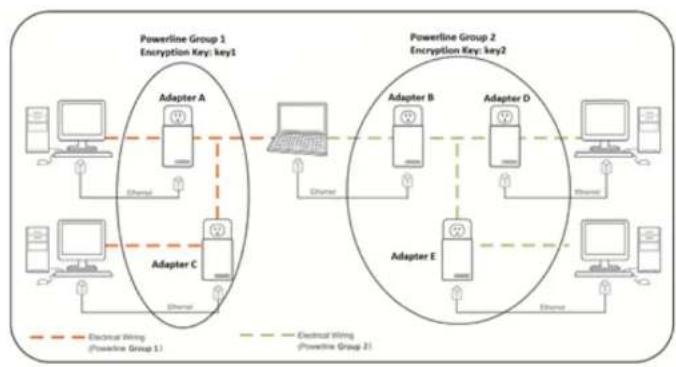
It is possible to create multiple Powerline networks on the same electric system separated and grouped by different network names. The Powerline networks will work and communicate independently of each other which can provide security between different groups of Powerline adapters. For example, if you have five Powerline adapters (adapter A through E), you can group adapters A, B, and C together on one Powerline network and group adapters D and E on a different Powerline network. Each group will use a different network name.
Scramble the Powerline network name by pressing Sync button for 15 seconds and then add more Powerline adapter in the same group with steps described above.
Note: It is recommended that only a maximum of up to 4 Powerline networks can be created per electrical system. Any additional Powerline networks above the recommended may result in significant degradation in Powerline performance.
flowchart
graph TD
    subgraph Powerline Group 1
        A["Adapter A"] -->|Electrical Wing (Powerline Group 1)| B["Computer"]
        C["Adapter C"] -->|Electrical Wing (Powerline Group 2)| D["Computer"]
        E["Adapter E"] -->|Electrical Wing (Powerline Group 2)| F["Computer"]
    end
    subgraph Powerline Group 2
        G["Adapter B"] -->|Electrical Wing (Powerline Group 1)| H["Computer"]
        I["Adapter D"] -->|Electrical Wing (Powerline Group 2)| J["Computer"]
        K["Adapter E"] -->|Electrical Wing (Powerline Group 2)| L["Computer"]
    end
    style Powerline Group 1 fill:#f9f,stroke:#333
    style Powerline Group 2 fill:#f9f,stroke:#333
TRENDnet User's Guide TPL-420E/TPL-420E2K
Move Powerline adapters between different overlapping powerline networks
Note: Assuming all Powerline adapters are TRENDnet Powerline adapters and for reference in the diagram and this procedure, the adapters will be labeled Adapter A, B, C, D, and E. Adapters A, B, and C are currently connect together to form one Powerline network and adapters D and E form another Powerline network. Adapter B will be disconnected from adapters A and C and connected to adapters D and E.

flowchart
graph TD
    subgraph_Powerline_Group1["Powerline Group 1"]
        A["Adapter A"] -->|Electrical Wiring (Powerline Group 1)| B["Router"]
        C["Adapter C"] -->|Electrical Wiring (Powerline Group 2)| D["Router"]
        E["Adapter E"] -->|Electrical Wiring (Powerline Group 2)| F["Router"]
    end
    subgraph_PowerlineGroup2["Powerline Group 2"]
        G["Adapter B"] -->|Electrical Wiring (Powerline Group 1)| H["Router"]
        I["Adapter D"] -->|Electrical Wiring (Powerline Group 2)| J["Router"]
        K["Adapter E"] -->|Electrical Wiring (Powerline Group 2)| K
    end
    style PowerlineGroup1 fill:#f9f,stroke:#333
    style PowerlineGroup2 fill:#f9f,stroke:#333
- Push and hold the Reset button on adapter B for 1 second and release it. All LEDs will turn off and turn back on. This will make adapter B settings to factory default.
- Push and hold the Sync button on adapter D for 2 seconds and release it. The Power LED will start blinking.
- Within 2 minutes, push and hold the Sync button on adapter B for 2 seconds and release it. The Power LED will start blinking. This will establish connectivity between adapter B, adapter D, and adapter E by reconfiguring the network name of adapter B to match the
network name of adapter D and adapter E. All LEDs will turn off and turn back on and the Powerline LED will turn on the when adapters are connected.
TRENDnet User's Guide TPL-420E/TPL-420E2K
The Powerline Utility
The Powerline Utility allows you doing following jobs:
- Create a customized network name for your powerline network and apply it to multiple Powerline adapters at the same time.
- View Powerline adapters connected to your network (using the MAC address) and the approximate connection quality and speed of each Powerline adapter.
- View and upgrade Powerline adapter firmware.
Note: Link speed displayed in the utility of your Powerline adapters to another through your electrical system is estimated. Actual link speed may vary.
Powerline Utility System Requirements
- Windows® 8, Windows® 7, Windows® Vista, or Windows® XP
- Microsoft® .NET Framework 3.5 installed
Software Installation
- Insert the included CD-ROM into your computer's CD-ROM drive.
- At the CD Autorun Prompt window, click Run Autorun.exe
Note: If the Autorun prompt does not appear automatically, open the CD contents and double-click Autorun.exe.
- At the CD-ROM main menu, click Install Utility.
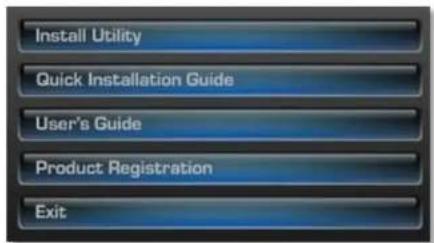
The installer will check if you have a previous WinPcap utility.
- Click OK.

Note: The Powerline Utility requires WinPcap as a base application. If this prompt does not appear, you may already have the WinPcap application installed. Windows 8 require WinPcap 4.1.3. Windows 7 and older will work with previous versions of
TRENDnet User's Guide TPL-420E/TPL-420E2K
WinPcap. If you have installed a previous version of WinPcap, please uninstall it manually. And then, start the installation from the beginning.
- At the WinPcap installer window, click Next.

- Click Yes to allow installation.

- Review the license agreement and click I Agree.

- In the Installation Options window, leave the Automatically start the WinPcap driver at boot time checked and click Install.

TRENDnet User's Guide TPL-420E/TPL-420E2K
- Wait for the WinPcap installation to complete.

- After the process has been completed, click Finish.

- At the TRENDnet Powerline Utility Setup Wizard, click Next.

- In the License Agreement window, click I Agree, and then click Next.

TRENDnet User's Guide TPL-420E/TPL-420E2K
- In the Select Installation Folder window, click Next.

- In the Confirm Installation window, click Next.

- Wait for the Powerline Utility installation to complete. At the Installation Complete window, click Close.

TRENDnet User's Guide TPL-420E/TPL-420E2K
Using the Utility
Before using the utility, please do the following:
- Write down the Device Password (DPW) (16-digit characters A-Z only) and MAC Address (12-digit characters a-f, A-F, 0-9) of each Powerline adapter as this will be required to change the network name for multiple Powerline adapters. See Device Label on page 6.
- Make sure the computer in which you are installing the utility is connected to your network and your Powerline adapters are also connected to your network.
- If you have changed your network name using the Sync button and you are creating a customized network name, it is required to reset all powerline devices to defaults using the physical Reset button on your Powerline adapter first before using the utility. See Product Outlook on page 6.
- Please ensure that your Powerline adapters are already installed and connected and the Ethernet port on each adapter is connected to a device powered on.
Upon completing the software installation, a desktop shortcut is automatically created. Double-click the icon to start the utility or open the utility if it is already running. Closing the utility will exit the application.
You can also launch the utility from Start Menu. Start > Programs (or All Programs) > TRENDnet > TRENDnet Powerline Utility.


TRENDnet User's Guide TPL-420E/TPL-420E2K
Powerline Utility - Map View
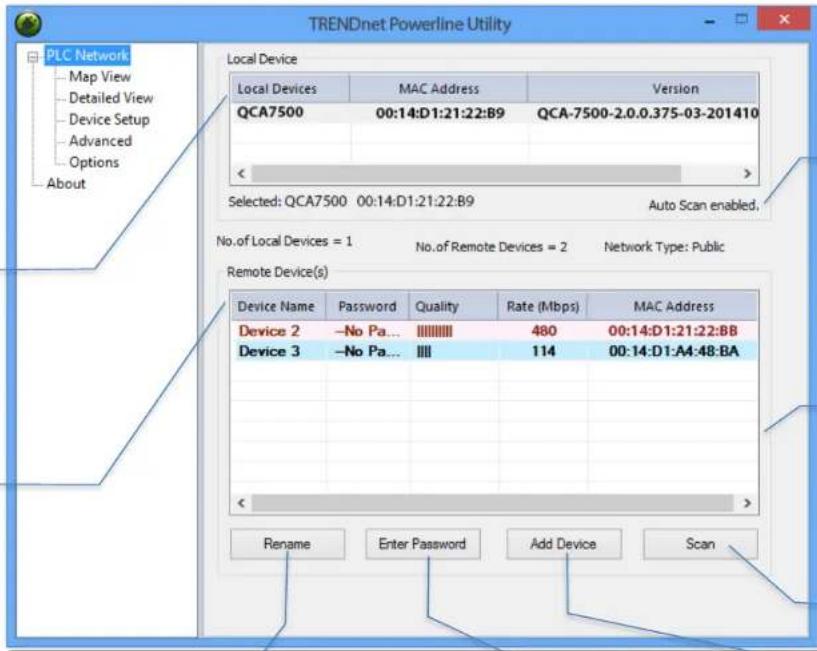
Local Device
All Powerline adapters connected to the same network as your computer will be listed here.
The default device name is main chip number, followed by the MAC address and firmware version number. You can mouse over the header and adjust column width by clicking and dragging this cursor +
Remote Devices
These are Powerline adapters in remote locations connected to a selected local Powerline adapter on the electrical system.
You can mouse over the header and adjust the column width by clicking and dragging this cursor to see more information.
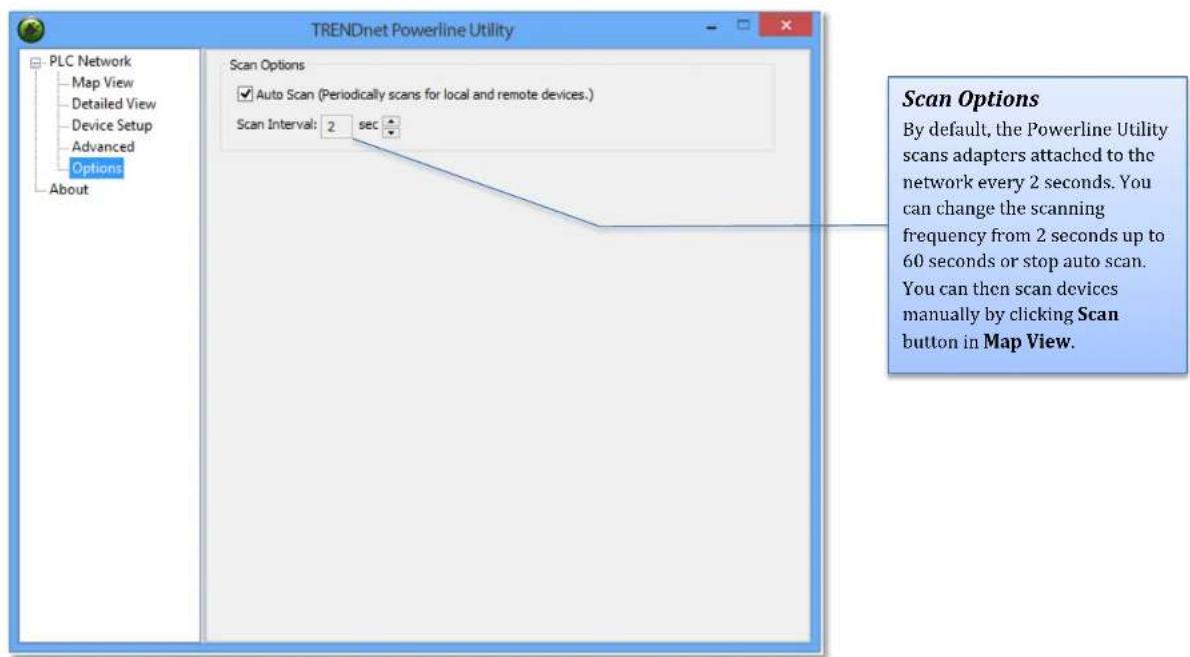
Auto Scan
Auto Scan is selected by default. The utility will scan for remote devices in specific intervals (default: 2 sec, you can change it from 2 to 60 secs). Auto scan can be disabled by deselecting it. Remote adapters can be scanned manually by clicking the Scan button below.
Network Type
The default network type is public. When the network name is customized and changed, it becomes private.
Scan
Manually scan remote Powerline devices which has same network name
Manage your device
Highlight a device by clicking the row and click buttons below
Rename
Change device name to meaningful names such as "living room"
Enter Password
Enter device DPW here. You can manage the remote adapter if only you enter the DPW.
Add Device
Add remote Powerline adapter
TRENDnet User's Guide TPL-420E/TPL-420E2K
Rename remote device
(Click and select a remote device and then click Rename button in Map View)

Enter Password
(Click and select a remote device and then click Enter Password button in Map View)
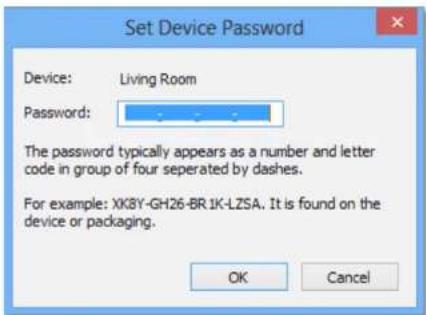
The device password (DPW) can be found on device label. You have to enter DPW in order to manage Powerline adapter remotely.
Add Device
(Click Add Device button in Map View)

Enter device name and DPW to add an adapter manually
Scan
Click Scan button in Map View to scan other Powerline adapters manually.
TRENDnet User's Guide TPL-420E/TPL-420E2K
Powerline Utility - Detailed View

TRENDnet User's Guide TPL-420E/TPL-420E2K
Powerline Utility - Device Setup
Private Network Name
This is the network name of your powerline network. Default is "HomePlugAV". When network name set to "HomePlugAV", it considered a public network because very out of box Powerline adapter can join this network. Powerline adapters connect to each other only when network name is the same. Change network name and make your network private is recommended to increase your privacy.
You have to remember your network name (Private Network Name). It will be encrypted and save to device. Even Powerline Utility cannot read it in plain text again. When you visit this Private Settings again and the Private Network Name show UnknownNetworkName, it means the network name is private.
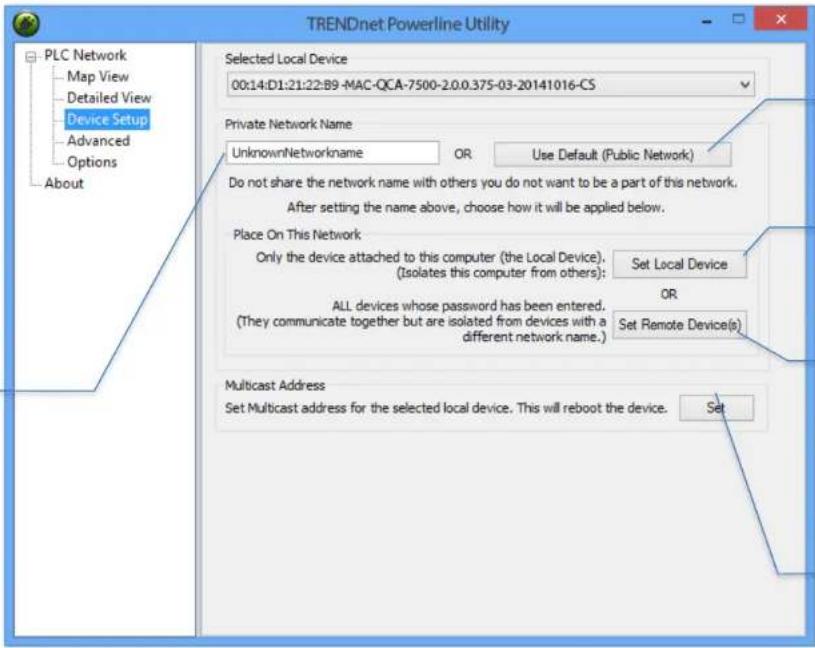
Use Default
If you don't remember what network name you set previously, you can set the network public. Then set it back to private later.
Set Local Device
Change network name on device selected above.
Set Remote Devices
All devices currently connected locally to your computer or connected remotely through powerline network will set to the new network name.
Multicast Address
Click this button to synchronize multicast address on all adapters on same powerline network.
TRENDnet User's Guide TPL-420E/TPL-420E2K
Powerline Utility - Advanced

TRENDnet User's Guide TPL-420E/TPL-420E2K
Powerline Utility - Options
TRENDnet User's Guide TPL-420E/TPL-420E2K
Powerline Utility - About

About Powerline Utility
This Powerline Utility manages TPL-420E and most legacy HomePlug certified Powerline adapters.
For more information, please visit our website www.trendnet.com
Regulations
Federal Communication Commission Interference Statement
This equipment has been tested and found to comply with the limits for a Class B digital device, pursuant to Part 15 of the FCC Rules. These limits are designed to provide reasonable protection against harmful interference in a residential installation. This equipment generates uses and can radiate radio frequency energy and, if not installed and used in accordance with the instructions, may cause harmful interference to radio communications. However, there is no guarantee that interference will not occur in a particular installation. If this equipment does cause harmful interference to radio or television reception, which can be determined by turning the equipment off and on, the user is encouraged to try to correct the interference by one of the following measures:
- Reorient or relocate the receiving antenna.
- Increase the separation between the equipment and receiver.
- Connect the equipment into an outlet on a circuit different from that to which the receiver is connected.
- Consult the dealer or an experienced radio/TV technician for help.
FCC Caution: Any changes or modifications not expressly approved by the party responsible for compliance could void the user's authority to operate this equipment.
This device complies with Part 15 of the FCC Rules. Operation is subject to the following two conditions: (1) This device may not cause harmful interference, and (2) this device must accept any interference received, including interference that may cause undesired operation.

IMPORTANT NOTE:
FCC Radiation Exposure Statement:
This equipment complies with FCC radiation exposure limits set forth for an uncontrolled environment. This equipment should be installed and operated with minimum distance 20cm between the radiator & your body.
This transmitter must not be co-located or operating in conjunction with any other antenna or transmitter.
The availability of some specific channels and/or operational frequency bands are country dependent and are firmware programmed at the factory to match the intended destination. The firmware setting is not accessible by the end user.
RoHS
This product is RoHS compliant.


TRENDnet User's Guide TPL-420E/TPL-420E2K
Industry Canada
CAN ICES-3 (B)/NMB-3(B)
IC: ICES/NMB - 006
Europe - EU Declaration of Conformity
TRENDnet hereby declare that the product is in compliance with the essential requirements and other relevant provisions under our sole responsibility.

Safety
EN 60950-1:2006+A11:2009+A1:2010+A12:2011+A2:2013
IEC 60950-1:2005 (2nd Edition) Am 1:2009 + Am2: 2013
EMC
EN 55022: 2010 + AC: 2011 Class B
EN 61000-3-2: 2006 + A2: 2009
EN 61000-3-3:2008
EN 55024: 2010
EN 50412-2-1: 2005
Energy Efficiency
Regulation (EC) No. 1275/2008, No. 801/2013
This product is herewith confirmed to comply with the Directives.
Directives
Low Voltage Directive 2006/95/EC
EMC Directive 2004/108/EC
Ecodesign Directive 2009/125/EC
RoHS Directive 2011/65/EU
REACH Regulation (EC) No. 1907/2006
| Česky [Czech] | TRENDnet timto prohlašuje, že tento TPL-420E je ve shodě se základními požadavky a dalšími pfíslušnými ustanoveními směrnice 2004/108/ES, 2006/95/ES a 2009/125/ES. |
| Dansk [Danish] | Undertegnede TRENDnet erklærer herved, at følgende udstyr TPL-420E overholder de væsentlige krav og øvrige relevante krav i direktiv 2004/108/EF, 2006/95/EF og 2009/125/EF. |
| Deutsch [German] | Hiermit erklärt TRENDnet, dass sich das Gerät TPL-420E in Übereinstimmung mit den grundlegenden Anforderungen und den übrigen einschlägigen Bestimmungen der Richtlinie 2004/108/EG, 2006/95/EG und 2009/125/EG befindet. |
| Eesti [Estonian] | Käesolevaga kinnitab TRENDnet seadme TPL-420E vastavust direktiivi 2004/108/ EÜ, 2006/95/ EÜ ja 2009/125/ EÜ põhinöutele ja nimetatud direktiivist tulenevatele teistele asjakohastele sätetele. |
| English | Hereby, TRENDnet, declares that this TPL-420E is in complianc with the essential requirements and other relevant provisions of Directive 2004/108/CE, 2006/95/CE and 2009/125/CE. |
| Español [Spanish] | Por medio de la presente TRENDnet declara que el TPL-420E cumple con los requisitos esenciales y cualesquiera otras disposiciones aplicables o exigibles de la Directiva 2004/108/CE, 2006/95/CE y 2009/125/CE. |
| Ελληνική [Greek] | ME THN ΠΑΡΟΥΣΑΤRENDnet ΔΗΛΩΝΕΙ ΟΤΙ TPL-420E ΣΥΜΜΟΡΦΩΝΕΤΑΙ ΠΡΟΣ ΤΙΣ ΟΥΣΙΩΔΕΙΣ ΑΠΑΙΤΗΣΕΙΣ ΚΑΙ ΤΙΣ ΛΟΠΙΚΣ ΣΧΕΤΙΚΕΣ ΔΙΑΤΑΞΕΙΣ ΤΗΣ ΟΔΗΓΙΑΣ 2004/108/EK, 2006/95/EK, 2009/125/EK και. |
| Français [French] | Par la présente TRENDnet déclare que l'appareil TPL-420E est conforme aux exigences essentielles et aux autres dispositions pertinentes de la directive 2004/108/CE, 2006/95/CE et 2009/125/CE. |
| Italiano[Italian] | Con la presente TRENDnet dichiara che questo TPL-420E è conforme ai requisiti essenziali ed alle altre disposizioni |
TRENDnet User's Guide TPL-420E/TPL-420E2K
| pertinenti stabilite dalla direttiva 2004/108/CE, 2006/95/CE o 2009/125/CE. | |
| Latviski [Latvian] | AršoTRENDnetdeklarė, ka TPL-420E atbilstDirektīvas 2004/108/EK, 2006/95/EK un 2009/125/EK būtiskajāmprasībām un citicmar to saistītajiemnoteikumiem. |
| Lietuvių [Lithuanian] | Šiuo TRENDnet deklaruoją, kad šis TPL-420E atitinka esminius reikalavimus ir kitas 2004/108/EB, 2006/95/EB ir 2009/125/EB Direktyvos nuostatas. |
| Nederlands [Dutch] | Hierbij verklaart TRENDnet dat het tocstel TPL-420E in overeenstemming is met de essentiële eisen en de andere relevante bepalingen van richtlijn 2004/108/EG, 2006/95/EG en 2009/125/EG. |
| Malti [Maltese] | Hawnhekk, TRENDnet, jiddikjara li dan TPL-420E jikkonforma mal-htigijiet essenzjali u ma provvedimenti ohrajn relevanti li hemm fid-Dirrettiva 2004/108/KE, 2006/95/KE u 2009/125/KE. |
| Magyar [Hungarian] | Alulírott, TRENDnet nyilatkozom, hogy a TPL-420E megfelel a vonatkozó alapvetė kõvetelményeknek és az 2004/108/EK, 2006/95/EK és a 2009/125/EK irányelv egyeb elõírásainak. |
| Polski [Polish] | Niniejszym TRENDnet oświadcza, že TPL-420E jest zgodny z zasadniczymi wymogami oraz pozostałymi stosownymi postanowieniami Dyrektywy 2004/108/WE, 2006/95/WE i 2009/125/WE. |
| Português [Portuguese] | TRENDnet declara que este TPL-420E estă conforme com os requisitos essenciais e outras disposições da Directiva2004/108/CE, 2006/95/CE e 2009/125/CE. |
| Slovensko [Slovenian] | TRENDnet izjavlja, da je ta TPL-420E v skladu z bistvenimi zahtevami in ostalimi relevantnimi določili direktive2004/108/ES, 2006/95/ES in 2009/125/ES. |
| Slovensky [Slovak] | TRENDnettymtovyhlasuje, že TPL-420E spīnazákladnépožiadavky a všetkyprislušnéustanovenia Smernice 2004/108/ES, 2006/95/ES a 2009/125/ES. |
| Suomi [Finnish] | TRENDnet vakuuttaa täten että TPL-420E lyyppinen laite on direktiivin2004/108/EY, 2006/95/EY ja 2009/125/EY olcellisten vaatimusten ja sită koskevien direktiivin muiden ehtojen mukainen. |
| Svenska [Swedish] | Härmed intygar TRENDnet att denna TPL-420E stär l överensstämmelse med de väsentliga egenskapskrav och övriga relevanta bestämmelser som framgår av direktiv 2004/108/EG, 2006/95/EG och 2009/125/EG. |
ErP Statement
| Česky [Czech] | Toto sit'ové zařízení je rok Energy Související produkt (ErP ou dopiscm), automaticky přepne do úsporného pohotovostního módu do 10 minut bez datového přenosu sily. Když přístroj nepoužíváte, lze jej ict vypnut pomocí tlačítka napájení, nebo jednoduše odpojle napájecí adaptér pro další úspory energie. Sit'ové standby: 2,76 WPohotovostní režim: 0,37 W |
| Dansk [Danish] | Denne netværksenhed er ár Energy Related Produkt (ErP ou ved brev) skifter automatisk til en strømbesparende standby mode Inden for 10 minutter uden datatransmission. Når apparatet ikke er i brug kan det være ict drevet ned ved hjælp afbryderknappen, eller blot afbryde strømforsyningen til yderligere energibesparelser.Networked standby: 2.76 wattStandby: 0.37 watt |
| Deutsch [German] | Dieses Netzwerkgerät ist ein Energy Related Product (ErP), das innerhalb von 10 Minuten ohne Datenübertragung automatisch in einen Stromsparmodus umschaltet. Wenn das Gerät nicht verwendet wird, kann es über die Ein-/Austaste heruntergefahren werden, oder ziehen Sie für zusätzliche Stromersparnis das Netzgerät aus der Steckdose.Vernetzt und in Bereitschaft: 2.76 WattStandby-Modus: 0.37 Watt |
| Eesti [Estonian] | See võrguseade on aasta Energy Related Toode (ERP ou kirjas) Automaatselt lülitub energiásäästurežiimi ooterežiimis mood 10 minuti jooksul ei andmecdastust. Kui scade ei ole kasutuses võib see olla IKT väljalülitamisel kasutades toitenuppu või lihtsalt ühendage toiteadapter täiendava energiásäästu.Vörku ooterežiimis: 2.76 WOoterežiim: 0.37 W |
| English | This network device is an Energy Related Product (ErP) that automatically switches to a power saving standby mode within 10 minutes of no data transmission. When the device is not in use it can be powered down using its power button, or simply disconnect the power adapter for additional energy savings.Networked standby mode: 2.76 wattsStandby mode: 0.37 watts |
| Español [Spanish] | Este dispositivo de red es un producto relacionado con la energía (ErP) que pasa automáticamente a un modo en espera, de ahorro de energía, tras 10 minutos de ausencia de transmisión de datos. Cuando el dispositivo no está en uso, se |
TRENDnet User's Guide TPL-420E/TPL-420E2K
| puede apagar utilizando el botón de alimentación, o simplemente desconectar el adaptador de corriente para optimizar el ahorro de energía. Modo de espera en red: 2.76 WModo de espera: 0.37 W | |
| Ελληνισή[Greek] | Αυτή η συσκευή δικτύου είναι η χρονιά Ενέργειας Σχετικά Προϊόν (ERP ou με επιστολή) μεταβαίνει αυτόματα σε κατάσταση εξοικονόμησης μόδας Μέσα σε 10 λεπτά χωρίς μετάδοση δεδομένων εξουσία. Όταν η συσκευή δεν είναι σε χρήση μπορεί να TÍE κινούνται προς τα κάτω χρησιμοποιώντας το κουμπί τροφοδοσίας, ή απλά αποσυνδέστε το τροφοδοτικό για πρόσθετη εξοικονόμηση ενέργειας.Δικτυωμένη αναμονής: 2.76 wattsκατάσταση αναμονής: 0.37 watts |
| Français[ˈfrench] | Ce périphérique réseau est un Energy Related Product (ErP) qui passe automatiquement en mode veille, économisant l’énergie, après 10 minutes sans transfert de données. Lorsque le périphérique n’est pas utilisé, il peut être éteint en utilisant le bouton d’alimentation, ou simplement déconnecté en débranchant l’adaptateur secteur pour obtenir davantage d’économies d’énergie.Mode veille en réseau : 2.76 WattMode veille : 0.76 Watt |
| Italiano[Italian] | Questo apparato di rete è un Energy Related Product (ErP) il quale commuta automaticamente in una modalità standby entro 10 minuti dall’interruzione della trasmissione di dati. Quando l’apparato non viene utilizzato, può essere spento tramite il tasto di accensione, o si può scollegare l’alimentatore, per ottenere un maggior risparmio di energia. Modalità standby in rete: 2.76 wattModalità standby: 0.37 watt |
| Latviski[Latvian] | Šis tikls ierice ir gads energiju saistitiem ražojumiem (ERP ou ar věstuli) Automātiski pārslēdzas uz energijas taupišanas gaidstāves modi laikā 10 minūšu laikā bez datu pārraides. Ja ierice nav izmantota to var IKT powered leju, izmantojot barošanas pogu, vai vienkārši atvienojiet strāvas adapteris papildu energijas ictaupījumu.Networked gaidišanas: 2.76 vatiGaidišanas režímā: 0.37 vati |
| Lietuvių[Lithuanian] | Šis tinklas įrenginys metus Energijos susiję produktai (ERP ou laišku) Automatiškai persijungia i energijos taupymo budėjimo mados Per 10 minučių be duomenų perdavimo. Kai prietaisas nenaudojamas, jis gali būti ict išjungtas naudojant maitinimo |
| mygtuka, arba tiesiog atjunkite maitinimo adapterj sutaupyti dar daugiau energijos.Tinklo Budėjimo režimas: 2.76 WLaukimo režimas: 0.37 W | |
| Nederlands [Dutch] | Dit netwerkapparaat is jaar-energie gerelateerde product (ErP ou per brief) schakelt automatisch naar een energiebesparende stand-by mode Binnen 10 minuten geen gegevensoverdracht.Wannecer het apparaat niet in gebruik kan worden ict uitgeschakeld met behulp van uit-knop, of koppelt gewoon een oplader voor een extra energiebesparing.netwerk stand-bymodus: 2.76 wattstandby-modus: 0.37 watt |
| Malti [Maltese] | Dan il-mezz netwerk huwa sena Energija Prodott Related (ERP ou b’ittra) Awtomatikament swićcijiet għal iffrankar ta ’energija moda standby Fi żmien 10 minuta ta’ l-ebda trażmissjoni tad-data. Meta l-mezz ma jkunx qed jintuża jista ’jigi ICT powered isfel bl-użu buttuna l-energija, jew semplíciment skonnettja l-adapter energija għal iffrankar addizzjonali tal-energija.Standby f’netwerk: 2.76 wattsmodalità standby: 0.37 watts |
| Magyar [Hungarian] | Ez a hálózat a készülék éves energiával kapcsolatos termék (ErP ou levélben), automatikusan átvált egy energiatakarékos készenléti mód 10 percen belül nincs adatátvitel. Ila a készülék nincs használatban, akkor lehet, IKT áramtalanítani a bekapcsoló gombot, vagy egyszerűen húzza ki a hálózati adaptert a további energia-meglakarítás.Ilálózatba készenlét: 2.76 wattkészenléti üzemmódban: 0.37 watt |
| Polski [Polish] | To urządzenie sieciowe jest rok energetyczna produktu związanego (ErP ou listownie) automatycznie przetącza się na energooszczędny gotowości modę W ciągu 10 minut bez transmisji danych. Kiedy urządzenie nie jest używane, można go ICT wyłączony za pomocą przycisku zasilania, lub po prostu odłączyć zasilacz na dodatkowe oszczędności energii.Tryb sieci czuwania: 2.76 watówTryb wyłączenia: 0.37 watów |
| Português [Portuguese] | Este dispositivo de rede è um Produto de Consumo de Energia (ErP) que alterna automaticamente para modo de espera com economia de energia após 10 minutos sem transmissão de dados. Quando o dispositivo não está sendo usado pode ser desligado no botão de energia, ou simplesmente desligando o adaptador de corrente para economia de energia adicional. Modo de espera em rede: 2.76 watts |
TRENDnet User's Guide TPL-420E/TPL-420E2K
| Modo de espera: 0.37 watts | |
| Slovensko [Slovenian] | Ta mreža naprava je leto Energy Podobni izdelek (ErP ou z dopisom), samodejno preklopí na varčevanje z energijo v stanju pripravljenosti moda roku 10 minut brez prenosa podatkov. Ko je naprava ni v uporabi, je lahko ict napaja navzdol z gumbom za vklop, ali pa preprosto odklopite napajalnik za dodatne prihranke energije.Networked pripravljenosti: 2.76 WPripravljenost: 0.37 W |
| Slovensky [Slovak] | Toto sieťové zariadenie je rok Energy Súvisiaci produkt (ErP ou listom), automaticky prepne do úsporného pohotovostného módu do 10 minút bez dátového prenosu sily. Ked' prístroj nepoužívate, možno ho ict vypnutý pomocou tlačidla napájania, alebo jednoducho odpojte napájací adaptér pre d'alšie úspory energie.Siet'ové standby: 2, 76 WPohotovostný režim: 0, 37 W |
| Suomi [Finnish] | Tämä verkkolaite on vuosi Energy Related Product (ErP ou kirjeitse) Automaattinen vaihto virransäästö valmiustilassa muoti 10 minuutin kuluessa tiedon siirta. Kun laite ei ole käytössä se voidaan ICT sammutettu käyttämällä virtakytkintä, tai yksinkertaisesti irrota virtualähde ylimääräisiä energíasäästöjä.Verkottunut valmiustilassa: 2.76 wattiaValmiustila:0.37 wattia |
| Svenska [Swedish] | Denna nätverksenhet är år Energy relaterad produkt (ErP ou per brev) Växlar automatiskt till ett energisparande vänteläge mode Inom 10 minuter utan dataöverföring. När enheten inte används kan det vara ict avstängd med hjälp av strömbrytaren, eller helt enkelt koppla loss nätadaptern för ytterligare energibesparingar.Networked standby: 2.76 wattvänteläge: 0.37 watt |
TRENDnet User's Guide TPL-420E/TPL-420E2K
Limited Warranty
TRENDnet warrants its products against defects in material and workmanship, under normal use and service, for the following lengths of time from the date of purchase.
• TPL-420E - 3 Years Warranty
If a product does not operate as warranted during the applicable warranty period, TRENDnet shall reserve the right, at its expense, to repair or replace the defective product or part and deliver an equivalent product or part to the customer. The repair/replacement unit's warranty continues from the original date of purchase. All products that are replaced become the property of TRENDnet. Replacement products may be new or reconditioned. TRENDnet does not issue refunds or credit. Please contact the point-of-purchase for their return policies.
TRENDnet shall not be responsible for any software, firmware, information, or memory data of customer contained in, stored on, or integrated with any products returned to TRENDnet pursuant to any warranty.
There are no user serviceable parts inside the product. Do not remove or attempt to service the product by any unauthorized service center. This warranty is voided if (i) the product has been modified or repaired by any unauthorized service center, (ii) the product was subject to accident, abuse, or improper use (iii) the product was subject to conditions more severe than those specified in the manual.
Warranty service may be obtained by contacting TRENDnet within the applicable warranty period and providing a copy of the dated proof of the purchase. Upon proper submission of required documentation a Return Material Authorization (RMA) number will be issued. An RMA number is required in order to initiate warranty service support for all TRENDnet products. Products that are sent to TRENDnet for RMA service must have the RMA number marked on the outside of return packages and sent to TRENDnet prepaid, insured and packaged appropriately for safe shipment. Customers shipping from outside of the USA and Canada are responsible for return shipping fees. Customers shipping from outside of the USA are responsible for custom charges, including but not limited to, duty, tax, and other fees.
WARRANTIES EXCLUSIVE: IF THE TRENDNET PRODUCT DOES NOT OPERATE AS WARRANTED ABOVE, THE CUSTOMER'S SOLE REMEDY SHALL BE, AT TRENDNET'S OPTION, REPAIR OR REPLACE. THE FOREGOING WARRANTIES AND REMEDIES ARE EXCLUSIVE AND ARE IN LIEU OF ALL OTHER WARRANTIES, EXPRESSED OR IMPLIED, EITHER IN FACT OR BY OPERATION OF LAW, STATUTORY OR OTHERWISE, INCLUDING WARRANTIES OF MERCHANTABILITY AND FITNESS FOR A PARTICULAR PURPOSE.
TRENDNET NEITHER ASSUMES NOR AUTHORIZES ANY OTHER PERSON TO ASSUME FOR IT ANY OTHER LIABILITY IN CONNECTION WITH THE SALE, INSTALLATION MAINTENANCE OR USE OF TRENDNET'S PRODUCTS.
TRENDNET SHALL NOT BE LIABLE UNDER THIS WARRANTY IF ITS TESTING AND EXAMINATION DISCLOSE THAT THE ALLEGED DEFECT IN THE PRODUCT DOES NOT EXIST OR WAS CAUSED BY CUSTOMER'S OR ANY THIRD PERSON'S MISUSE, NEGLECT, IMPROPER INSTALLATION OR TESTING, UNAUTHORIZED ATTEMPTS TO REPAIR OR MODIFY, OR ANY OTHER CAUSE BEYOND THE RANGE OF THE INTENDED USE, OR BY ACCIDENT, FIRE, LIGHTNING, OR OTHER HAZARD.
LIMITATION OF LIABILITY: TO THE FULL EXTENT ALLOWED BY LAW TRENDNET ALSO EXCLUDES FOR ITSELF AND ITS SUPPLIERS ANY LIABILITY, WHETHER BASED IN CONTRACT OR TORT (INCLUDING NEGLIGENCE), FOR INCIDENTAL, CONSEQUENTIAL, INDIRECT, SPECIAL, OR PUNITIVE DAMAGES OF ANY KIND, OR FOR LOSS OF REVENUE OR PROFITS, LOSS OF BUSINESS, LOSS OF INFORMATION OR DATE, OR OTHER FINANCIAL LOSS ARISING OUT OF OR IN CONNECTION WITH THE SALE, INSTALLATION, MAINTENANCE, USE, PERFORMANCE, FAILURE, OR INTERRUPTION OF THE POSSIBILITY OF SUCH DAMAGES, AND LIMITS ITS LIABILITY TO REPAIR, REPLACEMENT, OR REFUND OF THE PURCHASE PRICE PAID, AT TRENDNET'S OPTION. THIS DISCLAIMER OF LIABILITY FOR DAMAGES WILL NOT BE AFFECTED IF ANY REMEDY PROVIDED HEREIN SHALL FAIL OF ITS ESSENTIAL PURPOSE.
Governing Law: This Limited Warranty shall be governed by the laws of the state of California.
Some TRENDnet products include software code written by third party developers. These codes are subject to the GNU General Public License ("GPL") or GNU Lesser General Public License ("LGPL").
Go to http://www.trendnet.com/gpl or http://www.trendnet.com Download section and look for the desired TRENDnet product to access to the GPL Code or LGPL Code. These codes are distributed WITHOUT WARRANTY and are subject to the copyrights of the developers. TRENDnet does not provide technical support for these codes. Please go to http://www.gnu.org/licenses/gpl.txt or http://www.gnu.org/licenses/lgpl.txt for specific terms of each license.
December 5, 2014
TPL-420E/TPL-420E2K User's Guide V1.0
TRENDNET®
Product Warranty Registration
Please take a moment to register your product online. Go to TRENDnet's website at http://www.trendnet.com/register
TRENDnet
20675 Manhattan Place
Torrance, CA 90501. USA
Copyright ©2015. All Rights Reserved. TRENDnet.

- TRENDnet User's Guide TPL-420E/TPL-420E2K
- Powerline Utility - Device Setup....23
- Powerline Utility - Advanced 24
- Powerline Utility - Options....25
- Powerline Utility - About 26
- Regulations....27
- Limited Warranty....32
- Product Overview
- TPL-420E
- TPL-420E2K
- Features
- Powerline 1200
- Whole Home Coverage
- MIMO Powerline Technology
- Gigabit Port
- Network Stability
- Multiple Adapters
- No CD Installation
- Cross Compatible
- Compact
- Pre-Encrypted
- Sync Button
- Energy Savings
- Gigabit Network Port
- Ground Wire
- Application Diagram
- Diagram Explanation:
- Installing Your Powerline Adapter
- Powerline Security
- Scramble your Network Name Away from the Factory Default
- Scramble with the Sync button
- Before Physical Installation
- Connecting the Powerline Adapters
- Start connecting
- Connecting Additional Powerline Adapters
- Physical Installation
- Create Multiple Powerline Networks
- Move Powerline adapters between different overlapping powerline networks
- The Powerline Utility
- Powerline Utility System Requirements
- Software Installation
- Using the Utility
- Before using the utility, please do the following:
- Powerline Utility - Map View
- Local Device
- Remote Devices
- Auto Scan
- Network Type
- Scan
- Manage your device
- Rename
- Enter Password
- Add Device
- Rename remote device
- Powerline Utility - Device Setup
- Private Network Name
- Use Default
- Set Local Device
- Set Remote Devices
- Multicast Address
- Powerline Utility - Options
- Powerline Utility - About
- About Powerline Utility
- Regulations
- Federal Communication Commission Interference Statement
- IMPORTANT NOTE:
- RoHS
- Industry Canada
- Europe - EU Declaration of Conformity
- Safety
- EMC
- Energy Efficiency
- Directives
- Limited Warranty
- TRENDNET®
- Product Warranty Registration
Brand : TRENDNET
Model : TPL-420E2K
Category : Powerline Adapter