
MIB T3140 - Computer Case GIGABYTE - Free user manual and instructions
Find the device manual for free MIB T3140 GIGABYTE in PDF.


User questions about MIB T3140 GIGABYTE
0 question about this device. Answer the ones you know or ask your own.
Ask a new question about this device
Download the instructions for your Computer Case in PDF format for free! Find your manual MIB T3140 - GIGABYTE and take your electronic device back in hand. On this page are published all the documents necessary for the use of your device. MIB T3140 by GIGABYTE.
USER MANUAL MIB T3140 GIGABYTE
Components Introduction
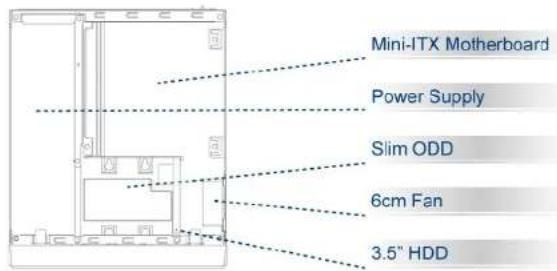
Casing's Internal Structure
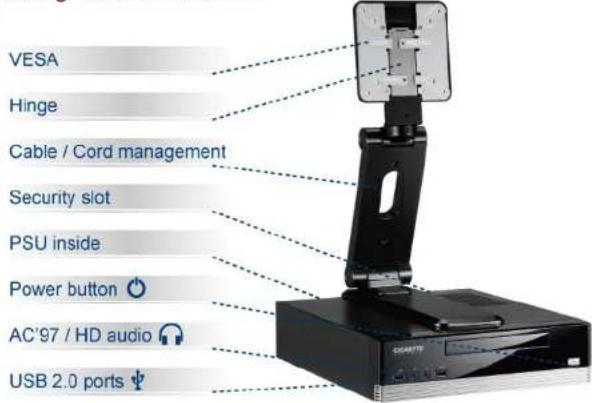

Product is not warranted if the products is modified, altered or repaired without authorization by GIGABYTE. Specifications and pictures are to change without notice.
Components Introduction
Casing's Internal Structure
Accessory Box
MIB T3140
Slim ODD securing screw x 4
Motherboard / HDD securing screw x 10
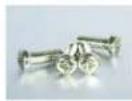
LCD Monitor securing screw x 4
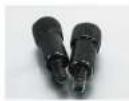
VESA thumb screw x 2
Installation of Front Multi-Media I/O ports
USB 2.0 ports & AC'97 / HD audio


Be sure that different motherboards may have different installation areas and specifications, screw holes and connectors. For detailed instructions, please refer to the motherboard user manual supplied by the motherboard manufacturer.
STEP 1
Remove top cover
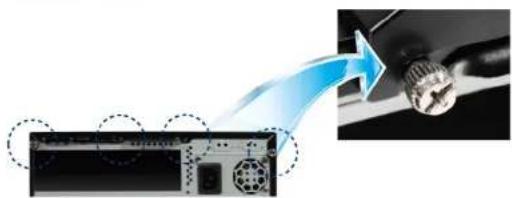
natural_image
Diagram showing a device with a blue arrow pointing to a mechanical component, no text or symbols present.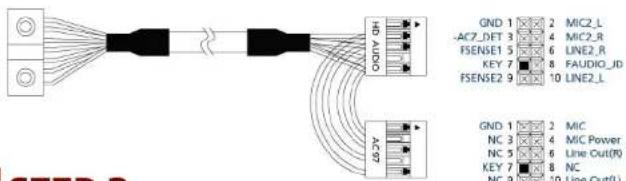
STEP 2
Installation of Motherboard
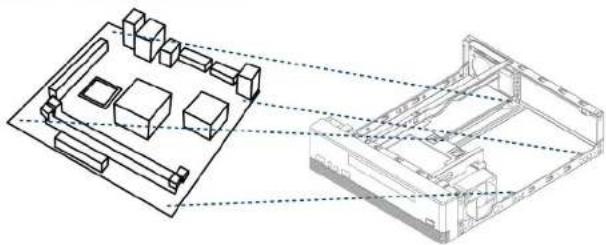
natural_image
Technical line drawing of a mechanical assembly with internal components and housing (no text or symbols)STEP 3
Installation of 3.5" HDD & Slim ODD
▼ Remove screw and Drive Bay

natural_image
Diagram showing a mechanical assembly process with blue arrows indicating motion, no text or symbols present.STEP 4
Installation of LCD Monitor to CASE

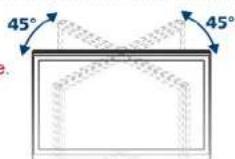
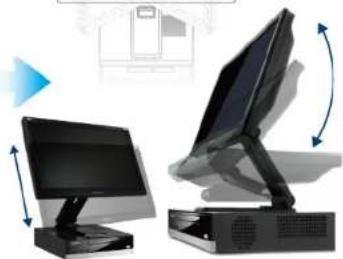
Connect hinge onto chassis and mount monitor before adjusting the angle of the hinge.
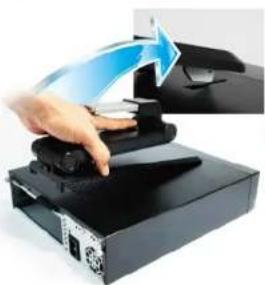
natural_image
Hand pressing a blue arrow on a black electronic device (no text or symbols visible)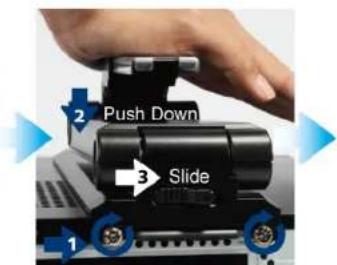
Install thumb screw
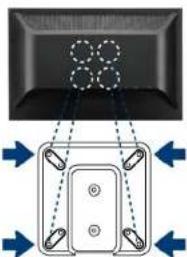
natural_image
Diagram showing a device with a grid pattern and directional arrows, no text or symbols present.Install VESA bracket
- Mount Monitor downwards
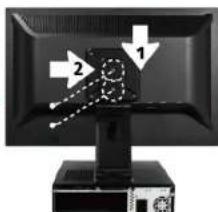
- Install Thumb screw
natural_image
Illustration of desktop computers and a monitor with directional arrows indicating rotation (no text or symbols)Brand : GIGABYTE
Model : MIB T3140
Category : Computer Case