
Bolt Plus - Docking Station Alogic - Free user manual and instructions
Find the device manual for free Bolt Plus Alogic in PDF.


User questions about Bolt Plus Alogic
0 question about this device. Answer the ones you know or ask your own.
Ask a new question about this device
Download the instructions for your Docking Station in PDF format for free! Find your manual Bolt Plus - Alogic and take your electronic device back in hand. On this page are published all the documents necessary for the use of your device. Bolt Plus by Alogic.
USER MANUAL Bolt Plus Alogic
natural_image
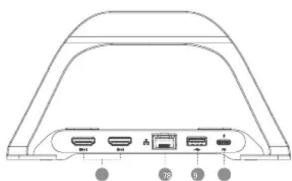
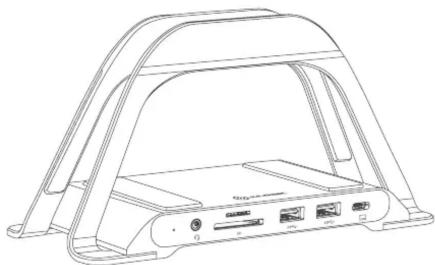
Diagram of a device rear panel with labeled ports (no text or symbols beyond labels)3.5mm Audio Jack
2 Micro SD Slot (TF Card)
3 SD Card Slot
4 USB-A (USB 3.1 Gen 1)
5 USB-C (Connect to computer, Max 100W)
6 HDMI 4K
7 Gigabit Ethernet Port
8 USB-A (USB 2.0)
9 USB-C
Specifications
| Model ALDHDLR | |
| Dimensions 190 x 90 x 26.5mm (H x D x W) | |
| Weight 328g | |
| Output | 1 x USB-C, 2 x HDMI 4K, 2 x USB-A (USB 3.1 Gen 1), 1 x USB-A (USB 2.0),1 x Gigabit Ethernet Port, 1 x Micro SD Slot (TF Card), 1 x SD Card Slot,1 x 3.5mm Audio Jack |
| Input 1 x USB-C (Connect to computer, Max 100W) | |
| Power | Supports up to '100W Power Delivery via USB-C Power Delivery Port" "Power adapter not included #ALOGIC recommends to use 100W GaN Charger (WCGX100-XX), to be purchasedsepartately |
| Resolution | HDMI Single Monitor 4K UHD 60HzHDMI Dual Monitor 4K UHD 60Hz |
| Audio Support Analogue audio line/microphone in/out | |
| Compatibility | Compatible with all windows laptop computer' (Windows 7 and above) & macOS** ** Single Extended/ Dual Mirrored Display supported on macOS† Dual Display (Extended/ Mirrored) only supported on Windows and ChromeOS |
| Compliance FCC, CE, RoHS | |
| Warranty 2 Years | |
Package Contents
USB Docking Station USB-C to USB-C Cable 0.8m
User Manual
Warning
- This device is designed for indoors use only and to be kept dry.
- Do not deliberately damage the device or expose it to damp, direct sunlight, or high temperature conditions.
- Disassembling or failing to properly use and care for your device will void the warranty on the product.
• ALOGIC bears no responsibility for damage to the device or incidental damages arising from improper use or
lack of care and is not liable for repair/replacement of the device or other damages in these circumstances. - Do not expose the pen and battery to high temperature. Overheating the battery may cause it to explode
- If the battery leaks, do not make contact with skin or eyes. If accidental contact is made, please rinse with clean water immediately and keep proper medical treatment.
- This pen and its accessories include small parts. Please keep them away from small children

ALOGIC
Designed in Australia. Manufactured in China

ALOGIC
Bolt Plus
10-in-1 USB-C Docking Station with Stand
WITH 100W POWER DELIVERY
natural_image
Line drawing of a portable electronic device with a curved roof and internal components (no text or symbols)Quick Start Guide
Instructions
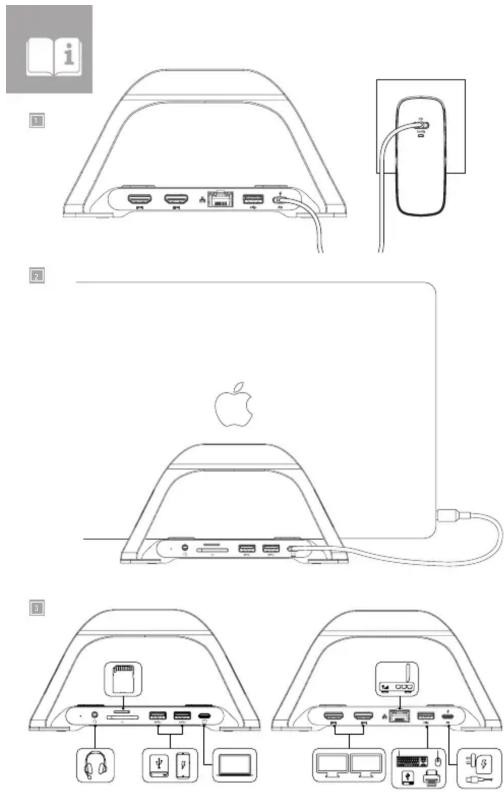
Congratulations on purchasing the ALOGIC Bolt Plus USB-C Hub Laptop Docking Station with 100W PD. To get the most out of your purchase, please take the time to read these instructions before use. This product enhances your connectivity options and desk space management. It supports the latest USB Type-C Power Delivery (PD) charging standard to allow high power devices such as your laptop or MacBook to be charged up to 100W but can also provide you access to a stable ethernet connection, dual HDMI video output of 4K@30Hz, SD and Micro SD Card Slot, 3.5mm Audio Jack and USB-A ports for additional peripherals such as your keyboard & mouse.

Powering the Hub
(Refer to the images on the previous pages)
The Dock comes included with a USB-C cable to power the USB-C Hub and your laptop. Connect the USB-C cable provided to the USB-C port at the back. Which can be identified by the marked word PD underneath the port. Proceed to plug the end of the cable to your available USB-C enabled wall charger or USB-C enabled power socket.
* disclaimer as wall charger does not come included

Connecting the Hub to the Laptop
(Refer to the images on the previous pages)
Connect the included USB-C to USB-C cable between the dock and your laptop
The device is Plug and Play compatible and will be detected and configured by your computer automatically. This process will take a few seconds the first time you plug the device into your laptop, and you may receive a notification that it has been installed and is ready for use. Once the device has been recognised and set up by your computer it is ready for use and you can connect other devices as desired such as monitors, USB devices and a network cable. Your laptop will also start charging with up to 100W of power when connected to dock.

Connecting Devices to the Hub
(Refer to the images on the previous pages)
Connect external devices such as monitors, SD & Micro SD card, USB memory sticks, ethernet cable and
headphone/micro the dock, as necessary. The following outlines the available ports and their functions
Video Output Capabilities
The following section outlines the maximum video output resolution and refresh rate combinations available to computers for a given HDMI.
Windows
| Single Display Dual Display Triple Display | ||
| Mirror Mode 3840 x 2160 @ 60Hz 3840 x 2160 @ 30Hz N/A | ||
| Extend Mode 3840 x 2160 @ 60Hz 1920 x 1080 @60Hz 1920 x 1080 @60Hz |
*For extended mode, when laptop's USB-C port supports DP1.4, one external monitor resolution can be up to 3840*2160@30Hz, and the other one is 1920*1080@60Hz, with dual external monitors resolution at 1080p@60Hz when laptop's USB-C port only supports DP1.2
Mac OS
| Single Display Dual Display Triple Display | ||
| Mirror Mode 3840 x 2160 @ 60Hz 3840 x 2160 @ 30Hz N/A | ||
| Extend Mode 3840 x 2160 @ 60Hz 1920 x 1080 @60Hz N/A | ||
*Mirror Mode clamshell (closed laptop lid)mode, ensure the MacBook is charging, feel free to attach MacBook's power adapter to the dock.
Multiple Displays Mode
| Mirror Mode Windows macOS ✓ | A | A |
| B | B | |
| Extended Desktop Mode Windows macOS ✓ | B | C |
| Extended Desktop Mode Windows macOS ✗ |
Troubleshooting
| Symptom Solution | |
| Video doesn't show on external display | • Check that the HDMI cable is connected securely between the monitor and device and the device is securely connected to the computer• Check that the external monitor is turned on and set to the correct input• Check that your computer is detecting the external display and is set to show video on it• Check that the USB-C port on the computer that you have connected the device to supports video output using DisplayPort Alternate Mode• If the computer doesn't detect the external monitor or output video after checking the above, restart your computer and attempt again |
| Video drops out intermittently | • Check that the HDMI cable is connected securely between the display and device• Check that the device is securely connected to the computer• Check that the HDMI cable being used to connect to the display is of good quality and isn't damaged |
| Computer doesn't start charging when the device is connected | • Ensure a USB Power Delivery power supply is connected to the USB-C port on the device marked PD• Ensure that the power supply is connected at the wall and turned on, and the USB-C cable supplying power is securely connected• Verify that the USB-C port on the computer supports charging from a USB PD power source |
| Can't get a dual extended monitor on Misc OS | This hub drives two extended monitor base on MST (Multiple Stream Transport), and the macOS only support SST due to its system limitation, therefore 2 external monitor can't display different contents. |
| No Audio output from my HDMI Monitor | Ensure the monitor supports audio output and set the external monitor as default audio output device. |
| Cable length provided is too short, can I use an extension cable? | The cable length will affect the signal transmission, an extension cable is not recommended, the length of most connection cables is between 50cm to 1m |
ALOGIC recommend the use of ALOGIC cables to ensure reliable, trouble free operation for your computer and peripherals.
Brand : Alogic
Model : Bolt Plus
Category : Docking Station