HUSB420 - Uncategorized Hamlet - Free user manual and instructions
Find the device manual for free HUSB420 Hamlet in PDF.


User questions about HUSB420 Hamlet
0 question about this device. Answer the ones you know or ask your own.
Ask a new question about this device
Download the instructions for your Uncategorized in PDF format for free! Find your manual HUSB420 - Hamlet and take your electronic device back in hand. On this page are published all the documents necessary for the use of your device. HUSB420 by Hamlet.
USER MANUAL HUSB420 Hamlet
natural_image
Exterior view of a silver Hamlet device with four Ethernet ports (no text or symbols visible on the device body)MANUALE UTENTE HUSB420/XUSB720
www.hamletcom.com
Gentile Cliente,
natural_image
Exterior view of a silver Hamlet device with four Ethernet ports (no text or symbols visible on the device body)USER MANUAL HUSB420/XUSB720
www.hamletcom.com
Dear Customer,
thanks for choosing an Hamlet product. Please carefully follow the instructions for its use and maintenance and, once this item has run its life span, we kindly ask You to dispose of it in an environmentally friendly way, by putting it in the separate bins for electrical/electronic waste, or to bring it back to your retailer who will collect it for free.
We inform You this product is manufactured with materials and components in compliance with RoHS Directive 2011/65/EU, WEEE Directive 2002/96/EC and 2003/108/EC Italian Legislative Decree 2005/151 and EMC Directive 2014/30/EU for the following standards: EN 55032: 2015, EN 61000-3-2: 2014, EN 61000-3-3: 2013, EN 55024: 2010 + A1: 2015.

The complete CE declaration of conformity of the product can be obtained by contacting Hamlet at info@hamletcom.com.
The information on the importer for your country can be found in the "About Us" section of the website www.hamletcom.com.
Trademarks and changes
All trademarks and company names mentioned in this manual are used for description purpose only and remain property of their respective owners. The material in this document is for information only and subject to change without notice. The specifications and appearance of the product are indicative and may change without notice.
Introduction
Hamlet 4-port and 7-port hubs allows you to replicate the USB 2.0 port of your computer to connect up to 4 or 7 devices. High-Speed USB 2.0 connection delivers excellent performance and it is compatible with all computers equipped with a standard USB port. External 220V AC power adapter included.
System Requirements
- Windows XP, Vista, 7, 8 and Windows 10 - Mac OS 9 or later
Package content
- USB 2.0 Hub • USB 2.0 Cable - Power adapter • User manual
Device installation
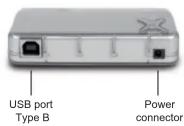
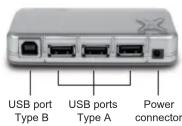
- Plug the USB type B connector of the USB cable (the larger end of the cable) into the USB type B port on the back of the Hub.
- Plug the AC adapter into the power connector of the Hub and into a power socket in a power-strip or a wall jack.
- Plug the USB type A connector of the USB cable (the narrow end of the cable) into an available USB 2.0 port on your computer.
- Your computer will automatically detect and install the hub. You may now connect USB devices to an available USB port on the HUSB420/XUSB720.
- The devices will mount in My Computer (Windows) or on your Desktop (Mac).
4 Port Hub
7 Port Hub
Connecting and disconnecting USB devices
Most USB devices can be removed and unplugged at will. When unplugging storage devices, such as USB flash drives, you should be sure that the computer has finished saving any information to the device before removing it. If the device has an activity light, wait for a few seconds after the light has finished flashing before unplugging it.
Windows Users
If you see the "Safely Remove Hardware" icon in the notification area at the far right of the taskbar, you can use this to ensure that devices have finished all operations in progress and are ready to remove.
- Click the "Safely Remove Hardware" icon.
- You'll see a list of connected devices
- Click the device you want to remove.
Mac Users
To eject a disk or volume, do one of the following:
- Select the item to eject, and choose File > Eject.
- Drag the item to the Trash icon in the Dock (While you drag, the Trash icon changes to an Eject icon).
Brand : Hamlet
Model : HUSB420
Category : Uncategorized