KAAP3WTCBLA - Smartwatch Kogan - Free user manual and instructions
Find the device manual for free KAAP3WTCBLA Kogan in PDF.


| Product Type | Smartwatch |
| Brand | Kogan |
| Model | KAAP3WTCBLA, KAAP3WTCNVA, KAAP3WTCRGA, KAAP3WTCTPA |
| Display | Touch screen |
| Dimensions (approximate) | 45 mm diameter, 10 mm thickness |
| Weight (approximate) | 50 g |
| Battery | Rechargeable lithium-ion; typical usage 7 days |
| Charging | Magnetic charging cable, 5V/500mA USB adapter (not included) |
| Bluetooth | Yes, for pairing with smartphone |
| Water Resistance | Swimming pool, cold shower, shallow swimming; not for diving or sauna |
| Heart Rate Monitor | Continuous and manual measurement |
| Blood Oxygen (SpO2) | Continuous and manual measurement |
| Stress Monitoring | Continuous and manual measurement |
| Sleep Tracking | Automatic sleep stages (awake, light, deep) |
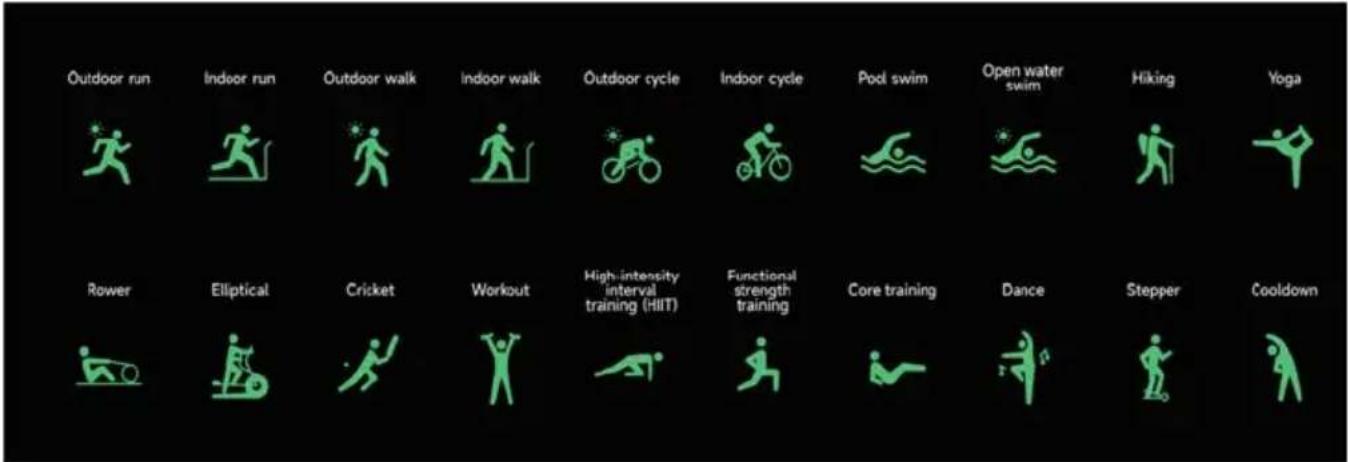
| Exercise Modes | Up to 100 exercise types through app; 20 default on watch including outdoor run, indoor run, walk, hike, cycle, swim, yoga, etc. |
| GPS | Connected GPS via smartphone app (VeryFit) |
| Notifications | Calls, messages, reminders, sedentary alerts |
| Compatible App | VeryFit (iOS and Android) |
| Third-Party App Sync | Google Fit, Apple Health, Strava |
| Additional Features | Music control, camera control, find phone, weather, alarm, stopwatch, timer, world clock, women health, event reminders |
| Cleaning | Use soap-free cleaner or alcohol for stubborn stains; avoid household cleaners |
| Wrist Size | 145-200 mm |
Frequently Asked Questions - KAAP3WTCBLA Kogan
User questions about KAAP3WTCBLA Kogan
0 question about this device. Answer the ones you know or ask your own.
Ask a new question about this device
Download the instructions for your Smartwatch in PDF format for free! Find your manual KAAP3WTCBLA - Kogan and take your electronic device back in hand. On this page are published all the documents necessary for the use of your device. KAAP3WTCBLA by Kogan.
USER MANUAL KAAP3WTCBLA Kogan
ACTIVE 3 SMART WATCH
KAAP3WTCBLA, KAAP3WTCNVA, KAAP3WTCRGA & KAAP3WTCTPA
OVERVIEW
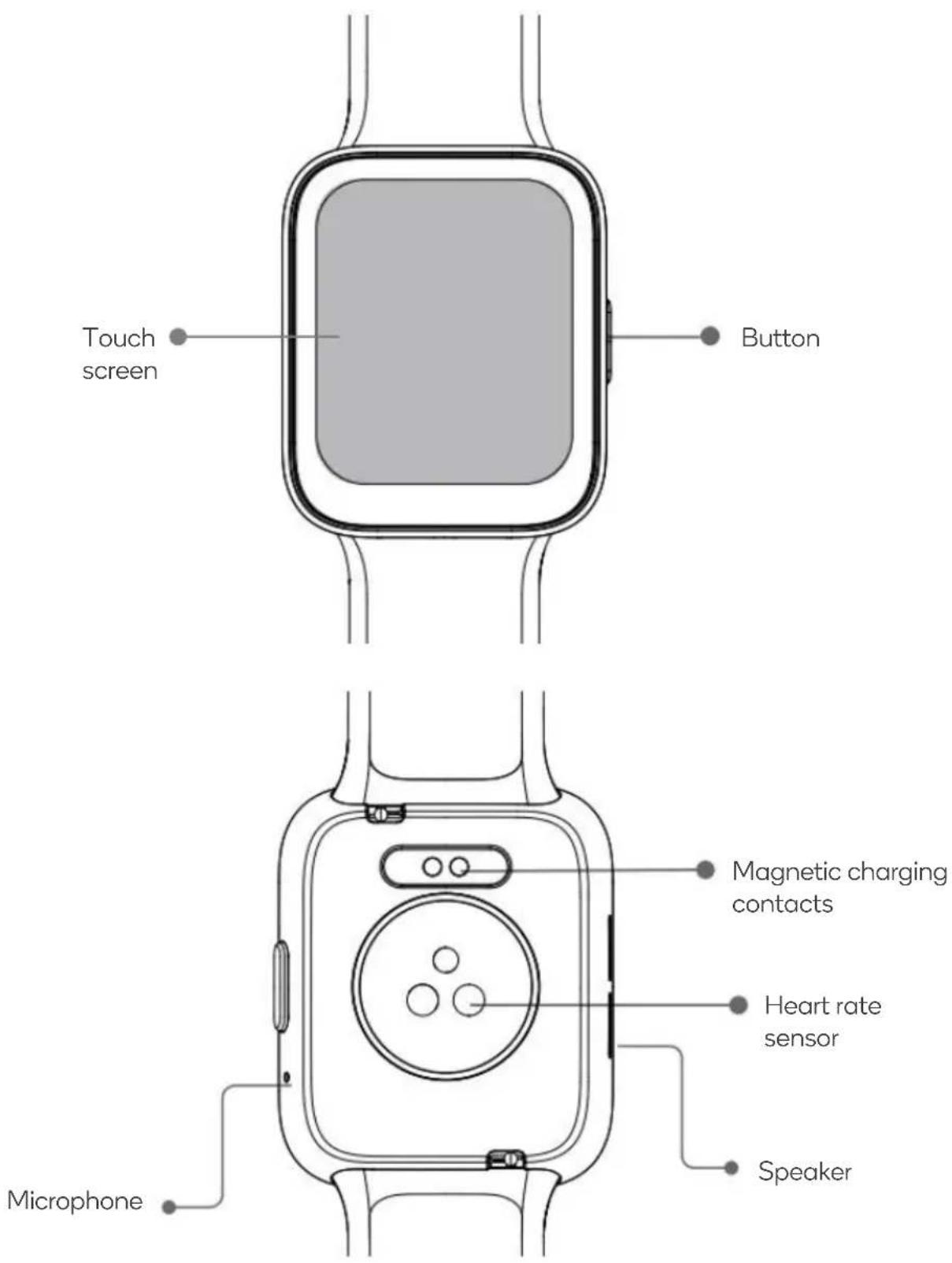
COMPONENTS
- Smart Watch
- User Guide
- Charging cable
OPERATION
Notes:
• Ensure the smart watch is charged fully before first use.
- If the device does not turn on within one minute, this is due to the over discharging protection. Charge the watch for over 30 minutes until it turns on.
Charging
To charge, attached the supplied magnetic charging cable to the magnetic charging contacts on the back of the smart watch.
Attach the opposite end of the cable into a USB power adapter (not supplied). Ensure the adapter meets the specified voltage and current (5V/500mA).
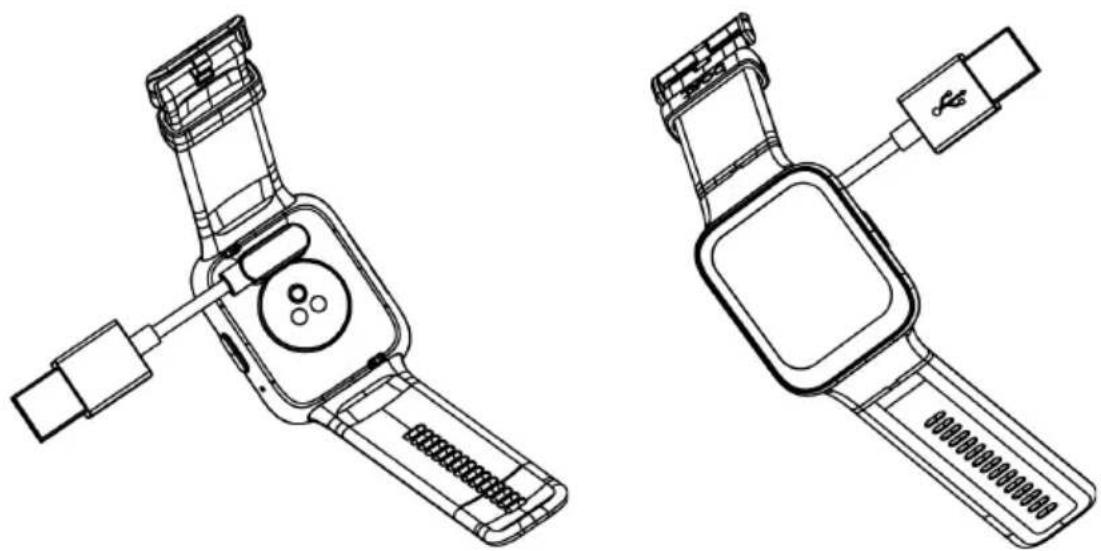
natural_image
Technical line drawings of two smartwatches with sensor modules and connector components (no text or symbols)Wearing
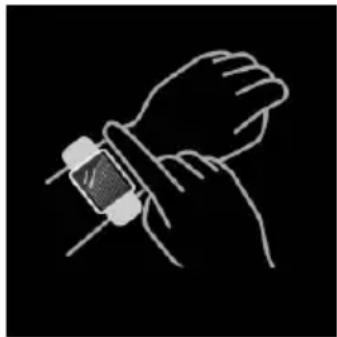
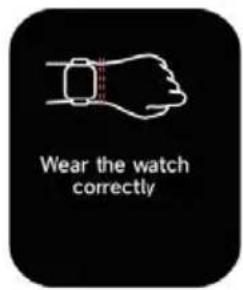
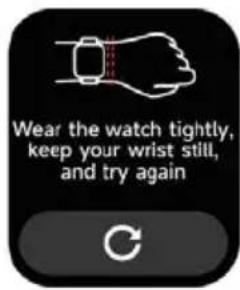
Wear it correctly: make sure that the bottom sensor is properly attached to the skin and the strap shall be one finger away from the wrist. This watch fits wrist size 145-200mm.
Turning the Watch On/Off
- Press and hold the button for 2 seconds to turn the watch on.
- To power off, open the “Settings → General” and select “Power Off”.
natural_image
Line drawing of a hand wearing a smartwatch (no text or symbols)Physical Button
Short press:
- Return (back)
- Wake the screen when it is off.
Press and hold:
• Hold for 2 seconds to turn on the watch
- Press and hold to exit the power saving mode.
Navigating and Operation Controls
Swipe the screen up/down:
• To toggle through menu / pages.
• To view long text or details.
Swipe the screen left/right:
• To toggle through menu / pages.
Tap the screen:
• To go to the sub-page.
- To complete the corresponding action, depending on which on-screen button is clicked.
Tap and hold the screen:
• To change the watch face wallpaper.
PAIRING WITH VERYFIT APP
For Android users, open Google Play Store on your smartphone.
For iOS users, open app Store on your iPhone.
Search for "VeryFit" and download the app.
Alternatively, scan this QR code on your device to open the appropriate store for your device and go straight to the app download page.

natural_image
Orange square icon with a white checkmark and dot symbol (no text or numbers)

- Launch the "Veryfit" app, ensure Bluetooth is enabled and grant the GPS positioning permission.
- Ensure the watch is on and unlocked, then bring it close to your phone.
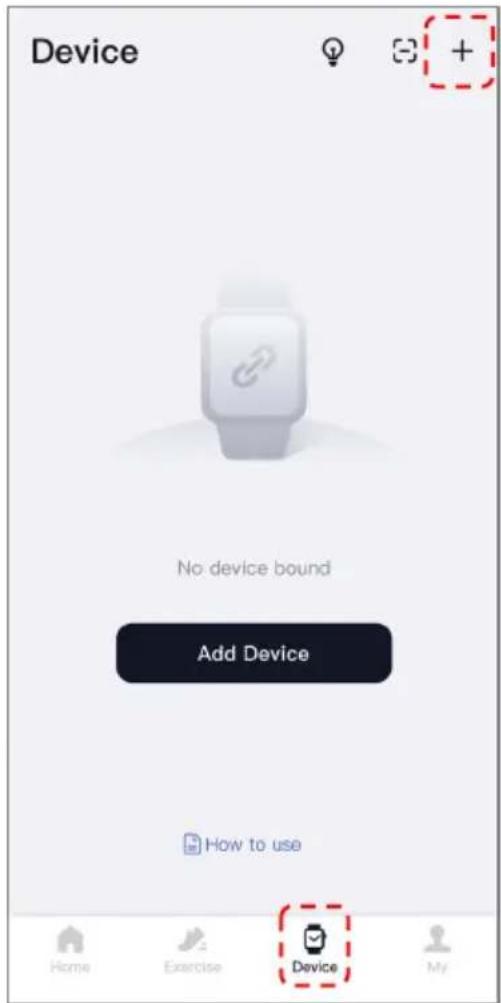
- Click the "Device" tab down the bottom.
- Click the “+” icon or the “Add Device” button and select the smart watch model in the search results to pair.
- Confirm the pairing request on the smart watch.
- Fill in your information and set your step goal on the App to complete the setup.
OPERATION
Health
- The watch will automatically record your data.
- You can measure your heart rate, blood oxygen, stress level, on the watch or turn on automatic measurement of heart rate, blood oxygen, stress, sleep on the app to track this data throughout your day.
• To start an exercise:
- When the watch face is displayed, short press the button to access the application list. Tap the Sport icon to access the icons of different exercise types, then tap the desired exercise (Outdoor Running etc.) to start the exercise.
- The watch can display up to 20 exercise types by default. Using the app you can add or delete the exercise types displayed on the watch or rearrange their order.
Watch face
- The watch comes with 4 watch faces by default. You can switch between them manually on the watch or on the “Veryfit” app’s watch face settings.
- You can also customize the watch face on the app.
- More watch faces are available for download from the "Watch Face Market".
Sports
- Up to 20 exercise types can be displayed by default: Outdoor run, Indoor run, Outdoor walk, Indoor walk, Hiking, Outdoor cycle, Indoor cycle, Cricket, Pool swim, Open water swim, Yoga, Rower, Dance, Rower, Elliptical, Workout, HIIT, Functional strength training, Core training, Stepper, Cooldown, Dance.
- Using the "Veryfit" app, you can add or delete the exercise types or change their order displayed on the watch. There are a total of 100 exercise types to choose from.
- This watch supports intelligent exercise recognition. It can recognize whether the user is running/walking. It supports automatically pausing an exercise or send reminders when an exercise ends. This feature can be turned on/off on the app.
- Exercises summaries containing various exercise data can be viewed using the "Veryfit" app or directly on your watch.
- Through the "VeryFit" app, users can track their exercise path using GPS while in the following modes: Outdoor run, Outdoor walk, Outdoor cycle and Hiking.
- You can pause an exercise using both the watch and the app. Ensure the watch is connected to the app during exercise. Note: If a user starts tracking an exercise on the watch and it isn't shown on the app, these records can later be synced to the "Veryfit" app after finishing the exercise.
Connecting to Third Party Fitness Apps
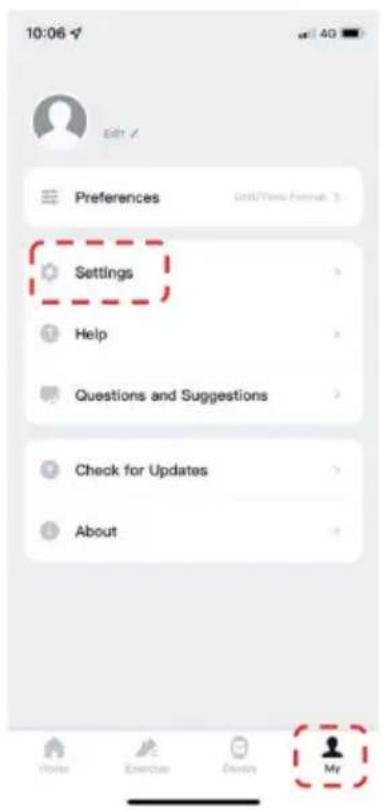
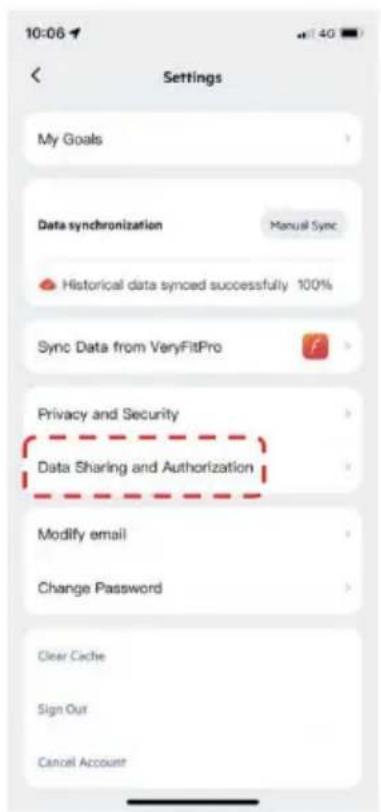
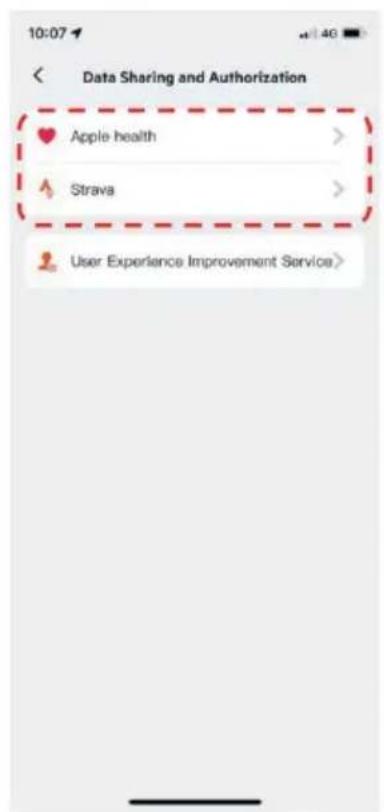
Users can sync their exercise data to Google Fit, Apple Health and Strava through the "VeryFit" app.
- On the home screen, click the "My" tab click on in the bottom right corner.
- Click "Settings"
- Click "Data Sharing and Authorization".
- Select the desired app to sync exercise data with.
Applications
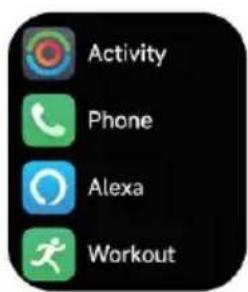
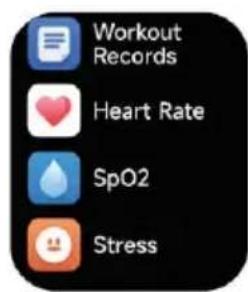
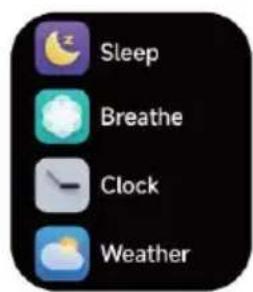
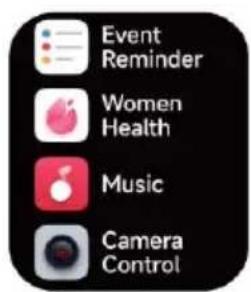
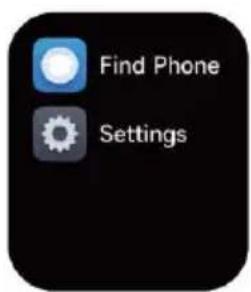
When the watch face interface is displayed, short press the button to access the application list: Activity, Phone, Alexa, Workout, Workout Records, Heart Rate, SpO2, Stress, Sleep, Breathe, Clock (Alarm, Stopwatch, Timer, World clock), Weather, Event Reminder, Women Health, Music, Camera Control, Find phone, Settings.
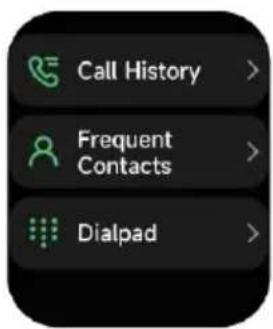
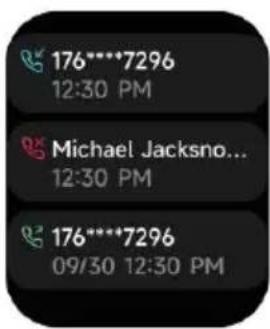
1. Phone
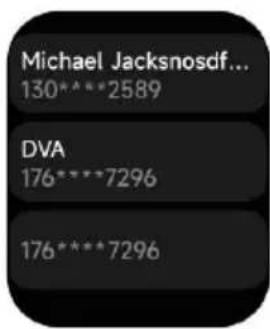
- Add up to 10 frequent contacts to your watch through the app.
- View recent call history on your watch and call the numbers displayed in the call history.
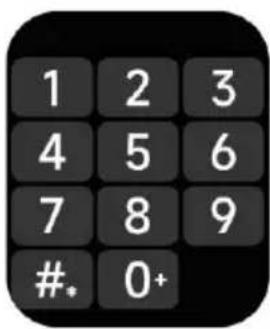
- Dial numbers using the watch's number pad.
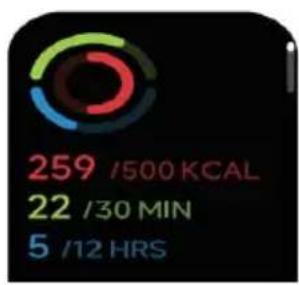
2. Activity
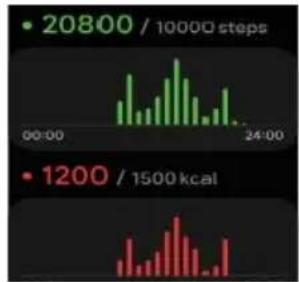
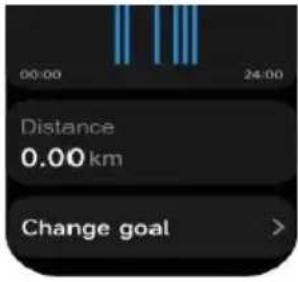
The watch can collect and display: Exercise/Activity/Walking data and goals of the day, histogram of Exercise/Activity/Walking data per hour throughout the day, Steps and Distance of the day, Daily Goal Setting, etc.
bar
| Time | Green Bar Value | Red Bar Value | | -------- | --------------- | ------------- | | 00:00 | ~24 | - | | 24:00 | ~24 | ~1200 |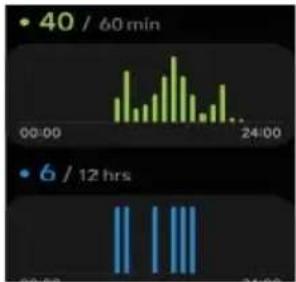
3. Heart Rate
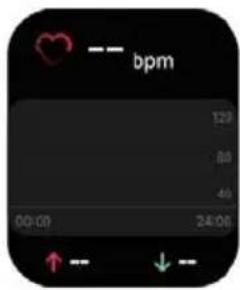
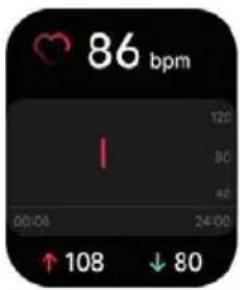
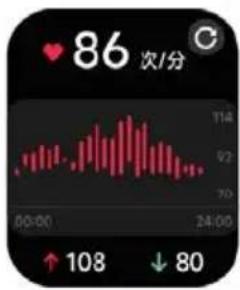
- You can manually measure your heart rate on your watch. In addition, the watch supports automatic around-the-clock heart rate monitoring. In the App's settings, you can turn this function on/off or view the data.
• Each time your heart rate is measured, keep your arm and wrist still and wait patiently until the measurement finishes.
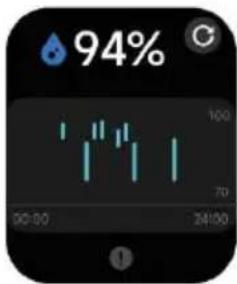
4. Blood Oxygen Level (SpO2)
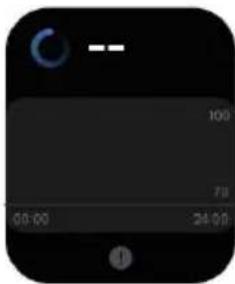
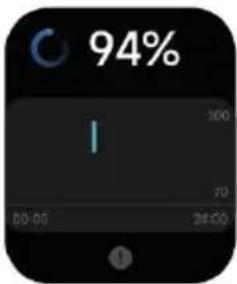
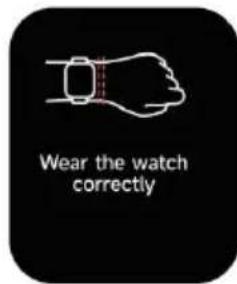
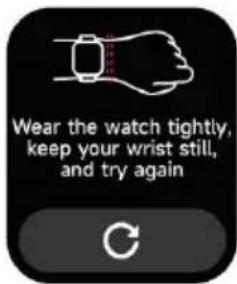
- You can manually measure SpO2 on the watch. In addition, the watch supports automatic around-the-clock SpO2 monitoring. In the App's settings, you can turn this function on/off or view the data.
- Each time SpO2 is measured, keep your arm and wrist still and wait patiently until the measurement finishes.
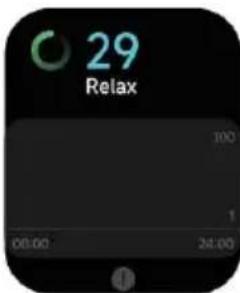
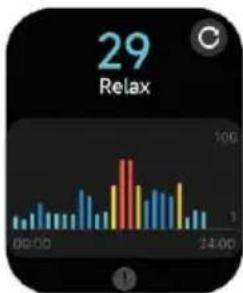
5. Stress
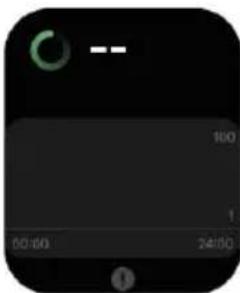
- You can measure your stress levels on the watch. In addition, the watch supports automatic around-the-clock stress monitoring. In the App's settings, you can turn this function on/off or view the data.
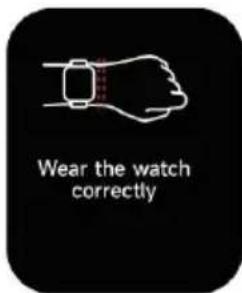
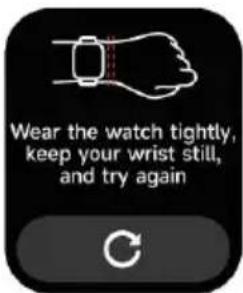
- Each time stress is measured, keep your arm and wrist still and wait patiently until the measurement finishes.
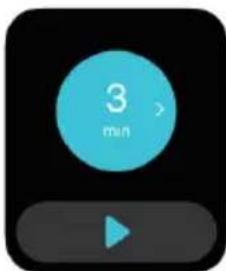
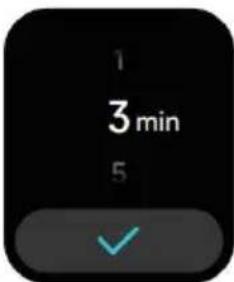
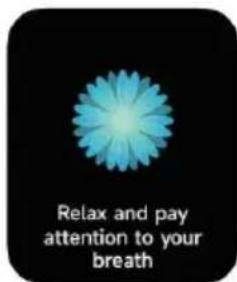
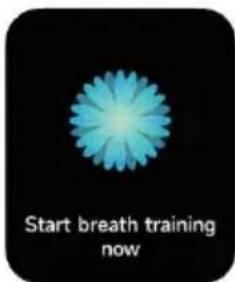
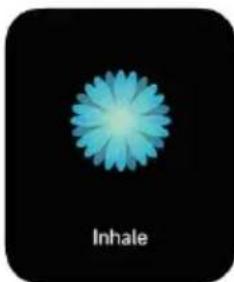
6. Breathe
- Click the Breath training icon to access this feature.
- Follow the vibration and animation frequency to adjust your breathing.
natural_image
Blue flower-like shape on black background with 'Inhale' text below (no other symbols or text)7. Sleep
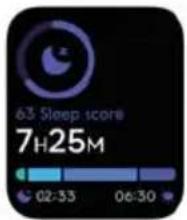
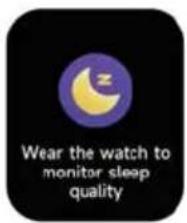
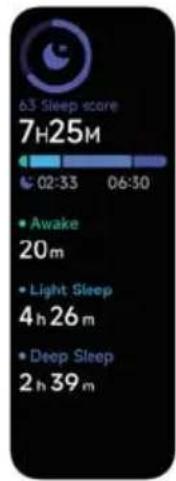
You can view the most recent sleep record and sleep status at each stage.
- Check the sleep record by swiping the watch. This page does not support scrolling down.
- Click the sleep icon from the application list. Here you can scroll down to check the full data.
8. Clock
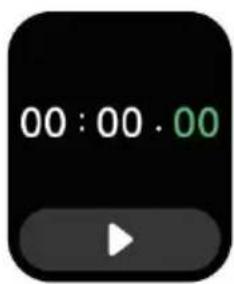
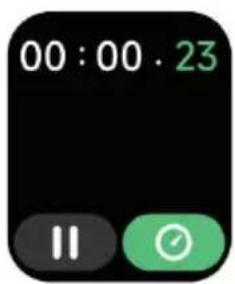
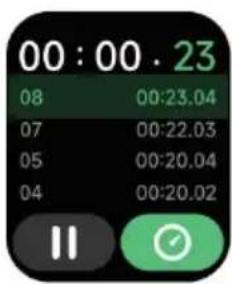
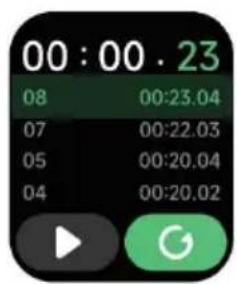
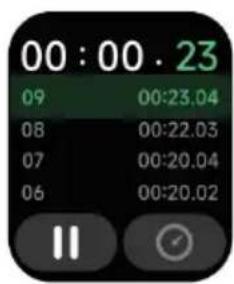
Stopwatch: Use the watch as a stopwatch.
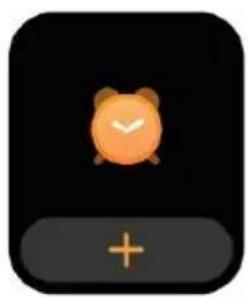
Alarm: Add, delete and turn alarms on/off on the watch and also set an alarm for the watch via the app.
natural_image
Simple icon of a cartoon alarm clock on a black background with a plus button below (no text or symbols)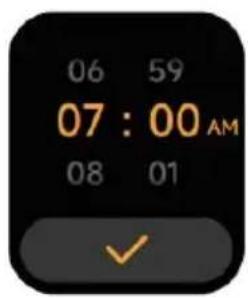
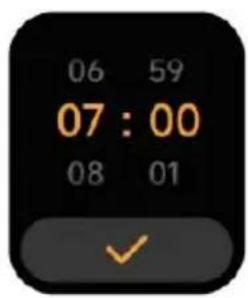
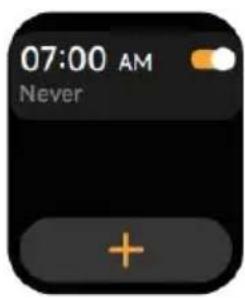
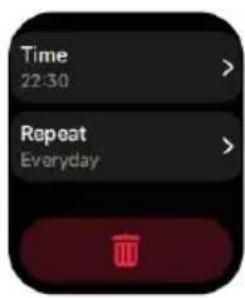
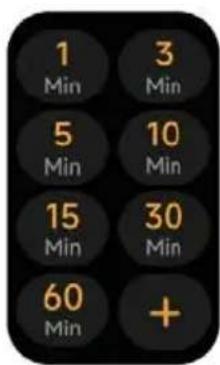
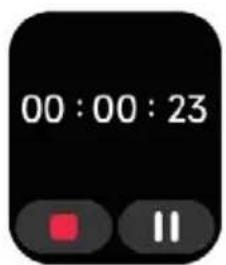
Time: Set a timer with a preset duration on the watch and the timer will remind you when the timer expires.
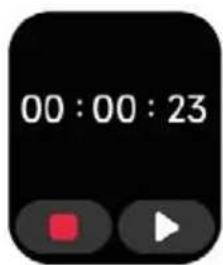
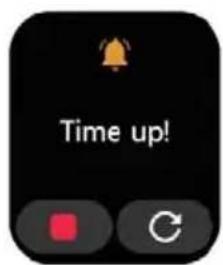
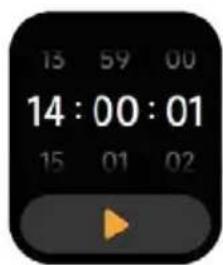
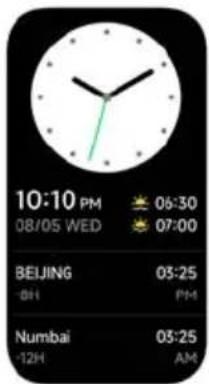
World clock:
You can check the time in your city on the watch and set on the app the time in cities of other countries to be displayed on the watch.
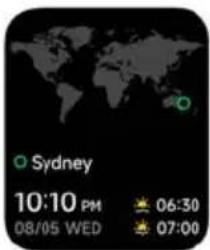
9. Weather
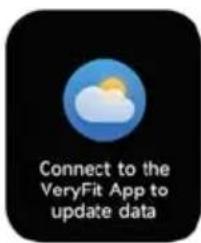
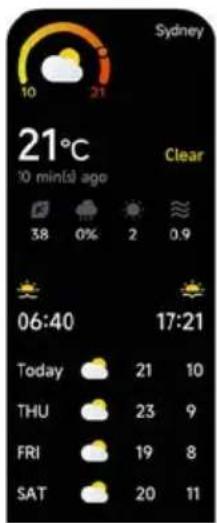
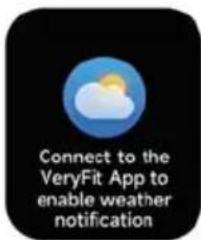
• Supports current city 7-day weather forecast.
- View today's "current weather, highest and lowest weather values" and the "highest and lowest weather values" for the next 6 days.
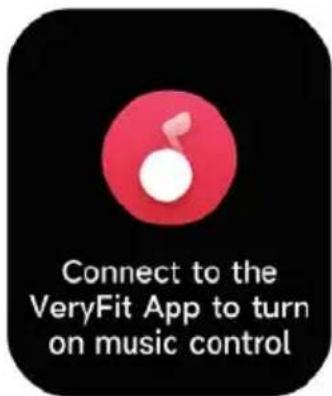
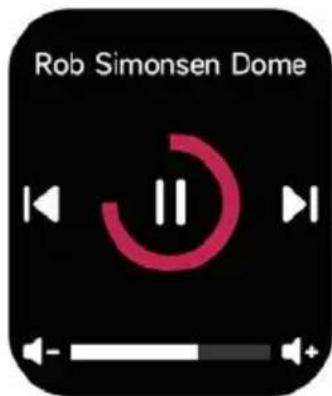
10. Music
When the watch is connected to the app, you can control the mobile music player to perform the functions of "next, previous", "play\pause" and "volume increase and decrease".
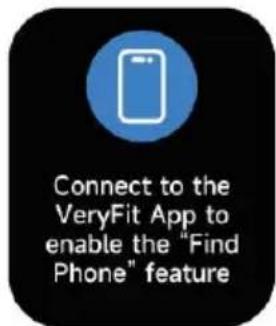
11. Find Phone
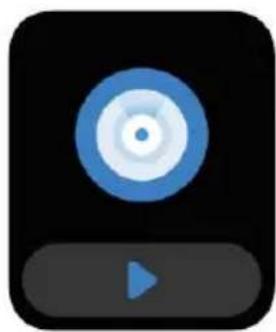
- Use your watch to help you find your phone. Use this feature to locate and trigger a notification on the paired smartphone, helping users locate their misplaced or lost device.
- Tap the icon on your watch to end the ringing once you have located your phone.
natural_image
Blue circular play button icon on black background, no text or symbols present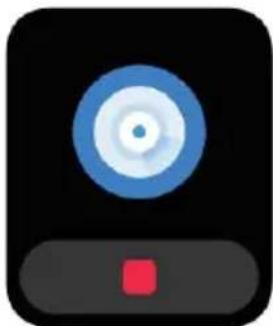
natural_image
Icon of a CD or DVD player with blue concentric circles and a red square button (no text or symbols)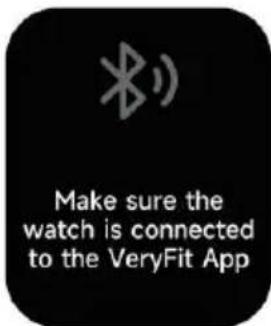
12. Event Reminders
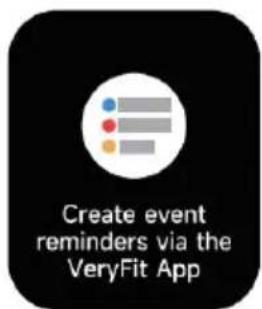
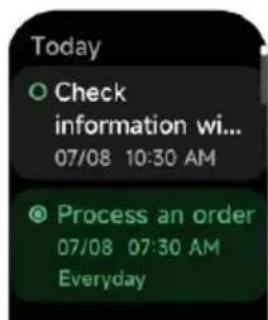
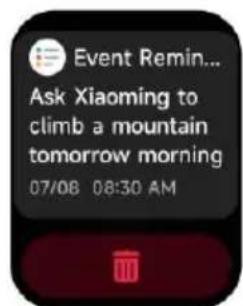
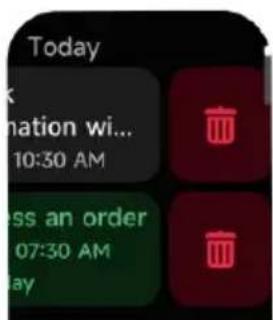
- You can set a reminder using the app. Once completed, the reminder will be synchronized to the watch.
- When the reminder is due, a notification will pop up on the watch. You can view all event reminders set on the watch.
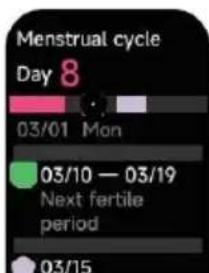
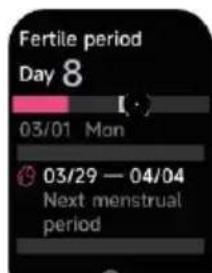
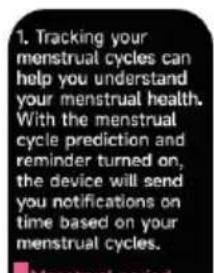
13. Women Health
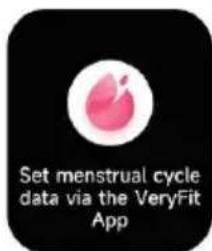
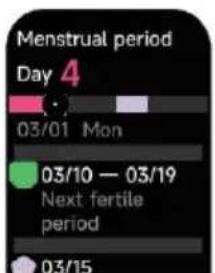
Use this feature to help track your menstrual cycle.
14. Camera Control
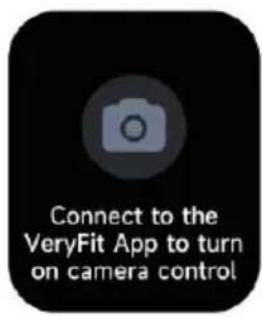
- When the watch is connected to the app, you can control your phone's camera.
- Ensure your phone's camera application is opened before using the Camera Control function on the watch.

natural_image
Black square icon with a white camera symbol in the center (no text or numbers)
natural_image
Simple camera icon inside a circle on a black background (no text or symbols)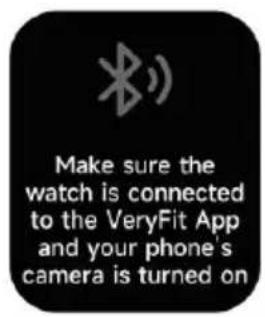
15. Settings
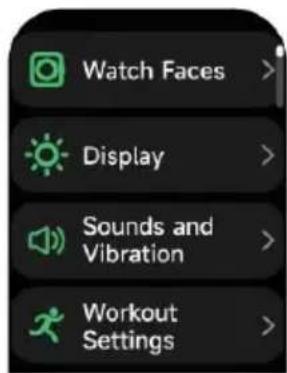
- Set the screen-on time, ringtone settings and customise how your apps are displayed on your watch.
- You can also shut down, restart or reset the watch (once reset, all data stored in the watch will be cleared and the watch will be unpaired from your phone).
16. Notifications
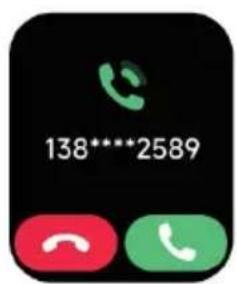
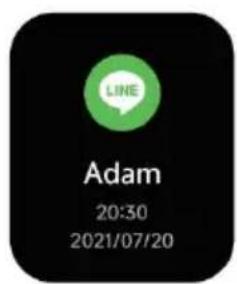
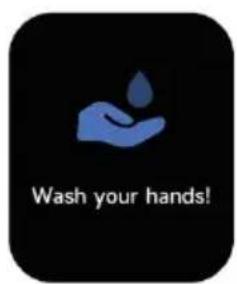
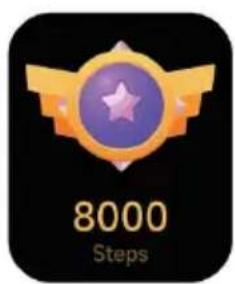
This watch supports multiple pop-up notifications, including messages, incoming calls, walking reminders, drinking reminders, exercise goal reminder etc.
CLEANING & CARE
Below are three recommendations on wearing and maintenance:
- Keep the device clean
- Keep the device dry
- Do not wear the device too tight
For cleaning:
- Do not use household cleaners to clean the device. Use soap-free cleaners instead.
- For stains that are difficult to remove, it is recommended to scrub with alcohol.
Waterproof performance: the device is not suitable for diving, swimming in the sea or sauna, it is suitable for swimming pool, shower (cold water) and swimming in shallows.
NOTES
The Ground Truth image displays a single, solid horizontal line. According to Rule 2 (UNDERSCORE & LINE RULES), this is a stylistic or background line, not a placeholder underscore. Therefore, the OCR result must ignore it and output nothing or only meaningful text. The provided OCR content is "____", which consists of four underscores. This is an incorrect interpretation of the line as a fill-in-the-blank placeholder, violating the rule that stylistic lines must be ignored. The OCR has hallucinated underscores where none should exist based on the GT's visual context. Hence, the OCR result is inconsistent with the Ground Truth.
[Non-Text]
[Non-Text]
The Ground Truth image displays a single, continuous horizontal line, which is a stylistic or background element (like a ruled paper line). According to Rule 2, such lines must be ignored by the OCR result. The OCR content provided is "", which consists of no characters. Since the OCR output correctly ignores the background/stylistic line and produces no actual text, it complies with the “Stylistic/Background Lines (Ignore)” rule. Therefore, the OCR result is consistent with the Ground Truth.
[Non-Text]
[Non-Text]
The Ground Truth image displays a single, continuous horizontal line, which is a stylistic or background element (like a ruled paper line). According to Rule 2, such lines must be ignored by the OCR result. The OCR content provided is "", which consists of no characters. Since the OCR output correctly ignores the background/stylistic line and produces no actual text, it complies with the “Stylistic/Background Lines (Ignore)” rule. Therefore, the OCR result is consistent with the Ground Truth.
[Non-Text]
[Non-Text]
[EMPTY]
[Non-Text]
[Non-Text]
The Ground Truth image displays a single, continuous horizontal line, which is a stylistic or background element (like a ruled paper line). According to Rule 2, such lines must be ignored by the OCR result. The provided OCR content is "____", which consists of underscores. Underscores are not equivalent to a solid line and are not permitted under the “Stylistic/Background Lines (Ignore)” rule. Outputting underscores for a stylistic line is incorrect because it misinterprets the line as a fill-in-the-blank placeholder. Therefore, the OCR result is inconsistent with the Ground Truth.
[Non-Text]
[Non-Text]
The Ground Truth image displays a single, continuous horizontal line, which is a stylistic or background element (like a ruled paper line). According to Rule 2, such lines must be ignored by the OCR result. The provided OCR content is "____", which consists of underscores. Underscores are not equivalent to a solid line and are not permitted under the “Stylistic/Background Lines (Ignore)” rule. Outputting underscores for a stylistic line is incorrect because it misinterprets the line as a fill-in-the-blank placeholder. Therefore, the OCR result is inconsistent with the Ground Truth.
[Non-Text]
[Non-Text]
[NO TEXT]
[Non-Text]
[Non-Text]
The Ground Truth image displays a single, continuous horizontal line, which is a stylistic or background element (like a ruled paper line). According to Rule 2, such lines must be ignored by the OCR result. The OCR content provided is "", which consists of no characters. Since the OCR output correctly ignores the background/stylistic line and produces no actual text, it complies with the “Stylistic/Background Lines (Ignore)” rule. Therefore, the OCR result is consistent with the Ground Truth.
[Non-Text]
[Non-Text]
The Ground Truth image displays a single, continuous horizontal line, which is a stylistic or background element (like a ruled paper line). According to Rule 2, such lines must be ignored by the OCR result. The provided OCR content is "____", which consists of underscores. Underscores are not equivalent to a solid line and are not permitted under the “Stylistic/Background Lines (Ignore)” rule. Outputting underscores for a stylistic line is incorrect because it misinterprets the line as a fill-in-the-blank placeholder. Therefore, the OCR result is inconsistent with the Ground Truth.
[Non-Text]
[Non-Text]
[EMPTY]
[Non-Text]
[Non-Text]
The Ground Truth image displays a single, solid horizontal line, which is a stylistic or background element (like a ruled paper line or separator), not a placeholder for text. According to Rule 2, such stylistic/background lines must be ignored by the OCR result. The OCR content provided is "", which consists of no characters. This correctly represents the absence of any textual content in the GT and correctly ignores it as a hallucination. Therefore, the OCR output should have been empty or contained no text. Hence, the OCR result is consistent with the Ground Truth.
[Non-Text]
[Non-Text]
The Ground Truth image displays a single, solid horizontal line, which is a stylistic or background element (like a ruled paper line or separator), not a placeholder for text. According to Rule 2, such stylistic/background lines must be ignored by the OCR result. The OCR content provided is "", which consists of no characters. This correctly represents the absence of any textual content in the GT and correctly matches the visual line as a stylistic element. Therefore, the OCR output should not contain any underscores or line representations. Outputting underscores for a stylistic line violates the rule and constitutes an error.
[Non-Text]
[Non-Text]
[Non-Text]
The Ground Truth image displays a single, solid horizontal line. According to Rule 2 (UNDERSCORE & LINE RULES), this is a stylistic or background line, not a placeholder underscore. Therefore, the OCR result must ignore it. The provided OCR content is "____", which consists of four underscores. This is an incorrect interpretation of the line as a placeholder and violates the rule that stylistic lines must be ignored. The OCR has hallucinated text (underscores) where none should exist based on the GT's visual context. Hence, the OCR result is inconsistent with the Ground Truth.
[Non-Text]
[Non-Text]
The Ground Truth image displays a single, continuous horizontal line, which is a stylistic or background element (like a ruled paper line). According to Rule 2, such lines must be ignored by the OCR result. The provided OCR content is "____", which consists of underscores. Underscores are not equivalent to a solid line and are not permitted under the “Stylistic/Background Lines (Ignore)” rule. Outputting underscores for a stylistic line is incorrect because it misinterprets the line as a fill-in-the-blank placeholder. Therefore, the OCR result is inconsistent with the Ground Truth.
[Non-Text]
The Ground Truth image displays a single, solid horizontal line. According to Rule 2 (UNDERSCORE & LINE RULES), this is a stylistic or background line, not a placeholder underscore. Therefore, the OCR result must ignore it and output nothing or only meaningful text. The provided OCR content is "____", which consists of four underscores. This is an incorrect interpretation of the line as a placeholder, violating the rule that stylistic lines must be ignored. The OCR has hallucinated placeholder underscores where none should exist in the GT. Hence, the OCR result is inconsistent with the Ground Truth.
The Ground Truth image displays a single, solid horizontal line. According to Rule 2 (UNDERSCORE & LINE RULES), this is a stylistic or background line, not a placeholder underscore. Therefore, the OCR result must ignore it and output nothing or only meaningful text. The provided OCR content is "____", which consists of four underscores. This is an incorrect interpretation of the line as a fill-in-the-blank placeholder, violating the rule that stylistic lines must be ignored. The OCR has hallucinated underscores where none should exist based on the GT's visual context. Hence, the OCR result is inconsistent with the Ground Truth.
[Non-Text]
The Ground Truth image displays a single, solid horizontal line. According to Rule 2 (UNDERSCORE & LINE RULES), this is a stylistic or background line, not a placeholder underscore. Therefore, the OCR result must ignore it and output nothing or only meaningful text. The provided OCR content is "____", which consists of four underscores. This is an incorrect interpretation of the line as a placeholder, violating the rule that stylistic lines must be ignored. The OCR has hallucinated placeholder underscores where none exist in the GT. Hence, the OCR result is inconsistent with the Ground Truth.
[Non-Text]
The Ground Truth image displays a single, solid horizontal line. According to Rule 2 (UNDERSCORE & LINE RULES), this is a stylistic or background line, not a placeholder underscore. Therefore, the OCR result must ignore it and output nothing or only meaningful text. The provided OCR content is "____", which consists of four underscores. This is an incorrect interpretation of the line as a fill-in-the-blank placeholder, violating the rule that stylistic lines must be ignored. The OCR has hallucinated underscores where none should exist based on the GT's visual context. Hence, the OCR result is inconsistent with the Ground Truth.
[Non-Text]
[Non-Text]
[EMPTY]
[Non-Text]
[Non-Text]
The Ground Truth image displays a single, continuous horizontal line, which is a stylistic or background element (like a ruled paper line). According to Rule 2, such lines must be ignored by the OCR result. The OCR content provided is "", which consists of no characters. Since the OCR output correctly ignores the background/stylistic line and produces no actual text, it complies with the “Stylistic/Background Lines (Ignore)” rule. Therefore, the OCR result is consistent with the Ground Truth.
[Non-Text]
[Non-Text]
[EMPTY]
[Non-Text]
[Non-Text]
The Ground Truth image displays a single, continuous horizontal line, which is a stylistic or background element (like a ruled paper line). According to Rule 2, such lines must be ignored by the OCR result. The provided OCR content is "____", which consists of underscores. Underscores are not equivalent to a solid line and are not permitted under the “Stylistic/Background Lines (Ignore)” rule. Outputting underscores for a stylistic line is incorrect because it misinterprets the line as a fill-in-the-blank placeholder. Therefore, the OCR result is inconsistent with the Ground Truth.
[Non-Text]
[Non-Text]
The Ground Truth image displays a single, continuous horizontal line, which is a stylistic or background element (like a ruled paper line). According to Rule 2, such lines must be ignored by the OCR result. The provided OCR content is "____", which consists of underscores. Underscores are not equivalent to a solid line and are not permitted under the “Stylistic/Background Lines (Ignore)” rule. Outputting underscores for a stylistic line is incorrect because it misinterprets the line as a fill-in-the-blank placeholder. Therefore, the OCR result is inconsistent with the Ground Truth.
[Non-Text]
[Non-Text]
[NO TEXT]
[Non-Text]
[Non-Text]
The Ground Truth image displays a single, continuous horizontal line, which is a stylistic or background element (like a ruled paper line). According to Rule 2, such lines must be ignored by the OCR result. The provided OCR content is "____", which consists of underscores. Underscores are not equivalent to a solid line and are not permitted under the “Stylistic/Background Lines (Ignore)” rule. Outputting underscores for a stylistic line is incorrect because it misinterprets the line as a fill-in-the-blank placeholder. Therefore, the OCR result is inconsistent with the Ground Truth.
[Non-Text]
[Non-Text]
____
[Non-Text]
[Non-Text]
[EMPTY]
[Non-Text]
[Non-Text]
The Ground Truth image displays a single, solid horizontal line, which is a stylistic or background element (like a ruled paper line or separator), not a placeholder for text. According to Rule 2, such stylistic/background lines must be ignored by the OCR result. The OCR content provided is "", which consists of no characters. This correctly represents the absence of any textual content in the GT and correctly matches the visual line as a stylistic element. Therefore, the OCR output should have been empty or omitted this line entirely.
[Non-Text]
[Non-Text]
The Ground Truth image displays a single, solid horizontal line, which is a stylistic or background element (like a ruled paper line or separator), not a placeholder for text. According to Rule 2, such stylistic/background lines must be ignored by the OCR result. The OCR content provided is "", which consists of no characters. This correctly represents the absence of any textual content in the GT and correctly matches the visual line as a stylistic element. Therefore, the OCR output should have been empty or omitted this line entirely.
[Non-Text]
[Non-Text]
[Non-Text]
The Ground Truth image displays a single, solid horizontal line. According to Rule 2 (UNDERSCORE & LINE RULES), this is a stylistic or background line, not a placeholder underscore. Therefore, the OCR result must ignore it and output nothing or only meaningful text. The provided OCR content is "____", which consists of four underscores. This is an incorrect interpretation of the line as a placeholder, violating the rule that stylistic lines must be ignored. The OCR has hallucinated placeholder underscores where none exist in the GT. Hence, the OCR result is inconsistent with the Ground Truth.
[Non-Text]
[Non-Text]
The Ground Truth image displays a single, continuous horizontal line, which is a stylistic or background element (like a ruled paper line). According to Rule 2, such lines must be ignored by the OCR result. The provided OCR content is "____", which consists of underscores. Underscores are not equivalent to a solid line and are not permitted under the “Stylistic/Background Lines (Ignore)” rule. Outputting underscores for a stylistic line is incorrect because it misinterprets the line as a fill-in-the-blank placeholder. Therefore, the OCR result is inconsistent with the Ground Truth.
[Non-Text]
The Ground Truth image displays a single, solid horizontal line. According to Rule 2 (UNDERSCORE & LINE RULES), this is a stylistic or background line, not a placeholder underscore. Therefore, the OCR result must ignore it and output nothing or only meaningful text. The provided OCR content is "____", which consists of four underscores. This is an incorrect interpretation of the line as a placeholder, violating the rule that stylistic lines must be ignored. The OCR has hallucinated placeholder underscores where none should exist in the GT. Hence, the OCR result is inconsistent with the Ground Truth.
The Ground Truth image displays a single, solid horizontal line. According to Rule 2 (UNDERSCORE & LINE RULES), this is a stylistic or background line, not a placeholder underscore. Therefore, the OCR result must ignore it and output nothing or only meaningful text. The provided OCR content is "____", which consists of four underscores. This is an incorrect interpretation of the line as a fill-in-the-blank placeholder, violating the rule that stylistic lines must be ignored. The OCR has hallucinated underscores where none should exist based on the GT's visual context. Hence, the OCR result is inconsistent with the Ground Truth.
[Non-Text]
The Ground Truth image displays a single, solid horizontal line. According to Rule 2 (UNDERSCORE & LINE RULES), this is a stylistic or background line, not a placeholder underscore. Therefore, the OCR result must ignore it and output nothing or only meaningful text. The provided OCR content is "____", which consists of four underscores. This is an incorrect interpretation of the line as a placeholder, violating the rule that stylistic lines must be ignored. The OCR has hallucinated placeholder underscores where none exist in the GT. Hence, the OCR result is inconsistent with the Ground Truth.
Need more information?
We hope that this user guide has given you the assistance needed for a simple set-up.
For the most up-to-date guide for your product, as well as any additional assistance you may require, head online to help.kogan.com
kogan.com
- ACTIVE 3 SMART WATCH
- OVERVIEW
- COMPONENTS
- OPERATION
- Notes:
- Charging
- Wearing
- Turning the Watch On/Off
- Physical Button
- Short press:
- Press and hold:
- Navigating and Operation Controls
- Swipe the screen up/down:
- Swipe the screen left/right:
- Tap the screen:
- Tap and hold the screen:
- PAIRING WITH VERYFIT APP
- Health
- Watch face
- Sports
- Connecting to Third Party Fitness Apps
- Applications
- Phone
- Activity
- Heart Rate
- Blood Oxygen Level (SpO2)
- Stress
- Breathe
- Sleep
- Clock
- World clock:
- Weather
- Music
- Find Phone
- Event Reminders
- Women Health
- Camera Control
- Settings
- Notifications
- CLEANING & CARE
- For cleaning:
- NOTES
- Need more information?
Brand : Kogan
Model : KAAP3WTCBLA
Category : Smartwatch