
T-Fit 300 Call - Smartwatch Trevi - Free user manual and instructions
Find the device manual for free T-Fit 300 Call Trevi in PDF.


| Type de produit | Smartwatch |
| Marque | Trevi |
| Modèle | T-Fit 300 Call |
| Dimensions de l'écran | 1,32 pouces (360x360 pixels) |
| Processeur | RTL 8763EW |
| ROM | 128 Mo |
| Bluetooth | Version 5.0 (fréquence 2,4 GHz) |
| Batterie | Lithium-ion 3,7 V / 260 mAh |
| Autonomie approximative | 2-3 jours selon usage |
| Étanchéité | IP67 |
| Systèmes d'exploitation compatibles | Android 5.0 ou supérieur, iOS 9.0 ou supérieur |
| Capteurs | Fréquence cardiaque, tension artérielle, oxygène sanguin, accéléromètre |
| Fonctions principales | Appels Bluetooth, notifications, suivi d'activité, sommeil, SpO2, tension artérielle, musique à distance, météo, sports multiples |
| Charge | Chargeur magnétique, 5V/1A |
| Poids | Environ 50 g (bracelet inclus) |
| Matériau du boîtier | Plastique et alliage |
| Application compagnon | FitCloudPro (iOS et Android) |
| Nettoyage | Chiffon doux et sec; éviter produits chimiques |
| Température de fonctionnement | 0°C à 45°C |
| Garantie | 2 ans (selon législation locale) |
| Pièces détachées | Bracelets et chargeur disponibles via service client Trevi |
Frequently Asked Questions - T-Fit 300 Call Trevi
User questions about T-Fit 300 Call Trevi
0 question about this device. Answer the ones you know or ask your own.
Ask a new question about this device
Download the instructions for your Smartwatch in PDF format for free! Find your manual T-Fit 300 Call - Trevi and take your electronic device back in hand. On this page are published all the documents necessary for the use of your device. T-Fit 300 Call by Trevi.
USER MANUAL T-Fit 300 Call Trevi
T-Fit 300 CALL
T-Fit 300 CALL
Italiano
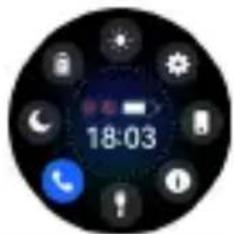
Pagina controlli


ALLENAMENTO
MUSICA
MESSAGGI
METEO
SVEGLIA
IMPOSTAZIONI
TIMER
Please read the manual before use.
- The information contained in this document will not be modified or extended in accordance with any notice.
- The watch must be charged at least 2 hours before use.
1. Product Specifications
- Model: T-Fit 300 CALL
- CPU RTL 8763EW
- ROM 128Mb
- Capacitive Touch screen 1.32" 360x360 pixel HD
- Bluetooth version 5.0 (frequency 2.4GHz, maximum transmission power 2.5MHz)
- Functions: BT calling, Heart rate detection, Blood pressure monitor, Blood Oxygen, Sleep monitor, Sedentary, Remote Camera, Control music, Weather, Multi-sport functions, Pedometer, Calorie Consumption, Distance Calculation.
- Ion Lithio Battery 3.7V/260mAh
- Waterproof protection: IP67
- Operating system: Android 5.0, iOS 9.0 or above
2. Charging instruction
This product adopts magnetic base charging connection. There are metal contacts on the back of the watch, bring these contacts close to the charging base, this will tend to align itself correctly automatically. Connect the USB socket of the charging base to a computer or to a 5V 1A power supply with a USB port. It is possible to view the charge status on the display.

T-Fit 300 CALL
English
Warning: do not connect the charging base to conductive materials, it causes short circuits.
3. Product details
3.1 Power ON/ OFF
(1) Power ON: with clock OFF, press and hold the side crown for 5 seconds. After startup, the time will be displayed.
(2) Power OFF: with watch ON, hold down the side crown for 4 seconds, slide the control on the display to the right, the clock will vibrate and then turn off.
3.2 Product description

3.3 How to wear the watch
- Wear the watch after the ulnar styloid.

T-Fit 300 CALL
English
- Fasten the strap to your wrist by adjusting it perfectly to the size of your wrist.
- Keep the sensor as close to the skin, avoid any movement and that external light influences the accuracy of the tests.
- Keep the test area clean, sweat or stains will affect the test results.

3.4 Dial Switch
Press and hold for 2 seconds on the main screen to enter the watch face switching interface, swipe left and right to switch the watch face to be selected and click the selected watch face. Within its App, select your favorite watch face and load it on the watch by selecting "Download".
4. Use the Touch Screen
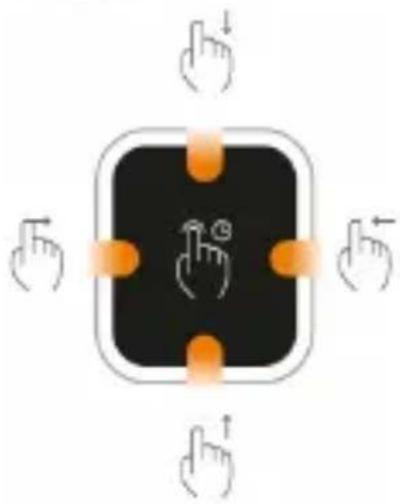
- Slide your finger across the display to view the various screens;
- Press the side crown to light up the screen, rotate it to change the dial; press it a second time to enter the function menu (icons), turn it to scroll through the various icons.
While navigating, press the crown to return to time display.
- Press the side button to enter sport mode directly; in navigation, press it to return to the previous page
4.1 Touch dial description
brouj
T-Fit 300 CALL
English
![graph TD A["Control Center"] -->|Swipe Down| B["18:03"] A -->|Swipe Up| C["10:56"] D["Menu"] -->|Swipe Left| E["7°C 57"] D -->|Swipe Right| F["2.64 0000000"] G["Message"] -->|Swipe Down| H["1/21/07"] G -->|Swipe Up| I["231/07 2.6"] J["Feature pages"] -->|Swipe Left| K["390"] J -->|Swipe Right| L["23…](/content/2026/05/936948/images/49806892512c8e276a1751388ee15103d348aceab6738daa7446d3796d2fd47f.jpg)

T-Fit 300 CALL
English
5. Downloading App and use
5.1 APP download and installation Method 1
(1) After the first boot, select the language, the QR code will appear. Scan the QR code with your smartphone and download the App "FitCloudPro". Long press for 3 seconds to skip this step.
Method 2
(2) Download App: iOS mobile phones can search for "FitCloudPro" in the App Store and Android mobile phones can search for "Fit CloudPro" in other app stores (such as Google Play) to download and install, or scan the following code:

Note: Your smartphone must support Android 5.1 or iOS 9.0 or above and Bluetooth version 5.0 or above.
5.2 APP pairing with Android and iOS phones
(1) After downloading the App, open it and set up your profile;
(2) In the main screen select the item "Device" at the bottom;
(3) Select the item "Add device" and then start the search by selecting "Search";

T-Fit 300 CALL
English
(4) Wait a few seconds and select "TFit300CALL" from the list of devices found;
(5) After pairing, the icon on the controls page it will no longer be red.
Pairing for Call, SMS and Directory Management:
(1) Once the pairing has taken place, a window will appear on the phone asking for authorization to manage calls from your watch, accept and also authorize the subsequent windows that will appear for SMS and notification messages.
Caution:
- If consent is not given to all the proposed authorization requests (access to calls, messages, directory, etc...), some watch functions will not activate and therefore will not work.
- To change the wrongly set permissions you will need to:
- Uninstall the "FitCloud Pro" App;
-
On your smartphone, to open the market shop ("Play store" for Android and "App Store" for iOS):
-
select your account;
- select "Manage app and device", then select "Manage" at the top;
- in the "Installed" box, select "Not installed"; the list of all the Apps in your account will be displayed (not just those on your smartphone);
- select and delete "FitCloud Pro".
- Download the "FitCloud Pro" App again and, once opened, give your consent to all authorization requests.

T-Fit 300 CALL
English
(2) After connecting the watch to the mobile phone, you can use the watch to dial a number, control the mobile phone, make calls or answer calls directly from the watch. You can also view call log information at the same time. When using the call function, make sure the connection between the watch and mobile phone is stable.


6. Smart Watch Features
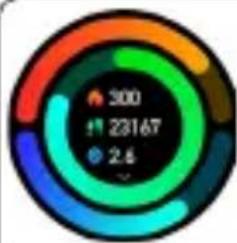
DATA
It display the step number, distance and calories on the same day. You can set a goal on the App, including step number distance and calories

HEART RATE
The smart watch could record your heart rate all day. You also could tap on the page to start measuring heart rate.

WORKOUT
Tap the workout icon on the Menu to start a new training measure recording. The last workout recording will be shown on the training page

If you keep wearing smart watch in your sleep, it can provide the hours slept and quality of sleep stats on both the screen and the App. The device will recalculate the data information for the new day.

BLOOD PRESSURE
Tap the blood pressure icon to start measuring your blood pressure.
On the blod pressure page, it can show the blood pressure measured data of the last times.
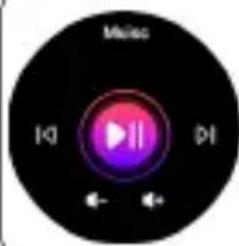
MUSIC
Keep the watch connected to the App. You can control the pause and start of the mobile phone music player, and song switching.

BLOOD OXYGEN
Tap the blood oxygen icon to start measuring your blood oxygen.
On the blood oxygen page, it can show the blood oxygen measured data of the last time.

MESSAGES
Open information push on the App and the watch can receive the corresponding message. You can switch On/Off the incoming notification in the App.
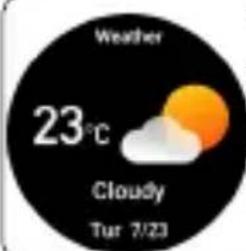
WEATHER
After you connect your watch with App and open the location permission, the weather interface will display the real-time temperature and weather type.

ALARM CLOCK
Keep the watch connected to the App, you can set a single alarm clock or a cyclic alarm clock. You can set up to 5 alarm clocks, the device will vibrate to remind on time.
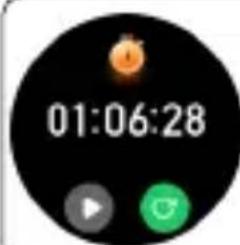
STOPWATCH
Tap the start button on stopwatch page to start timing, and tap the stop button to stop timing.

BREATHING EXERCISES
Guided breathing exercises to help reduce personal stress

SETTINGS
Settings include menu style, screen display Battery, language, password, QR, system, etc.
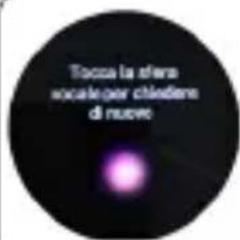
To activate the voice assistant of your smartphone

TIMER
Select the time from the pre-set ones.
You can perform one or more actions automatically at set time intervals.

T-Fit 300 CALL
English
7. WARNING
The smart watch should not be used for any medical purpose though it with dynamically monitor the heart rate at real time. The data is for reference only.
Always consult your doctor before starting a exercise program.
Warnings
This device is an electronic instrument of high precision; therefore, avoid using it in the following cases:
- Close to strong heat sources such as heaters and stoves.
• In environments that are too cold or too hot or very dusty. - The appliance must not be exposed to dripping or splashing water. No liquid-filled objects, such as vases, must be placed on the appliance.
- If liquids penetrate into the device, bring the device to the nearest authorized TREVI service Centre.
- Do not use the device near flammable or explosive gases, this may cause a malfunction of the device or a fire hazard.
- No naked flame sources, such as lighted candles, must be placed on the appliance.
- Keep the device out of reach of children. The device is not a toy. The device is made up of small removable parts which, if ingested, can cause suffocation.
- Do not expose the device to strong shocks.
- Store the product in a dry place when you are not using it.
- Keep this instruction manual.

T-Fit 300 CALL
English
8. Common problem handling
Watch won't turn on
- Please press and hold the power button fore more that 3 seconds.
- Maybe the battery is too low, please charge it in time.
Bluetooth is not connected or unable to connect
- Please, try to restart the watch and reconnect.
- Please, try to restart the phone's Bluetooth and connect again.
- Do not connect the phone to other Bluetooth devices at the same time.
Inaccurate heart rate/ blood pressure/ blood oxygen
- Generally, it is caused by poor contact between the sensor of the watch and the human body during measurement.
- Please, make sure that the sensor is in full contact with your wrist during measurement.
- Please keep your body still and the watch close to your wrist during measurement.
- For people with darker skin and more hair on their arms, please turn on the enhanced measurement in the App (Device > Elevated Heart Ratenhanced Measurement).
Sleep data is not accurate enough
- Sleep monitoring is to simulate the natural state of falling asleep and waking up, and needs to be worn normally.
- Wear it when you fall asleep too late or when you fall asleep, errors may occur.
- Sleep data is not monitored during the day, and the default sleep monitoring is from 9:30 pm to 12:00 noon the next day.
T-Fit 300 CALL
English
Precautions for correct disposal of the product
The symbol shown on the equipment indicates that waste must be disposed of in “separate collection” and so the product must not be disposed of together with urban waste. The user must take the product to special “separate waste collection centres” provided by local government, or deliver it to the retailer against the purchase of a new product. Separate collection of waste and subsequent treatment, recycling and disposal operations promotes the production of equipment with recycled materials and limits negative effects on the environment and on health caused by improper handling of waste. Illegal disposal of the product leads to the enforcement of administrative penalties.

T-Fit 300 CALL
https://www.trevi.it/dms/zidi/TREVI/DOCTFIT300CALL.pdf
Simplified EU Declaration Of Conformity
Hereby TREVI S.p.A. declares that the equipment T-Fit 300 CALL
is in compliance with Directive 2014/53/EU.
The full text of the EU declaration of conformity is available at the following internet address
https://www.trevi.it/dms/zidi/TREVI/DOCTFIT300CALL.pdf
- Per ulteriori informazioni e aggiornamenti di questo prodotto vedi: www.trevi.it
- For additional information and updates of this product see: www.trevi.it
- Pour plus d'informations et mises à jour de ce produit, voir: www.trevi.it
- Weitere Informationen und Updates zu diesem Produkt finden Sie unter: www.trevi.it
- Para obtener información adicional y actualizaciones de este producto, consulte: www.trevi.it

Strada Consolare Rimini-San Marino, 62 47924 Rimini (RN) Italy
Tel. 0541/756420 - Fax 0541/756430
www.trevi.it - e-mail: info@trevi.it


- T-FIT 300 CALL
- ALLENAMENTO
- MUSICA
- MESSAGGI
- METEO
- SVEGLIA
- IMPOSTAZIONI
- TIMER
- PRODUCT SPECIFICATIONS
- CHARGING INSTRUCTION
- ENGLISH
- PRODUCT DETAILS
- 3.1 POWER ON/ OFF
- 3.2 PRODUCT DESCRIPTION
- 3.3 HOW TO WEAR THE WATCH
- 3.4 DIAL SWITCH
- USE THE TOUCH SCREEN
- 4.1 TOUCH DIAL DESCRIPTION
- DOWNLOADING APP AND USE
- 5.1 APP DOWNLOAD AND INSTALLATION METHOD 1
- METHOD 2
- 5.2 APP PAIRING WITH ANDROID AND IOS PHONES
- PAIRING FOR CALL, SMS AND DIRECTORY MANAGEMENT
- CAUTION
- SMART WATCH FEATURES
- DATA
- HEART RATE
- WORKOUT
- BLOOD PRESSURE
- MUSIC
- BLOOD OXYGEN
- MESSAGES
- WEATHER
- ALARM CLOCK
- STOPWATCH
- BREATHING EXERCISES
- SETTINGS
- WARNING
- WARNINGS
- COMMON PROBLEM HANDLING
- WATCH WON'T TURN ON
- BLUETOOTH IS NOT CONNECTED OR UNABLE TO CONNECT
- INACCURATE HEART RATE/ BLOOD PRESSURE/ BLOOD OXYGEN
- SLEEP DATA IS NOT ACCURATE ENOUGH
- PRECAUTIONS FOR CORRECT DISPOSAL OF THE PRODUCT
- SIMPLIFIED EU DECLARATION OF CONFORMITY
Brand : Trevi
Model : T-Fit 300 Call
Category : Smartwatch