
BW615PTR - Baby monitor UNIDEN - Free user manual and instructions
Find the device manual for free BW615PTR UNIDEN in PDF.


| Product Type | Digital Baby Monitor (Camera and Monitor System) |
| Brand | Uniden |
| Model | BW615PTR |
| Image Sensor | 1/2.8" Color CMOS |
| Video Resolution | 2304 x 1296 |
| Pan Range | 0° to 355° |
| Tilt Range | 0° to 60° |
| Viewing Angle | 105° |
| Two-Way Audio | Yes |
| Night Vision | Up to 10m |
| Temperature Sensor | Yes |
| Humidity Sensor | Yes |
| Wi-Fi | 2.4GHz (IEEE802.11b/g/n) |
| Transmission Range (Monitor) | Up to 150m line of sight |
| Transmission Range (Wi-Fi) | Up to 50m line of sight |
| Smart Home Compatible | Google Assistant / Alexa |
| Storage | Supports microSD card up to 128GB (FAT32) |
| Power Input | 5V/1A via micro USB |
| Operating Temperature | -10°C to 40°C (14°F to 104°F) |
| Operating Humidity | Within 80% Relative Humidity |
| Cleaning | Clean camera lens with a microfiber cloth; use dry cloth only |
| Safety Warning | Keep adaptor cords out of reach of children; not waterproof; avoid direct sunlight |
| Box Contents | Camera, AC Adaptor, USB Cable, Screws and anchors, Bracket, Reset Pin |
Frequently Asked Questions - BW615PTR UNIDEN
User questions about BW615PTR UNIDEN
0 question about this device. Answer the ones you know or ask your own.
Ask a new question about this device
Download the instructions for your Baby monitor in PDF format for free! Find your manual BW615PTR - UNIDEN and take your electronic device back in hand. On this page are published all the documents necessary for the use of your device. BW615PTR by UNIDEN.
USER MANUAL BW615PTR UNIDEN
Additional/Standalone Camera Baby Monitoring System
For more exciting new products please visit our website: Australia: www.uniden.com.au
OWNER'S MANUAL
IMPORTANT SAFETY INSTRUCTIONS
This manual contains important information about this product's operation. If you are installing this product for others, you must leave this manual or a copy with the end user.
When using your equipment, always follow basic safety precautions to reduce the risk of fire, electric shock and injury to persons, including the following:
- This equipment is NOT waterproof. DO NOT expose it to rain or moisture.
- DO NOT immerse any part of the product in water. Do not use this product near water, e.g., near a bathtub, wash bowl, kitchen sink or laundry tub, in a wet basement or near a swimming pool.
- To avoid any risk of electric shock from lightning, avoid handling any electronic devices (except battery powered ones) during an electrical storm.
- Use only the power cord and/or batteries indicated in this manual.
- Never tug or pull on any power cord: be sure to leave some slack in the cord when placing your equipment, and always use the plug to unplug cord from the wall outlet.
- Never leave power cords where they can become crushed, cut, or frayed; when running power cords, avoid letting them rub against any sharp edges or lie across any high traffic areas where people might trip over them.
- Do not use the device if the adaptor cords or plugs have been damaged, the unit has been exposed to liquids, or the unit has been dropped or is damaged.
MAINTAINING YOUR SYSTEM
When dust and grime builds up on the camera lens and glass, it affects the camera's “vision.” Use a microfiber cloth to regularly clean the cameras or when night vision video is cloudy or unclear.
Warning to Parents and Other Users
Failure to follow these warnings and the assembly instructions could result in serious injury or death. This product is not designed or intended for use as a medical monitor, nor should this product be used as a substitution for medical or parental supervision. Always be sure that both the transmitter and receiver are working properly, and are within range of each other.
STRANGULATION HAZARD. Keep the adaptor cords out of the reach of children.
WARNING: KEEP OUT OF THE REACH OF CHILDREN.
Allow for proper ventilation when units are in use. Do not cover the camera or receiver with any object such as a blanket. Do not place it in a drawer or in any location which would muffle the sound or interfere with the normal flow of air.
SAVE THESE INSTRUCTIONS!
For best results
To avoid damage to your equipment, follow these simple precautions:
- Do not drop, puncture or disassemble any part of the equipment. There are no user-serviceable parts inside.
- Do not expose the equipment to high temperatures, and avoid leaving the equipment in direct sunlight for more than a few minutes. Heat can damage the case or electrical parts.
- Do not place heavy items on top of the equipment or expose the equipment to heavy pressure.
- Remove the power adaptor during long periods between usages.
- Clean only with a dry cloth.
Failure to follow the instructions in this operating manual will void the warranty. Uniden assumes no liability for damages to property or injury to persons caused by improper handling or failure to comply with these safety instructions.
CONTENTS
WHAT'S IN THE BOX? 5
GETTING STARTED......6
INSTALLATION 8
CAMERA INSTALLATION 8
PAIRINGTOTHEMONITOR....10
USING THEBABYMONITOR....11
CAMERA SELECTION....11
BABY WATCH PLUS APP....12
REMOTE VIEWING VIA APP 12
LIVEVIEW....17
HISTORY....18
TROUBLESHOOTING 19
SPECIFICATION 20
TWO-YEAR LIMITED WARRANTY 22
WHAT'S IN THE BOX?
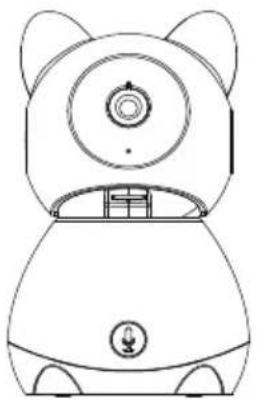
natural_image
Line drawing of a cartoon robot with round head, camera lens, and front-mounted device (no text or symbols)BW615PTR Camera*
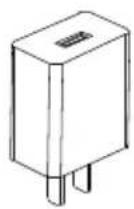
AC Adaptor
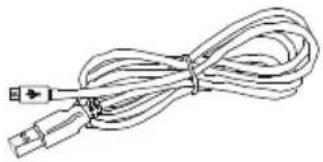
natural_image
Line drawing of a bundled cable with connectors (no text or symbols)USB Cable
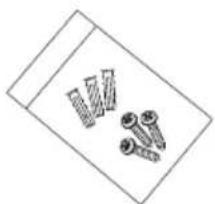
natural_image
Simple line drawing of three screws and two bolts on a rectangular surface (no text or symbols)Screws and anchors
natural_image
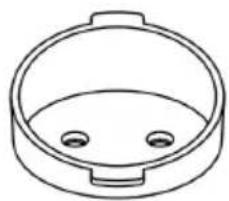
Simple line drawing of a circular container with two small circular holes (no text or symbols)Bracket
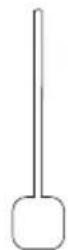
Reset Pin
- If any item is missing or damaged, contact your place of purchase immediately. Never use damaged products!
- Need help? Get answers at our website: www.uniden.com.au for Australian model
All trademarks are registered trademarks of their respective owners.
GETTING STARTED
Camera
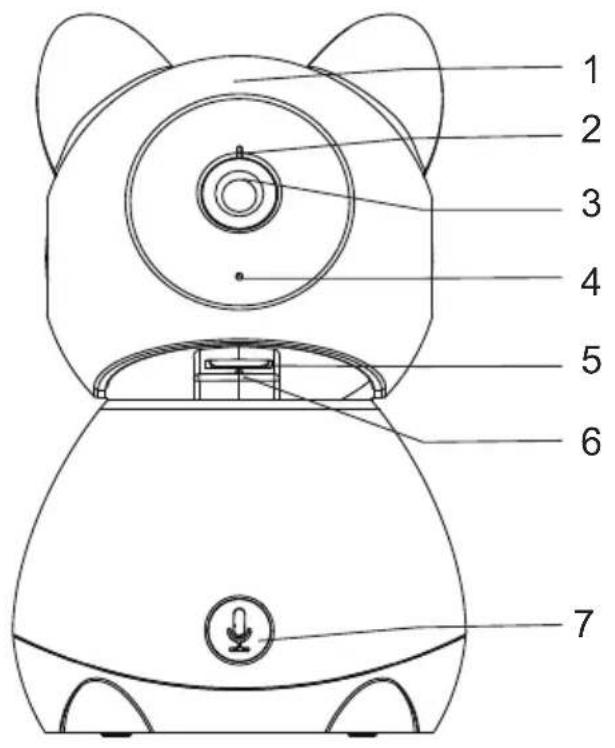
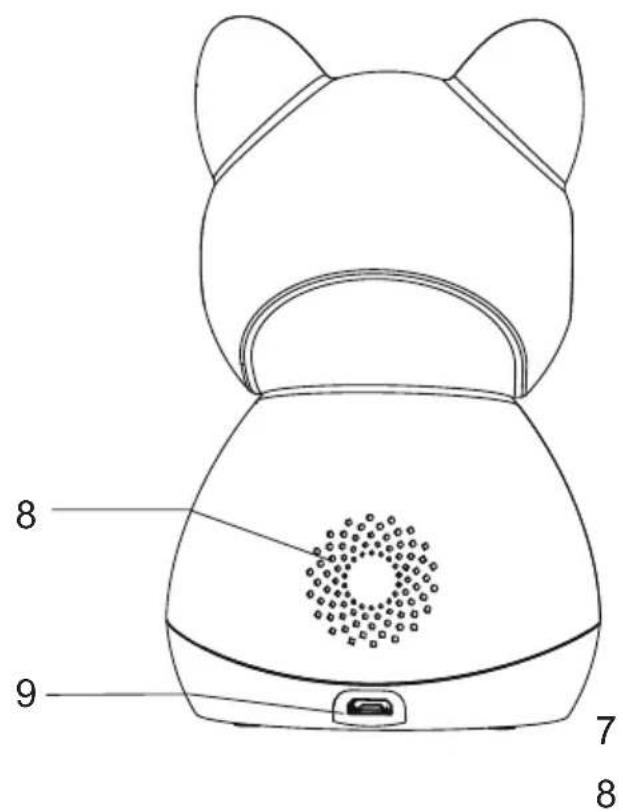
| Item | What it does |
| 1 Silicone Sleeve | |
| 2 Status Light:Solid Red: Camera is malfunction.Slow Blinking Red: Waiting for network configuration.Fast Blinking Red: Fail to connect to the network/waiting for network connection.Solid Blue: Camera connected to the network. | |
| 3 Lens: Camera lens. | |
| 4 | Microphone: Captures sounds for the area near the camera. |
| 5 MicroSD Card Slot: Insert microSD card (up to 128GB) to record video. | |
| 6 Reset: Insert and hold the reset pin until the prompt tone is heard to reset the camera. | |
| 7 | PAIR: Press and hold until the prompt tone is heard to start pairing. |
| 8 | Speaker: Produces the sound transmitted from the monitor. |
| 9 USB Port: Connects the USB cable to the camera. | |
INSTALLATION
CAMERA INSTALLATION
Placement Considerations
The camera can be placed on a shelf with the bracket fixed or on the wall with the bracket anchored to the wall.
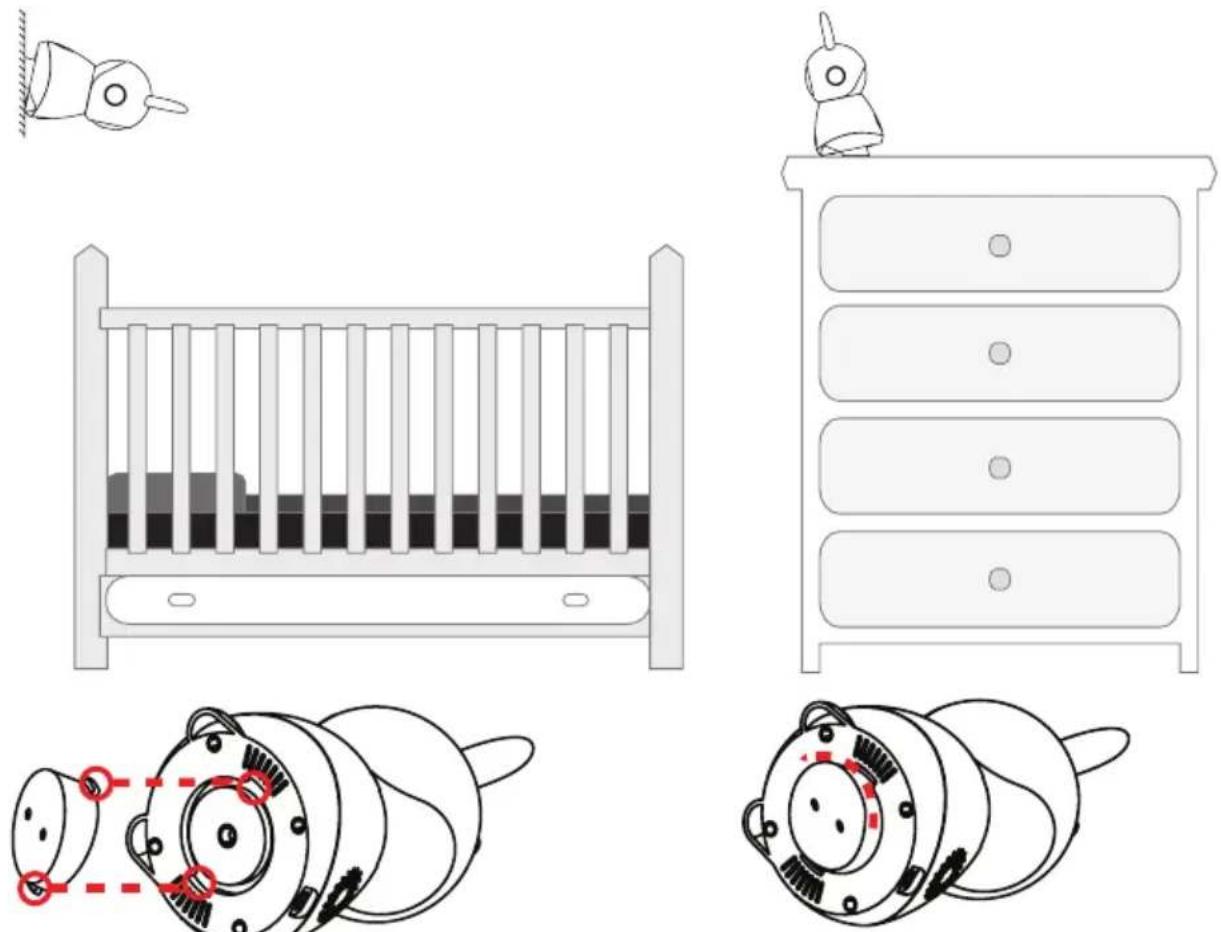
Align the base of the camera to the bracket.
Rotate the camera clockwise to slip into the bracket and secure the camera in position.
- The camera included is NOT weatherproof; it is an indoor camera.
- Avoid having a direct light source in view of the camera (ceiling or floor lamps).
- Carefully plan where and how the camera will be positioned, and where you will route the cable that connects the camera to the power adaptor.
- If you are planning to pair it to a monitor, the clearest line-of-sight between the camera and monitor is best. Walls, especially brick and concrete, can affect reception quality.
- When pairing to a monitor, to positioning the camera, bring the monitor along; it's much easier to get the camera into the right position when you have the display handy. Check the image on the monitor before you install the camera.
You can install a maximum of 2 cameras to a BW61xx series monitor. When pairing the additional camera, you will need to pair the cameras with the monitor.
Powering the Camera
Insert one end of the micro USB cable to the micro USB port on the camera (at the back of the camera).
Connect the other end of the USB cable into the USB power adaptor.
Connect the USB power adaptor into a 240 volt AC (standard indoor) power outlet.
Switch on the plug and allow the camera to power up.
PAIRING TO THE MONITOR
Pairing the camera to the monitor:
- Press the Menu button on the monitor, and select ⚙️ > Camera Management > Camera icon that is greyed out.
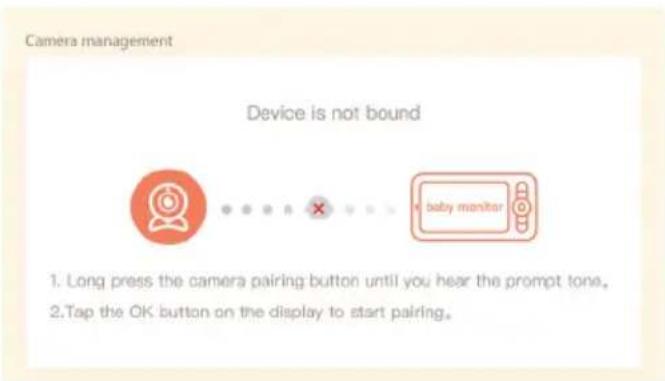
- Press and hold the pairing button on the camera until you hear the prompt tone.
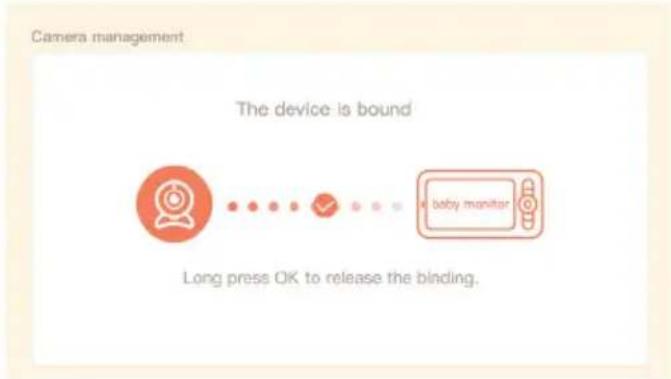
flowchart
graph LR
    A["Camera management"] --> B{The device is bound}
    B --> C["Long press OK to release the binding."]
    C --> D["baby monitor"]
- Press OK button on the display screen to start pairing.
Unpair the camera from the monitor:
- Press the Menu button on the monitor, and select ⚙ > Camera Management.
- Press and hold OK button on the monitor to unpair the camera.
The viewing range is limited to no more than 150m in line of sight. Other factors such as house walls, layout and electronic devices will affect the transmission range.
USING THE BABY MONITOR
The BW61xxR series monitor supports up to two camera connections and able to display two camera feeds at the same time.
To set parameters or enable functions of one of the cameras, you will need to select the camera first.
Camera Selection:
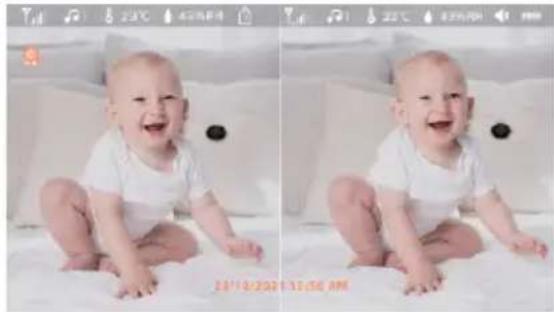
Press the back key on the home page to enter the camera selection mode. The camera icon will appear on the camera live view screen and will start flashing. Press the LEFT or RIGHT button to switch the camera to be controlled and press OK to select the camera.
To enjoy one camera view, please press OK again after selecting the camera. The below interfaces are for reference only.
natural_image
Two side-by-side photos of a smiling baby sitting on a white surface, captured in two different angles (no text or symbols visible)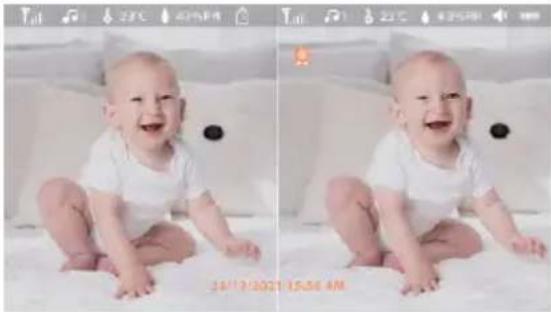
natural_image
Two side-by-side photos of a smiling baby sitting on a white surface, captured in two different angles (no text or symbols visible)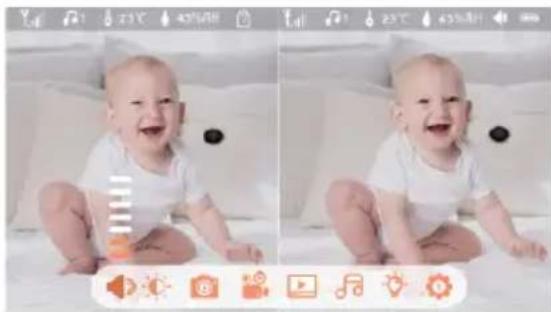
natural_image
Two identical photos of a smiling baby sitting on a white pillow, captured in a split view (no text or symbols visible)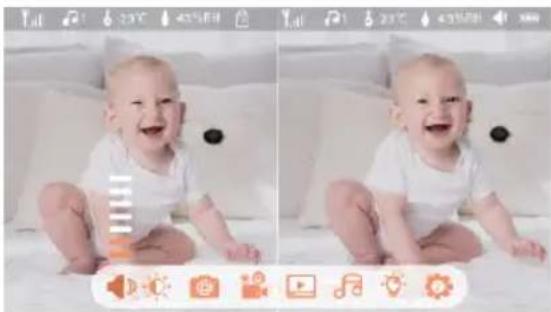
natural_image
Two identical photos of a smiling baby sitting on a bed, captured in side-by-side with no visible text or symbols.BABY WATCH PLUS APP
REMOTE VIEWING VIA APP
You can download Uniden Baby Watch Plus app to remotely view the camera.
To set up the baby monitor camera, please make sure it's successfully installed and powered on, and that the status indicator on the camera is flashing red slowly.
The flashing RED (slow) status means that your camera is ready to be paired to the Baby Watch Plus App.
Prerequisites
- You must have an available Wi-Fi-enabled Smartphone (Android or iOS smartphone).
- The BW615PTR camera and your smartphone must be within the same Wi-Fi network range for initial setup (ideally within 3m from the router).
-
Wi-Fi router connection is 2.4GHz and password if any.
-
Search and download the free Baby Watch Plus app from the App Store for iOS devices or Play Store for Android devices. You will need to create an account specifically for the Baby Watch Plus app. If you already have an account with Baby Watch Plus app, log in account and skip to Step 5.
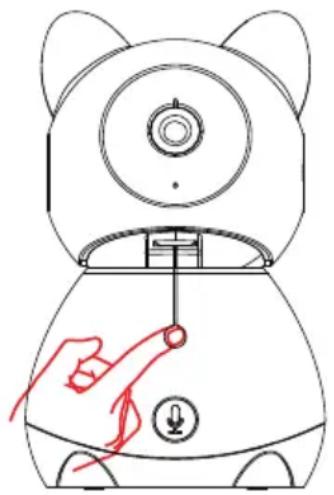
- When the status indicator on the camera starts flashing red slowly, the camera is ready to be paired with the Wi-Fi network. If the status indicator is not red or flashing quickly, insert a pin to press and hold the reset button for 5 seconds, wait for the status indicator to flashing red slowly.
Press and hold
for 5 seconds
natural_image
Line drawing of a robot with a hand pointing at the ear and a small download button (no text or symbols)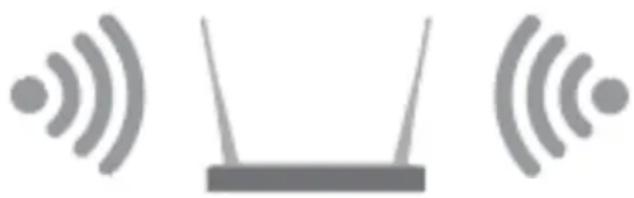
natural_image
Simple line drawing of a router with two wireless signals (no text or symbols)Please keep network available

* Please note that app screenshots are for reference only. User Interface for iPhone and Android Phones might differ in terms of icons layout and functionality and may change without notice.
As the Baby Watch Plus app is constantly under development to enrich user experience, the icons/ screens shown may vary slightly from the actual app.
- When launch the Baby Watch app for the first time, you will see the login page. Tap the "Sign Up" button to create a new Baby Watch Plus account.
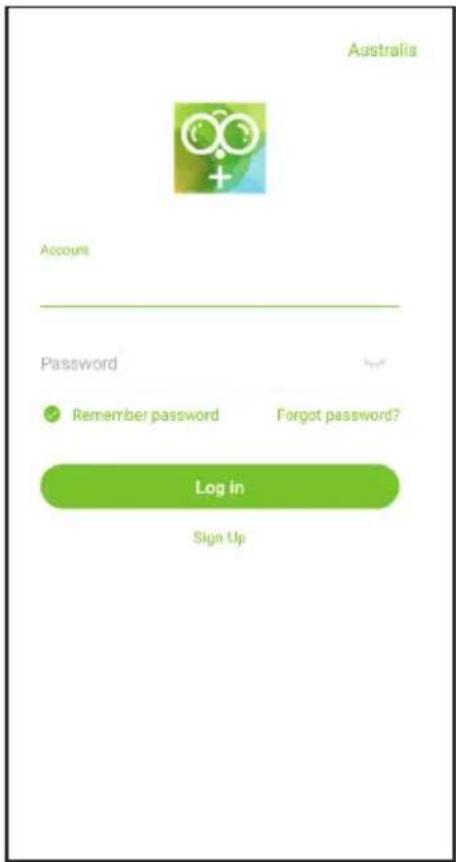
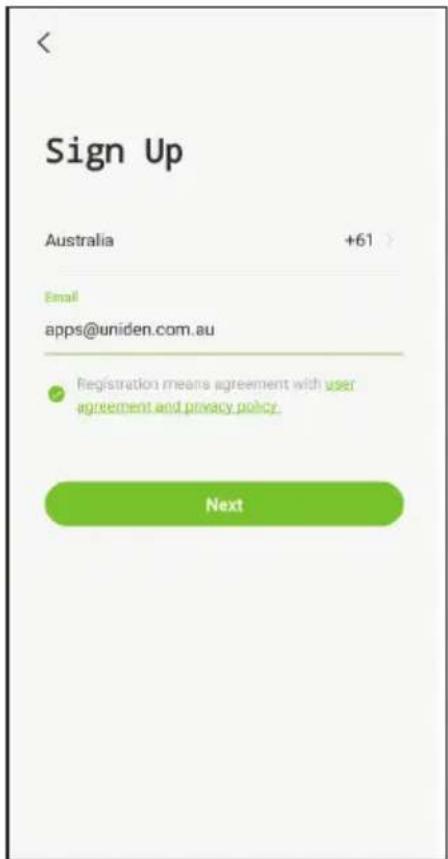
- Enter your email address you wish to register with and check the user agreement privacy policies. Tap "Next" button to continue.
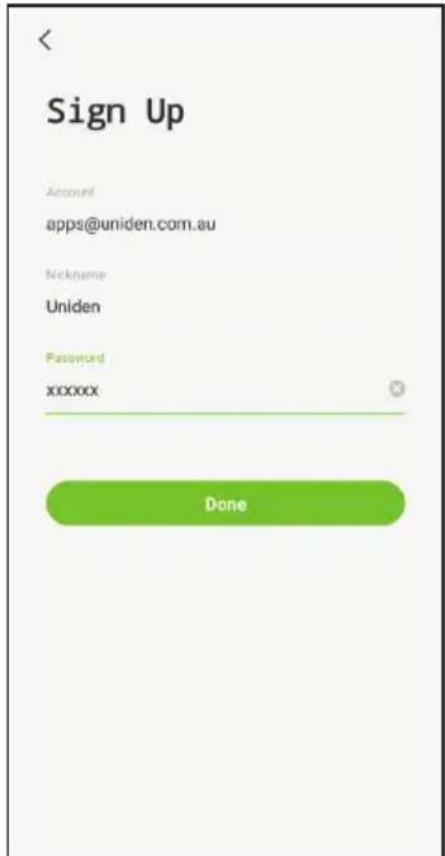
- Name your account and enter your password. Tap Done button and you'll be all set. Your Baby Watch App account has now been created.
- On the devices tab, to add a device, tap the “+” button on the middle of the screen or on the top right-hand side of the screen if you already have shared access or a paired device.
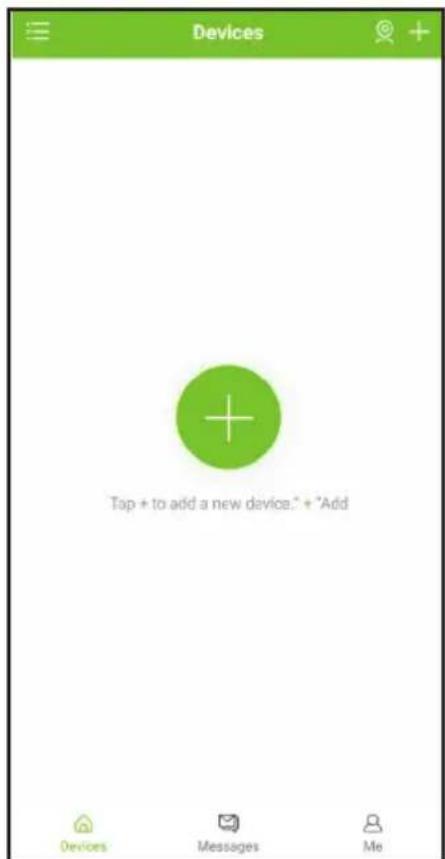
- Please ensure the camera is powered on and is within the range of the router. Tap "Next" to continue. If the indicator light on the camera is not flashing slowly, press and hold the reset button with the reset pin for 5 seconds to reset the camera and set it up within 2 minutes. When the camera is flashing slowly, the camera is ready to set up tap "Next" to continue.
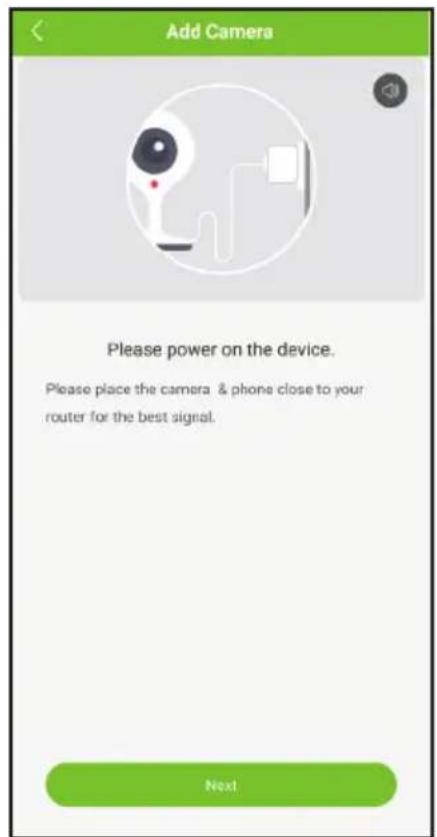
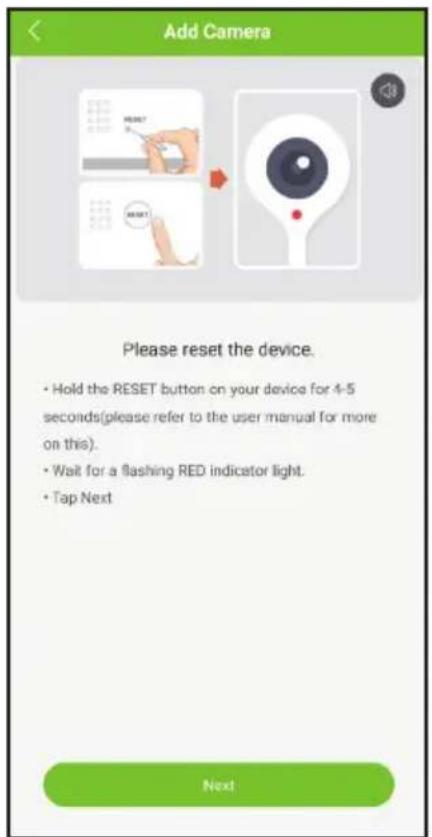
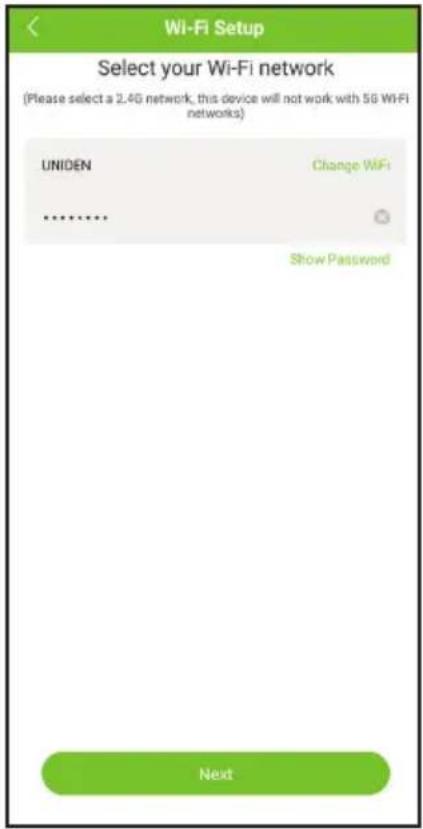
- Enter the Wi-Fi password of the selected Wi-Fi network and tap "Next" to confirm the Wi-Fi name and password. Tap "Ok" to continue. Please note that the camera only supports 2.4GHz Wi-Fi connection and the Wi-Fi SSID and password must not exceed 24 characters.
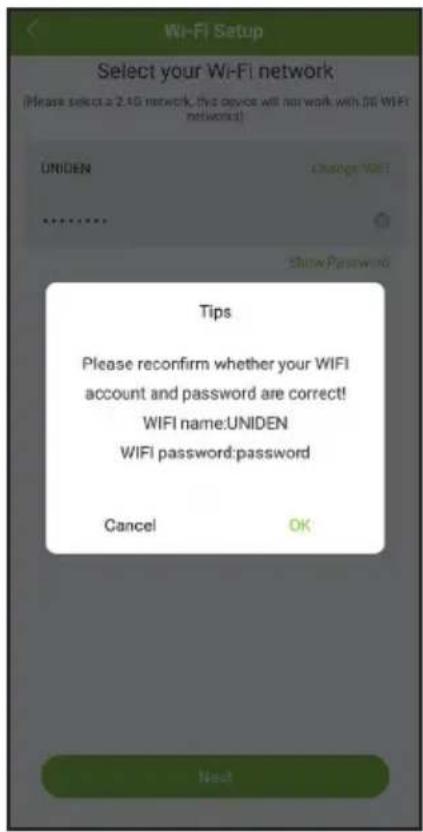
- Please make sure that you've ripped the protection film off the camera's lens. Tap "Next" and a QR code will be generated on the screen. Please place the QR code on screen towards the camera lens at a distance of about 15\~20cm to let the camera scan the QR code. After you hear the voice prompt from the camera, please press "Next" to continue.
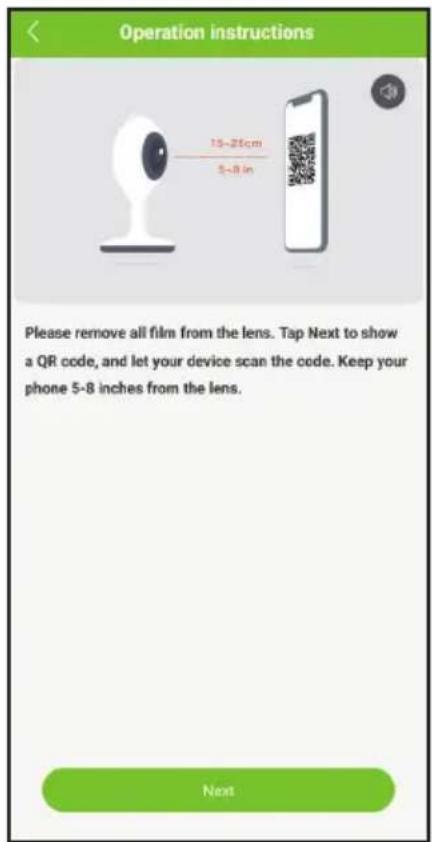
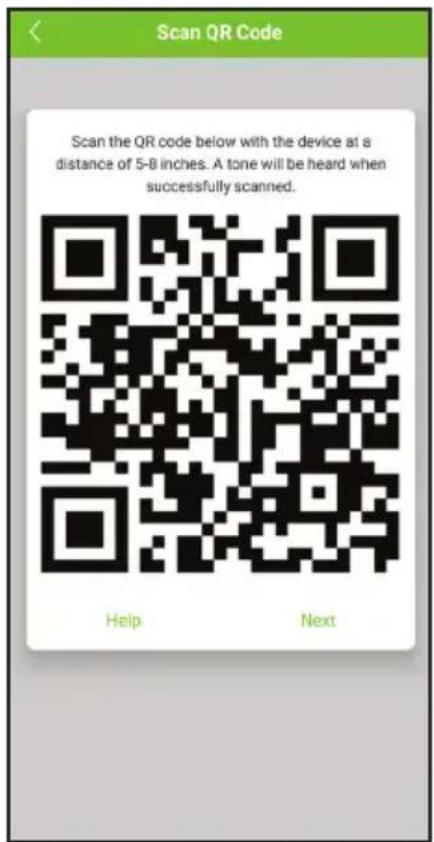
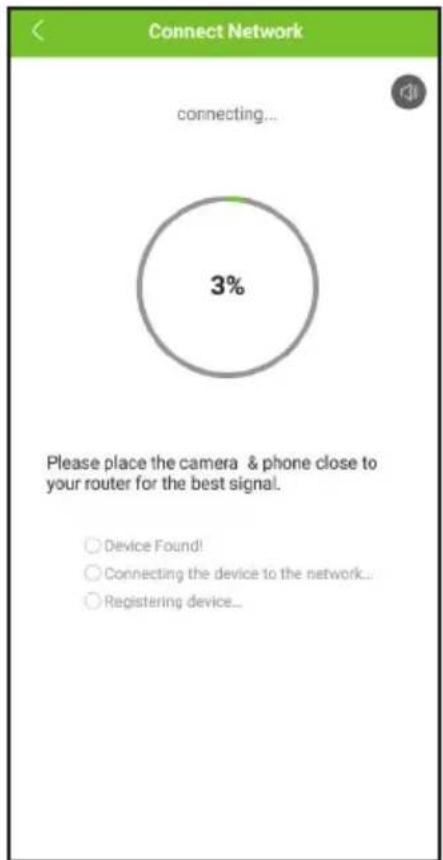
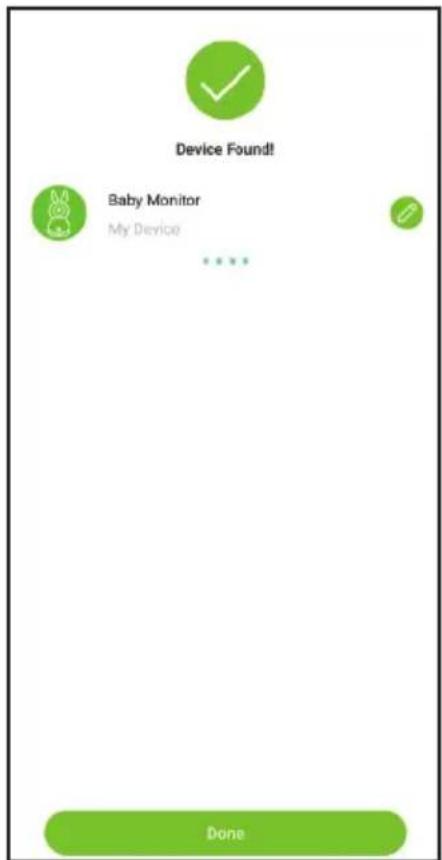
- Please wait while the app is configuring your camera. Once completed, you'll be prompted to name your camera and tap "Done" to start the Live View.
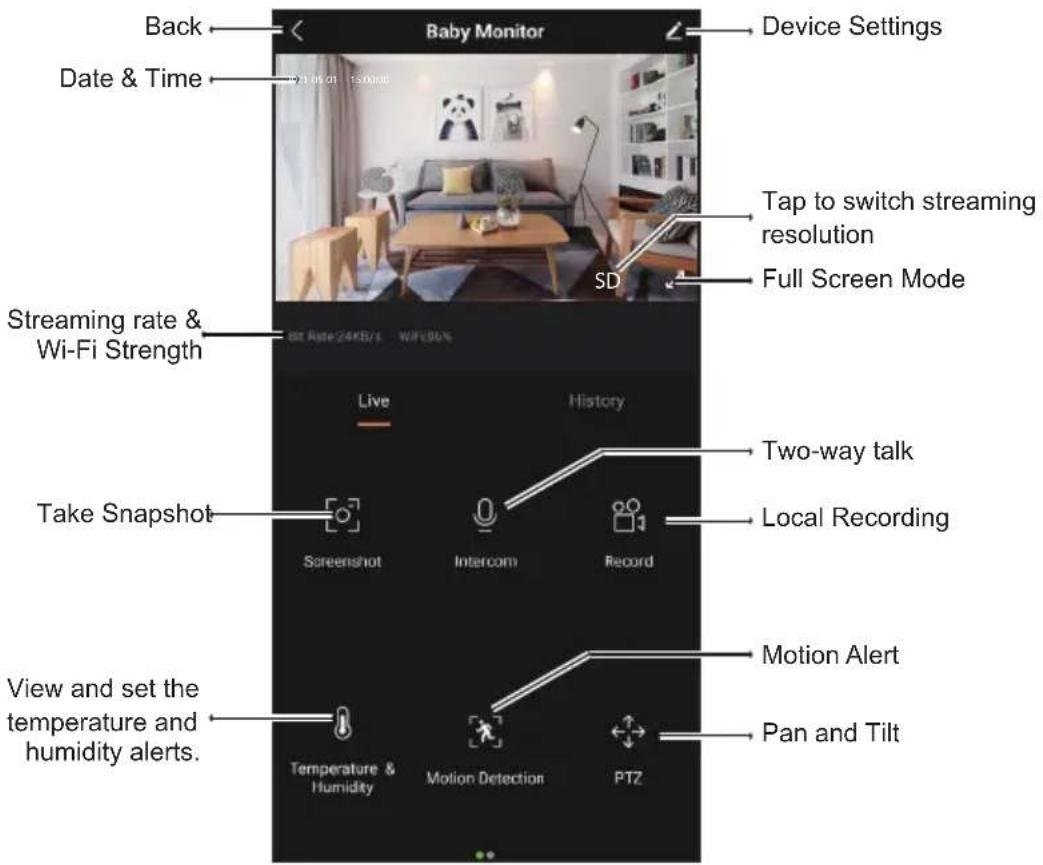
LIVE VIEW
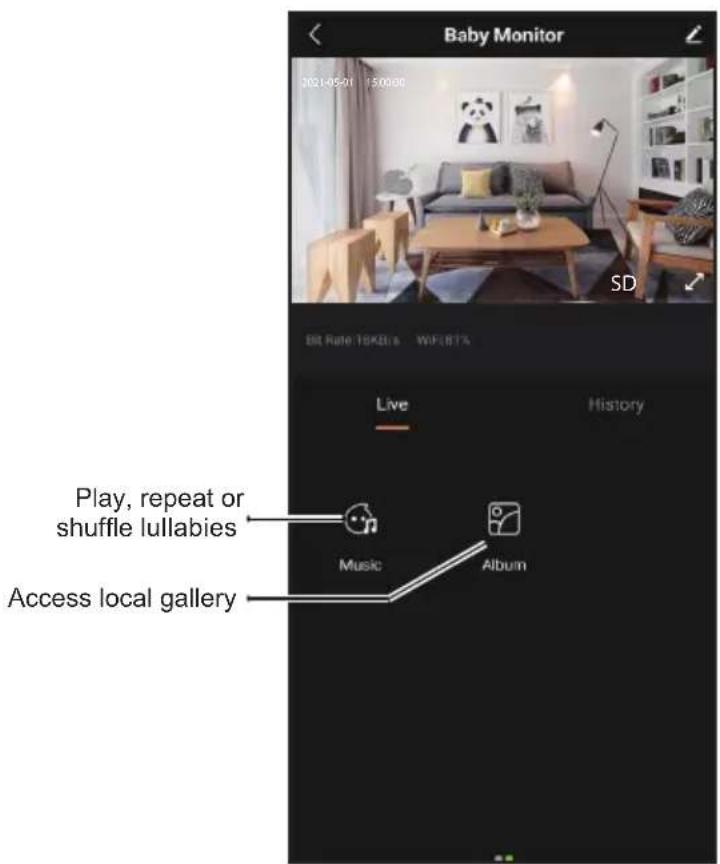
Scroll to the right.
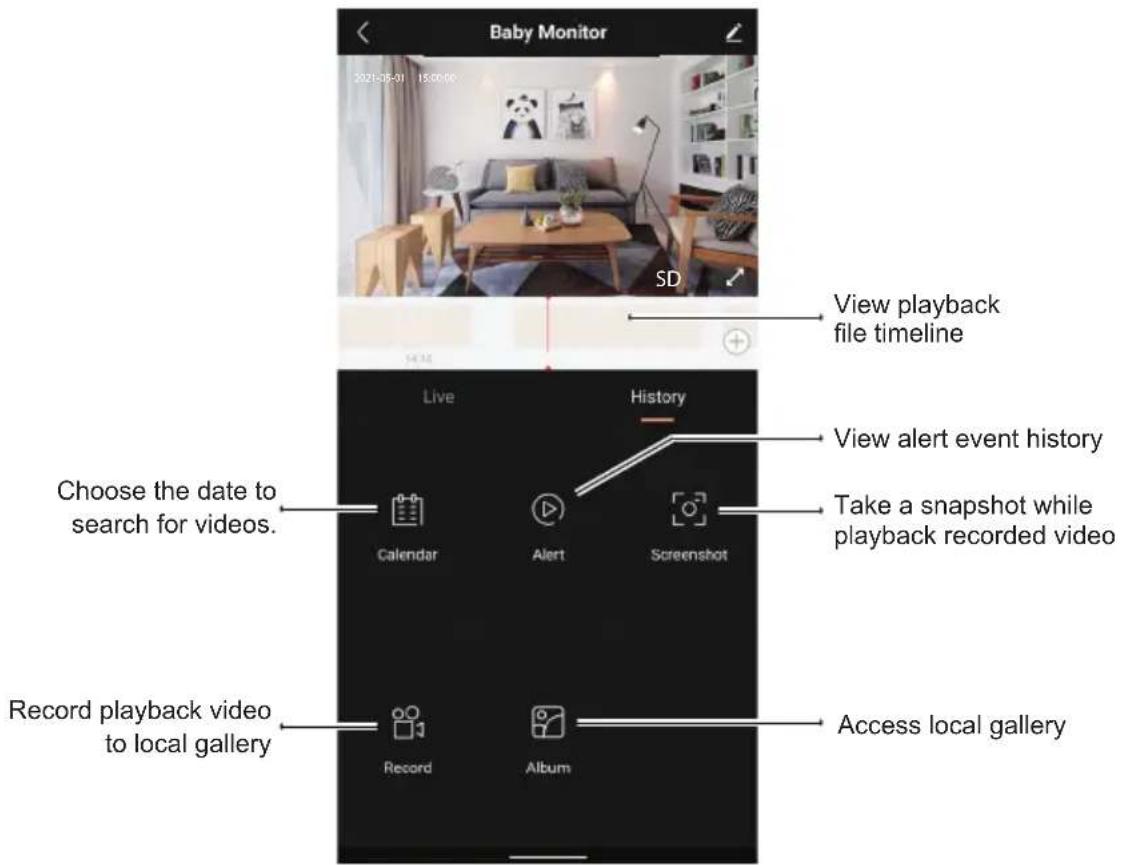
HISTORY
Please note that a SD Card is needed and inserted to the camera for the lullabies to download and playback.
Only the event recording and Full-Day recording are saved in the SD Card. Any event history is saved in the SD Card.
Local recording and snapshot are saved to the phone gallery.
TROUBLESHOOTING
If you have problems with the system, there is often a quick and simple solution. Please try the following:
| If Try | |
| There is no picture on the monitor from the camera | ·checking all connections to the camera. Make sure the adaptor is plugged in.·making sure that the cameras and monitor are both ON.·making sure that the camera is in range of the monitor. |
| The picture keeps dropping on the monitor | ·moving the camera closer to the monitor.·repositioning the camera, monitor or both to improve the reception.·adjusting the monitor antenna to vertical position. |
| There are audio problems | ·making sure that there is sound within range of the camera microphone.·moving the camera or monitor farther apart if the unit emits a loud screeching noise. |
| There is an irregular beeping coming from the monitor | That is the Alert tone. Go to the Alert screen to turn the alert volume down or off . |
| The picture has become choppy | The picture may become choppy when experiencing a lower frame rate. Try:·moving the camera closer to the monitor.·removing obstructions between the monitor and camera.·adjusting the monitor and antenna to vertical position. |
| The monitor picture has frozen | Use the reset pin included to reset the monitor. The monitor turns off. Press POWER to turn it back on again. |
| You can’t record video or take a snapshot | Ensure a micro SD Card is inserted and format the SD card with the system. The SD Card needs to be FAT32 format. |
| The camera is not found when setting up or could not connect to the router. | Make sure the Wi-Fi router supports DHCP protocol and the option is turned on. Make sure the camera and your mobile device connect to the same Wi-Fi router and selected the correct 2.4GHz Wi-Fi SSID and entered the correct password. |
SPECIFICATION
CAMERA
| Image Sensor 1/2.8" Colour CMOS | |
| Video Resolution 2304 x 1296 | |
| Rotation Angle Pan:0~355° | Tilt: 0~60° |
| Viewing Angle 105° | |
| Two-way Audio Yes | |
| Night Vision Up to 10m | |
| Temperature Sensor Yes | |
| Humidity Sensor Yes | |
| Wi-Fi 2.4G WIFI (IEEE802.11b/g/n) | |
| Transmission Range Wi-Fi: up to | 50m line of sightMonitor: up to 150m Line of sight |
| Smart Home Google Assistant / | Alexa |
| Storage Supports up to 128GB micro SD Card | |
| Power Input | 5V/1A |
| Operating Temperature Range | -10°C ~ 40°C (14°F ~ 104°F) |
| Operating Humidity Range | Within 80% Relative Humidity |
TWO-YEAR LIMITED WARRANTY
BW615PTR
IMPORTANT Satisfactory evidence of the original purchase is required for warranty service. Please refer to our Uniden website for any details or warranty durations offered in addition to those contained below.
Warrantor
The warrantor is Uniden Australia Pty Limited ABN 58 001 865 498 (“Uniden Aust”).
Terms of Warranty
Uniden Aust warrants to the original retail purchaser only that the BW615PTR Series (“the Product”), will be free from defects in materials and craftsmanship for the duration of the warranty period, subject to the limitations and exclusions set out below.
Warranty Period
This warranty to the original retail purchaser is only valid in the original country of purchase for a Product first purchased either in Australia or New Zealand and will expire, as indicated below, from the date of original retail sale.
| Product 2 Year | |
| Accessories 90 | Days |
If a warranty claim is made, this warranty will not apply if the Product is found by Uniden to be:
(A) Damaged or not maintained in a reasonable manner or as recommended in the relevant Uniden Owner's Manual;
(B) Modified, altered or used as part of any conversion kits, subassemblies or any configurations not sold by Uniden Aust;
(C) Improperly installed contrary to instructions contained in the relevant Owner's Manual
(D) Repaired by someone other than an authorized Uniden Repair Agent in relation to a defect or malfunction covered by this warranty; or
(E) Used in conjunction with any equipment, parts or a system not manufactured by Uniden.
Parts Covered
This warranty covers the Product and included accessories.
User-generated Data
This warranty does not cover any claimed loss of or damage to user-generated data (including but without limitation phone numbers, addresses and images) that may be stored on your Product.
Statement of Remedy
If the Product is found not to conform to this warranty as stated above, the Warrantor, at its discretion, will either repair the defect or replace the Product without any charge for parts or service. This warranty does not include any reimbursement or payment of any consequential damages claimed to arise from a Product's failure to comply with the warranty.
Our goods come with guarantees that cannot be excluded under the Australian Consumer Law. You are entitled to a replacement or refund for a major failure and for compensation for any other reasonably foreseeable loss or damage. You are also entitled to have the goods repaired or replaced if the goods fail to be of acceptable quality and the failure does not amount to a major failure.
This warranty is in addition to and sits alongside your rights under either the COMPETITION AND CONSUMER ACT 2010 (Australia) or the CONSUMER GUARANTEES ACT (New Zealand) as the case may be, none of which can be excluded.
Procedure for Obtaining Warranty Service
Depending on the country in which the Product was first purchased, if you believe that your Product does not conform with this warranty, you should deliver the Product, together with satisfactory evidence of your original purchase (such as a legible copy of the sales docket) to Uniden. Please refer to the Uniden website for address details. You should contact Uniden regarding any compensation that may be payable for your expenses incurred in making a warranty claim. Prior to delivery, we recommend that you make a backup copy of any phone numbers, images or other data stored on your Product, in case it is lost or damaged during warranty service.
UNIDEN AUSTRALIA PTY LTD
Phone number: 1300 366 895
Email address: custservice@uniden.com.au
Uniden®
©2022 Uniden Australia Pty Ltd Printed in PRC v1.0
- Additional/Standalone Camera Baby Monitoring System
- OWNER'S MANUAL
- IMPORTANT SAFETY INSTRUCTIONS
- MAINTAINING YOUR SYSTEM
- Warning to Parents and Other Users
- WARNING: KEEP OUT OF THE REACH OF CHILDREN.
- SAVE THESE INSTRUCTIONS!
- For best results
- CONTENTS
- WHAT'S IN THE BOX?
- GETTING STARTED
- Camera
- INSTALLATION
- CAMERA INSTALLATION
- Placement Considerations
- Powering the Camera
- PAIRING TO THE MONITOR
- Pairing the camera to the monitor:
- Unpair the camera from the monitor:
- USING THE BABY MONITOR
- Camera Selection:
- BABY WATCH PLUS APP
- REMOTE VIEWING VIA APP
- Prerequisites
- LIVE VIEW
- HISTORY
- TROUBLESHOOTING
- SPECIFICATION
- TWO-YEAR LIMITED WARRANTY
- BW615PTR
- Warrantor
- Terms of Warranty
- Warranty Period
- Parts Covered
- User-generated Data
- Statement of Remedy
- Procedure for Obtaining Warranty Service
- UNIDEN AUSTRALIA PTY LTD
- Uniden®
Brand : UNIDEN
Model : BW615PTR
Category : Baby monitor