BW3531 - Baby monitor UNIDEN - Free user manual and instructions
Find the device manual for free BW3531 UNIDEN in PDF.


| Type | Video Baby Monitor |
| Brand | Uniden |
| Model | BW3531 |
| Display Size | 3.5 inches (color LCD) |
| Camera Resolution | 320 x 240 pixels |
| Night Vision | Yes (infrared LEDs) |
| Audio | Two-way talk, built-in microphone and speaker |
| Power Source - Parent Unit | Rechargeable battery (included) or AC adapter |
| Power Source - Baby Unit | AC adapter |
| Battery Life (Parent Unit) | Approximately 4-6 hours (depending on usage) |
| Operating Range | Up to 300 meters (outdoor, line of sight) |
| Frequency | 2.4 GHz |
| Temperature Sensor | Yes (in baby unit) |
| Lullabies | Built-in (selectable) |
| Volume Control | Adjustable (parent unit) |
| VOX Mode (Voice Activation) | Yes |
| Mounting Options | Tabletop or wall-mountable (bracket included) |
| Dimensions (Parent Unit) | Approx. 4.5 x 3.0 x 1.5 inches |
| Dimensions (Baby Unit) | Approx. 3.5 x 3.5 x 2.0 inches |
| Weight (Parent Unit) | Approx. 5.6 oz (without battery) |
| Weight (Baby Unit) | Approx. 4.2 oz |
| Care and Cleaning | Wipe with a soft, dry cloth. Do not use liquids or cleaners. |
| Safety | FCC compliant, low power consumption |
| Spare Parts / Repairability | Replacement batteries and AC adapters available; user-replaceable battery (parent unit) |
Frequently Asked Questions - BW3531 UNIDEN
User questions about BW3531 UNIDEN
0 question about this device. Answer the ones you know or ask your own.
Ask a new question about this device
Download the instructions for your Baby monitor in PDF format for free! Find your manual BW3531 - UNIDEN and take your electronic device back in hand. On this page are published all the documents necessary for the use of your device. BW3531 by UNIDEN.
USER MANUAL BW3531 UNIDEN
For more exciting new products please visit our website:
Australia: www.uniden.com.au
OWNER'S MANUAL
IMPORTANT SAFETY INSTRUCTIONS
This manual contains important information about this product's operation. If you are installing this product for others, you must leave this manual or a copy with the end user.
When using your equipment, always follow basic safety precautions to reduce the risk of fire, electric shock and injury to persons, including the following:
- This unit is NOT WATERPROOF. Never submerge the devices in water or rinse them in running water.
- Always position the device and power cord out of the reach of children. The power cord could result in strangulation or cause injury to children.
- Keep small parts out of the reach of children (risk of swallowing).
- Keep packaging material away from children (risk of suffocation).
- Never place the Baby Unit in the cot or within the reach of your child.
- Make sure that cables are out of the reach of your child (risk of electric shock).
• Always make sure that the devices are fully functioning before use. - Only use the AC adaptors included with the unit.
- Do not use the cable to pull the AC adaptor plug out of the socket.
- Disconnect the AC adaptor plug from the mains when the device is not in use.
- The device and the AC adaptor should not come into contact with hot surfaces or sharp objects.
- Do not use any additional parts that are not recommended by the manufacturer or offered as equipment.
- After use, before cleaning and changing any accessory parts, the AC adaptor should always be disconnected.
Warning to Parents and Other Users
Failure to follow these warnings and the assembly instructions could result in serious injury or death. This product is not designed or intended for use as a medical monitor, nor should this product be used as a substitution for medical or parental supervision. Always be sure that both the transmitter and monitor are working properly, and are within range of each other.
STRANGULATION HAZARD. Keep the adaptor cords out of the reach of children.
WARNING: KEEP OUT OF THE REACH OF CHILDREN.
Allow for proper ventilation when units are in use. Do not cover the camera or monitor with any object such as a blanket. Do not place it in a drawer or in any location which would muffle the sound or interfere with the normal flow of air.
SAVE THESE INSTRUCTIONS!
For best results
To avoid damage to your equipment, follow these simple precautions:
- Do not drop, puncture or disassemble any part of the equipment. There are no user-serviceable parts inside.
- Do not expose the equipment to high temperatures, and avoid leaving the equipment in direct sunlight for more than a few minutes. Heat can damage the case or electrical parts.
- Do not place heavy items on top of the equipment or expose the equipment to heavy pressure.
- Remove the power adaptor during long periods between usages.
- Clean only with a dry cloth.
Failure to follow the instructions in this operating manual will void the warranty. Uniden assumes no liability for damages to property or injury to persons caused by improper handling or failure to comply with these safety instructions.
CONTENTS
IMPORTANT SAFETY PRECAUTIONS ....2
CONTENTS 4
WHAT'S IN THE BOX? ....5
GETTING STARTED 6
INSTALLATION 10
General Placement Considerations 10
Powering the Camera 11
Display Icon and Menu 12
SYSTEM MENUS ....13
Monitor Function Settings 13
Alert Settings 17
System Settings 18
TROUBLESHOOTING 20
SPECIFICATIONS 21
TWO-YEAR LIMITED WARRANTY....22
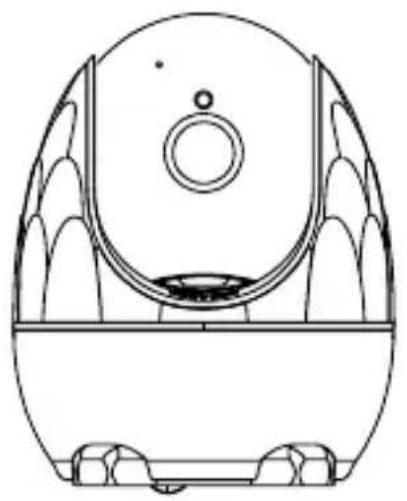
natural_image
Line drawing of a mechanical device with symmetrical blades and central hub (no text or symbols)Camera
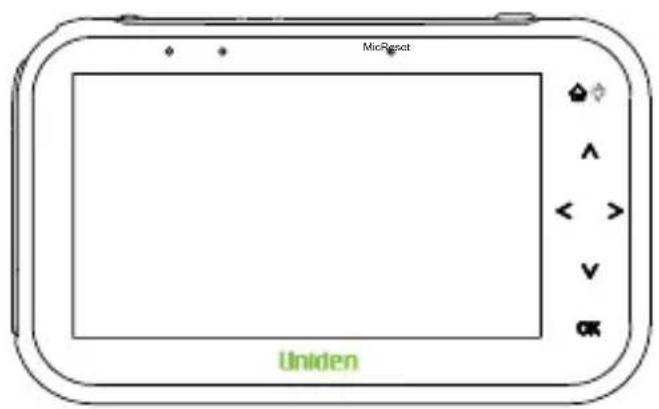
Monitor
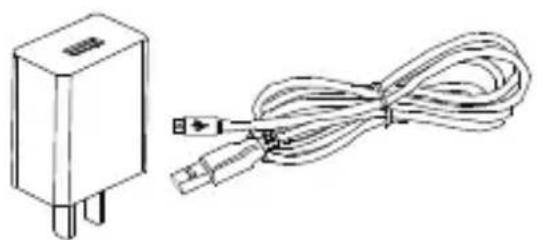
natural_image
Line drawing of a rectangular electronic component next to a coiled cable with connectors (no text or symbols)Charging cable with DC 5V Power Adapter x 2 (longer cable for camera)
- Owner's Manual
• Image may vary slightly from the actual product.
- If any item is missing or damaged, contact your place of purchase immediately. Never use damaged products!
- Need help? Get answers at our website: www.uniden.com.au for Australian model.
All trademarks are registered trademarks of their respective owners.
GETTING STARTED
CAMERA
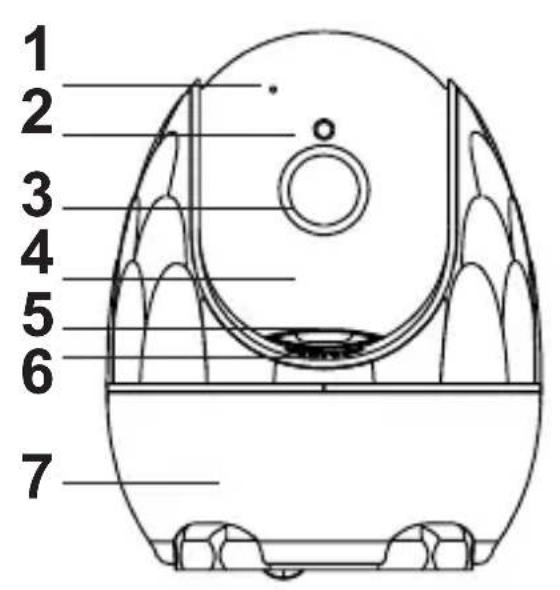
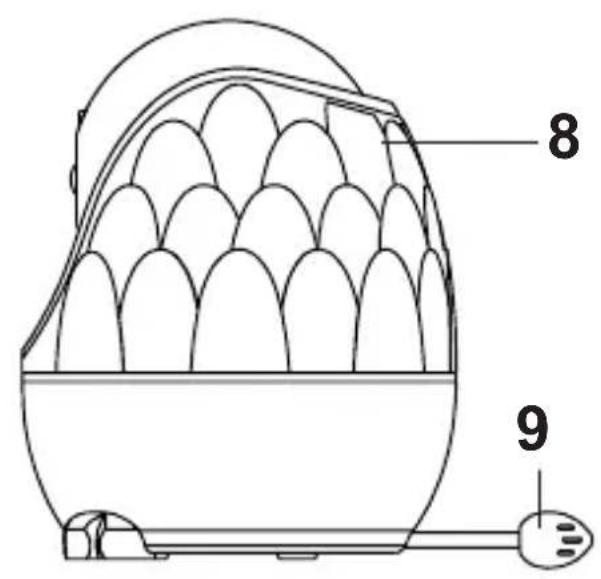
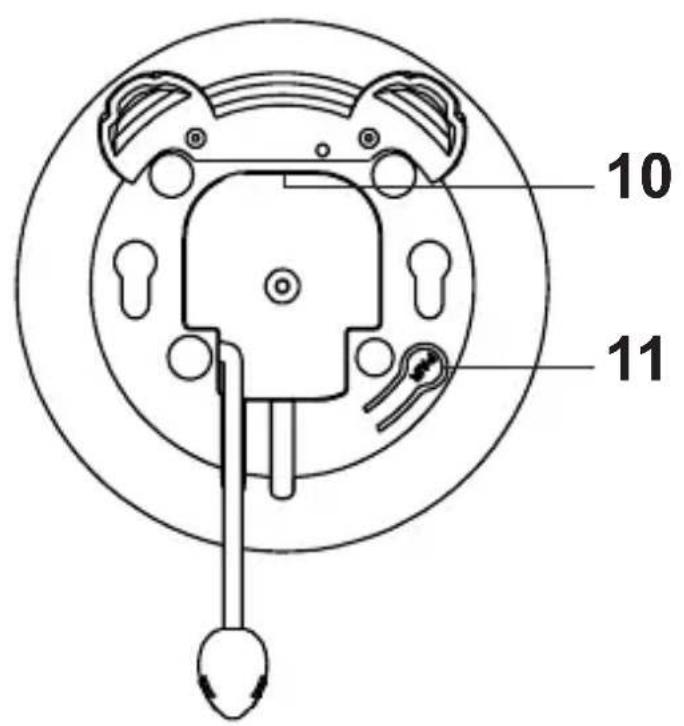
| Item What it does | |
| 1 MIC: Receives sounds for the area near the camera, and transmits sound from the camera to the monitor. | |
| 2 IR Sensor: Infrared radiation detect ambient weak light and starts night vision mode automatically. | |
| 3 Camera lens. | |
| 4 Infrared light. | |
| 5 TF Card Slot. | |
| 6 Speaker. | |
| 7 Night Light. | |
| 8 Built-in Antenna. | |
| 9 Temperature Sensor. | |
| 10 Power Port. | |
| 11 Paring button. |
MONITOR
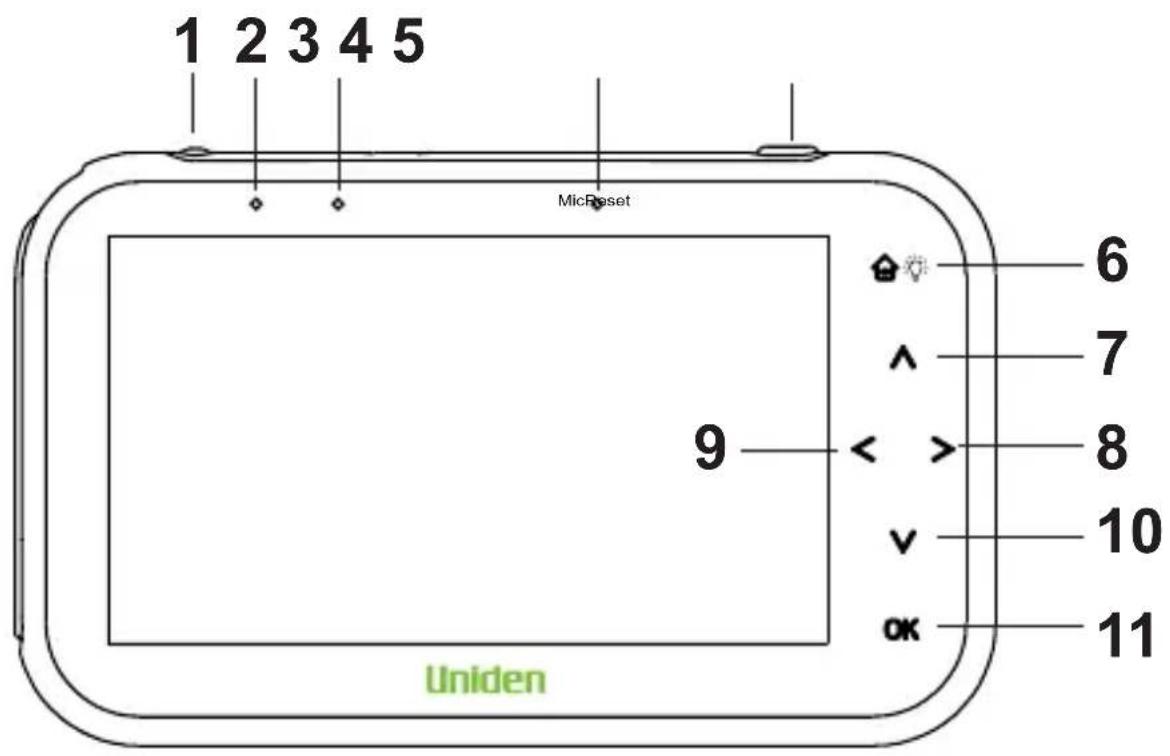
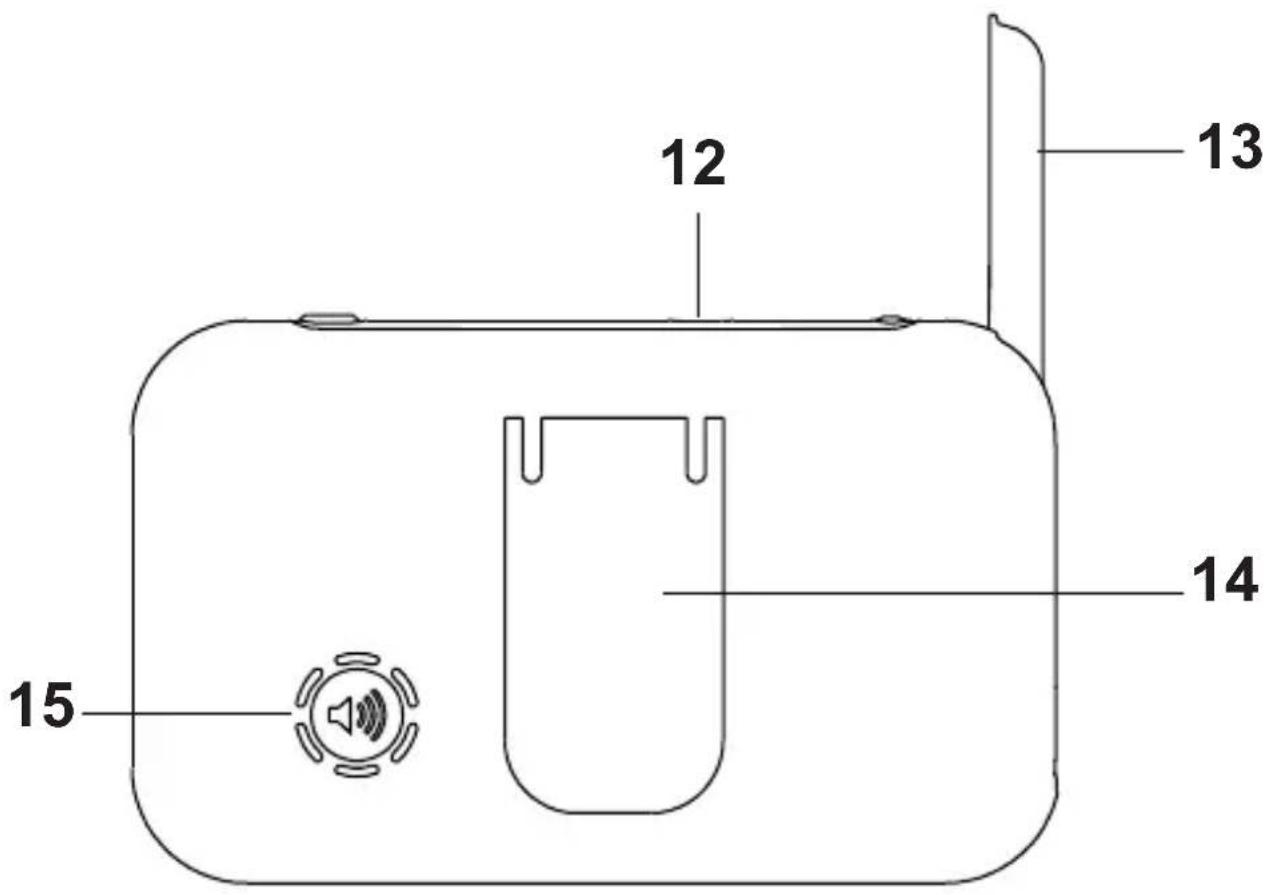
| Item What it does | |
| 1 Power Button / Standby Button: Press and hold to switch on/off the monitor. Press once to wake up/ turn off the screen. | |
| 2 Reset. | |
| 3 Charging LED indicator. | |
| 4 MIC: Receives sounds for the area near the monitor, and transmits sound from the monitor to the camera. | |
| 5 Audio Button. | |
| 6 | Menu Button/Night Light: Press once to display the menu options. Press and hold to switch on/off night light. |
| 7 Up Key. | |
| 8 Right Key. | |
| 9 Left Key. | |
| 10 Down Key. | |
| 11 OK: Press to accept a setting. | |
| 12 Power Input. | |
| 13 Receive Antenna. | |
| 14 Bracket. | |
| 15 Speaker. | |
INSTALLATION
General Placement Considerations
The camera can be placed on a shelf or other flat surface.
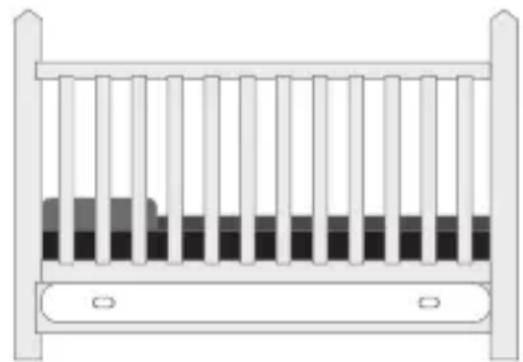
natural_image
Simple line drawing of a ladder with vertical bars and a horizontal bar at the bottom (no text or symbols)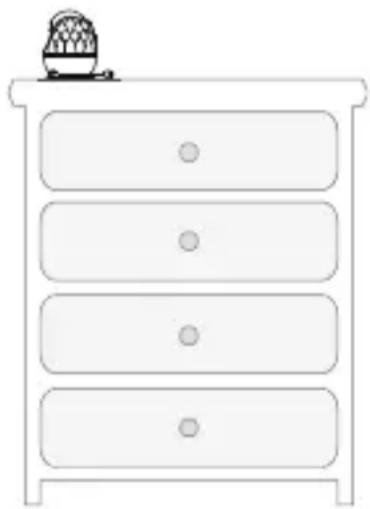
natural_image
Simple line drawing of a four-tiered drawer with a basket on top (no text or symbols)- The camera included is NOT weatherproof; it is an indoor camera.
- The clearest line-of-sight between the camera and the monitor is best. Walls, especially brick and concrete, can affect connection quality.
- Avoid having a direct light source in view of the camera (ceiling or floor lamps).
- Carefully plan where and how the camera will be positioned, and where you will route the cable that connects the camera to the power adaptor.
- Do not cover or obstruct the inlet holes for the temperature sensors and leave the sensor horizontal for more accurate reading. The temperature reading is for reference only and there may be some variance between the actual temperature and the temperature reading.
Powering the Camera
- Insert one end of the USB-C cable to the USB-C port on the camera (at the back of the camera).
- Connect the other end of the USB cable into the USB power adaptor.
- Connect the USB power adaptor into a 240 volt AC (standard indoor) power outlet.
- Power on the camera, the charging indicator light shows blue.
| Icon Description | |
 | Signal level (5 Levels) |
 | No signal |
 | Camera 1 |
 | Camera image zoom in 2 times |
 | Camera switch |
 | Lullaby turn on/off |
 | Volume setting (6 levels) |
 | Intercom mode |
 | Night vision mode |
 | Crying detection (high, mid, low) |
 | Room temperature display |
 | System time |
 | Battery Power |
 | Volume setting (6 levels) |
 | Feeding Reminder Time Setting (set 5 Alarms) |
 | Lullaby (8 songs) |
 | System Time setting |
 | Temperature setting (C/F/Temperature alarm on/off) |
 | Camera Selection (add/delete/switch) |
 | VOX Sound Detection Setting |
 | LCD brightness (6 levels) |
 | Camera zoom in/out |
SYSTEM MENUS
Monitor Function Settings PAIRING
Once you've turned on both the camera and the monitor, they will pair automatically. If not, follow these steps:
- Turn on the monitor and press menu 📋. Press < or > to select camera and press to confirm.
-
Press to select and press to confirm, and then press or to choose or to pair.
-
The blue indicator light on the monitor will flash and display a prompt: "Keep pressing the button of the camera for three seconds to pair".
Press and hold the pairing key (PART) for 3 seconds on camera till the blue light flashes on the bottom (page6). The camera is now in pairing mode. Once connected with the monitor, the live view will be displayed on the monitor.
- When the blue indicator light stops blinking, it means that the device has been successfully paired. The Monitor shows or.
Note: If no device is paired for 30 seconds, it will automatically exit the pairing mode, or you can press and hold for 1.5 seconds within 30 seconds to exit the pairing mode.
Note: One monitor max. support 2 cams. The set contains 1 cam.
CHECKING THE CONNECTION OF BABY MONITOR
When both the camera and the monitor are normally turned on, the monitor is paired by default, show the image from the camera (If the monitor fails to display the image correctly, please check the pairing condition).
(1) If the connection fails, please re-pair according to the PAIRING function.
(2) Press to enter the menu, and select the camera you want to watch.
SIGNAL
Signal icon . Signal interference from large towers station or high-power signal interference equipment may cause product interference issues and result in lost signal
When the signal between the monitor and the camera has been lost for 5 seconds, will appear and start flashing on the monitor.
Additionally, the monitor will make a beeping sound 5 times. After the 5 beeps, the monitor will stop beeping and only the flashing will remain. This indicates that the monitor has been disconnected from the camera.
NIGHT VISION
When the monitor's optical sensor detects low ambient light, the infrared LED will automatically light up. The monitor's screen will display in black and white, and the status bar at the top of the screen will show

icon indicating the infrared LED is activated.
TWO-WAY TALK
To enter the two-way talk back mode, press and hold . This will allow you to talk with your little one. Once the conversation is over, release .
LULLABIES
The digital baby monitor has lullabies, including white noise, to help calm and put your baby to sleep.
-
Press to enter the main menu.
-
Press or to choose, and press to confirm. OK
-
In the pop-up menu bar, press the key or to select the lullaby, and press to confirm.
-
To play all the music in a loop, select and press to confirm.
-
Press to return to the previous step.
DISPLAY BRIGHTNESS
Short press or to adjust the monitor brightness .
CAMERA ZOOM IN
-
Press to the main menu.
-
Press or to camera Zoom In, and press to zoom in. Monitor status bar will appear
-
To return to the original size, press again.
VOX SETTINGS
With VOX (Voice Activation) sensitivity, you can adjust the sound sensitivity of the camera to detect and alert you to your baby's crying or sounds.
VOX detection:
When the monitor is set to LOW/MID/HIGH VOX sensitivity, it will turn off within 30 seconds if no sound is detected. It will turn back on again when sound is detected.
- Press to enter the main menu.
- Press or , and press to enter mode.
- Select to set VOX sensitivity or press to turn off VOX mode.

Note: If you VOX feature is OFF, pressing will turn off the monitor screen while still allowing you to hear sound from the camera. This mode is useful when the baby is playing but the adult needs to leave the room temporarily..
When the VOX mode is enabled, the screen and sound of the camera will automatically turn off after 30 seconds of silence. If the room sound level of the camera exceeds the set threshold, the monitor screen will wake up, and the speaker will emit a sound. This mode is ideal for night-time use.
PTZ Remote Control
Pan & Tilt the camera, long press , , , on the monitor, adjust camera to view Upper, Down, Left, Right views.
Alert Settings Temperature alert settings
When it is too hot or too cold in your baby's room, the temperature alert will push a notification to your monitor.
- Press to the main menu.
- Press or to temperature, and press to confirm. OK
- Press or to select or, and press °F to confirm. OK
- Press to return to the previous step.
- Press or to, press to select alarming temperature setting ON or OFF, and °C/°F.
- Adjust with or to set the high or low warning temperature.
- Press or to set the value to be warned (°C setting range 0°C\~26°C/28°C\~37°C, °F setting range 32°F\~78°F/82°F\~98°F).
- If the current ambient temperature exceeds/ falls below the set warning temperature, the system will prompt the high/low temperature warning.
- The status bar on the screen will display the temperature from the temperature sensor located at the back of the camera.
Higher temperature warning: Temperature reading RED with red Lower temperature warning: Temperature reading BLUE with blue
Additionally, an alarm sound will be emitted if the temperature goes above or below the set temperature range, and you can cancel the alarm sound by pressing any key. If the temperature is not brought back within the set temperature range, the Beep alarming sound will continue to be emitted even after 30 seconds.
Feeding Reminder Alarm
You can set a timer to remind you to feed your baby:
-
Press to the main menu.
-
Press or to feeding reminder, press to confirm. OK
-
Press for to select the alarm time for the feeding
reminder(0.5h/1h/2h/3h/4h). The monitor will beep and show a
flashing feeding mark, press to confirm. Press any key to cancel feeding reminder.
- Press return to the previous step.
Night Light
Long press 3 seconds on the monitor to turn OFF/ON the night light

System settings
Time settings
Calibrate time on the monitor.
-
Press to the main menu.
-
Press or to Time settings, press to confirm. OK
-
Press or to switch the hour, minute, second, and press or to adjust correct hour, minute, second.
-
Press return to the previous step.
SD Card Recording
The camera support up to 32G FAT32 SD card. To record video:
- Insert SD Card, the monitor status bar will appear
- Press and hold for 1.5 seconds to turn ON/OFF video recording, the video will start record with flashes.
Recording now please quit
Note: The video cannot playback on the monitor. Please take out SD card and play the video on your computer.
Volume Adjustment
There are two methods to adjust the volume.
Method 1: Short press or to adjust volume.
Method 2: Press to the main menu. Press or to Volume, and press to confirm. Then, press or to adjust volume of the camera. There are 6 levels to choose from.
Power Level
The monitor display which indicate the current power level. It will display LOW BATTERY and beep 5 consecutive times. Afterward, it will stop beeping and only display as a reminder.
Cleaning
Clean the device using a slightly damp cloth or an antistatic wipe. Avoid using detergents or abrasive solvents.
TROUBLESHOOTING
If you have problems with the system, there is often a quick and simple solution. Please try the following:
| If Try | |
| There is no picture from the camera | ·checking all connections to the camera. Make sure the adaptor is plugged in.·making sure that the cameras and monitor are both ON.·making sure that the camera is in range of the monitor. |
| The picture keeps dropping | ·moving the camera closer to the monitor.·repositioning the camera, monitor or both to improve the reception.·adjusting the monitor antenna to vertical position. |
| There are audio problems | ·making sure that there is sound within range of the camera microphone.·moving the camera or monitor farther apart if the unit emits a loud screeching noise. |
| There is an irregular beeping coming from the monitor | That is the Alert tone. Go to the Alert screen to turn the alert volume on or off. |
| The picture has become choppy | The picture may become choppy when experiencing a lower frame rate. Try:·moving the camera closer to the monitor.·removing obstructions between the monitor and camera.·adjusting the monitor and camera antennas to vertical position. |
| The monitor picture has frozen | To RESET, move the camera and monitor closer together. Use a blunt object like a paper clip to press RESET and reset the monitor. The monitor returns to factory default. Press POWER to restart. |
SPECIFICATIONS
GENERAL
| Camera Monitor | |
| Operating Frequency Range 2.4GHz | |
| Type of Spread Spectrum Used | FHSS |
| Type of Material Used ABS | |
| Communication Range 100M (Open Space) | |
CAMERA
| Image Sensor 1/4 Color CMOS | |
| Video Resolution 1280 x 720P | |
| Pan & Tilt 355°, 60° | |
| Viewing Angle 75° | |
| Night Vision Yes | |
| Power Consumption 1.5W | |
| Operating Temperature Range | ~20°C ~ 65°C |
MONITOR
| Display 4.3” LCD | |
| Resolution 480 x 272P | |
| Power Consumption 1.6W | |
| Operating Temperature Range | ~20°C ~ 65°C |
| Battery Life | 2000 mAh |
TWO-YEAR LIMITED WARRANTY
BW3531
Important:
Satisfactory evidence of the original purchase is required for warranty service. Please refer to our Uniden website for any details or warranty durations offered in addition to those contained below.
Warrantor:
The warrantor is Uniden Australia Pty Limited ABN 58 001 865 498 ("Uniden Aust").
Terms of Warranty: Uniden Aust warrants to the original retail purchaser only that the BW3531 (“the Product”), will be free from defects in materials and craftsmanship for the duration of the warranty period, subject to the limitations and exclusions set out below.
Warranty Period: This warranty to the original retail purchaser is only valid in the original country of purchase for a Product first purchased either in Australia or New Zealand and will expire two (2) year from the date of the original retail sale. If a warranty claim is made, this warranty will not apply if the Product is found by Uniden to be:
| Product 2 Year | |
| Accessories and Batteries 90 Days | |
A. Damaged or not maintained in a reasonable manner or as recommended in the relevant Uniden Owner's Manual;
B. Modified, altered or used as part of any conversion kits, subassemblies or any configurations not sold by Uniden Aust;
C. Improperly installed contrary to instructions contained in the relevant Owner's Manual
D. Repaired by someone other than an authorized Uniden Repair Agent in relation to a defect or malfunction covered by this warranty; or
E. Used in conjunction with any equipment, parts or a system not manufactured by Uniden.
Parts Covered: This warranty covers the Product and included accessories.
User-generated Data: This warranty does not cover any claimed loss of
or damage to user-generated data (including but without limitation phone numbers, addresses and images) that may be stored on your Product.
Statement of Remedy: If the Product is found not to conform to this warranty as stated above, the Warrantor, at its discretion, will either repair the defect or replace the Product without any charge for parts or service. This warranty does not include any reimbursement or payment of any consequential damages claimed to arise from a Product's failure to comply with the warranty. Our goods come with guarantees that cannot be excluded under the Australian Consumer Law. You are entitled to a replacement or refund for a major failure and for compensation for any other reasonably foreseeable loss or damage. You are also entitled to have the goods repaired or replaced if the goods fail to be of acceptable quality and the failure does not amount to a major failure. This warranty is in addition to and sits alongside your rights under either the COMPETITION AND CONSUMER ACT 2010 (Australia) or the CONSUMER GUARANTEES ACT (New Zealand) as the case may be, none of which can be excluded.
Procedure for Obtaining Warranty Service: Depending on the country in which the Product was first purchased, if you believe that your Product does not conform with this warranty, you should deliver the Product, together with satisfactory evidence of your original purchase (such as a legible copy of the sales docket) to Uniden at the address shown below. You should contact Uniden regarding any compensation that may be payable for your expenses incurred in making a warranty claim. Prior to delivery, we recommend that you make a backup copy of any phone numbers, images or other data stored on your Product, in case it is lost or damaged during warranty service.
UNIDEN AUSTRALIA PTY LTD
Phone number: 1300 366 895
Email: custservice@uniden.com.au
Uniden®
© 2024 Uniden Australia Pty Limited.