
X333 - Mobile Phone PHILIPS - Free user manual and instructions
Find the device manual for free X333 PHILIPS in PDF.
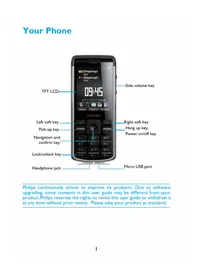


| Product Type | Mobile Phone |
| Brand | Philips |
| Model | X333 |
| Dimensions | Approx. 110 x 50 x 15 mm |
| Weight | Approx. 90 g |
| Battery Type | Li-ion, removable |
| Battery Capacity | 1000 mAh |
| Standby Time | Up to 350 hours |
| Talk Time | Up to 8 hours |
| Display | 2.4-inch TFT, 240x320 pixels |
| SIM Card | Dual SIM (mini-SIM) |
| Connectivity | GSM 900/1800, Bluetooth 2.1 |
| Main Functions | Call, SMS, FM Radio, Torch, MP3 player, Camera (VGA), Calendar, Alarm |
| Memory | microSD slot (up to 16 GB) |
| Power Supply | Charger via micro USB (5V, 500mA) |
| Care and Cleaning | Wipe with a dry, soft cloth. Avoid liquids. |
| Safety | Remove battery before cleaning. Do not disassemble. |
| Spare Parts and Repairability | Battery and charger available. For other repairs, contact an authorized service center. |
| General Information | User manual in multiple languages available for download. |
Frequently Asked Questions - X333 PHILIPS
User questions about X333 PHILIPS
0 question about this device. Answer the ones you know or ask your own.
Ask a new question about this device
Download the instructions for your Mobile Phone in PDF format for free! Find your manual X333 - PHILIPS and take your electronic device back in hand. On this page are published all the documents necessary for the use of your device. X333 by PHILIPS.
USER MANUAL X333 PHILIPS
Philips continuously strives to improve its products. Due to software upgrading, some contents in this user guide may be different from your product. Philips reserves the right to revise this user guide or withdraw it at any time without prior notice. Please take your product as standard.
Home screen
Your phone's home screen consists of the following areas:

Learn about the main keys.
| Key Definition Function | |
| ☐ | Dial Make or answer a call. |
| OK | Confirm Select or confirm an option. |
| ☐ | Hang-up/ End a call;Power/ Hold to turn on/turn off the phone;Exit Return to home screen. |
| ☐ | Left soft key Select the options on the screen. |
| ☐ | Right soft key Select the options on the screen. |
| 左、右 | Lock/ Long press ☐ to lock keypad;Unlock Press left soft key ☐ and then ☐ to unlock keys. |
Icons & symbols
Learn about the icons and symbols on the screen.
| Icons Definition Function | ||
 | Silent | Your phone will not ring when receiving a call. |
 | Vibration only | Your phone will vibrate when receiving a call. |
 | Battery | The bars indicate the battery level. |
 | SMS | You have a new message. |
 | MMS | You have a new multimedia message. |
 | Missed call | You have missed a call. |
 | Call diverts | All your incoming voice calls are being forwarded to a number. |
 | Bluetooth | Bluetooth is activated. |
 | Headset | The headset is plugged into the phone. |
 | Alarm | The alarm clock is activated. |
 | Roaming | Displayed when your phone is registered to a network other than your own (especially when you're abroad). |
 | Home zone | A zone designated by your network operator. Contact your service provider for details. |
| [DGZ] | Blacklist | Indicates that blacklist feature is activated. |
| [Z2ST] | Key lock | The keypad has been locked. |
 | Memory card | The memory card is in use. |
Getting started
Insert SIM card and charge the battery
Learn about installing SIM card and charging the battery for the first use.
Insert SIM card
Remove the back cover.

2 Take out the battery.
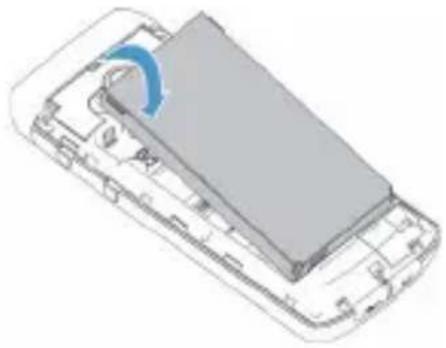
3 Insert the SIM card 1/2.
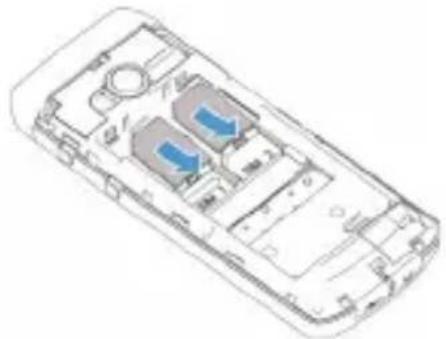
4 Install the battery.

5 Replace the back cover.

Charge the battery
A new battery is partially charged. The battery icon in the upper-right corner shows the battery level or charging status.

Tips:
• You can use the phone while it is charging.
- Keeping the charger plugged into the mobile phone when the battery is fully charged will not damage the battery. The only way to turn off the charger is to unplug it, so it is advisable to use an easily accessible power socket.
- If you do not intend to use your phone for several days, we recommend that you remove the battery.
• If a fully charged battery is left unused, it will lose its charge over time.
- If a battery is being used for the first time or has not been used for a prolonged period, it may take longer to recharge.
Insert a Micro SD card (Memory card)
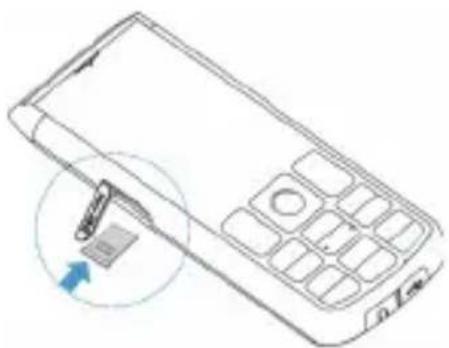
You can expand the memory of your phone by adding a micro-SD card.
1. Align your micro-SD card with the slot. Put it in place.
2. To remove the micro-SD card, press the card to release it.
Customize your phone
Customize your phone to match your preferences.
Set time & date
On the home screen, go to Menu > Settings > Time and date. 2. Select Set time/date: Enter the digits.
SIM settings
Check that your phone is turned on. Enter the PIN code if required. 2. Go to Settings > General > SIM settings > Dual SIM setting, name and set icon for your SIM card. 3. Go to Settings > SIM settings > Primary SIM to select SIM1 or SIM2 as primary card.
Note:
- The PIN code is preconfigured and communicated to you by your network operator or retailer.
- If you enter an incorrect PIN code three times in succession, your SIM card will be blocked. To unblock it, you must request the PUK code from your operator.
- If you enter an incorrect PUK code ten times in succession, the SIM card will be locked permanently. When this happens, please contact your network operator or retailer.
Profiles
The profiles are defined for several scenes. They consist of the settings for ringtones, volume, and others. With preset profiles, you can easily adjust the settings for incoming calls and messages as desired.
Go to Profiles, press Ⓞ to activate the profile. 2. Press left soft key ☐ to modify ringtone, volume and others.
To activate Meeting mode, long press ### .
Note:
- If you select Flight mode, you disable the connection between your phone and your mobile phone network.
Using your phone
Use basic call functions
Learn to make or answer a call and use basic call functions.
Make a call
Enter the phone number. 2 Press ☐ to dial the number. 3 Press ☐ to hang up.

Tips:
- For international calls, long press 0on to enter the "+" sign for the international prefix.
- You can press ☐ Option>Hold single call to hold first call, then press ☐ Option>New call to start the second call.
Answer and end a call
Press ☐ to answer the call (Press the side volume key to adjust the volume). 2 Press right soft key — to select hands free mode during a call. 3 Press ☐ to hang up.

Tips:
• You can use the supplied headset to answer or end a call.
Use speed dial
On the home screen, you can call a number by long tapping a numeric icon.
To assign a contact to a speed-dial key:
Select Settings>General>Speed dial. 2 Press Ⓞ to activate the status. 3 Select Set numbers to choose a numeric key. 4 Press OK to add a number.
Receive and send messages
You can use the Messaging menu to send text messages and multimedia messages.
Send an SMS message
1. Select Menu > Messaging > Create message. 2. Write your text message. 3. Press OK to send the message.
Send an MMS message
1. Select Menu > Messaging > Create Message. 2. Edit contents, and press Options to add multimedia contents. 3. Press OK to add a contact. 4. Press OK to send the Multimedia message.
Note:
• Copyright protected pictures and sound cannot be sent by MMS.
Send an E-mail
1. Go to Menu > Messaging > Email > Start to create account. 2. After setting up a new account, press OK to enter it. 3. Press Options > New email, enter the address (To), subject and content. 4. Press Options > Send to send the E-mail.
Note:
- Consult your mail service provider for the mail server configuration.
Receive E-mails
You can check received E-mails in the inbox.
To receive E-mails automatically:
1. Choose to enter an E-mail account. 2. Go to Options > Settings > Advance settings > Account settings
3 In Account settings, select your desired time span. Your mailbox will be checked automatically after each time span.
Enter text
Your mobile phone supports a number of text entry methods, including T9 input, English input, numeric input, and symbol input.
Keys:
Keys Function
| Short press to select input method. | |
| Long press to select input language. | |
| Enter symbols and punctuations. | |
| Long press to switch T9 English input on or off. | |
| Insert a space. | |
| Use right soft key to clear the previous character. | |
| Select or confirm character. |
Introduction of input methods:
Input method Function
| English input Press the keys that are marked with the letter you wish to enter. Press once to get the first letter on the key, press twice quickly to get the second letter and so on until the letter you want is displayed on the screen. | |
| T9® predictive text input | You need to press only once on the key corresponding to each letter needed to spell a word: keystrokes input are analyzed and the word suggested by T9® is displayed at the pop-up window. |
| Numeric input Press the numeric key to enter a number. | |

Note:
Depending on the language you select for your phone, the supported input methods may vary.
MultiMedia
Media player
Save MP3, WMA, WAV, and AMR music files under the Audio folder on your phone and memory card.
Play music
Go to Media player > Music player > Options > Tracks, select your desired song in the folder. 2. Use the following keys to control playback:
Function Definition
| OK | Start or Pause playing. |
| Select previous track. | |
| Select next track. | |
 | Press side volume key to adjust volume. |
| (Right soft key) Return to the previous menu. | |
| Go to the home screen. |
To turn off the music player on the home screen.
Press ☐, and then press Ⓞ.
Note:
- When listening to music, adjust the volume to a moderate level. Continuous exposure to high volume may impair your hearing.
Camera
Learn about camera function. Let you take photos as desired by using your phone.
Take a photo
Go to Menu>Camera, select camera mode. 2 Aim the lens at the subject.
- Press navigation key ◀ or ▶ to adjust the brightness.
- Press side volume key to zoom in/zoom out.
3 Press OK to take a photo. 4 Press right soft key — to exit.

Tips:
- All the photos taken are saved to My files>Phone or Memory card>Pictuers.
View photos
Go to Media player>Image viewer,
View photos: press navigation key ◀ or ▶ to select a photo. 2 Zoom in/out photos: press side volume key to zoom in or out a photo. After zooming in a photo, press navigation key ▲, ▼, ◀ or ▶ to adjust the photo. 3 Set as full-screen wallpaper: press OK.
Camera settings
While using the camera, press left soft key ☐ to select settings:
| Icon Option Function | ||
| View picture | View the photos you have taken. | |
| Capture mode | Switch the picture mode. | |
| Scene mode | Select a scene to take a photo. | |
| Image size | Select image size. | |
| Flash | Use the flash to increase the brightness. | |
| Face detection | Turn on to get the best condition for taking a photo for face. | |
| Self-Timer | Select a time span for auto photographing. | |
| White balance | Remove the effects on colors by surroundings. | |
| Effects | Add special effects to the photos. | |
| Adv.settings | Go to advanced settings. | |
| Storage | Select default storage location. | |
| Image Quality | Set image quality. | |
| AE meter | Select Spot, Center-weighted or Average mode. | |
| Sharpness | Sharpen or blur the borders between objects. | |
| Contrast | Adjust the contrast. | |
| Saturation | Make colors more or less pronounced. | |
| Time stamp | Select to show the taking time of photo. | |
| Shutter sound | Adjust the shutter sound. | |
| Anti-flicker | Select a band to avoid the impacts on photos caused by flickers from lighting sources. | |
| Restore default | Restore to default settings. | |
Video recorder
Learn about video recorder function. Let you record a video clip as desired by using your phone.
Record a video
Go to Menu>Camera, select video recorder mode. 2 Aim the lens at the subject.
- Press navigation key ◀ or ▶ to adjust the brightness.
- Press side volume key to zoom in/zoom out.
3 Press Ⓞ to record a video clip. 4 Press right soft key — to exit.
Tips:
- All the videos recorded are saved to My files>Phone or Memory card>Videos.
Play a video clip
Go to Media player>video player,
Press OK to start or pause playing a video clip. 2 Press navigation key ◀ or ▶ fast rewind or forward. 3 Press to enter full screen. 4 Press right soft key — to exit.
Video recorder settings
While using the camera, press the left soft key to select settings:
Icon Option Function
| Recording limit | Select time and size limit for the file. | |
| Record audio | Select to record the voice or not. |
For other settings, see "Camera settings" on page 11.
FM radio
Learn about listening to radio programs using an FM radio.
Listen to a radio station
Plug the supplied headset into your phone. 2. Go to Media player > FM radio, press Options > Auto search. It starts scanning automatically and saves the available channels. 3. Press the navigation key ◀ or ▶ to select a channel. 4. Press the navigation key ▼ to turn off FM radio.
FM radio settings
Go to Options > Settings:
• Radio in background: Continue playback after exiting FM radio. - Loud speaker: Listen to radio through the speaker. - RDS: Activate RDS services (depending on the radio station service). When you are listening to an RDS station, your phone displays the following details: station name, program type (for example, News, Sports, and Info), and frequency. - Record settings: Set the record format, audio quality, and storage.
To turn off the FM radio on the home screen
Press ☐ and then press Ⓞ.
Business applications
Manage your calendar
You can create your to-do list and make a plan on your calendar.
Create your to-do list
Go to Tools>Calendar, select a date, and then press Options>New event. 2. Edit reminder settings. 3. Press left soft key to save the task. 4. To change your to-do list, select the task, and then press Options>Edit to edit the task.
Check your to-do list
You can check your to-do list in weekly or monthly view. Go to Tools>Calendar, press OK to check your to-do list.
Alarm
Learn about how to set and use an alarm. You can set up to five alarms.
Set an alarm
Go to Tools>Alarm. 2. Press left soft key to turn on the alarm. 3. Press OK to edit the alarm. 4. Press left soft key to save the setting.
Turn off an alarm
Go to Tools>Alarm. 2. Select the alarm you want to turn off. 3. Press left soft key to turn off the alarm.
Stop an alarm
When the alarm rings,
- Select Stop: The alarm stops. Or turn over your phone to mute the alarm.
Select Snooze: The alarm will sound again after the set Snooze (Mins) interval.
Bluetooth
Your phone can connect to a compatible Bluetooth device for exchanging data.
Connect to a Bluetooth device
1. Go to Bluetooth > Power, turn on the Bluetooth function. 2. Select Find devices, a list of available Bluetooth devices appears. 3. Select the device you wish to connect. 4. The pairing is made if your pairing request is accepted by the other part.
Receive files via Bluetooth
1. Go to Bluetooth > Setting > Visibility, make your phone visible to other Bluetooth devices. 2. Enter the password and accept the request. 3. The files received are saved to My files > Phone or Memory card > Others.
Tips:
- If you do not use the Bluetooth feature for some time, you should deactivate it in order to conserve battery power.
Check world clock
You can display two clocks on the home screen: one is local time, the other is foreign time.
Set world clock
1. Go to Tools > World clock,
2. Press Ⓞ to activate the clock status. 3. In Local settings/Foreign settings, press navigation key ◀ or ▶ to select a city. 4. You can check time & date of the city.

Note:
- Alarms, reminders, programmed events are time zone independent.
Currency converter
Go to Tools > Currency converter, enter the rate. 2. Enter the sum of money in Local. Press OK to confirm.

Note:
• The result of the calculator is indicative only.
Web applications & Java
Opera Mobile
Access web sites
Go to Browser > Opera, enter your desired websites. 2. Select Go to access the website.
Java applications
Learn about how to use Java applications and play games. Your phone is preloaded with some Java games and applications.
Install Java games
Connect your phone to a PC via supplied Mini USB cable. 2. Save .jar file to My files > Others. 3. Install the Java games.
Play Java games
Go to Applications > Java. 2. Select a game from the list. 3. Tap to start playing the game.

Note:
- To run some Java applications (entrusted third party software) on your phone, you may need to adjust the Java settings. Go to Options > Settings.
Java settings
Go to Applications > Options > Java Settings.
| Function | Definition |
| Java audio | Set the volume level. |
| Java vibration | Turn the vibration on or off. |
| Network settings | Select a Java network (service subscription-dependent). |
| Heap size | Display allowed maximum size for Java memory. |
Settings
General setting
| Function | Definition |
| SIM settings | SIM card slot settings, see“SIM settings”on page 6. |
| Language | Select a language for your phone. |
| Shortcuts | Edit the shortcuts in the idle screen or Change the order of shortcuts. |
| Speed dial | Call a contact by long tapping a numeric key. |
| Memory status | Check the memory occupancy of information of different memory storage. |
| Auto keypad lock | Set an time span for the keypad to be locked. automatically. |
| Unlock style | Select the style of unlock keys. |
| Auto power | Set time for power on/off automatically. |
| Security settings | This menu allows you to use passwords to protect your SIM card, phone, and information stored on the phone. |
| Restore factory settings | Restore your phone settings to the default values. You need to enter your phone lock password (1122 by default). |
| UART settings | Select data from SIM1/SIM2 when connect phone with PC. |
Display setting
| Function | Definition |
| Wallpaper | Select an image as the wall paper of your phone. |
| Themes | Define the theme for your phone. |
| Backlight level | Select the brightness of backlight. |
| Backlight duration | Select the duration of backlight. |
| Font settings | Set font size. |
| Greeting text | Select whether to show greetings when your phone is turned on. |
| Show supplementary information | Select whether to show SIM card name/Live balance/Broadcast message. |
| Show operator name | Select whether to show operator name. |
| Show date and time | Select whether to show date and time. |
Call setting
| Function | Definition |
| Predictive dial | Quick search and list your phone number while entering a number on the home screen. |
| Headset answer | Use headset to answer an incoming call. |
| Any key answer | Answer an incoming call by tapping any keys (except S). |
| Call time reminder | Get reminded after the call time span once or repeatedly. |
| Call divert | Divert incoming calls to your voice mailbox or another phone number. |
| Call waiting | Activate/Deactive call waiting. |
| Call services | Set call services. |
| Call barring | Set limits to your incoming and outgoing calls. |
| Fixed dial | Restrict your outgoing calls to certain numbers (PIN2 code required). |
| Auto redial | Select whether to keep redialling the number that fails to go through. |
Connectivity
| Function | Definition |
| Network settings | Set network settings for your phone. |
| Connections | The menu allows you to define the Internet access profiles of your phone. Consult your network operator for details. |
Safety & Precaution
Precaution
Keep your phone away from small children

Keep your phone and all accessories out of the reach of small children. Small parts may cause choking or serious injury if swallowed.
Radio Waves

Your phone transmits/receives radio waves in the GSM frequency (850/900/1800MHz).

Check with the vehicle manufacturer that electronic equipment used in your vehicle will not be affected by radio energy.
Switch off your phone...

Turn off the phone when in an aircraft. The use of mobile phones in an aircraft may be dangerous for the operation of the aircraft, disrupt the mobile phones network and may be illegal.

In hospitals, clinics, other health care centers and anywhere else where you may be in the close vicinity of medical equipment.

In areas with a potentially explosive atmosphere (e.g. petrol stations and also areas where the air contains dust particles, such as metal powders). In a vehicle transporting flammable products vehicle powered by liquefied petroleum gas (LPG). In quarries or other areas where blasting rations are in progress.
Your mobile phone and your car

Avoid using your phone while driving and obey all regulations that restrict the use of mobile phones while driving. Use hands free accessories to increase your safety when possible. Ensure your phone and car kit do not block any air bags or other security devices fitted in your car.
Handle your phone carefully and sensibly

For the optimal and satisfactory operation of the phone you are recommended to use the phone in the normal operating position.
- Do not expose your phone to extreme temperatures.
- Do not immerse the phone in any liquid; if your phone is damp, switch it off, remove the battery and let them dry for 24hrs before using them again. • To clean the phone, wipe it with a soft cloth.
- In hot weather or after prolonged exposure to the sun (e.g., behind a window or a windscreen), the temperature of your phone's casing might increase. Be very careful in this case when picking up your phone and also avoid using it with an ambient temperature over 40° C.
Protect batteries from damage

You should only use Philips Authentic Accessories, as the use of any other accessories may damage your phone and may be dangerous, and will make all guarantees for your Philips phone and void. The use of an unspecified type of battery may also cause an explosion.
Make sure damaged parts are replaced immediately by a qualified technician and that they are replaced with genuine Philips replacement parts.
- Your phone is powered by a rechargeable battery. • Use specified charger only.
- Do not incinerate.
- Do not deform or open the battery.
- Do not allow metal objects (such as keys in your pocket) to short circuit the battery contacts.
- Avoid exposure to excessive heat ( >60°C or 140°F), moisture or caustic environments.
Environmental care

Remember to observe the local regulations regarding the disposal of the packaging materials, exhausted batteries and old phone and please promote their recycling. Philips has marked the
battery and packaging with standard symbols designed to promote the recycling and appropriate disposal of your eventual waste.
The labeled packaging material is recyclable.
c: A financial contribution has been made to the associated national packaging recovery and recycling system.
△: The plastic material is recyclable (also identifies the type of plastic).
WEEE Marking in the DFU: "Information to the Consumer"
Disposal of your old product
Your product is designed and manufactured with high quality materials and components, which can be recycled and reused.

When this crossed-out wheeled bin symbol is attached to a product it means the product is covered by the European Directive 2002/96/EC
Please inform yourself about the local separate collection system for electrical and electronic products.
Please act according to your local rules and do not dispose of your old products with your normal household waste. The correct disposal of your old product will help prevent potential negative consequences for the environment and human health.
This device may contain commodities, technology or software subject to export laws and regulations from the US and other countries. Diversion contrary to law is prohibited.
Tips
Pacemakers
If you have a pacemaker:
• Always keep the phone more than 15 cm from your pacemaker when the phone is switched on, in order to avoid potential interference. - Do not carry the phone in a breast pocket. - Use the ear opposite to the pacemaker to minimize the potential interference. - Switch off your phone if you suspect that interference is taking place.
Hearing aids
If you are a user of a hearing aid, consult your physician and hearing aid manufacturer to learn whether your particular device is susceptible to cellular phone interference.
How to prolong the battery life of your phone
To have your mobile phone function properly, sufficient battery power is important. For the power-saving purpose, do the following, if applicable:
• Turn off the Bluetooth function of your phone. - Set the backlight level and duration of your phone to a low value. • Turn on the auto keypad lock, turn off the key sounds, tap vibration, or vibration alerts. - Establish GPRS connection when needed. Otherwise, your phone will keep searching for GPRS connection, and drain your battery power. - Turn off your phone if there is no coverage. Otherwise, the phone will keep searching for network, and drain your battery power.
Troubleshooting
The phone does not switch on
Remove/reinstall the battery. Then charge the phone until the battery icon stops scrolling. Unplug the charger and try to switch the mobile on.
The display shows BLOCKED when you switch on the phone
Somebody tried to use your phone but didn't know the PIN code nor the unblocking code (PUK). Contact your service provider.
The display shows IMSI failure
This problem is related to your subscription. Contact your operator.
Your phone doesn't return to idle screen
Long press the hang-up key or switch off the phone, check that the SIM card and the battery are installed correctly and switch it on again.
The network symbol is not displayed
The network connection is lost. Either you are in a radio shadow (in a tunnel or between tall buildings) or you are outside the network coverage area. Try from another place, try to reconnect to the network (especially when abroad), check that the antenna is in place if your mobile has an external antenna, or contact your network operator for assistance/information.
The display doesn't respond (or the display responds slowly) to key presses
The display responds more slowly at very low temperatures. This is normal and does not affect the operation of the phone. Take the phone to a warmer place and try again. In other cases please contact your phone supplier.
Your battery seems to over heat
You might be using a charger that was not intended for use with your phone. Make sure you always use the Philips authentic accessory shipped with your phone.
Your phone doesn't display the phone numbers of incoming calls
This feature is network and subscription dependent. If the network doesn't send the caller's number, the phone will display Call I or Withheld instead. Contact your operator for detailed information on this subject.
You can't send text messages
Some networks don't allow message exchanges with other networks. First check that you have entered the number of your SMS centre, or contact your operator for detailed information on this subject.
You can't receive and/or store JPEG pictures
A picture may not be accepted by your mobile phone if it is too large, if its name is too long, or if it doesn't have the correct file format.
You feel that you have missed some calls
Check your call divert options.
When charging, the battery icon shows no bar and the outline is flashing
Only charge the battery in an environment where the temperature does not go below 0°C (32°F) or above 50°C (113°F).
In other cases please contact your phone supplier.
The display shows SIM failure
Check that the SIM card has been inserted correctly. If the problem persists, your SIM card may be damaged. Contact your operator.
When attempting to use a feature in the menu, the display shows NOT ALLOWED
Some features are network dependent. They are only available, therefore, if the network or your subscription supports them. Contact your operator for detailed information on this subject.
The display shows INSERT YOUR SIM CARD
Check that the SIM card has been inserted correctly. If the problem persists, your SIM card may be damaged. Contact your operator.
The autonomy of your phone seems lower than indicated on the user guide
The autonomy is linked to your settings (e.g., ringer volume, backlight duration) and the features you use. To increase the autonomy, and whenever possible, you must deactivate features you do not use.
Your phone doesn't work well in your car
A car contains many metallic parts that absorb electromagnetic waves which can affect the phone's performance. A car kit is available to provide you with an external antenna and enables you to make and receive phone calls without handling the handset.

Note:
- Check with the local authorities whether or not you are allowed to use the phone while driving.
Your phone is not charging
If the battery is completely flat, it might take several minutes of pre-charge (up to 5 minutes in some cases) before the charging icon is displayed on the screen.
The picture captured with the phone camera is not clear
Make sure that the camera lens on both sides is clean.
Trademark Declaration
T9®
T9® is a registered trademark of Nuance Communications, Inc.
JAVA is a trademark of Sun Microsystems, Inc.
Bluetooth™
Bluetooth™ is a trademark owned by Telefonaktiebolaget L M Ericsson, Sweden and licensed to Philips.
Philips and Philips' Shield Emblem are registered trademarks of Koninklijke
Philips Electronics N.V. manufactured by Shenzhen Sang Fei Consumer Communications Co., Ltd. Under license from Koninklijke Philips Electronics N.V.
Specific Absorption Rate Information
International standards
THIS MOBILE PHONE MEETS THE INTERNATIONAL RECOMMENDATIONS FOR EXPOSURE TO RADIO WAVES
Your mobile phone is a radio transmitter and receiver. It is designed and manufactured not to exceed the limits for exposure to radio frequency (RF) energy defined by the international standards. These recommendations have been established by the International Commission on Non-Ionizing Radiation Protection (ICNIRP) and the Institute of Electrical and Electronics Engineers (IEEE), which forecast a substantial safety margin for assuring the protection of all persons, regardless of age and health.
The exposure recommendations for mobile phones use a measurement unit known as the Specific Absorption Rate (SAR). The SAR limit recommended by the ICNIRP for mobile phones used by the general public is 2.0 W/kg averaged over ten grams of tissue, and 1.6 W/kg averaged over one gram of tissue by IEEE Std 1528 for the head.
Tests for SAR have been conducted using recommended operating positions with the mobile phone transmitting at its highest certified power level in all tested frequency bands. Although the SAR is determined at the highest certified power level, the actual SAR levels of the mobile phone while operating are generally below the maximum SAR value. This is because the phone is designed to operate at multiple power levels so as to use only the power required to reach the network. In general, the closer you are to a base station antenna, the lower the power output.
While there may be differences between the SAR levels of various phones and at various positions, they all meet the international protection standards for exposure to radio waves.
The highest SAR value for this Philips Xenium X333 model phone when tested for compliance against the standard was 0.633 W/kg for ICNIRP recommendation.
To limit radio wave exposure, it is recommended to reduce the mobile phone call duration or to use a headset. The purpose of these precautions is to keep the mobile phone away from the head and the body.
Declaration of Conformity
We,
Shenzhen Sang Fei Consumer
Communications Co., Ltd.
II Science and Technology Road,
Shenzhen Hi-tech Industrial Park,
Nanshan District, Shenzhen 518057
China
declare under our sole responsibility that the product
Philips Xenium X333
GSM/GPRS 850/900/1800
TAC number: 86515201
to which this declaration relates, is in conformity with the following Standards:
SAFETY : EN 60950-1:2006+AI:2009+AI:2010
IEC 60950-1:2005+AI:2010
HEALTH: EN 50360:2001
EN 62209-1:2006
EMC: ETSI EN301 489-1 v1.8.1
ETSI EN 301 489-7 v1.3.1
We hereby declare that all essential radio test suites have been carried out and that the above named product is in conformity to all the essential requirements of Directive 1999/5/EC.
The conformity assessment procedure referred to in Article 10 and detailed in Annex IV of Directive 1999/5/EC has been followed with the involvement of the following Notified Body:
British Approvals Board for Telecommunications TUV SUD Group Balfour House Churchfield Road Walton-on-Thames Surrey - KT12 2TD United Kingdom
Identification mark: 0168
May 22, 2012

Quality Manager
Tips & tricks
Optimizing your Philips Xenium battery performance
Here are some steps to help you optimize your Philips Xenium's battery performance.
How to optimize the standby and talk time of your phone?
- Always ensure that your phone profile is appropriately set to meet your actual usage. Profile setting significantly impacts the phone's battery performance. In general, Outdoor Mode is the most power-draining setting while Silent Mode consumes the least amount of power.
- If you're using a Xenium phone with a dual SIM feature, try to activate the 2 SIM cards only when absolutely necessary. If you are in a country with single coverage, deactivate the non-covered SIM to prolong battery usage.
- If you're not using applications like Bluetooth, WIFI, GPS and JAVA, turn them off. And be sure to lock your phone to prevent accidental pressing of the keys with the auto-lock feature.
- Adjust the intensity and duration of your display screen's backlight to low or medium level and for the shortest duration. In general, the lower the backlight level and the shorter the duration, the more power you will save.
- Avoid using or placing your phone near magnetic objects (eg. a radio or television) or on metal surfaces, which will impact the network connection and ultimately drain power from your battery.
How to extend your battery's life?
- Full charging and full running down of your battery will extend its life. Charge the battery once the low-battery warning comes on.
- Temperature will impact battery usage. Over time, heat will degrade your battery's performance. Keep your phone out of the sun or a hot car. If in low temperature, place your phone in a warmer place (e.g., your pocket), as battery capacity decreases as the temperature drops.
- Always use authentic accessories as they enable your battery to perform at its peak. Non-authentic accessories (e.g., chargers) can damage your battery and even your phone.



- HOME SCREEN
- ICONS & SYMBOLS
- GETTING STARTED
- INSERT SIM CARD AND CHARGE THE BATTERY
- INSERT SIM CARD
- CHARGE THE BATTERY
- TIPS
- INSERT A MICRO SD CARD (MEMORY CARD)
- CUSTOMIZE YOUR PHONE
- SET TIME & DATE
- SIM SETTINGS
- NOTE
- PROFILES
- USING YOUR PHONE
- USE BASIC CALL FUNCTIONS
- MAKE A CALL
- ANSWER AND END A CALL
- USE SPEED DIAL
- RECEIVE AND SEND MESSAGES
- SEND AN SMS MESSAGE
- SEND AN MMS MESSAGE
- SEND AN E-MAIL
- RECEIVE E-MAILS
- ENTER TEXT
- KEYS
- INTRODUCTION OF INPUT METHODS
- MULTIMEDIA
- MEDIA PLAYER
- PLAY MUSIC
- CAMERA
- TAKE A PHOTO
- VIEW PHOTOS
- GO TO MEDIA PLAYER>IMAGE VIEWER
- CAMERA SETTINGS
- VIDEO RECORDER
- RECORD A VIDEO
- PLAY A VIDEO CLIP
- GO TO MEDIA PLAYER>VIDEO PLAYER
- VIDEO RECORDER SETTINGS
- FM RADIO
- LISTEN TO A RADIO STATION
- FM RADIO SETTINGS
- GO TO OPTIONS > SETTINGS
- BUSINESS APPLICATIONS
- MANAGE YOUR CALENDAR
- CREATE YOUR TO-DO LIST
- CHECK YOUR TO-DO LIST
- ALARM
- SET AN ALARM
- TURN OFF AN ALARM
- STOP AN ALARM
- BLUETOOTH
- CONNECT TO A BLUETOOTH DEVICE
- RECEIVE FILES VIA BLUETOOTH
- CHECK WORLD CLOCK
- SET WORLD CLOCK
- CURRENCY CONVERTER
- WEB APPLICATIONS & JAVA
- OPERA MOBILE
- ACCESS WEB SITES
- JAVA APPLICATIONS
- INSTALL JAVA GAMES
- PLAY JAVA GAMES
- JAVA SETTINGS
- SETTINGS
- SAFETY & PRECAUTION
- PRECAUTION
- KEEP YOUR PHONE AWAY FROM SMALL CHILDREN
- RADIO WAVES
- SWITCH OFF YOUR PHONE
- YOUR MOBILE PHONE AND YOUR CAR
- HANDLE YOUR PHONE CAREFULLY AND SENSIBLY
- PROTECT BATTERIES FROM DAMAGE
- ENVIRONMENTAL CARE
- WEEE MARKING IN THE DFU: "INFORMATION TO THE CONSUMER
- DISPOSAL OF YOUR OLD PRODUCT
- PACEMAKERS
- HEARING AIDS
- HOW TO PROLONG THE BATTERY LIFE OF YOUR PHONE
- TROUBLESHOOTING
- THE PHONE DOES NOT SWITCH ON
- THE DISPLAY SHOWS BLOCKED WHEN YOU SWITCH ON THE PHONE
- THE DISPLAY SHOWS IMSI FAILURE
- YOUR PHONE DOESN'T RETURN TO IDLE SCREEN
- THE NETWORK SYMBOL IS NOT DISPLAYED
- THE DISPLAY DOESN'T RESPOND (OR THE DISPLAY RESPONDS SLOWLY) TO KEY PRESSES
- YOUR BATTERY SEEMS TO OVER HEAT
- YOUR PHONE DOESN'T DISPLAY THE PHONE NUMBERS OF INCOMING CALLS
- YOU CAN'T SEND TEXT MESSAGES
- YOU CAN'T RECEIVE AND/OR STORE JPEG PICTURES
- YOU FEEL THAT YOU HAVE MISSED SOME CALLS
- WHEN CHARGING, THE BATTERY ICON SHOWS NO BAR AND THE OUTLINE IS FLASHING
- THE DISPLAY SHOWS SIM FAILURE
- WHEN ATTEMPTING TO USE A FEATURE IN THE MENU, THE DISPLAY SHOWS NOT ALLOWED
- THE DISPLAY SHOWS INSERT YOUR SIM CARD
- THE AUTONOMY OF YOUR PHONE SEEMS LOWER THAN INDICATED ON THE USER GUIDE
- YOUR PHONE DOESN'T WORK WELL IN YOUR CAR
- YOUR PHONE IS NOT CHARGING
- THE PICTURE CAPTURED WITH THE PHONE CAMERA IS NOT CLEAR
- TRADEMARK DECLARATION
- SPECIFIC ABSORPTION RATE INFORMATION
- INTERNATIONAL STANDARDS
- DECLARATION OF CONFORMITY
- TIPS & TRICKS
- OPTIMIZING YOUR PHILIPS XENIUM BATTERY PERFORMANCE
- HOW TO OPTIMIZE THE STANDBY AND TALK TIME OF YOUR PHONE
- HOW TO EXTEND YOUR BATTERY'S LIFE
Brand : PHILIPS
Model : X333
Category : Mobile Phone