
TCD168 - Mobile Phone PHILIPS - Free user manual and instructions
Find the device manual for free TCD168 PHILIPS in PDF.
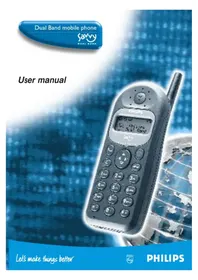


| Product Type | Mobile Phone |
| Model | TCD168 |
| Brand | Philips |
| Dimensions (H x W x D) | 105 x 45 x 15 mm |
| Weight | 80 g |
| Battery Type | Li-ion 1000 mAh |
| Standby Time | Up to 400 hours |
| Talk Time | Up to 5 hours |
| Display | 1.8 inch CSTN, 128x160 pixels |
| Camera | VGA (640x480) |
| Network | GSM 900/1800 |
| SIM Card | Mini-SIM |
| Memory | Internal: 2 MB, expandable via microSD |
| Connectivity | Bluetooth 2.0, USB 2.0, 3.5mm headphone jack |
| Messaging | SMS, EMS, MMS |
| Ringtones | Polyphonic, downloadable |
| Keypad | Numeric keypad with navigation keys |
| Additional Features | FM radio, flashlight, calculator, alarm |
| Power Input | 5V DC, 500 mA via microUSB |
| Safety | SAR value: 0.8 W/kg (head) |
Frequently Asked Questions - TCD168 PHILIPS
User questions about TCD168 PHILIPS
0 question about this device. Answer the ones you know or ask your own.
Ask a new question about this device
Download the instructions for your Mobile Phone in PDF format for free! Find your manual TCD168 - PHILIPS and take your electronic device back in hand. On this page are published all the documents necessary for the use of your device. TCD168 by PHILIPS.
USER MANUAL TCD168 PHILIPS
Dual Band mobile phone

DUAL BAND
User manual
Table of contents
Glossary 1
Before you start 2
The micro-SIM card 2
The battery 2
Insert the micro-SIM card 3
Insert the battery 3
Discover your phone 4
Display 5
Entering text 6
Basic functions 7
Switch ON/OFF 7
Voice dialling 7
Make a call 7
Answer or reject a call 8
Earpiece volume 8
Consult last calls 8
Adjust ringer volume 8
Emergency call 9
Change language 9
International call 9
Keypad lock/unlock 9
Special functions 10
Answer a second call 10
Automatic redial 10
Scratchpad 10
Touchtones (DTMF) 11
Hide your identity 11
Setting up Flash Dial 11
Menus 12
Discover the Compass key 12
Names 13
Add a name 13
Add voice dial 13
View names in the name list 14
Quick access to names 14
Search for a specific name 15
Road your own number 15
Delete a name 15
Messages 16
Read new messages 16
Read archived messages 17
Send short messages (SMS) 17
Service center number 17
Emotion icons 18
Send short messages from phonebook 19
Usual messages 19
Calls 20
View calls 20
Delete all calls 20
Meters 21
View meters 21
Reset meters 21
Settings 22
Set up meters 22
Key tones ON/OFF 22
Key tones ON/OFF 22
Choose ringer 23
Cell broadcast 23
View topics, add a topic 23
Manual registration 24
Voice mailbox number 24
Consult your voice messages 25
Security 25
PIN request, 25
change PIN and PIN 2 codes 25
Fixed names 26
Extra 27
Alarm clock, (set off/set on) 27
Set clock 27
Calculator 28
Euro converter 28
Biorythm calendar 29
Stopwatch 29
Call forwarding 30
Forward always to voice mail 30
Forward always to number 30
Cancel all 30
Philips Authentic Accessories 31
Troubleshooting 33
Safety Precautions 34
Index
![graph TD A["SWITCH ON Press and hold"] --> B["Enter PIN:"] B --> C["Enter your PIN code."] C --> D["MAKE A CALL"] D --> E["Enter phone number."] E --> F["Call the number (e.g.: 112 for emergency see p. 9)"] F --> G["ANSWER A CALL"] G --> H["12345678"] H --> I["Accept."] I --> J["END A CALL"] J --> K…](/content/2026/06/1305977/images/9f5e0be7bfd7353b33907304bd77a63759fe3bba938bf4476564c804101b4077.jpg)


MENU
FORWARDING MESSAGES NAMES CALLS EXTRA SETTINGS SECURITY
Forwarding
Always Status If no reply If busy Unreachable Cancel all
Messages
Centre no. Archive Send Usual msg. Forwarding
Names
Search View ◀ Add Own number
Calls
Delete all View Meters
Extra
Stopwatch Clock Alarm clock Calculator BioCalendar Converter
Settings
Register Key tones Ringer Voicemail Box number Broadcast
Security
Change PIN2 Change PIN Fixed names Restriction
DTMF Dual Tone Multi Frequency
The tones are transmitted by the phone to the network. They are used to interrogate answering machines, transmit codes,...
GSM Network Global System for Mobile communications. The type of phone network used by your phone.
PIN Code Personal Identification Number, this is the secret code of the SIM Card. If you, or someone else, enters the wrong PIN code three times your SIM card is blocked. If this happens, please contact your service provider.
PIN2 Code: Secret code that allows you to access certain SIM card dependent features. If you, or someone else, enters the wrong PIN2 code three times, your SIM card is blocked. If this happens, please contact your service provider.
PUK Code: Secret code used to unblock your SIM card if you, or someone else, enters the wrong PIN code three times. This code will be given to you by your service provider.
Roaming: Using your phone in a network other than your home network in your country or abroad.
SIM card: Subscriber Identification Module. This card, which is provided by your GSM service provider, allows you to make phone calls with your GSM phone. Your phone number is contained inside the card.
SMS: Short Messages Service. This service, provided by the operator, allows you to send and receive short written messages (Maximum: 160 characters).
From your card, remove the micro-SIM card.
The micro-SIM card.
To use your phone, you must insert a valid micro-SIM card supplied by your GSM network operator. When you switch the phone on, it may ask for the PIN code. The PIN code is the secret code of the micro-SIM card.
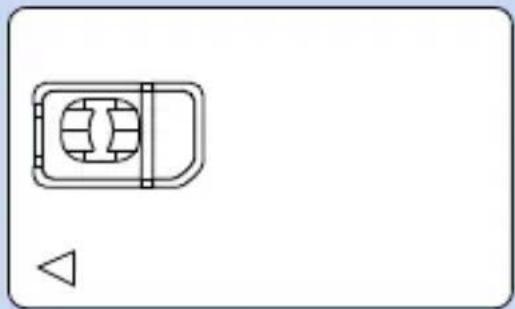
The micro-SIM card contains your subscription number and phone number. It also contains a memory in which you can store phone numbers and messages. If you use your micro-SIM card on another phone, you still retain the same phone number, stored numbers, and messages.
The battery.
Your phone is powered by a rechargeable battery.

• After you plug in the battery, please wait a few seconds before pressing the on/off key to switch the phone on. - A battery only reaches its maximum capacity after being totally discharged and recharged 2 or 3 times. - A battery lasts longer if you allow it to fully discharge from time to time. - If you do not use your phone for several days, it is better to remove the battery.
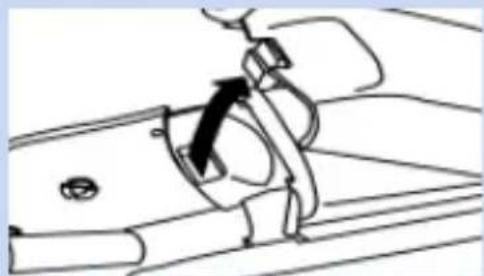
Remove the battery cover.
Press on the latch on the back of the phone and lift off the battery cover.
Remove the battery (if necessary).
Lift up on the bottom of the battery and remove it from the phone.

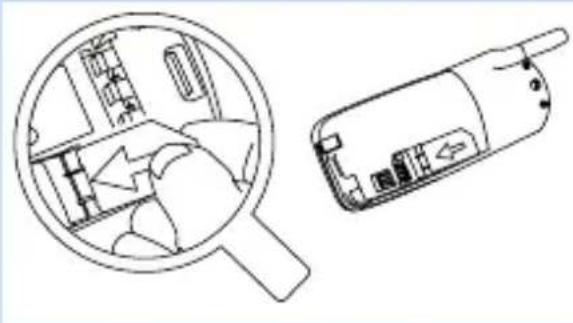
Insert the micro-SIM card
First, place the micro-SIM card into the appropriate slot in the battery compartment (the clipped corner should be at the top left). Then, slide the card with your finger until it stops.
Insert the battery
- Keep the battery + and - on the top facing the + and - of the phone.
- Slide the battery onto the contacts points and press.
Replace the battery cover
Hook the battery cover onto the hinges on bottom of phone and press forward until the latch catches.
Charge the battery
With the battery inserted in the phone, plug the connector into the right socket at the base of the phone. Next, plug the transformer unit into an AC power socket.
The only way to turn off the charger is to unplug it, so use an easily accessible AC power socket.
The battery icon on your phone's display indicates the state of the charge process:
- Bars moving = battery is charging.
- Bars steady = battery is fully charged. • Battery outline flashing (see Troubleshooting p. 32).
You can switch the phone on and use it during charging.



The first time you charge the battery and later, if it is completely discharged, the battery icon will only appear 2 to 3 minutes after you connect the charger. Please charge the phone for a minimum of 3 hours before first use.
"Compass" key
Use this key to navigate in the menus; the OK key is used to validate information.
Green "CALL" key
Press this key to dial the number or name on the display, or use it to answer a call.
"CLEAR" key
To delete numbers and letters on the display.
Keypad
To enter numbers and text.
Earpiece
Listen here.
Antenna
Display
See next page.
Red "ON/OFF" key
A long press on this key switches the phone on/off, a short press ends a call.
PHILIPS




MENU key
To enter and exit the menus.
Microphone

If you encounter the

symbol in this manual, it means that you have to press and hold the key to activate the function.
New text message(s)
- If on: you received new messages. - If flashing: the memory is full, you need to delete old messages before you can receive new ones.
Battery level
The bars indicate the battery level (4 bars is full, no bars means recharging is needed).
Silent mode
If on: phone will not ring or beep (except for the alarm clock).
Network
If on: your phone is registered to a network. If flashing: registration is in progress.
New voicemail
if on: there are new messages waiting in your voicemailbox (*)
Roaming
your phone is registered to a foreign network
Reception quality
the more bars are shown the better the reception







Graphics area
displays the clock and guides you through the menu
Arrows
indicate in which directions you can go using the Compass key
Cursor
indicates that you can enter numbers or text

left/right
and

back/forward or

to enter numbers and text or to read text messages
(*) Depending on the network.
Each key allows you to obtain several characters. You have to quickly press the same key several times to reach the desired character.
| Example: | 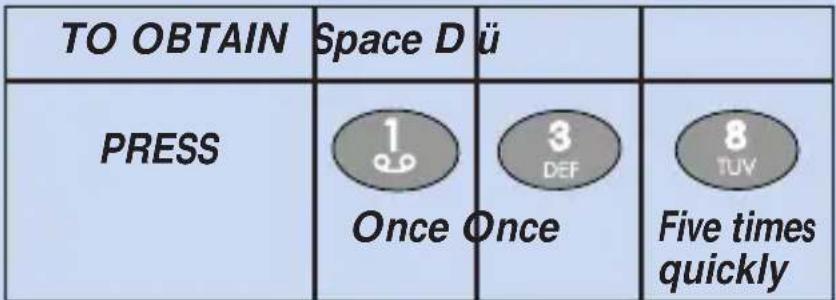 |
| Key | Characters |
| 1 | space 1 @ # = <> () & £ $ ¥ |
| 2 | a b c 2 à ä å æ ç |
| 3 | d e f 3 é è Δ Φ |
| 4 | g h i 4 Γ i |
| 5 | j k l 5 Λ |
| 6 | m n o 6 ñ ò ð ø |
| 7 | p q r s 7 β Π Θ Σ |
| 8 | t u v 8 ü ù |
| 9 | w x y z 9 Ω Ξ Ψ |
| 0 | .0 ” ’?! , : i i |
| * | * + - / % |
| # | upper-case lower-case mode |

While you enter text your phone changes between upper-case and lower-case automatically.
If you wish to enter text in the upper-case mode press , to enter text in the lower-case mode press again.
The 📄 will show that you are in the upper-case mode. In the lower-case mode the 📄 can appear.
Switch on/off... ... Make a call
SWITCH ON

Press and hold.

Enter PIN:

Sometimes entering the PIN code is not necessary (depends on your subscription and on your PIN request settings - see page 24).

Enter your PIN code.
The digits entered are replaced by big dots.

If you enter a wrong code 3 times your card will be blocked. If this happens, contact your operator.

PIN correct

If this is the phone's initial use or if the battery has been removed since the last use, you will need to re-set the clock

Registering

Network
SWITCH OFF

Press and hold.

Goodbye
Voice dialling
You can also make a call by pronouncing the voice tag you have associated to a number (see p.13).

Press and hold

Speak now
Pronounce the name you have associated to the number. The phone dials automatically the number.

Network
Enter phone number

01456_

Call the number

Calling
0145678901

Black Jack
00:02

Display shows a call cost if sent by your network.
The name will be displayed only if the name is stored in your phone's Names list.
END CALL

Answer or reject a call Consult last calls

123456789
The caller number is displayed only if your subscription supports caller line identification. If the number is in your Names list, the name will appear instead.
Accept the call or

Reject the call.
Earpiece volume
While on a call you can adjust the earpiece volume.


Raise earpiece volume. OR

Lower earpiece volume.

Your phone automatically stores a list of the last 10 calls you dialled and the last 10 callers who dialled you (including missed calls).

Network

Display the last call made, received or missed.

Calls

To view other calls.

To call.

For information on viewing the last 20 calls you placed or received, see "Calls Section" p. 20.
Adjust ringer volume and vibrator
You can select the vibrator options and adjust or turn off the ringer volume

Network

Display ringer volume selection.

Volume
Medium
Silent, Vibrator, Vibra+ring, Low, Medium, High

Select the volume.

Volume
High
OR
Select vibrator mode

Volume
Vibrator

Validate vibrator or volume selection.

Emergency call International call Keypad lock/unlock
Enter 112

Calling 112

Depending on your network operator, the emergency number 112 can be dialled without the micro-SIM card inserted.
Change language
Normally your phone automatically selects the right language for your country, but in case you want to change it:
Press and hold.
Language English

To make an international call, you can use “+” as the international prefix.
Network
Press and hold.
+ _
Dial the number (international country code and local number).
Call the number.
Calling +831234567
Select language.

Avoid undesired keystrokes when the phone is in your pocket or purse.
Network

Press and hold to lock keypad.
Keypad is locked
Network

Press and hold to unlock keypad.
Keypad is unlocked

When the keypad is locked, it is possible to dial the emergency number and to receive calls.
Answer a second call (Call Waiting)

This feature depends on the network. If a second person calls you, you will hear a beep. Check the display for a second call.


Rob
Waiting

Reject second call
OR
Accept second call
Call 1 is put on hold.


Rob
00:02

Switch between Call 1 and Call 2.

Kim


Rob

To end the call on display and return to other call.
Return to single call state.

Kim
01:16
Automatic redial Scratchpad
When you dial a number and your correspondent is busy, your phone offers the function of automatically redialling.

Failed
Call failed or recipient is busy.

0123456789
Autoredial?

Confirm. OR
Any other key cancels autoredial.

0123456789
A beep will sound for each redial attempt or vibrate 5 seconds in both vibrator modes.

0123456789
00:01
A beep informs you when the connection has been made. An incoming call or any use of the phone will end automatic redial.
The scratchpad feature is useful if you want to store a telephone number during a call.
The number can be dialled or viewed later.

0123456789
05:12

Enter the number you want to keep.

67890123_
The display automatically returns to your call.

0123456789
12:15

End the call.

67890123_

Call the number on the scratchpad.

OR For options.

67890123
Store no
Touchtones (DTMF) Hide your identity
Setting up Flash Dial
During a call or in direct dialling, the numeric keys always transmit DTMF tones (Dual Tone Multi Frequency) also known as "touchtones".
These tones are used to operate services that you can reach with your phone, like a pager or an answering machine.
Example, to consult your home answering machine:
Enter telephone number of your home answering machine.

0123456789_
1

Enter a "wait" signal to give time for the phone to connect.

0123456789w_

Enter the password of your home answering machine (e.g.: code: 9876).

Enter "pause" character.

0123456789w9
876p_

Enter code to listen to new message (e.g.: code 3).

0123456789w
876p3_

Call.
Hide your identity
If you type #31# followed by the phone number you call, your phone number is hidden to the other person.

#31#0123456

Availability of this feature depends on your network.
You can associate 8 names in the Names list or FDN list with keys 2-9 on the keypad. A long press on one of these keys will automatically dial the associated number.

Names
Vincent
Choose the name you want to make Flash Dial.

Press and hold to link the name to key 4.
CANCEL FLASH DIAL

Names
Vincent

Press and hold to cancel link.
TO FLASH DIAL

Network

Press and hold to dial linked number.
Discover the Compass Key
The Compass Key is your navigator while in the menus.
Press to enter or exit the menus.
Move one menu-level back.
Switches to option on the left. Switches to option on the right.

Move forward or validate the displayed option.
Here's an example:
What you see on the display
Press this key
The Names list menu options
| Network | |
| Menu |
| Names |
| Names |
| View |
| Names |
| Anders |
| 012345 | |
| Anders | |
| ◀Send msg.▶ |


MENU
Messages Names Calls
Search View Add
Delete Send msg. Usual msg.
Add a name ... Add Voice Dial
With your phone, you can store the names and phone numbers of people you call frequently.


Menu Names


Names View

Switch to "Add".

Names Add

Accept.

Name :
Enter name (max 11 characters).
For example: Jim


Delete one character.
OR

Press and hold to delete all characters.

Name: Jim_

Number:

一

Enter number (20 digits max).

Number:
0123456789_

Accept number.
NO VOICE DIAL

Voice dial ◀ Yes

Select "No"

TO ADD VOICE DIAL

Press OK and speak

Pronounce the voice tag you want to associate to the number

Press OK and speak

Repeat the voice tag you want to associate to the name.

Stored.


When Voice dial memory is full (10 names) the Voice dial menu disappears.
View names in the Names list.![graph TD A["MENU"] --> B["Menu"] B --> C["Names"] C --> D["Accept."] D --> E["OK"] E --> F["Names"] F --> G["View"] G --> H["Accept."] H --> I["OK"] I --> J["Names"] J --> K["Adam"] K --> L["To scroll through the list. OR Use the keypad to quickly jump to a name."]](/content/2026/06/1305977/images/0208534c0d744b4848761b6093ba8c1f0b35d4ac45a1ef522f35ca8ba68ab43f.jpg)
For example:
Quick access to names.![graph TD A["Zara"] --> B["Send msg."] B --> C["Delete◆Send msg◆Usual msg◆Voice dial◆Change"] C --> D["Switch to the option you want."] D --> E["Accept."] F["Quick access to names"] --> G["There is a quick way to access the names you stored:"] G --> H["Network"] H --> I["OK"] I --> J["Names: Anders ▶…](/content/2026/06/1305977/images/eebe083e18c15f6c2ba6bfceb83fe3c89850175f9e5f4111927f018d5ad2980c.jpg)
Search for a specific name.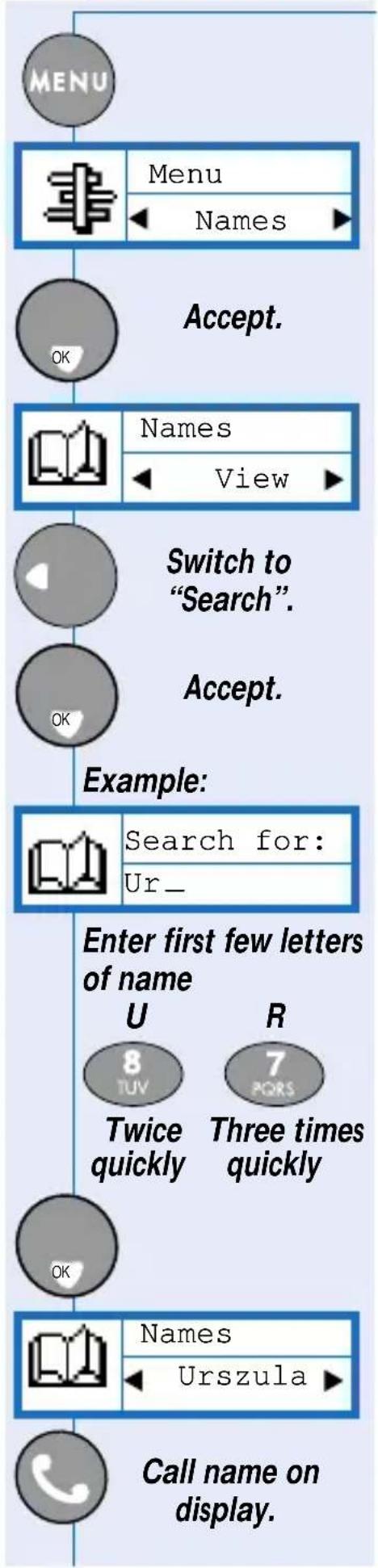
Switch to "Search".
Accept.
Enter first few letters of name.
U
Twice quickly.
R
Three times quickly.
Call name on display.
Read your own phone number Delete a name
Switch to "Own number".
Names
◀ Own number
Accept.
Own number
0123456789
Only available if present in the SIM card.

To access directly to phonebook

Names
Axel

Select name you want to delete

Names
Xavier

"Accept twice"

Xavier
◀ Send msg.▶

Go to delete


Press C
to delete


Deleted
Messages New message(s) ...
With your GSM phone you can receive text messages (SMS) and send messages to other GSM phones. To have the possibility of writing and sending messages, you need to enter a service center number first. If it is not present in the SIM card, ask your network operator for it.

Switch to "Messages".

| Menu |
| ◀Messages ▶ |

Switch to "Centre no."



| Centre no: |
| - |

Enter number.

Your phone allows you to send or receive short written messages.
NEW MESSAGE INDICATORS
![graph TD A[" "] --> B[" "] style A fill:#fff,stroke:#000 style B fill:#fff,stroke:#000](/content/2026/06/1305977/images/9c21125c180f0930ceab208765542608ac9dc318ef9d98459c85e24ccf14eea1.jpg)
Lights up on the display when you receive a text message. Flashes when the message memory is full. If this happens, you need to delete archived messages otherwise new ones will be rejected.
READ NEW MESSAGE(S)


OR
![graph TD A["Menu"] --> B["Names"] B --> C["Switch to "Messages"."] D["Menu"] --> E["Messages"] E --> F["OK"] G["Messages"] --> H["New"] I["Messages"] --> J["1 of 2"] K["Read the message."] --> L["OK"] M["12 AUG 17:55"] --> N["Hello, how"] O["Scroll through the message."] --> P["To switch t…](/content/2026/06/1305977/images/067e797d13350997af5130a08f7888a454dd3665f72b37deaf9129d4b24d9119.jpg)


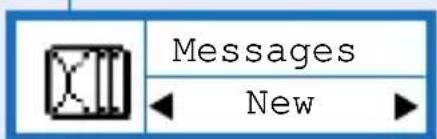



| 12 AUG 17:55 |
| Hello, how |

Read archived messages
Send short messages (SMS)

At the end of a message.
Delete◆Reply◆Forward
Switch to the option you want.
Accept.
When you receive a text message that comprises a telephone number enclosed between double quotes (e.g.: "+33900112233"), then the number is automatically extracted and stored in your calls list so that you can call it back easily.
Messages you have read and messages you have saved can be found in the Archive.

Switch to "Messages".
| Menu |
| ◀ Messages ▶ |

Switch to "Archives".

| Messages |
| Archive ▶ |

Accept


Switch to the message you want to read.

Read the message.

To switch to other messages
| Menu |
| ◀Messages ▶ |


Accept
Enter phone number or select a name from the phonebook by pressing OK a second time.
| To number: |
| 0123_ |

| Text: |
| - |
Enter message (maximum 160 characters). See "Entering Text" section for instructions.

... Emotion Icons ...

| Save ◀ Yes ▪ No◆Yes ▪ Decide to save or not. To see the icon the receiver needs a Philips Savvy™ phone, otherwise the equivalent code will be displayed at the end of the receiver's message. Emotion Icons | |
| Icon | Code sent |
| Smile :-) | |
| W ink ;-) | |
| Cool | B-) |
| Pfrrt... | :-P |
| Sad | :-( |
| Grrr... | :-/ |
| Meow!, | :<* |
| Woof! | :># |
| Teddy | 8<) |
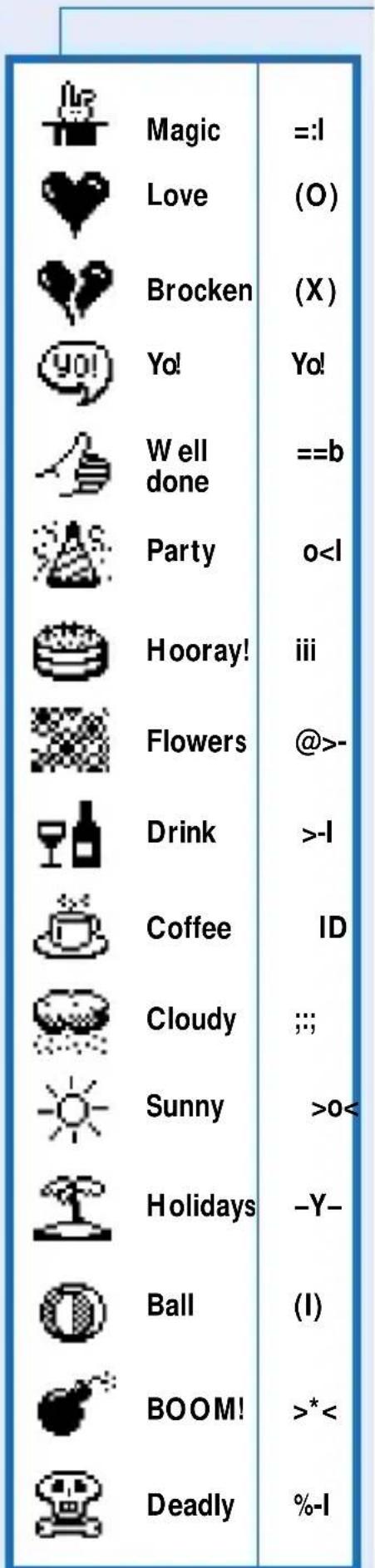
Send SMS from phonebook ... Usual Messages
You can also send an SMS directly from your phonebook without having to enter the phone number.
| Network | |

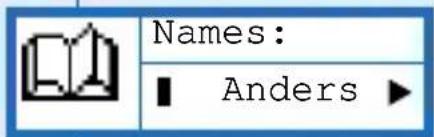

| Names |
| ← Sebastian ▶ |


| Text: |
| - |
Enter message (maximum 160 characters).
See "Send short messages (SMS)" for more instructions.

OR

Menu
◀ Messages
Your phone contains a number of pre-defined text messages like:
"Please call me back"
"I will be late"
"I will call you back", etc.

Accept twice

To number:
-

From Messages switch to "Usual msg."

Messages
Usual msg.

You have direct access to the phonebook
Select the name

Accept

Usual msg.
Please call

Accept twice.


Switch to the desired message.

Accept

To number:

Enter number.

Accept

Please call me back.
Enter message (maximum 160 characters). See "Send short messages (SMS)" for more instructions.
| Text: |
| - |
Enter message (maximum 160 characters). See "Send short messages (SMS)" for more instructions.


Accept.

View calls...
You can consult the last 20 calls in the Calls list.
You can consult the last 20 calls in the Calls list.


Menu

Calls
Accept

Calls

View
View

The Icon indicates the type of call.

Phone number you dialled.

Phone number of answered call.

Phone number of call you missed.

Phone number extracted from an SMS message.

Calls
Barbara

To view other calls.
To call
OR

To view the number.


0123456789
To options.


Barbara
Store no.
Delete Store no.
Send msg. Usual msg.

Choose other option if you wish.

Confirm selection.
Delete all calls
You can delete all the calls in the calls list.

Switch to "Calls".

Menu
Calls

Accept.

Calls
View

Switch to "Delete All".

Calls

Accept.

Press C
to delete
You must confirm the deletion.

To delete.

Deleted
Meters
Your phone has meters that allow you to see the total cost of your calls.
It also allows you to set limits on cost and check your consumption.

Calls
View

Switch to "Meters".

Calls
Meters

The cost counters and limits will only work if the network supports this feature.
View Meters

Meters
Show


Show
Duration▶
Duration◆Remaining◆Cost

Switch to the meter you want.

Accept.

Duration
00:55:26
Reset Meters

Meters
Show

Switch to "Reset".

Accept.

Reset
Duration▶

Select "Duration" or "Cost".

To reset.

For some of these options you might need your PIN or PIN2 code (depending on your operator).
Set-up meters ... Key tones ON/OFF
Type your PIN code (or more often, your PIN2). Depending on the network. Press and hold to clear your entry. For example BEF (Belgian francs).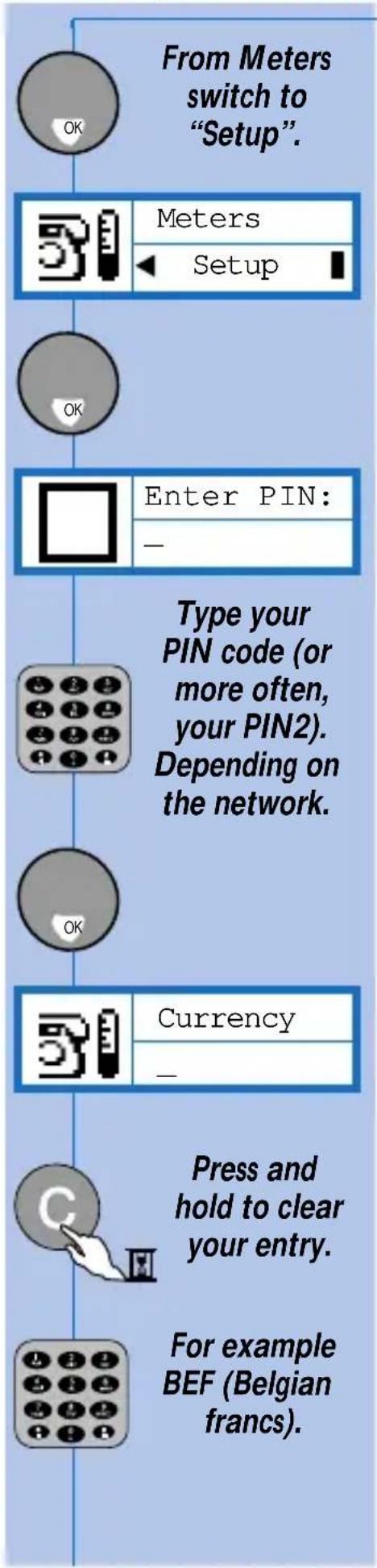
| Currency |
| BEF_ |
| Price/unit: |
| - |
For example 2.50 francs per unit.

| Price/unit: |
| 2_ |
Press and hold for the decimal point.

| Price/unit: |
| 2.5_ |
Each time you press a key, a tone is emitted. You can silence the key tones by turning them off.
Switch to "Settings".


From Settings switch to "Key tones".


Set off ◆ Set on
Accept.
| 9 | Set |
Choose ringer
When your phone rings, it plays a melody.
You can change this melody.

Settings
Ringer


Ringer
Special
Current melody

For other melodies.

Ringer
Fortissimo
Phone plays the melody.

Accept.

Set

The «Key tones» and «Ringers» menu items are not visible when the volume is set to "Silent" or "Vibrator"
Cell broadcast
The broadcast menu allows you to activate or deactivate the reception of SMS broadcast by the network.

From "Setting" switch to "Broadcast"

Settings
◀ Broadcast

Accept.

Broadcast
Topics
Reception♦Topics♦District

The topics menu allows you to define the type of message you want to receive.
VIEW TOPICS

Accept.

Topics
View

View◆Add
This function allows you to view which topics are registered in your phone (e.g., weather report). To delete or change a topic in the topics list, use the delete or change options.
ADD A TOPIC

Topics
Add

Accept.

Names:
-
Enter the name you want to associate with the topics.

Accept.

Enter code:
-
Enter the code given by your network operator for this topic.

Accept.
RECEPTION
The reception menu allows you to activate or deactivate the reception of registered topics.

From Broadcast switch to "Reception"

Broadcast
Reception▶
![graph TD A["..."] --> B["Accept."] B --> C["Reception"] C --> D["Set off"] D --> E["Set on◆Set off"] E --> F["Select the desired option."] F --> G["Accept."] G --> H["DISTRICT"] H --> I["The district menu allows you to select a topic from the topics list, which you would like be permanently dispayed…](/content/2026/06/1305977/images/e7003126659a311e57244bb34135d70da88dd7bab1a21ad8587bc4395d90cec7.jpg)
Consult your voice messages

Lights up on the display if you have a new voice message.
Availability of this feature depends on your network.

Press and hold to call for your voicemail.
OR

Network
Consult



Voicemail
0123456789

To call.
Pin request

Switch to "Security"

You can (de)activate the request for the PIN code at power-on.

Security
PIN code


PIN code
Set off
Change PIN and PIN 2 codes

Security
Change PIN

Accept.

Old PIN:
一
Enter old PIN code.


New PIN:
一

Enter new PIN code.
Accept.

Repeat PIN:

Enter new PIN code again.

Accept.

Changed

Security
PIN code

PIN code
Set off

Set off◆Set on
Switch to desired option.


Enter PIN:

Enter the PIN code.


Deactivated
Fixed names Add names
Your network operator may have provided you with a SIM card which supports fixed names (FDN). You can restrict the use of your phone to the numbers stored in the fixed names list.
VIEW FIXED NAMES

From Security switch to "Fixed names".

Security ◀ Fixed names

Fixed names View
Search◆View◆Add◆Restrictions


Fixed names Thomas

To view other names.
OR
To call.

From "Fixed Names" switch to "Add".

Fixed names Add


Enter PIN2:

Enter PIN2.

Name:
Enter name.


Number: _

Enter number.


Restrict to fixed names

From "Fixed Names" switch to Restriction.

Fixed names ◀Restriction▶


Restriction Set on
Set off◆Set on

Accept.

Enter PIN2:
Enter PIN2:


Activated
If "Restriction" is activated, then only the numbers in the fixed names list can be called.
Alarm: Set alarm, Set clock
![graph TD A["MENU"] --> B["Switch to "Extra""] B --> C["ALARM"] C --> D["Your phone has a 24 hour alarm clock. The alarm will ring even if the phone is switched off. When the alarm rings press any key to silence it."] D --> E["SET ALARM OFF"] E --> F["Extra"] F --> G["Alarm clock"] H["OK"]…](/content/2026/06/1305977/images/ee7fcb81d4093c30597ab0fbf1459298d92d2a9487804e79a2c8753e22cb7152.jpg)
![graph TD A["Extra"] --> B["Alarm clock"] B --> C{OK} C --> D["Alarm clock"] D --> E["Set on"] E --> F["Set off◆Set on"] F --> G{OK} G --> H["Alarm Clock"] H --> I["18:44"] I --> J{OR} J --> K["> Minutes decrease"] J --> L["< Minutes increase"] K --> M["Enter hour and minutes (eg: 07:45)."] L --> M M…](/content/2026/06/1305977/images/3b16c47a1aa963de88718b9aae955fd5ae663195c02cfbca3c7781f114db2084.jpg)
![graph TD A["From Extra switch to "Set clock"."] --> B["Extra"] B --> C["Set clock"] C --> D["OK"] D --> E["Set clock"] E --> F["11:37"] F --> G["< Minutes decrease"] G --> H["> Minutes increase"] H --> I["OR"] I --> J["Enter hour and minutes (eg: 19:42)."] J --> K["Set clock"] K --> L["19:…](/content/2026/06/1305977/images/a747378a0183349a98629e764f268eb0d1847e77b4ec3125e9c178a2daa12973.jpg)
Calculator, Euro converter
![graph TD A["Your phone has a calculator to add (+), subtract (-), multiply (*), and divide (/)."] --> B["Network"] B --> C["# = Press and hold to use calculator. OR from Extra switch to "Calculator"."] C --> D["Extra"] C --> E["Calculator ▶"] D --> F["OK"] E --> F F --> G["Calculate:"] G -…](/content/2026/06/1305977/images/7885f2efc095c8b96bbf1d7575643d812c3a7a1556e6c81cf0bc3a84a138546d.jpg)
![graph TD A["Abacus with + symbol"] --> B["Calculate: 3_"] C["+ symbol"] --> D["Calculate: 3 * _"] E["MNO symbol"] --> F["Calculate: 3 * 6_"] G["# = symbol"] --> H["Calculate: =18"] I["C Symbol"] --> J["To clear."]](/content/2026/06/1305977/images/a9d0ba1f4ecfb1ebc418785569540b90bb52b27c1b9d2befad6e43ae874d5fdc.jpg)

Biorhythm calendar, Stopwatch

10.5 Euro
66.75 FF
Your phone has a game which allows you to find your potential, or that of your friends, for a given day.

From Extra switch to "Bio calendar".

Extra
Bio calendar


Birth date:
dd/mm/yyyy

Type your birth date.

Birth date:
04/06/1974


Date:
dd/mm/yyyy

Enter the date for which you want to know the bio-rhythm results.

Date:
30/03/1999

The results can be:

Chance


Love



Energy


Success

You can time a race or other event.

This stopwatch is not a professional measuring device. Its measurements cannot be applied in an official context.

From Extra switch to "Stopwatch".

Extra
◀ Stopwatch


Stopwatch:
00:00:00.00

Start the stopwatch.

Stop the stopwatch.

Restart the stopwatch.

Reset the stopwatch to zero (when stopped).
Call forwarding ... Cancel all
Depending on your network operator, your phone will allow you to divert all your calls to voicemail or to another number. You will have to select the type of forwarding you want.


Switch to "Forwarding"

Menu
Forwarding

Forwarding
If no reply
Always ◆ If no reply ◆ If busy ◆
Unreachable ◆ Cancel all

Select the option wanted by pressing the OK key.
Example: Always
FORWARD ALWAYS TO MAILBOX

Forwarding
Always
Status ◆ Cancel ◆ To mailbox ◆ To number

Switch to mailbox


Requesting

Activated

Your phone will not ring as long as your calls are forwarded to your mail box.
To be able to forward calls to your voice mail, check that your mail box number has been set correctly (see "Settings" section, page 23).
FORWARD ALWAYS TO NUMBER

From "Forwarding" switch to "Always".

Forwarding
Always
Status◆Cancel◆To mailbox◆To number

Select "To number"



Number:

Enter the number to which you want to divert your calls

Requesting

Activated

"Status" will show you if this specific call forwarding option is activated or not. You can cancel each individual forwarding option by using "Cancel" instead of "Cancel all"
CANCEL ALL

From "Forwarding" switch to "Cancel all"

Forwarding
Cancel all


Deactivated
Your phone will now receive calls as normal.
"When Performance Counts... Philips Authentic Accessories are Designed to Maximize the Performance of Your Philips Phone".
PLUS Battery
Reference
BHR 130/P 9911 240 32041
NIMH 1300 mAh

SLIM Battery
Reference
BHR 127/P 9911 240 32040
NIMH 700 mAh
Cigarette Lighter Adapter 12V - 24V
Reference
CKLR 12/P 9911 240 34118

Deskstand Charger
Reference
DTSC 12/P 9911 240 35143

Fast Travel Charger
Reference
Europe ACSR 12/P 9911 240 30042
Taiwan/USA ACTR 12/P 9911 240 30043
UK ACUB 12/P 9911 240 30044
Australia ACAR 12/P 9911 240 30045

Fast Battery Charger and Conditioner
The cradle holds a single battery. Four versions of AC plugs available.
Reference
Europe DTER 12/P 9911 240 35137
Taiwan/USA DTTC 12/P 9911 240 35139
UK DTUC 12/P 9911 240 35140
Australia DTAC 12/P 9911 240 35141

Basic Car Kit
Keeps your phone secure and within easy reach while the battery is charging.
Reference
CKBR 12/P 9911 240 34210

Car Kit with Headset
Enjoy hands-free conversation while your phone is secure and within easy reach.
Reference
CKSR 12/P 9911 240 34211

Easy Hands-Free Car Kit
Complete hands-free solution with an advanced design speaker and microphone. Easy to install - simply plug into the vehicle power outlet. Your battery charges while secure in the cradle.
Reference
CKER 12/P 9911 240 34420

Headset
Use your phone under almost any situation with this convenient hands-free, very mobile solution.
Reference
HSSR 12/P 9911 241 30017

Personal Accessories
Keeps your phone within easy reach, safe and secure.
Reference
Carry Case with Belt Clip PBCR 12/P 9911 240 37023
Belt Clips (3 colors per package) VBCR 12/P 9911 241 39203
Phone Necklace VPNR 12/P 9911 241 39204

Easel-Style Phone Stand
Keeps the display on your phone at an easy-to-read angle.
Reference
VPER 12/P 9911 241 39205


Ask for Philips Authentic Accessories where you bought your Philips phone.
| PROBLEM | SOLUTION |
| The phone does not switch on. | Check if the battery is correctly inserted (big arrow facing you and pointing to the top) and/or charge the phone until the battery icon has stopped flashing. |
| The display shows «BLOCKED» when you switch on. | Somebody tried to use your phone but did not know the PIN code or Unblocking code.Contact your service provider. |
The [AG6X]  symbols are not displayed. symbols are not displayed. | The network connection is lost.Either you are in a radio shadow (in a tunnel or between tall buildings) or you are outside of the network coverage area.Try from another place. |
| The display doesn’t respond (or responds slowly) to key pushes. | The display responds more slowly at very low temperatures.This is normal and does not affect the operation of the phone.Take the phone to a warmer place and try again. |
| Your phone shows "insert SIM" on the display. | Remove your battery. Check that the micro SIM card is correctly inserted (clipped corner at the top left - see page 3). |
| When charging the battery, the battery icon shows no bars and the outline is flashing. | Only charge the battery in an environment where the temperature does not go below 0°C (32°F) or above 50°C (113°F). |
RADIO WAVES
- Your phone transmits/receives radio waves in the GSM frequency (900/1800 Hz).
- The GSM network controls transmission power (0.01 to 2 watts).
- Your phone complies with all relevant safety standards.
- The CE mark on your phone shows compliancy with European electromagnetic compatibility (Ref.89/336/EEC) and low voltage directives (Ref. 73/23/EEC).
SAFETY PRECAUTIONS
- Careless use can cause harm to you and others.
- Please inquire and respect local laws and regulations.
- Use your phone in the normal operating position (to ear).
- Avoid touching the antenna while a call is in progress.
- Do not use your phone if the antenna is damaged (risk of minor skin burn).
- Keep your phone in a safe place, out of reach of small children.
- Check with other manufacturers that consumer electronics will not be affected by radio energy.
- Avoid use of phone while driving. It affects your concentration.
- Switch phone off in an aircraft. It is illegal to use cellular phones when airborne.
- Switch phone off near hospitals or medical equipment.
- Ask manufacturer about radio wave shielding of electronic medical devices you may use (pacemaker, hearing aid).
- Switch phone off where blasting is in progress (for example in quarries).
- Switch phone off in potentially flammable atmosphere (petrol stations, fuel depot, chemical plants).
ENVIRONMENTAL CARE
- Please remember to observe the local regulation regarding the disposal of your packaging material, exhausted batteries and old phone and where possible promote their recycling.

- The phone must ALWAYS be switched OFF by pressing the Red ON/OFF key and never by removing the battery while the phone is ON. Otherwise, the stability of the settings, alarm clock and ring cannot be guaranteed.
- The phone is equipped with an alarm clock that, if set, will ring. If the phone is off and the alarm rings, no radio waves are transmitted. Press any key to turn off the alarm.
Accessories - 31
Alarm - 27
Battery - 2, 31
Biorhythm calendar - 29
Calculator - 28
Calls - 20
Answer a call - 8
Answer a second call - 10
Call forwarding - 30
Emergency call - 9
End a call - 7
International call - 9
Last calls - 8
Make a call - 7
Menu - 19
Reject a call - 8
Capital letters - 6
Cell Broadcast - 23
Clear display - 8
Clock - 26
Compass key - 4,12
Consult last calls - 8
Display - 5
DTMF tones - 11
Earpiece volume - 8
Emergency - 9
Emotion Icons - 18
Entering Text - 6
Euro Converter - 28
Extra - 27
Alarm - 27
Biorhythm calendar - 28
Calculator - 28
Clock - 26
Euro Converter - 28
Stopwatch - 28
Fixed names - 26
Flash Dial - 11
Forward calls - 30
Hide identity - 11
Keypad - 4
Lock - 9
Unlock - 9
Languages - 9
Last calls - 8
Mailbox number - 24
Manual registration - 24
Menus
Calls - 20
Extra - 27
Messages - 16
Names - 13
Security - 25
Settings - 22
Voicemail - 24
Messages - 16
Cell Broadcast - 22
Menu - 16
Meters - 21
Micro-SIM card - 2
Names - 13
Add a name - 13
Menu - 13
Fixed names - 26
Search a name - 15
View list - 14
Phone - 4
Own number - 15
PIN - 25
Ringer volume - 8
Restrict to FDN - 26
Scratchpad - 10
Safety Precautions - 34
Security - 25
Settings - 22
Set
Alarm On/Off - 27
Clock - 27
Set-Up - 22
Switch On/Off - 7
Stopwatch - 28
Touchtones (DTMF) - 11
Troubleshooting - 33
Voice dialling - 7
Voicemail - 24
Volume
Earpiece - 8
Ringer - 8
Vibrator - 8




- USER MANUAL
- MENU
- FORWARDING MESSAGES NAMES CALLS EXTRA SETTINGS SECURITY
- FORWARDING
- MESSAGES
- NAMES
- CALLS
- EXTRA
- SETTINGS
- SECURITY
- DTMF DUAL TONE MULTI FREQUENCY
- GSM NETWORK GLOBAL SYSTEM FOR MOBILE COMMUNICATIONS. THE TYPE OF PHONE NETWORK USED BY YOUR PHONE
- PIN CODE PERSONAL IDENTIFICATION NUMBER, THIS IS THE SECRET CODE OF THE SIM CARD. IF YOU, OR SOMEONE ELSE, ENTERS THE WRONG PIN CODE THREE TIMES YOUR SIM CARD IS BLOCKED. IF THIS HAPPENS, PLEASE CONTACT YOUR SERVICE PROVIDER
- PIN2 CODE: SECRET CODE THAT ALLOWS YOU TO ACCESS CERTAIN SIM CARD DEPENDENT FEATURES. IF YOU, OR SOMEONE ELSE, ENTERS THE WRONG PIN2 CODE THREE TIMES, YOUR SIM CARD IS BLOCKED. IF THIS HAPPENS, PLEASE CONTACT YOUR SERVICE PROVIDER
- PUK CODE: SECRET CODE USED TO UNBLOCK YOUR SIM CARD IF YOU, OR SOMEONE ELSE, ENTERS THE WRONG PIN CODE THREE TIMES. THIS CODE WILL BE GIVEN TO YOU BY YOUR SERVICE PROVIDER
- ROAMING: USING YOUR PHONE IN A NETWORK OTHER THAN YOUR HOME NETWORK IN YOUR COUNTRY OR ABROAD
- SIM CARD: SUBSCRIBER IDENTIFICATION MODULE. THIS CARD, WHICH IS PROVIDED BY YOUR GSM SERVICE PROVIDER, ALLOWS YOU TO MAKE PHONE CALLS WITH YOUR GSM PHONE. YOUR PHONE NUMBER IS CONTAINED INSIDE THE CARD
- SMS: SHORT MESSAGES SERVICE. THIS SERVICE, PROVIDED BY THE OPERATOR, ALLOWS YOU TO SEND AND RECEIVE SHORT WRITTEN MESSAGES (MAXIMUM: 160 CHARACTERS)
- THE MICRO-SIM CARD
- THE BATTERY
- REMOVE THE BATTERY COVER
- REMOVE THE BATTERY (IF NECESSARY)
- INSERT THE MICRO-SIM CARD
- INSERT THE BATTERY
- REPLACE THE BATTERY COVER
- CHARGE THE BATTERY
- COMPASS" KEY
- GREEN "CALL" KEY
- CLEAR" KEY
- KEYPAD
- EARPIECE
- ANTENNA
- DISPLAY
- RED "ON/OFF" KEY
- PHILIPS
- MENU KEY
- MICROPHONE
- NEW TEXT MESSAGE(S)
- BATTERY LEVEL
- SILENT MODE
- NETWORK
- NEW VOICEMAIL
- ROAMING
- RECEPTION QUALITY
- GRAPHICS AREA
- ARROWS
- CURSOR
- SWITCH ON/OFF... ... MAKE A CALL
- SWITCH ON
- SWITCH OFF
- VOICE DIALLING
- END CALL
- ANSWER OR REJECT A CALL CONSULT LAST CALLS
- EARPIECE VOLUME
- ADJUST RINGER VOLUME AND VIBRATOR
- EMERGENCY CALL INTERNATIONAL CALL KEYPAD LOCK/UNLOCK
- CHANGE LANGUAGE
- ANSWER A SECOND CALL (CALL WAITING)
- AUTOMATIC REDIAL SCRATCHPAD
- TOUCHTONES (DTMF) HIDE YOUR IDENTITY
- SETTING UP FLASH DIAL
- HIDE YOUR IDENTITY
- CANCEL FLASH DIAL
- TO FLASH DIAL
- DISCOVER THE COMPASS KEY
- ADD A NAME ... ADD VOICE DIAL
- NO VOICE DIAL
- TO ADD VOICE DIAL
- MESSAGES NEW MESSAGE(S)
- NEW MESSAGE INDICATORS
- READ NEW MESSAGE(S)
- READ ARCHIVED MESSAGES
- SEND SHORT MESSAGES (SMS)
- EMOTION ICONS
- SEND SMS FROM PHONEBOOK ... USUAL MESSAGES
- OR
- YOU CAN CONSULT THE LAST 20 CALLS IN THE CALLS LIST
- DELETE ALL CALLS
- METERS
- VIEW METERS
- RESET METERS
- SET-UP METERS ... KEY TONES ON/OFF
- CHOOSE RINGER
- CELL BROADCAST
- VIEW TOPICS
- ADD A TOPIC
- RECEPTION
- CONSULT YOUR VOICE MESSAGES
- PIN REQUEST
- CHANGE PIN AND PIN 2 CODES
- FIXED NAMES ADD NAMES
- VIEW FIXED NAMES
- RESTRICT TO FIXED NAMES
- ALARM: SET ALARM, SET CLOCK
- CALCULATOR, EURO CONVERTER
- BIORHYTHM CALENDAR, STOPWATCH
- CALL FORWARDING ... CANCEL ALL
- FORWARD ALWAYS TO NUMBER
- CANCEL ALL
- PLUS BATTERY
- REFERENCE
- SLIM BATTERY
- BASIC CAR KIT
- CAR KIT WITH HEADSET
- EASY HANDS-FREE CAR KIT
- HEADSET
- PERSONAL ACCESSORIES
- EASEL-STYLE PHONE STAND
- RADIO WAVES
- SAFETY PRECAUTIONS
- ENVIRONMENTAL CARE
Brand : PHILIPS
Model : TCD168
Category : Mobile Phone