CCT724319 - Air-conditioner SCHNEIDER - Free user manual and instructions
Find the device manual for free CCT724319 SCHNEIDER in PDF.


User questions about CCT724319 SCHNEIDER
0 question about this device. Answer the ones you know or ask your own.
Ask a new question about this device
Download the instructions for your Air-conditioner in PDF format for free! Find your manual CCT724319 - SCHNEIDER and take your electronic device back in hand. On this page are published all the documents necessary for the use of your device. CCT724319 by SCHNEIDER.
USER MANUAL CCT724319 SCHNEIDER
Wiser IP Camera Outdoor
Device user guide
Information about features and functionality of the device.
10/2021
Legal Information
The Schneider Electric brand and any trademarks of Schneider Electric SE and its subsidiaries referred to in this guide are the property of Schneider Electric SE or its subsidiaries. All other brands may be trademarks of their respective owners.
This guide and its content are protected under applicable copyright laws and furnished for informational use only. No part of this guide may be reproduced or transmitted in any form or by any means (electronic, mechanical, photocopying, recording, or otherwise), for any purpose, without the prior written permission of Schneider Electric.
Schneider Electric does not grant any right or license for commercial use of the guide or its content, except for a non-exclusive and personal license to consult it on an "as is" basis. Schneider Electric products and equipment should be installed, operated, serviced, and maintained only by qualified personnel.
As standards, specifications, and designs change from time to time, information contained in this guide may be subject to change without notice.
To the extent permitted by applicable law, no responsibility or liability is assumed by Schneider Electric and its subsidiaries for any errors or omissions in the informational content of this material or consequences arising out of or resulting from the use of the information contained herein.
Table of Contents
Safety information....5
Wiser IP Camera Outdoor 6
For your safety 6
About the device....6
Installing the device ....6
Pairing the device ....6
Configuring the device ....7
Changing the device icon ....7
Renaming the device ....8
Changing the device location ....8
Configuring basic function settings 9
Configuring IR night vision 10
Setting image quality....10
Setting offline notification.... 11
Inserting a micro-SD card 11
Removing the device 11
Using the device....12
Using private mode 13
Detection alarm setting....13
Setting privacy zone....14
Playback 15
Creating a moment ....17
Creating an automation 19
LED indications 23
Troubleshooting 24
Technical Data 24
Safety information
Important information
Read these instructions carefully and look at the equipment to become familiar with the device before trying to install, operate, service, or maintain it. The following special messages may appear throughout this manual or on the equipment to warn of potential hazards or to call attention to information that clarifies or simplifies a procedure.

The addition of either symbol to a “Danger” or “Warning” safety label indicates that an electrical hazard exists which will result in personal injury if the instructions are not followed.

This is the safety alert symbol. It is used to alert you to potential personal injury hazards. Obey all safety messages that accompany this symbol to avoid possible injury or death.
⚠️⚠️ DANGER
DANGER indicates a hazardous situation which, if not avoided, will result in death or serious injury.
Failure to follow these instructions will result in death or serious injury.
▲WARNING
WARNING indicates a hazardous situation which, if not avoided, could result in death or serious injury.
CAUTION
CAUTION indicates a hazardous situation which, if not avoided, could result in minor or moderate injury.
NOTICE
NOTICE is used to address practices not related to physical injury.
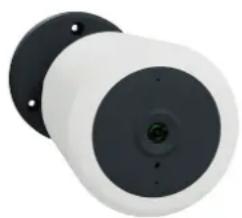
Wiser IP Camera Outdoor
natural_image
Close-up of a cylindrical security camera with black and white casing (no visible text or symbols)CCT724319
For your safety
NOTICE
RISK OF DAMAGE TO DEVICE
Always operate the product in compliance with the specified technical data.
Failure to follow these instructions can result in equipment damage.
About the device
The Wiser IP camera outdoor (hereinafter referred to as IP Camera) is a Wi-Fi operated device that is used to monitor sensitive outdoor areas of your home with a HD recording. You can install the camera indoors or outdoors in all directions (e.g. on the wall, under the roof, etc.). The IP camera can be triggered by other Wiser devices (such as sensors).
Advantages of using an IP camera:
• Increases your overall safety
• High resolution recording
- Covers a wide area
• Infrared night vision for low light recording
NOTE: Users are solely responsible for adhering to applicable privacy laws (e.g. the GDPR, Article 5). Users must ensure that guarantees are taken to avoid any misuse of equipment for surveillance or entirely different and unexpected purposes than intended.
Installing the device
Refer to the installation instruction supplied with this product. See Wiser IP Camera Outdoor.
Pairing the device
Using the Wiser app, pair your device with the local Wi-Fi network to register on cloud to access and control the device.
Before you pair the device, download the Wiser app to your mobile device. Follow the steps to pair the device:
-
On the Home page, tap + icon and tap .
-
Select the Wi-Fi network, enter the Password (A) and tap Next.
NOTE: Make sure to select 2.4 GHz network.

text_image
Cancel Select 2.4GHz Wi-Fi Network and enter Password. If your Wi-Fi is 5GHz, please sell it to the 2.4GHz. 2.4GHz 5GHz Password Next-
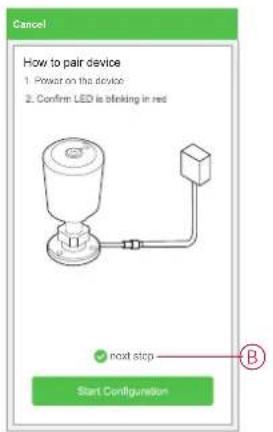
Plug-in the power cable to a power supply to power On the device. Make sure that the LED blinks red.
-
In the Wiser app, select next step (B) and tap Start Configuration.
text_image
Cancel How to pair device 1. Power on the device 2. Confirm LED is blinking in red B Start Configuration- Wait for a few seconds until the LED blinks blue and becomes stable.
The blue LED on the IP camera shows that it is successfully connected to the Wi-Fi network and ready to use.

natural_image
Diagram of a cylindrical mechanical component with red and blue spheres connected by a dotted line, no text or symbols present- After the device is connected, tap Done.
Configuring the device
Changing the device icon
Using the Wiser app, you can change the icon of the device. Follow the steps to change the device icon:
-
On the Home page, tap All devices > IP Camera Outdoor.
-
Tap icon and tap Settings >.
-
Tap Icon to view the menu.
-
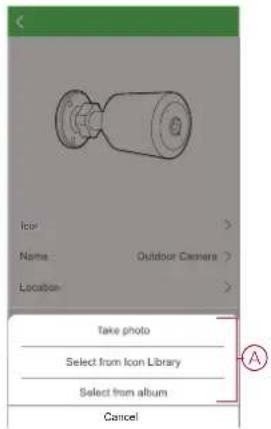
In the slide-up menu, select any one of the following (A):
-
Take photo - Allows you to click photo from the mobile camera
- Select from Icon Library - Allows you to select an icon from the app library
- Select from Album - Allows you to select photo from the mobile gallery
text_image
Icon Name Outdoor Camera Location Take photo Select from Icon Library Select from album Cancel- Tap on the required photo/icon to change the icon.
Renaming the device
Using the Wiser app, you can rename your device for easy identification.
Follow the steps to rename the device:
- On the Home page, tap All devices > IP Camera Outdoor.
- Tap icon and tap Settings
- Tap Name, enter the name (A) and tap Save.

text_image
Rename Outdoor Camera 1 Cancel SaveChanging the device location
Using the Wiser app, you can change the location of the device. Follow the steps to change the device location:
- On the Home page, tap All devices > IP Camera Outdoor.
-
Tap icon and tap Settings
-
Tap Location, select any location from the list (A) and tap Save.
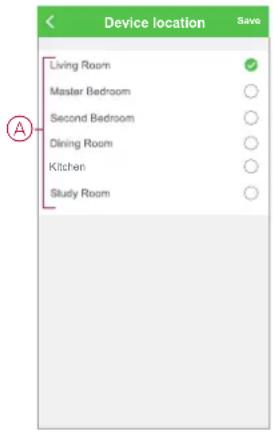
text_image
Device location Living Room Master Bedroom Second Bedroom Dining Room Kitchen Study RoomConfiguring basic function settings
The basic function settings allows you to enable the Status indicator on the device and the Time watermark on the Wiser app.
Status indicator
Enabling the Status indicator turns On/Off the LED on the device.
Follow the steps to enable the Status indicator:
- On the Home page, tap All devices > IP Camera Outdoor.
- Tap icon and tap Settings > Basic function settings.
- Tap the toggle switch (A) to enable the Status indicator.
NOTE: The LED indicates blue on the device when the status indicator is turned On.
Time watermark
Enabling the Time watermark displays the date and time on the live view on control panel.
Follow the steps to enable the Time watermark:
- On the Home page, tap All devices > IP Camera Outdoor.
- Tap icon and tap Settings > Basic function settings.
- Tap the toggle switch (B) to enable the Time watermark.

text_image
Basic Function Settings Status Indicator Time Watermark A BConfiguring IR night vision
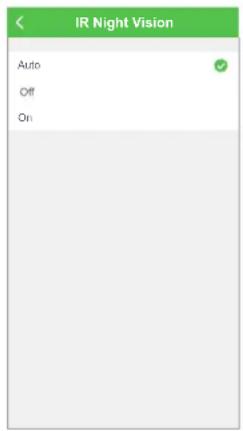
The infrared LEDs in the camera allows you to see and record a clear black and white video/image in the dark.
Follow the steps to configure the IR night vision:
- On the Home page, tap All devices > IP Camera Outdoor.
- Tap icon and tap Settings > IR night vision.
-
Select any one of the following options:
-
Auto - Turns On/Off automatically when the environmental light is below/above a certain threshold of the lux level
- Off - Turns Off the IR night vision at all times
- On - Turns On the IR night vision at all times
text_image
IR Night Vision Auto Off OnSetting image quality
Using the wiser app, you can change the image quality based on your requirement.
TIP: You can switch to Standard Definition image quality when the Wi-Fi is slow or the memory card storage space is less.
- On the Home page, tap All devices > IP Camera Outdoor.
- Tap icon and tap Settings > Image Quality.
-
Select any one of the options:
-
Standard Definition (SD) - Captures low resolution video/image
– High Definition (HD) - Captures high resolution video/image

text_image
Image Quality Standard Definition (SD) High Definition (HD) Noise: The higher image quality will provide a better image quality and experience, and it will be with larger sizes accordingly as well.Setting offline notification
Using the wiser app, you can receive a notification when the IP camera is offline. Follow the steps to turn on the Offline notification:
- On the Home page, tap All devices > IP Camera Outdoor.
- Tap icon and tap Settings.
- Tap the toggle switch (A) to turn On the Offline notification and tap Confirm.

text_image
Settings IR Night Vision Auto > Image Quality HD > Advanced Settings Detection alarm Settings On > Privacy Zone Off > Offline Notification Offline Notification Others FAQ & Feedback > Share Device > Add to Home Page > Filmware Information No updates available > Remove DeviceInserting a micro-SD card
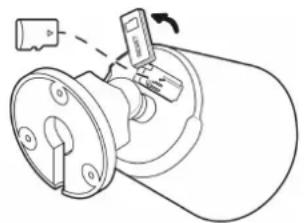
The micro-SD card is inserted in the device to store the recording.
NOTE: The micro-SD card has to be inserted before you power On the device. If the device is already in On state, then switch Off the device to insert the micro-SD card.
Follow the steps to insert a micro-SD card:
- Remove the lid on the back of the camera.
- Insert a micro-SD card in the memory card slot.
- Close the lid.
Once the micro-SD card is inserted, you can configure the playback settings, page 15.
NOTE: A maximum of 128 GB SDHC and SDXC micro-SD cards with FAT32 format are supported.
natural_image
Technical line drawing of a mechanical device with no visible text or symbolsRemoving the device
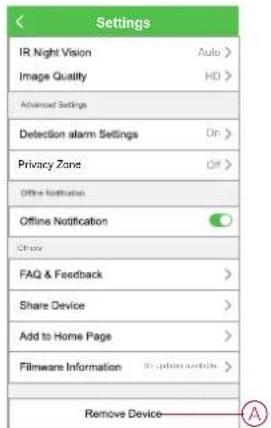
Using the Wiser app, you can remove a device from the device list. Follow the steps to remove the device:
- On the Home page, tap All devices > IP Camera Outdoor.
-
Tap icon and tap Settings.
-
Tap Remove device (A) and tap Confirm.
text_image
Settings IR Night Vision Image Quality Advanced Settings Detection alarm Settings Privacy Zone Offline Notification Offline Notification FAQ & Feedback Share Device Add to Home Page Filmsware Information Remove DeviceTIP: Alternatively, you can long tap on the IP Camera Outdoor on the home page to remove the device.
NOTE:
- Removing the device will reset the device. The LED starts blinking red indicating that the device is ready to pair with another network. - If there is a problem while pairing, refer to troubleshooting, page 24 the device.
Using the device
Using the control panel of the IP Camera, you can see live video of the outdoors on the display screen and includes the following features:
| Enables audio of the live video | |
| Makes the video fullscreen | |
| Takes screenshot of the live view | |
| Lets you communicate with a person near the device | |
| Records the live view | |
| Enables motion detection | |
| Enables private mode | |
| View the stored images or videos |
NOTE:
- To view the notification/alarm messages, tap > Message.
- To review the recordings using playback feature, refer to Playback, page 15.
Using private mode
The Private Mode allows you to turn off the live view, thereby disabling all the other features on the control panel for all users connected to the same Zigbee network. Using this mode, the user is able to stay confidential during private moments.
Follow the steps to turn On the private mode:
- On the Home page, tap All devices > IP Camera Outdoor.
- Tap icon > Settings.
- Tap the toggle switch to turn On the Private Mode.
- Alternatively, tap Private Mode (A) on the control panel.

text_image
Outdoor Cam... Signal 91% Live View is not allow in Private Mode ADetection alarm setting
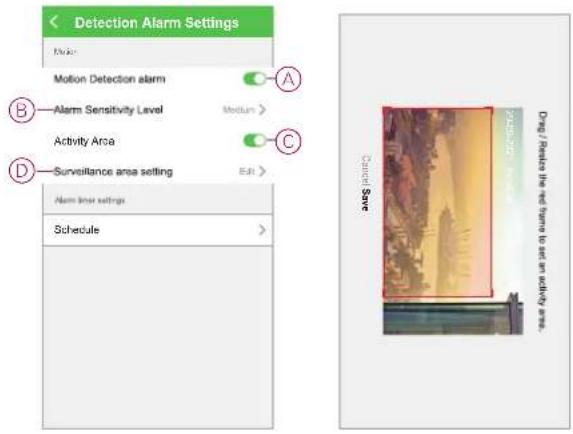
The motion detection function enables the IP camera to detect motion at the surveillance area and sends notification on the Wiser app.
Follow the steps to enable the motion detection:
- On the Home page, tap All devices > IP Camera Outdoor.
- Tap icon and tap Settings > Detection alarm settings.
- Tap the toggle switch (A) to turn On the Motion detection alarm.
TIP: Alternatively, you can tap theicon on the control panel.
Alarm sensitivity level
Using the Wiser app, you can adjust the sensitivity level of your motion detector.
Tap Alarm sensitivity level (B) and select any one of the following levels:
- Low
- Medium
- High
NOTE: The high sensitivity level detects the slightest movement and triggers an alarm.
Activity area
Using the Wiser app. you can set the surveillance area for motion detection.
- Tap the toggle switch (C) to enable the Activity area.
- Tap Surveillance area settings (D) and drag/resize the red frame to set the surveillance area and tap Save.
NOTE: The motion is detected only in the saved surveillance area.
text_image
Detection Alarm Settings Disk: Motion Detection alarm A B—Alarm Sensitivity Level Medium > Activity Area C D—Surveillance area setting Edit > Alarm laser settings Schedule > Cancel Save Drug / Reduce the net frame to set an activity area.Scheduling detection alarm
Using the Wiser app, you can add a schedule that allows you to turn off/on motion detection automatically based on your needs. Follow the steps to schedule the motion detection:
-
On the Home page, tap All devices > IP Camera Outdoor.
-
Tap icon and tap Settings > Detection alarm settings > Schedule.
-
Tap Add schedule and set the time (A).
-
Tap Repeat (B) and select the days you want the schedule to repeat.
-
Tap Note (C), enter the note and tap Confirm.
-
Tap the toggle switch (D) to turn On the Notification for the schedule.
-
Tap Motion detection (E), select one of the options:
- On - Turns On the motion detection on the scheduled time - Off - Turns Off the motion detection on the scheduled time

text_image
Edit Schedule Save 08:59 10:01 11:01 A B Repeal Mon. Thurs. Sun > C Note Event Time > Notification D E Motion Detection Off > Note - The Schedule works according to the timezone where code is located- Tap Save.
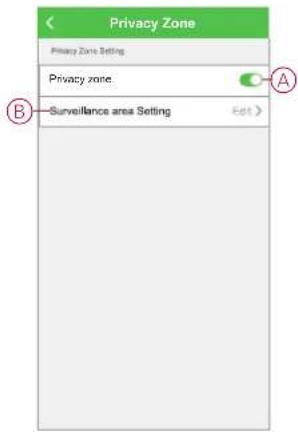
Setting privacy zone
The Privacy Zone settings allows you to set the surveillance area for monitoring on the live view.
Follow the steps to set the privacy zone:
-
On the Home page, tap All devices > IP Camera Outdoor.
-
Tap icon and tap Settings > Privacy Zone.
-
Tap the toggle switch (A) to turn On the Privacy Zone.
-
Tap Surveillance area setting (B) and drag/resize the red frame to set the surveillance area and tap Save.
The live view on the control panel will show only the saved surveillance area.
text_image
Privacy Zone Privacy Zone Setting Privacy zone. Surveillance area Setting Edit > A B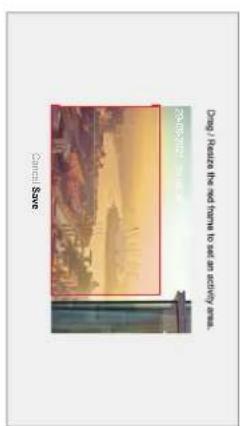
text_image
Drugs Reduce the old forms to see an activity area. 2019-2021 Carmel Sore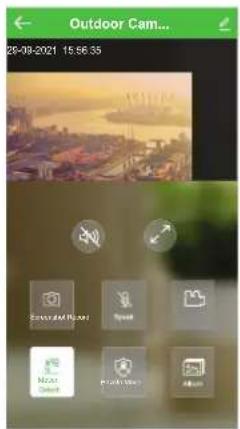
text_image
Outdoor Cam... 26-09-2021 15:56:35 Connected Home Speed Mean Outlook PICKDOWN AlbumPlayback
Using the Wiser app, you can review the recording whenever you want with the Playback feature.
NOTE: You need to insert a micro-SD card, page 11 (max 128 GB) to use the playback feature.
The control panel of the playback consists of:
 | Select the recording date and time |
 | Click screenshot of the video |
 | Pause/play the recording |
 | Record the video |
NOTE:
• A display screen on the control panel shows the previous recordings.
- The screenshot/recording will be saved in the album.
Storage settings
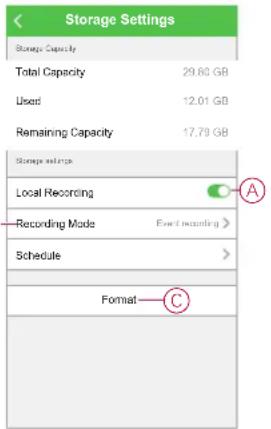
Follow the steps to change the playback settings:
-
On the Home page, tap All devices > IP Camera Outdoor.
-
Tap icon and tap Settings > Storage Settings.
-
In the Storage Settings section, tap the toggle switch (A) to enable the Local recording.
NOTE: The recording will be saved to the micro-SD card.
- Tap Recording mode (B) and select one of the options:
- Event recording - Records only when there is a motion detection - Non-stop - Records continuously for 24 hours
- Tap Format (C) to format the inserted micro-SD card.
NOTE: This will delete all the data stored on the micro-SD card.
text_image
Storage Settings Storage Capacity Total Capacity 29.60 GB Used 12.01 GB Remaining Capacity 17.79 GB Storage requirements Local Recording Recording Mode Event recording > Schedule > Format CScheduling playback
Using the Wiser app, you can add a schedule that allows you to turn off/on recording automatically based on your needs.
Follow the steps to schedule the recording:
-
On the Home page, tap All devices > IP Camera Outdoor.
-
Tap icon and tap Settings > Storage Settings > Schedule.
-
Tap Add schedule and set the time (A).
-
Tap Repeat (B) and select the days you want the schedule to repeat.
-
Tap Note (C), enter the note and tap Confirm.
-
Tap the toggle switch (D) to turn On the Notification for the schedule.
-
Tap Local recording (E), select one of the options:
-
On - Turns On the recording on the scheduled time
- Off - Turns Off the recording on the scheduled time
NOTE: The recording will be saved to the memory card.

text_image
Add Schedule Save 10 10 11 1 12 12 A B Repeat Vac, Ftl > C Note Grobustion Party > Notification D E Local Recording On > Note - The Schedule works according to the timezone where device is located.- Tap Save.
Creating a moment
A Moment allows you to group multiple actions that are usually done together. Using the Wiser app, you can create moments based on your needs (such as movie night).
Follow the steps to create a moment:
- On the Home page, icon.
- Go to Moment > + icon to create a moment.
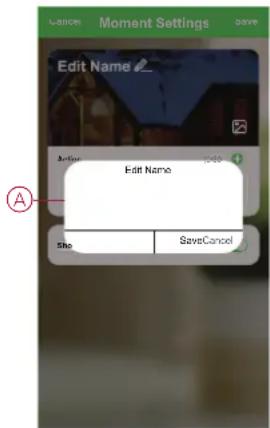
- Tap Edit name, enter the name of the moment (A) and tap Save.
TIP: You can choose the cover image that best represents your moment by tapping 📋 icon.
text_image
Cancel Moment Settings Save Edit Name Action Edit Name A Sho SaveCancel-
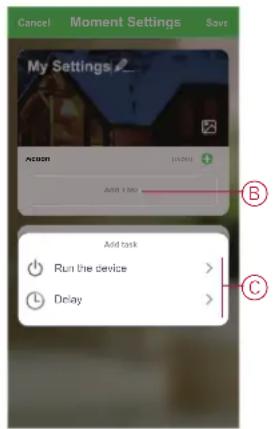
In the Action section, tap Add task (B) to open the slide-up menu.
-
In the Add task menu, you can do either or all of the following actions (C):
-
Run the device - Select the devices that you want in a moment
- Delay - Set the delay time
NOTE: You can add one or more actions using.
text_image
Cancel Moment Settings Save My Settings Add task Run the device > Delay >-
Tap Run the device > IP Camera Outdoor to select either or all of the functions to add in the moment:
-
Recording Mode - Select the type of recording (D)
- Record Switch - Turn On/Off the recording (E)
- Privacy Area Switch - Turn On/Off the privacy zone (F)

text_image
Select Function Next Recording Mode > Record Switch > Privacy Area Switch > Recording Mode Event Recording ✓ Continuous Recording ○ Cancel Save
text_image
Select Function Next Recording Mode Record Record Record Switch > Privacy Area Switch > Record Switch On Off Cancel Save
text_image
Select Function Next Recording Mode Record Switch Privacy Area Switch Privacy Area Switch On Off Cancel Save- Once all the actions are set, tap Save.
Editing a moment
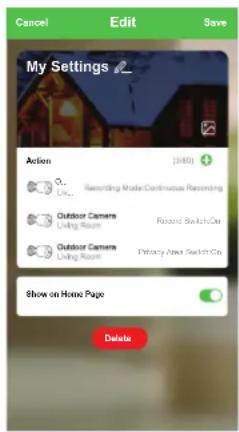
Follow the steps to edit a moment:
-
On the Moment tab, locate the moment you want to edit and cap
-
On the Edit page, you can tap each item (such as dimmer, shutter, delay, etc.) to change the settings and tap Save.
text_image
Cancel Edit Save My Settings Action (3:00) Recording Mode Continuous Recording Outdoor Camera Living Room Record SwitchOn Outdoor Camera Living Room Primary Area Switch On Show on Home Page DeleteDeleting a moment
Follow the steps to delete a moment:
- On the Moment tab, locate the moment that you want to delete and tap icon.
- Tap Delete (A).

text_image
Cancel Edit Save My Settings Action (340) Qu. Life... Recording Mode Continuous Recording Outdoor Camera Living Room Record SwitchOn Outdoor Camera Living Room Privacy Area SwitchOn Show on Home Page DeleteCreating an automation
An automation allows you to group multiple actions that are usually done together, triggered automatically or at scheduled times. By using the Wiser app, you can create automations based on your needs.
Follow the steps to create an automation:
- On the Home page, tap icon.
-
Go to Automation > + icon to create an automation.
-
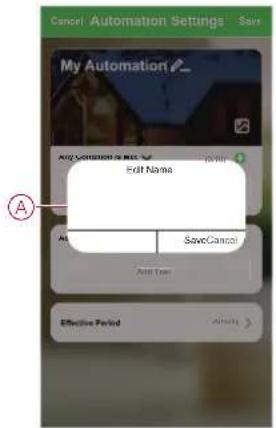
Tap Edit name, enter the name of the automation (A) and tap Save.
TIP: You can choose the cover image that best represents your automation by tapping icon.
text_image
Cancel Automation Settings Says My Automation ? Add Selection to Web Name Edit Name Edit Name All SaveCancel Save Type Effective Period Always-
Tap Any condition is met to select any one of the condition type (B):
-
All conditions are met - The automation is triggered when all the conditions are met
- Any condition is met - The automation is triggered when at least one condition is met

text_image
Cancel Automation Settings My Automation ? Any Condition is met Auto Condition Auto Select Condition type All Conditions are met Any condition is met Cancel-
Tap Add Condition to open the slide-up menu.
-
In the Add Condition menu, you can do either or all of the following options (C):
-
When weather changes - Select the various weather settings
- Schedule - Set the time and day
- When device status changes - Select the device and it's function
Note: You can add one or more conditions doing.

text_image
Cancel Automation Settings Save My Automation Any Condition Is Mcl Add Condition When weather changes > Schedule > When device status changes >- Tap When device status changes > Window/Door Sensor > Open.
NOTE: : This is an example of an automation to switch On the Event Recording when the Window/Door is Open.
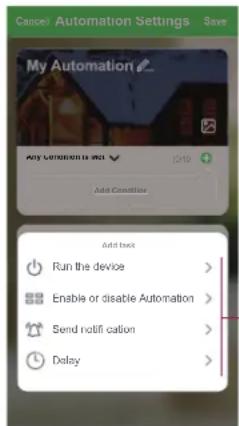
- Tap Add task to open the slide-up menu.
- In the Add task menu, you can do either or all of the following options (D):
- Run the device - Select the devices that you want to be triggered
- Enable or disable Automation - Select the automation that you want to enable or disable
- Send notification - Turn On notification for the automation
- Delay - Set the delay time
NOTE: You can add one or more actions along.
text_image
Cancel Automation Settings Save My Automation My Automation (R) Add Condition Add Text Run the device > Enable or disable Automation > Send notification > Delay >-
Tap Run the device > IP Camera Outdoor > Recording Mode
-
Select Event Recording and tap Save.

text_image
Select Function Recording Mode Record Switch Privacy Area Switch Recording Mode Event Recording Continuous Recording Cancel Save-
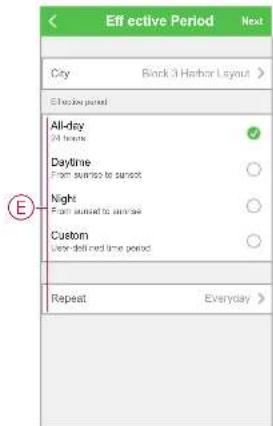
Tap on Effective period to set the time range for the automation. You can select any one of the following (E):
-
All-day - 24 hours
- Daytime - From sunrise to sunset
- Night - From sunset to sunrise
- Custom - User defined time period
text_image
Effective Period Next City Block 3 Harbor Layout > Effective period All-day 24 hours Daytime From start to start Night From start to end Custom User delivered time period Repeat Everyday >- Once all the actions and conditions are set, tap Save.
Once the automation is saved, it is visible on the Automation tab. You can tap the toggle switch on the automation to enable it.
Editing an automation
Follow the steps to edit an automation:
-
On the Automation tab, locate the automation you want to edit and tap icon.
-
On the Edit page, you can tap each item (such as dimmer, shutter, delay, etc.) to change the settings and tap Save.

text_image
Cancel Edit Save Outdoor Camera Automation Any Condition is Met (100) Window Door Sensor 3 Window/Door Sensor : Open Action (100) Clicks... Recording Mode Event Recording Effective Period AP-Day DeleteDeleting an automation
Follow the steps to delete an automation:
-
On the Automation tab, locate the automation you want to delete and tap ••• icon.
-
Tap Delete (A).

text_image
Cancel Edit Save Outdoor Camera Automation Any Condition is Met (100) Window Door Sensor 3 Window/Door Sensor Open Action (100) Cerix Recording Music Event Monitoring Effective Period AE Day DeleteLED indications
| LED Indication | Status |
LED is Solid red | Device is initiated successfully. |
LED blinks red | Device is in reset mode.Device is ready for pairing |
LED is Solid blue | Device is initiating.The connection is successful. |
| LED blinks blue[HKAX] | Device is pairing to the network.The device is offline. |
Troubleshooting
| Error Possible cause Solution | ||
| The device is not ready to pair after the device is removed from the app. | The device is not reset correctly. | Remove the lid on the back of the camera and press the reset push button for 5 seconds to reset the device. |
| The device does not respond. Check demerit points and retry. | Wrong Wi-Fi credentials are entered during the pairing process.NOTE: You must log into 2.4 GHz network. |  |
Technical Data
| Nominal voltage AC 100–240 V, 50/60 Hz | |
| Power supply 12 VDC, 1A | |
| Power consumption max. 6 W | |
| Operating temperature -20 °C to 60 °C | |
| Operating humidity < 95% RH | |
| Protection class IP Camera : IP56 | Power supply : IP20Connector : IP20 |
| Cable length IP Camera to connector : 0.6 m | Power supply to connector : 1.5 m |
| Operating frequency 2405 – 2480 MHz | |
| Max. radio-frequency power transmitted | < 100 mW |
| Wi-Fi® standard | IEEE 802.11 b/g/n 2.4 GHz |
| Wi-Fi® security | WPA-PSK/WPA2-PSK |
| Channel bandwidth | Support 20/40 MHz |
| Data security | AES128 |
| Resolution | 1080p |
| Wide angle lens 128° horizontally | 54° vertically |
| Night vision IR range | 10 m |
| Local storage support | Micro SD card, max. 128 GBSDHC and SDXC type micro-SD cards with FAT32 format are supported |
Compliance
Compliance information for Green Premium products
Find and download comprehensive information about Green Premium products, including RoHS compliance and REACH declarations as well as Product Environmental Profile (PEP) and End-of-Life instructions (EOLI).
General information about Green Premium products
Click the link below to read about Schneider Electric's Green Premium product strategy.
https://www.schneider-electric.com/en/work/support/green-premium/
Find compliance information for a Green Premium product
Click the link below to search for a product's compliance information (RoHS, REACH, PEP and EOLI).
NOTE: You will need the product reference number or product range to perform the search.
https://www.reach.schneider-electric.com/CheckProduct.aspx?cskey=ot7n66yt63o1xblflyfj
Trademarks
This guide makes reference to system and brand names that are trademarks of their relevant owners.
- Zigbee ^® is a registered trademark of the Connectivity Standards Alliance.
- Apple ^ and App Store ^ are brand names or registered trademarks of Apple Inc.
- Google Play™ Store and Android™ are brand names or registered trademarks of Google Inc.
- Wi-Fi ^® is a registered trademark of Wi-Fi Alliance
- Wiser™ is a trademark and the property of Schneider Electric, its subsidiaries and affiliated companies.
Other brands and registered trademarks are the property of their respective owners.
Schneider Electric
As standards, specifications, and design change from time to time, please ask for confirmation of the information given in this publication.