SMBT17 - Mouse Sandstrøm - Free user manual and instructions
Find the device manual for free SMBT17 Sandstrøm in PDF.


| Product Type | Wireless Mouse |
| Model | SMBT17 |
| Brand | Sandstrøm |
| Color | Black |
| Connectivity | 2.4GHz Wireless + Bluetooth 4.0 |
| Sensor Type | Optical |
| DPI (Resolution) | 1000 / 1600 selectable |
| Buttons | Left, Right, Scroll Wheel, DPI Button, On/Off Switch, Pair Button |
| Dimensions (L x W x H) | 107 x 63 x 40 mm |
| Weight (with battery) | Approx. 75 g |
| Power Source | 1 x AA Battery (included) |
| Operating Range | 10 m |
| Frequency Band (2.4GHz) | 2406 - 2476 MHz |
| Frequency Band (Bluetooth) | 2400 - 2482 MHz |
| Max RF Power (2.4GHz) | 0 dBm |
| Max RF Power (Bluetooth) | 3 dBm |
| System Requirements | Windows 7/8/10, USB port for dongle |
| Compatible Bluetooth | Windows 8 or higher with Bluetooth 4.0 |
| Included Accessories | Nano Dongle, AA Battery, Instruction Manual |
| Battery Life | Several months (typical usage) |
| Maintenance | Clean with dry cloth; avoid glass and white paper surfaces; use mouse pad |
| Safety | Do not look into optical sensor; keep batteries away from children; remove batteries before air travel |
Frequently Asked Questions - SMBT17 Sandstrøm
User questions about SMBT17 Sandstrøm
0 question about this device. Answer the ones you know or ask your own.
Ask a new question about this device
Download the instructions for your Mouse in PDF format for free! Find your manual SMBT17 - Sandstrøm and take your electronic device back in hand. On this page are published all the documents necessary for the use of your device. SMBT17 by Sandstrøm.
USER MANUAL SMBT17 Sandstrøm
natural_image
Black wired computer mouse with 'Standard' branding (no visible text or symbols beyond branding)
Bluetooth
Sandstrøm
Contents
Safety Warnings....4
Unpacking 6
Product Overview....7
Ilebrum Idea
System Requirements 8
Installing the Batteries 8
Basic Operation 9
Powering On/Off 9
Selecting Mode....9
Selecting DPT;DPT;Perfikin
Connecting in 2.4GHz MHz mode 10 Automotive Airline 28
Michael Fairing 11
Connecting in Bluetooth ^® Mode 12
Hints and Tips.... 13
Specifications....14
Safety Warnings

Optical:
Never point the optical sensor towards the face,
particularly the eyes, to avoid possible injury

While the mouse is in use, the optical light is visible to the naked eye. Be careful not to look directly into the emitter hole while the mouse is active.
Wireless Devices:
- Before boarding any aircraft or packing a wireless device in luggage that will be checked in, remove the batteries from the wireless device.
- Wireless devices can transmit radio frequency (RF) energy, whenever batteries are installed and the wireless device is turned on.
Battery-Powered Devices:
- Improper use of batteries may result in battery fluid leakage, overheating, or explosion.
- Leaked battery fluid is corrosive and may be toxic. It can cause skin and eye burns, and is harmful if swallowed.
To Reduce the Risk of Injury:
- Keep batteries out of the reach of children.
• Do not heat, open, puncture, mutilate, or dispose of
batteries in fire.
• Do not mix new and old batteries or batteries of
different types.
• Do not allow metal objects to touch the battery
terminals on the device; they can become hot and
cause burns.
Thank you for purchasing your new
Mouse.
We recommend that you spend some time
reading this instruction manual in order that you
fully understand all the operational features if
bthers. You will also find some hints and tips to help you receive reviews.
Read all the safety instructions carefully before
use and keep this instruction manual for future
reference.
Unpacking
Remove all items from the packaging. Retain the
packaging. If you dispose of it please do so according
to local regulations.
The following items are included:
- Main Unit
- Nano Dongle
• AA Size Battery x 1
• Instruction Manual
Product Overview
Top View
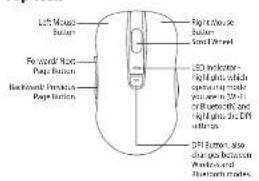
Bottom View

System Requirements
Operating Systems: Microsoft® Windows® 7/8/10
Hardware: 1 available USB port
Installing the Battery
When battery is low, the LED
Indicator Will Hash,
1. Lift the battery cover up.
2. Insert 1 x AA battery.
3. Close the battery cover.


- Please ensure the batteries' polarities I+/- match the battery compartment's polarities. - To save energy, slide the ON/OFF switch to the OFF position to turn off the mouse.
Basic Operation
Powering On/Off
Slide the ON/OFF switch at the bottom of the mouse to
turn the mouse on or off.
When switching on the unit, the LED indicator will light up for 2 cars in 3.4GHz Wireless works on 5 or
light up for 2 sec in 2.4GHz wireless mode or 5 sec in Bluetooth® mode
Bluetooth mode.
Selecting Mode
Press and hold the DPI button for 3 sec to switch
between 2.4GHz Wireless and Bluetooth ^® modes.
When 2.4GHz Wireless mode is selected, LED indicator
will light up for 2 sec.
When Bluetooth ^™ made is selected, LED indicator will
light up for 5 sec.
Selecting DPI (Dot per Inch)
Press the DPI button to select sensitivity 1000 (less
sensitive) or 1600 (more sensitive).
If DPI 1000 is selected, the LED indicator will slow flash
3 times.
If DPI 1600 is selected, the LED indicator will quick flash
5 times.
Connecting in
2.4GHz Wireless Mode
Plug the dongle directly into the USB port of your device. It will install a mouse driver (this may take a minute or two). You need both for your mouse to function properly. The USB nano dongle is location in the base of the packaging. It should be stored in the battery compartment when not in use.
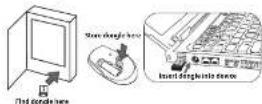
Automatic Pairing
-
Slide the ON/OFF switch to ON.
-
Press and hold the DPI button for 3 seconds, the LED
will light up for 2 seconds.
You will now be in 2.4GHz Wireless mode, the mouse will automatically activate. This could take a few seconds.
When the drivers are installing you'll see a symbol in the taskbar if you click on it you'll see the Device Setup menu, wait for the drivers to install.

Drivers installing
Manual Pairing
If automatic pairing fails, pair the dongle with the
mouse manually.
1. Remove the dongle from device USB port.
2. Slide the ON/OFF switch to ON
3. Press the * BLUE button at the bottom of the mouse.
The mouse will enter the pairing mode and the LED indicator will finish quickly.

Blue

LED fleshes
- Plug the dongle into the USB port within 20 sec.
- After successfully connecting in 2.4GHz Wireless
mode, the LED indicator light will extinguish.
Connecting in
Bluetooth® Mode
- You must have a Bluetooth ^ device to work with this mouse. Switch on your Bluetooth ^ device, and make sure Bluetooth ^* is switched on.
- On the mouse, slide the ON/OFF switch to ON. You now need to make sure your mouse is in Bluetooth* mode.
- Press and hold the DPI button for 3 seconds, if the LED lights up for 5 seconds you are in Bluetooth* mode. If not press and hold the DPI button again.
- Press and hold the BLUE button, the LED indicator light will flash, it's now in pairing mode which will last for 120 seconds.

- On your device, search for a mouse with Bluetooth® technology. Select the mouse named "SMBT17". If you are asked to enter a code, type in 0000 or 1234.
- Your mouse is a new friend with your device.
b. Your mouse is now paired with your device.
Hints and Tips
Mouse Not Working:
- Ensure the mouse is switched on.
- Move the mouse closer to the device.
• If the mouse is moving erratically, change the
working surface which the mouse is operating on. - Restart the computer.
- Check battery installation. Replace battery if needed.
• The mouse may not work smoothly on white paper
and glass surfaces. We recommend using mouse pad.
In Bluetooth® mode:
- Ensure you are in Bluetooth ^TM mode.
• Ensure your Bluetooth-enabled device's wireless
function is active.
• Ensure there are no other wireless devices in
discovery mode. - Ensure your computer's operating system supports wireless input devices (e.g. mice and keyboards), and is the latest version.
• Pair again the mouse and the device.
In Wireless mode:
• Ensure you are in 2.4 GHz Wireless mode.
- Make sure the Nano Dongle is plugged into a USB port and the computer is on or try the Nano Dongle in a different USB port.
• If the Nano Receiver is plugged into a USB hub, try plugging it directly into the computer.
- If mouse performance is slow or intermittent around a wireless network, unplug the Nano Dongle from the USB port and then reinsert it. To reactivate the mouse, switch it on, off and on again using the ON/OFF switch on the bottom of the mouse.
Specifications
| Model SMBT17 | |
| Wireless Frequency | 4GHz / Bluetooth® 4.0 (Compatible with Windows 8 (or higher) Bluetooth 4.0 enabled devices.) |
| Operating Range | 0 m |
| Resolution | 1000/1000 dpi |
| Frequency Band(s) | 2.4GHz: 2406 - 2476 MHzBT: 2400 - 2482 MHz |
| Max. Radio Frequency Power Transmitted | 2.4GHz: 0 dBmBT: 3 dBm |
| Dimension (L) x (W) x (H) | 107 x 63 x 40 mm |
Features and specifications are subject to change without prior notice.
KNOWHOU
For general information about this appliance and handy
Intb and bpo.rlon ch.
1234
Partmaste
Your Partners may be ready for the second year.
Electrical ques and switches with one mill re
(2) 10.3.14.2024.5.27 29:57 10:40 A/SCH
you have a 2013 holiday. You can get your 2013
of Carles 44 & c. at Nettquillate.

The production of the product or its packaging is also other this product.
not the disposed of with your other household waste herein, Mr. Paul
responsibility and space of your waste equipment by handling over 10
drugmented collection point for underlying of nanodecution and
equipment. The separate collection and recycling of your waste equipment
e of disposal will be certificate means required and successful in
6.3 Practice: process planning, 100% of the policy
Rates for battery disposal
The following is also the product sales company and the company
The information.
To pre-cause of arms (in a 30 normal household arm
information: a case contact the local authority of a company where
the product

65 Retail Limited lacks that the safety equipment laps in compliance
注:表2-14-20(6)。

both "wordmark and logo are registered trademarks owned by the
a SIC, Inc. and argues of our results by 265 firms in the foundation.
dewards and not more are those of their respective owners.

is registered reference of Microsoft Corporation in the United States and

putia are the example of that project segerans and alfristis are
.
DSG Retail Ltd. (co. no. 504877)
1 Perfor Way, London, W3 EC5, DN
IB-SMBT17-17C512V2
- Contents
- Safety Warnings
- Optical:
- Wireless Devices:
- Battery-Powered Devices:
- To Reduce the Risk of Injury:
- Thank you for purchasing your new
- Unpacking
- Product Overview
- BLUE Button,
- System Requirements
- Installing the Battery
- Basic Operation
- Powering On/Off
- Selecting Mode
- Selecting DPI (Dot per Inch)
- Connecting in
- 2.4GHz Wireless Mode
- Automatic Pairing
- Manual Pairing
- Bluetooth® Mode
- Hints and Tips
- Mouse Not Working:
- In Bluetooth® mode:
- In Wireless mode:
Brand : Sandstrøm
Model : SMBT17
Category : Mouse