NP204 - Powerline Adapter Netcomm - Free user manual and instructions
Find the device manual for free NP204 Netcomm in PDF.


| Product Type | Powerline Adapter (HomePlug AV compliant) |
| Data Rate | Up to 200 Mbps |
| Interface | 1 x 10/100 Ethernet port |
| AC Pass-Through | Yes, built-in with noise filtering |
| Frequency Band | 2–30 MHz |
| Security | Private Network Name (PNN) up to 64 characters; no encryption specified |
| Power Consumption | 4.5 watts (typical) |
| Power Supply | AC 100–240 V, 50/60 Hz |
| Compatibility | Any Ethernet-enabled device (router, computer, gaming console, IPTV, etc.) |
| Software Utility | Powerline Utility (Windows 98SE/ME/2000/XP/Vista/7; requires .NET Framework) |
| Simple Connect Button | Yes – for creating/joining/resetting PNN without software |
| LED Indicators | Power, Powerline Activity (green/amber/red for connection quality) |
| Package Contents | 2 Powerline Adapters, 2 Ethernet cables, Quick Start Guide |
| Dimensions (each) | Approx. 105 x 60 x 45 mm (estimated) |
| Weight (each) | Approx. 150 g (estimated) |
| Operating Temperature | 0–40 °C (estimated) |
| Warranty | Standard limited warranty (see manual for details) |
Frequently Asked Questions - NP204 Netcomm
User questions about NP204 Netcomm
0 question about this device. Answer the ones you know or ask your own.
Ask a new question about this device
Download the instructions for your Powerline Adapter in PDF format for free! Find your manual NP204 - Netcomm and take your electronic device back in hand. On this page are published all the documents necessary for the use of your device. NP204 by Netcomm.
USER MANUAL NP204 Netcomm
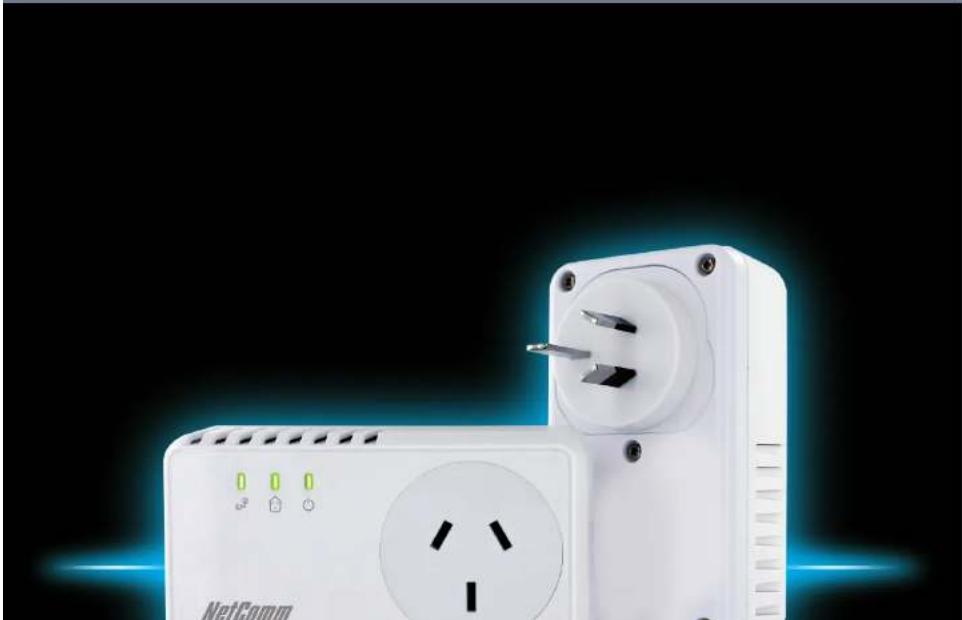
200Mbps Powerline Adapters with AC Pass-through
natural_image
White NetComm power strip with two charging plugs and a socket, against a black background (no text or symbols visible)NetComm
Contents
Contents 2
Introduction 4
How Does It Work? 4
AC Pass-through 5
Package Contents 5
Device Design 5
How to Use Simple Connect....6
Determining Connection Rate 7
Getting Started 9
Plan Your Network 9
Powerline Utility....12
Requirements 12
Opening Powerline Utility 12
Powerline User Interface....14
The Powerline Utility user interface is divided into tabs. These tabs include: 14
Home 14
Private Network Name 15
Quality of Service 16
Devices 17
Firmware Upgrade....17
Frequently Asked Questions....19
Can I use 200Mbps Powerline Adapters with older Powerline versions? 19
Legal & Regulatory Information 22
Introduction
NetComm
Introduction
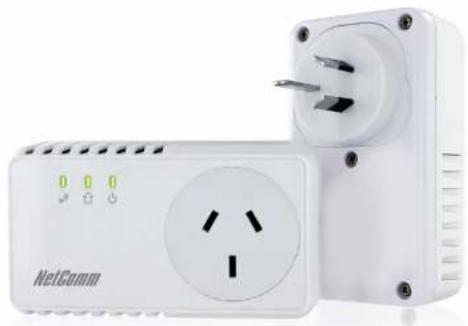
Powerline Adapters are ready to use out of the box and do not require the installation of any software to work. They can be connected to computers, routers, gaming consoles, hubs, IPTV set-top boxes, and other Ethernet devices regardless of operating system.
natural_image
White NetGomm power strip device with two socket and three-pin socket (no visible text or symbols)How Does It Work?
Powerline Adapters utilise the existing electrical wiring in the house as a path to send an Internet signal between a household, modern and connected device at the other end. The Powerline Adapters that are in your box are pre-paired so all you have to do is plug them in, in accordance with the QSG and you are ready to begin. With a maximum data rate of up to 200 Mbps, Powerline Adapters can reliably handle high throughput applications like broadband Internet, high definition video streaming, Voice over IP and high definition gaming. The NP201 also has a built-in AC pass-throughsocket that allows you to connect other electrical devices to the same power outlet. The AC pass-throughsocket will filter out the noise created by the connected devices, ensuring the data signal is not compromised.
NetComm Powerline Series - 200Mbps Powerline Adapters
AC Pass-through
With built in AC pass-through, you are conveniently able to use the same power point to plug in other electrical appliances. All you have to do is connect the electrical appliance into the built-in pass-through socket and it will have power as if it was connected directly into the wall. This will eliminate the need to connect your Powerline Adaptor to a power board which will improve your networking performance.
Package Contents
The package contains the following items:
• 2 Powerline Adapters
• 2 Ethernet cables
- Quick Start Guide
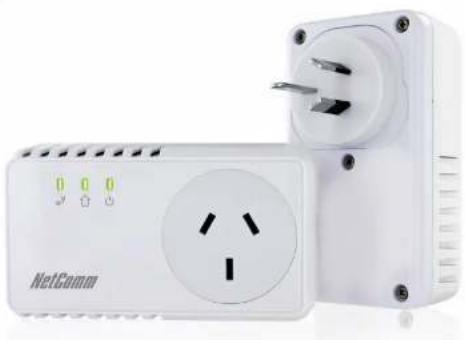
Device Design
natural_image
White NetComm electrical outlet with two power plugs and a circular socket (no visible text or symbols)NetComm
How to Use Simple Connect
Note: The Powerline Adapters that you have received are ready for use straight out of the box. They require no initial set up or configuration all you need to do is connected them as detailed in the Quick Start Guide. The following instructions about the Simple Connect button to configure your network are only applicable if you are wanting to change the default private network name or include more adapter into the same powerline network.
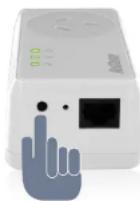
Simple Connect provides a more convenient way of creating your Powerline network without the need to open the Powerline Utility software from a computer. The button has three main functions which includes:
- Creating a Powerline Network
- Resetting the Private Network Name
- Joining an existing Powerline Network
Creating a Powerline Network
To create a Powerline network, you need at least two Powerline devices using random Private Network Names. When you press Simple Connect on both devices, a common Private Network Name will be automatically generated to enable them to communicate with each other.
Notes: New Powerlines from a Twin Pack can slrescy communicate with each other out of the box. However, if you intend to create a new Private Network Name using Simple Connect for both devices, you need to reset their Private Network Names to a random key before proceeding.
To create a Powerline network using Simple Connect:
1 Plug your Powerlines side by side where you can easily observe the LED behavior. Upon connection, the LEDs will blink simultaneously and then the Power LED lights on steadily.
2 Press Simple Connect for two seconds on Adapter X. After you release the button, the Power LED ⏻ will blink. If the Power LED ⏻ did not blink, press Simple Connect again for two seconds.
Note: Do not press Simple Connect for more than 2 seconds.
NetComm Powerline Series - 200Mbps Powerline Adapters
5 Unplug the Powerline Adapters and then connect them to your Ethernet devices using the Ethernet cables from the product package. After connecting the Ethernet cable, plug the Adapters directly to a wall outlet.
An Ethernet-enabled device can be a router, computer, hub, gaming console, IP phone, network printer, or IP TV set-top box.
Note: Powerline work best when connected directly to a wall socket. Avoid plugging it to a power strip or power extension. Other electrical devices in the power strip produce electrical noise that may affect the performance of the Adapter.
Resetting the Private Network Name
Simple Connect allows you to reset the Powerline Adapter's Private Network Name to a random key. When a Powerline Adapter is reset to a random key, it will not be able to communicate with any other device.
Note: Resetting the Private Network Name is different from resetting the device to its factory default settings. If you intend to reset the device to its factory default settings, press RESET on the device.
To reset the Private Network Name using Simple Connect:
1 Press Simple Connect, wait for the Power LED ⏻ to blink, and then release. It may take at least 10 seconds for the Power LED ⏻ to blink.
2 To confirm the Private Network Name reset, the Powerline Activity LED will switch off.
Joining an Existing Powerline Network
Simple Connect will enable a new device to join an existing network. By copying the Private Network Name of the existing network to the new Powerline.
Determining Connection Rate
Each LED color of the Powerline Activity represents a connection rating. The connection rating can only be calculated when the device is part of an existing network. The exact connection rate value can also be viewed using Powerline Utility.
A
Getting Started
NetComm Powerline Series - 200Mbps Powerline Adapters
Getting Started
Plan Your Network
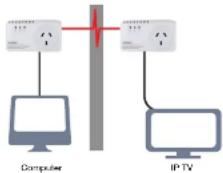
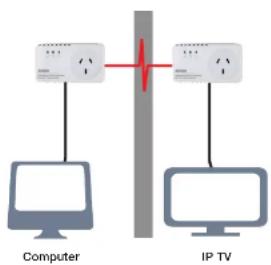
Here are ideas on how you can plan your Powerline network.
Local Network
Share ultra fast Internet connection with any computer wherever it is in the house.
flowchart
graph TD
    A["Computer"] --> B["Switch"]
    C["IP TV"] --> D["Switch"]
    B --> E["Switch"]
    D --> F["Switch"]
Gaming Network
Connect your gaming console to the Internet and compete with other online players.

......
NetComm
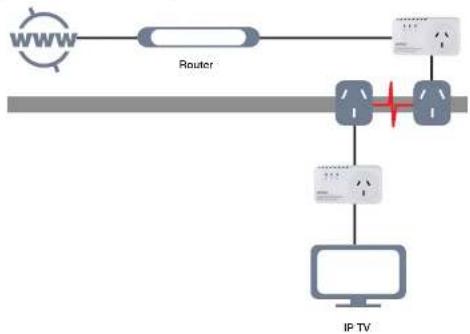
Entertainment Network
Experience IP TV streaming into your home entertainment system.
flowchart
graph TD
    A["WWW"] --> B["Router"]
    B --> C["Switch"]
    C --> D["IP TV"]
    D --> E["Router"]
    E --> F["Switch"]
    F --> G["IP TV"]
    style A fill:#f9f,stroke:#333
    style B fill:#ccf,stroke:#333
    style C fill:#cfc,stroke:#333
    style D fill:#fcc,stroke:#333
    style E fill:#cff,stroke:#333
    style F fill:#ffc,stroke:#333
    style G fill:#cfc,stroke:#333
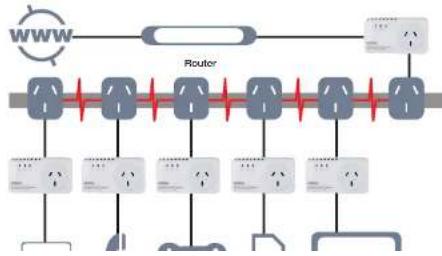
Media Network
Realize your high tech lifestyle by converging your IP devices into a single network.
flowchart
graph TD
    A["WWW"] --> B["Router"]
    B --> C["Switch 1"]
    B --> D["Switch 2"]
    B --> E["Switch 3"]
    B --> F["Switch 4"]
    B --> G["Switch 5"]
    B --> H["Switch 6"]
    B --> I["Switch 7"]
    B --> J["Switch 8"]
Powerline Utility
NetComm
Powerline Utility
Note: The Powerline utility is downloadable from the NetComm website. Please visit www.netcomm.com.au and visit the product page to download.
Powerline Utility is a software application that allows you to configure the Powerline Adapters. It is mainly used for changing the Private Network Name, detecting other Powerline Adapters in the network, and measuring the throughput of devices. Installation is straightforward and the user interface is easy to use.
Note: To use Powerline Utility, you need a computer using a Windows operating system with the .NET Framework installed. If you do not have .NET installed, the Powerline installer will install it for you.
Requirements
Your computer must meet the following requirements:
- Windows 98SE, ME, 2000, XP (32 and 64 bit), Vista (32 and 64 bit) or 7 (32 and 64 bit)
- 300 MHz Processor
• 128 Mb of RAM
• .NET Framework
• Network Interface Card
• 128 Mb of free hard disk space
Opening Powerline Utility
Two ways to open Powerline Utility:
- Double-click the Powerline Utility desktop shortcut and then select Open.
- Click the Start button, click Programs, and then click the powerline Utility icon.
Powerline User Interface
NetComm
Powerline User Interface
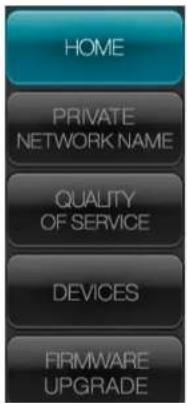
The Powerline Utility user Interface is divided into tabs. These tabs include:
Home
- Private Network Name
• Quality of Service
• Devices
- Firmware Upgrade
NetComm Powerline Series - 200Mbps Powerline Adapters
Private Network Name
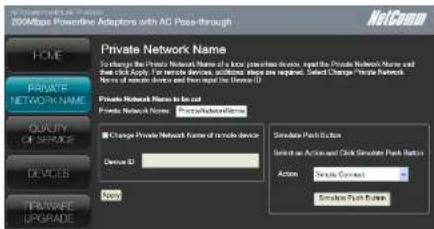
Private Network Name provides the function to manually change the Private Network Name of local and remote Powerline Adapters.
A Private Network Name is a string of 8 to 64 characters that enables Powerline devices to communicate with each other.
If you intend to create multiple networks, you can assign different Private Network Names among your devices. You have to, however, make
sure that at least two Powerline Adapters have a similar Private Network Name. A Powerline Adapter that uses a unique or random Private
Network Name will not be able to communicate with other devices.
Note: In case you cannot connect into the network after changing to Private Networks Name, please power cycle in a device. To power cycle, disconnect and then recurrence
the Powerline /splars from the power ends.
Note: You must change the Private Network Name (PNN) on the remote Powerline Adapters before changing your local PNN. If you change the local PNN first, you will lose
connectivity to the remote
Local Private Network Name
Local Private Network Name refers to the Private Network Name of the Powerline Adapter that is directly connected to the computer where you use Powerline Utility.
To change the local Private Network Name:
- Open Powerline Utility.
- Click Private Network Name.
- Type the new Private Network Name. This field is case sensitive. It accepts 8 to 64 alphanumeric characters including punctuation marks but no spaces.
- Click Apply. When the process is complete, the message Settings Applied appears.
Remote Private Network Name
NetComm
Simulate Simple Connect Button
Simulate Simple Connect Button allows you to apply functionalities without manually pressing the Simple Connect button on a Powerline device. However, this only works on local devices.
| Simple Connect | Select to search and pair with another device, or search and join an existing Powerline network. |
| NMK Randomize | Select to read to a random Private Network Name. A Powerline Adaptor using a random Private Network Name will be disconnected from the Powerline network and will not be able to communicate with other devices until it forms a new network or joins an existing network. |
| AVLN Status | Displays the Powerline Adaptors Logical Network membership status number. |
Note: The Simulation Simple Connect Button functions from Powerline Utility can be used for 200Mbps Powerline versions with or without the Simple Connect button on the direct.
To simulate a Simple Connect function:
- Connect Powerline Adapter to your computer.
- Select a Simulate Simple Connect Button action:
a. Simple Connect
b. NMK Randomize
c. AVLN Status - Click Simulate Button Push.
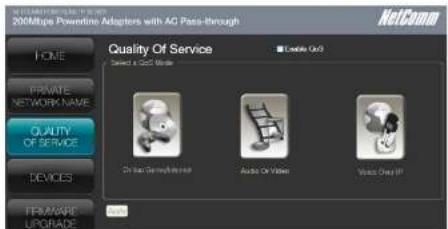
Quality of Service
NetComm Powerline Series - 200Mbps Powerline Adapters
Devices
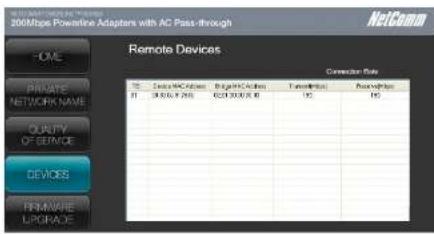
Devices displays information about remote Powerline Adapters detected on the network. Only Powerline Adapters using the same Private Network Name as the local Powerline Adaptor will appear in the Remote Devices list.
Devices displays the following information:
| TEI Displays the Terminal Equipment Identifier. | |
| Device MAC address | Displays the Powerline MAC Address. |
| Bridge MAC Address | Displays the MAC Address of the Ethernet network adapter connected to the Powerline. |
| Connection Rate | Displays the Transmit and Receive connection rates. |
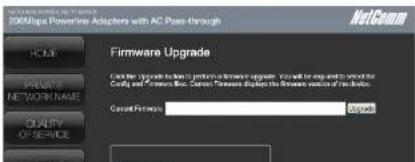
Firmware Upgrade
Frequently Asked Questions
NetComm Powerline Series - 200Mbps Powerline Adapters
Frequently Asked Questions
Can I use 200Mbps Powerline Adapters with older Powerline versions?
All Powerline versions can co-exist with each other. 200Mbps Powerline Adapters, however, are not backward compatible with earlier (85Mbps) Powerline releases.
If you will use different versions of 200Mbps Powerline Adapters in a single network, you need to use the Powerline Utility software to create a Private Network Name for all devices. Unlike the new version of 200Mbps Powerline, older versions do not feature the Simple Connect button which enables the device to create a common Private Network Name without using the software.
How does 200Mbps Powerline achieve a higher bandwidth than earlier Powerline releases?
200Mbps Powerline complies with the Powerline standard. It achieves higher data throughput by using a broader frequency spectrum (2-30 MHz rather than 4-21 MHz), by using a better access method (Time Division Multiple Access rather than Carrier Sense Multiple Access/Collision Detection), and by using a better processor with a greater bitload per Hz.
Can 200Mbps Powerline Adapters be used alongside 85Mbps Powerline devices within the network?
85Mbps and 200Mbps Powerline standards can co-exist but they will not be able to communicate with each other.
Which operating system (OS) is compatible with 200Mbps Powerline?
Powerline is operating system independent. However, the Powerline Utility requires a Windows operating system (98SE/ME/2000/XP/Vista/7) with the .NET Framework installed.
How difficult is it to set up a Powerline network?
Powerline Adaptors are plug and play devices. Connect to an Ethernet device, plug it to a wall socket, and it is ready to use. Even the most inexperienced user can set up the network with ease. Installing the Powerline Utility software is only needed if you intend to manually change the Private Network Name or view the connection rate.
How many devices do I need to create a Powerline network?
At least two devices are needed to create a Powerline network.
Is 200Mbps Powerline suitable for triple play i.e. use of data, voice, and video applications simultaneously?
Yes, triple play is supported.
What data transfer rates do I need for high definition TV?
A variety of HDTV resolutions are available. The following are the most common resolutions opposite the required transfer rate:
NetComm
If one Powerline adapter is connected to a LAN switch, is it possible for other computers in the switch to communicate with other Powerline devices? Yes.
Can my neighbors access my Powerline network?
Your electric meter prevents any signal from going outside your household. However, we strongly suggest that you create your own personalized Private Network Name to prevent unauthorized access into your network.
How much is the power consumption of 200Mbps Powerline on a 230-volt power supply?
Powerline has a power consumption of 4.5 watts when in use.
Can I use Powerline Adapters to connect computers located in different floors of the building?
Yes, as long as the electric wires are connected and do not exceed 200 meters.
Can I use Powerline Adapters in an old house with old power supply lines (partly without separated ground wire)?
Yes. However, performance may be affected because of the quality of the wires.
Can I plug Powerline Adapters into a multiple socket switch or do I have to plug it directly to the wall socket?
You can plug Powerline Adapters into a multiple socket switch. However, we strongly advise to plug it directly to a wall socket to achieve optimal performance.
Do I need electrical grounding for the device?
Powerline networks do not require electrical grounding.
After a blackout, will the Powerline Adapters switch on automatically?
Yes. If you experience connection issues, unplug the device and plug it back.
What will happen if I connect two Powerlines Adapters to the same router?
This will cause collision and slow down the network traffic. To prevent collision, you need to assign different Private Network Names on each Adapter.
Appendix
NetComm
Legal & Regulatory Information
This manual is copyright. Apart from any fair dealing for the purposes of private study research, criticism or review, as permitted under the Copyright Act, no part may be reproduced, stored in a retrieval system or transmitted in any form, by any means, to it electronic mechanical, recording or otherwise, without the prior written permission of NetComm Limited. NetComm Limited accepts no liability or responsibility, for consequences arising from the use of this product. NetComm Limited reserves the right to change the specifications and operating details of the product without notice. NetComm is a registered trademark of NetComm Limited. All other trademarks are acknowledged the property of their respective owners.
Product Warranty
This warranty is granted on the following conditions:
- This warranty extends to the original purchaser (you) and is not transferable;
- This warranty shall not apply to software programs, batteries, power supplies, cables or other accessories supplied in or with the product;
- The customer complies with all of the terms of any relevant agreement with NetComm and any other reasonable requirements of NetComm including producing such evidences of purchase as NetComm may require;
- The cost of transporting product to and from NetComm's nominated premises is your re-spont sibily; and,
- NetComm does not have any liability or responsibility under the warranty where any cost, loss, injury or damage of any kind, whether direct, indirect, consequential, incidental or otherwise arises out of events beyond NetComm's reasonable control. This includes but is not limited to acts of God, war, not, ambargas, acts of civil or military authorities, fire, floods, electricity outages, lighting, power surges, or shortages of materials or labour.
- The customer is responsible for the security of their computer and network at all times. Security features may be disabled within the factory default settings. NetComm recommends that you enable these features to enhance your security.
The warranty is automatically voided if
- You, or someone else, use the product, or attempts to use it, other than as specified by Net Comm:
- The fault or defect in your product is the result of a voltage surge subjected to the product either by the way of power supply or communication line, whether caused by thunderstorm activity or any other causes;
- The result is the result of accidental damage or damage in transit, including but not limited to liquid spillage;
- Your product has been used for any purposes other than that for which it is sold, or in any way other than in strict accordance with the user manual supplied;
- Your product has been repaired or modified or attempted to be repaired or modified, other than by a qualified person at a service centre authorised by NetComm; and,
- The aerial number has been defaced or altered in any way or if the aerial number plate has been removed.
Limitations of Warranty
The Trade Practices Act 1974 and corresponding Scale and Territory Fair Trading Acts or legalisation of another Government ("the relevant acts") in certain circumstances imply mandatory conditions and warranties which cannot be excluded. This warranty is in addition to and not in replacement for such conditions and warranties.
To the extent permitted by the Relevant Acts, in relation to your product and any other materials provided with the product ("the Goods"), the liability of NetComm under the Relevant Acts is limited at the option of NetComm to:
■ Environment of the Ground or
NetComm
Dynalink
NETCOMM LIMITED Head Office
PO Box 1200, Lane Cove NSW 2066 Australia
P: 02 9424 2070 F: 02 9424 2010
E: int.sales@netcomm.com.au
W: www.netcommlimited.com.
DYNALINK NZ 12c Te Kea Place, Albany, Auckland
New Zealand
P:09 448 5548
F:094485549
E: sales@dynalink.co.nz
W: www.dynairk.co.nz
- 200Mbps Powerline Adapters with AC Pass-through
- NetComm
- Contents
- Introduction
- How Does It Work?
- NetComm Powerline Series - 200Mbps Powerline Adapters
- AC Pass-through
- Package Contents
- How to Use Simple Connect
- To create a Powerline network using Simple Connect:
- Determining Connection Rate
- Getting Started
- Plan Your Network
- Powerline Utility
- Requirements
- Opening Powerline Utility
- Powerline User Interface
- Private Network Name
- To simulate a Simple Connect function:
- Quality of Service
- Devices
- Firmware Upgrade
- Frequently Asked Questions
- Legal & Regulatory Information
- Product Warranty
- Limitations of Warranty
- Dynalink
Brand : Netcomm
Model : NP204
Category : Powerline Adapter