NP511 - Powerline Adapter Netcomm - Free user manual and instructions
Find the device manual for free NP511 Netcomm in PDF.


| Product Type | Powerline Adapter (HomePlug AV compliant) |
| Brand | Netcomm |
| Model | NP511 |
| Data Rate | Up to 500 Mbps |
| Ports | 1 x 10/100/1000 Ethernet port (RJ45) |
| AC Pass-through | Yes, built-in AC socket to avoid losing wall outlet |
| Encryption | 128-bit AES encryption |
| Security Button | Easy push-button pairing and private network reset |
| Power Saving Mode | Automatic power saving when no data activity |
| LED Indicators | Power, Powerline Activity (color-coded: red/amber/green), Ethernet Activity |
| Power Supply | 100-240V AC, 50/60 Hz (integrated plug) |
| Dimensions (each adapter) | Approximately 10.5 x 6.0 x 3.5 cm |
| Weight (each adapter) | Approximately 150 g |
| Package Contents | 2 x Powerline adapters, 2 x Ethernet cables, Quick Start Guide |
| Compatibility | All HomePlug AV and AV2 compliant devices; any Ethernet-enabled device |
| Operating Temperature | 0°C to 40°C |
| Storage Temperature | -20°C to 70°C |
| Humidity | 10% to 90% non-condensing |
| Maintenance | Clean with a soft, dry cloth; do not use liquids or solvents |
| Safety | Do not expose to water or excessive moisture; do not open device; no user-serviceable parts inside |
| Spare Parts / Repairability | Ethernet cables can be replaced; device is not repairable by user; contact Netcomm support |
| Warranty | 12 months standard; extended warranty available with online registration |
Frequently Asked Questions - NP511 Netcomm
User questions about NP511 Netcomm
0 question about this device. Answer the ones you know or ask your own.
Ask a new question about this device
Download the instructions for your Powerline Adapter in PDF format for free! Find your manual NP511 - Netcomm and take your electronic device back in hand. On this page are published all the documents necessary for the use of your device. NP511 by Netcomm.
USER MANUAL NP511 Netcomm
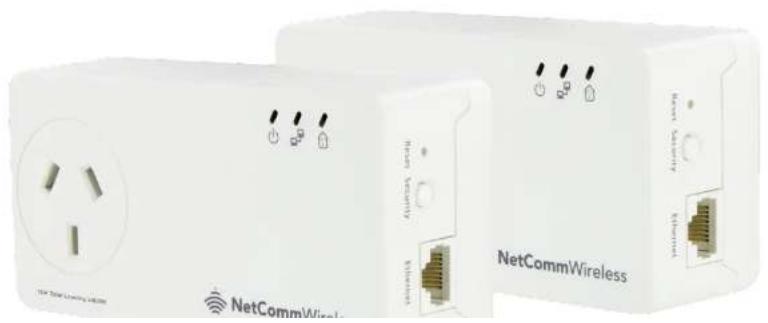
500Mbps Powerline Adapters with AC Pass-through
natural_image
Two white wireless network devices with power socket and port labels, no visible text or symbols on the devices themselves.Copyright
Copyright© 2014 NetComm Wireless Limited. All rights reserved.
The information contained herein is proprietary to NetComm Wireless. No part of this document may be translated, transcribed, reproduced, in any form, or by any means without prior written consent of NetComm Wireless.

NetCommWireless
Table of contents
Table of contents....3
About the product....4
How does it work?
Direct connection 4 1G rise through
AC pass-through 4 Package controls 5
Interfaces and indicators....5
Interfaces 6
LED indicators 6
Creating a Powerline network....7
Resetting the private network password 8
Joining an existing Powerline network 8
Determining connection rate 9
Power saving mode 9
Getting started 10
Plan your network....10
Legal & Regulatory Information....12
Product Warranty 12
Limitations of warranty 12

NetCommWireless
About the product
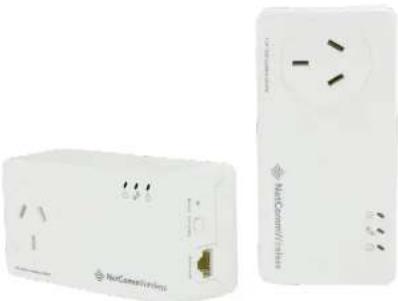
Powerline adapters are ready to use out of the box and do not require the installation of driver software to work. They can be connected to computers, routers, gaming consoles, hubs, IPTV set-top boxes, and other Ethernet devices regardless of operating system.
natural_image
Two white wireless devices with visible ports and labels, one labeled 'NoConnect/Linker', no readable text or symbols on the device surfaces.How does it work?
Powerline adapters utilise the existing electrical wiring in the house as a path to create a secured network of computers and Ethernet devices. With a maximum data rate of up to 500 Mbps, Powerline adapters can reliably handle high requirement applications like broadband Internet, high definition video streaming, and Voice over IP.
Powerline adapters convert digital signals to a complex analog signal that traverses along the electrical wires. When receiving the analog signal, the Powerline adapters convert the analog signal back to digital. To make the signal secure, a 128-bit AES encryption is applied.
A Powerline device can only communicate with other Powerline devices that use the same private network password. The private

NetCommWireless
Package contents
The package contains the following items:
2 x Powerline adapters
2 x Ethernet cables
Quick start guide
If any of these items are missing or damaged, please contact NetComm Wireless Support immediately by visiting the NetComm Wireless Support website at: http://support.netcommwireless.com
Interfaces and Indicators

NetCommWireless
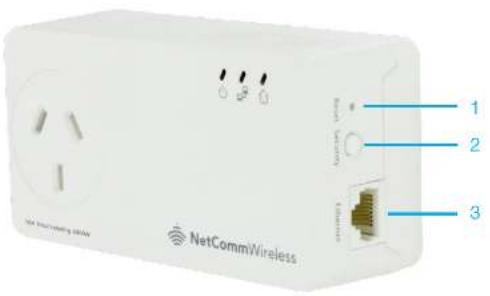
Interfaces
| # | LABEL | DESCRIPTION/FUNCTION |
| 1 | Reset button | Use a paperclip to press this button for no more than 3 seconds to reset the unit to the factory default settings. |
| 2 | Security button | Press the security button for 10 seconds to reset the private network password. Press the security button for no more than 3 seconds to begin passing. |
| 3 | Ethernet port | Accepts either crossover or straight - through Ethernet cable. |
LED indicators
| # | LABEL | STATUS | DESCRIPTION/FUNCTION |
| 4 | Power | On | No power. |
| On | When Security button is pressed for 10 seconds, this LED will turn OFF and turn ON once to confirm the private network name reset.When Security button is pressed for no more than 5 seconds, this LED will blink to confirm the button press.Blinks slowly when the adapter is in power saving mode. | ||
| 5 | Powerline activity | On | Device is not connected to a Powerline adapter network. |
| On | When Security button is pressed for 10 seconds, this LED will turn OFF to confirm the private network name reset.This LED remains steady when the device is part of a Powerline adapter network.The LED colour represents the connection rate within the Powerline adapter network whether it is good (vec), better/amber, or best green. | ||
| 6 | Ethernet Activity | On | An Ethernet device is not connected. |
| On | When the Security button is pressed for 10 seconds, this LED will turn OFF to confirm the private network name reset.This LED remains steady when the device is part of a Powerline adapter network.The LED colour represents the connection rate within the Powerline adapter network whether it is |

NetCommWireless
How to use the Security button
The Powerline Adapters that you have received are ready for use straight out of the box. They require no initial set-up or configuration. All you need to do is connect them as detailed in the Quick start guide. The following instructions about using the Security button to configure your network are only applicable if you want to change the default private network password or add more adapters on the same Powerline network.
The Security button provides a convenient way of creating your Powerline network without the need to use application software from a computer. The button has three main functions which include:
Creating a Powerline network
Resetting the private network password
Joining an existing Powerline network
Creating a Powerline network
To create a Powerline network, you need at least two Powerline devices using random private network passwords. When you press the Security button on both devices, a common private network password is automatically generated to enable them to communicate with each other.

Note: New Powerline adapters can already communicate with each other out of the box. However, if you intend to create a new private network password using the Security button for both devices, you must reset their private network passwords to a random key before proceeding.
To create a Powerline network using the Security button:
- Plug your Powerline adapters side-by-side where you can easily observe the LED behaviour. Upon connection, the LEDs will blink simultaneously and then the Power LED remains on steady.
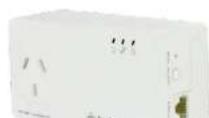

NetCommWireless
Resetting the private network password
The Security button allows you to reset the Powerline adapter's private network password to a random key. When a Powerline adapter is reset to a random key, it will not be able to communicate with any other device.

Note: The Security button has multiple functions depending on the length of time it is depressed. Resetting the private network password is not the same as restoring factory default settings.
To reset the Private Network Password using the Security button:
- On one Powerline adapter, press and hold the Security button down for 10 seconds, wait for the Power LED and Ethernet LED to turn off, and then release. The Powerline Activity LEDs of both units turn OFF.
- On the second adapter, press the Security button for 2 seconds and then press the Simple Connect button on the first Powerline adapter to pair the devices. The Power LED blinks to indicate that the button is pressed.
Joining an existing Powerline network
The Security button enables a new device to join an existing network by copying the private network password of the existing network to the new Powerline adapter.
To join an existing secured Powerline network using the Security button:
- Plug Powerline adapter Z beside one of your existing Powerline adapter devices. Make sure you can observe the LED behaviour. Upon connection, Powerline adapter Z's LEDs blink simultaneously and then the Power LED remains on steadily. If there is an Ethernet link, the Ethernet LED is on.
- On Powerline adapter Z, press the Security button for 10 seconds. When you release the button, the Power LED and Ethernet LED will turn off and on again.
- On the existing Powerline device, press the Security button for 1-3 seconds. When you release the button, the Power LED blinks continuously. If the Power LED did not blink, press the Simple Connect button again for 1-3 seconds.
- Within the next 2 minutes, press the Security button on Powerline adapter Z again for 1-3 seconds.
- Confirm that the connection was established successfully. To do this, check that the Power LEDs and Powerline Activity LEDs on all Powerline adapters are on. If the Powerline Activity LED on adapter Z is off, the pairing was not successful and you must repeat the process.
- Unplug Powerline adapter Z and then connect it to your Ethernet device using the Ethernet cables from the product package. After connecting the Ethernet cable, plug adapter Z directly to a wall outlet where you intend to use it.

NetCommWireless
Determining connection rate
Each colour of the Powerline Activity LED represents a connection rating. The connection rating can only be calculated when the device is part of an existing network. The exact connection rate value can also be viewed using Powerline Utility.
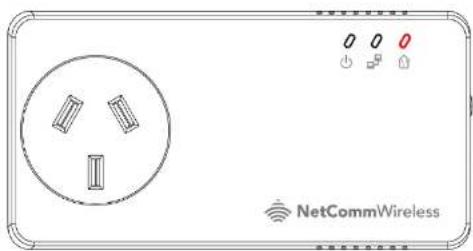
natural_image
Front view of a network device panel with three socket ports and indicator lights (no readable text or symbols)Good (Red) - Connection rate is less than 30 Mbps
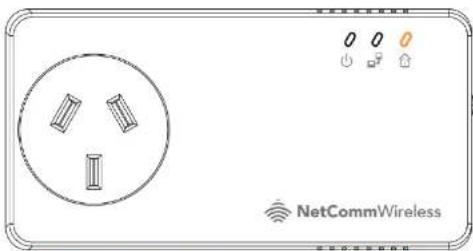
natural_image
Front view of a remote control panel with two slots and a circular socket (no text or symbols)Better (Amber) - Connection rate is between 30 to 80 Mbps

NetCommWireless
Getting started
Plan your network
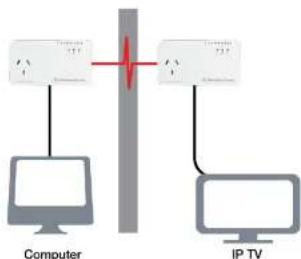
Here are ideas on how you can plan your Powerline network.
Local network
Share a high-speed Internet connection with any computer, wherever it is in the house.
flowchart
graph TD
    A["Computer"] --> B["Switch"]
    C["Computer"] --> D["Switch"]
    B --> E["IP TV"]
    D --> E
    style B fill:#f9f,stroke:#333
    style D fill:#f9f,stroke:#333
Gaming network
Connect your gaming console to the Internet and compete with other online players.

NetCommWireless
Entertainment network
Experience IPTV streaming to your home entertainment system.
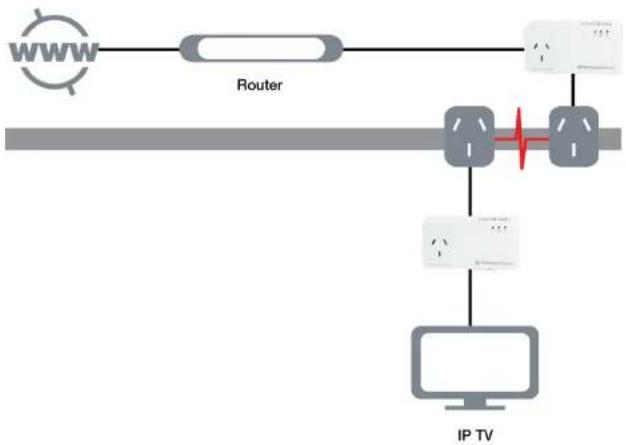
flowchart
graph TD
    A["WWW"] --> B["Router"]
    B --> C["Switch 1"]
    B --> D["Switch 2"]
    C --> E["IP TV"]
    D --> E
    E --> F["Computer"]
Media network
Converge all your IP devices onto a single network to enjoy seamless integration.




NetCommWireless
Legal & Regulatory Information
This manual is copyright. Apart from any fair dealing for the purposes of private study, research, criticism or review, as permitted under the Copyright Act, no part may be reproduced, stored in a retrieval system or transmitted in any form, by any means, be it electronic, mechanical, recording or otherwise, without the prior written permission of NetComm Limited. NetComm Limited accepts no liability or responsibility, for consequences arising from the use of this product. NetComm Limited reserves the right to change the specifications and operating details of this product without notice. NetComm is a registered trademark of NetComm Limited. All other trademarks are acknowledged the property of their respective owners.
Product Warranty
The warranty is granted on the following conditions:
- This warranty extends to the original purchaser (you) and is not transferable;
- This warranty shall not apply to software programs, batteries, power supplies, cables or other accessories supplied in or with the product;
- The customer complies with all of the terms of any relevant agreement with NetComm and any other reasonable requirements of NetComm including producing such evidence of purchase as NetComm may require;
- The cost of transporting product to and from NetComm's nominated premises is your responsibility;- and,
- NetComm does not have any liability or responsibility under this warranty where any cost, loss, injury or damage of any kind, whether direct, indirect, consequential, incidental or otherwise arises out of events beyond NetComm's reasonable control. This includes but is not limited to: acts of God, war, riot, embargocs, acts of civil or military authorities, fire, floods, electricity outages, lightning, power surges, or shortages of materials or labour.
- The customer is responsible for the security of their computer and network at all times. Security features may be disabled within the factory default settings. NetComm recommends that you enable these features to enhance your security.

NetCommWireless
Replacement of the Goods; or
Repair of the Goods; or
Payment of the cost of replacing the Goods; or
Payment of the cost of having the Goods repaired.
All NetComm ACN 002 490 486 products have a standard 12 months warranty from date of purchase. However some products have an extended warranty option (refer to packaging). To be eligible for the extended warranty you must supply the requested warranty information to NetComm within 30 days of the original purchase by registering on-line via the NetComm web site at http://www.netcommwireless.com
- 500Mbps Powerline Adapters with AC Pass-through
- NetCommWireless
- Table of contents
- About the product
- How does it work?
- Package contents
- Interfaces and Indicators
- How to use the Security button
- Creating a Powerline network
- To create a Powerline network using the Security button:
- Resetting the private network password
- To reset the Private Network Password using the Security button:
- Joining an existing Powerline network
- Determining connection rate
- Getting started
- Legal & Regulatory Information
- Product Warranty
Brand : Netcomm
Model : NP511
Category : Powerline Adapter