
S1 - Car kit BLUEANT - Free user manual and instructions
Find the device manual for free S1 BLUEANT in PDF.


| Product Type | Bluetooth Car Kit |
| Brand | BlueAnt |
| Model | S1 |
| Dimensions | Approximately 2.5 x 2.5 x 0.8 inches (64 x 64 x 20 mm) |
| Weight | Approx 1.2 oz (34 g) |
| Power Source | Rechargeable lithium-ion battery via USB |
| Battery Life | Up to 10 hours talk time, up to 300 hours standby |
| Bluetooth Version | 4.0 |
| Wireless Range | Up to 30 feet (10 meters) |
| Noise Reduction | Yes, with DSP (Digital Signal Processing) |
| Pairing | Multipoint – connect up to two devices simultaneously |
| Controls | Answer/end call, volume up/down, voice dial button |
| Indicator | Multi-color LED for status (pairing, battery, call) |
| Mounting | Clip-on visor clip and adhesive dashboard mount |
| Maintenance | Clean with a soft dry cloth; avoid exposure to liquids |
| Safety | Do not use while driving; ensure secure mounting |
| Spare Parts | Non-replaceable battery; replacement unit required if defective |
| Compatibility | Most Bluetooth-enabled phones (smartphones, feature phones) |
Frequently Asked Questions - S1 BLUEANT
User questions about S1 BLUEANT
0 question about this device. Answer the ones you know or ask your own.
Ask a new question about this device
Download the instructions for your Car kit in PDF format for free! Find your manual S1 - BLUEANT and take your electronic device back in hand. On this page are published all the documents necessary for the use of your device. S1 by BLUEANT.
USER MANUAL S1 BLUEANT
© 2009 BlueAnt Wireless

natural_image
Blue ant icon inside a rounded square frame (no text or symbols)BlueAnt®
Contents
Introduction 3
Getting Started: Pairing The S1 5
Installing the S1 in your Car 7
Using the S1 8
Answering Calls 8
Making Calls 8
Streaming Music 9
Switching the S1 On and Off 10
Pairing 11
Charging the S1 12
Charging the S1 with the AC Adapter 12
Transferring Audio Between the S1 and your Phone 13
Automatic Reconnection 14
Using More Than One Phone At The Same Time (Multipoint) 15
Multiple Calls 17
Troubleshooting 18
Resetting the S1 18
To Reset the S1.... 18
My Phone Does Not Automatically Reconnect to the S1 18
Configuring Your Phone To Automatically Reconnect to the S1.... 19
S1 Reference 20
Understanding the Light Flashes 20
Button Functions 20
Introduction

The BlueAnt S1 Bluetooth ^® car kit offers a safe and legal alternative to talking on your phone while driving.
Welcome to the S1 user manual. If you are looking for help with your BlueAnt S1, then you've come to the right place. This manual explains everything you need to know about your S1, and more.
Getting to know your BlueAnt Device
Your BlueAnt device came with a "Quick Start Guide", and you should read this first. It tells you everything you need to get started, and is the best place to start learning about your BlueAnt device.
The online user guide contains all the information from the Quick Start Guide plus much more, including tips and tricks to help you get the most out of your BlueAnt device, details of how to access the advanced features and functions of your device, and troubleshooting information with advice on solving common problems you might encounter.
Using this Manual
To make it as easy as possible to use, this user manual is available as both a set of web pages and a PDF.
Both versions contain exactly the same information. The web pages are ideal if you want to read about your BlueAnt device on your computer screen or using a mobile device with internet access. If you prefer to save a copy of the user manual to read offline or to print out, then you can download the PDF version.

Please consider the environment before printing the user manual.
Getting Started: Pairing The S1

To get started, you need to pair the S1 with your phone.
Pairing creates a stored link between the phone and the car kit. Once you have paired your phone with the S1 they will reconnect to each other in future without you having to repeat the pairing process.
- Make sure the S1 is turned off.
You can tell if the S1 is on or off by looking at the Bluetooth Light on the front. If the light is on or flashing, then the S1 is on: turn it off by holding down (the Mult-Function button) for about 5 seconds. The S1 will beep and the light will turn red and then go out.
-
With the S1 off, hold down (the Multi-Function button) for about 5 seconds, until the Bluetooth light starts flashing red and blue. This indicates that the S1 is in pairing mode.
-
Go to the Bluetooth menu on your phone, and turn Bluetooth on.
If you don't know how to do this, refer to the section on pairing or Bluetooth in your phone's manual, or check with your phone manufacturer for more information on how to enable Bluetooth on your mobile phone.
-
Use your phone's Bluetooth menu to search for Bluetooth devices. This may take a few minutes, depending on your phone model.
-
When your phone finishes searching, it will display a list of devices it has found. Select the BlueAnt S1 from the list.
-
If your phone prompts you for a password or security code, enter "0000" (four zeros).
-
Some phones will now connect to the BlueAnt S1 automatically. If your phone prompts you to confirm whether you want to connect to the S1, accept the connection request.
If your phone does not connect to the S1, then use your phone's Bluetooth menu to initiate a connection to the S1. If you don't know how to do this, refer to the section on pairing in your phone's manual.
You are now ready to start using the S1.

On some phones you may need to change an additional security setting to allow the phone and car kit to reconnect to each other automatically every time they come back into range.
If your phone keeps prompting you to accept the connection from the S1 every time you bring it back into range with the S1, then this applies to you. See "My Phone Does Not Automatically Reconnect to the S1" (page 18) for more details on how to change this setting on your phone.
Installing the S1 in your Car
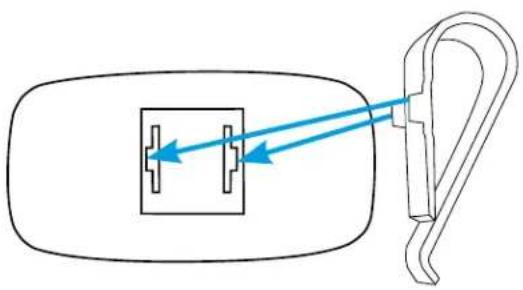
The S1 is designed to attach to your car's sun visor. Use the supplied plastic clip to attach the S1 to the visor.
- Attach the clip to the slots on the back of the S1 and slide it so that it locks in place.
natural_image
Diagram of a connector with a socket and cable, showing blue arrows indicating direction (no text or symbols)Do not force on the S1's buttons when you attach the clip.
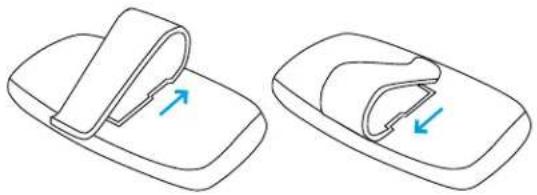
- You can attach the clip 2 different ways, depending on how you want to position the S1 on your car's sun visor.
natural_image
Two technical illustrations of a slide or clip device with blue arrows indicating movement or change (no text or symbols present)The closed side of the clip should be aligned with the top or bottom of the BlueAnt S1.
- Slide the clip and the BlueAnt S1 onto your car's sun visor.

Make sure the microphone is directed towards you.

Do not leave the BlueAnt S1 in direct sunlight or in any area where the temperature may exceed 60^ C ( 140^ F), such as inside a closed car on a hot day.
Using the S1
Answering Calls
If you've activated the S1's voice answer feature, then you can accept incoming calls with your voice: just say "ACCEPT CALL", "ANSWER", "ACCEPT", or "OK".
You can also use the S1 buttons to answer or reject the call:
- Click to accept the call.
- Click to reject the call.
If you want to end the call, just click or use your phone's end call button.
Activating the Voice Answer Feature
You can only turn the voice answer feature on or off when the S1 is in "Standby" mode (the S1 is turned on but there is no active call or music streaming).
- To turn the voice answer feature on, hold "Vol+" for 5 seconds (until the S1 beeps).
- To turn the voice answer feature off, hold "Vol -" for 5 seconds (until the S1 beeps).
You can tell whether or not the voice answer feature is activated by listening to the sound the S1 makes when the phone rings: the S1 plays an additional set of beeps at the end of each ring when the voice answer feature is activated.
Getting The Best Results Out Of The Voice Answer Feature
For the best results:
- Say the command slowly and clearly.
- Emphasize each syllable of the voice command.
- Say the command within three seconds of hearing the special ring tone.
- Speak louder than any background noise.
Making Calls
To make a call, do any of the following:
- Dial a number on your phone: the audio will automatically transfer to the S1.
- To redial the last number you called, hold for about 3 seconds (this function is only available if your phone supports the handsfree Bluetooth profile).
- If your phone supports voice dialing, then you can use it to make calls. Hold for
about 1 second to activate your phone's voice dialing feature. You may need to record voice tags on your phone to use this feature: see your phone's manual for more details.
If you want to end the call, just click or use your phone's end call button.

On some phone models, the audio may remain on the phone when you initiate a call. In this case, hold the green Multi-Function button for about 1 second to transfer the audio to the BlueAnt S1.
Streaming Music
natural_image
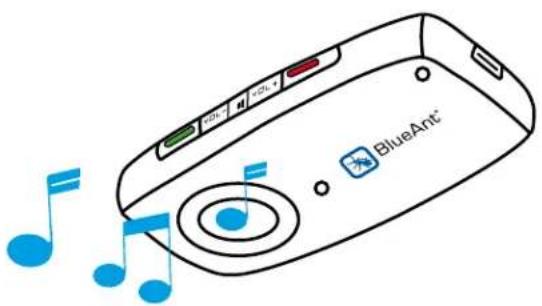
Illustration of a blue Ant device with musical notes and control buttons (no text or symbols on the device itself)If your phone supports the Bluetooth A2DP profile, you can play music from it through the S1 speaker.
To play music, make sure that your phone is paired and connected, then simply go to your phone's music player and press play.
- Once the music is playing you can double click to pause and play the music.
- The music will pause automatically if you receive a call on the phone.
- You can use the volume buttons on the S1 to adjust the volume. Depending on your phone model, you may also be able to adjust the volume using the volume buttons on your phone.

If the music does not play automatically through the S1, you may need to change a setting on your phone to configure it to play the music through Bluetooth. If this is the case on your phone, you need to change your phone's "play via" or "listen via" setting to configure it to use Bluetooth to play the audio.
If you receive a call while you are listening to music through the S1, the music will pause until you reject or end the call. On some phones you will need to restart the music manually.
Switching the S1 On and Off
You can tell if the S1 is on or off by looking at the Bluetooth Light on the front. If the light is on or flashing, then the S1 is on.
- To switch the S1 on, hold for 1 second (until the Bluetooth Light flashes blue).
- To switch the S1 off, hold for 5 seconds (until the Bluetooth Light turns red).
The S1 plays a beep when it switches on and off.
Pairing
You only need to pair your phone with the S1 once. Once you have paired your phone with the S1 they will reconnect to each other in future without you having to repeat the pairing process. If you need to pair an additional phone, simply:
- Turn the S1 off by holding down (the Multi-Function button) for about 5 seconds. The
S1 will beep and the light will turn red and then go out. - Put the S1 back into pairing mode by holding down (the Mult-Function button) for
about 5 seconds, until the Bluetooth light starts flashing red and blue. - Follow the instructions in "Getting Started: Pairing The S1" (page 5) to pair the S1 with your phone.
The S1 can store pairing information for up to 8 Bluetooth devices. If you pair a ninth device, it will replace the stored pairing information for the phone that has not connected to the S1 for the longest time.
You can connect the S1 to two phones at the same time. For more information, see "Using More Than One Phone At The Same Time (Multipoint)" (page 15).
Charging the S1

Your S1 has been given an initial charge to get going, but in future you will need to charge it for up to 3 hours.
Use the supplied AC adapter to charge the S1 whenever the battery is low.
You will be able to tell that the battery is low because the Bluetooth Light turns steady red.
If the battery level drops to very low, then the S1 will play a low battery sound and automatically switch itself off.
Charging the S1 with the AC Adapter
- Attach the supplied charger to an external power source.
During charging, the Bluetooth Light on the middle of the S1 will turn orange.
- Charge the S1 until the Bluetooth Light turns solid green.
Transferring Audio Between the S1 and your Phone
If your phone supports the handsfree Bluetooth profile, then you can transfer the audio between the S1 and your phone during a call.
• To transfer audio from the S1 to your phone, hold for about 3 seconds.
- To transfer audio from your phone to the S1, hold for about 1 second.

On some phones you may need to accept a connection prompt displayed on the phone before you can transfer the audio. If this applies to your phone, you can avoid this by configuring the phone to treat the BlueAnt S1 as a "trusted connection". See "My Phone Does Not Automatically Reconnect to the S1" (page 18) for more information.
Automatic Reconnection
The BlueAnt S1 is designed to reconnect to your phone automatically.
If you take your phone out of range of the BlueAnt S1 for more than 20 seconds (without turning the S1 off), and then come back into range the S1 will search for your phone and reconnect automatically.
It can take up to 10 seconds for the S1 to find your phone and reconnect.

The S1 will only automatically reconnect to the last two connected phones. If your phone is not one of the last two connected phones then you will have to reconnect to the S1 using your phone's Bluetooth menu.
In addition, the S1 will not reconnect automatically if you manually disconnected your phone from the S1 using your phone's Bluetooth menu. In this case you will need to use your phone's Bluetooth menu to reconnect.

By default, some phones (including Blackberry phones) will prompt you to confirm whether you want to accept the connection from the S1. If your phone keeps prompting you about the connection to the S1, then you should change the setting on your phone so that it treats the S1 as a trusted or authorized connection. For more information, see "My Phone Does Not Automatically Reconnect to the S1" (page 18).
Using More Than One Phone At The Same Time (Multipoint)

The S1 supports multipoint technology. This means that you can use one S1 car kit with two different mobile phones or Bluetooth devices at the same time: if either phone rings, you can answer it with the BlueAnt S1.
If I Have Two Phones Connected, Which One Will Be Used?
When you have two phones connected to the S1:
- You can answer calls received on either phone.
- If you initiate a call through the S1 (by using the button to either redial the last call
or use your phone's voice dial feature), then the call will happen on whichever phone is currently designated the primary phone. As explained below, this is determined by a combination of connection order and active calls.
Which Phone Is The Primary Phone?
The primary phone is either the phone that connected to the S1 most recently or the phone that had the last active call:
- When your phones connect to the S1, the one that connects last becomes the primary.
- Every time you have an active call through the S1 (incoming or outgoing), the phone with the call becomes the primary phone.
- If both phones go out of range and come back into range together then the primary phone will be whichever one happens to reconnect last out of the two. In this case you will not be able to tell which phone is the primary until you either initiate a call through the S1 or receive a call on one of the phones.
Setting the Primary Phone
You can force the S1 to change the primary phone by doing any of the following:
- Answer an incoming call. The phone receiving the call will become the primary phone.
- Initiate a call from one of the phone handsets. The phone making the call will become the primary phone.
- Hold for about 5 seconds. The primary and secondary phones will be swapped.
Multiple Calls
The S1 does not allow you to hear a call or music from 2 phones simultaneously. If you receive a call while you are already on an ongoing call, you will hear a special ringtone.
- Click to end the current call and accept the incoming call.
- Click to reject the incoming call and continue with the current call.
- Or do nothing if you want to ignore the incoming call and continue with the current call.

You cannot use the voice answer feature when you are already on a call. You must use the S1 buttons to answer or reject the call.
Troubleshooting
This section describes some typical problems you may encounter, and explains how to solve them.
General Advice
If you are having problems with your S1, you can reset the S1 and start again: see "Resetting the S1" (page 18) for more information.
If this does not solve your problem, you should:
- Check that your phone has the latest firmware installed on it, and update your phone if it does not. You should be able to download new firmware from your phone manufacturer's website.
- Try resetting your phone by switching it off, removing the battery, and then replacing the battery and switching it back on again.
If you have tried all of these steps, and have still not been able to resolve your problem, then please call us for help.
Resetting the S1
If you are experiencing problems, you can reset the BlueAnt S1 and start again.

Resetting the S1 will clear all the stored pairing settings and put the device back into pairing mode.
To Reset the S1
- Turn the S1 off.
- Hold down "Vol+" and (the Multi-Function button) together until you hear a loud siren/distinctive tone.
- The S1 will turn on. Hold down the "MFB" for about 5 seconds to turn it off again.
The S1 has now been reset: all pairing information has been deleted. When you turn the S1 back on again it will go straight to pairing mode.
My Phone Does Not Automatically Reconnect to the S1
Once you have paired your phone with the S1, they should automatically reconnect every time they come back into range with each other.
By default, some phones (including Blackberry phones) will prompt you to confirm whether you want to accept the connection from the S1. If your phone keeps prompting you about the connection to the S1, then you should change the setting on your phone so that it treats the S1 as a trusted or authorized connection.
Configuring Your Phone To Automatically Reconnect to the S1
- Go to your phone's Bluetooth menu.
- Locate the BlueAnt S1 in the list of paired devices, and go to the options or device property settings.
- The exact option to change will depend on your phone model, but look for the option to set this device as an "authorized device", add it to your phone's list of "trusted devices", or change the "trusted" setting for this connection to "yes".
S1 Reference
This section contains detailed reference information about the S1.
Understanding the Light Flashes
The Bluetooth Light on the middle of the S1 changes indicates the current state of the S1.
| Light Description | |
| Flashing Blue Indicates that the S1 is on. | When the S1 is on but not connected to any Bluetooth devices, the light will flash blue once every few seconds.When the S1 is on and is connected to your phone, the light will flash blue twice in quick succession every few seconds.The light flashes blue continuously when the S1 is searching for devices in range or connecting to a previously paired device. |
| Steady Blue Indicates that the Bluetooth Link is active. The light turns steady blue when you have an active call through the S1 and when you are streaming music through the S1. | |
| Steady Red Indicates that the battery is low. | |
| Steady Orange Indicates that the battery is charging. | |
| Steady Green Indicates that the battery is charged | and you can now disconnect the S1 from the power supply. |
| Violet Indicates that you have reached the minimum or maximum volume setting. | |
| Flashing Red and Blue Indicates that the S1 is in pairing mode. |
Button Functions
| To... Do This... | Notes | |
| Switch the S1 On | Hold  and (until the Bluetooth Light flashes blue). and (until the Bluetooth Light flashes blue). | You will hear a beep indicating that the S1 is switching on. |
| Switch the S1 Off | Hold  ends (until the Bluetooth Light turns red). ends (until the Bluetooth Light turns red). | You will hear a beep indicating that the S1 is switching off. |
| Enter Pairing Mode | With th  hold or about 5 seconds (until the Bluetooth Light starts flashing red and blue). hold or about 5 seconds (until the Bluetooth Light starts flashing red and blue). | You must switch the S1 off first before you can enter pairing mode. |
| Answer an Incoming Call | Click  | You can also accept an incoming call with your voice. For more information, see "Answering Calls" (page 8). |
| Reject an Incoming Call | Click  | Although you can answer calls with your voice, you can only reject a call using the button. |
| End the Current Call | Click  | You can also end the call by using your phone's end call button. |
| Use Phone Voice Dialing | Hold  nd. nd. | You can only use this function if your phone supports voice dial functionality.You may need to record voice tags on your phone to use this feature: see your phone's manual for more details. |
| Redial the Last Outgoing Call | Hold  nds. nds. | If you have two phones connected, the S1 will redial the last outgoing call on the primary phone. See "Using More Than One Phone At The Same Time (Multipoint)" (page 15) for more information. |
| Adjust the Volume | Click "Vol+" or "Vol-" | The Bluetooth Light will turn violet when you reach the minimum and maximum volume level. |
| Play/Pause Streaming Music | Double click | This function is only available if you are using A2DP to play music from your Bluetooth device through the BlueAnt S1. |
| Transfer audio from the S1 to your phone | Hold or about 3 seconds. | This function is only supported on phones that support the handsfree Bluetooth profile. |
| Transfer audio from your phone to the S1 | Hold or about 1 second. | This function is only supported on phones that support the handsfree Bluetooth profile. |
| Swap the Primary and Secondary Phones (Multipoint) | Hold or about 5 seconds. | For more information about multipoint, and an explanation of "primary" and "secondary" phones, see "Using More Than One Phone At The Same Time (Multipoint)" (page 15). |
| Activate the Voice Answer Feature | Hold "Vol+" for 5 seconds (until the S1 beeps). | You can only turn the voice answer feature on or off when the S1 is in "Standby" mode (the S1 is turned on but there is no active call or music streaming). For more information about answering calls with your voice, see "Answering Calls" (page 8). |
| Deactivate the Voice Answer Feature | Hold "Vol -" for 5 seconds (until the S1 beeps). | You can only turn the voice answer feature on or off when the S1 is in "Standby" mode (the S1 is turned on but there is no active call or music streaming). For more information about answering calls with your voice, see "Answering Calls" (page 8). |
- Contents
- Introduction
- Getting to know your BlueAnt Device
- Using this Manual
- Getting Started: Pairing The S1
- Installing the S1 in your Car
- Using the S1
- Answering Calls
- Activating the Voice Answer Feature
- Getting The Best Results Out Of The Voice Answer Feature
- Making Calls
- Streaming Music
- Switching the S1 On and Off
- Pairing
- Charging the S1
- Charging the S1 with the AC Adapter
- Transferring Audio Between the S1 and your Phone
- Automatic Reconnection
- Using More Than One Phone At The Same Time (Multipoint)
- If I Have Two Phones Connected, Which One Will Be Used?
- Which Phone Is The Primary Phone?
- Setting the Primary Phone
- Multiple Calls
- Troubleshooting
- General Advice
- Resetting the S1
- To Reset the S1
- My Phone Does Not Automatically Reconnect to the S1
- Configuring Your Phone To Automatically Reconnect to the S1
- S1 Reference
- Understanding the Light Flashes
Brand : BLUEANT
Model : S1
Category : Car kit