
ENXTV-X3 - TV Tuner for Computer ENCORE - Free user manual and instructions
Find the device manual for free ENXTV-X3 ENCORE in PDF.


| Product Type | External TV Tuner HD |
| Brand | ENCORE |
| Model | ENXTV-X3 |
| Maximum Resolution | 1920 x 1200 (WUXGA) |
| Supported TV Standards | PAL, NTSC, SECAM |
| Video Inputs | RCA composite, S-Video, YPbPr component |
| Audio Inputs | RCA L/R, 3.5mm stereo |
| RF Input | 75 Ohm, F or PH type connector |
| VGA Input | 8-pin Mini DIN (for loop-back cable) |
| VGA Output | 15-pin D-Sub |
| Audio Output | 3.5mm stereo |
| Power Supply | DC 5V, 1A via included adapter |
| Operating Temperature | 0°C to 40°C |
| Storage Temperature | -5°C to 50°C |
| Operating Humidity | 0% to 80% RH (non-condensing) |
| Certifications | CE, FCC, RoHS |
| Remote Control | Yes, infrared with full function |
| PIP (Picture-in-Picture) Mode | Yes, requires PC to be on |
| PC-Free Mode | Yes, watch TV with PC turned off |
| Multi-Display | Up to 16 channel preview windows |
| Plug and Play | Yes, no driver or software required |
| Package Contents | ENXTV-X3 unit, remote control, power adapter, VGA loop-back cable, 3.5mm audio cable, user manual |
| Maintenance & Cleaning | Keep away from moisture, dust, and extreme temperatures; clean with a soft dry cloth |
| Safety | Use only supplied power adapter; do not open the device; refer to manual for proper connections |
| Spare Parts & Repairability | No user-serviceable parts; contact support for repairs |
Frequently Asked Questions - ENXTV-X3 ENCORE
User questions about ENXTV-X3 ENCORE
0 question about this device. Answer the ones you know or ask your own.
Ask a new question about this device
Download the instructions for your TV Tuner for Computer in PDF format for free! Find your manual ENXTV-X3 - ENCORE and take your electronic device back in hand. On this page are published all the documents necessary for the use of your device. ENXTV-X3 by ENCORE.
USER MANUAL ENXTV-X3 ENCORE
natural_image
Red and white geometric logo design with diagonal stripes (no text or symbols)ENCORE
ELECTRONICS

natural_image
White wireless device with red header and multiple ports (no visible text or symbols)ENXTV-X3
External TV Tuner HD
User Manual
Important Notice:
This manual is provided “as is” without warranty of any kind, either express or implied, including but not limited to the implied warranties or conditions of merchantability or fitness for a particular purpose. In no event shall we, its directors, officers, employees or agents be liable for any indirect, special, incidental, or consequential damages (including damages for loss of profits, loss of business, loss of use or data, interruption of business), even if we have been advised of the possibility of such damages arising from any defect or error in this manual or product.
Specifications and information contained in this manual are furnished for information use only, and are subject to change at any time without notice, and should not be construed as a commitment by us. We assume no responsibility or liability for any errors or inaccuracies that may appear in this manual, including the products and software described in it.
No part of this manual, including the products and software described in it, may be reproduced, transmitted, transcribed, stored in a retrieval system, or translated into any language in any form or by any means, except documentation kept by the purchaser for backup purposes, without the express written permission of us.
Product warranty or service will not be extended if:
(1) The product is repaired, modified or altered, unless such repair, modification of alteration is authorized in writing by us.
(2) The serial number of the product is defaced or missing.
Products and corporate names appearing in this manual may or may not be registered trademarks or copyrights of their respective companies, and are used only for identification or explanation and to the owners' benefit, without intent to infringe.
- Windows, MS-DOS, and DirectX are registered trademarks of Microsoft Corporation.
- Adobe and Acrobat are registered trademarks of Adobe Systems Incorporated.
The product name and revision number are both printed on the product itself. Manual revisions are released for each product design represented by the digit before and after the period of the manual revision number. Manual updates are represented by the third digit in the manual revision number.
Copyright © 2010 ENCORE ELECTRONICS, INC. All Rights Reserved.
Contents:
Chapter1: Introduction ...... 3
1.1 Features....3
1.2 System Requirements....4
1.3 Specifications....4
1.4 Package Contents .... 5
Chapter 2: Getting Started ....6
2.1 Rear panel connectors....7
2.2 Right Side Panel Port Connectors 7
Chapter 3: Using the ENXTV-X3....8
3.1 PC side VGA resolution setting....8
Chapter 4: Using the Remote Control....9
4.1 Installing Batteries 9
4.2 Remote controller functions 9
4.3 How to use the OSD Display Menu 10
4.4 OSD Display MENU Settings....11
Chapter 5: Tech Support Center .... 13
Chapter1: Introduction
The ENXTV-X3 is an excellent solution in combining a computer and a TV system without the need for a screw driver or software driver. Enhance your computer to a home theater quality system adding an HDTV resolution receiver, just plug in cables and power adapter, and you will experience high resolution TV programs.
The ENXTV-X3 provides high quality, high resolution of up to1920x1200. Watch your favorite TV program in HDTV resolution while using your computer at the same time or watch your favorite TV program in HDTV resolution even when your computer is turned-off.
1.1 Features
- Use of digital frequency multiple technology. Supports 8 resolution modes, up to 1920 x 1200
● Pure Plug-and-Play: no driver or software needed - 3D Motion adaptive de-interlace, digital image enhancement and digital noise reduction technology bring you clearer and sharper image
● Full TV channel supplement: suitable to receive signals via either wire or wireless connection, compatible to PAL/NTSC
● Supports PAL, NTSC TV standard, with VIDEO, S-VIDEO and YPbPr input for easy connection of video camera, DVD, TV game player, etc
● Supports multi-channel display (TV wall) to preview all channels conveniently
● High quality of video transmission via YPbPr input - PC-Free Mode: watch TV programs or play console games without turning on your PC
● Watch PC and TV on the same screen
● Full Function Remote Control
1.2 System Requirements
- LCD, CRT or other types of monitors/projectors with PC VGA (D-sub) input.
- A computer is necessary when in PIP mode. No specific PC system required.
- Video source (broadcast TV, cable TV, PC, DVD Player, camcorder, game console, etc.)
1.3 Specifications
TV format NTSC, PAL, SECAM
Output video mode: 4:3 (800x600, 1024x768, 1280x1024, 1400x1050)
Resolution
Output video mode: 16:10 (1440x900, 1680x1050, 1920x1200)
Output video mode: 16:9 (1920x1080)
TV input 75 Ohm impedance, F or PH type
Video input RCA Video in, S-Video in and YPbPr in
Audio input
RCA L/R, 3.5mm connector (for PC use)
Audio output 3.5mm connector
RGB output D-SUB 15 Pin
Operating Temperature:0°C\~40 °C
Environmental:
Storage Temperature: -5°C\~50°C Operating Humidity: 0%\~80% RH, non-condensing
Certification
CE, FCC, RoHS
1.4 Package Contents
● ENXTV-X3 External TV Tuner HD
- Remote control
- Power adaptor
● VGA-In Loop Back cable (for PIP mode)
● 3.5 mm Stereo Audio cable
- User manual
- Batteries(optional)
Chapter 2: Getting Started
ENXTV-X3 cable connection is easy. The most typical cable connections are shown in the picture diagram below. Do not connect the power cable before you connect these cables.
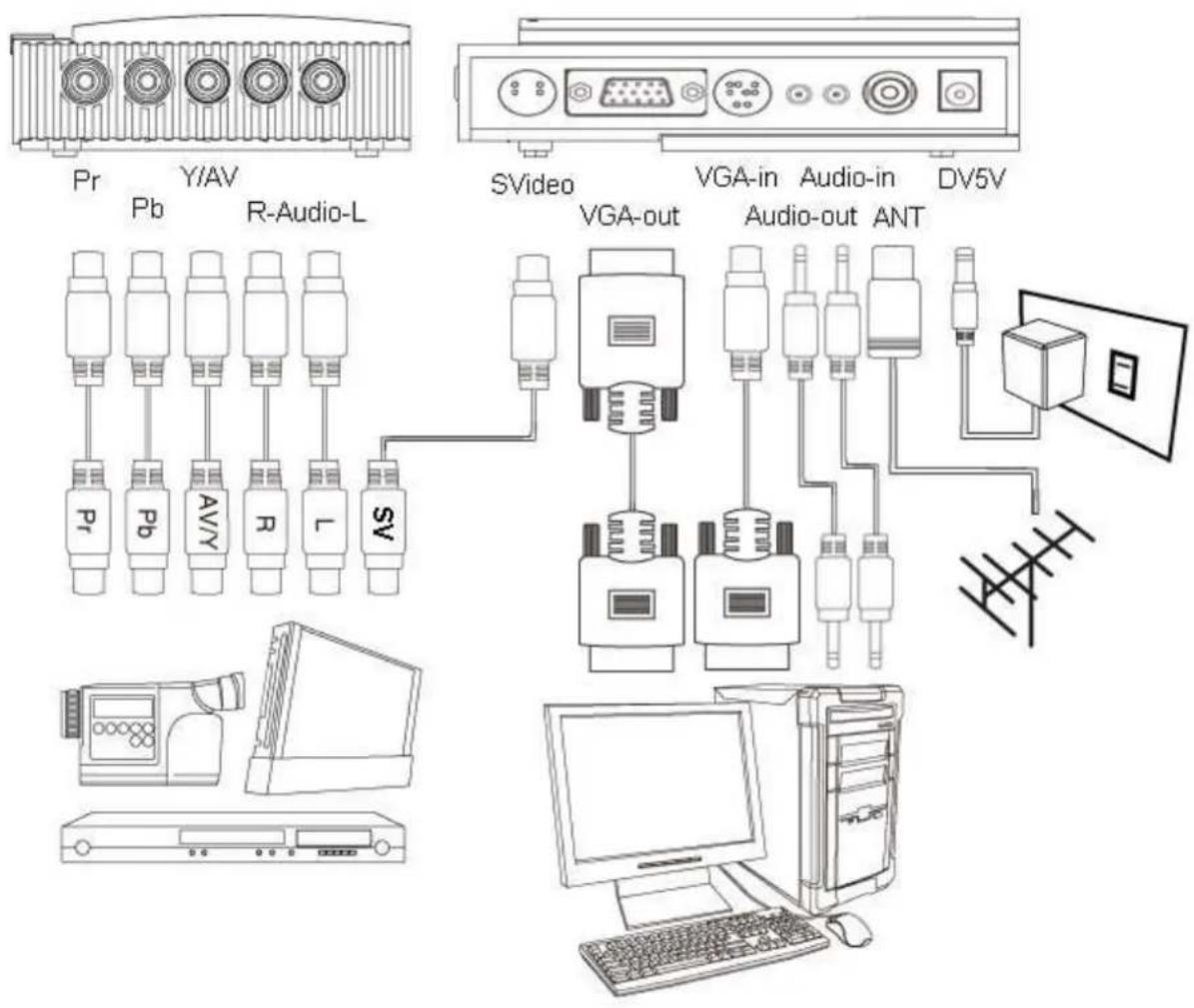

If the speaker cable is connected to the computer's sound card, the audio will not work. The audio speaker cable should be connected to the ENXTV-X3 Audio-Out port when you are watching the TV without turned on the computer.
2.1 Rear panel connectors
| CONNECTOR TYPE DESCRIPTION | ||
| DC In 5mm, INT+, | EXT- AC adapter, power | in (5V, 1 A) |
| RF TV antenna connector | TV or CATV signal-in connector | |
| Audio In 3.5mm stereo connector | Audio In connects to PC sound system (Speaker out of sound card). | |
| Audio Out 3.5mm stereo connector | Audio out connects to the speaker. | |
| VGA In 8 pin Mini DIN connector | VGA-In loop back cable. The other end of this cable connects to the PC's VGA D-sub 15 pin connector. | |
| VGA Out 15 pin D-Sub connector | ENXTV-X3 main video output. Connects to CRT/LCD Monitor | |
| S-Video In 4 Pin Mini Din S-VHS type external video input source. Can be used for DVD, VCR or Camcorder | ||
2.2 Right Side Panel Port Connectors
| CONNECTOR TYPE DESCRIPTION | ||
| Audio In (L/R) RCA | Audio jack RCA | audio jack used for external audio input source. |
| Video In RCA Jack | External composite video input source, can be connected to DVD, VCR or Camcorder. | |
| YPbPr In | RCA Jack | External component video input source, can be connected to DVD, VCR or Camcorder. |
Chapter 3: Using the ENXTV-X3
3.1 PC side VGA resolution setting
ENXTV-X3 can be used independent of PC system for a full screen display. In addition to the full screen display, when it is connected in conjunction with the computer system, the PIP sub video window can also be displayed at the top of PC monitor screen to let the user watch TV while using the computer at the same time, or just enjoy full screen TV viewing.
When the ENXTV-X3 is used as a standalone TV box (computer is turned off), it is completely independent with the computer's VGA or monitor screen settings. Resolution and other adjustments depend on the monitor or the ENXTV-X3 settings.
While in PIP mode (computer is turned on and in PIP mode), in order to have the optimized resolution and performance, we recommend setting the computer VGA in WUXGA mode (1920x1080 or 1920x1200@60Hz) and monitor's refresh rate at 60Hz. See the illustration computer VGA settings below.


-
Under Windows systems, the VGA resolution setting page can be invoked by a right click on the mouse when it is pointed at an empty desktop area.
-
When the "Display properties" page is shown, select the recommended value 1920x1080 or 1920x1200.
-
Click on the "Advanced" button, to select the monitor refresh rate, the recommended value is 60Hz
-
Click on OK to close the property page.
-
Windows system will change the display mode to your setting and ask whether to use this display mode or not, please click on OK to confirm the setting.
Chapter 4: Using the Remote Control
The included infrared remote control allows you to operate ENXTV-X3 remotely, such as turning your TV on/off, changing channels, adjusting volume, etc. Aim the front of the remote control at the remote control receiver and press the control buttons as you would on the infrared receiver.
4.1 Installing Batteries
Open the back cover of remote controller and put in two pieces of AAA batteries (alkaline battery recommended).
4.2 Remote controller functions

- Power: power on/off control.
- MUTE: Volume mute or resume.
- Numbers: Program number select
-
- / --: To choose Single or Double digits channel entry format.
- RECALL: Return to the previous channel last viewed.
- TV/AV: Source select.
- PC/TV: Switch to select PIP PC mode or full screen TV mode.
- CH+: Channel Up.
- CH-: Channel Down.
- VOL+: Volume Up.
- VOL-: Volume Down.
- MENU: When in Full Screen Mode, this key is use for settings. When in PIP Mode, this is use to move the PIP screen in conjunction with the CH+/- keys to move PIP screen high and low, and with the VOL +/- keys to move the PIP screen right and left
- EXIT: Exit form current Menu setting.
- PIP: Enter into PIP mode.
- MODE: When in PIP Mode: MODE key is use to change the PIP screen display size. When in Full Screen Mode: MODE key is use to change the HDTV1080P resolution settings.
- MULTI-DISPLAY: Multi-picture display.Displays up to 16 video Windows.
- SKIP: Skip / No skip current TV channel.
- SLEEP: Set to Sleep timer and Off Sleep.
- SYS: N/A
- OSD: On Screen Display
4.3 How to use the OSD Display Menu
In this section the ENXTV-X3 Main Menu and its operations will be discussed here.

TV mode must be in Full Screen Mode.
- Press the MENU button from the remote control to get to this screen.

- Use the CH+/CH- keys to move the cursor to the desired item (Left and Right).
- Use the VOL+/VOL- keys to move the highlights down to every sub menus and use CH+/CH- keys to select.
- Use the EXIT key returns to previous setting menu or exit from the main menu.

If there is no activity within 5 seconds, the OSD menu display will hide automatically
4.4 OSD Display MENU Settings

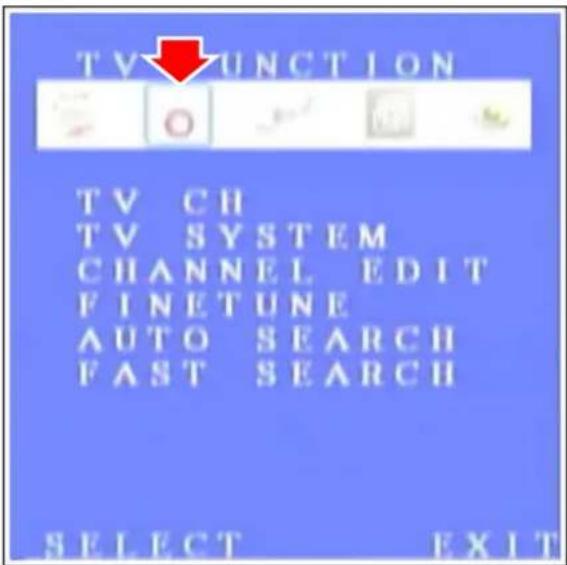
■ PICTURE:
BRIGHTNESS: Sets screen brightness
CONTRAST: Sets screen contrast
SATURATION: Sets saturation
TINT: Sets color hue
SHARPNESS: Sets sharpness
RESET: Return to the default setting
■ TV FUNCTION:
TV CH: Display current TV channel
TV SYSTEM: TV signal type
CHANNEL EDIT: Change the current channels sequence list
FINETUNE: Adjust current TV signal quality
AUTO SEARCH: Auto process of scanning TV signal by frequency
FAST SEARCH: Auto process of scanning TV signal by TV channel table


■ RESOLUTION:
800x600, 1024x768, 1200x1024, 1400x1050, 1440x900, 1680x1050, 1920x1080 and 1920x1200
■ INPUT SOURCE:
TV, VIDEO, SVIDEO and YPBPR
■ OSD SETTING:
LANGUAGE: OSD menu language selection: Chinese and English
OSD POSITION: Adjust OSD Horizontal / vertical position
TRANSPARENCY: Adjust OSD background transparency
COLOR SYSTEM: Selection the TV standard
VERSION: Show the firmware version
Chapter 5: Tech Support Center
Please visit our website for the latest updates and support information at
www.encore-usa.com.
International Support Hotlines
| Argentina(Buenos Aires)(Córdoba) | +54 11-6632-2120+54 35-1568-1873 | soporte.argentina@encore-usa.com |
| Chile +56 2-581 | -4903 soporte.chile@encore-usa.com | |
| Colombia +57 2-891 | -2696 soporte.colombia@encore-usa.com | |
| Mexico +52 55-2789 | -5414 soporte.mexico@encore-usa.com | |
| Peru +51 1-708-5421 | soporte.peru@encore-usa.com | |
| Spain +34 912-919 | -405 soporte.espana@encore-usa.com | |
| USA | +1 626-606-3108 | support@encore-usa.com |
| Venezuela | Coming soon | soporte.venezuela@encore-usa.com |
* Local tech-support numbers are provided in selectively countries. Service may change without prior notice. Please visit www.encore-usa.com for more details.


- ENCORE
- ELECTRONICS
- ENXTV-X3
- External TV Tuner HD
- User Manual
- Important Notice:
- Contents:
- Chapter1: Introduction ...... 3
- Chapter 2: Getting Started ....6
- Chapter 3: Using the ENXTV-X3....8
- Chapter 4: Using the Remote Control....9
- Chapter 5: Tech Support Center .... 13
- Chapter1: Introduction
- Features
- System Requirements
- Specifications
- Package Contents
- Chapter 2: Getting Started
- Rear panel connectors
- Right Side Panel Port Connectors
- Chapter 3: Using the ENXTV-X3
- PC side VGA resolution setting
- Chapter 4: Using the Remote Control
- Installing Batteries
- Remote controller functions
- How to use the OSD Display Menu
- OSD Display MENU Settings
- ■ PICTURE:
- ■ TV FUNCTION:
- ■ RESOLUTION:
- ■ INPUT SOURCE:
- ■ OSD SETTING:
- Chapter 5: Tech Support Center
Brand : ENCORE
Model : ENXTV-X3
Category : TV Tuner for Computer