
RF-MAB2 - Headphones Rocketfish - Free user manual and instructions
Find the device manual for free RF-MAB2 Rocketfish in PDF.


| Product Type | Over-ear wireless headphones |
| Brand | Rocketfish |
| Model | RF-MAB2 |
| Dimensions (L x W x H) | 7.5 x 6.3 x 3.1 inches |
| Weight | 0.5 lbs (approx 230 g) |
| Power Source | Built-in rechargeable lithium-ion battery |
| Charging Port | USB-C |
| Battery Life | Up to 20 hours of playback |
| Wireless Connectivity | Bluetooth 5.0 |
| Noise Cancellation | Active noise cancellation (ANC) |
| Microphone | Built-in for hands-free calls |
| Driver Size | 40 mm |
| Frequency Response | 20 Hz - 20 kHz |
| Impedance | 32 ohms |
| Design | Foldable with adjustable headband |
| Comfort Features | Memory foam ear cushions |
| Care Instructions | Wipe with a soft, dry cloth; avoid liquids |
| Safety | Do not disassemble; keep away from water and children |
| Spare Parts Available | Replacement ear cushions |
| Reparability | Battery replacement by qualified technician |
Frequently Asked Questions - RF-MAB2 Rocketfish
User questions about RF-MAB2 Rocketfish
0 question about this device. Answer the ones you know or ask your own.
Ask a new question about this device
Download the instructions for your Headphones in PDF format for free! Find your manual RF-MAB2 - Rocketfish and take your electronic device back in hand. On this page are published all the documents necessary for the use of your device. RF-MAB2 by Rocketfish.
USER MANUAL RF-MAB2 Rocketfish
Bluetooth Stereo Headset
RF-MAB2
Bluetooth Stereo Headset
Contents
Features 3
Package contents 3
Components...... 3
Using the headset 4
Charging or recharging the battery...... 4
Turning the headset on or off...... 6
Pairing the headset....6
Multi-pairing method 9
Making phone calls....10
Playing music....11
Using 3D sound....11
Resetting the headset....12
LED status information....12
Maintaining 12
Replacing the earphone pads....13
Troubleshooting 14
Specifications....19
Legal notices....19
One-year limited warranty....21
Features
- Wireless Bluetooth connection to your wireless MP3 player, mobile phone, or PC
• Behind-the-head design
• Great 3D sound effects
•Supports HSP, HFP, A2DP, AVRCP, and Bluetooth 2.1
• Twelve hours continuous music playback
• A C a n d U S B c h a r g i n g
Package contents
- Bluetooth stereo headset
- Replacement earphone pads
- AC wall adapter
- USB charging cable
• Quick Setup Guide
Components

Using the headset
Charging or recharging the battery
The headset comes with a rechargeable battery pre-installed.
To charge or recharge the battery:
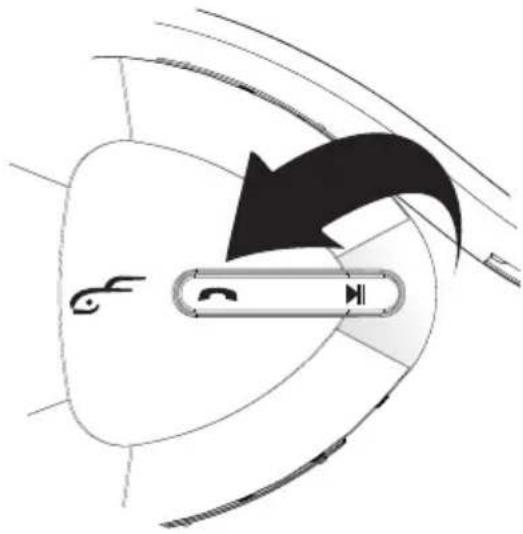
1 If the headset is turned on, press and hold (Talk) for about three seconds to turn it off.
flowchart
graph TD
    A["Start"] --> B{Action}
    B -->|Yes| C["Process Step"]
    B -->|No| D["End"]
2 Connect the USB charging cable to the headset.

natural_image
Technical line drawing of a mechanical assembly with connectors and parts (no text or symbols)3 Connect the other end of the USB cable to a computer or the AC wall adapter. If you use the AC wall adapter, plug it into a power outlet. The AC wall adapter LED lights green.
When the headset LED changes from red to blue, charging is complete. Average charging time is three hours.
Computer connection

AC wall adapter connection

4 When the battery is fully charged, unplug the USB cable from the headset.
Note: The first time you charge the battery, leave the headset connected to the USB cable or AC wall adapter for at least three hours.
Note: When the battery charge is low, the red LED flashes and an alarm sounds.
Turning the headset on or off
To turn on the headset:
- Press and hold (Talk) for about three seconds. The LED flashes blue. Note: If you press and hold (Talk) for six seconds, the headset goes into pairing mode. For more information, see "Pairing the headset" on page 6.
To turn off the headset:
- Press and hold (Talk) for about three seconds. The LED turns red, dims, then turns off.
Pairing the headset
Cell phone or MP3 player
To pair the headset with a cell phone or MP3 player:
1 With the headset turned off, press and hold 📞 (Talk) until the LED blinks blue and red rapidly, indicating pairing mode is activated (this typically takes three to six seconds).
2 On the phone or MP3 player when paring mode is activated, select RF-MAB2 from the list of discovered devices, then enter the password 0000 (four zeros) to pair the headset. For instructions, see the device's documentation.
Note: After the headset has been successfully paired with the cell phone or MP3 player, the headset connects automatically to the phone or MP3 player the next time the headset is turned on near the phone or player.
Computer running Windows 7
Note: Before you pair the headset with the computer, make sure that the computer is equipped with a Bluetooth radio. Refer to the computer's documentation or contact the computer manufacturer for more information. If you do not have a Bluetooth radio, install a Bluetooth USB adapter (dongle).
To pair the headset in Windows 7:
1 Turn on Bluetooth on the computer. For instructions, see the computer's documentation or contact the computer manufacturer.
2 Double-click the Bluetooth icon in the system tray, near the clock.
3 Click Add a device.
4 With the headset turned off, press and hold 📞 (Talk) until the LED blinks blue and red rapidly, indicating pairing mode is activated (this typically takes three to six seconds).
5 Double-click the RF-MAB2 icon on the computer or highlight the icon and click Next.
6 Click Close after the headset has been paired.
7 Click Start, then click Control Panel.
8 Click Hardware and Sound, then under Sound, click Manage audio devices.
9 On the Recording tab, select Headset Microphone Bluetooth Hands-free Audio, then click Set Default.
10 On the Playback tab, select Speakers Bluetooth Hands-free Audio, then click Set Default.
11 Click OK.
Computer running Windows Vista
Note: Before you pair the headset with the computer, make sure that the computer is equipped with a Bluetooth radio. Refer to the computer's documentation or contact the computer manufacturer for more information. If you do not have a Bluetooth radio, install a Bluetooth USB adapter (dongle).
To pair the headset in Windows Vista:
1 Turn on Bluetooth on the computer. For instructions, see the computer's documentation or contact the computer manufacturer.
2 Double-click the Bluetooth icon in the system tray, near the clock.
3 Click Add Wireless Device.
4 With the headset turned off, press and hold 📞 (Talk) until the LED blinks blue and red rapidly, indicating pairing mode is activated (this typically takes three to six seconds).
5 Double-click the RF-MAB2 icon on the computer or highlight the icon and click Next.
6 Click Close after the headset has been paired.
7 Click Start, then click Control Panel.
8 Click Hardware and Sound, then under Sound, click Manage audio devices.
9 On the Playback tab, select Speakers 2-Bluetooth Hands-free Audio, then click Set Default.
10 On the Recording tab, select Headset Microphone 2-Bluetooth Hands-free Audio, then click Set Default.
11 Click OK.
Computer running Windows XP
Note: Before you pair the headset with the computer, make sure that the computer is equipped with a Bluetooth radio. Refer to the computer's documentation or contact the computer manufacturer for more information. If you do not have a Bluetooth radio, install a Bluetooth USB adapter (dongle).
To pair the headset in Windows XP:
1 Turn on Bluetooth on the computer. For instructions, see the computer's documentation or contact the computer manufacturer.
2 Double-click the Bluetooth icon in the system tray, near the clock. My Bluetooth Places opens.
3 Click Add a New Bluetooth Device. The Add Bluetooth Device Wizard opens.
4 Click Next.
5 With the headset turned off, press and hold 📞 (Talk) until the LED blinks blue and red rapidly, indicating pairing mode is activated (this typically takes three to six seconds).
6 Double-click the RF-MAB2 icon on the computer or highlight the icon and click Next.
Note: If you are unable to locate the RF-MAB2 icon, click the Search Again button.
7 Enter 0000 (four zeros) in the Bluetooth security code field, then click Next.
8 Select one of the Bluetooth hands-free types shown on the Add a Bluetooth Device Wizard screen, then click Next.
9 Select the services shown on the wizard screen to use with your Bluetooth headset, then click Finish.
10 To connect the device, double-click the MAB2 Hands-Free Unit icon or the RF-MAB2 Stereo Audio icon.
11 Click Start, then click Control Panel.
12 Click Sounds, Speech, and Audio Devices.
13 Click the Sounds and Audio Devices icon.
14 On the Audio tab, select Bluetooth Hands-free Audio or Bluetooth Stereo Audio in the Sound recording list, and select Bluetooth Hands-free Audio in the Sound playback list, if it is an option.
Mac computer
Note: Before you pair the headset with the computer, make sure that the computer is equipped with a Bluetooth radio. Refer to the computer's documentation or contact the computer manufacturer for more information. If you do not have a Bluetooth radio, install a Bluetooth USB adapter (dongle).
To pair the headset on a Mac computer:
1 Turn on Bluetooth on the computer. For instructions, see the computer's documentation or contact the computer manufacturer.
2 Click the Bluetooth status menu.
3 Click Set up Bluetooth Device. The Bluetooth Setup Assistant opens.
4 Click Continue.
5 Select Headset as the device type, then click Continue.
6 With the headset turned off, press and hold 📞 (Talk) until the LED blinks blue and red rapidly, indicating pairing mode is activated (this typically takes three to six seconds).
7 Select RF-MAB2, then click Continue. The computer gathers information.
8 Click Continue.
9 Enter 0000 (four zeros) into the Passkey field, then click Continue.
10 Click Quit when finished.
11 Click System Preferences, then click Sound.
12 Under Output, select RF-MAB2, then under Input, select RF-MAB2.
Multi-pairing method
Before you can connect the headset to two devices, you must pair to each device individually.
The device you are pairing must support one of the following Bluetooth profiles:
- HSP (Headset Profile)—Provides two-way communication between the headset and a Bluetooth phone. This profile is the most commonly used profile for Bluetooth phones. A paired phone must support HSP or HFP. See the documentation that came with the phone to determine if the phone supports HSP or HFP.
- HFP (Hands-Free Profile)—Provides two-way communication between the headset and a Bluetooth phone. If the phone does not use HSP, it uses this profile. A paired phone must support HSP or HFP. See the documentation that came with the phone to determine if the phone supports HFP or HSP.
- A2DP (Advanced Audio Distribution Profile)—Provides high quality audio (stereo and mono) communication between the headset and a phone's or computer's MP3 player.
- AVRCP (Audio Video Remote Control Profile)—Lets an MP3 player control the headset media playback buttons (such as play/pause or rewind/fast-forward). If you connect an MP3 player, the player must support AVRCP. See the documentation that came with the MP3 player to determine if the player supports AVRCP. Windows Media Player supports AVRCP.
A profile can only connect one device at a time. For example, you cannot use a phone's MP3 player and a computer's MP3 player at the same time, because both players are connected through the A2DP profile.
You can connect a phone and a computer at the same time because the phone uses HSP or HFP and the computer uses A2DP. This lets you listen to music from the computer and answer phone calls at the same time.
Notes:
In multi-pairing mode, some functions may be restricted depending on the host devices.
Not all devices and functions may be compatible with multi-pairing.
Primary and secondary devices
If you pair two devices, the last device you paired is the primary device and controls the headset buttons. The first device you paired is the secondary device and has limited control of the headset buttons.
For example, if you connect a phone, then connect an MP3 player, you can answer the phone while listening to music, but you cannot use the phone's redial or voice recognition functions because the MP3 player controls the headset buttons.
If you turn off the MP3 player (primary device), the phone (secondary device) does not automatically gain control of the headset buttons. You need to pair the phone again before the phone can control the headset buttons.
Making phone calls
| To:Do this: | ||
| Voice dial | Press (Talk) once. (Some phones may not support this function.) | |
| Redial | Press (Talk) twice. | |
| Answer a call | Press (Talk) once. | |
| End a call | Press (Talk) once. | |
| Refuse a call | While the phone is ringing, press (Play/Pause). | |
| Change the volume | Press + or -. | |
| Transfer a call between connected devices | Press 📞 (Talk) twice. | |
Playing music
Note: The Bluetooth device you connect must support AVRCP (Audio Video Remote Control Profile).
| To:Do this: | |
| Play/Pause | Press (Play/Pause) to open the phone's MP3 player and begin playing music.Press (Play/Pause) to pause or resume playback.Press and hold (Play/Pause) to stop playback. |
| Select a song | Press ← ↗ . |
| To rewind or fast forward a song | While music is playing, press and hold ← ↗ . (Some phones may not support this function.) |
| Answer a call while playing music | Press (Talk) to answer the call or press (Play/Pause) to reject the call.Press (Talk) again to end the call.Music resumes playing when the call is rejected or ended. |
| Change the volume | Press + or - . |
Using 3D sound
There are five sound modes: Normal (no 3D sound) mode and four 3D sound modes.
| Sound mode Description | |
| Normal | Does not use a sound effect. When the headset is in this mode, it beeps twice. |
| Noise | Provides a comfortable and consistent listening environment by reducing distractible sound. |
| Live | Delivers a natural and soft 3D sound field that simulates a live performance. |
| Wide | Provides a panoramic 3D audio image of widely spread main vocal and center-placed instruments. |
| Low | Delivers a wide stereo sound image, but enhances low-frequency sound to provide rich, deep bass tones. |
To select a sound mode:
- While in play/pause mode, press (Play/Pause) twice.
Resetting the headset
To reset the headset:
- Press (play/pause), (Talk), and the + (volume up) simultaneously.
LED status information
| Headset status LED | |
| Powering on | LED flashes blue. |
| Powering off | LED lights red, dims, then disappears. |
| Low battery | LED blinks red continuously. |
| Recharging | LED light solid red. |
| Recharging complete | LED turns blue. |
| Pairing mode | LED flashes blue and red rapidly. |
| Connection complete | LED blinks blue every two seconds. |
| Receiving a call | LED flashes blue rapidly. |
| Talking on the phone | LED repeatedly brightens and dims blue. |
| Playing music | LED repeatedly brightens and dims blue. |
Maintaining
- Do not place the headset near fire. The battery may explode.
- Do not drop or apply excessive force to the headset. You may damage it.
- When storing the headset for an extended period of time, store it in a dry place and avoid extreme temperatures.
- If the headset gets wet, avoid exposure to heat or an electrical current. Contact a service center or the store where you purchased the headset.
- Do not use any charging device except the device that came with the headset.
Replacing the earphone pads
To replace the earphone pads:
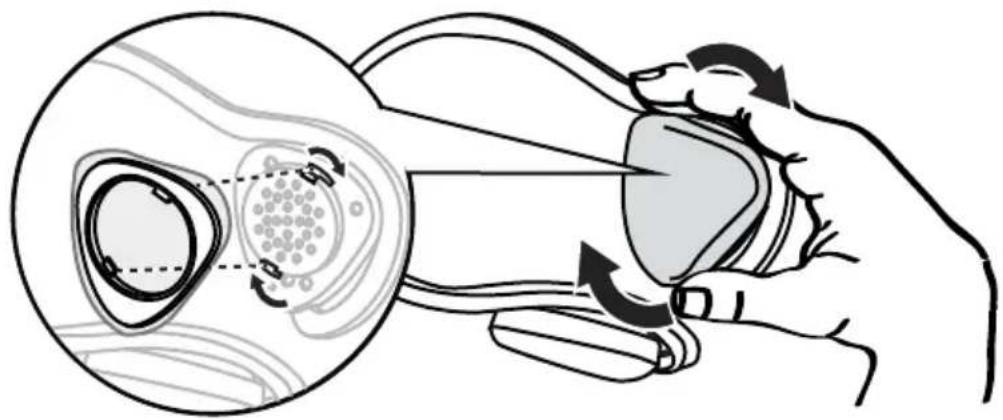
1 Rotate the earphone cover counterclockwise and remove the earphone cover.

natural_image
Illustration of a hand holding a medical device with arrows indicating motion or force direction (no text or symbols)2 Remove the earpad fabric from the earphone cover.

natural_image
Diagram of a medical device with a circular dial and surrounding tissue (no text or symbols)3 Place the new earpad around the earphone cover, making sure that the tabs in the earphone cover are visible in the openings of the new earpad.

natural_image
Diagram of a medical device with internal components and directional arrows indicating flow or movement (no text or symbols)4 Connect the earphone to the headset, making sure that the tabs in the earphone align with the holes in the headset. Rotate the earphone cover clockwise until it locks into place.
natural_image
Illustration of a hand holding a device with arrows indicating motion or interaction, showing internal components and movement (no text or symbols)Troubleshooting
| Problem Solution | |
| The battery does not stay charged | Charge the headset for at least three hours the first time it is charged.Allow the battery to fully charge each time you charge it.The indicator light turns solid red when recharging.The battery is fully charged with the LED changes from red to blue. |
| The headset is not working at all (does not turn on using the talk button, no indicator lights turn on) | The headset turns off when the battery charge is low. Make sure that the headset is fully charged.Allow the battery to fully charge each time you charge it.The indicator light turns solid red when recharging.The battery is fully charged with the LED changes from red to blue.Try power cycling the headset by unplugging it and plugging it back in.Try charging the headset using a different outlet.If the headset still does not work after trying these procedures, contact the Rocketfish service center at 800-620-2790. |
| I do not get as much talk time as I used to | The battery is an expendable product and battery life diminishes over time.Battery life is also dependent on conditions of use. |
| I cannot replace the battery | The rechargeable battery is not a customer replaceable part. |
| The AC wall adapter or USB charging cable was damaged. | New AC wall adapters and USB charging cables are not available for purchase. |
| No sound comes from the headset | The battery may be dead. Recharge the battery.Make sure the paired audio source (for example, a computer, MP3 player, or phone) is turned on.Make sure that the headset's volume and the paired audio source's volume are turned up.If the headset is paired to a computer, make sure that the headset is selected as the playback default. For instructions, see one of the following:“Computer running Windows 7” on page 6“Computer running Windows Vista” on page 7“Computer running Windows XP” on page 8“Maccomputer” on page 9Try re-pairing the headset. See “Pairing the headset” on page 6.You may need to turn off the paired audio source's internal speakers before the audio source can send audio to the headset. See the documentation for the audio source.Make sure that the sound is not muted on the paired audio source. |
| I cannot pair the headset with other devices | The headset only works with devices that support the HSP, HFP, or A2DP profile. Therefore, you cannot pair the headset with devices such as a regular cordless phone. |
Problem Solution
| The sound has static or breaks up | · The unobstructed operating range of the headset is 33 ft. (10 m). · If the distance between the headset and the audio source is greater than the maximum distance, reduce the distance between the headset and the audio source. · If there are obstructions between the headset and the audio source, move the headset or audio source away from the obstructions. · Other devices, such as cordless phones, microwaves, or wireless routers, may cause interference. · Try turning one device off at a time to determine which device is causing interference. · If your cordless phone or wireless router is causing interference, try changing the channel the phone or router is using. For instructions, see the documentation that came with the phone or router. · If the headset is paired to a computer, make sure that the headset is selected as the playback default. · W i n d o w s 7 : 1 Click Start, then click Control Panel. 2 Click Hardware and Sound, then under Sound, click Manage audio devices. 3 On the Recording tab, select Headset Microphone Bluetooth Hands-free Audio, then click Set Default. 4 On the Playback tab, select Speakers Bluetooth Hands-free Audio, then click Set Default. 5 C l i c k OK. · W i n d o w s V i s t a : 1 Click Start, then click Control Panel. 2 C l i c k Hardware and Sound. 3 Under Sound, click Manage audio devices. 4 On the Playback tab, select Speakers 2-Bluetooth Hands-free Audio, then click Set Default. 5 On the Recording tab, select Headset Microphone 2-Bluetooth Hands-free Audio, then click Set Default. 6 C l i c k OK. · W i n d o w s X P : 1 Click Start, then click Control Panel. 2 C l i c k Sounds, Speech, and Audio Devices. 3 C l i c k the Sounds and Audio Devices icon. 4 O n t h e Audio tab, select Bluetooth Hands-free Audio or Bluetooth Stereo Audio from the Sound recording list. Select Bluetooth Hands-free Audio from the Sound playback list if it is an option. · M a c : 1 Click the System Preferences, then click Sound. 2 Under Output and Input, select RF-MAB2. |
| The headset does not control the volume | · Make sure the volume on your audio source (for example, a computer, MP3 player, or phone) is turned up to at least 50% of its volume level. · Your headphone batteries may be dead. Try recharging your headphones. |
| Problem Solution | |
| The headset volume is low | Make sure the volume on your audio source (for example, a computer, MP3 player, or phone) is turned up to at least 50% of its volume level. |
| The headset makes a long, low tone every 30 seconds | Your battery is low. Recharge the headset.For instructions on how to recharge the battery, see “Charging or recharging the battery” on page 4. |
| The headset is connected to a computer, but sound is coming from the computer instead of the headset | Make sure that the headset is paired with the computer. For instructions, see one of the following:“Computer running Windows 7” on page 6“Computer running Windows Vista” on page 7“Computer running Windows XP” on page 8“Maccomputer” on page 9Change the computer audio settings to play audio through the headset.Windows 7:1 Click Start, then click Control Panel.2 Click Hardware and Sound, then under Sound, click Manage audio devices.3 On the Recording tab, select Headset Microphone Bluetooth Hands-free Audio, then click Set Default.4 On the Playback tab, select Speakers Bluetooth Hands-free Audio, then click Set Default.5 Click OK.Windows Vista:1 Click Start, then click Control Panel.2 Click Hardware and Sound.3 Under Sound, click Manage audio devices.4 On the Playback tab, select Speakers 2-Bluetooth Hands-free Audio, then click Set Default.5 On the Recording tab, select Headset Microphone 2-Bluetooth Hands-free Audio, then click Set Default.6 Click OK.Windows XP:1 Click Start, then click Control Panel.2 Click Sounds, Speech, and Audio Devices.3 Click the Sounds and Audio Devices icon.4 On the Audio tab, select Bluetooth Hands-free Audio or Bluetooth Stereo Audio from the Sound recording list. Select Bluetooth Hands-free Audio from the Sound playback list if it is an option.Mac:1 Click the System Preferences, then click Sound.2 Under Output and Input, select RF-MAB2. |
Problem Solution
| The headset buttons do not control the audio device | • In multi-pairing mode, some functions may be restricted depending on the devices paired to the headset.• If you pair both a phone and an MP3 player, the device you pair last has priority. For example, if you pair a phone, then pair an MP3 player, the MP3 player controls the buttons on the headset. You can answer the phone while listening to music, but you cannot use the phone's redial or voice recognition functions.• After the device with priority is shut off or unpaired, you may have to re-pair the second device for the headset buttons to regain control. |
| The headset microphone is not working | • Make sure that the headset is paired with the computer. For instructions, see one of the following:• "Computer running Windows 7" on page 6• "Computer running Windows Vista" on page 7• "Computer running Windows XP" on page 8• "Maccomputer" on page 9• Change the computer audio settings to play audio through the headset.• W i n d o w s 7 :1 Click Start, then click Control Panel.2 Click Hardware and Sound, then under Sound, click Manage audio devices.3 On the Recording tab, select Headset Microphone Bluetooth Hands-free Audio, then click Set Default.4 On the Playback tab, select Speakers Bluetooth Hands-free Audio, then click Set Default.5 C l c k OK.• W i n d o w s V i s t a :1 Click Start, then click Control Panel.2 C l c k Hardware and Sound.3 Under Sound, click Manage audio devices.4 On the Playback tab, select Speakers 2-Bluetooth Hands-free Audio, then click Set Default.5 On the Recording tab, select Headset Microphone 2-Bluetooth Hands-free Audio, then click Set Default.6 C l c k OK.• W i n d o w s X P :1 Click Start, then click Control Panel.2 C l c k Sounds, Speech, and Audio Devices.3 C l c k the Sounds and Audio Devices icon.4 On the Audio tab, select Bluetooth Hands-free Audio or Bluetooth Stereo Audio from the Sound recording list. Select Bluetooth Hands-free Audio from the Sound playback list if it is an option.• M a c :1 C l c k System Preferences, then click Sound.2 Under Output and Input, select RF-MAB2. |
Specifications
| Bluetooth version | Version 2.1 |
| Supported profiles | A2DP, AVRCP, HFP, HSP |
| Frequency spectrum | 2.4 ~ 2.4835 GHz |
| Working distance | Maximum 33 ft. (10 m) |
| Operating temperature | 14° to 140°F (-10° to +60°C) |
| Operating time | Talk: 14 hoursMusic: 12 hours |
| Standby time | 340 hours |
| Product dimensions(L×W×H) | 6 × 5.4 × 2.4 in.(153 × 138 × 60 mm) |
| Product weight | 1.9 oz. (54g) |
| Average charging time | 3 hours |
Legal notices
FCC Statement
This device complies with Part 15 of the FCC Rules. Operation is subject to the following two conditions: (1) this device may not cause harmful interference, and (2) this device must accept any interference received, including interference that may cause undesired operation
This equipment has been tested and found to comply with the limits for a Class B digital device, pursuant to Part 15 of the FCC Rules. These limits are designed to provide reasonable protection against harmful interference in a residential installation. This equipment generates, uses and can radiate radio frequency energy and, if not installed and used in accordance with the instructions, may cause harmful interference to radio communications. However, there is no guarantee that interference will not occur in a particular installation. If this equipment does cause harmful interference to radio or television reception, which can be determined by turning the equipment off and on, the user is encouraged to try to correct the interference by one or more of the following measure
-- Reorient or relocate the receiving antenna
-- Increase the separation between the equipment and receiver.
-- Connect the equipment into an outlet on a circuit different from that to which the receiver is connected.
-- Consult the dealer or an experienced radio/TV technician for help
Warning: Changes or modifications not expressly approved by the party responsible for compliance could void the user's authority to operate the equipment.
Canadian Notice
This Class B digital apparatus complies with Canadian CAN ICES-3 (B)/NMB-3(B).
This device complies with Industry license-exempt RSS standard(s). Operation is subject to the following two conditions: (1) this device may not cause interference, and (2) this device must accept any interference, including interference that may cause undesired operation of the device.
One-year limited warranty
Rocketfish Products ("Rocketfish") warrants to you, the original purchaser of this new RF-MAB2 ("Product"), that the Product shall be free of defects in the original manufacture of the material or workmanship for one (1) year from the purchase of the Product ("Warranty Period"). This Product must be purchased from an authorized dealer of Rocketfish brand products and packaged with this warranty statement. This warranty does not cover refurbished Product. If you notify Rocketfish during the Warranty Period of a defect covered by this warranty that requires service, terms of this warranty apply.
How long does the coverage last?
The Warranty Period lasts for one year (365 days), beginning on the date you purchased the Product. The purchase date is printed on the receipt you received with the product.
What does this warranty cover?
During the Warranty Period, if the original manufacture of the material or workmanship of the Product is determined to be defective by an authorized Rocketfish repair center or store personnel, Rocketfish will (at its sole option): (1) repair the Product with new or rebuilt parts; or (2) replace the Product at no charge with new or rebuilt comparable products or parts. Products and parts replaced under this warranty become the property of Rocketfish and are not returned to you. If service of Products and parts are required after the Warranty Period expires, you must pay all labor and parts charges. This warranty lasts as long as you own your Rocketfish Product during the Warranty Period. Warranty coverage terminates if you sell or otherwise transfer the Product.
How to obtain warranty service?
If you purchased the Product at a retail store location, take your original receipt and the Product to the store you purchased it from. Make sure that you place the Product in its original packaging or packaging that provides the same amount of protection as the original packaging. If you purchased the Product from an online web site, mail your original receipt and the Product to the address listed on the web site. Make sure that you put the Product in its original packaging or packaging that provides the same amount of protection as the original packaging.
Where is the warranty valid?
This warranty is valid only to the original purchaser of the Product in the United States, Canada, and Mexico.
What does the warranty not cover?
This warranty does not cover:
- Customer instruction
- Installation
- Setup adjustments
- Cosmetic damage
• Damage due to acts of God, such as lightning strikes - A c c i d e n t
- Misuse
- A b u s e
• Negligence
• Commercial use
- Modification of any part of the Product, including the antenna
This warranty also does not cover:
• Damage due to incorrect operation or maintenance
- Connection to an incorrect voltage supply
- Attempted repair by anyone other than a facility authorized by Rocketfish to service the Product
- Products sold as is or with all faults
- Consumables, such as fuses or batteries
- Products where the factory applied serial number has been altered or removed
REPAIR REPLACEMENT AS PROVIDED UNDER THIS WARRANTY IS YOUR EXCLUSIVE REMEDY. ROCKETFISH SHALL NOT BE LIABLE FOR ANY INCIDENTAL OR CONSEQUENTIAL DAMAGES FOR THE BREACH OF ANY EXPRESS OR IMPLIED WARRANTY ON THIS PRODUCT, INCLUDING, BUT NOT LIMITED TO, LOST DATA, LOSS OF USE OF YOUR PRODUCT, LOST BUSINESS OR LOST PROFITS. ROCKETFISH PRODUCTS MAKES NO OTHER EXPRESS WARRANTIES WITH RESPECT TO THE PRODUCT, ALL EXPRESS AND IMPLIED WARRANTIES FOR THE PRODUCT, INCLUDING, BUT NOT LIMITED TO, ANY IMPLIED WARRANTIES OF AND CONDITIONS OF MERCHANTABILITY AND FITNESS FOR A PARTICULAR PURPOSE, ARE LIMITED IN DURATION TO THE WARRANTY PERIOD SET FORTH ABOVE AND NO WARRANTIES, WHETHER EXPRESS OR IMPLIED, WILL APPLY AFTER THE WARRANTY PERIOD. SOME STATES, PROVINCES AND JURISDICTIONS DO NOT ALLOW LIMITATIONS ON HOW LONG AN IMPLIED WARRANTY LASTS, SO THE ABOVE LIMITATION MAY NOT APPLY TO YOU. THIS WARRANTY GIVES YOU SPECIFIC LEGAL RIGHTS, AND YOU MAY ALSO HAVE OTHER RIGHTS, WHICH VARY FROM STATE TO STATE OR PROVINCE TO PROVINCE.
Contact Rocketfish:
For customer service please call 1-800-620-2790
www.rocketfishproducts.com
Distributed by Best Buy Purchasing, LLC
7601 Penn Avenue South, Richfield, Minnesota, U.S.A. 55423-3645
© 2013 BBY Solutions, Inc.
All rights reserved. ROCKETFISH is a trademark of BBY Solutions, Inc. Registered in some countries. All other products and brand names are trademarks of their respective owners.

www.rocketfishproducts.com (800) 620-2790
Distributed by Best Buy Purchasing, LLC
7601 Penn Avenue South, Richfield, MN 55423-3645 USA
© 2013 BBY Solutions, Inc.
All rights reserved. ROCKETFISH is a trademark of BBY Solutions, Inc.
All other products and brand names are trademarks of their respective owners.

- Bluetooth Stereo Headset
- Contents
- Features
- Package contents
- Components
- Using the headset
- Charging or recharging the battery
- To charge or recharge the battery:
- Computer connection
- AC wall adapter connection
- Turning the headset on or off
- To turn on the headset:
- To turn off the headset:
- Pairing the headset
- Cell phone or MP3 player
- To pair the headset with a cell phone or MP3 player:
- Computer running Windows 7
- To pair the headset in Windows 7:
- Computer running Windows Vista
- To pair the headset in Windows Vista:
- Computer running Windows XP
- To pair the headset in Windows XP:
- Mac computer
- To pair the headset on a Mac computer:
- Multi-pairing method
- Notes:
- Primary and secondary devices
- Making phone calls
- Playing music
- Using 3D sound
- To select a sound mode:
- Resetting the headset
- To reset the headset:
- LED status information
- Maintaining
- Replacing the earphone pads
- To replace the earphone pads:
- Troubleshooting
- Specifications
- Legal notices
- FCC Statement
- Canadian Notice
- One-year limited warranty
- How long does the coverage last?
- What does this warranty cover?
- How to obtain warranty service?
- Where is the warranty valid?
- What does the warranty not cover?
Brand : Rocketfish
Model : RF-MAB2
Category : Headphones