
Apollo APO-100-UC - Headphones WyreStorm - Free user manual and instructions
Find the device manual for free Apollo APO-100-UC WyreStorm in PDF.


| Product Type | Conference Speakerphone / Collaboration Hub |
| Model | Apollo APO-100-UC |
| Brand | WyreStorm |
| Power Supply | 24V DC via included PSU |
| Connectivity | USB-C In, USB-B Host, USB 3.0 Device Port, HDMI In, HDMI Out, LAN |
| Wireless Casting | AirPlay, Miracast (via built-in AP or network) |
| Speakerphone | Built-in microphone array and speaker |
| USB Peripheral Support | Connect conference cameras and other USB devices |
| Dual-View | Split screen support for up to two video sources |
| Control | Capacitive touch buttons (volume, mic mute, video mute) |
| Display Power Control | CEC auto on/off; RS232 on APO-210 models |
| Web Interface | Configuration via IP address; default password 'admin' |
| API | 3rd-party control via HTTP/Telnet |
| USB Switching | Auto (LIFO) or fixed host mode (BYOD vs Zoom Room) |
| Key Lock | Disable front panel buttons (press Vol- and Vol+ for 5s) |
| Factory Reset | Press Mic Mute and Video Mute for 5s |
| Mounting | Desktop or under-table (VESA not specified) |
| Dimensions (approx.) | 200mm x 150mm x 50mm (estimated based on typical hubs) |
| Weight (approx.) | 0.8 kg (estimated) |
Frequently Asked Questions - Apollo APO-100-UC WyreStorm
User questions about Apollo APO-100-UC WyreStorm
0 question about this device. Answer the ones you know or ask your own.
Ask a new question about this device
Download the instructions for your Headphones in PDF format for free! Find your manual Apollo APO-100-UC - WyreStorm and take your electronic device back in hand. On this page are published all the documents necessary for the use of your device. Apollo APO-100-UC by WyreStorm.
USER MANUAL Apollo APO-100-UC WyreStorm
natural_image
Black Apollo-themed digital camera with circular display and brand logo (no readable text or symbols beyond branding)User Manual
v1.2
Contents
Contents 2
Device Connectivity....3
Wireless Casting 4
USB Behavior & Peripherals 6
Dual-View 6
Control 7
Applications 7
BYOD Conference Room 7
Zoom Room....8
Web Interface....9
Wireless Settings....9
Display Power Control....10
Audio & Video Settings 11
API & Network Security....11
Application Modes....12
Guide Screen....12
Key Lock & Factory Reset.... 13
Device Connectivity
When a user is ready to present, there are a number of connection methods that are available. Apollo supports both wired and wireless video passthrough. If using wireless screensharing, a user's personal device will not have access to Apollo's built-in speakerphone or any USB peripherals. Connecting to Apollo via Airplay (Apple devices) or Miracast (Windows & Android) is for screensharing content only.
Wired connections add the ability for data communication on top of video transmissions. A hardwired USB-C connection to a personal device allows both A/V and USB data to transmit over a single cable. This will allow compatible USB-C devices to share content to a conference display while at the same time having access to Apollo's built-in speakerphone and any USB peripherals devices such as a webcam.
The supplied USB-C cable also includes a tethered USB-C to USB-A converter which uses DisplayLink technology. DisplayLink allows devices without USB-C connections to still utilize a single cable to send A/V and USB data with active conversion, video output is limited to 1080p with DisplayLink.
In some situations, a DisplayLink driver may need to be installed on a computer. If you are unable to get video to transmit when using the USB-A > USB-C adapter install this DisplayLink driver.
A native HDMI connection is also available and can be used for simple video passthrough to a display. If USB data communication is also needed to a device which is using HDMI, a separate USB 2.0 Type A connection can be used in tandem to connect the Apollo's speakerphone and peripheral USB devices.

| A | DC Power | Connects to the provided 24V DC PSU |
| B | LAN | Connect to a local network for access to the web interface, API and for wireless casting |
| C | HDBT Out | Output for connecting to compatible HDBaseT receiver such as the RX-500 (only available on APO-210-UC) |
| D | HDMI Out | HDMI Output (mirrored to the HDBT out) |
| E | HDMI In | HDMI input for connecting BYOD computer |
| F | USB-B Host | USB 2.0 Host connection for access to Apollo's speakerphone and any devices connected to the USB 3.0 Device port |
| G | USB 3.0 Device Port | Connect USB peripheral devices such as a conference camera |
| H | USB-C In | Multi-purpose port for both A/V and access to Apollo's speakerphone and USB peripherals |
Wireless Casting
Apollo 200 and 210 support wireless video casting by two methods.
- Native streaming via AirPlay or Mircast
- Streaming via the APO-DG1 USB-C dongle
Native Streaming
Apollo has a built-in wireless access point that can be used to cast content via AirPlay or Miracast. There are two modes for the AP.
AP Enabled: This is the default mode. When connecting to Apollo's built-in AP, Apollo acts as a bridge to an existing network via its LAN connection. This is useful if there is no existing Wi-Fi network available and you wish to use the Apollo as the primary wireless AP.

flowchart
graph TD
    A["电脑屏幕"] -->|Signal| B["设备"]
    B -->|HDMI| C["显示器"]
    B -->|LAN| D["计算机"]
AP Disabled: This mode disables the built-in AP. This mode should be used when you plan to use an existing network's access point(s). This requires a LAN connection to Apollo in order for it to be found and discoverable on the existing network.

flowchart
graph LR
    A["Desktop with Wi-Fi icon"] --> B["Wireless Router"]
    B --> C["LAN"]
    C --> D["4271.10"]
    D --> E["HDMI"]
Important! Miracast will not work if the client PC has Wi-Fi disabled. Miracast does not operate over a wired LAN connection.
Casting Dongle (APO-DG1)
A second option to cast wireless video is via the APO-DG1 USB-C casting dongle. The APO-DG1 is a simple plug and play method to wirelessly share content. The dongle plugs into an available USB-C port on a PC and operates by a button press.
For more details on how to operate and pair the APO-DG1 view the QuickStart Guide at wyrestorm.com

flowchart
graph LR
    A["Laptop with cave"] --> B["Sensor"]
    B --> C["Signal"]
    C --> D["Network"]
    D --> E["HDMI"]
In the absence of video, Apollo generates a "Guide Screen" and is shown on the connected display with instruction on how to cast content using the various casting protocols.
USB Behavior & Peripherals
Both the APO-200 and APO-210 feature a native USB 3.0 device port. Any peripheral connected to this port becomes available to the personal device connected via the USB-C or USB 2.0 connection. Most commonly this port will be used for connecting conference cameras, such as WyreStorm's CAM-200-PTZ. For long distance runs of USB peripheral devices, consider using the CAB-UAOC-15, which is WyreStorm's 15m USB 3.2 active extension cable.
Specifically on the APO-210, peripheral USB devices can be connected over the HDBaseT output. By using USB over HDBaseT, you can utilize a single cable for A/V extension and data between the display location and Apollo. Using USB over HDBaseT does limit connection to USB 2.0 devices only, due to bandwidth limitations. We recommend the RX-500 as the best suited HDBaseT receiver to use with Apollo.
By default, Apollo is set to auto switch the active USB host between the USB-C or USB 2.0 Type A connection. USB auto switching uses LIFO (Last In First Out) meaning, if a new device is connected, Apollo recognizes the new device and can automatically send connection of the speakerphone and USB peripherals to this newly connected source. This capability is great for applications that will have many devices that are 'hot-plugged' during a meeting.
You can also manually adjust this to force a certain USB connection as a fixed host so that newly connected devices do not trigger auto switch, which is great for Zoom or Teams room applications. This is covered in more detail in the Zoom/Teams section of this document.
Dual-View
Up to two separate video sources can be transmitted through Apollo in a split screen view. This can be a combination of wireless & wired devices, for example two Airplay devices, or one Miracast & one USB-C, etc... Dual-View uses LIFO (Last In First Out), Apollo will automatically switch to Dual-View when a second device sync is detected and will return to a single full screen image when a second sync is disconnected.
Control
All Apollo models have capacitive touch buttons on the center control panel. A number of options are available such as adjusting volume and muting the microphone. On the APO-200 & APO-210 there are options for changing the multiview mode between split screen or full screen and adjusting the USB host switching mode. A video mute button is also available which will cut the video transmissions to the display, useful if a user needs to access sensitive content on their device such as logging into a website or confidential emails/messages.
Apollo features CEC auto power on/off for connected displays. When a source device is connected for the first time, this can trigger Apollo to send a CEC command to automatically turn on the display, vice versa, after 'x' amount of no sync detection Apollo can power of the display.
Specific to the APO-210, this same auto power function can be sent via RS232 over HDBaseT. Both RS232 and CEC commands can be customized using the integrated web UI.
Apollo also features an API which can be connected to via 3^rd -party control systems. Details on this API can be found at wyrestorm.com.
Applications
BYOD Conference Room
A BYOD (Bring Your Own Device) conference room allows users to walk into a conference room with their own computer to host a meeting. All meeting software is hosted on the user's personal device and is not specific to a certain vendor (i.e., Zoom or Teams).
In this application Apollo acts as a unification 'hub' which allows connection of personal devices to have access to Apollo's speakerphone, transmit video to a display and by extension have access to any USB cameras that may be connected to Apollo's USB peripheral device port.

flowchart
graph TD
    A["APOLIA"] -->|USB 2.0| B["APO-210-UC"]
    B -->|USB C/USB 3.0| C["USB"]
    B -->|HDMI| D["HDMI"]
    B -->|AIRPLAY| E["MIRACAST"]
    B -->|HDBaseT| F["RX-500"]
    F -->|USB 2.0| G["CAM-200-PTZ"]
    F --> H["HDMI"]
    B --> I["(Alternative USB 3.0)"]
Zoom Room
A Zoom Room differs from a BYOD room in that it will contain a 'room PC' that is designed to host the conference software. In this application, personal devices will not have access to Apollo's speakerphone or peripheral USB cameras as they will be fixed to the 'room PC'.
BYOD devices are still supported in a Zoom Room however they are for content sharing only and will require a specific topology in order to work properly. Refer to the diagrams below for suggested topologies for a Zoom Room.
For additional details on Zoom Rooms visit this Getting Started with Zoom Rooms page.
Zoom Room without BYOD Support

flowchart
graph LR
    A["ZOOM ROOM PC"] -->|HDMI USB 2.0| B["APO-210-UC"]
    C["Run Zoom software, no BYOD device scenario."] -->|HDMI USB 2.0| B
    D["Alternative USB-C"] --> B
    E["Alternative USB 3.0"] --> F["RX-500"]
    F --> G["Monitor"]
    H["USB 2.0"] --> F
    I["HDMI"] --> B
Zoom Room with BYOD Support

flowchart
graph TD
    A["BYOD PC"] -->|HDMI| B["APO-210-UC"]
    A -->|USB-C| B
    B -->|HDBaseT| C["RX-500"]
    C -->|USB 2.0| D["ZOOM ROOM PC Runs Zoom software"]
    C -->|USB 2.0| E["Zoom Certified Capture Card Video ingest from BYOD"]
    C -->|(Alternative USB 3.0)| F["Monitor"]
Web Interface
The web interface on Apollo features a number of customization and configuration options. To access the web interface simply type the IP address of Apollo into your web browser. The default password is 'admin'.
Wireless Settings
Multiple settings can be adjusted for Apollo's built-in AP such as adjusting the wireless radio channel. In most cases this can be left on default "Auto" and Apollo will choose the best channel available. If there are wireless connectivity issues or Apollo is in an area with many wireless signals, this can be adjusted manually.
As explained in the Wireless Casting section, the built-in AP has multiple operating modes which can be adjusted from this page, including changing the wireless password assigned to the SSID.

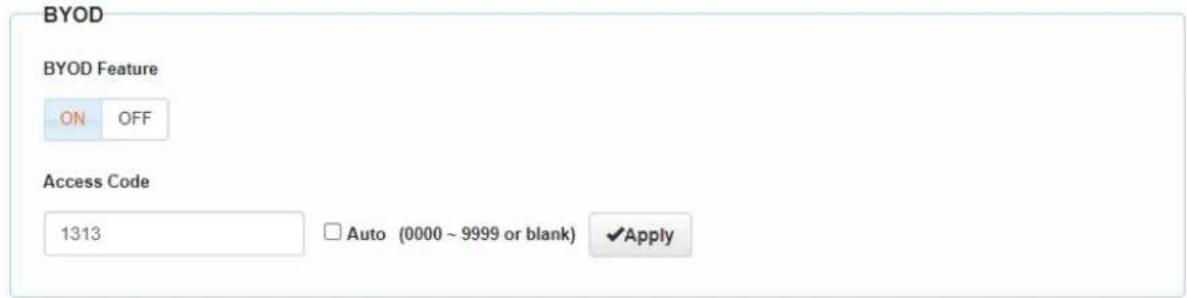
The wireless casting capability can be enabled or disabled by toggling the switch in the BYOD section. You can also set a casting pin which will require the user to enter in 4-digit numeric code in order to share content. This pin can either be a fixed number or automatically generated each time a new casting session is established. Note: this is only for Airplay or Miracast, it does not disable the built-in AP.
Display Power Control
Display on/off commands can be sent from Apollo to connected displays either automatically based on sync-detection, or manually through an API command. The sections shown below allow customization of the power command that is sent to a display through RS232 (APO-210 only) or through CEC. Simply enter in the command data required and click the save/apply button, respectively.
RS232 Command for Display Control

RS232 Command Setting

CEC
Manual
Power ON Power OFF
CEC Edit
HDMI OUT
Command Testing
Display On
Display Off
Send
Save
Save
Note: CEC command just supports Hex format with a maximum of 15 byte (example: 40 04).
Audio & Video Settings
The video tab allows you to set a number of settings including HDMI output resolution, HDCP version, enabled/disable Dual-View and mute the video output.

The audio tab lets you mute/unmute the microphone array and adjust the speaker volume.

API & Network Security
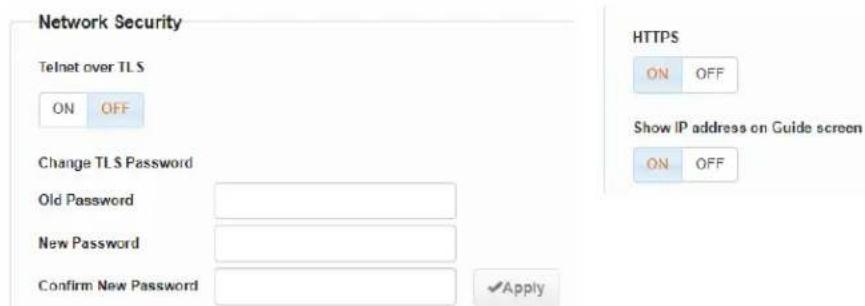
Depending on application requirements Apollo can be configured to use secure network communication methods for its API and web interface such as enabling Telnet over TLS & HTTPS.
Application Modes
This section allows you to fix Apollo's behavior based on the type of application it is used in. BYOD scenario (as described above) is for traditional non-Zoom Room meeting spaces. In this mode the USB host is designed to connect to a BYOD computer that is hosting the meeting software.
In the Zoom Room scenario, the USB 2.0 host connection is fixed and is the only active host that allows access to Apollo's speakerphone and any peripheral USB devices. This mode is designed to support a dedicated 'room PC' that is the only device that can access the speakerphone and camera.
Scenario mode
Please select the application networking:

flowchart
graph LR
    A["Private Computer"] -->|USB-C/USB-A| B["APO-210-UC"]
    B -->|HDBT OUT| C["Wyre/Storm Receiver"]
    C -->|USB 2.0| D["Display Device"]
    B -->|USB Host Cable| E["Private Computer"]
    B -->|HDMI IN| F["Display Device"]
USB Binding: ● Auto Switch ○ HDMI IN ○ TYPE-C IN
Zoom Room scenario

flowchart
graph LR
    A["Private Computer"] -->|USB-C OR HOME| B["APO-210-UC"]
    B -->|HDBT OUT| C["WyreStorm Receiver"]
    C -->|HDM OUT| D["Zoom Capture Card"]
    D -->|USB Cable| E["Room PC"]
    E -->|USB 9.0| F["Display Device"]
    C -->|USB Host Cable| D
Note: In 'Zoom Room' scenario mode DisplayLink is not supported, only USB-C or HDMI connections can be used.
Guide Screen
The Guide Screen section allows a custom image to be uploaded to Apollo and shown on a display when the system is in a dormant state. By default, a WyreStorm provided Guide Screen is loaded on Apollo which provides instructions on how to wirelessly cast. This can be replaced with any image based on application requirements.
Guide Screen
File:

Note: You must upload an image in jp(e)g format that has 1920 x 1080 pixels.
Key Lock & Factory Reset
Apollo features two secret options that can be performed by pressing and holding a combination of buttons on the top control panel.
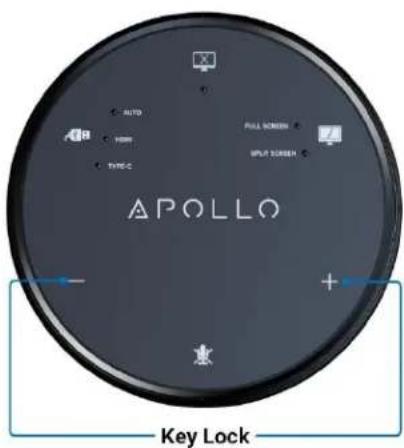
Key lock will disable all the control panel buttons. This can be useful if a 3^rd -party control panels will be responsible for controlling Apollo, or to prevent accidental presses if moving the unit or cleaning the buttons.
To enable key lock, press and hold the volume – and volume + keys together for at least 5 seconds until the LED ring flashes red. To disabled key lock, perform the same action until the LED ring flashes blue.
If Apollo becomes inaccessible on the network and a factory reset cannot be performed via the web interface, you can also press and hold the mic mute and video mute buttons together for at least 5 seconds. This will perform a hard reset and default all settings to factory.

- User Manual
- Contents
- Device Connectivity
- Wireless Casting
- Native Streaming
- Casting Dongle (APO-DG1)
- USB Behavior & Peripherals
- Dual-View
- Control
- Applications
- BYOD Conference Room
- Zoom Room
- Web Interface
- Wireless Settings
- Display Power Control
- CEC
- Audio & Video Settings
- API & Network Security
- Application Modes
- Scenario mode
- Guide Screen
- Key Lock & Factory Reset
Brand : WyreStorm
Model : Apollo APO-100-UC
Category : Headphones