
M4U 9 - Headphones PSB - Free user manual and instructions
Find the device manual for free M4U 9 PSB in PDF.


| Product Type | Over-ear wireless headphones |
| Brand | PSB Speakers |
| Model | M4U 9 |
| Weight | 332 grams |
| Battery | Rechargeable, 1.2V, 1000mAh |
| Battery Charging Time | 4 hours |
| Power Input | 5VDC, 1A |
| Operating Temperature Range | 5°C – 40°C |
| Wireless Technology | Bluetooth, 2.4GHz band |
| Wireless Range | Approximately 10 meters |
| Active Noise Cancelling | Yes, with ANC, Active, and Passive modes |
| Listening Modes | ANC (green LED), Active (blue LED), Passive (OFF) |
| NFC Pairing | Yes, via NFC touchpoint on right ear cup |
| App Support | PSB Headphones app (iOS/Android) |
| Personal Sound | Audiodo Personal Sound calibration via app |
| Active Monitor Mode | Reduces audio by 30dB to hear surroundings |
| Transparency Mode | Mixes ambient sound with playback |
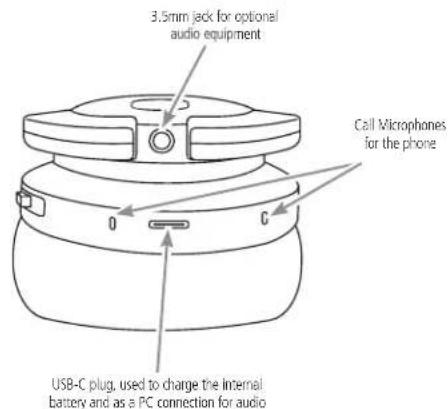
| Microphone | Built-in for phone calls (call microphones) |
| Phone Function | Answer/end calls, activate Siri/Google Assistant (hold 5s) |
| Audio Connections | 3.5mm analog input (left or right ear cup), USB-C for audio and charging |
| Included Accessories | 3.5mm audio cable, USB-C cable, 1/4-inch adaptor, airline adaptor, protective case |
| Ear Cushions | Detachable for cleaning; hand wash with mild soap |
| Storage | Fold-and-go into protective case |
| Standby Timer | Auto standby after 20 minutes (adjustable via app) |
| Regulatory Compliance | FCC (ID: SVC-PSBM4U9), IC, CE (Directive 2014/53/EU) |
Frequently Asked Questions - M4U 9 PSB
User questions about M4U 9 PSB
0 question about this device. Answer the ones you know or ask your own.
Ask a new question about this device
Download the instructions for your Headphones in PDF format for free! Find your manual M4U 9 - PSB and take your electronic device back in hand. On this page are published all the documents necessary for the use of your device. M4U 9 by PSB.
USER MANUAL M4U 9 PSB
natural_image
Line drawing of a pair of modern headsets with earbuds and clips (no text or symbols)INTRODUCTION
Thank you for purchasing a pair of PSB Speakers M4U 9 Headphones. Producing natural musical dynamics and precisely imaged sound, these high-fidelity headphones bring you closer to the music you love.
Engineered with 50 years of audio excellence and research, the M4U 9 delivers unmatched sound quality, all-day comfort and fold-and-go portability, for music enthusiasts and professionals. PSB's true-to-nature sound quality and stylish ergonomic design allow you to escape to a personal concert experience that travels anywhere with you.
REGULATORY INFORMATION
Operating Temperature Range: 5°C – 40°C
Operating Frequency Range: Bluetooth 2.4G
Maximum Output Power: 5.5mW
Input Rating: 5VDC, 1A
Battery Rating: 1.2V, 1000mAh
Battery Charging Time: 4 hours
Weight: 332 grams
M4U 9 is in compliance with the essential requirements and other relevant provisions of Directive 2014/53/EU.
Date of Manufacture: The second and third digits in the serial number indicates the year of manufacture; "21" is 2021.
Responsible Party:
Lenbrook Industries Limited. 633 Granite Court, Pickering, Ontario, Canada L1W 3K1.
Phone: (905) 831-6333, Facsimile: (905) 831-6936
The Bluetooth® word mark and logos are registered trademarks owned by Bluetooth SIG, Inc. and any use of such marks by PSB Speakers is under license.
The N-Mark is a trademark or registered trademark of the NFC Forum, Inc. in the United States and in other countries.

To prevent possible hearing damage, do not listen at high volume levels for long periods.
OSHA GUIDELINES FOR NOISE EXPOSURE LIMITS
The Occupational Safety Health Administration (OSHA) has issued headphone usage recommendations for maximum daily exposure and sound pressure levels [measured in decibels (dB)]. A decibel is a unit of sound measurement that increases exponentially with volume. For example, conversational speech is typically around 60dB, and a rock concert in a stadium is often about 110dB.
90dB 8 hours
95dB 4 hours
100dB 2 hours
105dB 1 Hour
110dB 30 minutes
115dB 15 minutes
120dB Avoid as damage may occur
SAFETY INFORMATION
This device complies with Part 15 of the FCC Rules. Operation is subject to the following two conditions: (1) this device may not cause harmful interference, and (2) this device must accept any interference received, including interference that may cause undesired operation.
FCC ID: SVC-PSBM4U9
This device complies with Industry Canada license-exempt RSS standard(s). Operation is subject to the following two conditions: (1) this device may not cause interference, and (2) this device must accept any interference, including interference that may cause undesired operation of the device.
RADIO FREQUENCY EXPOSURE STATEMENT FOR IC
The device has been evaluated to meet general RF exposure requirements. The device can be used in mobile exposure conditions. The minimum separation distance is 25mm.

WARNING
Warnings or announcements may be unnoticed when you are using the headphones. Please be aware of ambient sounds while wearing the headphones and recognize them as needed.
• To prevent possible hearing damage, do not listen at high volume levels for long periods.
- These headphones should only be connected to a USB interface of version USB2.0 or higher.
- Risk of explosion if the battery is replaced by an incorrect type, dispose of used batteries according to the instructions.
- Be sure to read the Owner's Manual of the device that you want to connect to these headphones.
- Check the volume settings when using the headphones when in public places and ensure that you do not disturb people around you.
- These headphones are not guaranteed to work with all combinations of Bluetooth devices/mobile phones.
- These headphones do not support a connection with all Bluetooth devices/mobile phones.
- Bluetooth wireless technology can communicate up to approximately 10 m. Obstructions (people, metallic objects, walls, etc.) and radio wave conditions affect the actual range.
- The Bluetooth device that you want to connect with must support the same profile as these headphones in order to use the Bluetooth function. For details on profiles that the Bluetooth device is compatible with, see the Bluetooth device Owner's Manual.
- Due to features of Bluetooth wireless technology, playback of audio on the headphones is slightly delayed compared to the playback on the transmitting device.
- Do not use your headphones while driving.
- Remove the headphones immediately if you experience a warming sensation or loss of audio.
- Do not use mobile phone adaptors to connect these headphones to airplane seat jacks, as this could cause overheating and result in injury or property damage.
- The headphones and accessories contain small parts which may be a choking hazard. Not suitable for children under age 3.
- This product contains magnetic material. Consult your physician on whether this might affect your implanted medical device
- Use this product only with an agency approved power supply which meets local regulatory requirements (e.g., UL, CSA, VDE, CCC).
- Do not expose products containing batteries to excessive heat (e.g. from storage in direct sunlight, fire or the like).
- Long-term exposure to loud music may cause permanent hearing damage. To avoid personal injury when using the headphones for extended periods, the volume should be kept at the described levels in the OSHA Guidelines above.
- Fire or shock may occur should water or other foreign substances permeate inside the device.
- Do not attempt to modify this product as it could result in personal injury and/or product failure.
- Keep batteries out of reach of children.
At the end of its useful life, this product should not be disposed of with regular household waste. It should be returned to a collection point for the recycling of electrical and electronic equipment.
The materials can be reused in accordance with their markings. Through re-use, recycling of raw materials, or other forms of recycling of old products, you are making an important contribution to the protection of our environment. The following symbols on the packaging indicate the recycling mandate.
Your local administrative office can advise you of the responsible waste disposal location.
| PART/SETTING LED STATUS INDICATOR DESCRIPTION | ||
| Active Noise Cancelling Mode (ANC) Solid green Active Noise | Cancelling (ANC) mode setting is selected and | activated |
| Pulsing “breathing” green Standby mode | ||
| Active Mode (ON) Solid blue Active Mode (ON) mode setting is | selected and activated | |
| Pulsing “breathing” blue Standby mode | ||
| Flashing blue Ongoing firmware update | ||
| Bluetooth Pairing Solid blue Bluetooth connection, paired device | ||
| Alternately flashing red and blue Unpaired, ready to be paired | ||
| No light Bluetooth connection disabled or unpaired | ||
| Flashing red Mute Call Microphones is engaged | ||
| ANC/ON | Flashing red Headphone being charged | |
| Solid red | Headphone fully charged | |
| Flashing red fast (three times normal speed) | Faulty internal battery charging | |
| Alternately flashing blue and green | Active Monitor/Transparency Mode enabled | |
CONNECTING...
WIRED CONNECTIONS
Before connecting your headphones, ensure your audio source is powered off, as severe damage to equipment and/or your ears could result.
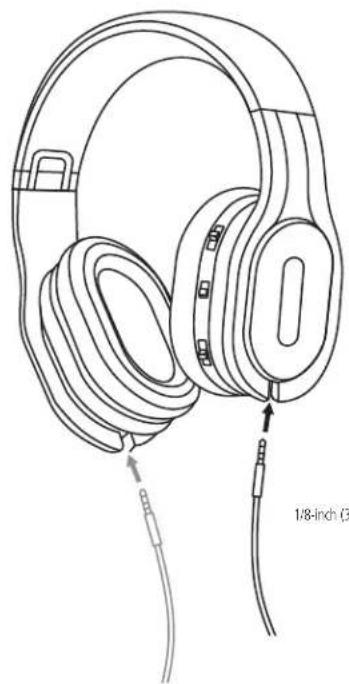
To connect your headphones, plug the 1/8-inch (3.5mm) straight connector into one of the inputs located at the base of the left (L) or right (R) ear cup. This allows you to pick a preferred side for a more comfortable listening setup as shown in Figure 1 below.
Figure 1
natural_image
Line drawing of an outdoor headphones with attached audio cable, no text or symbols present1/8-inch (3.5mm) Straight Connector
If your audio equipment uses a 1/4-inch (6.3mm) output jack, use the included 1/4-inch adaptor.
USB CABLE
Use the supplied USB cable to listen to music from your computer (audio only). This cable is also used to charge your M4U 9 headphones.
NOTES
- With the USB cable connected to your M4U 9 and USB power, the Listening Mode Switch indicator will be flashing RED to indicate it is being charged. The M4U 9 is fully charged when the Listening Mode Switch indicator turns into solid RED.
- When M4U 9 is connected to USB power and the Listening Mode Switch indicator is flashing RED fast (three times normal speed), this indicates that it is not charging correctly. When this happens, undertake the following:
- Disconnect from USB power and reconnect.
- Disconnect from USB Power, remove the battery cover and "roll" the batteries in place for a couple of seconds. Battery contact oxidation may have occurred.
EARPHONE MOUNTED CONTROLS...
natural_image
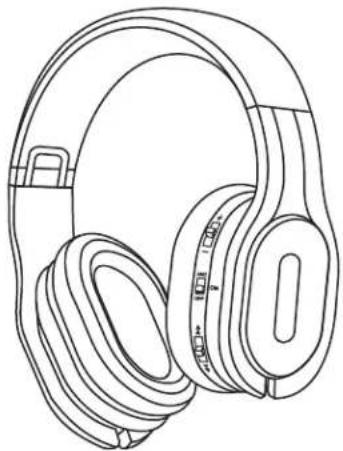
Line drawing of a pair of outdoor headphones (no text or symbols)The main controls are located on the rear part of the right ear cup. They are used to control Volume, Noise Cancelling, and your smart device (tablet, iPod) as needed.
The Controls are used as follows:
VOLUME, ACTIVE MONITOR AND TRANSPARENCY MODE
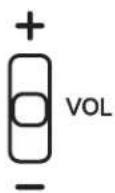
VOLUME (- VOL +)
Slide up towards the + sign to increase the volume. Slide down towards the - sign to lower the volume.
Volume Control button function can be configured to be either Active Monitor or Transparency Mode. This can be configured via the connected PSB Headphone App (Settings – Control – Button Functions – Volume Control – Active Monitor/Transparency Mode).
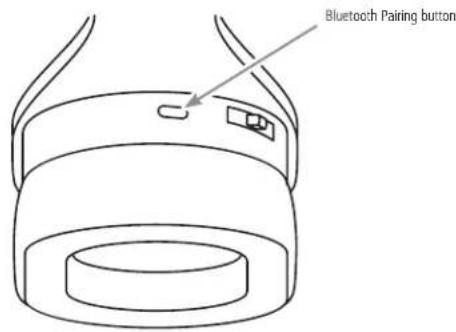
Bluetooth Pairing button function can also be configured as Transparency Mode button (Settings – Control – Button Functions – Bluetooth Pairing – Bluetooth Pairing/Transparency Mode/Mute Call Microphones)
ACTIVE MONITOR
With Volume Control button function configured as Active Monitor, press the VOL button to engage Active Monitor. Active Monitor will reduce your current audio track by 30dB. This will enable you to hear your surroundings without leaving your personal space. When activated, the surroundings will be amplified through the headphones.
Active Monitor only works in either ANC or ON Listening Mode. If Active Monitor is engaged, the Listening Mode Switch indicator will be alternately flashing BLUE and GREEN.
TRANSPARENCY MODE
With Volume Control button function configured as Transparency Mode, press the VOL button to engage Transparency Mode. Transparency Mode mixes outside environment noise with your audio playback to keep you aware of your surroundings. A good example for selecting Transparency Mode is when you are out for a walk or run and hearing car horns or sirens. If Transparency Mode is engaged, the Listening Mode Switch indicator will be alternately flashing BLUE and GREEN.
Note that ANC function will not work when Transparency Mode is active.
ACTIVE NOISE CANCELLATION AND AMPLIFIER
ANC

The Listening modes use the internal (rechargeable) batteries. There are three Listening modes – Active Noise Cancelling, Active, and Passive.
OFF
1 Active Noise Cancelling Mode (ANC)
In Active Noise Cancelling mode, the "Noise Cancelling" feature is activated with the internal headphone amplifier. The 3-position Listening Mode Switch indicator will be GREEN.
2 Active Mode (ON)
In Active mode, the internal headphone amplifier is active. The 3-position Listening Mode Switch indicator will be BLUE.
3 Passive Mode (OFF)
In Passive mode (OFF), noise cancelling and amplifier are turned off. No power is required as the headphones are powered by your audio source.
NOTE
Bluetooth connection will not work in Passive mode.
STANDBY MODE
By default, the M4U 9 will go into standby to save power if audio playback has stopped for 20 minutes. This time length can be adjusted or bypassed in the Standby Timer option in PSB Headphone app (Settings – Control – Standby Timer).
The M4U 9 will be at a "breathing" state as indicated by the Listening Mode Switch indicator slowly fading or flashing intermittently. The Bluetooth indicator at the top will also turn off to show that the M4U 9 has already unpaired from the Source device.
NOTE
At "breathing" state, press a button or switch to ANC or ON mode to once again activate or power up your M4U 9 from standby mode.
PHONE FUNCTION
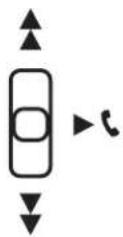
If you receive a phone call during a listening session, press the Phone button to answer the incoming call and pause your audio track. Once the call is completed, a single button press will end the call and resume audio play.
To activate Siri or Google Assistant, hold down the phone button for five seconds.
NOTE
Phone function only works when connected by Bluetooth.
PLAYBACK FUNCTION
When listening to a handheld music device, this button can be used to change to the previous track, the next track or pause and resume music without reverting to the controls of the handheld device.
▶Toggle to pause or resume music playback
▲Slide the button up for previous track or beginning of current track
▼Slide the button down for the next track
WIRELESS PAIRING
Pairing is the process required to create a link between Bluetooth devices to allow wireless connection. You must pair a device with the PSB M4U 9 to be able to make a BLUETOOTH connection for the first time.
Before you start pairing operation, make sure that:
• The Bluetooth device is placed within 1 m (3 feet) of the headset.
• The M4U 9 is charged sufficiently.
TO PAIR YOUR DEVICE
1 Turn on the Bluetooth feature on your source device.
2 Open the Bluetooth settings on the source device.
3 Switch the M4U 9 to a Listening mode (ANC or ON). The Bluetooth pairing LED will alternately flash RED and BLUE.
4 Select your M4U 9 headphones from the source device list.
5 Once the M4U 9's link has been established with the source device, the Bluetooth pairing LED will turn solid BLUE.
6 If pairing fails, the pairing LED will turn solid RED.
TO UNPAIR YOUR DEVICE
1 Press the Bluetooth Pairing button twice to disconnect currently paired device.
2 The Bluetooth Pairing LED will alternately flash RED and BLUE. Your M4U 9 is ready again to be paired.
MUTE CALL MICROPHONES
Aside from the Bluetooth Pairing button function being configured as Bluetooth Pairing or Transparency Mode button, it can also be assigned as Mute Call Microphones button (Settings – Control – Button Functions – Bluetooth Pairing – Bluetooth Pairing/Transparency Mode/Mute Call Microphones).
With Bluetooth Pairing button function configured as Mute Call Microphones button, press Bluetooth Pairing button once to mute microphone during a call and press again to unmute microphone.
NFC WIRELESS PAIRING
M4U 9 supports Near Field Communication (NFC) so you can easily pair your headphones. For pairing, follow the instructions below.
To pair your device using NFC:
1 Turn on NFC and Bluetooth on the device you are pairing.
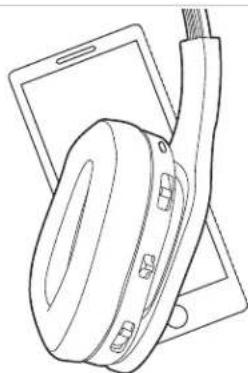
2 With the M4U 9 turned on to one of the Listening modes (ANC or ON), place your Bluetooth enabled device against the opposite side of the right ear cup where the controls are located.
3 Accept the pairing on your device when prompted.
natural_image
Line drawing of a pair of headphones resting on a tablet device (no text or symbols)NOTE
NFC is a short-range wireless communication. Pairing devices are required to be within a few centimeters of the headphones to communicate. If pairing is unsuccessful, refer to the device's manual to find its NFC touchpoint. Repeat the steps shown and ensure the located touchpoint is placed against the right ear cup as directed in Step 2.
TOP RIGHT
BOTTOM RIGHT
LISTENING...
With the volume set to low, turn on your audio source, find a comfortable listening level, and drift into a personal space filled with the sounds of your favorite audio/video collections.
HEADPHONE PLACEMENT
Each ear cup is marked with "L" and "R" to indicate the left and right sides of the headphones. Be sure to put them on correctly to enjoy your audio as originally intended and your personal music experience.
PERSONAL SOUND...
Audiodo Personal Sound is a unique feature that corrects for your own personal hearing.
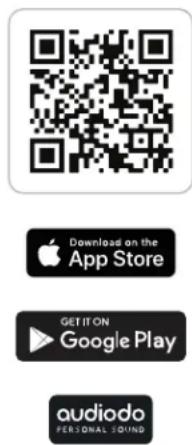
You must download the PSB Headphones app for your device in order to calibrate your headphones with Audiodo. Personal Sound calibration will not be possible without the PSB Headphones app.
Once you have the PSB Headphones app downloaded and your M4U 9 paired to that device, you are ready to set up your Audiodo profile.
psbspeakers.com/headphones-app
In the PSB Headphones app...
CALIBRATION
The hearing calibration is meant to assess your hearing characteristics. To produce the most accurate results, we advise you to complete the calibration in a quiet place - the quieter, the better. If you're unsure whether you hear a tone or not, it is best to select NO.
Tap START CALIBRATION button to begin the hearing calibration.
The hearing calibration has now commenced. Select YES if you hear a tone or NO if you do not hear a tone. If you feel you cannot hear any tones during the calibration, make sure that you are connected to the headphones.
To quit the hearing calibration, tap the X Calibration in the top-left corner. If you choose to quit you will be redirected to the start page. You can redo the calibration at a later time, but no data will be saved.
NOTES
- If you happen to connect the application to headphones that already have a profile stored on them, you will see the following Profile message - Save the Personal Sound "xxxxx"? The Personal Sound "xxxxx" was found in the connected headphones. Do you want to save it?. This means that a profile exists on the headphones you are now using but not on the app.
- To download/save the profile that is on headphones to your mobile application, select YES. If you select NO, the profile will not be downloaded to the app and cannot be accessed again unless the previous app and headphones are paired again.
- If for some reason your device gets disconnected, select TRY AGAIN to reconnect to it. To connect to a different device, select ADD HEADPHONES.
PROFILE NAME
After completing the hearing calibration, you can name your profile. The name must be at least one character long. You must create a name to proceed.
To rename or delete your profile, select Personal Sound from Settings menu. Then, from Manage Profiles, select the Profile to rename or delete.
AGE
Select your age by dragging the cursor. Age affects how we hear, so its beneficial for us to collect this information in order to optimize the test process and the algorithms behind Audiodo Personal Sound.
You must select an age to proceed. This information is not used for marketing purposes.
GENDER
Select the icon that best describes your gender. Since gender affects how we hear, its beneficial for us to collect this information in order to optimize the test process and the algorithms behind Audiodo Personal Sound.
You must select a Gender icon to proceed. If you wish to decline answering, choose the icon in the middle. This information is not used for marketing purposes.
MAIN MENU
Tapping the menu icon in the top-left corner will take you to the Main Menu. Selecting your calibrated PSB M4U 9 from the Main menu will take you to the Settings menu.
PERSONAL SOUND
Under Settings menu, select Personal Sound to open your Profile List. At Profile section, there is an option to Enable Personal Sound - drag or swipe the slider icon to the right or to the left to enable or disable Personal Sound respectively.
On your visual hearing profile, the y-axis represents Sound Pressure Level while the x-axis represents Frequencies or Tone levels. Where the curves dip lowest is where the algorithm will compensate most.
To redo the hearing calibration or to add a new profile, tap the + in the top-left corner. This will take you to the screen where you can complete a new hearing calibration.
RESTORING M4U 9 TO FACTORY DEFAULT SETTINGS
At Active Mode (ON) setting, press and hold together PLAY (▶) and VOL buttons for more than 5 seconds or until you hear a beep sound and Active Mode (ON) LED indicator flashes once. Bluetooth Pairing button will also alternately flash RED and BLUE to indicate that your M4U 9 is ready again to be paired.
NOTES
- Restoring M4U 9 to factory default settings will delete all Audiodo profiles and user settings in the headphone and the headphone unpaired.
- Factory reset can also be initiated via the connected PSB Headphone App (Settings-Control-Reset Headphones).
CONNECTING TO IN-FLIGHT ENTERTAINMENT SYSTEMS...
To connect to in-flight entertainment systems equipped with dual output connectors, use the supplied dual 3.5mm airline adaptor and the standard analogue cable.
NOTES
- Audio output jack configurations may vary on airplanes. Airline audio quality may not equal what your home audio equipment, or portable sources provide.
- The supplied conversion plug may not be usable depending on the type of aircraft.
- Do not use these headphones when the use of electric devices on the aircraft is prohibited, or when the use of personal headphones to listen to on-board music service is prohibited.

WARNING
PSB Speakers recommends you do not use these headphones as aviation communication equipment. They are not engineered for many environmental
conditions common in commercial or non-commercial aircraft (including, but not limited to: altitude, temperature, noise conditions, unpressurized aircraft) and could result in possible interference to critical communications.

WARNING
Liquids or cleaning solvents can cause irreparable damage to the electronics inside your headphones. The M4U warranty does not cover such damage.
M4U 9 HEADPHONE CARE
For safe, sanitary use, it is essential to maintain and clean your M4U Headphones periodically. However, excessive cleaning may cause damage and jeopardize the longevity of the product. When not in use, always store headphones in the supplied protective case, and store in a clean and dry environment. Avoid storing in extreme heat or cold temperatures and humidity, and avoid exposure to liquids.
CLEANING...
For regular cleaning, use a slightly damp cloth and gently clean each ear cup cushion, then use a dry cloth to remove any residual moisture.
If heavy cleaning is necessary after extended listening and use, follow these directions:
- Remove the ear cup cushions according to the Cushion Attachment/Detachment instruction section below.
- Clean the ear cup cushions by hand, using cold water.
- Add a very small amount of dish or laundry soap and gently clean the cushions.
• After cleaning the cushions, rinse with clean water.
• To dry the ear cup cushions, place them on a towel with the pads facing up. - Fold the towel over top of the cushions and press down to remove any excess water in the foam padding.
• Air-dry completely before reattaching.
CUSHION ATTACHMENT/DETACHMENT
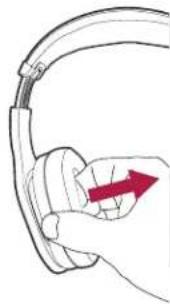
1 To detach the ear cup cushion, grasp the headband over the ear cup cushion that needs to be removed.
2 Using your other hand, grip the leather ear cup cushion and carefully stretch and pull the ear pad away from the ear cup. Repeat on the other ear cup if necessary.
3 To reattach the ear cup cushion, grip the headband and cushion as described above, and clip the lip of the ear cup cushion back in place. The right side should be installed back on the ear cup with the controls.
natural_image
Illustration of a hand holding a hard hat with a red arrow indicating direction (no text or symbols)NOTE
Be careful not to press down on or remove any other components inside the earcup as this could damage the headphones.
STORAGE IN THE PROTECTIVE CASE
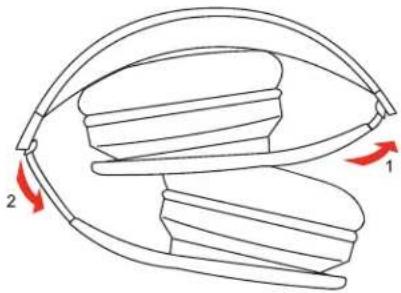
Remove the cable from the headphones, fold and insert them into the protective case.
natural_image
Diagram of a curved mechanical component with two red arrows indicating direction (no text or symbols)NOTE
Do not force them into the protective case. Doing so may damage the headphones.

WARNING
When disconnecting your M4U Headphones, hold the plug at the end of the cable and pull to disconnect. Do not pull on the headphone cable to disconnect the
headphones from your music player.
PROTECTING YOUR INVESTMENT....
For long lasting enjoyment of your headphones, you should respect their limits and avoid excessive volume levels for music or movie playback. Excessive volume levels can damage all headphones.
If your headphones are pushed to excessive volume levels, they could be driven into "clipping". This could result in severe or permanent injury. When using your headphones at loud levels, listen carefully for any sign of harsh, garbled midrange and diminishing intelligibility. If detected, turn the volume down immediately.
PSB and the PSB logo are trademarks of PSB Speakers, a division of Lenbrook Industries Limited. All rights reserved. No part of this publication may be reproduced, stored or transmitted in any form whatsoever without the written permission of PSB Speakers. While every effort has been made to ensure the contents are accurate at the time of publication, features and specifications may be subject to change without prior notice.
PSB M4U 9 OWNERS MANUAL V11 - AUG 2023

- INTRODUCTION
- REGULATORY INFORMATION
- OSHA GUIDELINES FOR NOISE EXPOSURE LIMITS
- SAFETY INFORMATION
- RADIO FREQUENCY EXPOSURE STATEMENT FOR IC
- WARNING
- CONNECTING...
- WIRED CONNECTIONS
- USB CABLE
- NOTES
- EARPHONE MOUNTED CONTROLS...
- VOLUME, ACTIVE MONITOR AND TRANSPARENCY MODE
- VOLUME (- VOL +)
- ACTIVE MONITOR
- TRANSPARENCY MODE
- ACTIVE NOISE CANCELLATION AND AMPLIFIER
- ANC
- OFF
- NOTE
- STANDBY MODE
- PHONE FUNCTION
- PLAYBACK FUNCTION
- WIRELESS PAIRING
- TO PAIR YOUR DEVICE
- TO UNPAIR YOUR DEVICE
- MUTE CALL MICROPHONES
- NFC WIRELESS PAIRING
- TOP RIGHT
- BOTTOM RIGHT
- LISTENING...
- HEADPHONE PLACEMENT
- PERSONAL SOUND...
- CALIBRATION
- PROFILE NAME
- AGE
- GENDER
- MAIN MENU
- PERSONAL SOUND
- RESTORING M4U 9 TO FACTORY DEFAULT SETTINGS
- CONNECTING TO IN-FLIGHT ENTERTAINMENT SYSTEMS...
- M4U 9 HEADPHONE CARE
- CLEANING...
- CUSHION ATTACHMENT/DETACHMENT
- STORAGE IN THE PROTECTIVE CASE
- PROTECTING YOUR INVESTMENT....
Brand : PSB
Model : M4U 9
Category : Headphones