
GZDSP 4.80A-PRO - Receiver Ground Zero - Free user manual and instructions
Find the device manual for free GZDSP 4.80A-PRO Ground Zero in PDF.


| Product Type | 4-channel amplifier with integrated 8-channel DSP |
| Brand | Ground Zero |
| Model | GZDSP 4.80A-PRO |
| RMS Power @ 4 Ω (1% THD+N) | 4 x 80 W |
| RMS Power @ 2 Ω (1% THD+N) | 4 x 130 W |
| Frequency Range | 20 Hz – 20 kHz (-3 dB) |
| Processor | Cirrus Logic single core 32-bit, 8-channel, 192 kHz |
| Input Sensitivity (High Level) | 2 – 15 V RMS |
| Input Sensitivity (AUX) | 0.6 – 5 V RMS |
| Input Resistance (Low Level) | >47 kΩ |
| Inputs | 6-ch high-level, 5-ch line (RCA), AUX (3.5 mm), optical digital, coaxial digital |
| Outputs | 4-ch speaker, 4-ch line (RCA) |
| Remote Out Current | max. 130 mA |
| Recommended Fuse | 2 x 30 A |
| Dimensions (whole unit) | 185 x 42 x 237 mm (7.28" x 1.77" x 9.33") |
| Weight | Not specified, approx. 1.5 kg (estimated) |
| Software Compatibility | Windows XP SP3, Vista, 7, 8, 8.1, 10 |
| Equalizer | 6 x 31 bands (20-20000 Hz) + 2 x 11 bands (20-200 Hz), Q 0.5-9 |
| Time Alignment | 0-15 ms / 0-502 cm per channel |
| Crossover | HPF/LPF/BPF, 20-20000 Hz, slope 6-48 dB/oct |
| Phase Shift | 0° or 180° per channel |
| Presets | 10 user presets (selectable via optional remote) |
| Package Contents | Amplifier, USB cable (5 m), 4-ch line output harness, 6-ch high-level input harness, CD-ROM, manual, fastening kit |
| Optional Accessories | Remote PRO/X, Touch-Remote, BT-Box for wireless streaming |
| Protections | High temperature, short circuit, overload |
Frequently Asked Questions - GZDSP 4.80A-PRO Ground Zero
User questions about GZDSP 4.80A-PRO Ground Zero
0 question about this device. Answer the ones you know or ask your own.
Ask a new question about this device
Download the instructions for your Receiver in PDF format for free! Find your manual GZDSP 4.80A-PRO - Ground Zero and take your electronic device back in hand. On this page are published all the documents necessary for the use of your device. GZDSP 4.80A-PRO by Ground Zero.
USER MANUAL GZDSP 4.80A-PRO Ground Zero
GROUND ZERO products are engineered in Germany
GROUND ZERO - international sponsor of

EMMA
european mobile media association

www.ground-zero-audio.com
* kompatible Betriebssysteme: Microsoft Windows XP SP3 / Vista / 7 / 8 / 8.1 / 10
File Dropdown-Menü
| Open |
| Save |
| SaveAs |
| Factory Setting |
| Remote Setting |
| Write To Device |
| Read from Device |
| Delete from Device |
| 中文 |
| Exit |
Erlenweg 25, 85658 Egmating, Germany
Tel. +49 (0)8095/873 830
Fax -8310
www.ground-zero-audio.com


DSP AMPLIFIER
GZDSP 4.80A-PRO
Owner's manual
Features
• 4-channel amplifier with integrated 8-channel signal processor (DSP)
• High-efficient 2 Ohm stable class D amplifier
• 5-channel line input (RCA) / 4-channel line output (RCA)
- 6-channel high-level input with smart diagnosis-detection
• Auto-on function / Soft delayed remote turn-on
• AUX input (3.5 mm socket)
• Optical digital input (sampling rate up to 24-bit/192kHz)
• Coaxial digital input (sampling rate up to 24-bit/192kHz)
• Suitable for start-stop equipped vehicles
• 8-channel digital signal processor (DSP) - Cirrus Logic 32-bit/192 kHz single core chipset
- Simple handling user interface (Windows ^ compatible)
• Realtime setup of all functions (via PC)
• Channel separated parametric equalizer (6x 31 band / 2x 11 band)
• Channel separated time alignment (0-15 ms / 0-510 cm)
• Adjustable crossover (HPF / LPF / BPF) in the range of 20 Hz to 20 kHz
• Selectable crossover slope (6 to 48 dB/Oct)
- Selectable phase shift for each channel (0° or 180°)
• Memory for 10 user presets (selectable with optional remote control)
• Optional wireless interface for music streaming available
• LED power and status indicator (protection circuit)
• High temperature / short circuit / overload protection circuit)
Product description
The GZDSP 4.80A-PRO is a 4-channel amplifier with integrated digital signal processor increasing the sound quality of the vehicle's audio equipment. Based on the 32-bit DSP processor in combination with a 24-bit AD and DA converter. Due to its audio summing function combining 6 high-level channels and 31-band equalizing on each channel (11-bands on the subwoofer channels), the GZDSP 4.80A-PRO can be integrated into most OEM sound systems even with OEM DSP feature.
Package contents
• 1 x GZDSP 4.80A-PRO amplifier
• 1 x USB cable (5 m length)
• 1 x 4-channel line output harness
• 1 x 6-channel high-level input harness
• 1 x CD-ROM incl. PC software and driver package (for Windows)
• 1 x Owner's manual (German and English)
- 1 x Fastening Kit
Optionally available:
• Remote-control unit GZDSP Remote PRO/X with LED display incl. connection wire
- Remote-control unit GZDSP Touch-Remote with color LCD display incl. connection wire
• Interface GZDSP BT-Box with connecting cable (for wireless music streaming)
Table of content
| General mounting instructions | 3 |
| Technical specifications | 4 |
| Audio connections (input) | 5 |
| Audio connections (output) / High-level input harness | 6 |
| PC software installation | 7 |
| Graphical software user interface (GUI) | 8 |
| Time alignment setting | 9 |
| Dropdown menu / Memory options | 10 |
| Error diagnosis | 11 |
| Terms of warranty | 12 |
General mounting instructions
• As a precaution, it is recommended to disconnect the vehicles battery before mounting the amplifier.
(Note: For new vehicles, disconnecting the battery might cause various errors in your vehicle's electric system that can be cleared only by authorized service partners of your vehicle's manufacturer! Please ask your service partner first before disconnecting the battery!)
- The power supply wire (+12 V) has to be protected within max. 20 cm / 8" by a main fuse holder with a fuse value matching the recommendation for your amplifier
(Note: If there is more than one amplifier connected using this power wire, the main fuse value must be equal to the sum of the recommended fuses of all connected devices. However, make sure the diameter of your power wire will be enough for the required current!)
• If necessary, replace a defective fuse by a fuse with identical quality and value
- Never drill a hole to the vehicle's gas tank or brake lines, to wirings or any other important vehicle parts!
- Never pass wires over sharp edges or vehicle parts due to avoid any kind of damage
- Keep the wiring away from the antenna and electronic devices contributing to radio reception
- Lay the power supply wiring always separated from speaker wiring to avoid disturbance
- The amplifier contains a temperature protection circuit that turns the device off in case of overheating. After a certain cooling time, it will turn on automatically. To avoid heat build-up, enough air supply for cooling must be provided. Never cover the surface of the amplifier's heatsink entirely
- The amplifier should NEVER be mounted onto a vibrating part or surface such as a subwoofer enclosure. This might lead to malfunction due to loosened electrical parts inside the amplifier.
- Some amplifiers offer a high-level input option, however if a pre-amplified output (RCA) is available (at the head unit), it is strongly recommended to make use of them.

GROUND ZERO products are engineered in Germany
GROUND ZERO - international sponsor of

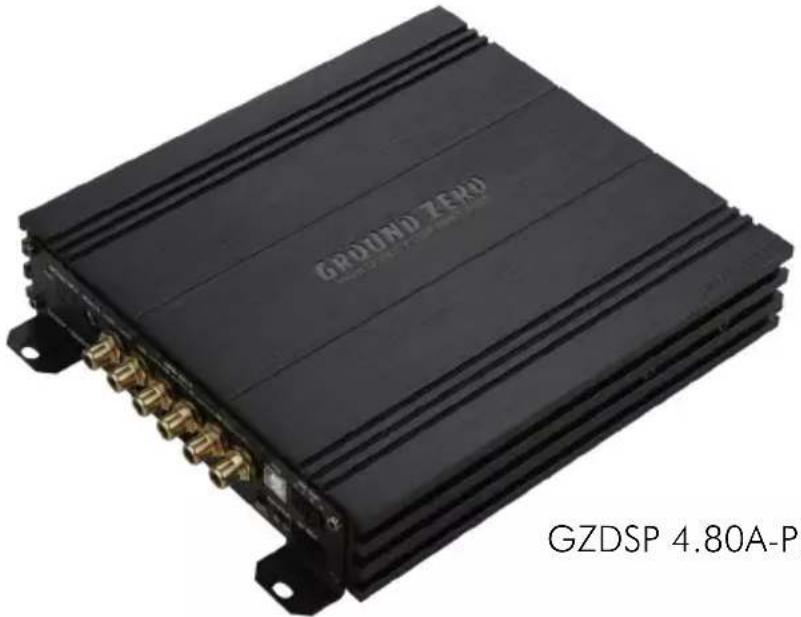
GZDSP 4.80A-PRO
Technical Specifications
| Model | GZDSP 4.80A-PRO |
| Type | 4-channel amplifier with integrated signal processor (DSP) |
| Frequency range | 20 Hz - 20 KHz (-3 dB) |
| RMS Power @ 4 ΩCEA Standard CEA-2006-A | 4 x 80 W (1% THD+N) |
| RMS Power @ 2 ΩCEA Standard CEA-2006-A | 4 x 130 W (1% THD+N) |
| Processor type | Cirrus Logic single core 32 bit, 8-channel, 192 kHz |
| Sensitivity | High level input: 2 - 15 V RMSAUX input: 0.6 - 5 V RMS |
| Input resistance | >47 kΩ (low level input) |
| Output | 4-channel speaker output4-channel line output (RCA) |
| Input | 6-channel high level input / 5-channel line input (RCA)AUX input (3.5 mm socket)Digital input: Optical and coaxial input (max. 24bit/192 kHz) |
| Remote out | max. 130mA |
| Recommended fuse(s) | 2 x 30 A |
| Dimensions (heatsink only)w x h x l | 185 x 39 x 201 mm7.28" x 1.54"x 7.91" |
| Dimensions (whole unit)w x h x l | 185 x 42 x 237 mm7.28" x 1.77"x 9.33" |
| Software compatibility | Microsoft Windows™ XP SP3, Vista, 7, 8, 8.1,10 |
| Preset | 10 x individually adjustable |
| Gain range | -40 to +12dB |
| Equalizer | 6 x 31 bands / output A - F (20 - 20000Hz), -18 bis +12dB, Q 0.5 - 92 x 11 bands / output G&H (20 - 200Hz), -18 bis +12dB, Q 0.5 - 9 |
| Time alignment | 0 - 15 ms / 0 - 502 cm per channel |
| Active crossover | 6 / 12 / 18 / 24 / 30 / 36 / 42 / 48 dB/oct (BPF / LPF / HPF Butterworth)20 - 20000 Hz |
| Phase shift | 0° / 180° per channel |
| Optionally available remote control units | GZDSP Remote PRO/X or GZDSP Touch-Remote(main level, subwoofer level, source selection and preset selection) |
Recommended wiring
| GZDSP 4.80A-PRO | |
| Speaker wire | min 1.5 mm^2 / 15 AWG |
| Power supply wire | min 20.0 mm^2 / 4 AWG |
| High-level input wire | min 1.00 mm^2 / 18 AW |
| Remote wire | min 0.75 mm^2 / 20 AW |
Audio connections (input)

| 1 | Optical Digital Input | To connect a digital audio source. Attention: If the digital audio source has no level control, we strongly recommend using one of the available remote-control units |
| 2 | Coaxial Digital Input | To connect a digital audio source. Attention: If the digital audio source has no level control, we strongly recommend using one of the available remote-control units |
| 3 | Line Input Front | To connect the front line output (RCA) of the head-unit (if available) |
| 4 | Line Input Rear | To connect the rear line output (RCA) of the head-unit (if available) |
| 5 | Line Input Subwoofer | To connect the subwoofer line output (RCA) of the head-unit (if available) |
| 6 | AUX input | To connect an additional source unit (3.5 mm stereo jack). Attention: If the analog audio source has no level control, we strongly recommend using one of the available remote-control units |
| 7 | High-Level Input | To connect the head unit's speaker wire output if there is no line output (RCA) available. Using the high-level input, the unit will turn on automatically recognizing the DC level. It's not necessary to connect the 12V remote wire to the power terminal.Caution: The high-level input and the line input (RCA) cannot be used simultaneously. This may lead to malfunction and cause serious damage to the unit |
| 8 | BT-Box connector | To connect the wireless audio interface GZDSP BT-Box or the remote-control unitGZDSP Touch-Remote (available optionally) |
| 9 | Line Out | To connect the 4-channel line out harness delivering the audio signal of channel E/F and G/H for further amplifiers |
| 10 | PC Connect(USB socket) | To adjust the audio setting the unit must be connected to a PC using the included USB cable (compatible Windows PC with installed DSP software from the CD). The USB cable should not be extended to ensure an accurate communication between the DSP unit and the PC. Always close the PC software first before powering off the amplifier to avoid data loss and flash memory errors |
| 11 | Auto Turn On | To turn on/off the auto-on function |
| 12 | Remote Control | To connect one of the optionally available remote-control unitsGZDSP Remote PRO/X or GZDSP Touch-Remote |
| 13 | Reset Button | In case the unit does not work properly. Power off the amplifier, push and keep pushed the button while powering on the unit. Release the button after 3 to 4 seconds |
Audio connections (output)

| 1 | Power Supply Terminal | GND ground terminalREM remote wire (to be used as remote output when using the high-level input)+12V positive terminal of the battery |
| 2 | Speaker Terminal | To connect the speaker wires of the according channels |
| 3 | Speaker Terminal | To connect the speaker wires of the according channels |
| 4 | Fuse(s) | Defective fuses must be replaced by identical values |
| 5 | Status indicator | POWER green - ok (operation mode)PROTECT red - error (protection mode) |
High-level input harness

flowchart
graph TD
    A["BROWN/BLACK"] --> B["SUB R-"]
    A --> C["BROWN"]
    C --> D["SUB R+"]
    D --> E["ORANGE/BLACK"]
    E --> F["SUB L-"]
    E --> G["ORANGE"]
    G --> H["SUB L+"]
    H --> I["PURPLE/BLACK"]
    I --> J["REAR R-"]
    I --> K["PURPLE"]
    K --> L["REAR R+"]

    M["WHITE"] --> N["FRONT L+"]
    M --> O["WHITE/BLACK"]
    M --> P["FRONT L-"]
    M --> Q["GREY"]
    M --> R["FRONT R+"]
    M --> S["GREY/BLACK"]
    M --> T["FRONT R-"]
    M --> U["GREEN"]
    M --> V["REAR L+"]
    M --> W["GREEN/BLACK"]
    M --> X["REAR L-"]
PC software installation
The PC software is compatible* to Windows™ XP (SP3) operating systems (or later). One USB port and 25 MB free memory space is required for the installation. The files are located on the included CD-ROM. If there is no CD drive available, the software can be downloaded from the Ground Zero web page:
www.ground-zero-audio.com
* compatible operating systems:
PC requirements: with a resolution of 1024x600
Microsoft Windows® XP SP3 / Vista / 7 / 8 / 8.1 / 10
min. 1.5 GHz processor with 1 GB main memory (RAM) and graphic cards
pixels or more
Run the setup.exe file. The installation wizard will install the GUI software for the DSP on the PC system. The driver will be installed by clicking INSTALL at the appearing window. Restart the PC after the installation has been finished.
Important note:
We strictly recommend using the latest DSP software available from the web page for GZDSP 4.80A-PRO
Connecting the unit to the PC
USB connection: We don't recommend using any passive extension cable together with the included USB wire, as the proper function can't be ensured.
DSP setting: The GZDSP 4.80A-PRO must be connected to a PC with the DSP software installed using the included USB wire. To adjust the settings, the amplifier must be in operation mode. Double click on the software icon or select from the software list to start. The program starting window appears.
Windows® user account control (UAC): In case the PC operating system is set to restricted security clearance regarding software with unknown source or without digital signature a window will appear each time at the program is starting. Please confirm with >Yes< (language depends on your local setting) to run the program.
Setup note: The first time the GZDSP 4.80A-PRO is turned on and the software is started there is no audio signal on the output channels (RCA) available unless the channels are activated in the software.
Demo Mode (offline mode): The software can be used in offline mode without having the GZDSP 4.80A-PRO connected to the PC to become familiar with most of the features and to create sample setups. Select >Yes< when the start window appears.

USB connection and COM port / Windows device manager
In order to use the software, the GZDSP 4.80A-PRO must establish a communication to the PC. Therefore, an unused USB port is required. During the connection of the USB cable the system will assign automatically a USB port. To avoid misbehavior during the communication, it's recommended to select a COM port number between 1 and 9. The assigned COM port number can be checked at the system's device manager. The GZDSP unit will appear as "USB-SERIAL CH 340" device (at the COM&LPT list). The COM port can be changed at the properties manually if necessary.
Graphical software user interface (GUI)

| 1 | Source selection | MAIN - RCA input or high-level inputAUX - 3.5 mm socketDSD - Coaxial inputBT - Optionally available interface for wireless music streamingSPDIF - Optical inputLevel adjustment (-40 dB up to +12 dB)Attention! Set up the level carefully to avoid any kind of damage to the loudspeakers.Recommended value = 0 dB |
| 2 | Channel setting | At factory setting (two channels linked = lock is closed) the adjustments will affect both channels (crossover and equalizer). By clicking the locking symbol, the channels can be split to do adjustments for each channel separately. Using the copy buttons positioned below adjustments can be copied according the arrow symbols shown from one channel to the other. |
| 3 | Input routingChannel selectionSpeaker setting | Input: Select the input signal source by clicking the according channel. Red highlighted channels show the selected channels.At the factory setting the inputs 1 and 2 are used for each output channel.Output: Click on the channel (or pair of channels) to select for adjustments.Predefined input: Clicking one of the input buttons below selects a predefined input setting, automatically. The MIX function enables the audio summing of the 6 input channels.Speaker Type: Predefined output settings for connected loudspeakersThere are several settings available:OFF - channel deactivatedFullrange - HP/LP/BP filters available - select the required filter (point 6)Tweeter - high pass filter 3000 Hz (12 dB/oct.)Midrange - bandpass filter 250 / 3000 Hz (12 dB/oct.)Kickwoofer - bandpass filter 80 / 250 Hz (12 dB/oct.)Subwoofer - bandpass filter 20 / 80 Hz (12 dB/oct.) |
GROUND ZERO GZDSP 4.80A-PRO
| 4 | Gain settingTime alignmentPhase control | Select: Click to highlight the channels creating a group for common adjustments.Gain: Level adjustment using the arrows up to required value (max=0)Delay(ms): Time alignment for each channel using the arrows. The value can be edited directly, as well. It's recommended editing the real distance from the listening point to the according speaker prior to the adjustment of the Delay(ms) in detailPhase: Clicking the phase buttons inverts the channel's phaseMute: Highlighting the function button mutes the channel |
| 5 | Speaker distance | Editing the speaker distance for the time alignment:Prior to the detailed setting of the time alignment (point 4), all measured distances of the connected speakers should be edited. Measure the exact distance between the listening position (head) to the center of the speaker. The according time alignment is continuously calculated automatically. The calculated alignment values can be adjusted in detail (check example below). The >Reset< function deletes the time alignment setting. Further adjustments remain unchanged. |
| 6 | Crossover slope | Prior to the filter selection it's required to set a speaker type (point 3). In order to use both, the high pass and the low pass filter (bandpass configuration) select Fullrange.The according slope of the crossover can be set at the dropdown menu between 6 and 48 dB/oct. Note: The higher the value of the slope, the steeper the roll-off of the signal (reduction of the level) |
| 7 | Crossover setting | Use the sliders to adjust the crossover point between 20 and 20000 Hz. activate the crossover filter, first (point 6). The value can be edited directly, as well or be changed at the frequency chart by keeping the yellow or turquoise button clicked and moved to the desired frequency point at the chart |
| 8 | Frequency chart | The frequency chart shows the estimated response of the 31-band equalizer (point 9) and the crossover adjustments (point 7) of the selected channel (or pair of channels) |
| 9 | Equalizer | The level of each equalizer band can be adjusted to the desired dB value using the slider. Additionally, the Q of the filter can be selected. Use the arrow buttons or edit the value directly. By clicking >Bypass< the equalizer will be deactivated without deleting the setting. >Restore< activates the equalizer again. >Reset< deletes the equalizer setting |
Time alignment setting (example)

All measured distances (cm) must be added to the graphic. The according alignment values will be continuously calculated and transferred to the Delay(ms) list to be adjusted in detail if necessary.

File dropdown menu
| Open |
| Save |
| SaveAs |
| Factory Setting |
| Remote Setting |
| Write To Device |
| Read from Device |
| Delete from Device |
| 中文 |
| Exit |
| Open | To open a setup file that has been saved previously to the PC |
| Save* | To save the current setup as a file to the PC |
| Save as* | To save the current setup as a file with a certain file name |
| Factory Setting | To set the unit to default settings |
| Remote Setting | To choose the pair of channels effected by the subwoofer level adjustment of the wired remote control |
| Write to Device* | To write the current setup to the preset memory of the unit. At the following window, the preset number can be selected. The blue frame indicates the currently selected preset number |
| Read from Device** | To open one of the available presets from the memory of the unit. The preset can be selected from the following window. The blue frame indicates the currently selected preset number |
| Delete from Device | To delete one of the presets from the memory of the unit. The blue frame indicates the currently selected preset number |
| Chinese | To switch between Chinese and English language |
| Exit | Quit the software |
*Note: In order to use the memory function, it is necessary to edit a security code and a phone number, first. Check below (Memory access restriction)
** Note: To select one of the memory presets, one of the optionally available remote control units can be used, as well as soon as the USB cable has been disconnected (with GZDSP Remote Pro presets 1 to 9 are available only)
Help dropdown menu
| MCU Version |
| Flash Version |
| Update MCU |
| About |
| MCU Version | To view the currently installed MCU firmware version |
| Flash Version | To view the currently installed Flash memory firmware version |
| Update MCU | To update the MCU. Select the firmware file in the following step |
| About | To view the current software version |
Memory access restriction

The very first time the memory function is used, it is necessary to set a 6-digit security code to save a preset. Additionally, a phone number* shall be entered (*Note: Instead of a phone number another numeric code can be entered as alternative)

After connecting the PC again later on, the code has to be entered at the software startup enabling to load the preset to the GUI software in order to change the settings.
Connection status
By clicking Connected (PC is currently connected) or Disconnected (PC is currently disconnected) the connection between the PC and the GZDSP 4.80A-PRO will be disconnected or established accordingly. After unintended detaching of the USB wire or turning off the unit you may proceed to change the adjustments this way.
Error diagnosis
| Error | Control | Help / Solution |
| No function | PWR LED on? | -check the fusing-check the remote wire (AUX mode only)-check the +12 Volt connection and wire-check the ground connection and wire |
| No sound(PWR LED on) | signal wire no contact or broken | -check the contact or replace the wire |
| no audio signal from the head-unit | -check the audio output signal of the head-unit | |
| non operational further amplifier | -check the remote OUT wire if used-check the further amplifier's power supply | |
| non operational source selected | -check the selected source | |
| MUTE function activated (software) | -check the setting in the software | |
| adjusted level on optional remote control unit is too low | -check the setting at the remote control | |
| Single channels with no function | signal wire no contact or broken | -check the contact or replace the wire |
| no audio signal from the head-unit | -check the audio output signal of the head-unit | |
| balance or fader control of the head-unit not in center position | -check the setting of the head-unit | |
| wrong setup of input and output mode | -check the setting | |
| GAIN level too low or Mute function (software) activated | -check the setting | |
| Impure sound, incorrect stereo reproduction | inverted phase of one or more speakers | -check the polarity of the speaker connection-check the polarity of the high-level input-check the PHASE setting-check the TIME ALIGNMENT adjustment |
| Distorted sound quality | speaker overload | -reduce the volume level-check the high pass filter and slope |
| DSP input override (distortion) | -select the correct input mode-pay attention to the input sensitivity of the unit | |
| head-unit output override (distortion) | -reduce the volume level of the head-unit-set the sound controls of the head-unit to center position-deactivate the Loudness function of the head-unit | |
| amplifier override (clipping) | -max output power of the GZDSP 4.80A-PRO exceeded.-reduce the level to avoid damage to the amplifier or speakers | |
| Increased noise level | GAIN level is too high | -reduce the GAIN level (software) |
| head-unit creates noise | -select a superior quality head-unit-use the optical output (if available)-let the audio store or manufacturer check the head-unit | |
| Car specific interferences audible through the audio system | diverse power supplies or ground connection | -the head unit, GZDSP 4.80A-PRO and each further amplifier should be wired up to a common ground as well as +12 Volt connection |
| signal wire no contact or broken | -check the contact or replace the wire | |
| defective head unit | -let the audio store or manufacturer check the head-unit | |
| defective amplifier | -let the audio store or manufacturer check the amplifier | |
| GZDSP 4.80A-PRO or futher amplifier mounted close to an automotive control unit | -choose another mounting position | |
| analog output of an OEM MOST head-unit connected | -connect the digital MOST audio signal to the digital input* |
*Note:
Use an optional car specific interface to connect the digital MOST audio signal directly to the digital input of the GZDSP 4.80A-PRO
Terms of warranty
The limited warranty for this product is covered by Ground Zero's local distribution partners and their terms and conditions. For further information contact your local retailer or distributor.
Ground Zero GmbH
Erlenweg 25, 85658 Egmating, Germany
Tel. +49 (0)8095/873 830 Fax -8310
www.ground-zero-audio.com


Brand : Ground Zero
Model : GZDSP 4.80A-PRO
Category : Receiver