
Pure - Card Reader Icidu - Free user manual and instructions
Find the device manual for free Pure Icidu in PDF.


| Product Type | Card Reader |
| Brand | Icidu |
| Model | Pure |
| Supported Cards | SD, SDHC, SDXC, microSD, microSDHC, microSDXC, MMC, RS-MMC, MS, MS Pro, MS Duo, MS Pro Duo |
| Interface | USB 2.0 (backward compatible with USB 1.1) |
| Dimensions (L x W x H) | Approx. 10.5 cm x 5.5 cm x 1.2 cm |
| Weight | Approx. 50 g |
| Power Supply | Via USB bus power (5V, 500mA) |
| Operating Systems Supported | Windows XP/Vista/7/8/10/11, Mac OS X 10.4+, Linux kernel 2.6+ |
| Transfer Speed | Up to 480 Mbps (USB 2.0) |
| LED Indicator | Blue LED for power/activity |
| Plug and Play | Yes, no driver installation required for most systems |
| Housing Material | ABS plastic |
| Operating Temperature | 0 °C to 60 °C |
| Storage Temperature | -20 °C to 85 °C |
| Maintenance | Clean with a soft, dry cloth; avoid liquids |
| Safety Precautions | Keep away from water, moisture, and extreme temperatures; unplug during storms |
| Repairability | Non-repairable by user; contact customer service for issues |
| Spare Parts Availability | Not available; replacement unit recommended |
Frequently Asked Questions - Pure Icidu
User questions about Pure Icidu
0 question about this device. Answer the ones you know or ask your own.
Ask a new question about this device
Download the instructions for your Card Reader in PDF format for free! Find your manual Pure - Icidu and take your electronic device back in hand. On this page are published all the documents necessary for the use of your device. Pure by Icidu.
USER MANUAL Pure Icidu
natural_image
Line drawing of a digital tablet device with control buttons and a square display (no text or symbols)MANUAL
Contents:
BeBook Pure Overview 5
Charging the BeBook Pure 7
Baery ps: 7
Switching the BeBook Pure On/o 8
Transferring les 8
Transferring les SD Card....9
MICRO SD card....9
Transferring books with DRM protecon. 10
BeBook Pure read menu 11
BeBook Pure main menu 13
Keyboard 15
Library 15
Sorng the library .... 16
Search books in library.... 16
List view....16
Thumbnail view....16
Reading a book.... 17
Flipping pages 17
Using the menu within a book.... 18
Add bookmarks 18
Bookmarks 18
Table of contents 19
Go to page....19
Search....19
Margin....19
Rotate screen....20
Auto ip....20
Add to favorites....20
About Book....20
Bookmarks 20
Remove bookmarks 21
Favorites....21
Explorer 21
Search les in explorer....21
Deleng les in explorer .... 21
Internal/external memory 22
Search.... 22
Pictures/Photos 23
Accessing the menu while viewing a picture 23
Zoom in/out 23
Rotate....23
Informaon 23
Slide show 23
Sengs.... 24
Power sengs....24
Standby 24
Date & Time 24
Language 24
Format Device 25
Restore default sengs 25
Device informaon.... 25
DRM authorizaon info.... 25
Reseng the BeBook Pure 25
Troubleshoong....27
The BeBook Pure does not respond....27
Baery life is short....27
The BeBook Pure does not open certain books.... 27
The BeBook Pure cannot be used while connected to a PC 27
Maintenance 28
Baery....28
Usage....28
Specicaons 29
Warranty: 30
Copyrights and Trademark Noce 31
Disclaimer....32
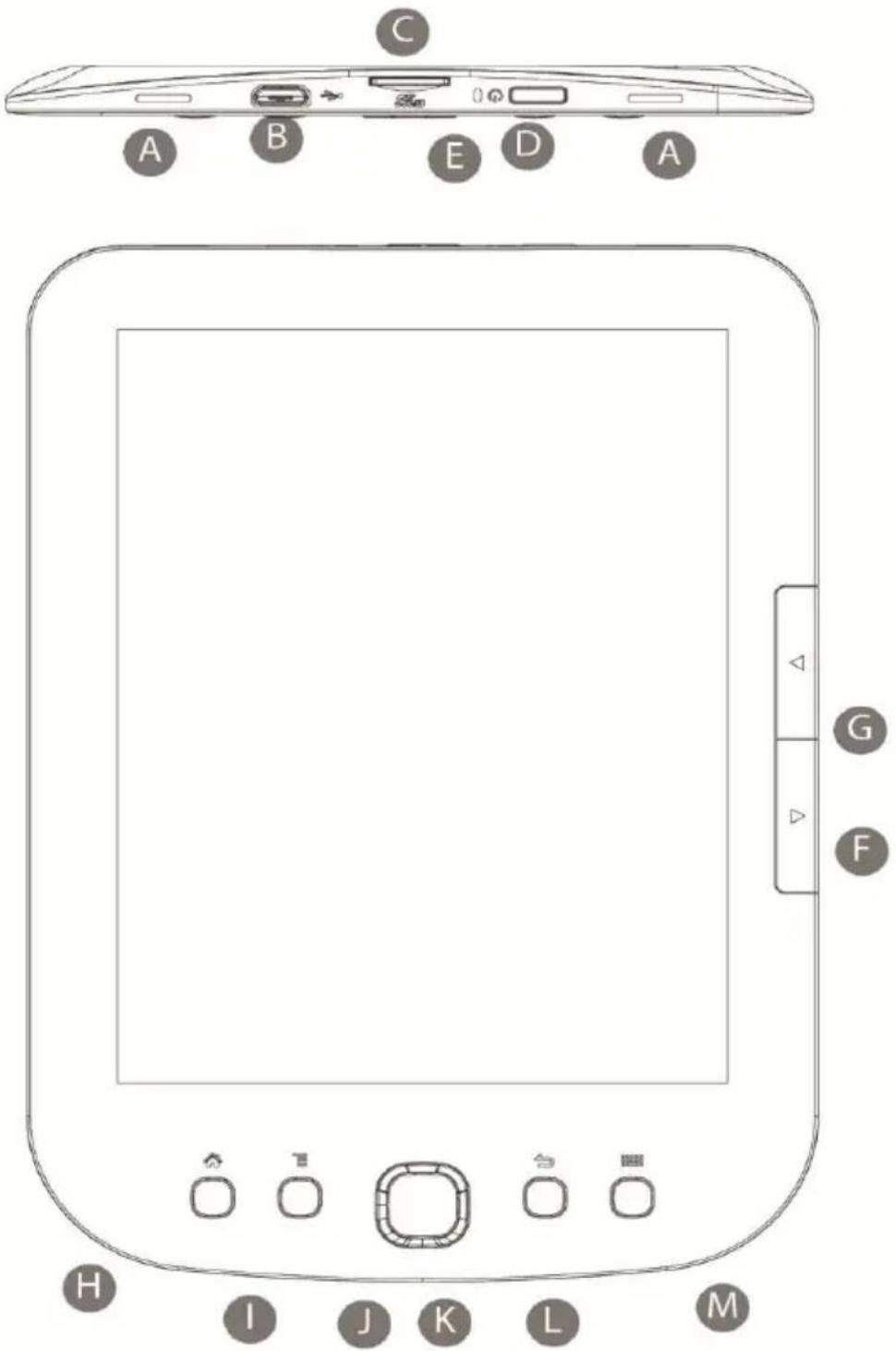
BeBook Pure Overview
A) Clip slots Use the clip slot to each a protecve cover.
B) USB jack Connect the USB cable to the USB jack and a PC, notebook or BeBook Travel Charger.
C) Memory Card Slot Insert a Micro SD card to expand the memory of the BeBook Pure.
D) Power Buon Use the Power Buon to switch the BeBook Pure on/o.
E) Charging Indicator Indicates that the BeBook Pure is being charged.
F) Page Forward Go to the next page of the book you are currently reading.
G) Page Back Go to the previous page of the book you are currently reading.
H) Home Go to the read menu.
I) Menu Go to the main menu.
J) Four way buon Navigate through the main menu and read menu.
K) Enter Conrm your selecon in the main menu and read menu.
L) Return Go to the previous menu page. Hold the return buon to go to the Read menu.
M) Keyboard Display the keyboard interface.
Charging the BeBook Pure
Charge the BeBook Pure with the supplied USB Cable and a PC or notebook. Charge the BeBook Pure for at least four hours before rst use.
Make sure the PC is switched on. Connect the USB cable to the BeBook Pure and connect the other end to a USB port on your PC or notebook. The USB conneccon screen will appear. The BeBook Pure is now connected to your PC. The LED light on top of the BeBook Pure will light up to indicate the BeBook Pure is being charged.
The BeBook Pure needs to charge for approximately four hours. The LED light on top of the BeBook Pure will switch o to indicate that the device is fully charged.

Battery fully charged

Battery nearly empty

Battery is being charged
To charge your BeBook Pure without a PC or notebook, use the BeBook USB Travel Adapter (separately available).
Baery ps:
To use the BeBook Pure during charging, remove the device from your PC or notebook. Use your computers “Safely Remove Hardware” funcon and leave the USB cable aached to both the BeBook Pure and PC or notebook.
Make sure you recharge the BeBook Pure in me. When discharged fully the lifeme of the baery strength may decrease.
In case the baery depletes fully, it may take a couple of minutes before the BeBook Pure starts charging.
If you do not use the BeBook Pure for an extended period of me, use the standby mode to save energy. Press the power buon once to put the BeBook Pure in or out of standby mode. Alternatively you can shut down the BeBook Pure completely.
Switching the BeBook Pure On/o
The BeBook Pure can be switched On/O by holding the power buon for three seconds. If the BeBook Pure does not switch on, please charge the BeBook Pure as described until the LED light turns o.
Transferring les
- Connect the BeBook Pure using the included micro USB cable.
- Wait unl the USB conncon is conrmed and the USB conncon logo appears on the screen of the BeBook Pure.
- The BeBook Pure will appear as an external drive on your computer which can be accessed through your Windows explorer.
- You can now transfer les by dragging or copying them to the external drive named "BeBook".
- Aer transferring the les please make sure to safely remove the BeBook Pure from your computer by using the “safely remove hardware” opon on your PC or notebook.
natural_image
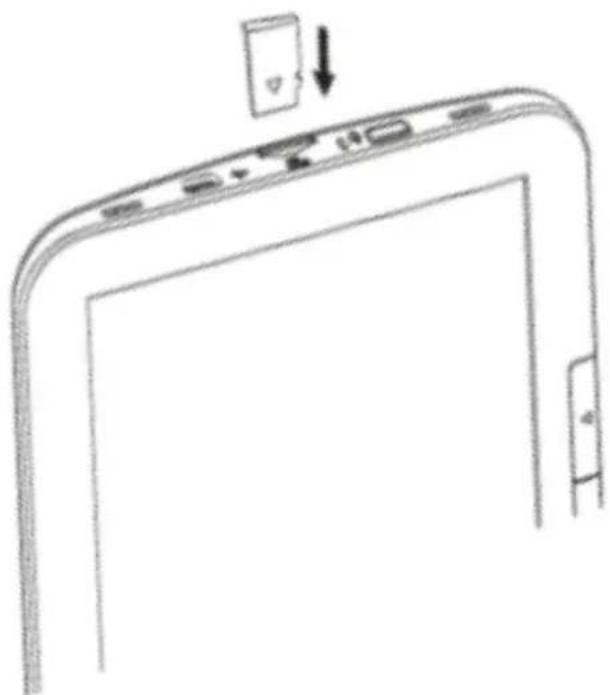
Line drawing of a smartphone screen with a small card icon and a downward arrow, no text or symbols presentInsert the Micro SD card (sold separately) in the Micro SD card slot on the BeBook Pure. When the BeBook Pure is connected to the computer the Micro SD card will be recognized as an external disk. Follow the same procedure as with the internal memory to transfer books the Micro SD card.
MICRO SD card
If the BeBook Pure does not detect the Micro SD card aer inserng it, remove the card and reinsert again.
Do not remove the Micro SD card from the device while the external memory is being used. Doing this can damage both the card as the Ereader.
Before formang the Micro SD card make sure you have backed up all the les on it. Preferably format the Micro SD card in FAT 32.
Transferring books with DRM protecon.
Many books in EPUB and PDF format are protected with the Adobe DRM against unauthorized copying. To read these books on the BeBook Pure, these books have to be transferred using Adobe Digital Edions Soware.
- If you do not have an Adobe ID yet, go to
hps://www.adobe.com/cfusion/membership, "Create an Adobe Account" and follow the instrucons. - Download and install the Adobe Digital Edions soware and log in with your Adobe ID. You can download the Adobe Digital Edions from http://www.adobe.com/products/digitaledions/.
- Aer the soware is successfully installed, you can buy digital books. These books will be automacally loaded in your Adobe Digital Edions.
- Connect the BeBook Pure to your PC or notebook. Adobe Digital Edions will ask to authorize the BeBook Pure. Answer this request with "yes".
- You can now transfer protected books between Adobe Digital Edions and the BeBook Pure. The BeBook Pure will be shown as an external drive in Adobe Digital Edions.
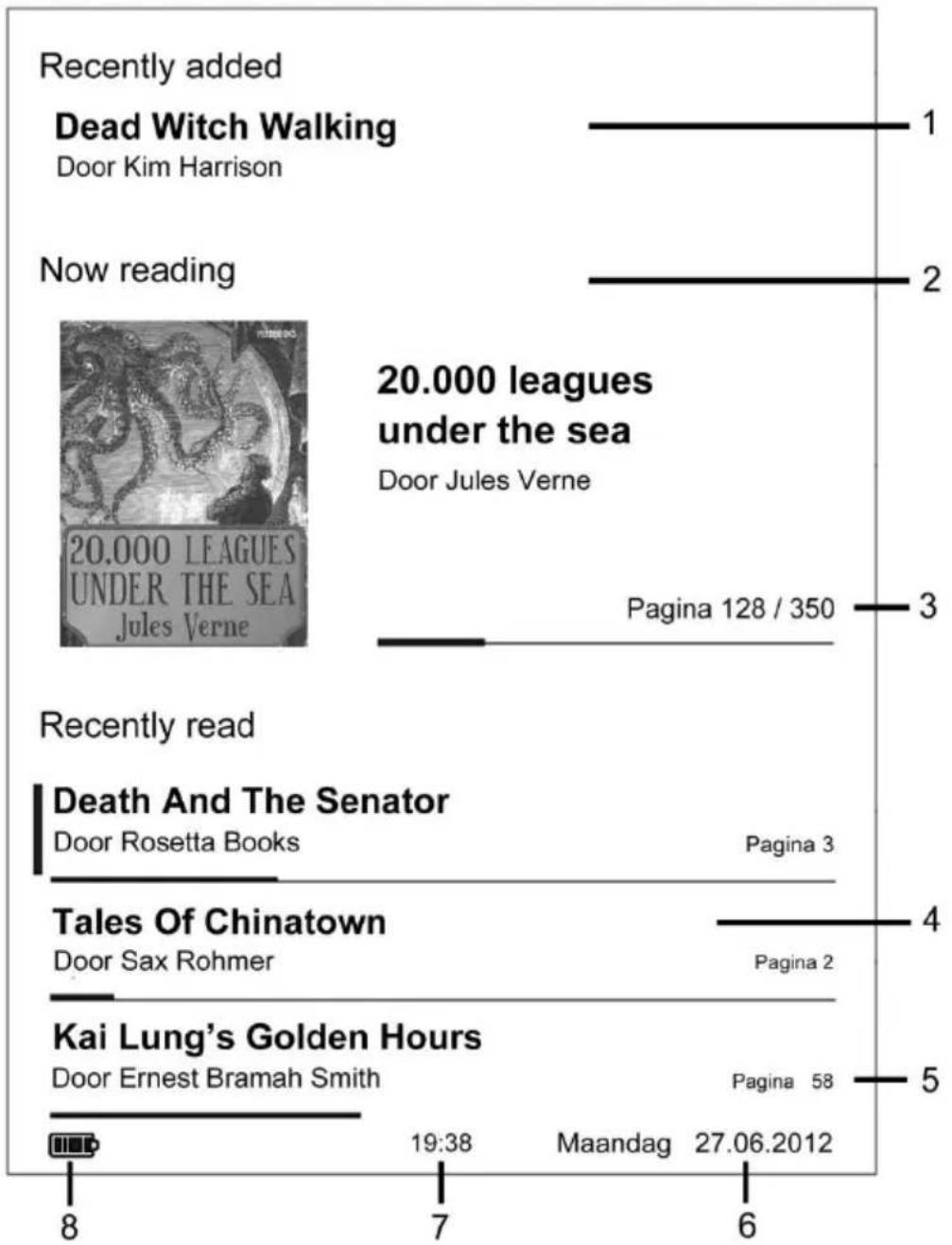
BeBook Pure read menu
1) Recently added Displays the name of the book you last added to the BeBook Pure.
2) Now reading Displays the name of the book you are currently reading.
3) Number of pages read Displays the number of pages read in the book you are currently reading.
4) Recently read Displays the last books you have opened.
5) Number of pages read in history Displays the number of pages read in the read history.
6) Date Displays the current date.
7) Time Displays the current me.
8) Baery Displays the baery status
line
| Publication | Page Number | Publication Name | | --- | --- | --- | | Dead Witch Walking | 1 | Door Kim Harrison | | Now reading | 2 | 20.000 leagues under the sea | | Death And The Senator | 3 | Door Rosetta Books | | Tales Of Chinatown | 4 | Door Sax Rohmer | | Kai Lung's Golden Hours | 5 | Door Ernest Bramah Smith | | Overall | 6 | Maandag 27.06.2012 |BeBook Pure main menu
Use the four-way buon to navigate the main menu and other menus.
Conrm your choice by pressing the enter buon.
Library This folder stores all your books.
Bookmark Bookmarks that have been created are stored in this folder.
Favorites Use this folder to access all books that have been marked as favorite.
Explorer Access all les that are stored in the BeBook Pure.
Search Use this funcon to search for a specic book.
Photo All pictures, photos and illustraons are stored in this folder.
Sengs Adjust the sengs of the BeBook Pure to your preference.
User manual Here you will nd the full manual for the BeBook Pure.
Exit Select 'Exit' to go back to the read menu.


Keyboard
Numeric/punctuaon/ symbol key
Input method key
Space key
Backspace key
Enter key
Done key (to exit keyboard)
Library
Select Library in the main menu to open the book library. All books are stored in the library.
Use the four-way navigaon buon to navigate in the library. To open a book use the enter buon. Use the menu buon to access the menu.
Sorng the library
The library can be sorted by author, tle, recently read and newly added.
Search books in library
Use the search funcon in the library to search for books. Press the menu buon and select 'search'. Use the keyboard to enter the name of the le that you want to search for. Press the keyboard buon to make the keyboard disappear and select the ok buon to search for the specic le.
List view
Display the books in list view. Navigaon can be done by pressing up and down on the four-way buon. Use the page turns buons to go to the next page.
Thumbnail view
Display the books in thumbnail view. In this view the book covers will be shown once the books have been opened. Navigang in the thumbnail view can be done in all direcons.
Reading a book
To open a book press the enter buon in the menu aer selecng a book. The book will now open the selected book.
20000 Leagues Under the Sea
42/356
13:24

Chapter 18
Four Thousand Leagues Under the Pacific
BY THE NEXT MORNING, November 18, I was fully recovered from my exhaustion of the day before, and I climbed onto the platform just as the Nautilus's chief officer was pronouncing his daily phrase. It then occurred to me that these words either referred to the state of the sea, or that they meant: "There's nothing in sight."
And in truth, the ocean was deserted. Not a sail on the horizon. The tips of Crespo Island had disappeared during the night. The sea, absorbing every color of the prism except its blue rays, reflected the latter in every direction and sported a wonderful indigo tint. The undulating waves regularly took on the
Flipping pages
Use the navigaon buons on the side of the BeBook Pure to ip pages in a book. The four way buon can also be used to ip pages.
Using the menu within a book
When reading a book press the menu buon on the BeBook Pure to access the menu.
| Menu |
| Add bookmark |
| Bookmarks |
| Table of contents |
| Go to page |
| Search |
| Font size |
| Margin |
| Rotate screen |
| Auto flip |
| Add to favorites |
| About book |
| Exit |
Add bookmarks
Select ‘add bookmark’ to add a bookmark to the current page. The icon will appear in the top right corner.
Bookmarks
Select ‘Bookmarks’ to access all created bookmarks in the current book.
Table of contents
Select ‘Table of contents’ to display the table of contents of the current book.
Please note: the availability of the table of contents depends on the layout of your book.
Go to page
Select ‘Go to page’ to go to a specific page in the book. Use the keyboard to enter the page number.
Search
Select ‘Search’ to search for a specific word in the book. Use the navigaon buon to enter the word you want to search for.
Font size
Select 'Font size' to adjust the size of the font in the book.
Margin
Select ‘Margin’ to set the margins of the book. The margin can be adjusted to: small, medium and large.
Rotate screen
Select 'rotate screen' in order to rotate the screen 90 degrees le or right.
Auto ip
Select 'Auto ip' to ip pages automacally. The pages can be ipped in intervals of 1,5,15 and 30 seconds.
Add to favorites
To add a book as favorite select 'Add to favorites'. The ☆ icon will appear in the le top corner to indicate that the book has been marked as favorite. An overview of all favorite books can be accessed from the main menu bu selecng 'favorites'
About Book
Select ‘About the book’ for more informaon about the current book.
Bookmarks
In the main menu select ‘Bookmarks’ to view all created bookmarks.
Remove bookmarks
Bookmarks can be deleted by pressing the menu buon. Select 'Remove bookmark' to delete the selected bookmark. To delete all bookmarks select 'remove all bookmarks'.
Favorites
Select ‘Favorites’ in the main menu to display all books that have been marked as favorite. To delete favorites open the book and select the book menu. In the menu select ‘Delete favorite’.
Explorer
Select 'Explorer' to in the main menu to open the le explorer. All les stores on your BeBook Pure will be stored here.
Search les in explorer
To search in the le explorer press the menu buon and select 'Search'. Use the navigaon buon to enter the word you want to search for.
Deleng les in explorer
To delete les from the le explorer select the le you want to delete, press the menu buon and select 'Delete'.
Please note: If you select 'delete' while you have selected a folder, the whole folder will be deleted.
Internal/external memory
Select 'linternal memory' to read les from the internal memory. Select 'External memory' to read les from the Micro SD Card.
Search
Select 'Search' in the main menu to search les on your BeBook Pure.
Pictures/Photos
Select ‘Pictures’ in the main menu to view all pictures on your BeBook pure. Use the navigaon buon to navigate between the pictures and use the enter buon to view a picture in full screen.
Accessing the menu while viewing a picture
Press the menu buon while viewing a picture to open the menu.
Zoom in/out
Select 'Zoom' to zoom in or zoom out on the current picture.
Rotate
Select 'Rotate' to rotate the screen 90 degrees le or right.
Informaon
While viewing an image select ‘Informaon’ to get more informaon about the picture.
Slide show
Select 'Slide show' to view all available images in a slide show. The slide speed can be adjusted to 10,20,30,40 and 60 seconds.
Sengs
Select 'Sengs' in the main menu to congregate the sengs of the BeBook Pure.
Power sengs
Select 'Power sengs' to adjust the power sengs for your BeBook Pure.
Auto shutdown: The BeBook will automacally shut down aer a specied me.
Standby
Congure the standby me.
Please note: To save energy it is recommended to switch your BeBook Pure to standby when the device is not being used. If the device is not used for a longer period of me it is recommended to shut down the device completely.
Date & Time
Adjust the date and me.
Language
Select the user language.
Format Device
Select 'Format device' to format the internal memory of the BeBook Pure. This will erase all les from the device. Before doing this make sure that you have backed up all your les.
Select ‘Restore default sengs’ to reset the device to factory sengs. This will erase all DRM acvaons.
Device informaon
Select ‘Device informaon’ for more informaon about your BeBook Pure. The current rmware and used memory will be displayed.
DRM authorizaon info
View and withdraw DRM authorizaon from your BeBook Pure.
Please note: withdrawing the DRM authorizaon will enable you to read books that are DRM protected.
Reseng the BeBook Pure
If the BeBook Pure fails to respond to any command, you can reset the BeBook Pure using the reset buon on the back of the BeBook. Use a small object such as a paper clip and press the buon.
If the BeBook Pure does not respond to the reset the baery may be depleted. Follow the instrucons in this guide to recharge the baery.

Troubleshoong
The BeBook Pure does not respond.
Reset the BeBook Pure with the reset buon on the back.
Hold down the power buon for six seconds.
If the rst two suggesons do not work, connect the BeBook Pure to a computer or USB charger and charge the device for four hours.
Baery life is short
The device has not been charged fully. Connect the BeBook and charge the device for four hours.
The BeBook Pure has been used/stored in a cold environment, this has a negave inuence on the baeries lifeme.
The BeBook Pure is not switched to standby mode when the device is not being used. This will shorten the baery life.
The BeBook Pure does not open certain books.
Check if the format of the book is supported by the BeBook Pure. Check the DRM sengs of your BeBook Pure. The book has to be purchased with the same account as which you authorized the BeBook Pure.
The BeBook Pure cannot be used while connected to a PC
The BeBook Pure cannot be used in USB mode.
To use the BeBook Pure while charging through your PC the device needs to be ejected by the ‘safely remove hardware’ funcon on your computer.
Maintenance
If the BeBook Pure does get wet, turn o the device immediately. Wait for the BeBook Pure to dry completely before switching it back on.
Clean the screen with a so cloth; be careful not to wipe it with anything abrasive.
Protect the BeBook Pure against scratches and other damages by keeping it in a protective case.
Do not open the BeBook Pure. Opening the device will void your warranty.
Baery
Only charge the baery at temperatures between 0 and 35 degrees Celsius.
Do not charge the baery if it is leaking or damaged in any other way.
Usage
Do not cover the BeBook Pure while charging or usage. This can cause the device to get overheated. Do not use the BeBook Pure under the following conditions: Extreme high or low temperatures or high humidity.
Specicaons
Display: 6" e-ink screen
Resoluon: 800x600 16 level greyscale
Processor: Rockchip RK2808A
Storage capacity: Internal memory: 4GB External memory:
Up to 32 GB
Supported book formats: Ebook: TXT, PDF, EPUB, PDF, FB2, RTF, MOBI
Connecon: USB 2.0
Baery: Li-on Polymer 1500 mAH
Charging me: +- 4 hours
Power supply: 5.0V, 1.0A
System requirements: Microso Windows 2000, ME, XP, Vista, Win 7, Mac OS X, Linux.
Size: 167 x 123 x 8.8 mm
Weight: +- 188 grams
Warranty:
BeBook oers a one year limited warranty on its products. This warranty excludes damages caused by improper use, external factors and installaon of soware developed by third pares. If you have any quesons concerning the BeBook Pure, contact BeBook Support: support@mybebook.com or visit our website www.mybebook.com.
All BeBook products comply with current European safety and environmental standards and legislaon. .
Copyrights and Trademark Noce
Copyright laws prohibit copying the data of this product or the contents of this manual (illustraons, related documents, etc.) in whole or in part without the permission of the copyright holder. Additionally, use of the data of this product or the contents of this manual is not allowed without vendor's permission except for personal use.
Microso, Windows, Windows Vista and Windows Media are trademarks or registered trademarks of Microso Corporaon in the United States and / or other countries.
Macintosh and Mac OS are trademarks of Apple Inc., registered in the U.S. and other countries.
Adobe, the Adobe logo, Reader and PDF are either registered trademarks or trademarks of Adobe Systems Incorporated in the United States and/or other countries.
Linux is registered trademark of Linus Torvalds in the US and other countries.
The Reader contains Adobe® Reader® Mobile soware under license from Adobe Systems Incorporated, Copyright © 1995-2009 Adobe Systems Incorporated. All rights reserved. Adobe and Reader are trademarks of Adobe Systems Incorporated.
Disposal and Recycling Informaon
Your BeBook Pure must be disposed of properly according to local laws and regulaons.
Because this product contains a baery, the product must be disposed of separately from household waste. When your BeBook Pure reader reaches its end of life, contact your local authorities to learn about recycling opons.
The rechargeable baery in it should be replaced only by an authorized service provider.
Disclaimer
All the informaon, design and specicaons contained in this manual were correct at the me of publicaon. However, as the product is under connuously upgrading, the nal device may have a slightly dierence in appearance or modified funconality than presented in this manual.
BeBook is a brand of ICIDU B.V.
Copyright ICIDU 2012
- Contents:
- BeBook Pure Overview
- Charging the BeBook Pure
- Baery ps:
- Switching the BeBook Pure On/o
- Transferring les
- MICRO SD card
- BeBook Pure read menu
- BeBook Pure main menu
- Keyboard
- Library
- Sorng the library
- Search books in library
- List view
- Thumbnail view
- Reading a book
- Four Thousand Leagues Under the Pacific
- Flipping pages
- Add bookmarks
- Bookmarks
- Table of contents
- Please note: the availability of the table of contents depends on the layout of your book.
- Go to page
- Search
- Font size
- Margin
- Rotate screen
- Auto ip
- Add to favorites
- About Book
- Remove bookmarks
- Favorites
- Explorer
- Search les in explorer
- Deleng les in explorer
- Pictures/Photos
- Sengs
- Power sengs
- Standby
- Date & Time
- Language
- Format Device
- Device informaon
- DRM authorizaon info
- Reseng the BeBook Pure
- Troubleshoong
- Maintenance
- Baery
- Usage
- Specicaons
- Warranty:
- Copyrights and Trademark Noce
- Disposal and Recycling Informaon
- Disclaimer
Brand : Icidu
Model : Pure
Category : Card Reader